


Pseudo-Live Streaming
1. Feature Overview
| Feature Info | Description |
|---|---|
| Feature Name | Pseudo-Live Streaming |
| Feature Description | Pseudo-live streaming refers to playing pre-recorded video content in a live broadcast format to simulate a real live streaming effect. |
| Purpose | To deliver stable content output through pre-recorded videos, while enhancing the viewing experience with live room interaction capabilities. |
| Use Cases | Suitable for scenarios requiring both content quality and interactive experience, such as online education, product launches, webinars, and entertainment programs. |
2. Operation Guide
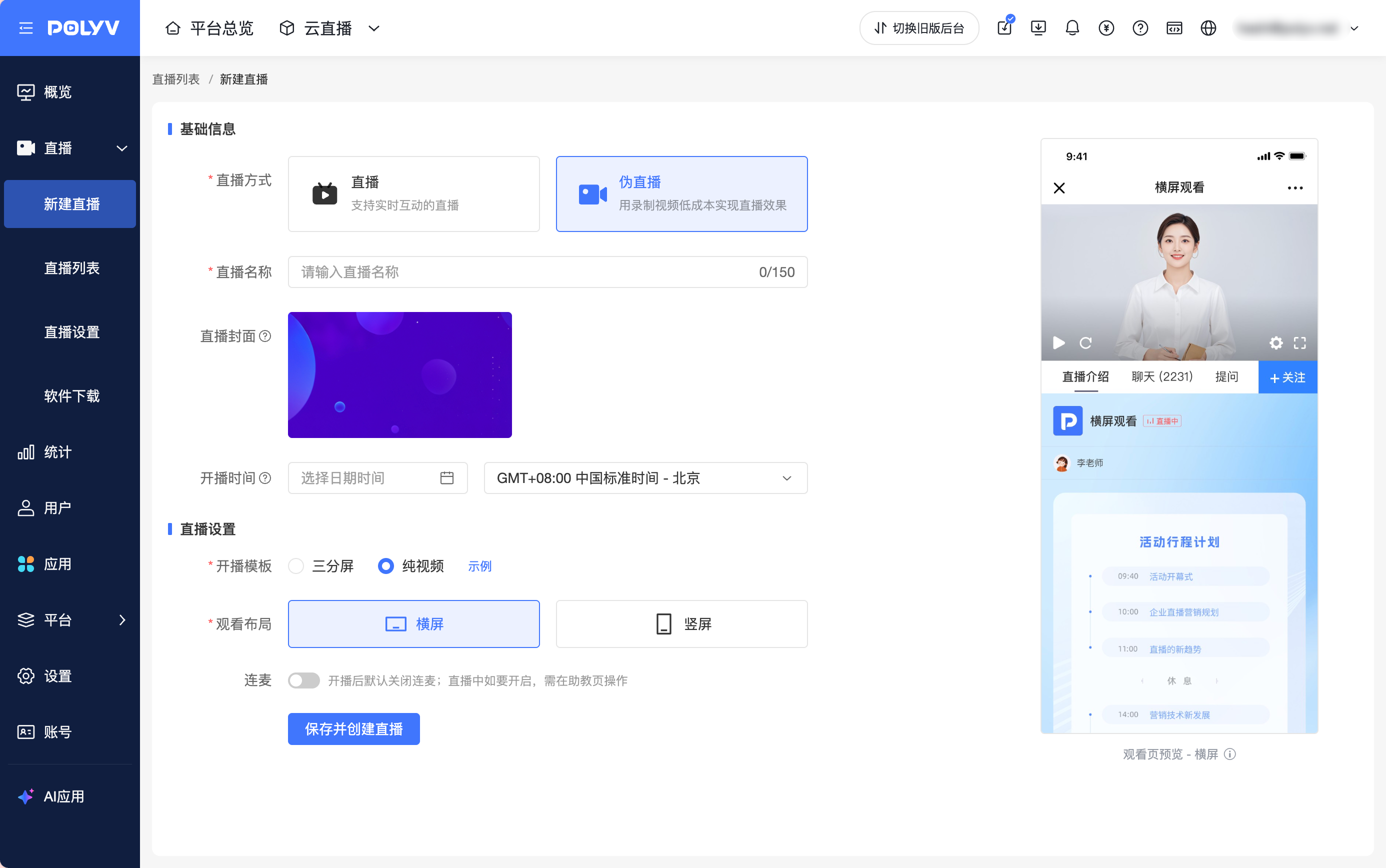
1. Create a Pseudo-Live Channel
First, create a pseudo-live channel and configure the basic channel information.
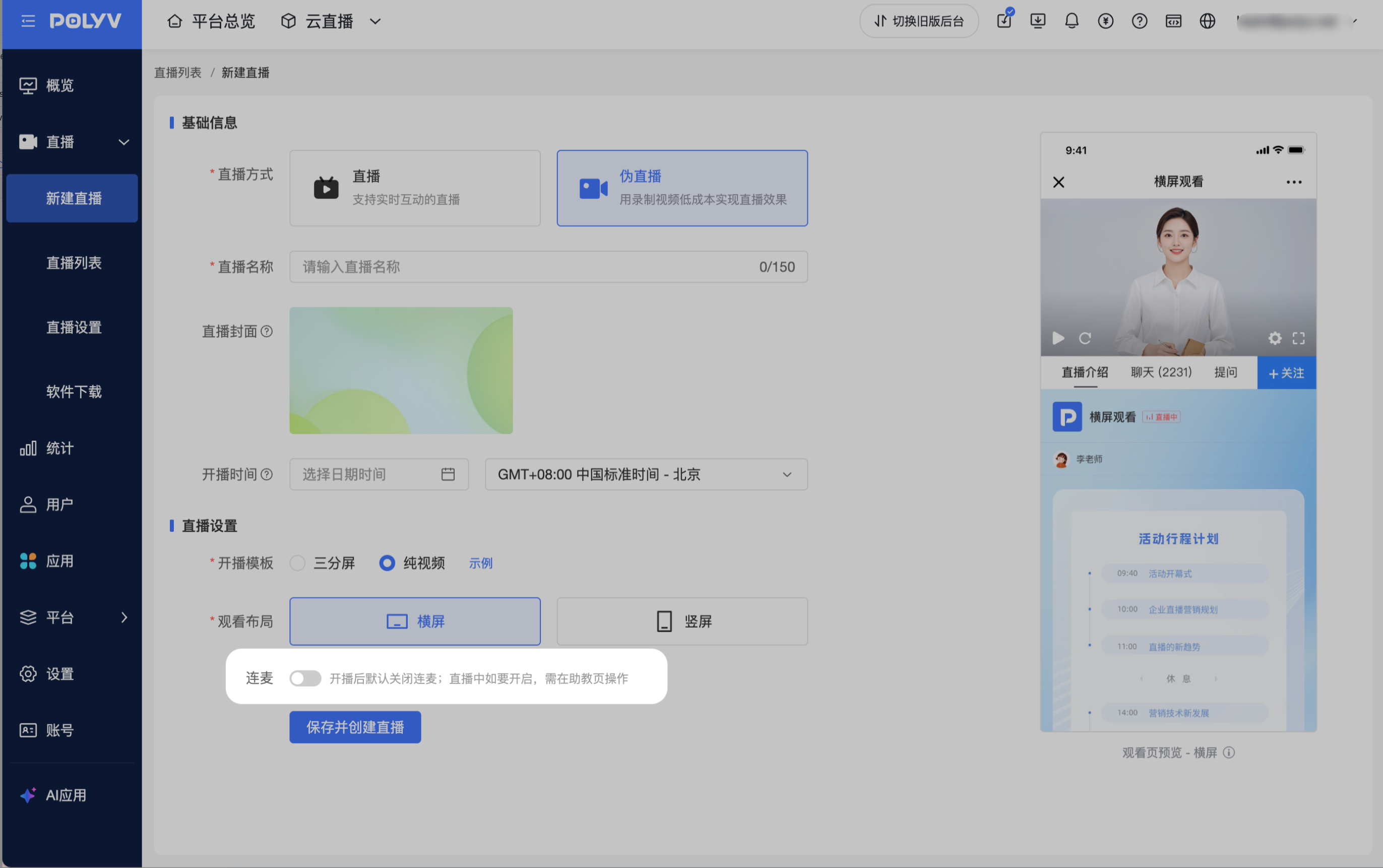
2. Enable Co-Streaming
When enabled, a co-streaming button will appear on the viewer side, but actual co-streaming is not supported. This feature is mainly used to simulate the effect of a co-streaming scenario in a live room.
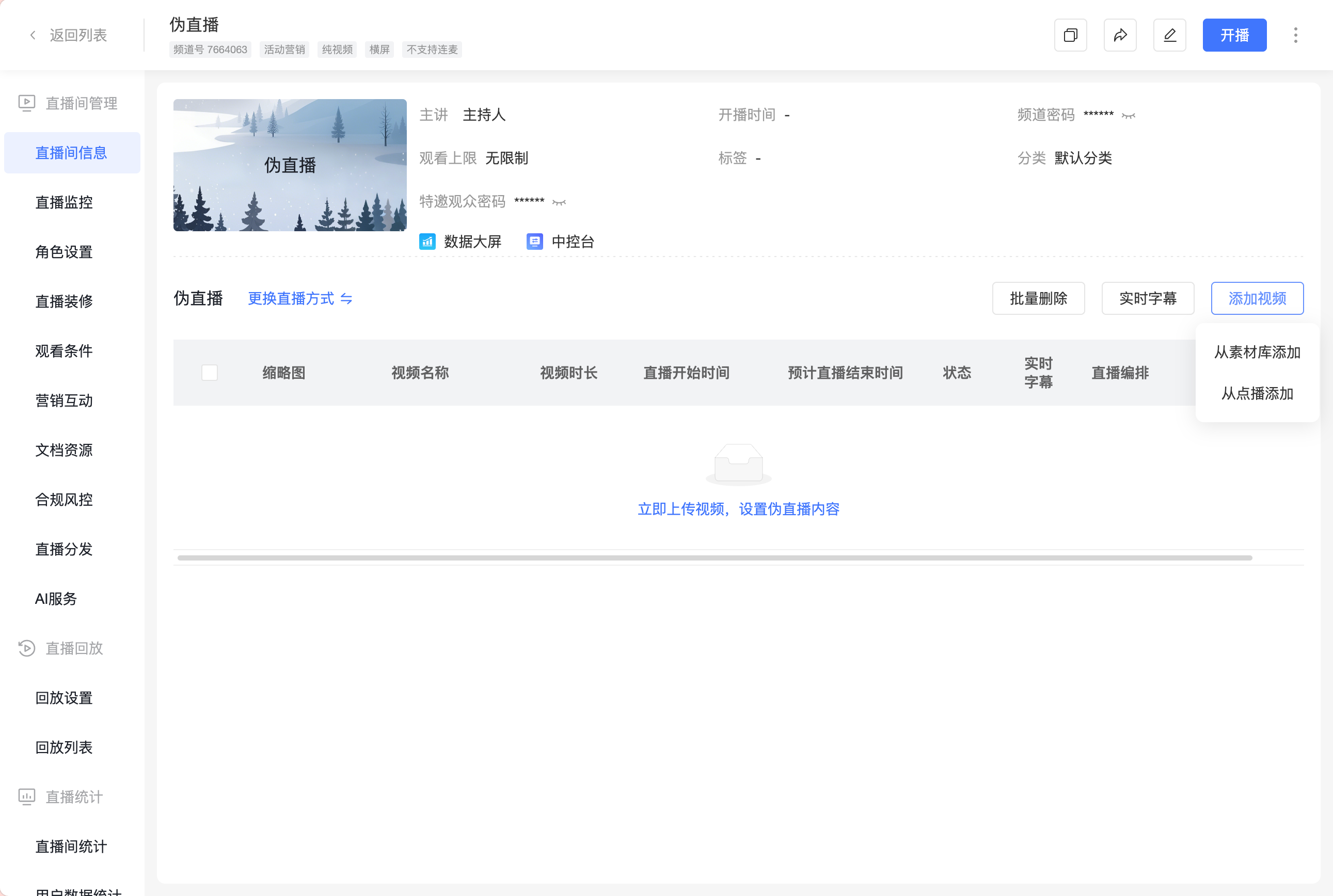
3. Add Pseudo-Live Videos
Depending on your account capabilities, you can add videos from the Media Library or Cloud VOD.
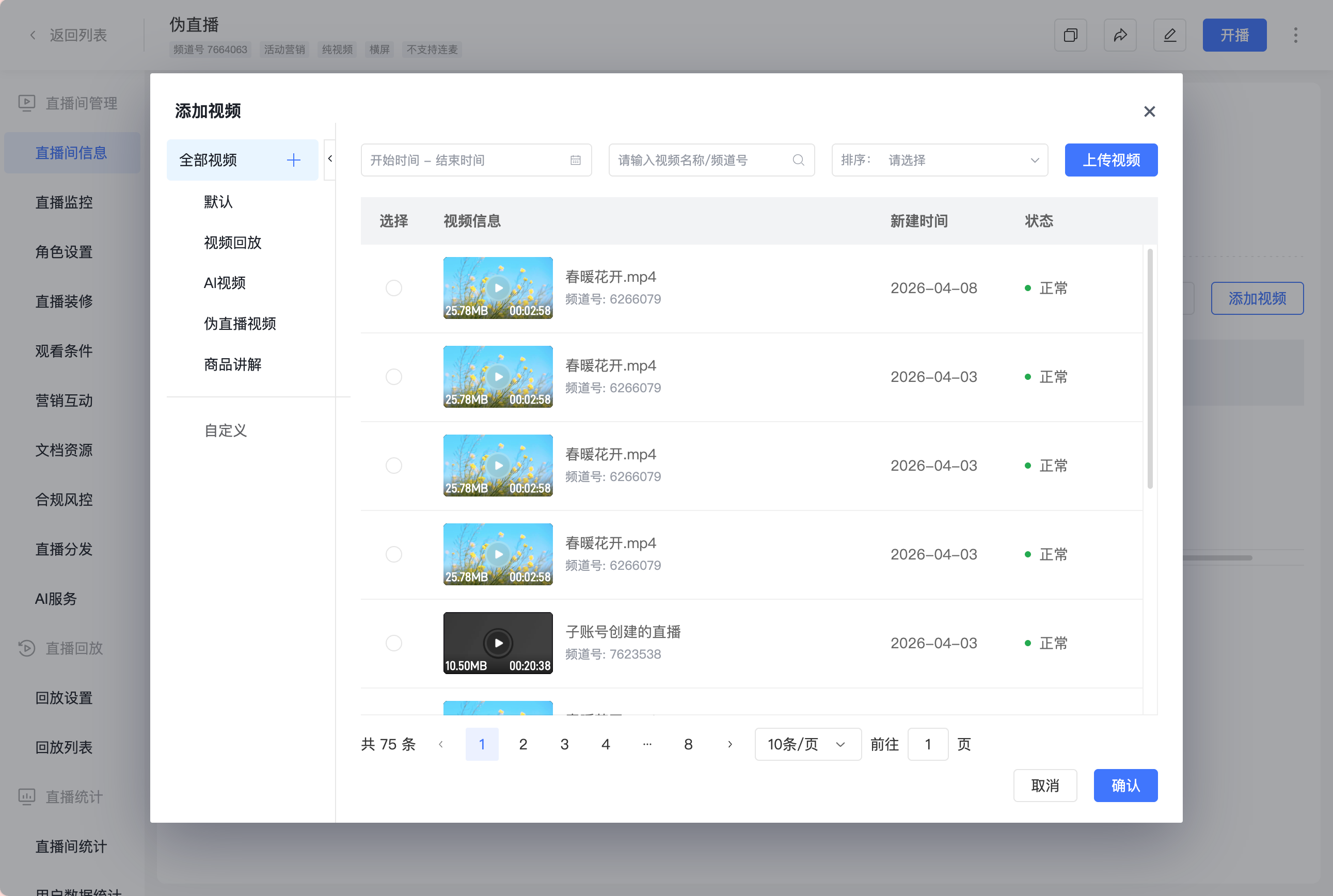
Method 1: Add from Media Library
You can select a video from the Media Library, or upload a local video to the Media Library first and then add it.
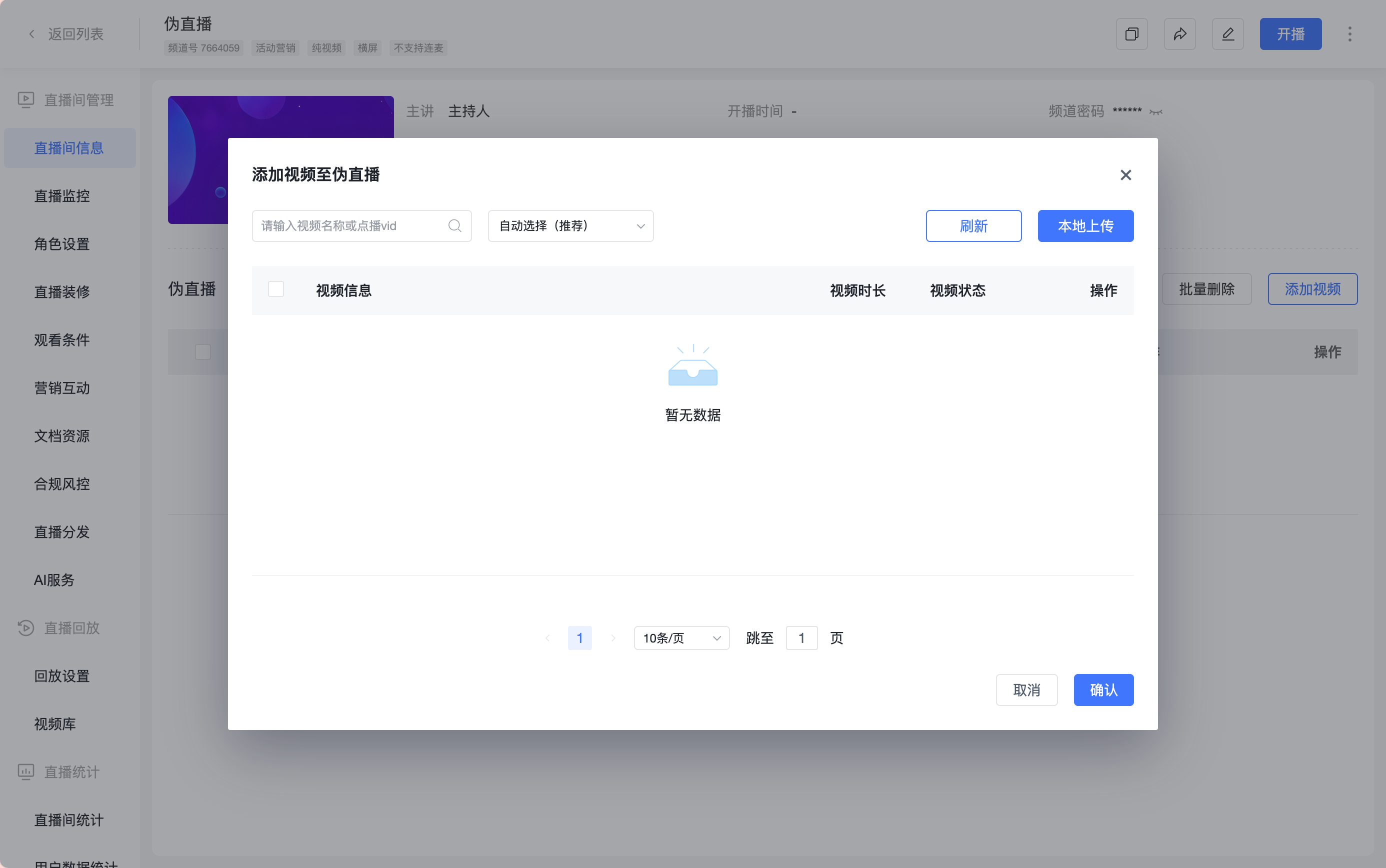
Method 2: Add from Cloud VOD
Supports uploading local videos or searching for VOD videos to add, but does not support adding encrypted videos or source file videos.
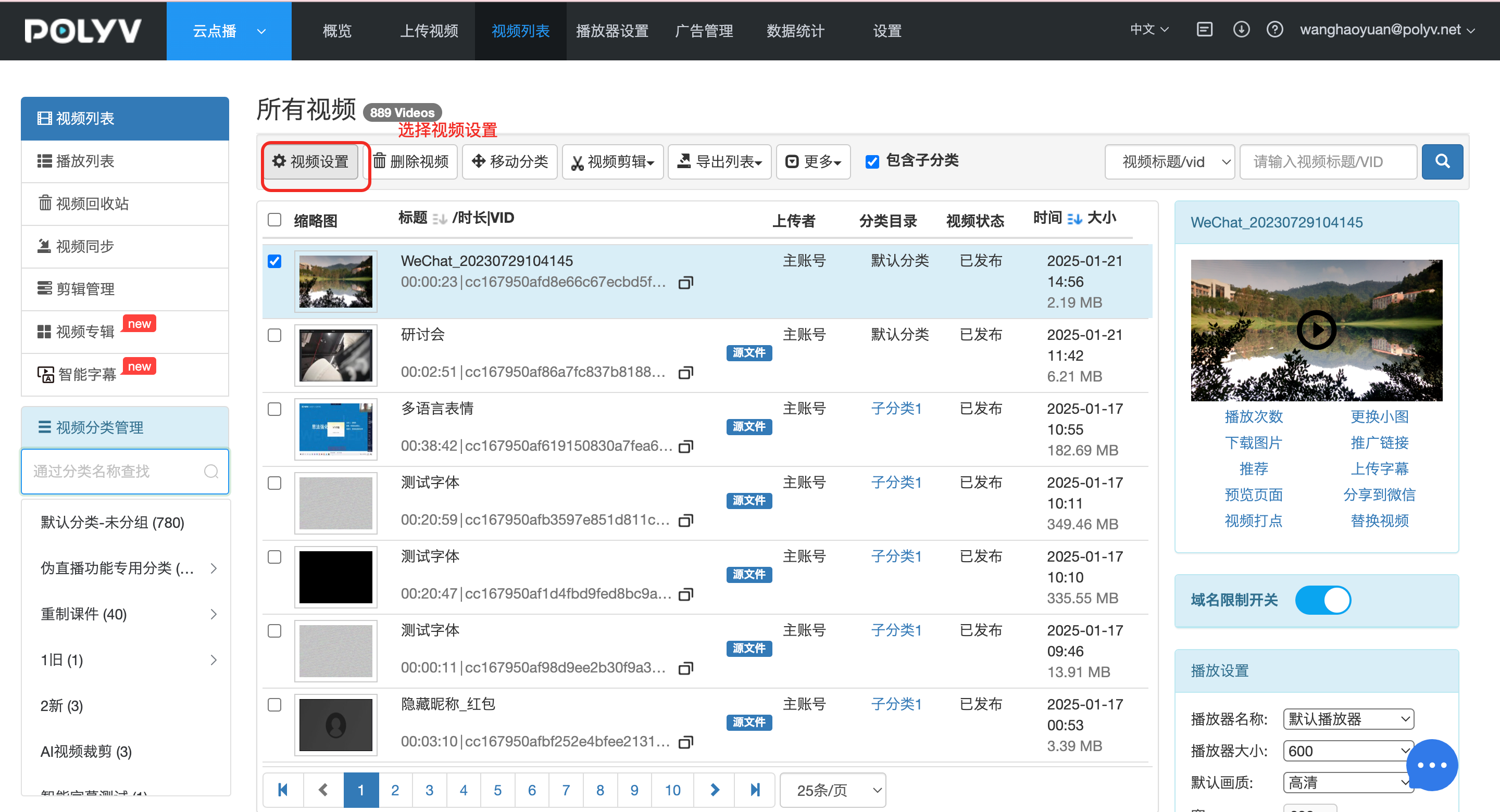
If you want the corresponding video to appear directly in the list without manual searching, you can first set a tag for the video on the VOD platform.
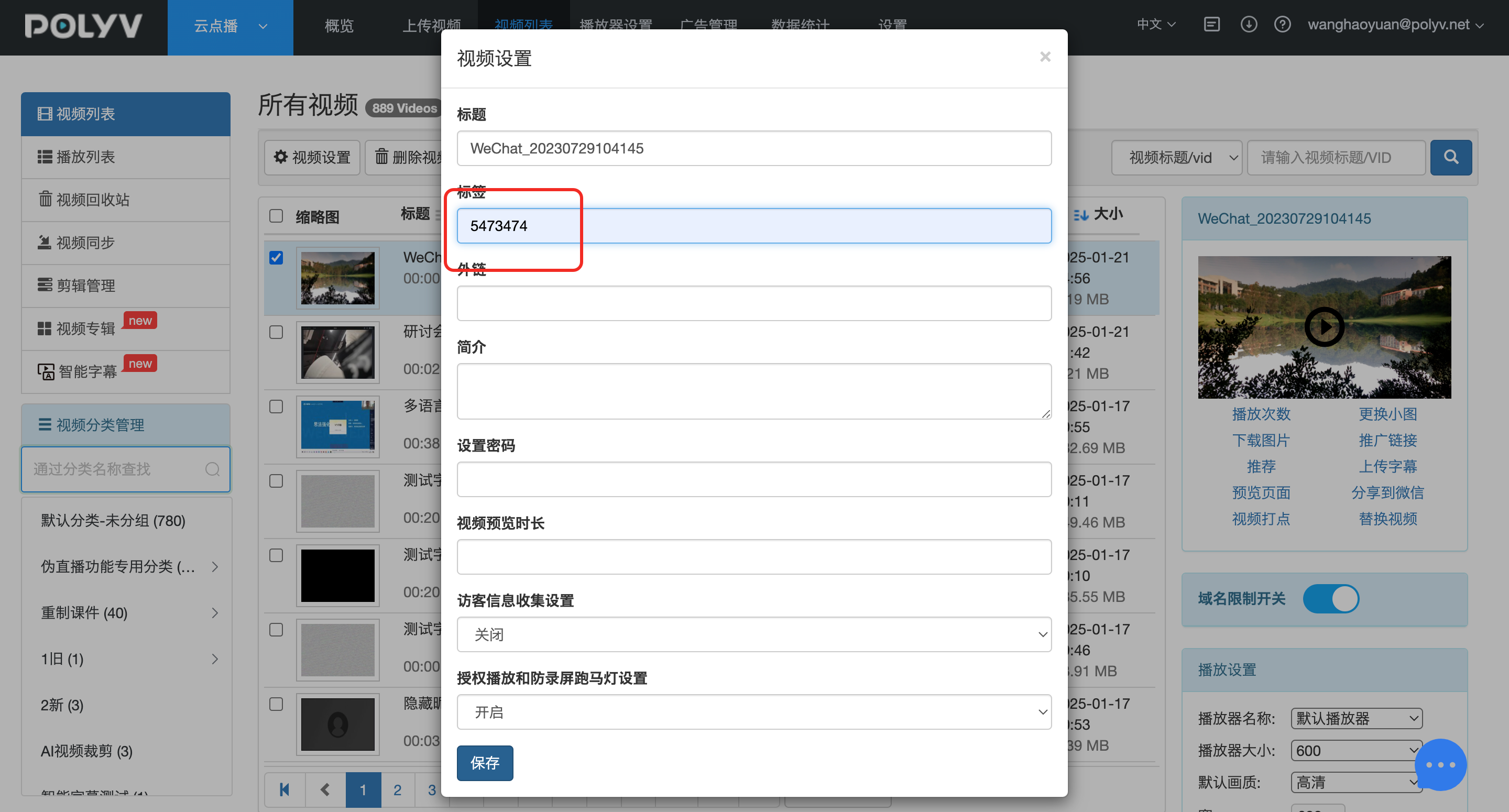
Set the "Tag" to the corresponding channel ID; if you need to configure multiple channels, use English commas to separate multiple channel IDs.
After the setup is complete, you can view the corresponding video in the "Pseudo-Live Channel - List". If it does not appear, click the refresh button.
4. Set the Broadcast Time
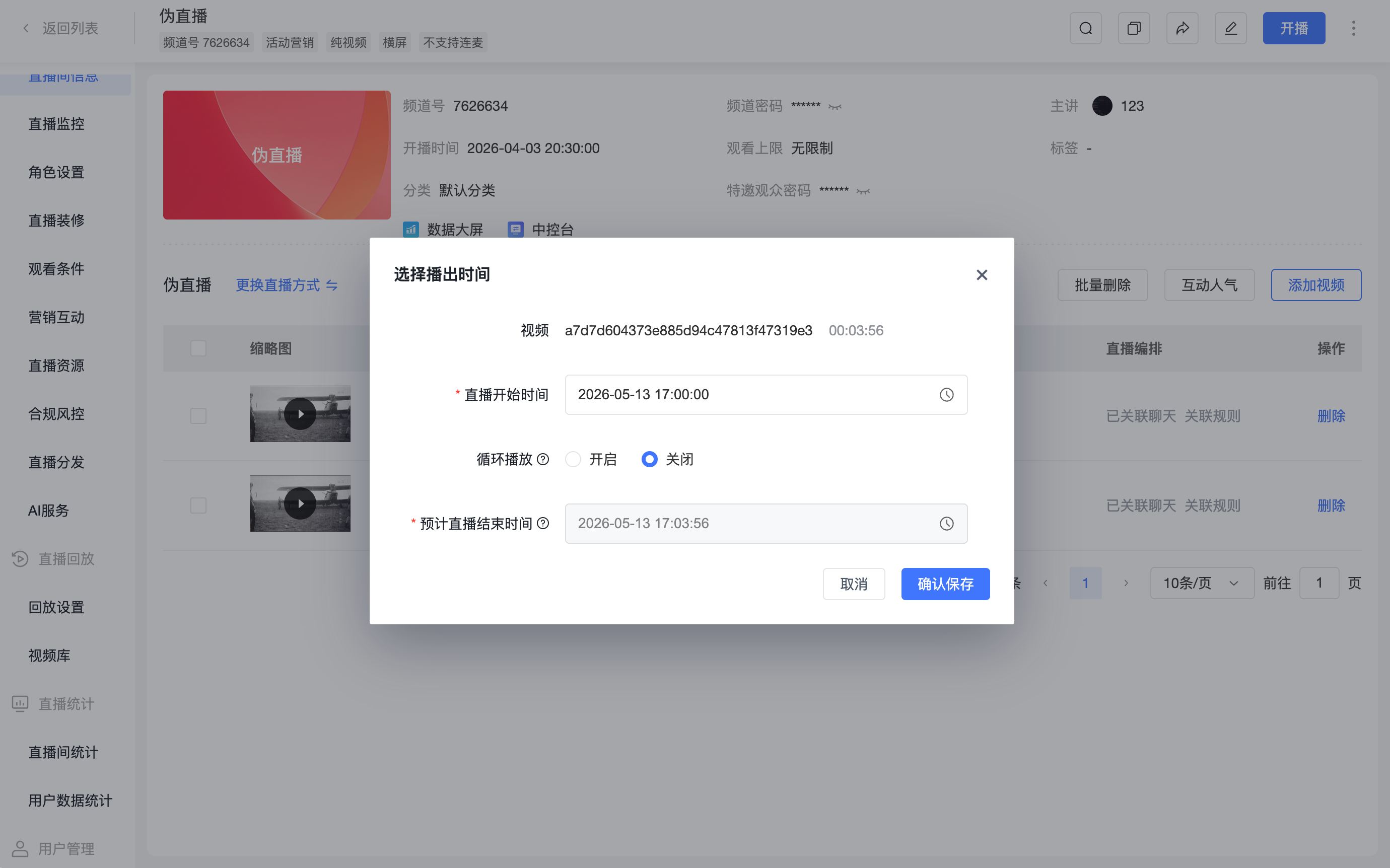
After adding a video, you can set the broadcast time for the video in the video list.
In the broadcast time selection popup, you need to complete the following settings:
| Setting Item | Description |
|---|---|
| Live Start Time | Set the time when this video will start broadcasting. |
| Loop Playback (Contact Sales to Enable) | Can be turned on or off. When enabled, the video will loop according to the set start and end times. When disabled, the video will play only once for its original duration. |
| Estimated Live End Time | When the loop playback switch is on, you need to manually select the live end time. When the loop playback switch is off, the system will automatically calculate based on the live start time and video duration to confirm the estimated end time for this video segment. |
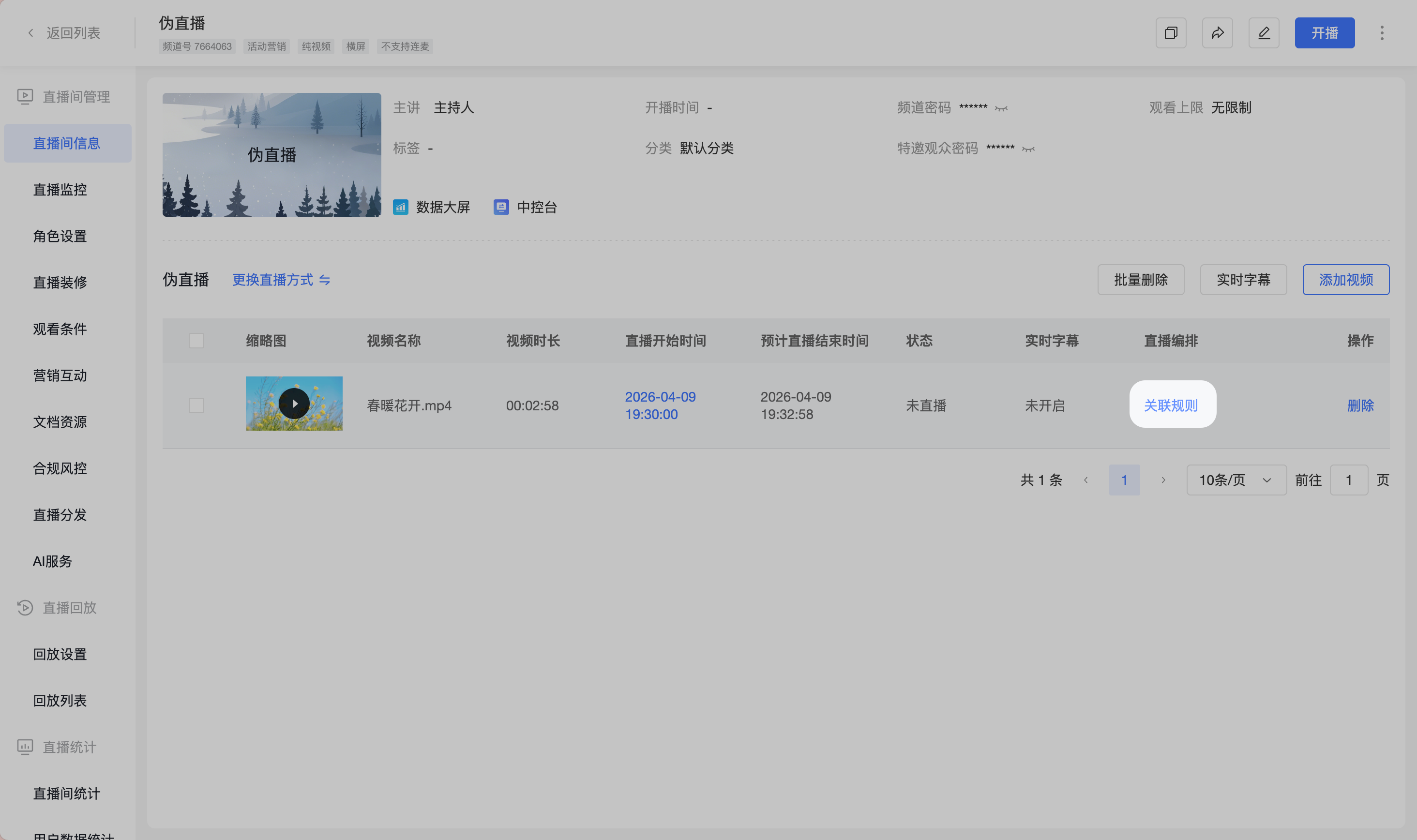
5. Set Live Stream Scheduling
Complete the scheduling settings based on the live content arrangement. Help document: https://help.polyv.net/index.html#/live/product/live_bgm/atmosphere_assistant
6. Wait for Broadcast
After completing all settings, simply wait for the live room to start broadcasting at the preset time.
3. Important Notes
- If the live room has viewing permissions set, viewers must enter the correct verification information to access it.
- During pseudo-live playback, it is not recommended to use OBS for streaming or to enter the broadcasting end to start a broadcast.
- Currently, the adaptation of VOD video encoding formats for pseudo-live streaming may still have anomalies. It is recommended to prioritize using the "Local Upload" method to add videos.
4. FAQ
1. Does pseudo-live streaming support adding encrypted videos?
No.
2. Does pseudo-live streaming support adding m3u8 videos?
No.
3. What should I do if I get a "video format error" when setting up pseudo-live streaming?
This error usually indicates that the video format does not meet the requirements. m3u8 videos cannot be used. If you are using videos related to three-screen live streaming, it may be because the courseware has not been remastered, and directly using videos from the replay list for pseudo-live streaming causes a video format incompatibility.
