Client Teleprompter
Updated: 2026-08-17 11:27:00
I. Feature Overview
Feature Info |
Description |
|---|---|
| Feature Name | Client Teleprompter |
| Feature Description | A teleprompter is an auxiliary tool that helps people speak fluently and avoid forgetting lines in scenarios such as speeches, hosting, and video recording. |
| Purpose | Helps speakers or performers avoid forgetting lines, ensures accurate and complete content with smooth and natural delivery, thereby improving overall performance quality. |
| Usage Scenarios | Example: The teleprompter feature of the Polyv live streaming client is suitable for live teaching, premium course recording, live commerce, and other scenarios requiring cueing. |
II. Feature Overview
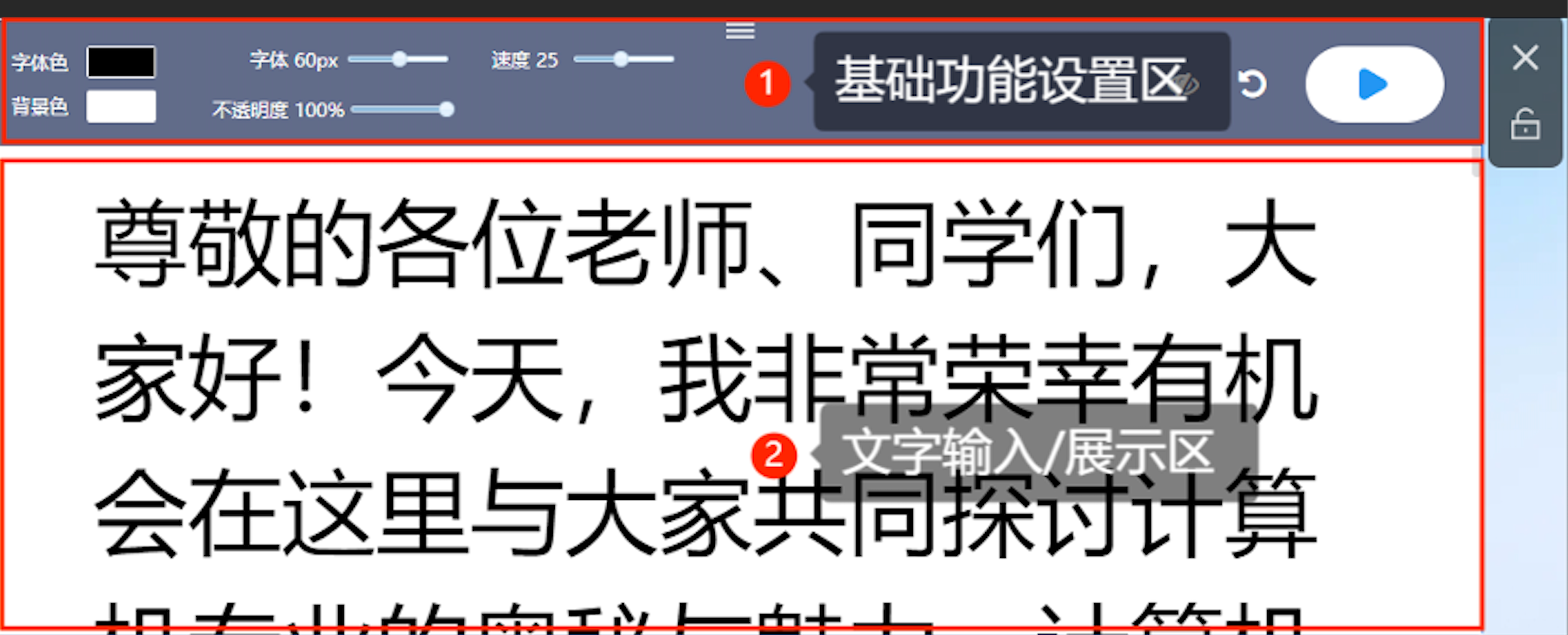
1. Basic Function Settings Area
- Font Color: Text color, can be set via color picker or RGB values.
- Background Color: Background color behind the text, can be set via color picker or RGB values.
- Font: Adjust text/font size.
- Opacity: Opacity of the teleprompter software.
- Speed: Scrolling speed of the cue text.
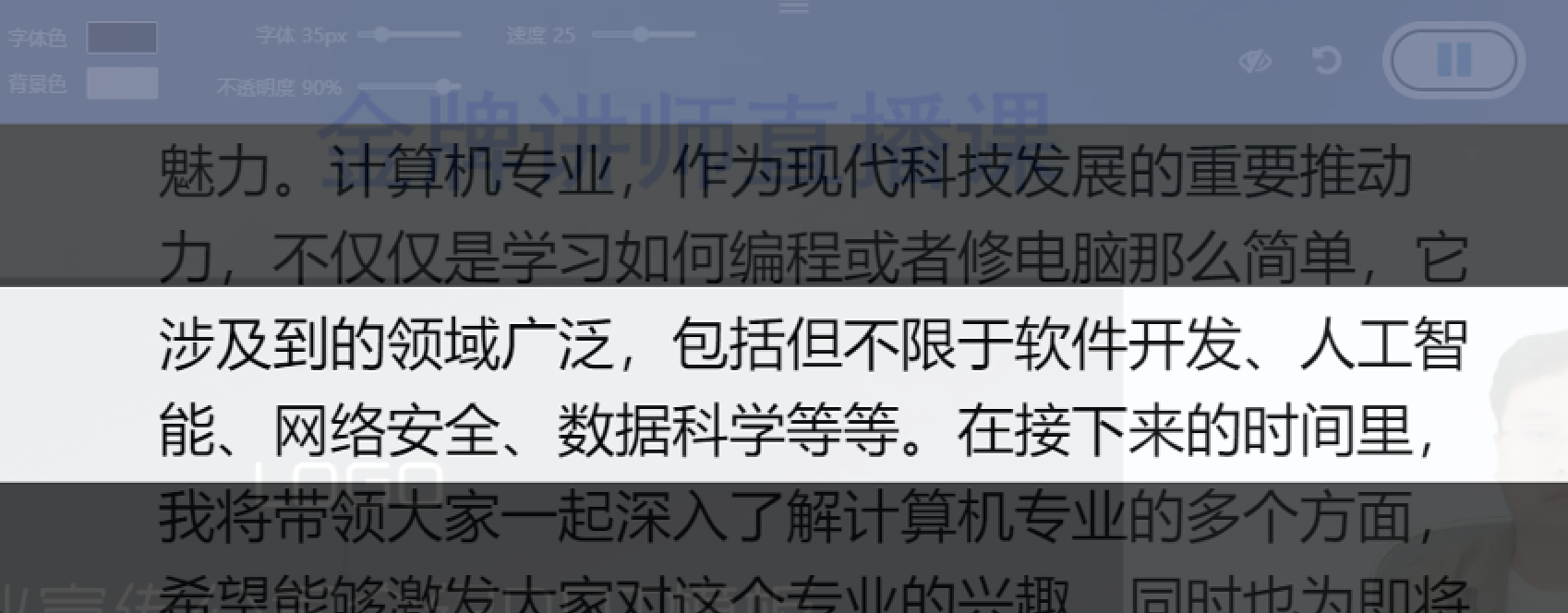
- Text Mask: The effect after enabling the text mask feature is shown in the image below.
- Replay: Click to replay the cue text from the beginning.
- Close: Click to close the teleprompter.
- Lock: When locked, the teleprompter buttons cannot be controlled (Windows only).
2. Text Input/Display Area
- Enter text content here.
- Cue text scrolls and displays here.
III. Usage Process
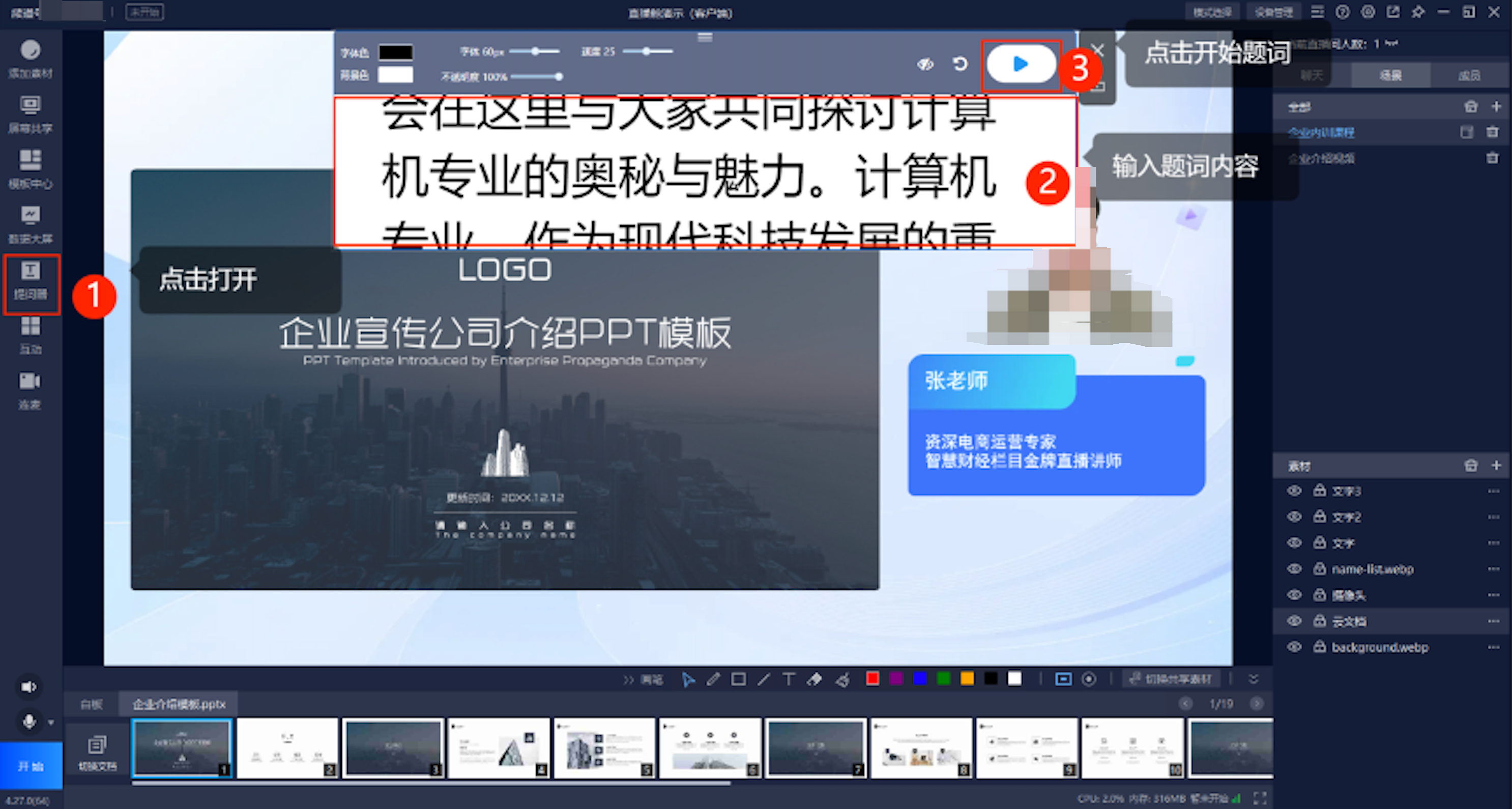
- After configuring the relevant live streaming materials, click the teleprompter button on the left side of the client.
- Enter or copy and paste the required text content from a prepared document into the teleprompter (use Ctrl+Shift+V for paste, Windows only).
- Click the Start button to begin use.
IV. Usage Notes
- To copy and paste text content from an external document: On Windows, use the shortcut "Ctrl+Shift+V" when pasting; on Mac, copy and paste the document into another input box first, then copy and paste it into the teleprompter.
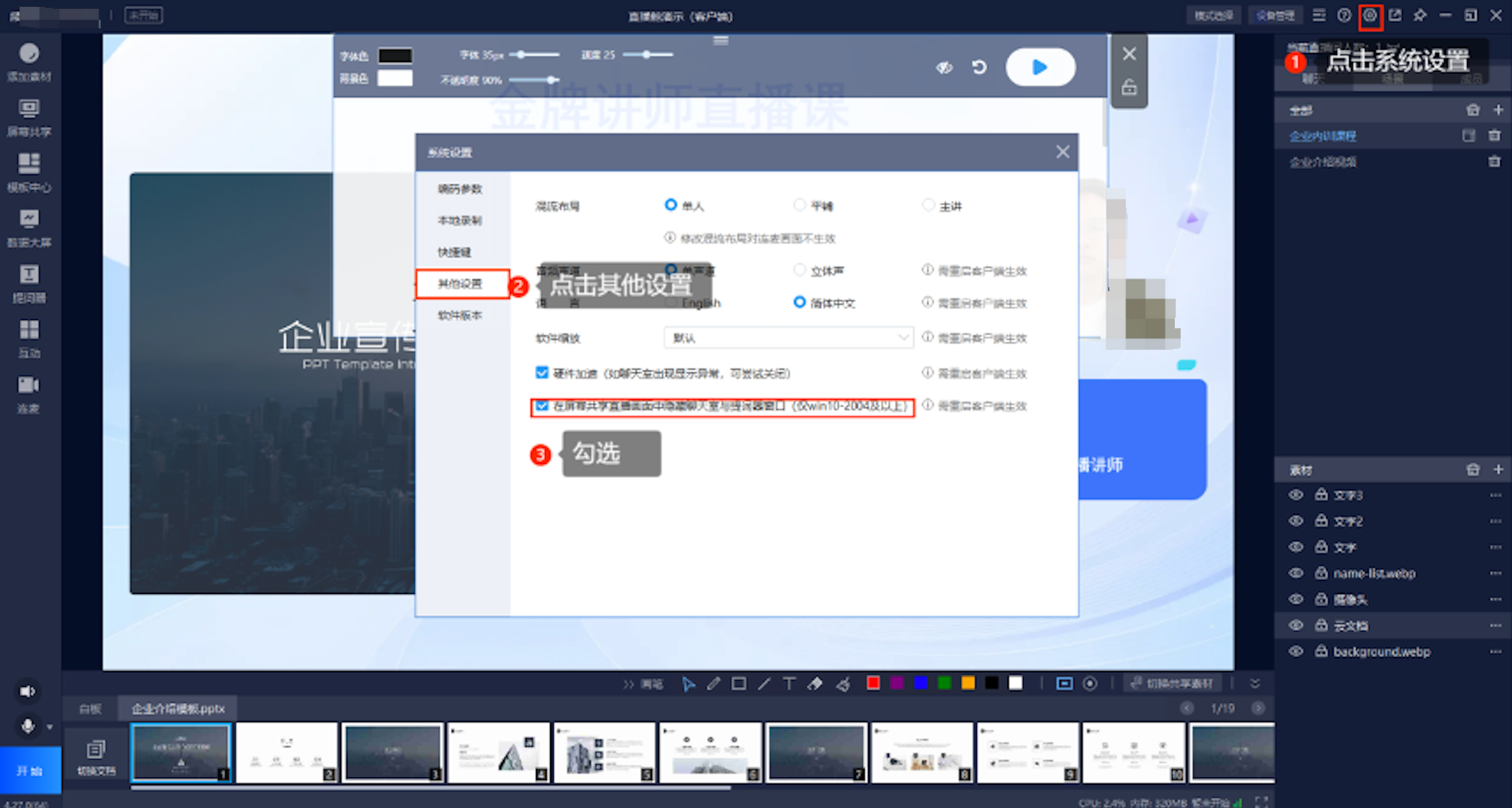
- It is recommended to check "Hide chat room and teleprompter window in screen-shared live stream" in [System Settings]. This feature prevents the teleprompter content from being broadcast/recorded in the video during screen sharing.