Survey Collection
Feature Description
Survey Collection is used to initiate questionnaires or collect feedback during a live stream. It is suitable for scenarios such as after-class feedback, satisfaction surveys, registration information collection, and instructor evaluations.
Applicable Scope
Applicable to the web broadcast start page, PC assistant page, and console.
Creating a New Survey
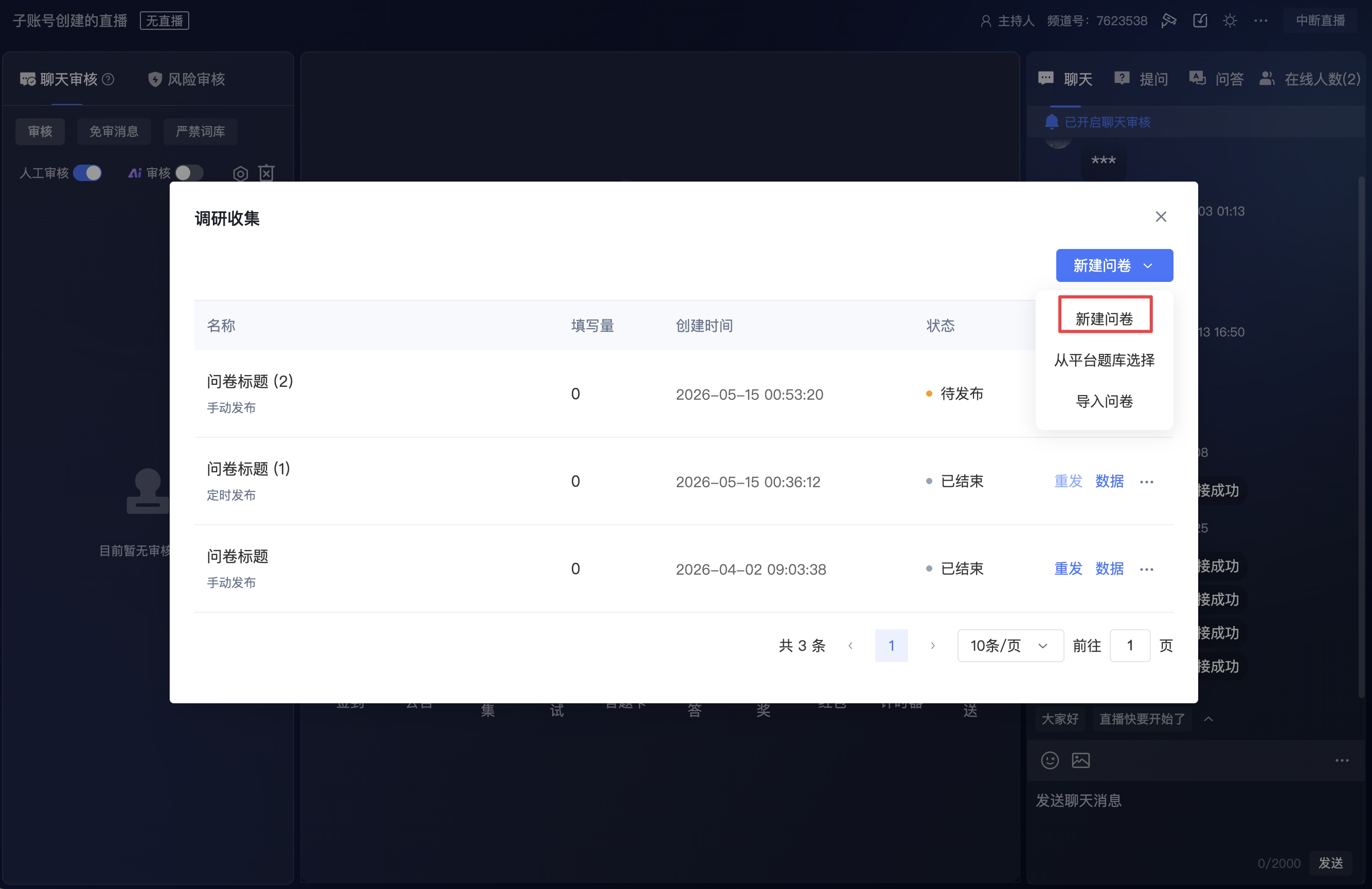
When creating a survey questionnaire, you can manually create a new one, select from the platform question bank, or import a questionnaire from your local device.
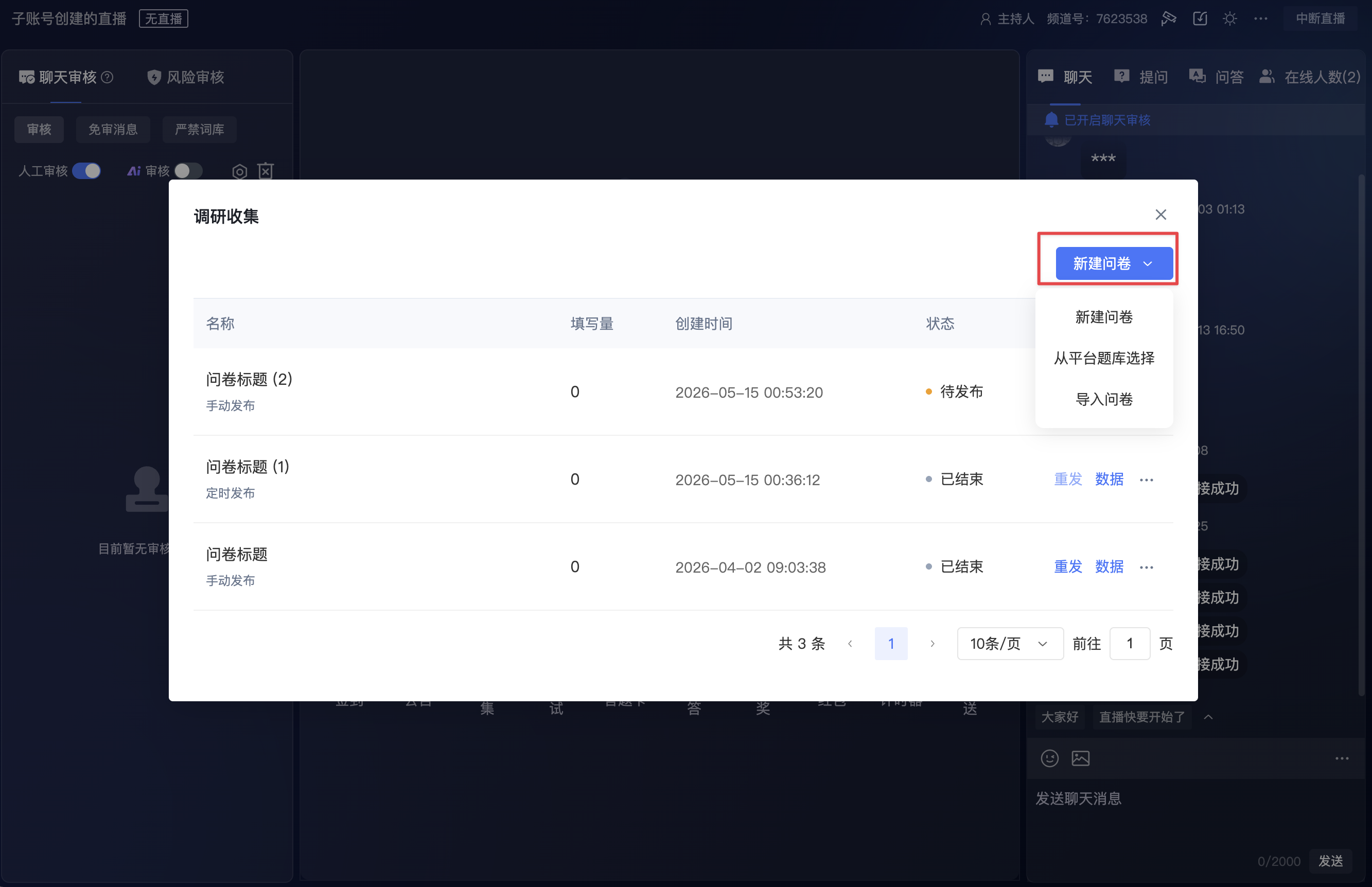
Creation Process
Click New Survey to enter the survey editing page.
Select the type of content to add from the question types.
- Supported Question Types
Question Type Description Single Choice The audience selects one answer from multiple options. Multiple Choice The audience can select multiple answers. Star Rating The audience evaluates using a star rating. Q&A The audience fills in text feedback. True/False The audience selects an answer from judgment items. Privacy Agreement Used to display or confirm privacy agreement content. Your Name Used to collect the audience's name information. Instructor Evaluation Used to collect evaluations of the instructor. Other Suggestions Used to collect supplementary opinions or suggestions.
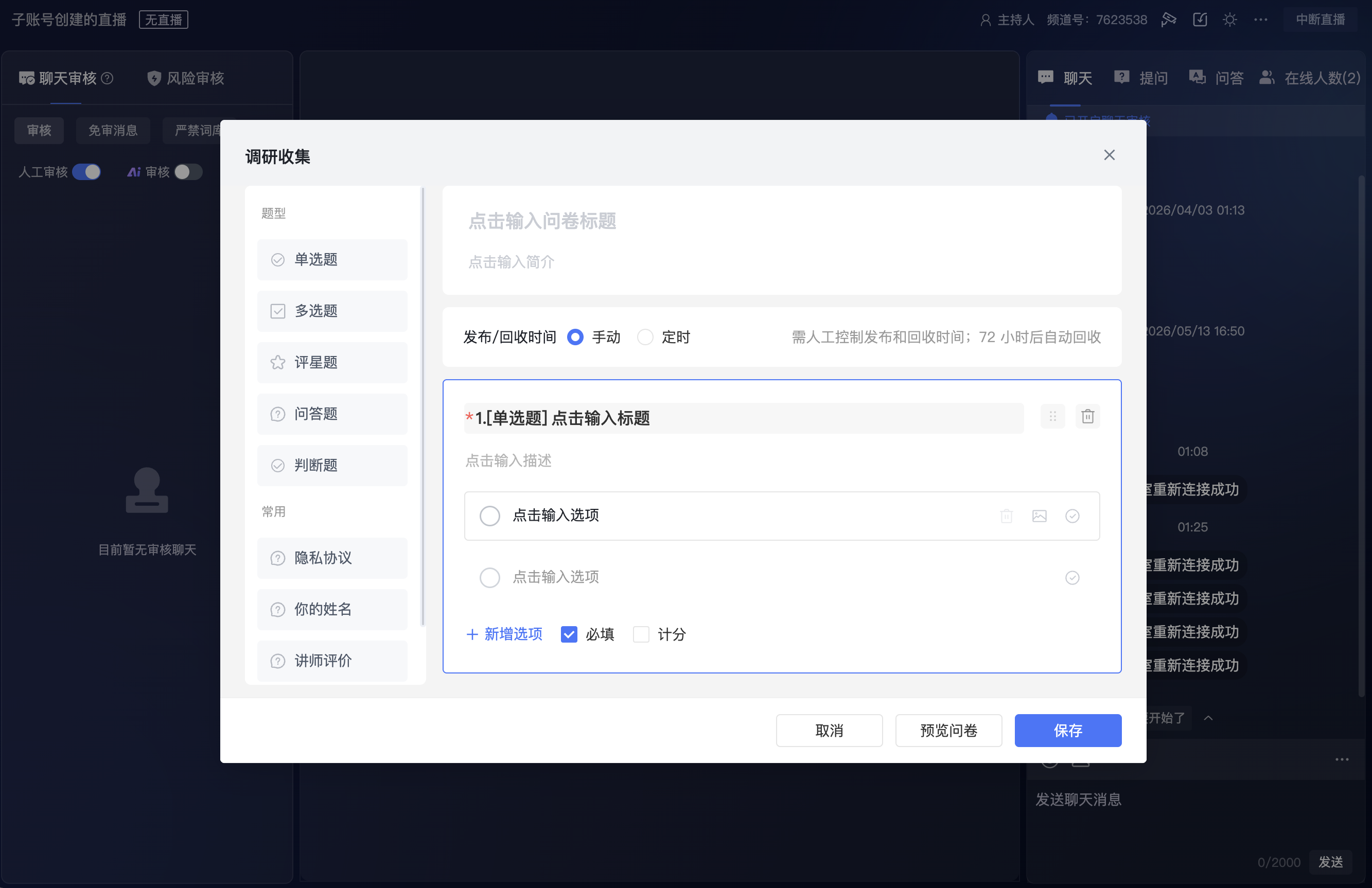
- Fill in or confirm the question content, and supplement options or descriptions according to the question type.
- Question Configuration
| Configuration Item | Description |
|---|---|
| Question Title | Required, used to fill in the question name. |
| Question Description | Used to supplement the question explanation. |
| Option Content | Required for single-choice, multiple-choice, and true/false questions. |
| Correct Answer | Can be set for single-choice, multiple-choice, and true/false questions. |
| Required | When enabled, the audience must complete this question before submitting. |
- For question types involving options, a maximum of 20 options is supported; questions and options support text content within 1000 characters.
Selecting from the Platform Question Bank
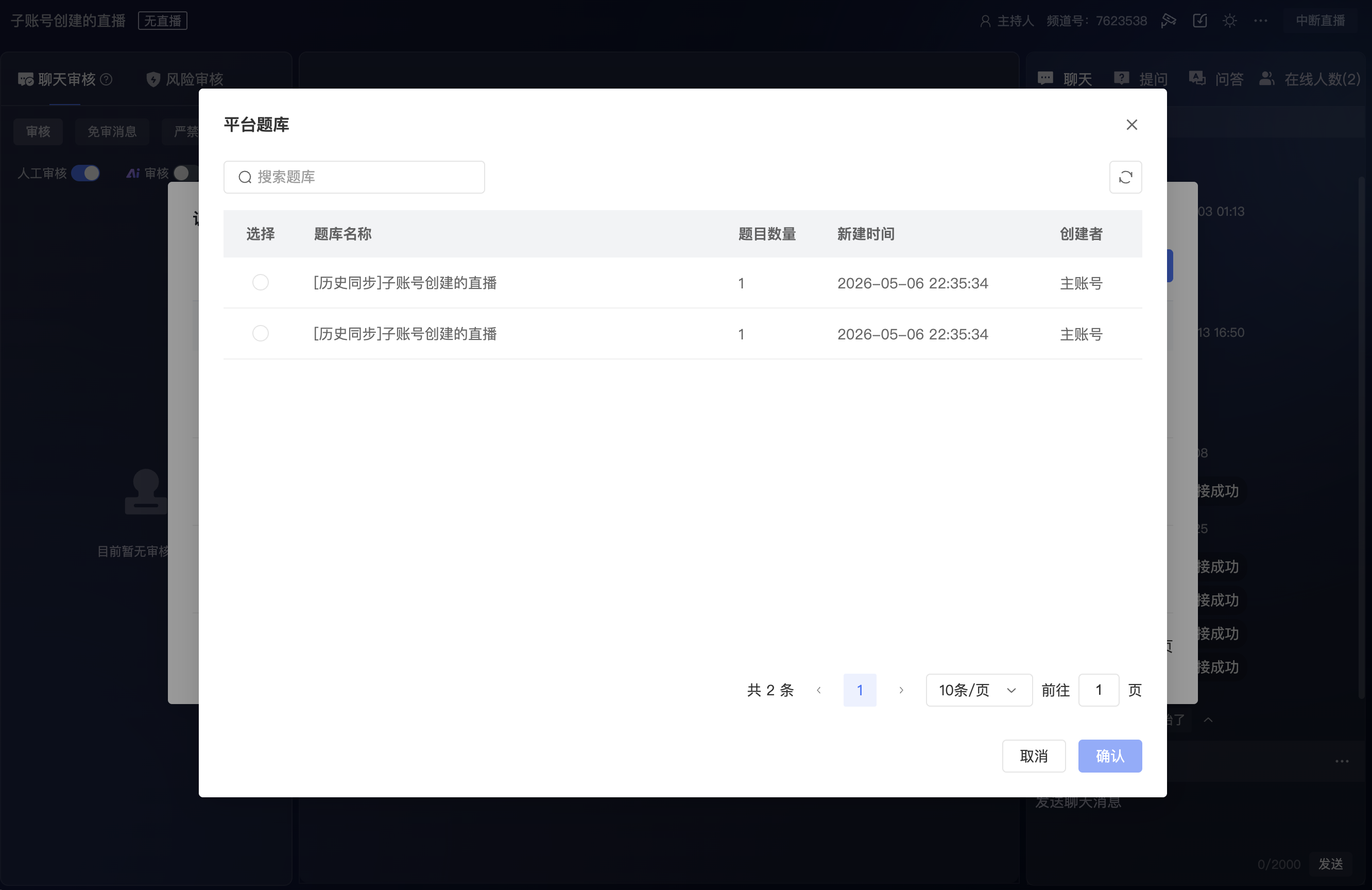
Click Platform Question Bank to open the platform question bank window and select questions from the existing question bank.
The platform question bank window supports the following operations:
| Operation | Description |
|---|---|
| Search Question Bank | Search the platform question bank by question bank name. |
| Refresh List | Refresh the current question bank list. |
| Select Question Bank | Check the question bank to be used. |
| Confirm | After confirming the selection, use the questions from the question bank for the current survey. |
| Cancel | Close the window without selecting a question bank. |
The platform question bank list displays the following information:
| Field | Description |
|---|---|
| Question Bank Name | Displays the platform question bank name. |
| Number of Questions | Displays the number of questions in the question bank. |
| Creation Time | Displays the creation time of the question bank. |
| Creator | Displays the account that created the question bank. |
Importing a Questionnaire from Local Device
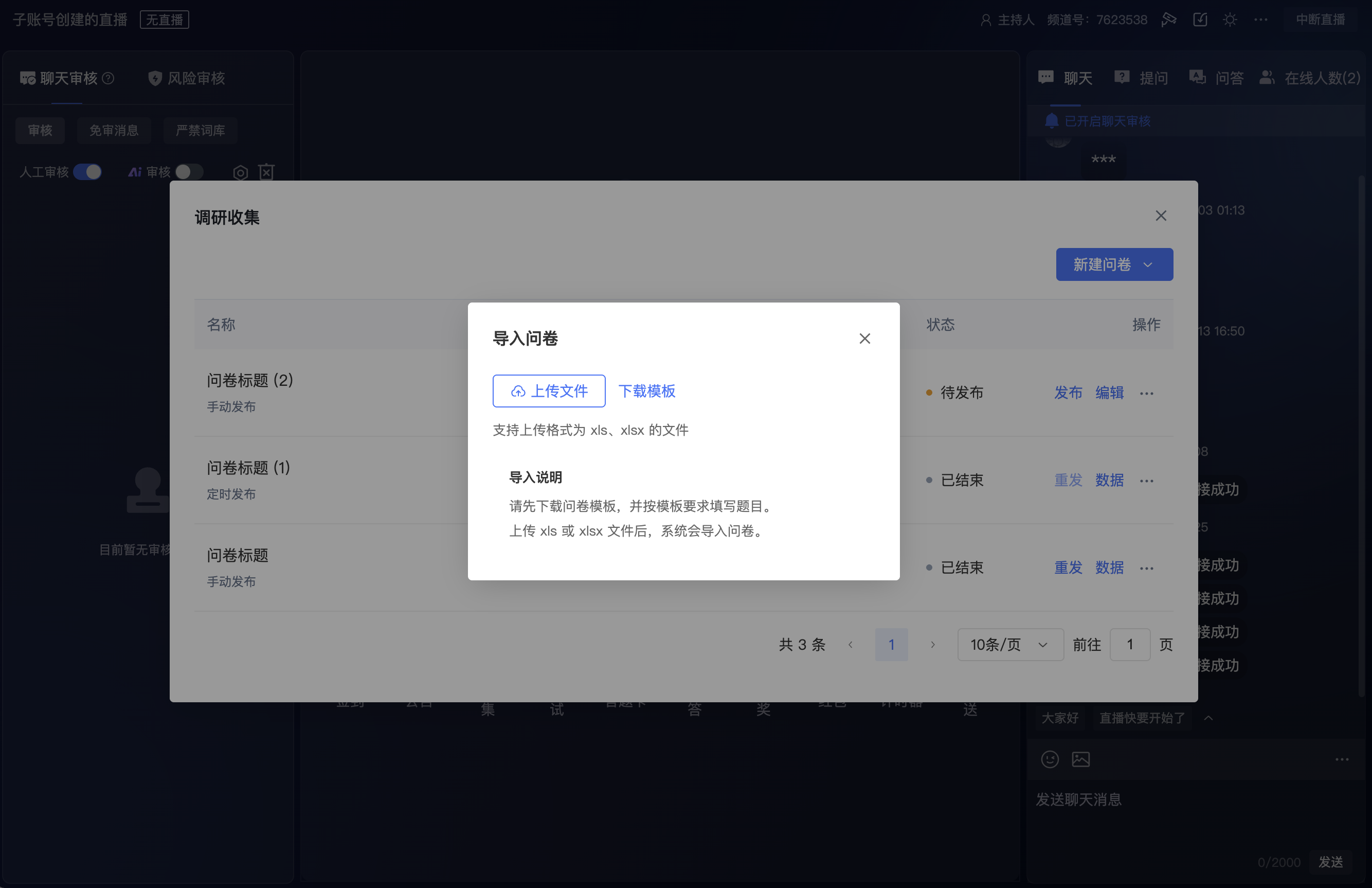
Click Import Questionnaire to import question bank content from your local device for the current survey.
Publishing a Survey
Publishing Methods
Survey Collection supports manual publishing, as well as scheduled publishing and scheduled collection.
| Publishing Method | Description |
|---|---|
| Manual Publishing | After the survey is created, it enters the Pending state. Collection begins when the administrator clicks Publish. |
| Scheduled Publishing and Collection | After the survey is created, it is automatically published at the set time and automatically ends when the collection time is reached. Before automatic publishing, you can also click Publish to publish it directly. |
Status and Operations
The main operations available vary depending on the publishing status:
| Status | Description | Main Operations |
|---|---|---|
| Pending | The survey has been created but not yet published to the audience. | Publish, Edit, Copy Survey, Preview Survey, Delete Survey |
| In Progress | The survey has been published, and the audience can participate and submit. | Stop, Edit, Copy Survey, Preview Survey |
| Ended | The survey has ended and no longer collects submissions. | Re-publish, Data, Copy Survey, Send Results, Export Data, Preview Survey, Delete Survey |
Data and Results
After the survey ends, click Data to view the survey data.
In the Ended status, you can also send results or export data through more operations.
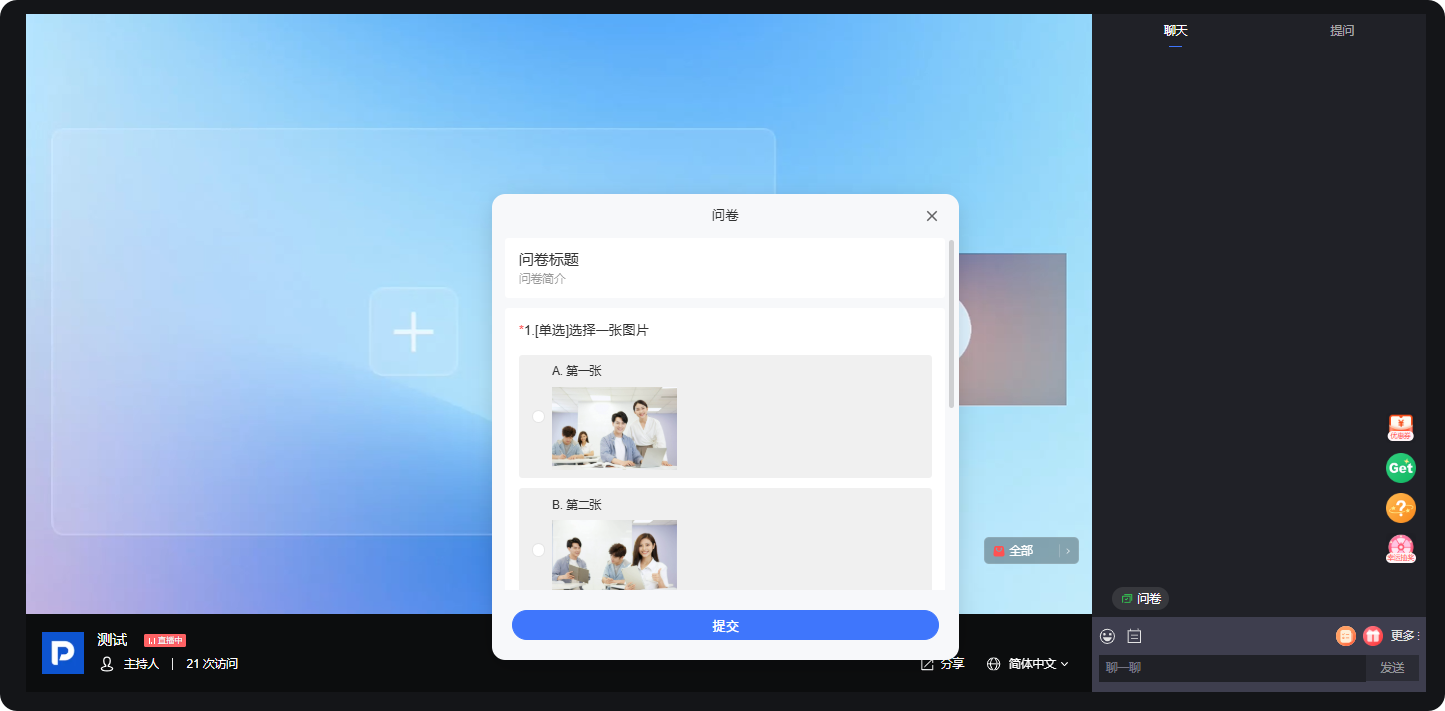
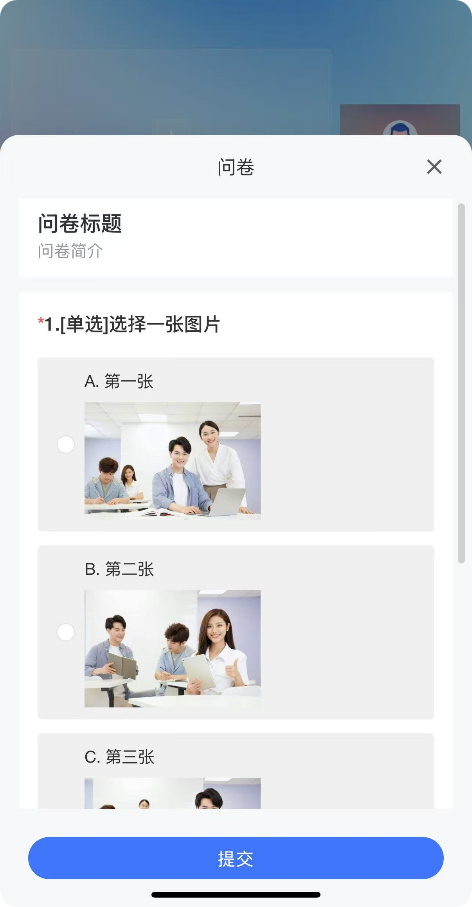
Viewer Page Display
PC viewer page display
Mobile viewer page display
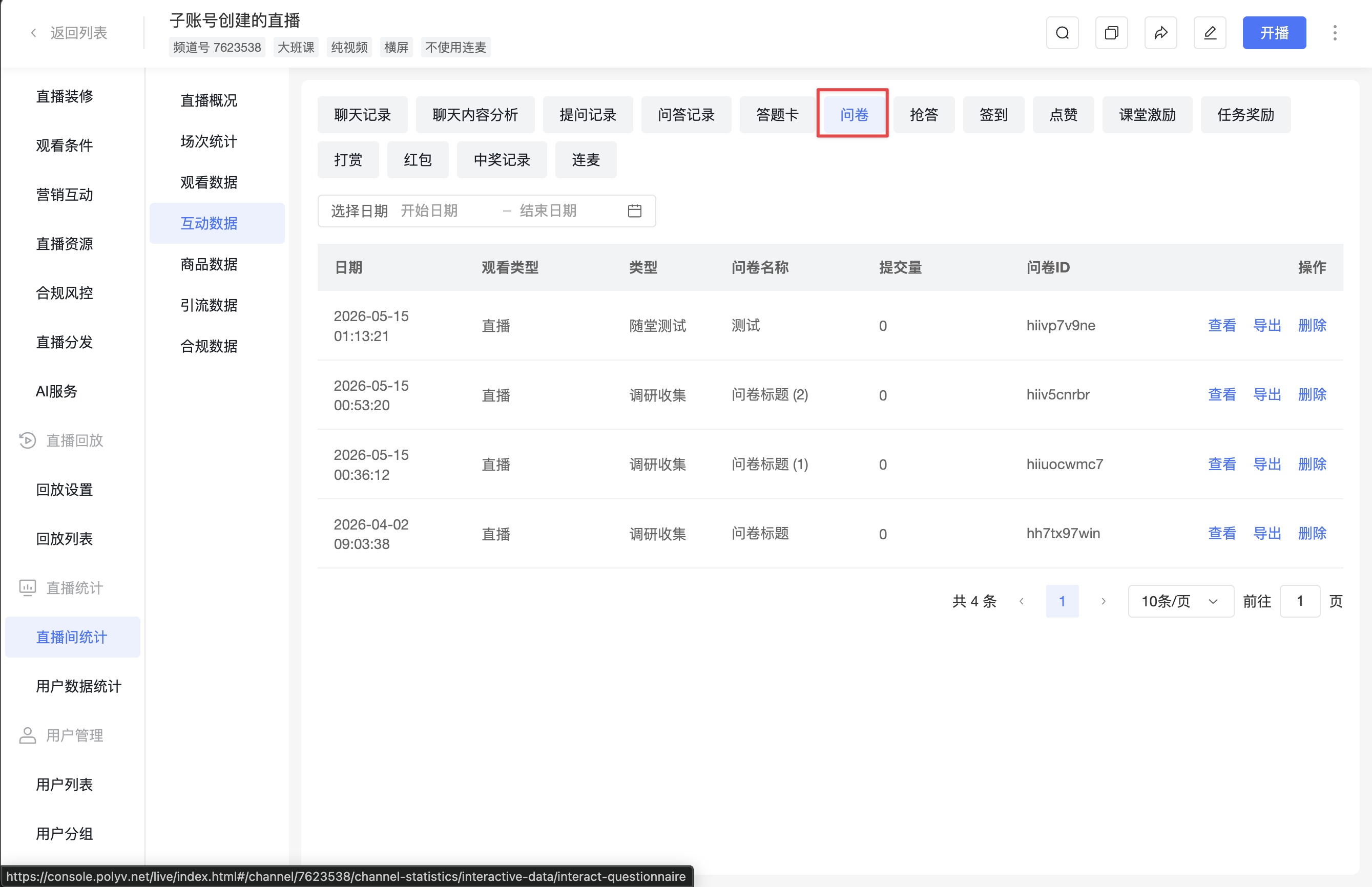
Viewing Data in the Live Stream Management Backend
Operation path: Live Stream Statistics > Interaction Data > Survey