


Question Bank Management
1. Feature Overview
| Feature Info | Description |
|---|---|
| Feature Name | Question Bank Management |
| Feature Description | Question Bank Management centralizes reusable questions. It supports manual entry of single-choice, multiple-choice, true/false, essay, and star rating questions, as well as importing questions from historical answer sheets, survey collections, and in-class exams. |
| Purpose | Centrally manage commonly used questions, reduce duplicate entry, and facilitate reuse in live interactions and quiz scenarios. |
| Use Cases | 1. Create New Question Bank: Manually enter a set of reusable questions. 2. Import Historical Questions: Import questions from historical answer sheets, survey collections, or in-class exams for later reuse. |
| Feature List | 1. List Management: Displays question bank name, question count, creation time, and creator. Supports search by question bank name and deletion confirmation. 2. Create New Question Bank: Supports entering basic question bank info and adding single-choice, multiple-choice, true/false, essay, and star rating questions. 3. Import Question Bank from Channel: Supports filtering by question source title or channel ID, and importing questions from historical survey or answer sheet type questions. |
2. Detailed Operation Guide
2.1 Question Bank List Management
Enter the admin console, select [Applications] - [Question Bank] from the left menu to view and manage question banks.
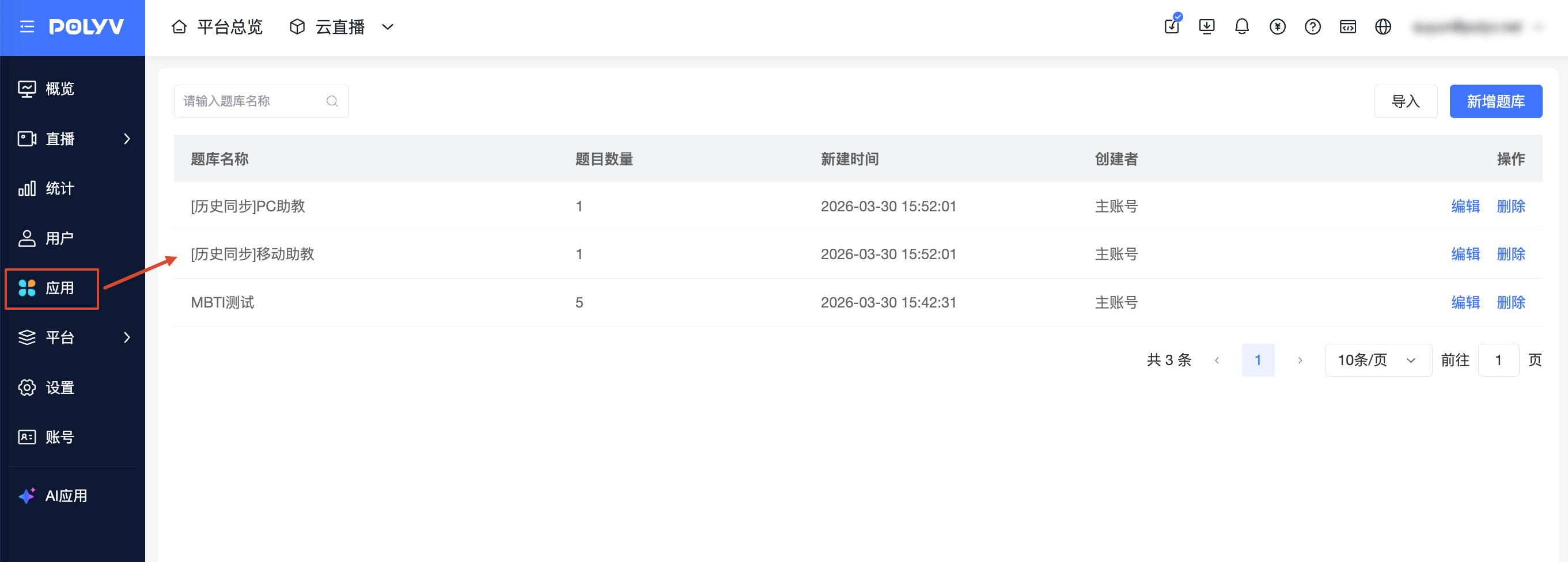
- Search Function: Enter a "question bank name" keyword in the search box and press "Enter" to perform a fuzzy search.
- Field Display: The list clearly shows the question bank name, question count, creation time, and creator.
- Operations:
- Edit: Click to enter the question editing page, allowing secondary modification of question content.
- Delete: Requires secondary confirmation before deletion to prevent accidental removal.
2.2 Manual Entry (Create New Question Bank)
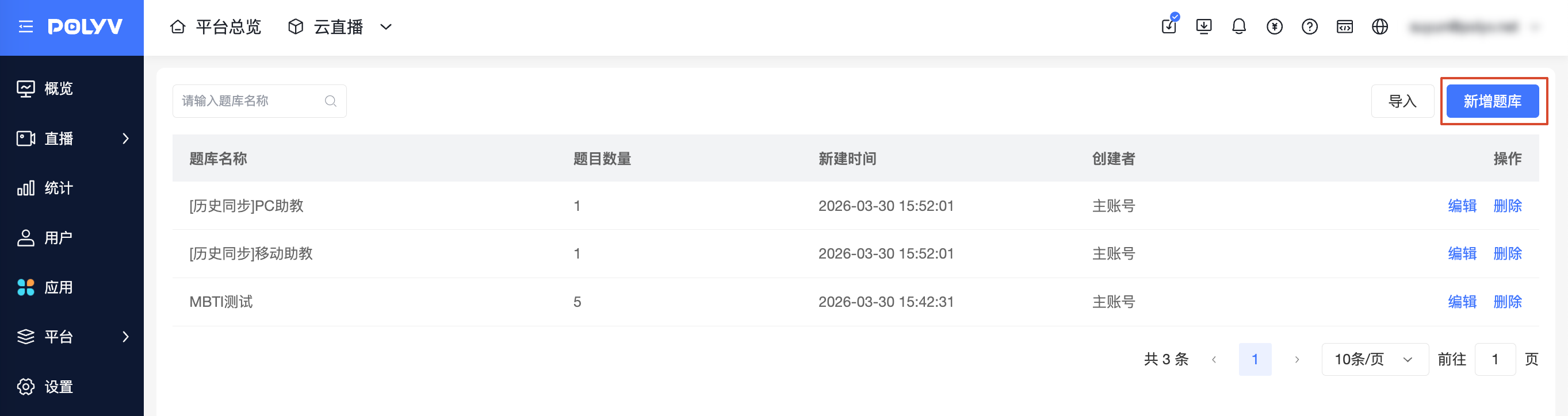
Step 1: Click the "Add Question Bank" button at the top right of the list page.
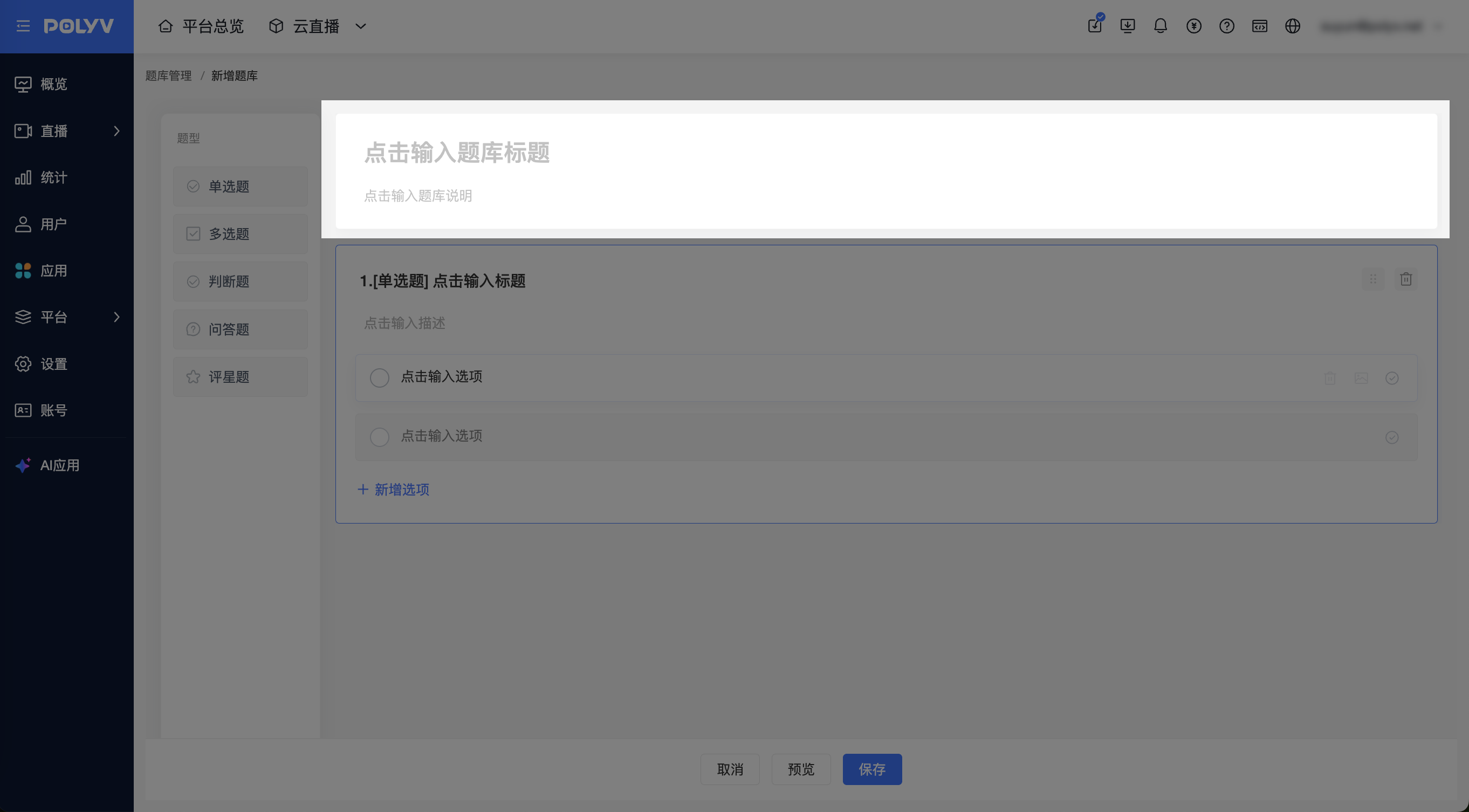
Step 2: Set basic information. Fill in the question bank title and description.
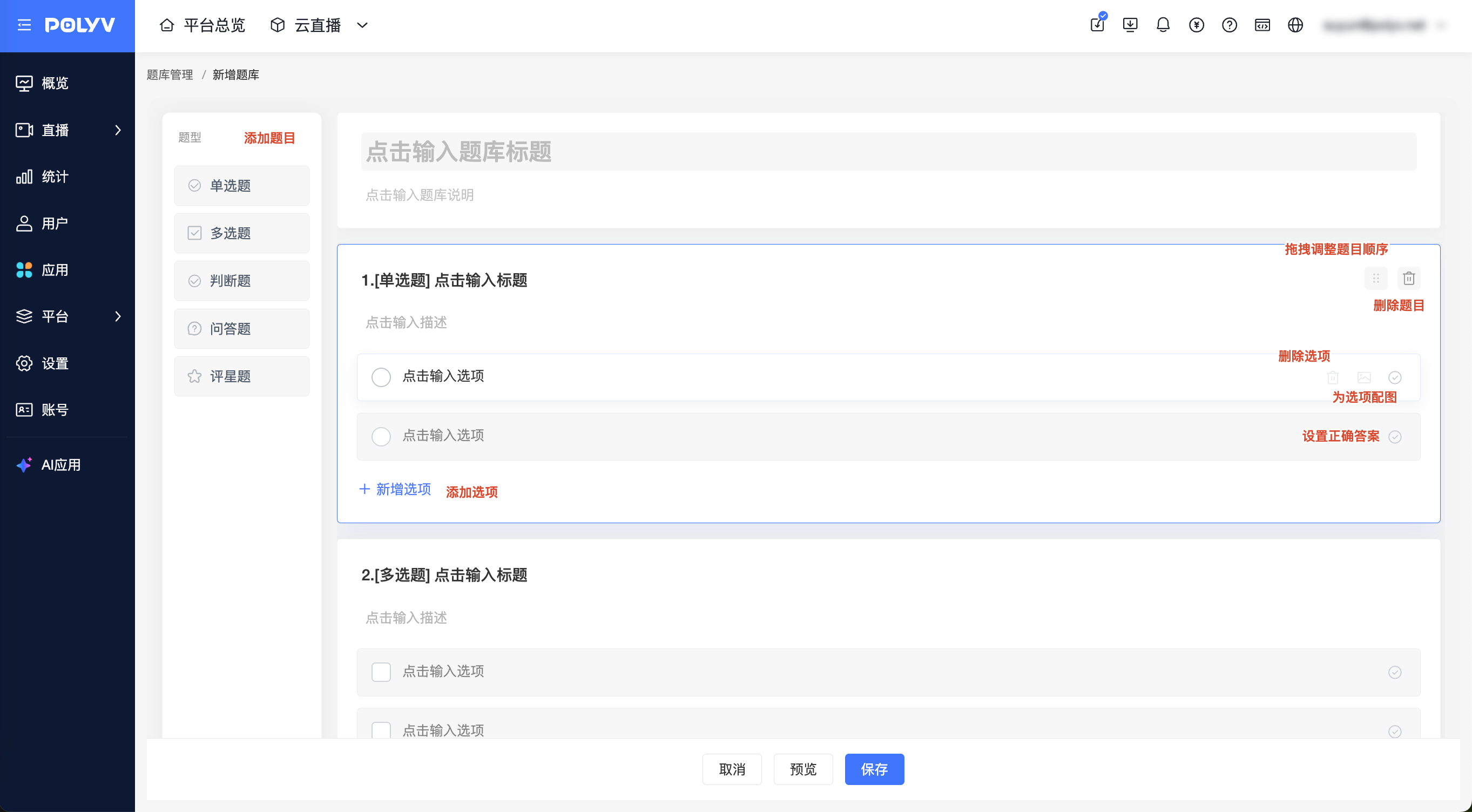
Step 3: Select question type and edit questions. After selecting a question type on the left, edit the question content on the right:
- Left Question Type Area: Click the desired type (single-choice, multiple-choice, true/false, essay, star rating) to add a corresponding question on the right.
- Right Editing Area: Click directly to enter the question stem and description (optional).
- Option Settings: Click option content to edit, and check the correct answer (optional).
- Image Attachment: Click the "image" icon next to an option to upload supporting visual material.
Step 4: Click the "Save" button at the bottom to complete entry and return to the list.
2.3 Import Question Bank from Channel
To reuse questions from historical channels, use [Import] to import a question bank from a channel:
Step 1: Click [Import] on the list page. In the popup, select the [Survey] or [Answer Sheet] category.
[Survey] includes survey collections and in-class exams; [Answer Sheet] corresponds to answer sheets.
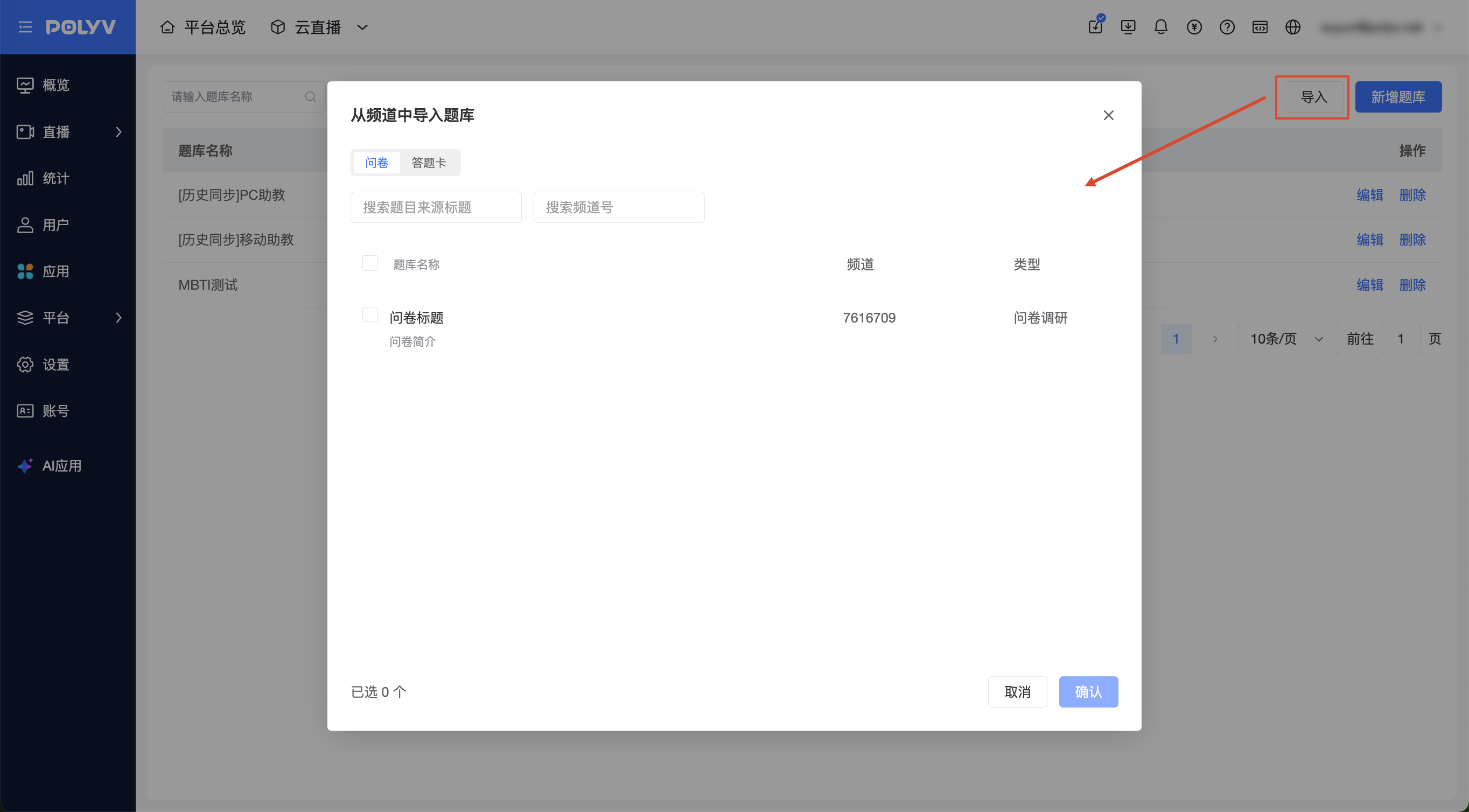
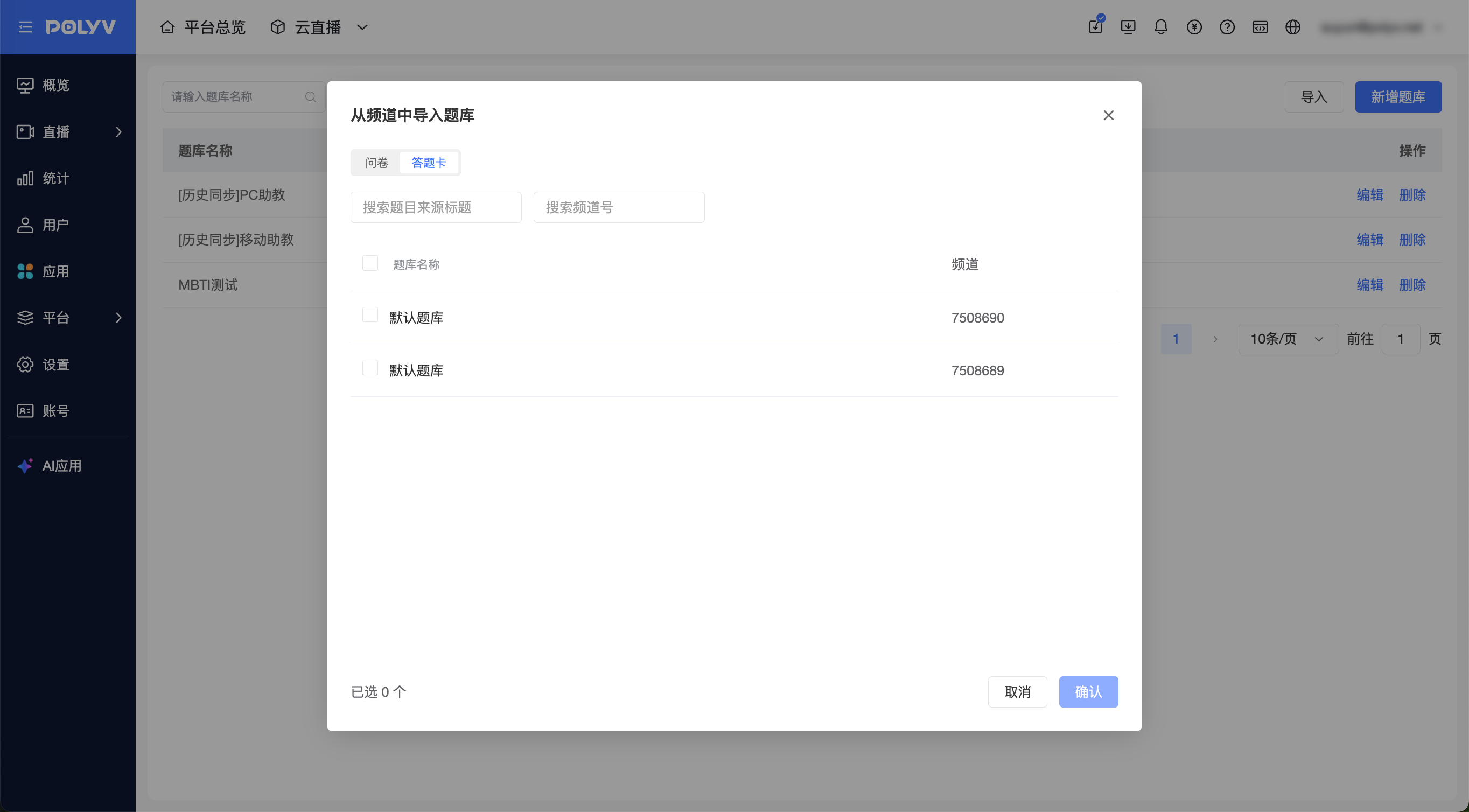
Step 2: Supports searching by "question source title" or "channel ID". Check the target entries.
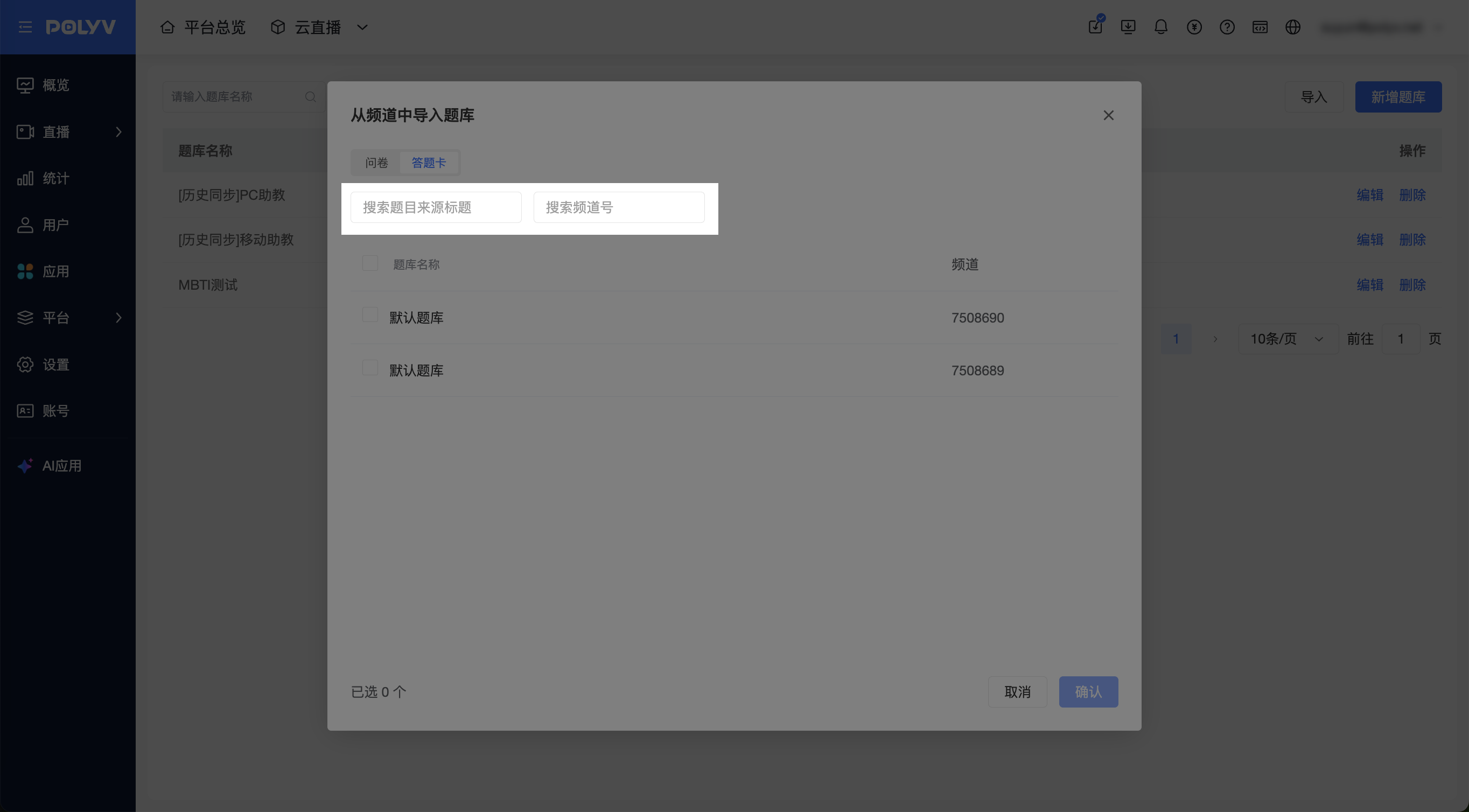
Step 3: After checking the content to import, click [Confirm]. The system will generate a historical synchronized question bank.
3. Important Notes
3.1 Import Rules and Mapping Logic
- Automatic Filtering: The system automatically filters out unsupported question types during import, such as privacy agreements in survey collections, and scoring or voting questions in answer sheets.
- Automatic Mapping: The system automatically maps question types based on content, retaining the original question title after import:
- "Instructor Evaluation" is automatically mapped to a Star Rating Question.
- "Your Name" and "Other Suggestions" are automatically mapped to Essay Questions.
- Grayed Out Unselectable State: If the associated channel has been deleted, the corresponding entry will be grayed out. Hovering over a grayed-out item will show the prompt: "Associated channel deleted, cannot import."
3.2 Role Permission Description
- Permission Path: Administrators can configure [Question Bank] permissions in [Platform Settings] - [Role Permissions].
- Default Permissions: The primary account has this permission by default; other custom roles do not have it checked by default.
3.3 How to Reference the Question Bank
Questions from the question bank can be referenced in answer sheets, in-class exams, and survey collections for initiating live interactions or quizzes.
Related help documents:
