


Page Overview
The Page Overview is used to centrally view the page count, visit performance, and content playback of aggregation pages and feeds. Operators can filter data by time range and page type, understand page operation results through trends and rankings, and also start building aggregation pages from popular page templates.
1. Accessing Page Overview
Log in to the admin console and go to [Page Management] → [Page Overview].
Sub-accounts must have the [Page Overview - View] permission to access it. The data scope that can be viewed follows the data permissions of Page Management: depending on authorization, view all pages or only pages created by yourself. If you cannot see the entry point or the data scope does not match expectations, contact the main account administrator to verify permissions.
Page Overview statistics cover aggregation pages and feeds. System pages such as Personal Center are not included in the statistics.
2. Using Popular Page Templates
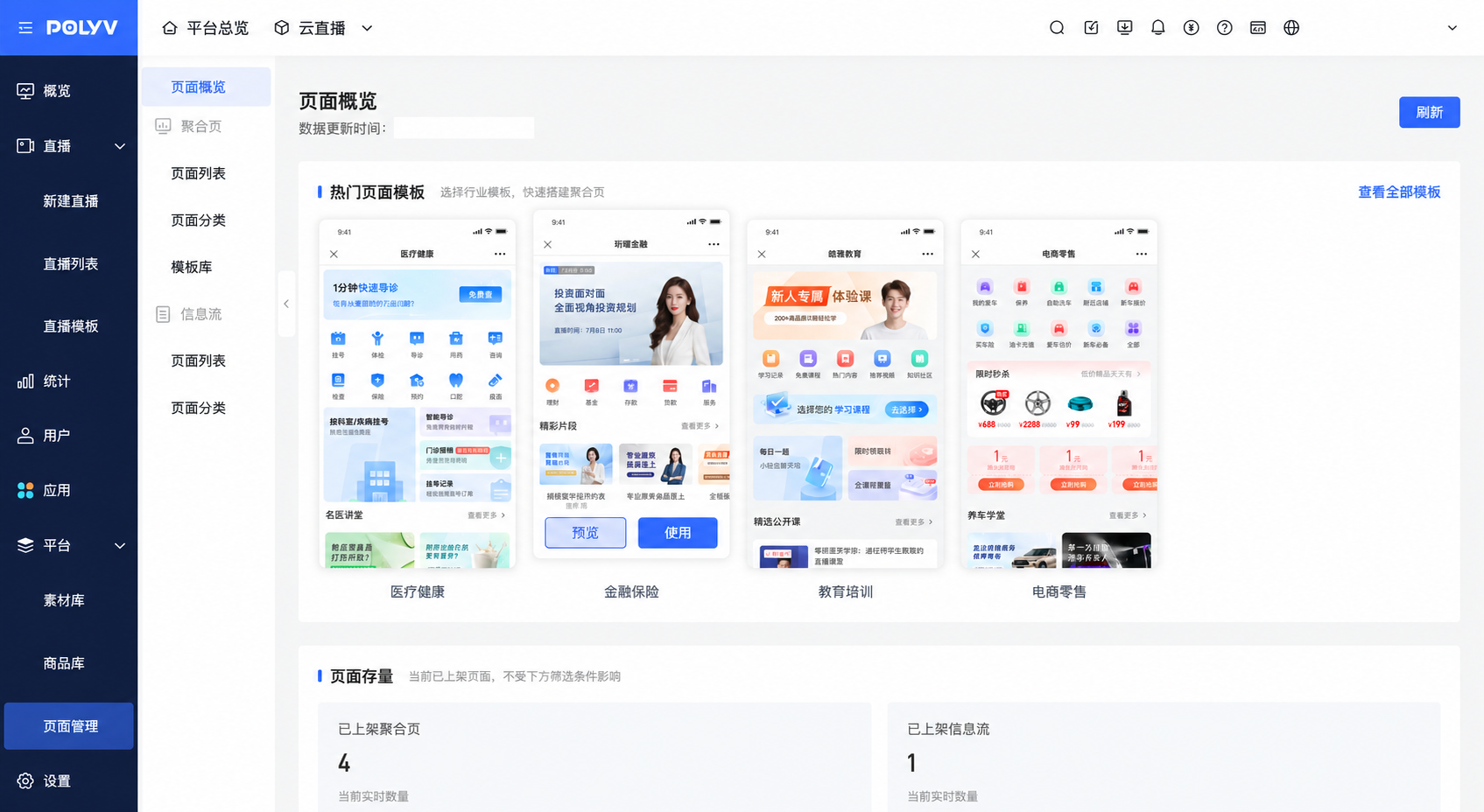
[Popular Page Templates] provides entry points to aggregation page templates, allowing you to select a suitable template based on the operational scenario.
- Click [Preview] on a template to view the template effect.
- Select a suitable template and click [Use] to enter the subsequent page building process.
- To view more templates, click [View All Templates] to enter the template library.
Popular page templates are not affected by the time range and page type filters below.
3. Viewing Page Inventory and Filtering Statistical Data
1. Viewing the Current Number of Published Pages
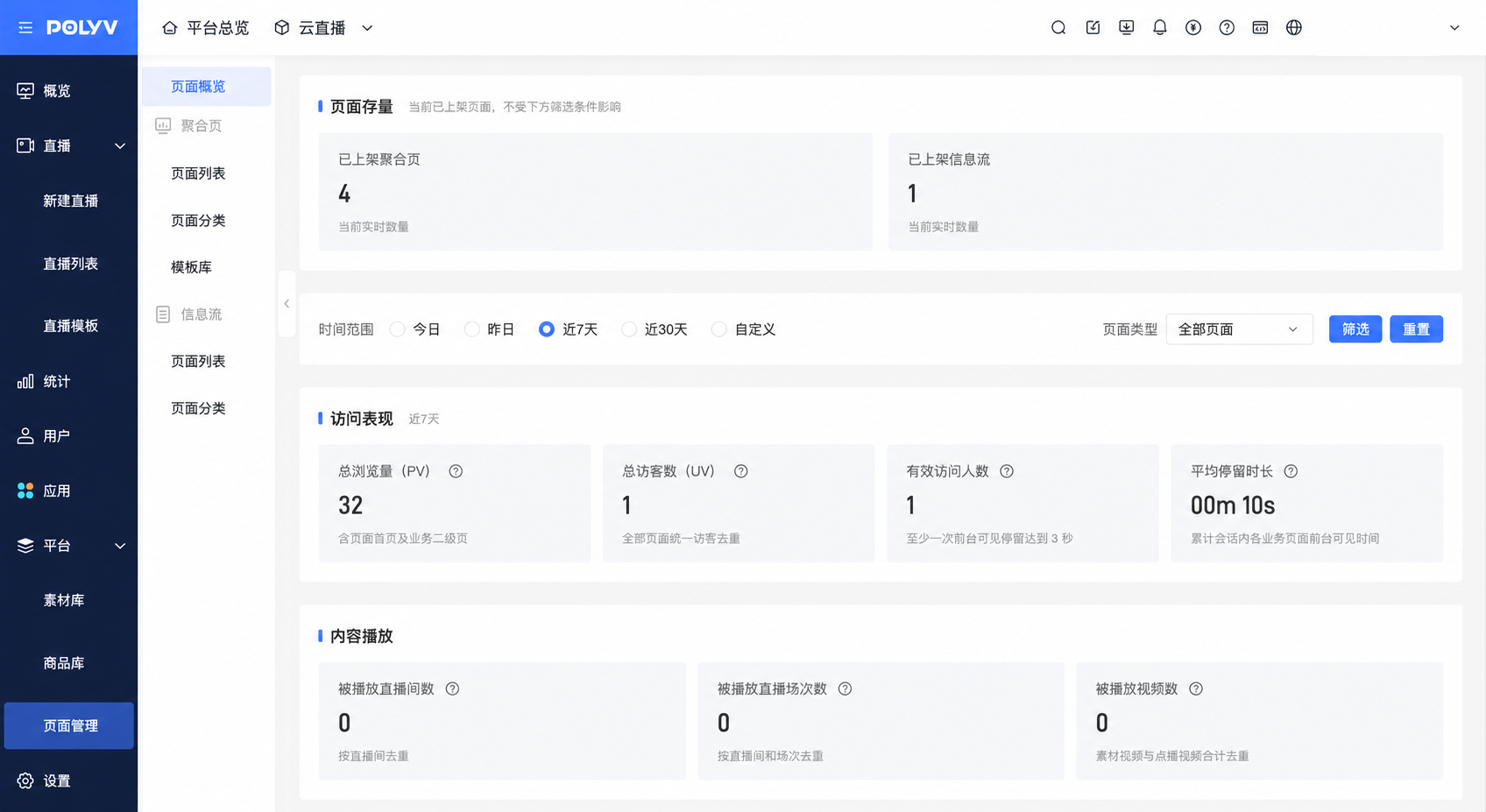
[Page Inventory] displays the current number of published aggregation pages and feeds, helping you understand the scale of pages currently in operation.
These two values reflect the page inventory at the time of query, not the number of pages added or published within the selected time period. When switching the time range or page type, the page inventory does not change with the filter conditions.
2. Setting the Statistical Scope
- In [Time Range], select [Today], [Yesterday], [Last 7 Days], [Last 30 Days], or [Custom]. The default is Last 7 Days, and the maximum custom time range is 1 year.
- In [Page Type], select [All Pages], [Aggregation Pages], or [Feeds].
- Click [Filter] to view data for the corresponding scope.
The filter conditions apply uniformly to visit performance, content playback, total PV / UV trends, page rankings, and content playback rankings, and do not affect popular page templates or page inventory.
3. Refreshing Data
You can view the data update time in the page header and click [Refresh] to retrieve data again. When refreshing, the page inventory and popular page templates are also reloaded.
4. Viewing Visit Performance and Content Playback
1. Visit Performance
[Visit Performance] displays the overall visit situation of pages within the selected scope.
| Metric | Description |
|---|---|
| Total Page Views (PV) | The sum of successful displays of the page homepage, as well as content detail pages and business secondary pages belonging to that page. |
| Total Visitors (UV) | Within the above page scope, the number of visitors after deduplication by a unified visitor identifier. If the same visitor visits the homepage and a business secondary page, they are counted only once. |
| Effective Visitors | Within the selected time period, the number of deduplicated visitors with at least one page visit session that stayed in a foreground-visible state for 3 seconds. |
| Average Stay Duration | The total duration during which the homepage and business secondary pages were in the foreground and visible to visitors in page visit sessions, divided by the number of page visit sessions. Time across pages is not accumulated repeatedly. |
Total Page Views and Total Visitors include visits to business secondary pages, not only the homepage. For example, if a visitor directly opens a content detail page through a share link carrying page attribution information, that visit is counted in the Total Page Views of the associated page; if it is a new visitor within the statistical scope, it also increases Total Visitors, but does not increase homepage page views or homepage visitors.
2. Content Playback
[Content Playback] displays the amount of content that was played within the selected scope.
| Metric | Description |
|---|---|
| Number of Played Livestream Rooms | The deduplicated number of livestream rooms that had playback, including both live and replay. |
| Number of Played Livestream Sessions | The deduplicated number of livestream sessions that had playback and can be identified by session. |
| Number of Played Videos | The deduplicated number of on-demand videos and media library videos that had playback. |
These metrics indicate how many pieces of content were played, not cumulative playback counts. If the same video is played multiple times within the statistical scope, it is not counted repeatedly as multiple videos based on playback count.
5. Viewing Trends and Rankings
1. Total PV / UV Trends
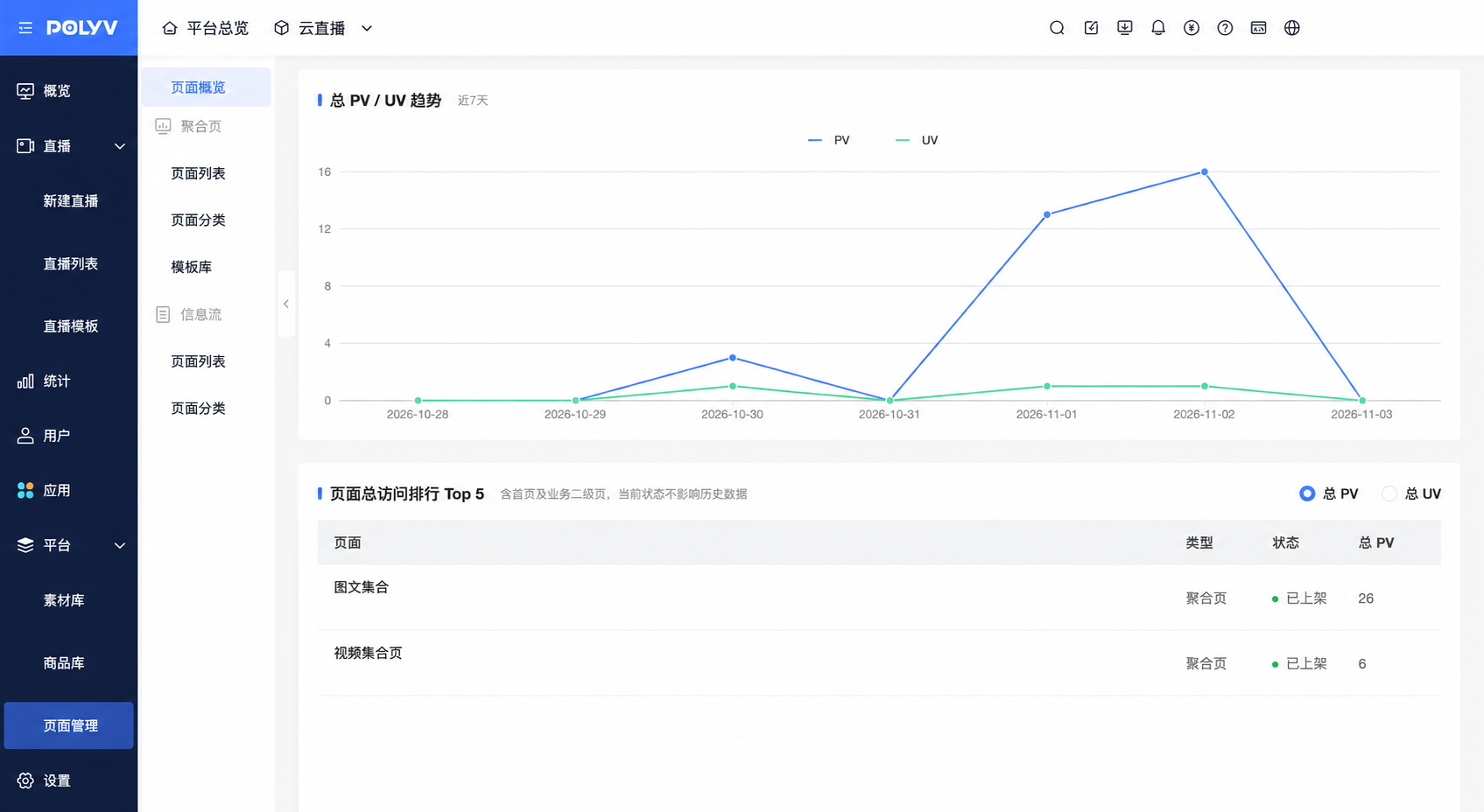
[Total PV / UV Trends] displays changes in Total Page Views and Total Visitors within the selected time range. You can combine this with campaign timing to observe growth, decline, and fluctuations in traffic.
2. Page Total Visits Ranking
[Page Total Visits Ranking Top 5] displays pages with leading visit performance. You can switch between [Total PV] and [Total UV] to view the corresponding ranking. The statistical scope includes page homepages and business secondary pages.
UV in the page ranking is deduplicated separately for each page, while Total UV is deduplicated uniformly within the selected page scope. When the same visitor visits multiple pages, they are counted separately in each page's UV, so the sum of UV across pages may not equal Total UV.
3. Content Playback Ranking
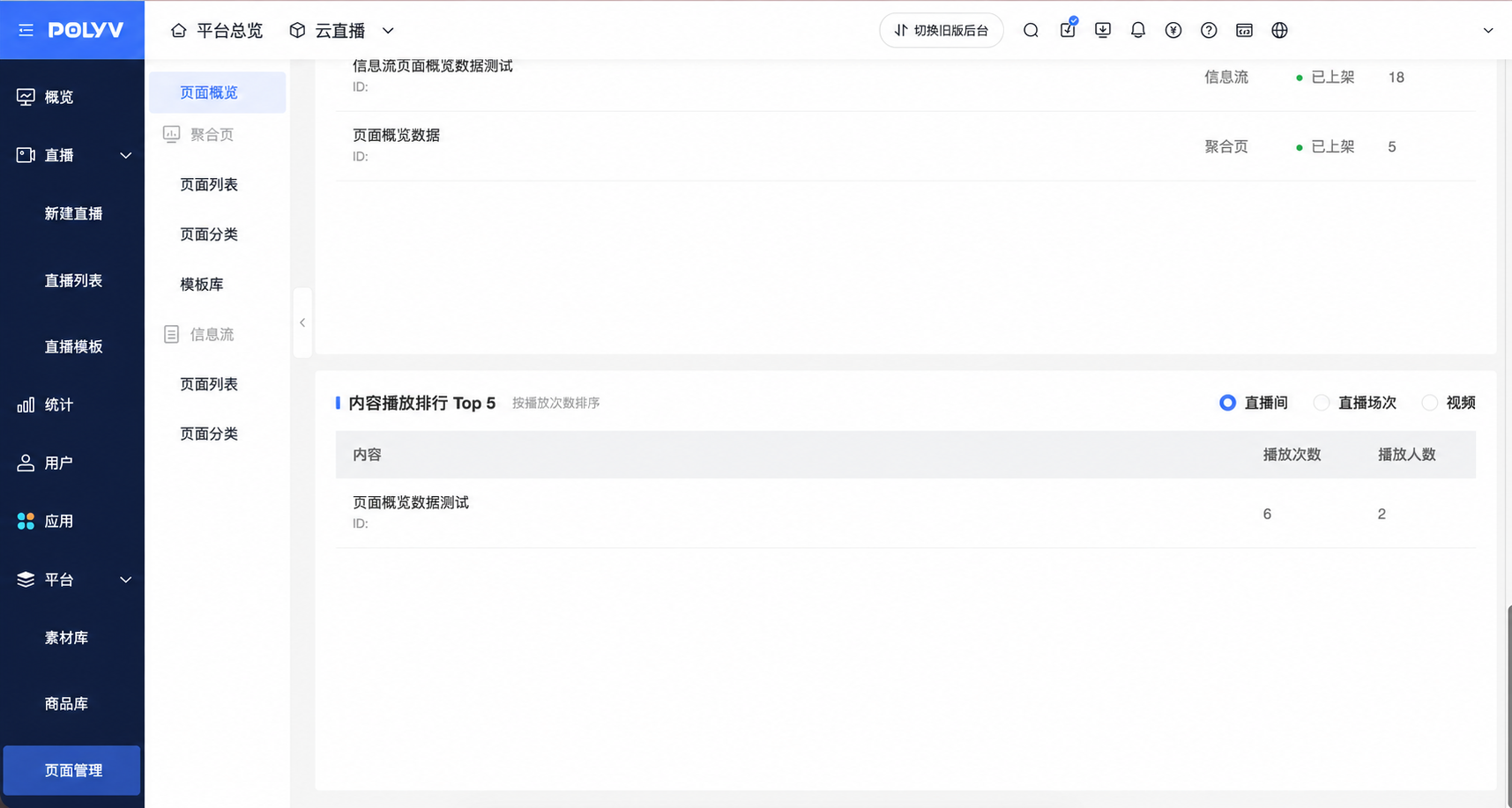
[Content Playback Ranking Top 5] displays leading content by playback count. You can switch between [Livestream Rooms], [Livestream Sessions], or [Videos] to view it, and compare playback counts and viewer counts.
6. FAQ
Q: Why can't a sub-account see Page Overview?
A: Sub-accounts must have the [Page Overview - View] permission. Contact the main account administrator to verify feature permissions; after obtaining permission, the data that can be viewed is still limited by the data permissions of Page Management.
Q: Why does the number of published pages not change after switching the time range?
A: Page Inventory displays the real-time number of currently published pages, not the number within a historical interval, so it is not affected by the time range and page type filters. To retrieve the current inventory again, click [Refresh] in the page header.
Q: Why do Total Page Views still increase when a visitor does not open the homepage?
A: Total Page Views include the homepage as well as content detail pages and business secondary pages belonging to that page. If a visitor directly opens a detail page through a share link carrying page attribution information, it is also counted in Total Page Views, but does not increase homepage page views.
Q: Why does the sum of visitors across pages not match Total Visitors?
A: The deduplication scopes differ. The page ranking deduplicates independently for each page, while Total Visitors is deduplicated uniformly within the selected page scope. When the same visitor visits across pages, they are not counted repeatedly in Total Visitors.
Q: Can Page Overview show bounce rate, churn rate, or export data?
A: Currently, Page Overview does not provide homepage 3-second bounce rate, content 3-second churn rate, or data export functionality.
