Risk Confirmation
Updated: 2026-08-17 11:27:00
1. Feature Overview
Feature Info |
Description |
|---|---|
| Feature Name | Risk Confirmation |
| Feature Description | Displays a risk confirmation popup to inform viewers of important notices |
| Purpose | For live streams where content is not suitable for everyone or involves user rights, requiring viewers to read a pre-set service agreement or risk notice |
| Operation Path | 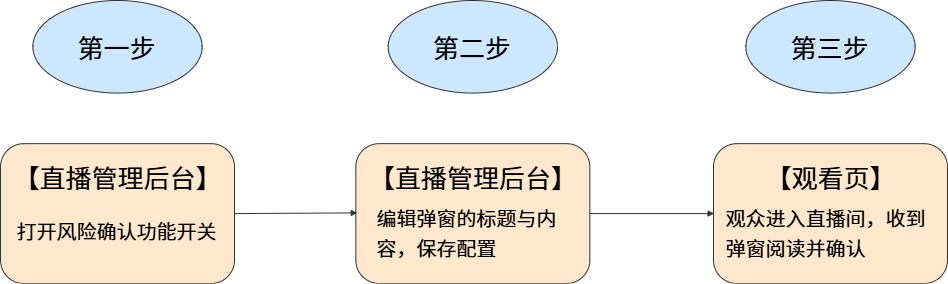 |
2. Steps
1. Enable Risk Confirmation
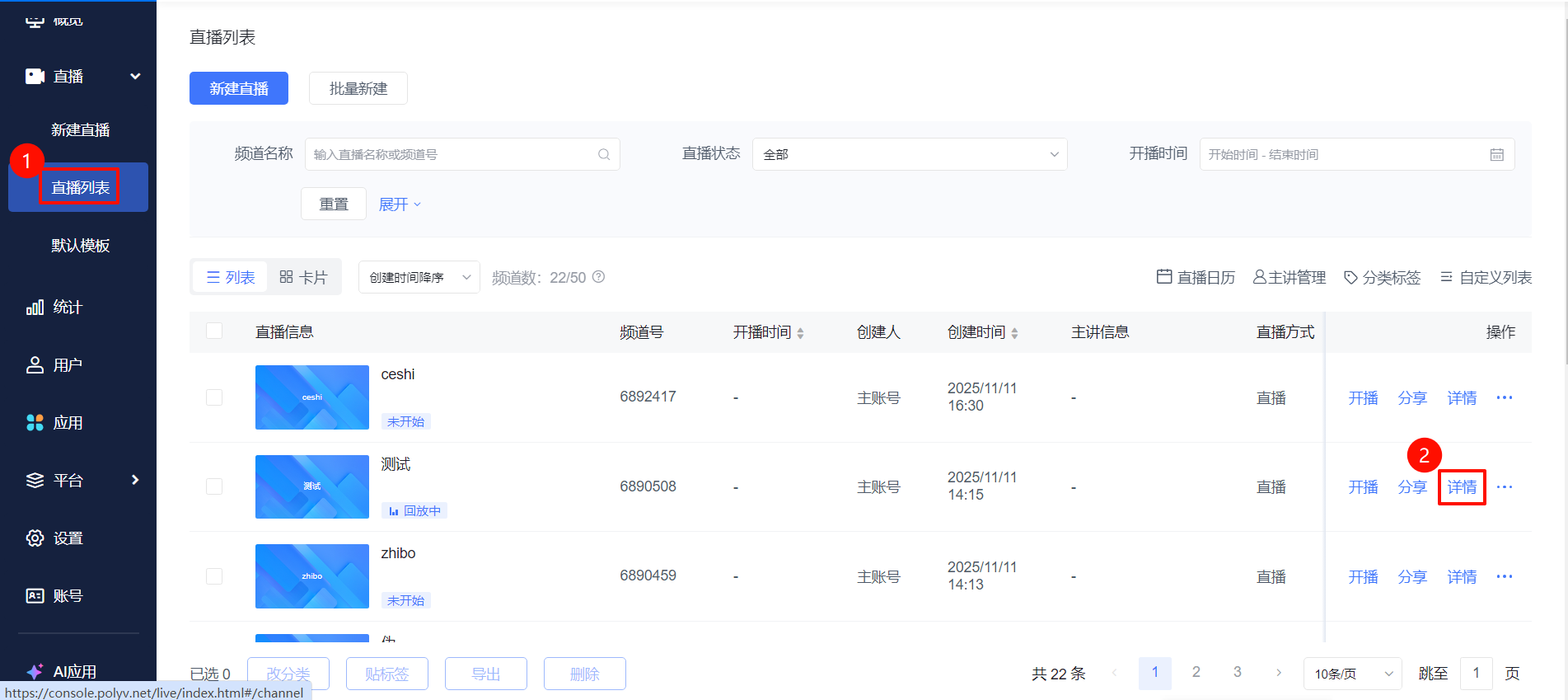
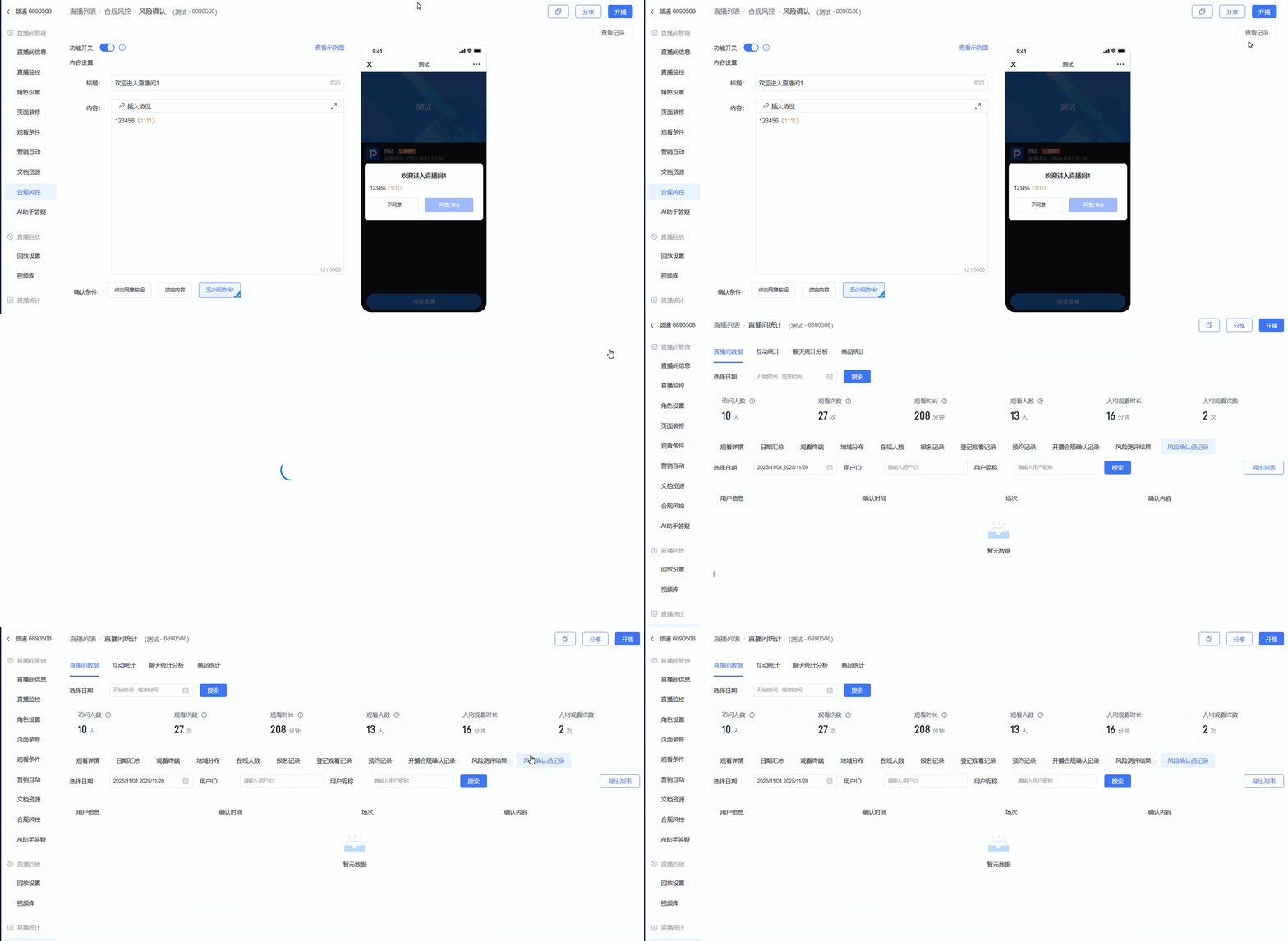
- Go to the [Live List] page, select a live stream and click [Details]. Under Live Stream Management, click [Compliance & Risk Control] - [Risk Confirmation]
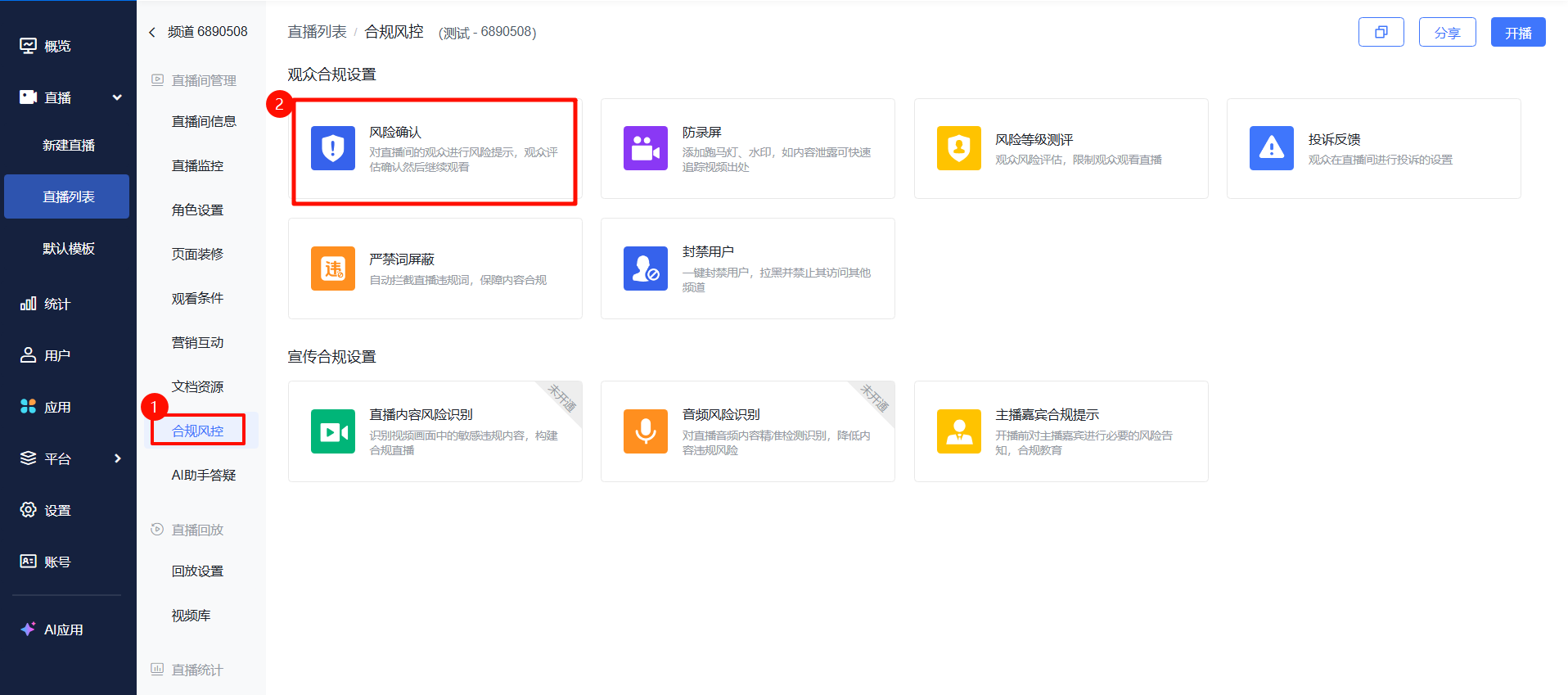
- Feature Settings
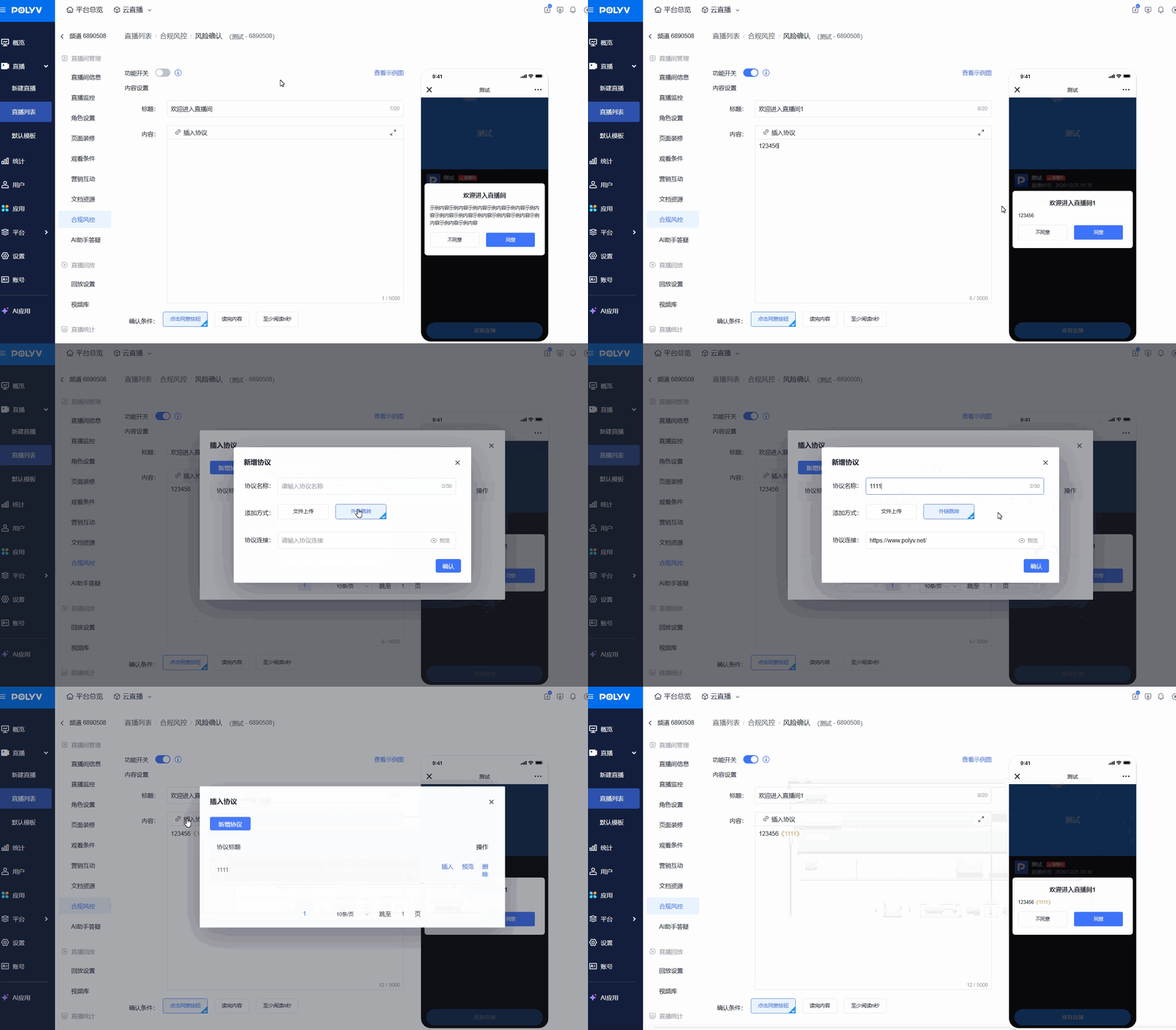
- Feature Toggle: When enabled, users must confirm before watching the live stream; related confirmation information will be recorded and archived. If enabled during a live stream, viewers who entered before the toggle was turned on will not receive the popup
- Content Settings: Enter a title and content, click [Insert Agreement] - [Add Agreement], and choose between file or external link modes to add an agreement. Upload the agreement file, enter the agreement name, and click the confirm button to complete the upload
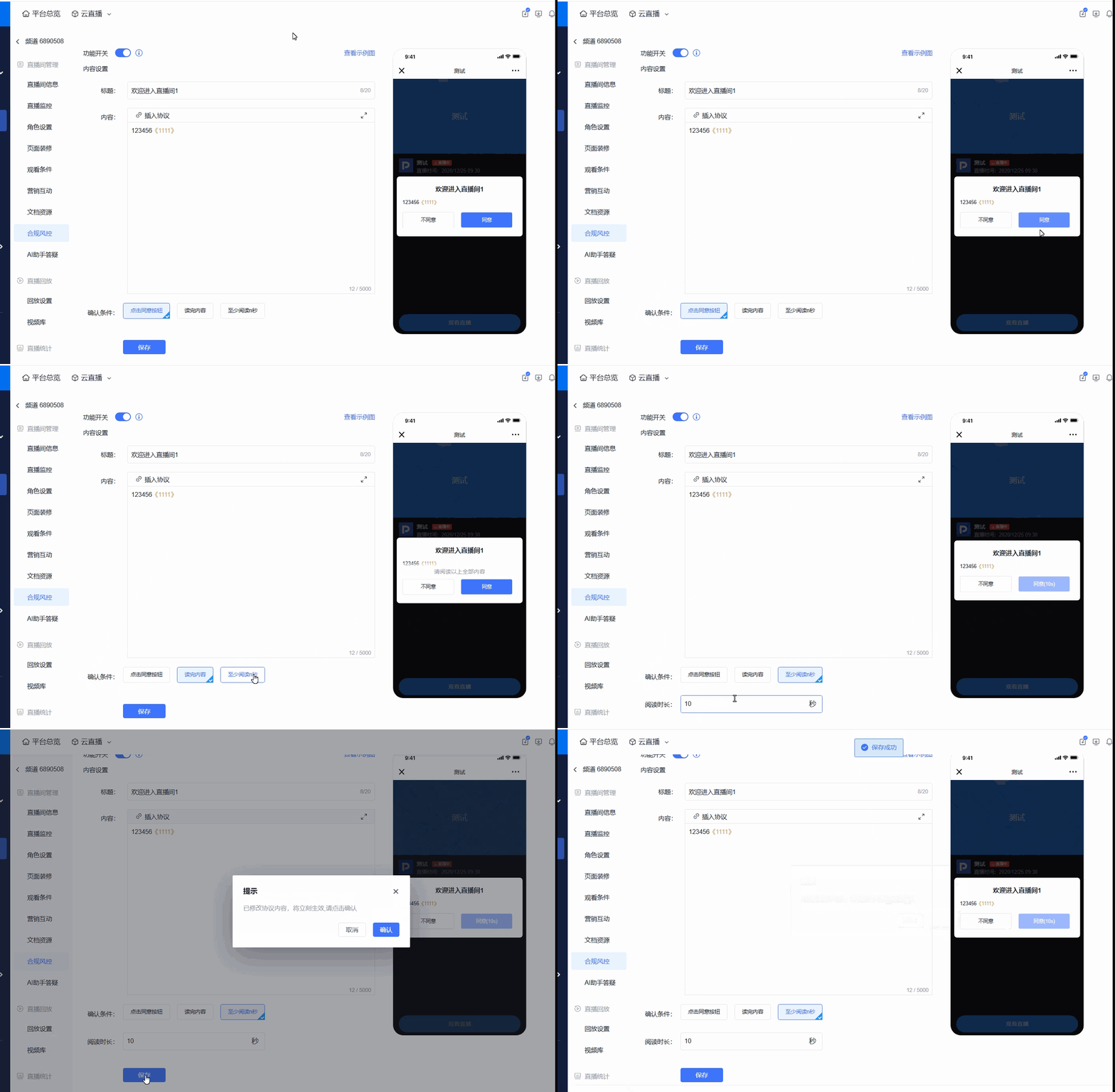
- Confirmation Conditions: Three conditions are available
- Click Agree Button: No other conditions required to click agree
- Read Content: Must scroll to the bottom of the content to agree
- Read for at least n seconds: Set a specific reading duration; the countdown must end before agreeing
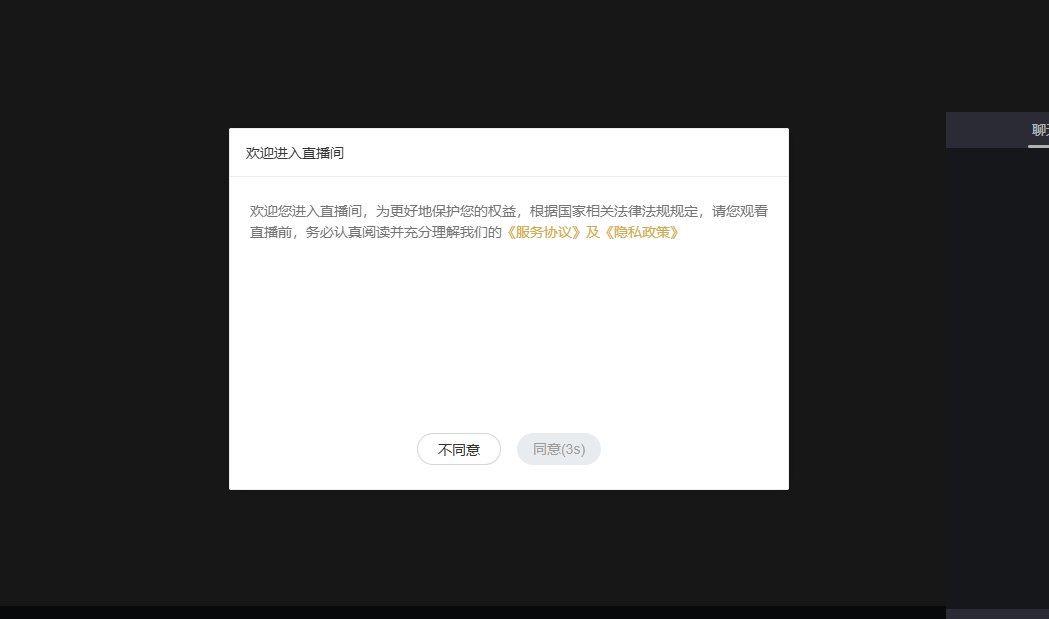
2. Viewer Experience
- Web viewer experience
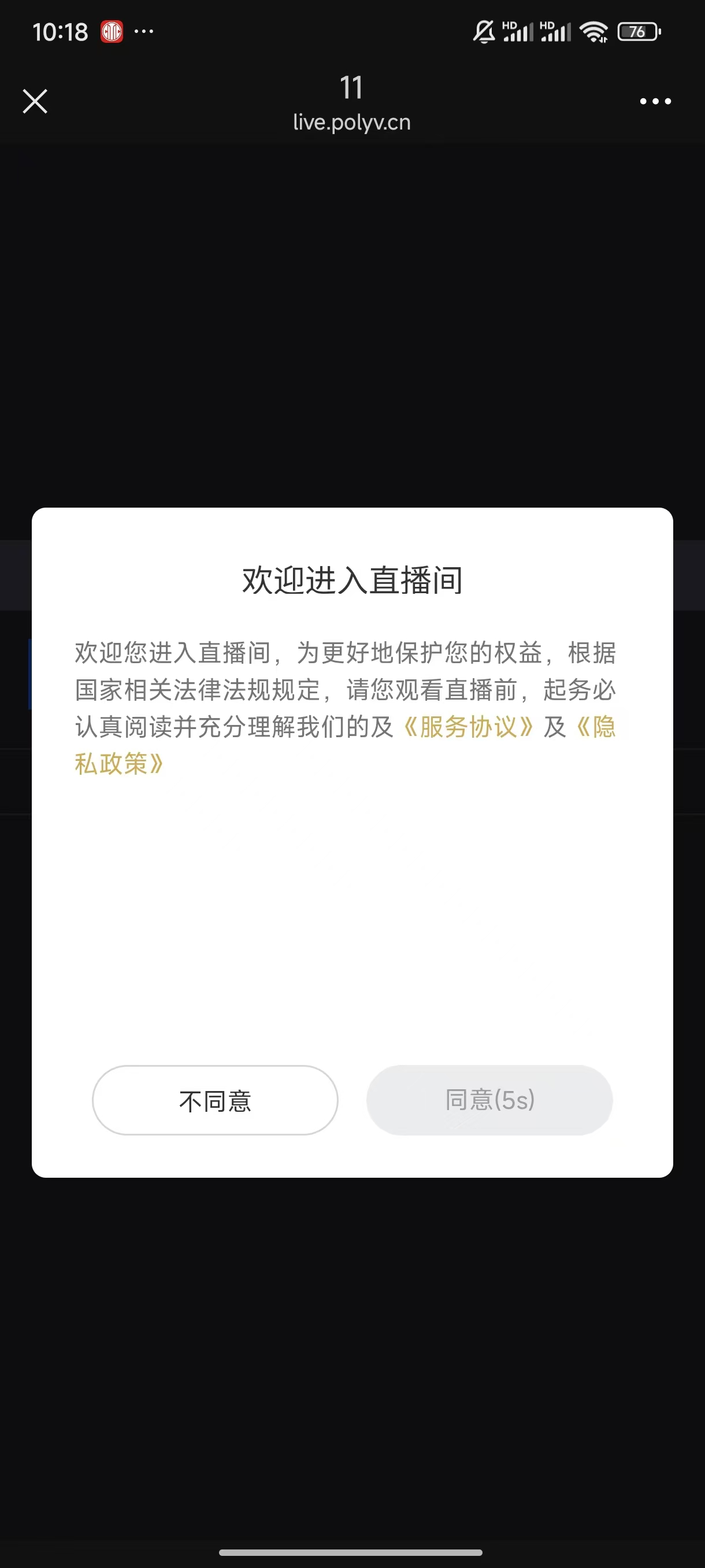
- H5 mobile viewer experience
<img src="https://liveimages.videocc.net/help_doc/ff30f582-c779-470f-a9c8-48076aba5446.png"" alt="" width="50%">
3. View Records
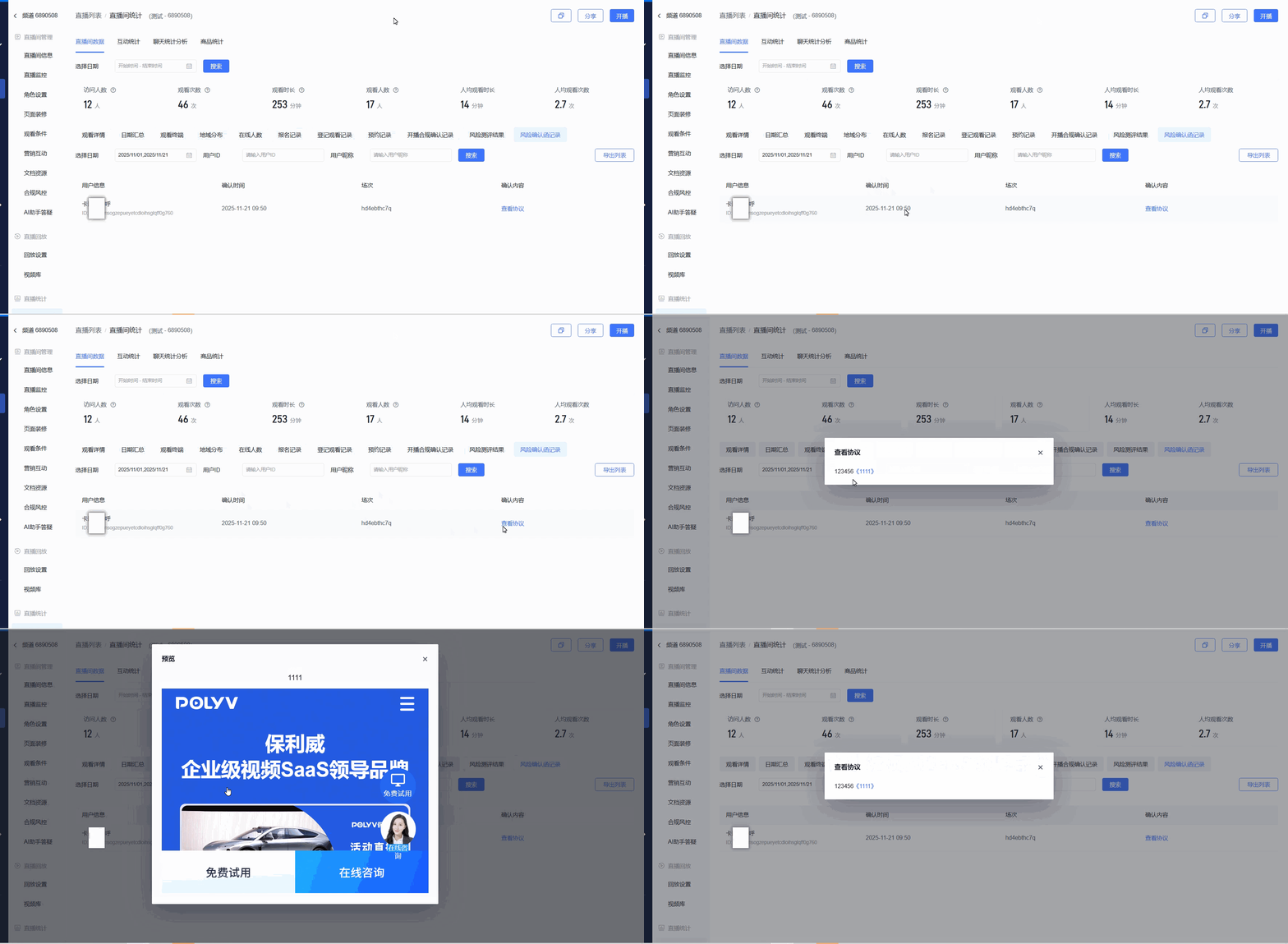
- Click [View Records] in the top-right corner of the [Risk Confirmation] page to navigate to the [Live Stream Statistics] page
- Filter specific users by selecting a date range, user ID, or user nickname
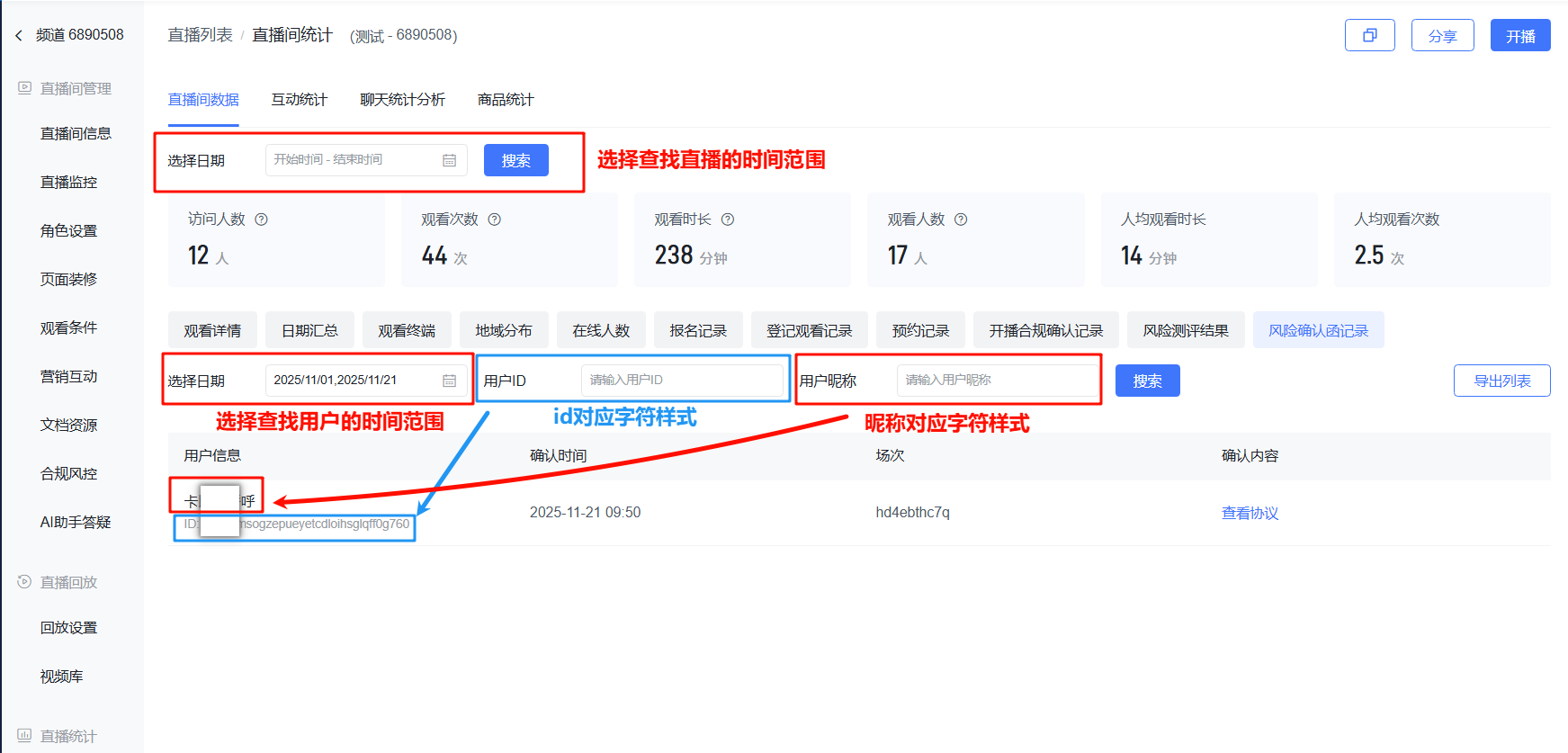
- View which users in the live stream confirmed what content, at what time, and in which session