Sub-Account Management
Updated: 2026-08-17 11:27:00
I. Feature Overview
Feature Info |
Description |
|---|---|
| Feature Name | Sub-Account Management |
| Feature Description | Supports creating multi-level organizational structures, assigning different roles and permissions, real-time statistics and display of sub-account resource usage, and generating usage analysis reports |
| Purpose | Provides enterprises with a flexible and efficient account management system, enabling refined management of sub-accounts to meet permission control and resource allocation needs in various business scenarios |
| Use Cases | Enterprise internal management: Large enterprises can create organizational structures by department or team, assigning different role permissions; Multi-user collaboration projects: Project teams use the sub-account management feature to assign appropriate permissions to members and monitor project resource usage in real time |
| Feature List | Organizational Structure, Role Permissions, Sub-Account Usage |
II. Feature Overview
1. Feature Entry
- Access Path: Cloud Live Streaming -> Account
2. Organizational Structure
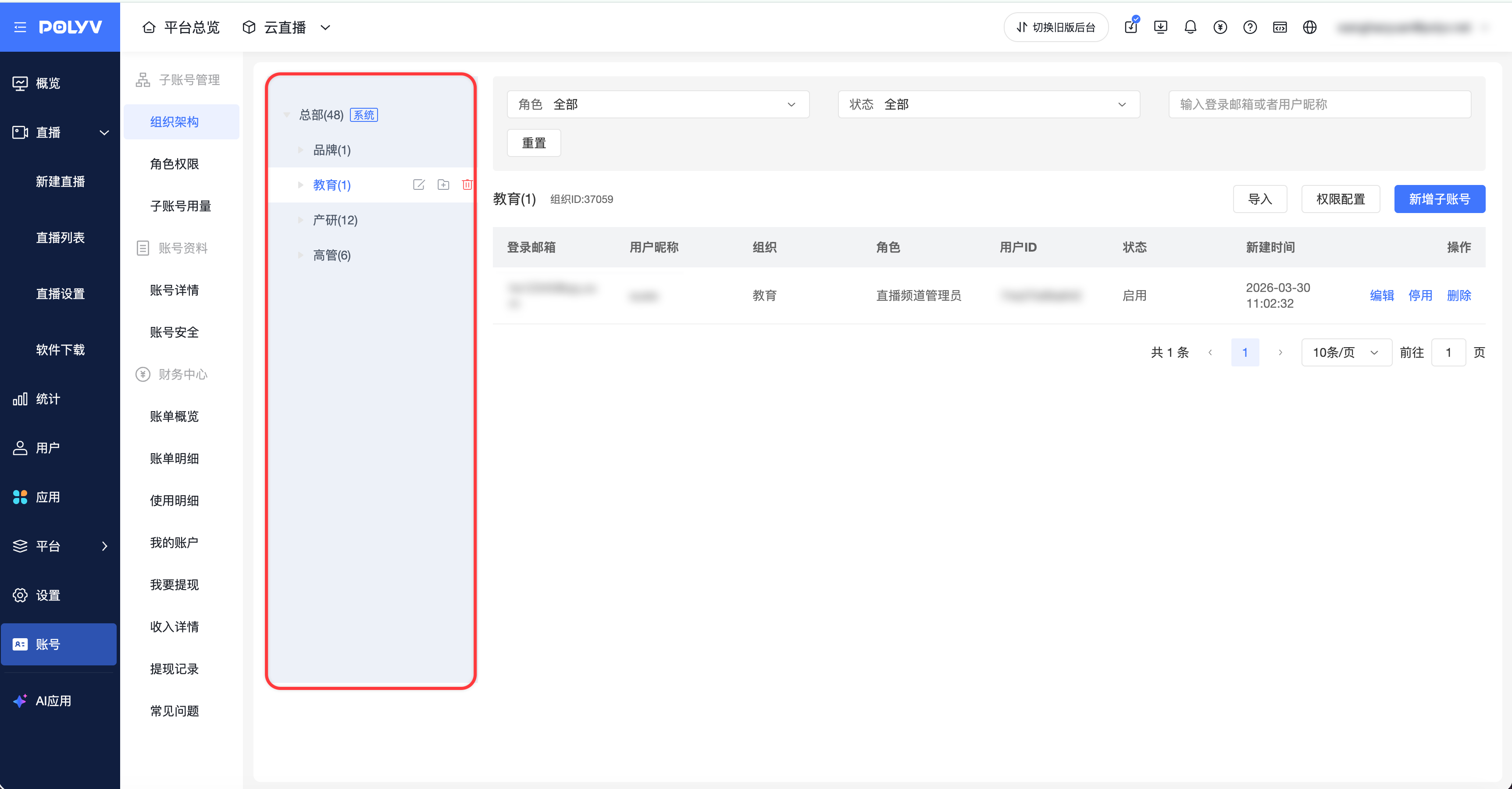
- Structure Creation and Editing
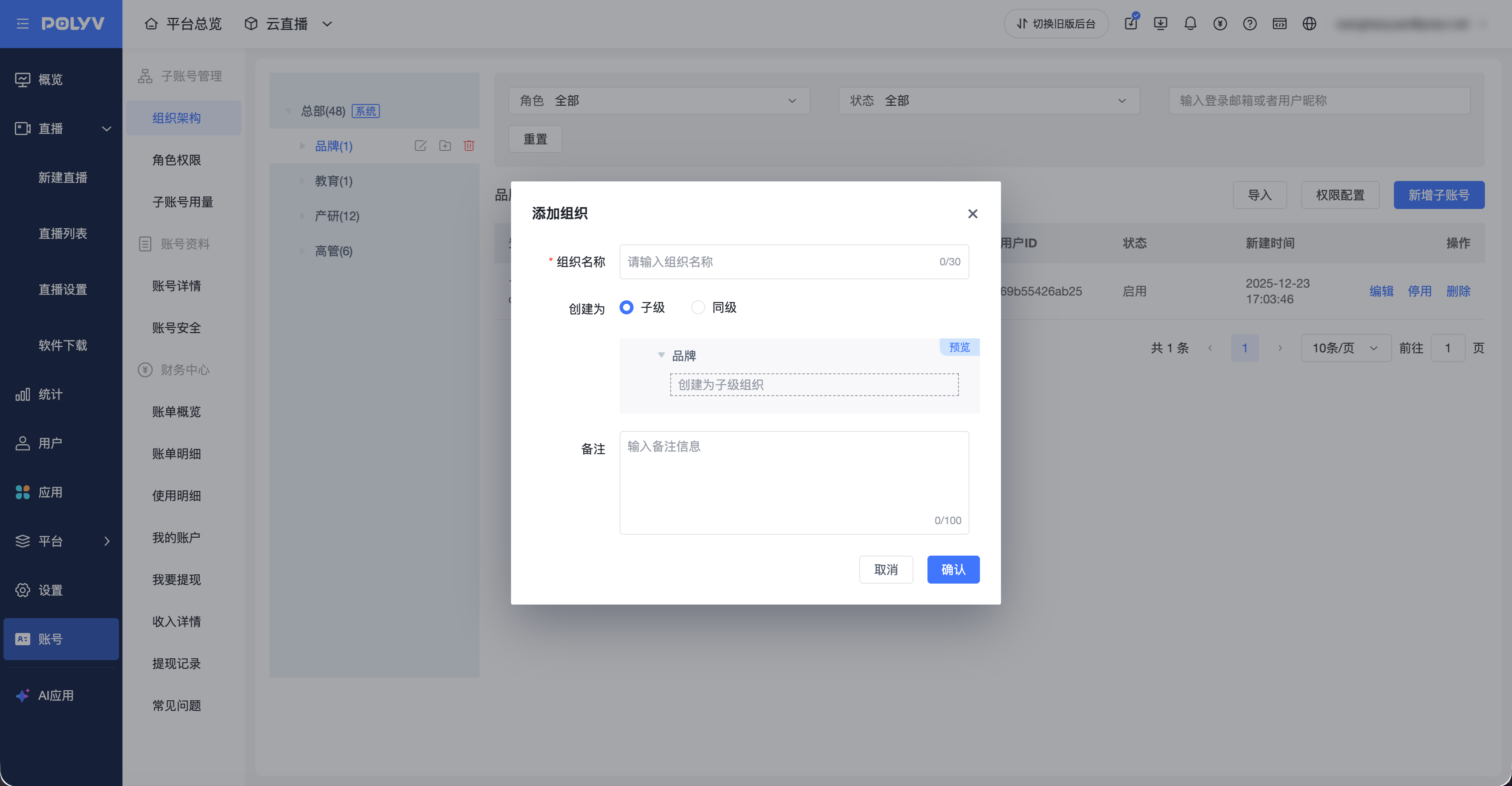
- Feature Description: Users can create multi-level organizational structures, such as departments and teams, with support for customizing structure names, descriptions, and other information. Existing organizational structures can be edited and modified to adapt to enterprise restructuring needs;
- Operation Flow: Click the "Organizational Structure" module, then click the "Add Organization" icon; enter the organization name, notes, and other information, and set the structure hierarchy
- Structure Deletion
- Feature Description: Allows users to delete organizational structures that are no longer in use, but it must be ensured that no sub-accounts or related business data are associated with that structure;
- Operation Flow: In the organizational structure list, select the structure to be deleted; click the "Delete" icon, and a confirmation dialog will appear; after confirming, click the "OK" button to complete the deletion
Feature Description: Allows users to delete organizational structures that are no longer in use, but it must be ensured that no sub-accounts or related business data are associated with that structure; Operation Flow: In the organizational structure list, select the structure to be deleted; click the "Delete" icon, and a confirmation dialog will appear; after confirming, click the "OK" button to complete the deletion
- Structure Display and Navigation
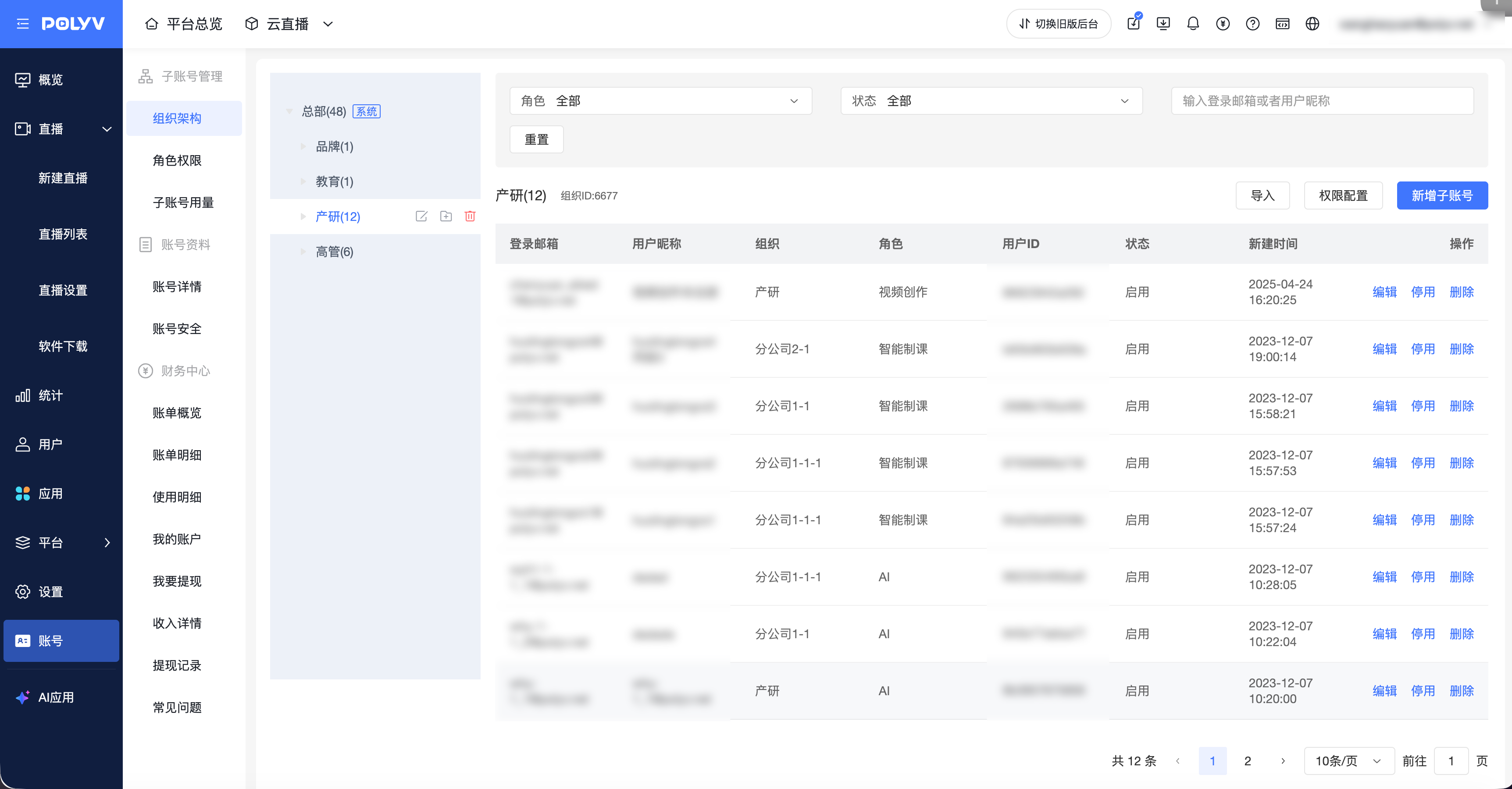
- Feature Description: Clearly displays the complete enterprise organizational structure in a tree format, allowing users to quickly locate any structure node and view the distribution of sub-accounts under it, facilitating management and operations;
- Operation Flow: In the left navigation bar of the organizational structure management page, click the "Organizational Structure" option. Users can browse different levels of structures and their sub-account details by expanding or collapsing nodes
- Adding a Sub-Account
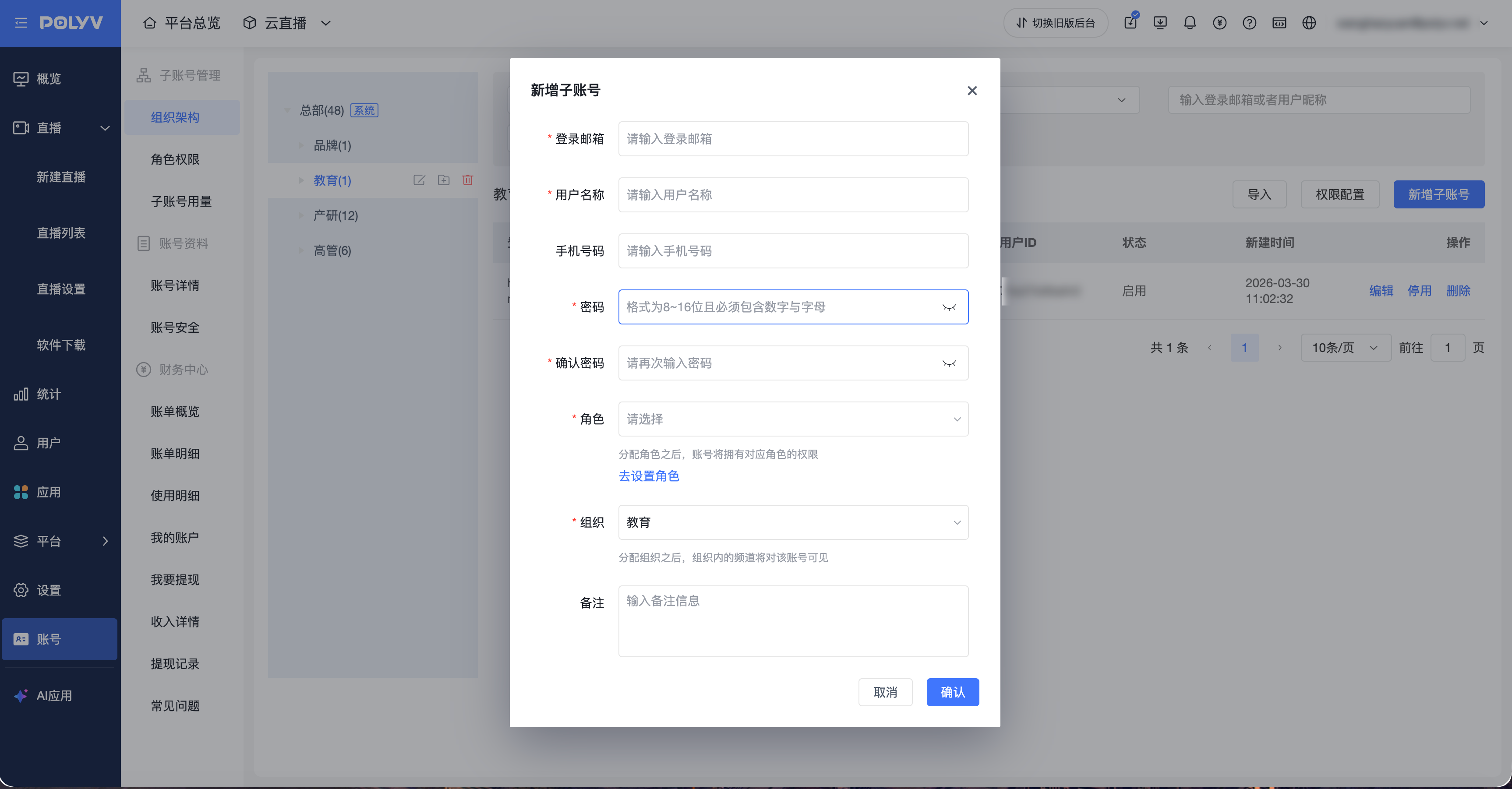
- Feature Description: Supports adding and assigning independent login credentials and permissions to different users, enabling them to access system resources based on their roles and business needs;
- Operation Flow: On the organizational structure page, click the "Add Sub-Account" button. Fill in the new sub-account information in the pop-up window; after confirming, click the "OK" button to complete the addition
3. Role Permissions
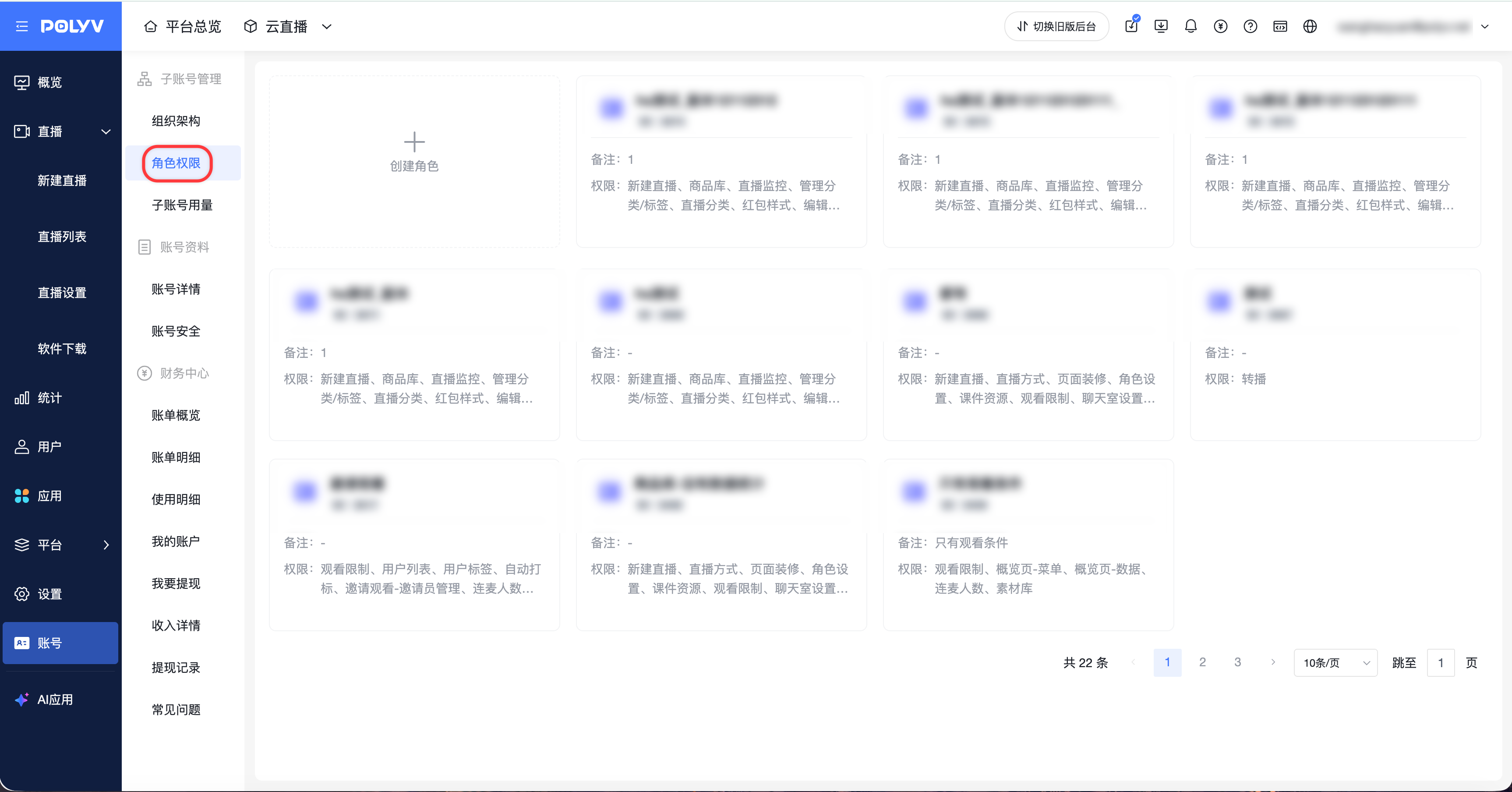
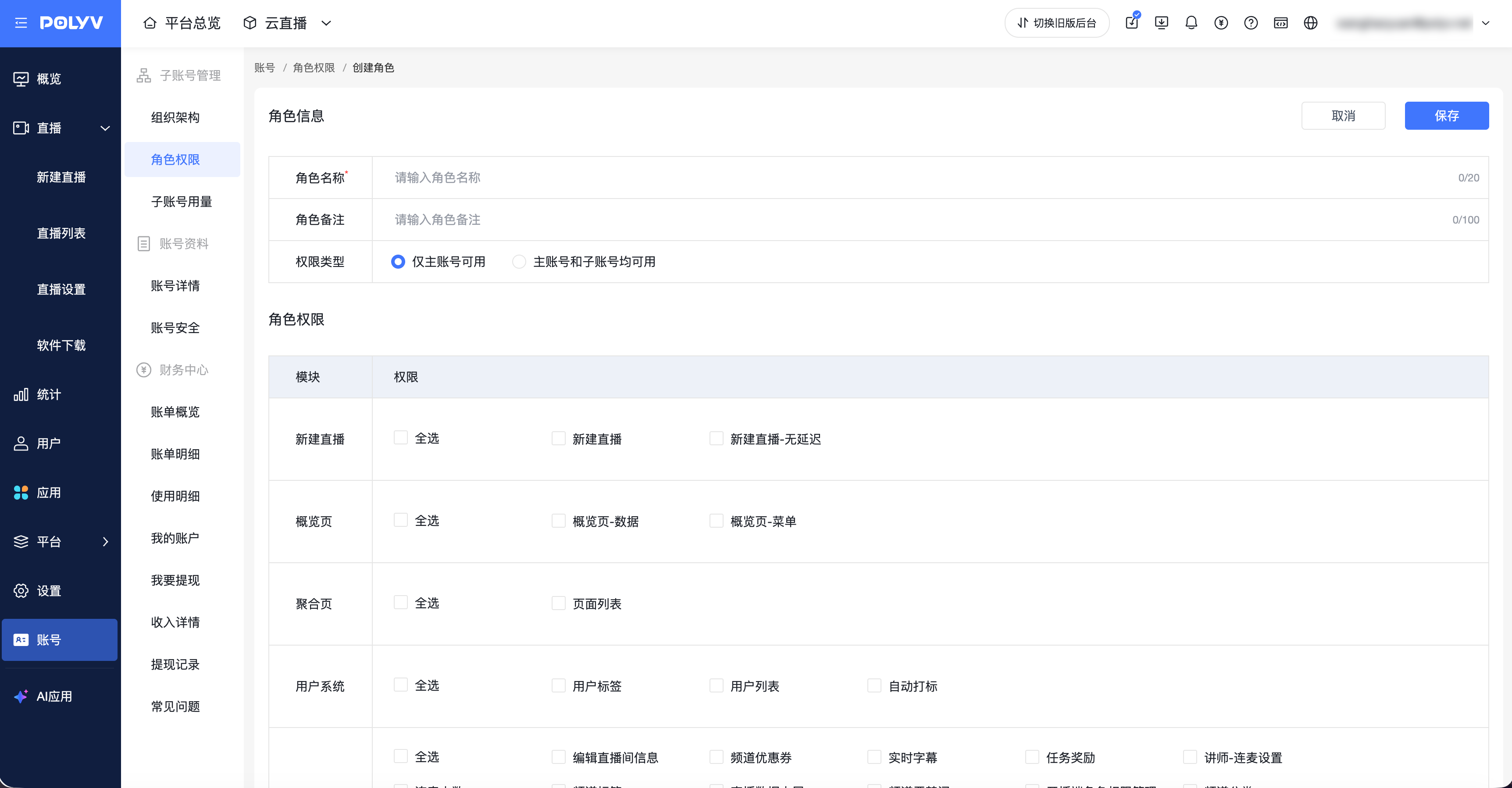
- Creating/Editing Roles
- Feature Description: Customize different roles and assign specific permission combinations to them, thereby achieving refined management of sub-account permissions, ensuring different users have appropriate system access and operation permissions based on their responsibilities and business needs;
- Operation Flow: On the role permissions page, to create a role, click the "Create Role" card. To edit a role, click "Edit" at the bottom of the role card. On the creation page, edit the role information and configure role permissions; after confirming, click the "Save" button to complete role creation or editing
- Viewing a Role
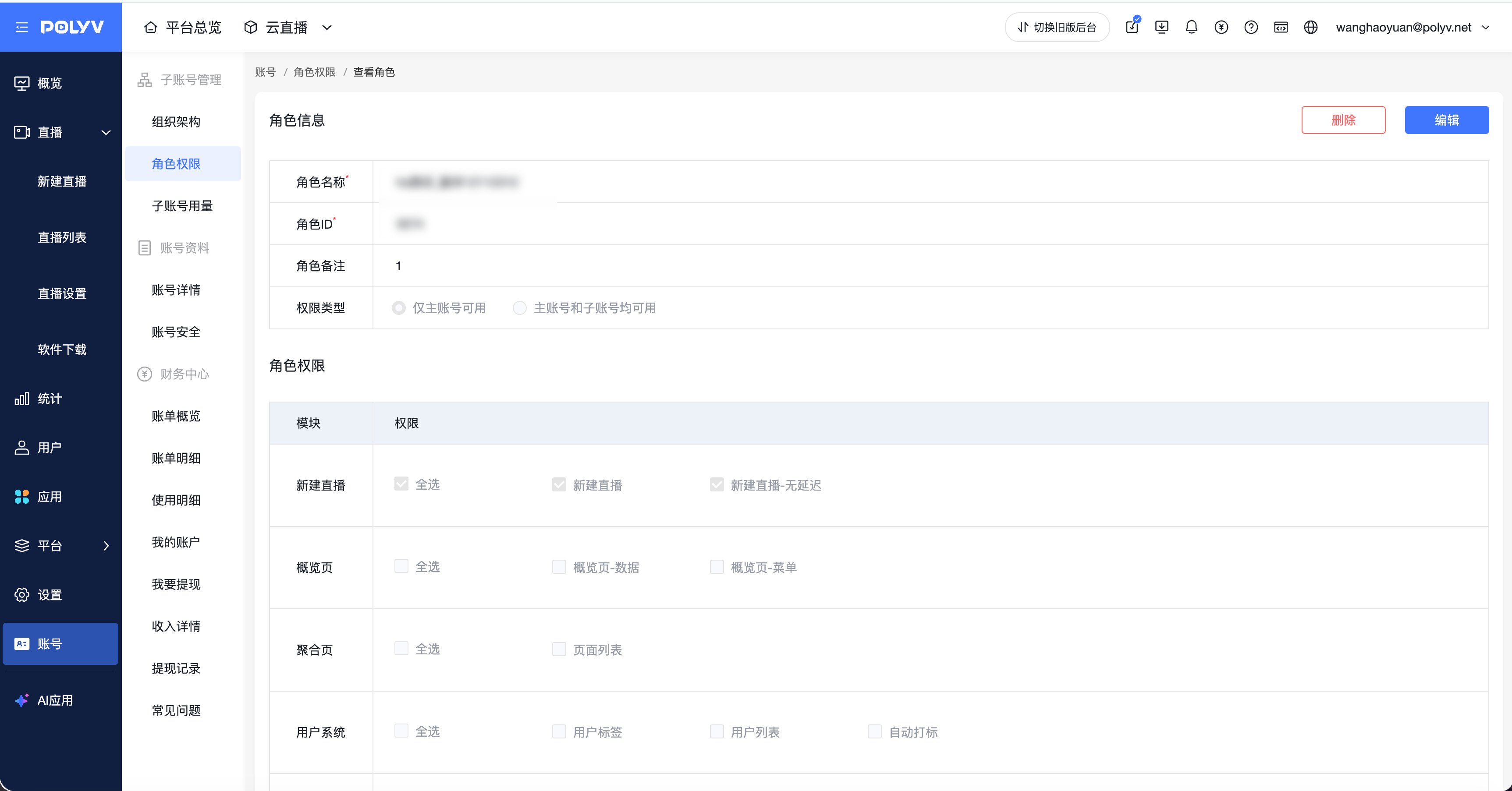
- Users can click the "View" button to enter the details page, or click on the card to enter;
- On the role details page, editing and deleting the role are supported
- Deleting a Role
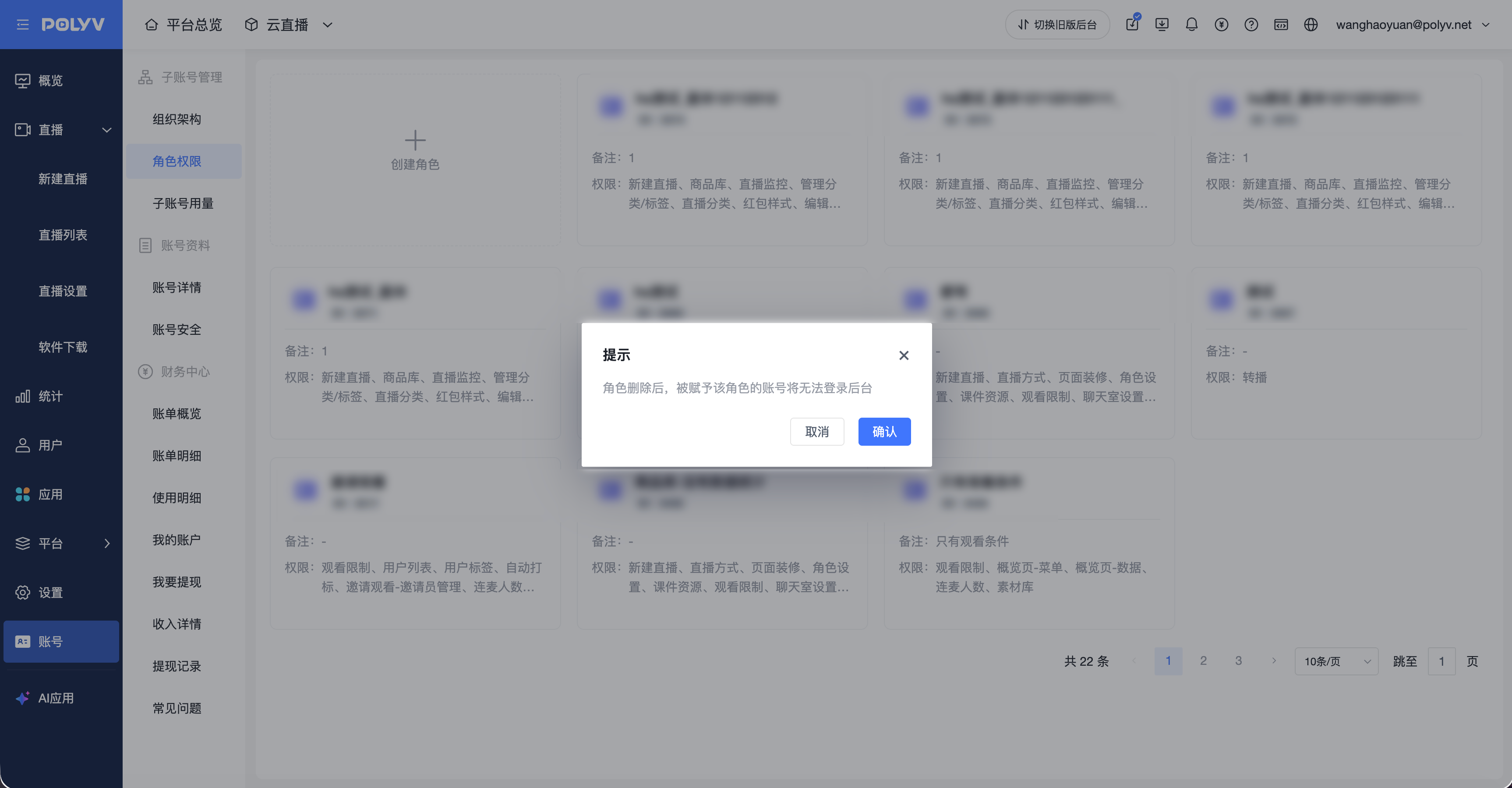
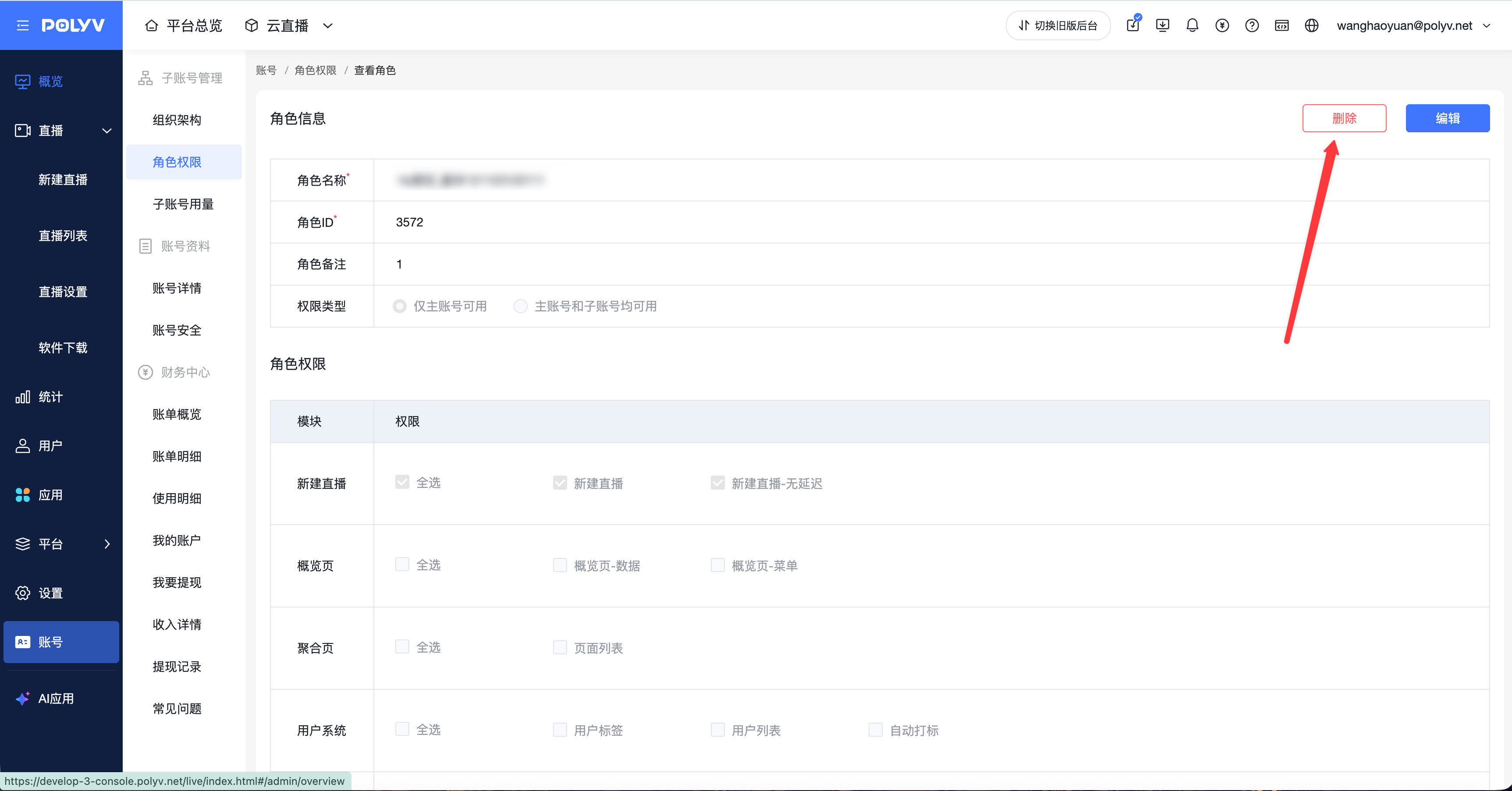
- After a role is deleted, accounts assigned that role will be unable to log in to the backend;
- Click the "Delete" button, and a confirmation dialog will appear; after confirming, click the "OK" button to complete the deletion
4. Sub-Account Usage
- Usage Statistics and Display
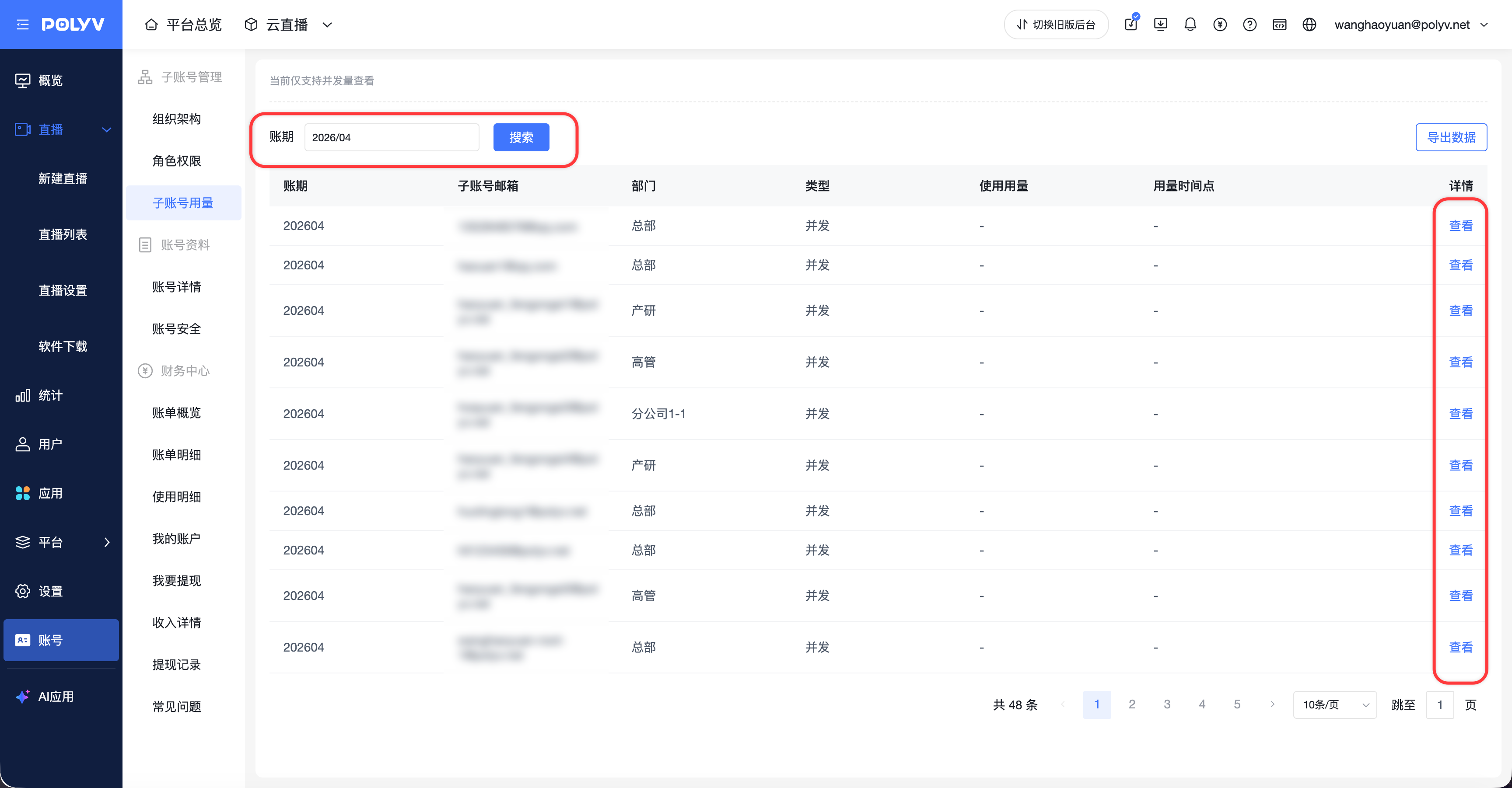
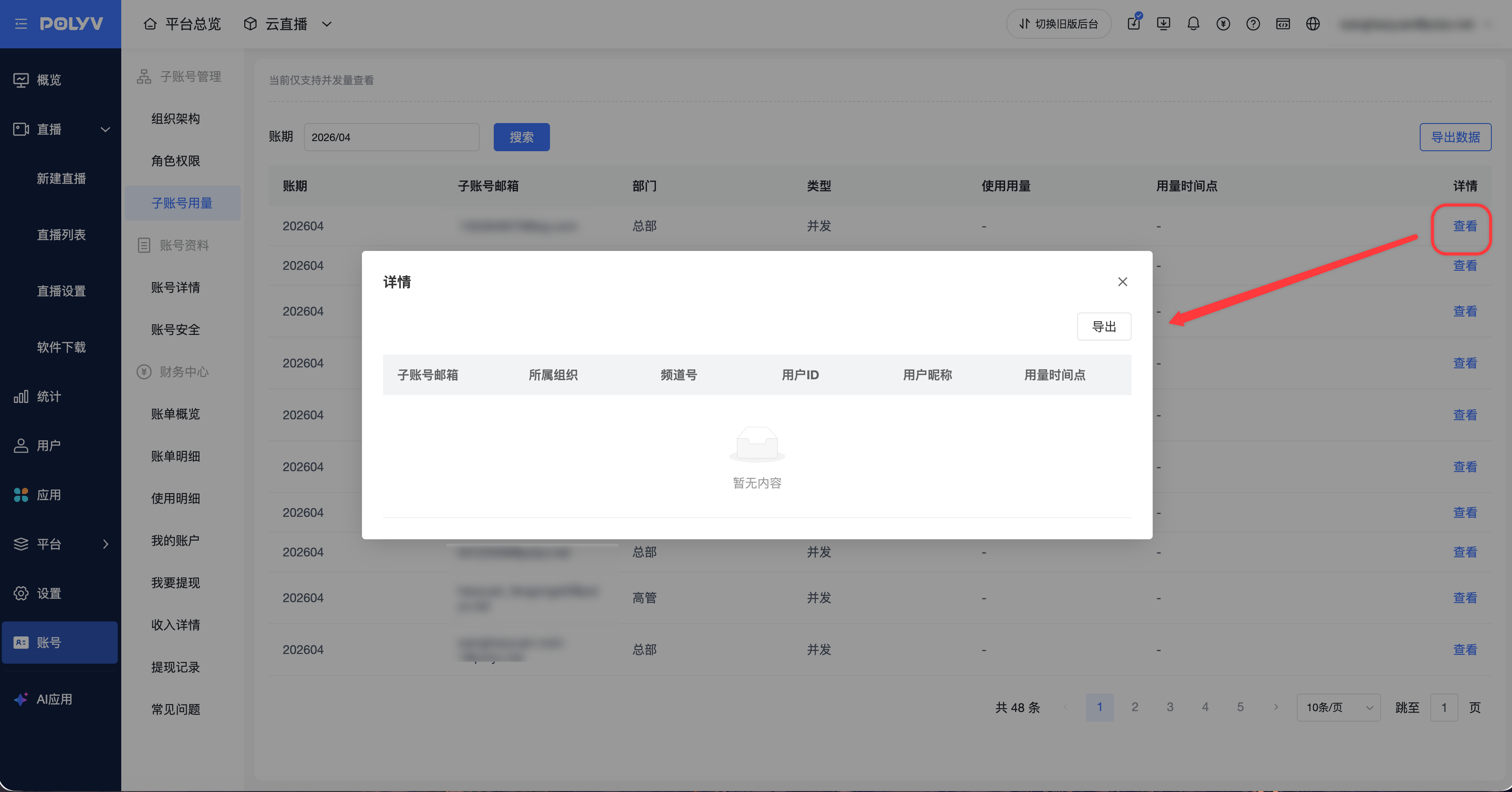
- Feature Description: Real-time statistics and display of resource usage for each sub-account within a specific time range, such as usage amount, usage time points, channel IDs, etc., helping administrators understand sub-account activity and resource consumption, providing a basis for resource allocation and optimization;
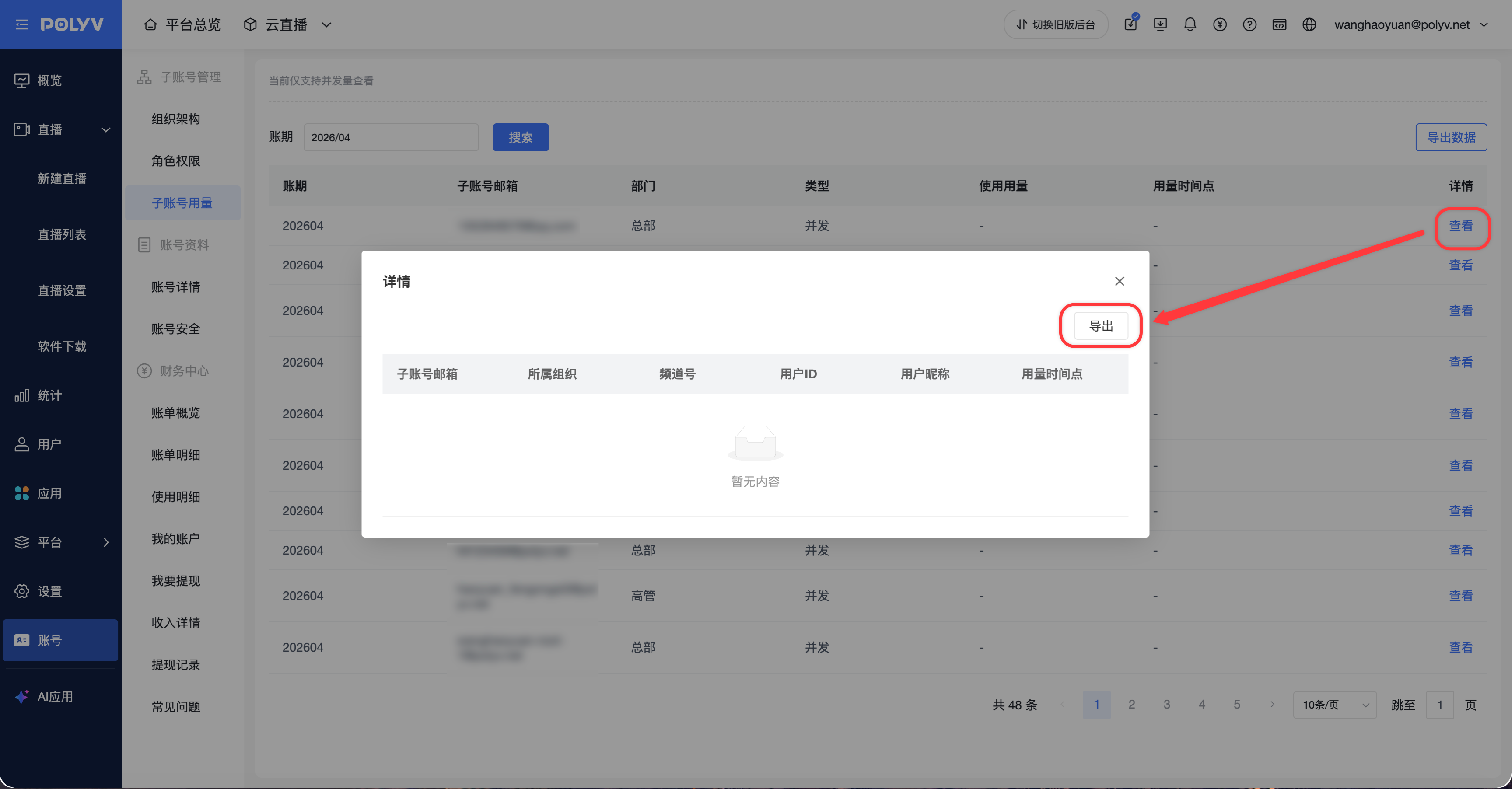
- Operation Flow: Click the "Sub-Account Usage" module, select the billing period time range to view; the system displays usage data for each sub-account in a list format. Click "View" to show more details under a specific sub-account
- Exporting Sub-Account Data Information
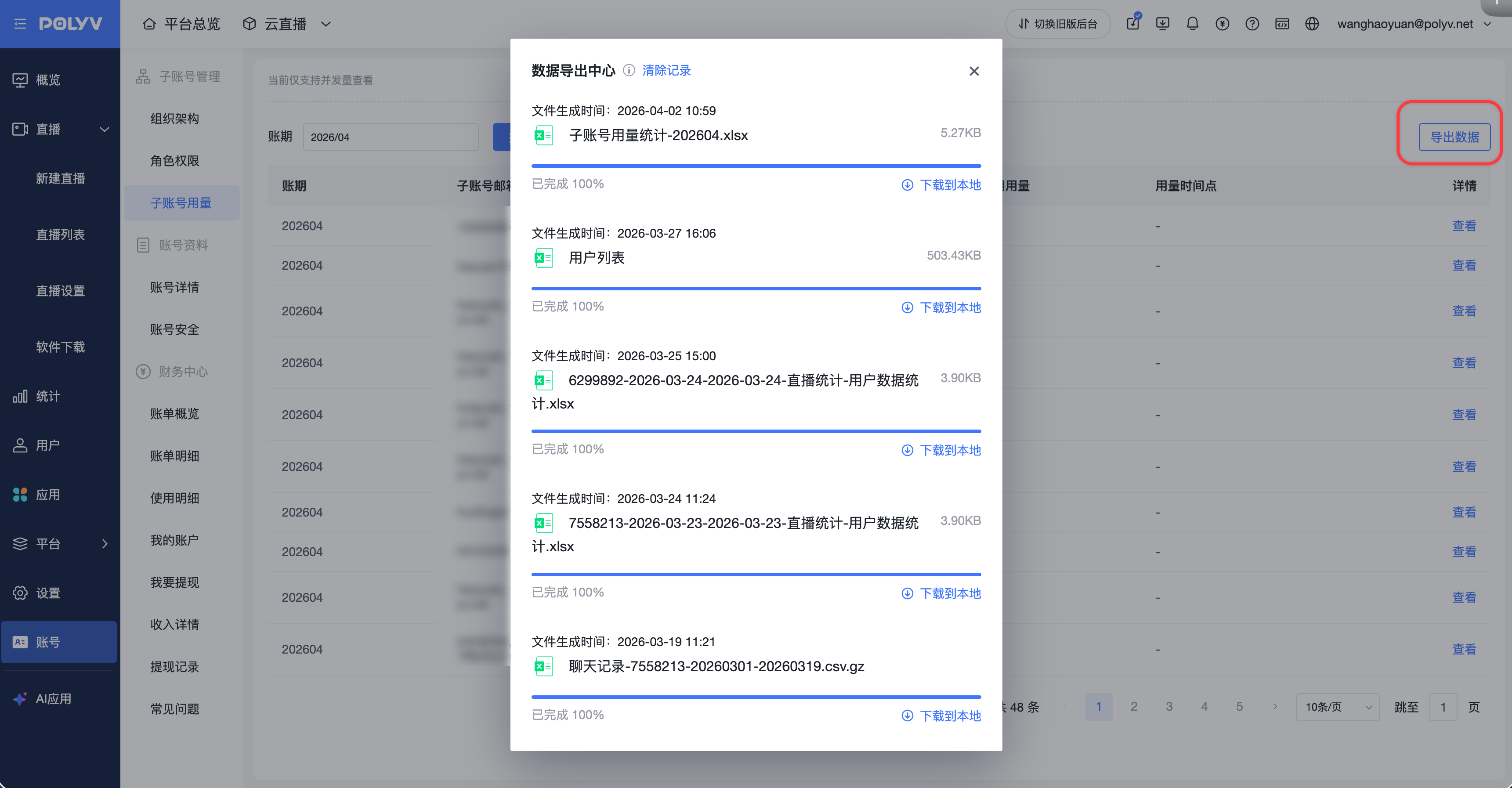
- Feature Description: The export function allows administrators to export sub-account related information, such as usage amount, usage time points, type, department, and details, into a file for data backup, analysis, or further processing;
- Operation Flow: On the sub-account usage page, click "Export Data". After successful data export, the data export center will automatically pop up for download; the same applies to exporting sub-account detail data