


Registration
I. Feature Overview
Feature Info |
Description |
|---|---|
| Feature Name | Registration |
| Feature Description | Collects audience information; after registration, the audience can enter the live room by entering their phone number; checks if the audience has watched the live stream; the user ID remains unchanged when the same phone number re-enters the live room |
| Purpose | To obtain the personal information, viewing status, and interaction data of registered viewers |
| Use Cases | When you need to manage participants and track whether employees have watched the live stream; when you need to collect audience information for follow-up and measure event effectiveness; when you need to batch import viewers for direct access; when you need to link audience registration information with interaction behavior |
| Operation Path | 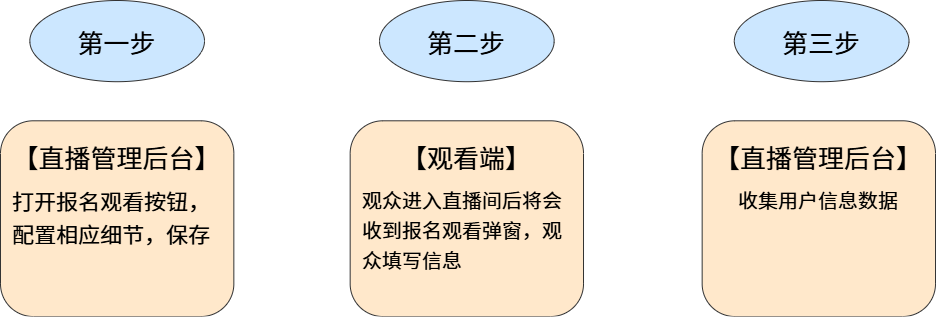 |
II. Backend Settings
1. Enable Registration Feature
Navigate to Channel Details > Marketing & Interaction > Lead Generation > Registration to enable the registration feature.
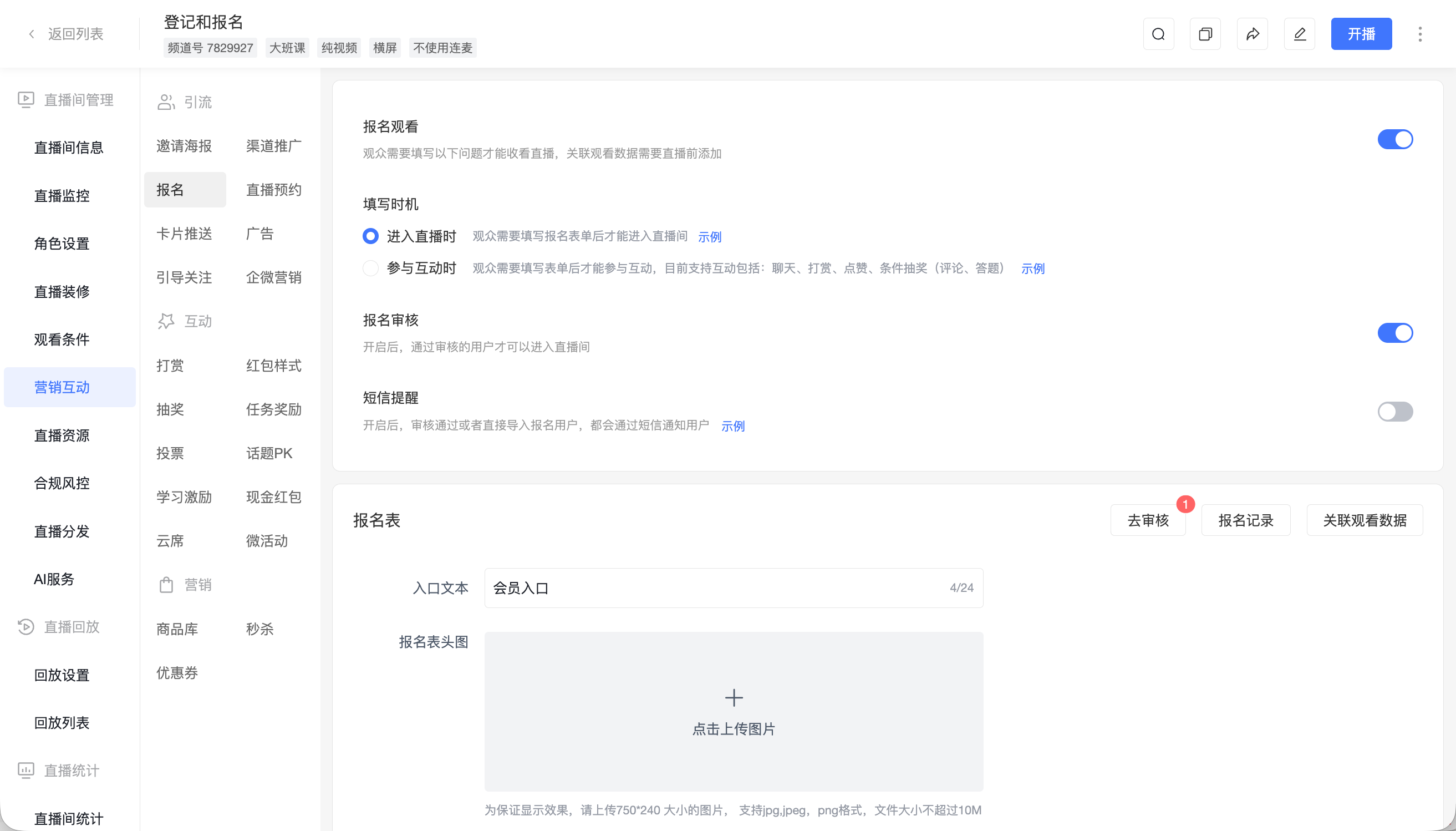
2. Registration Settings
After enabling, you can configure when the audience fills in the registration form:
- Upon Entering the Live Room: The audience must fill in the registration form before entering the live room.
- Upon Interaction: The audience must fill in the form before participating in interactions. Currently supported interactions include: Chat, Gifts, Likes, Conditional Draw (Comment, Quiz).
After enabling [Registration Review], only users whose registration is approved can enter the live room. A [Go to Review] entry will appear on the right side of the page, allowing you to access the review page to process registered users.
After enabling [SMS Notification], approved registered users or directly imported registered users will receive an SMS notification.
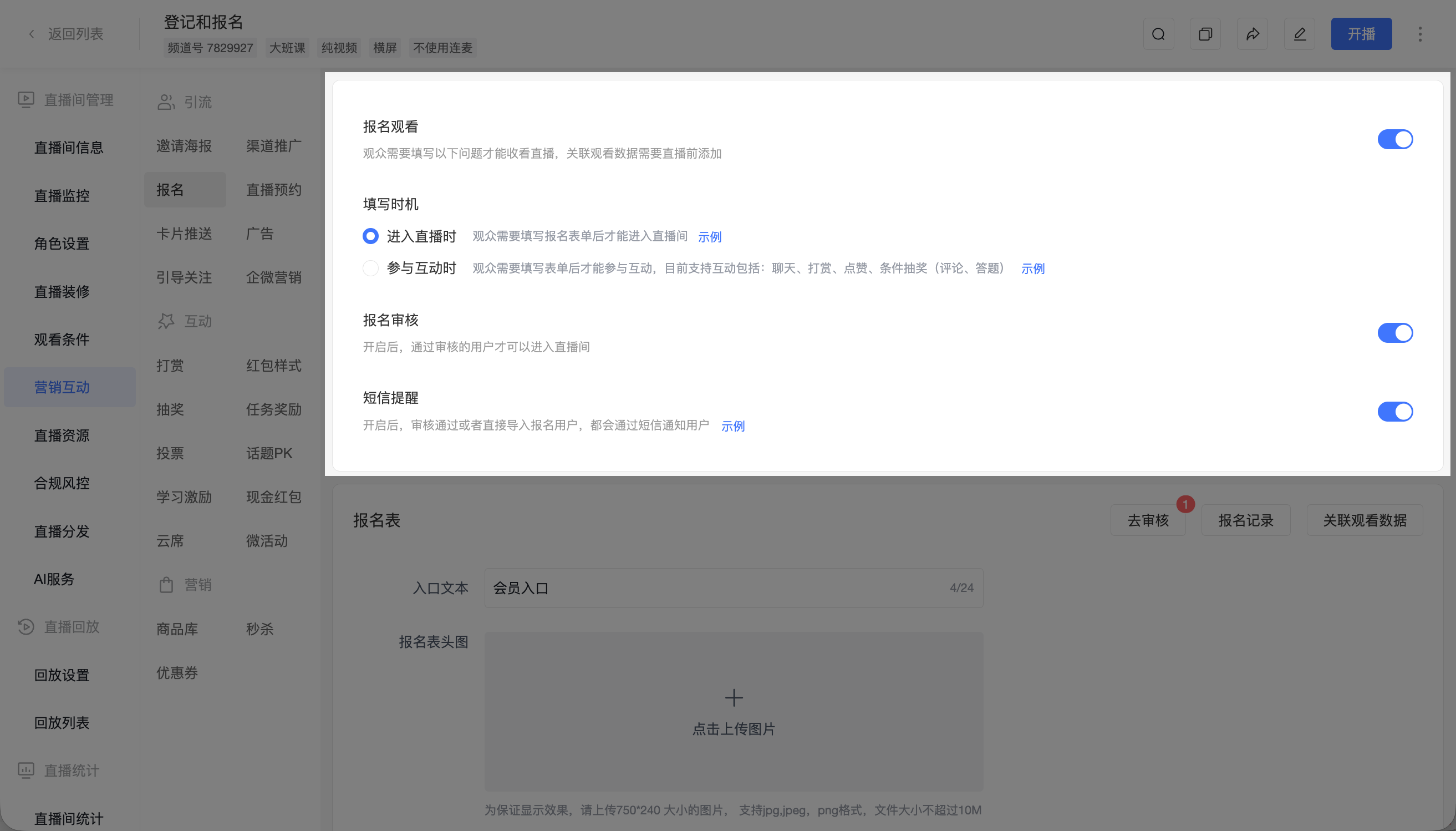
3. Configure Registration Form
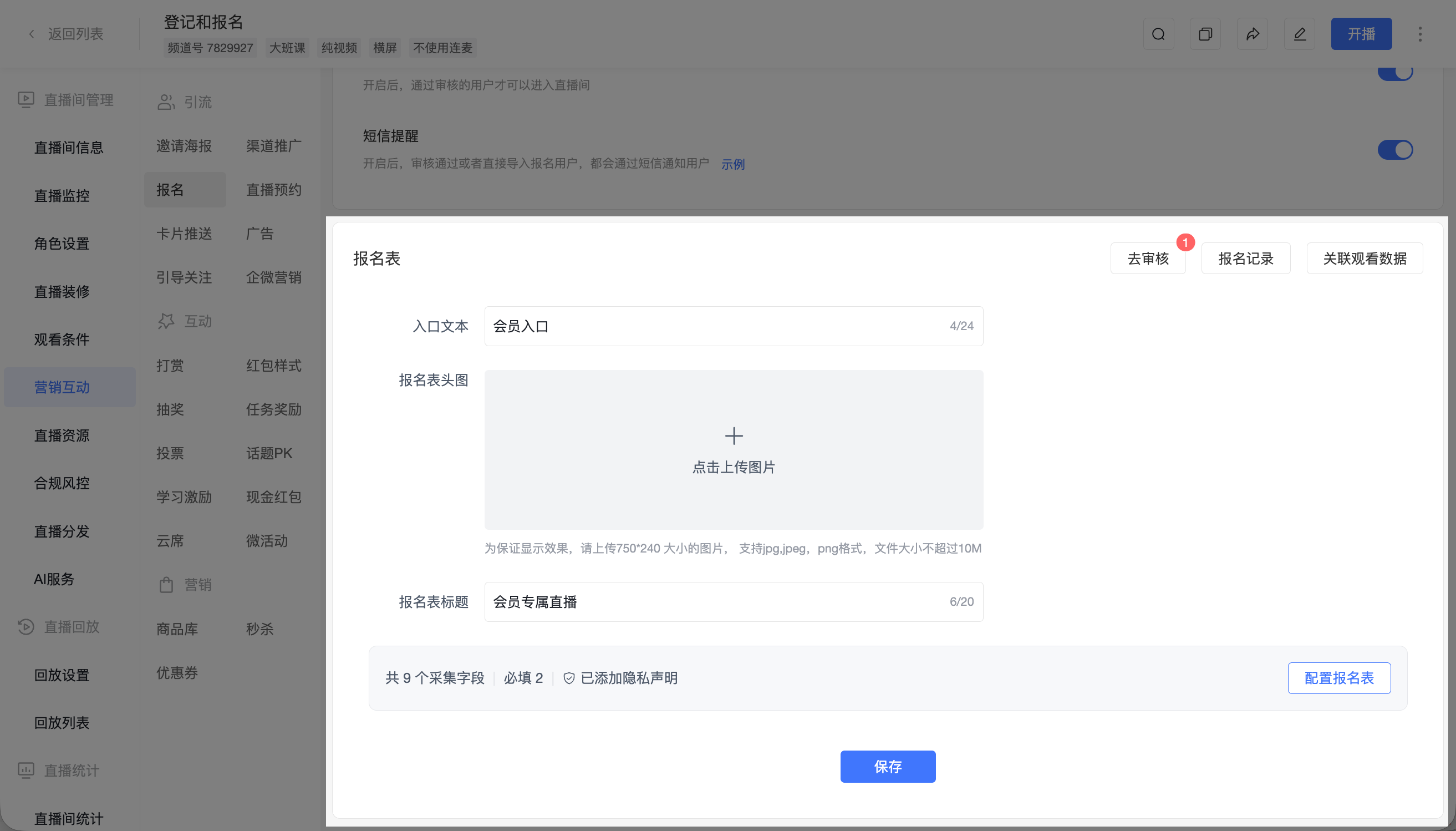
In the [Registration Form] area, you can configure the form content that the audience needs to fill in during registration.
The following configurations are supported:
| Configuration Item | Description |
|---|---|
| Entry Text | Set the text displayed for the registration entry on the viewing page |
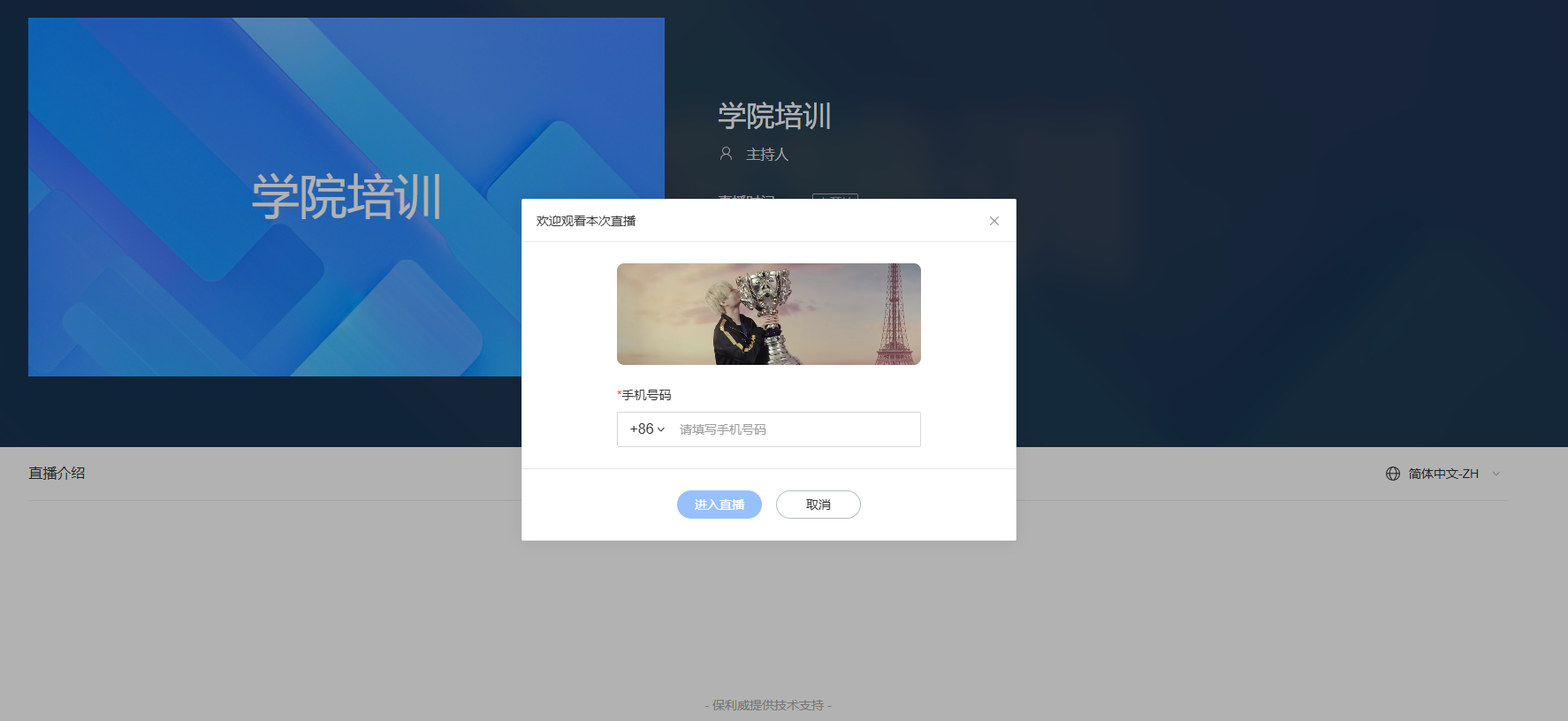
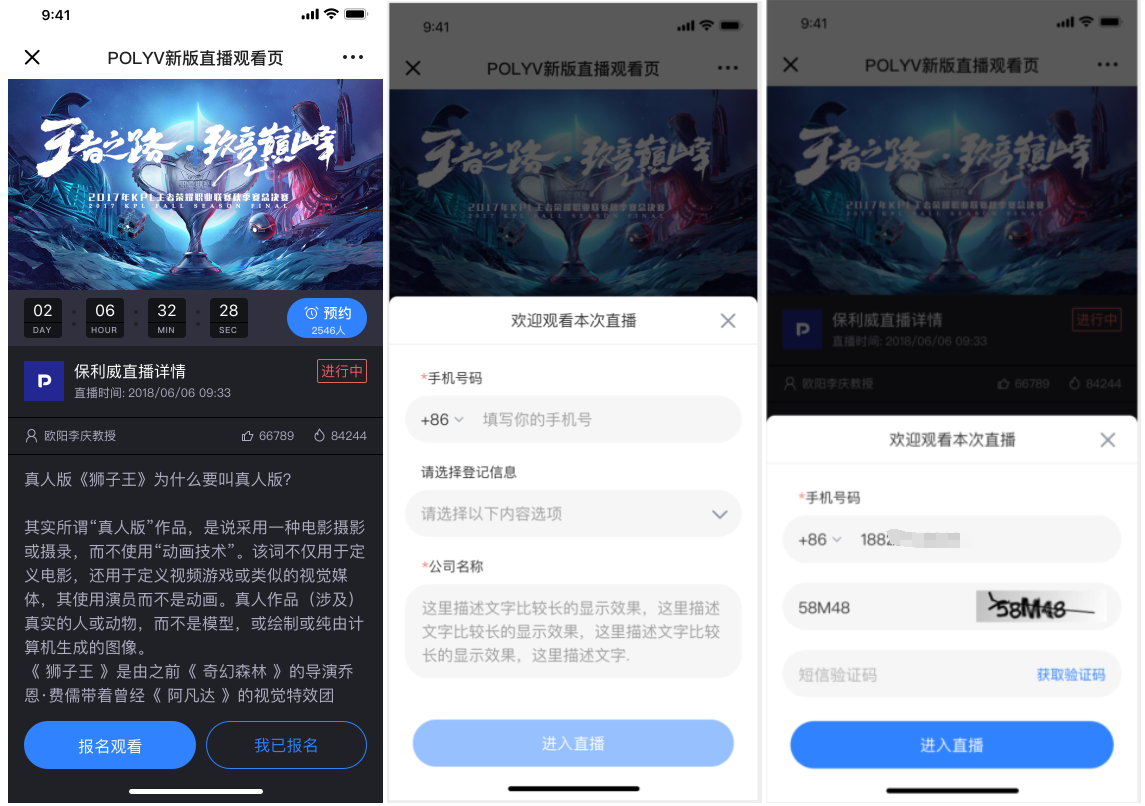
| Registration Form Header Image | Set the image displayed at the top of the registration form. Recommended size: 750*240 pixels. Supports jpg, jpeg, png formats. File size must not exceed 10M |
| Registration Form Title | Set the title of the registration form page |
| Collection Fields | Set the information fields the audience needs to fill in during registration |
| Privacy Statement | Add a privacy statement to the registration form for the audience to view or check before submission |
Click [Configure Registration Form] to enter the registration form field configuration popup.
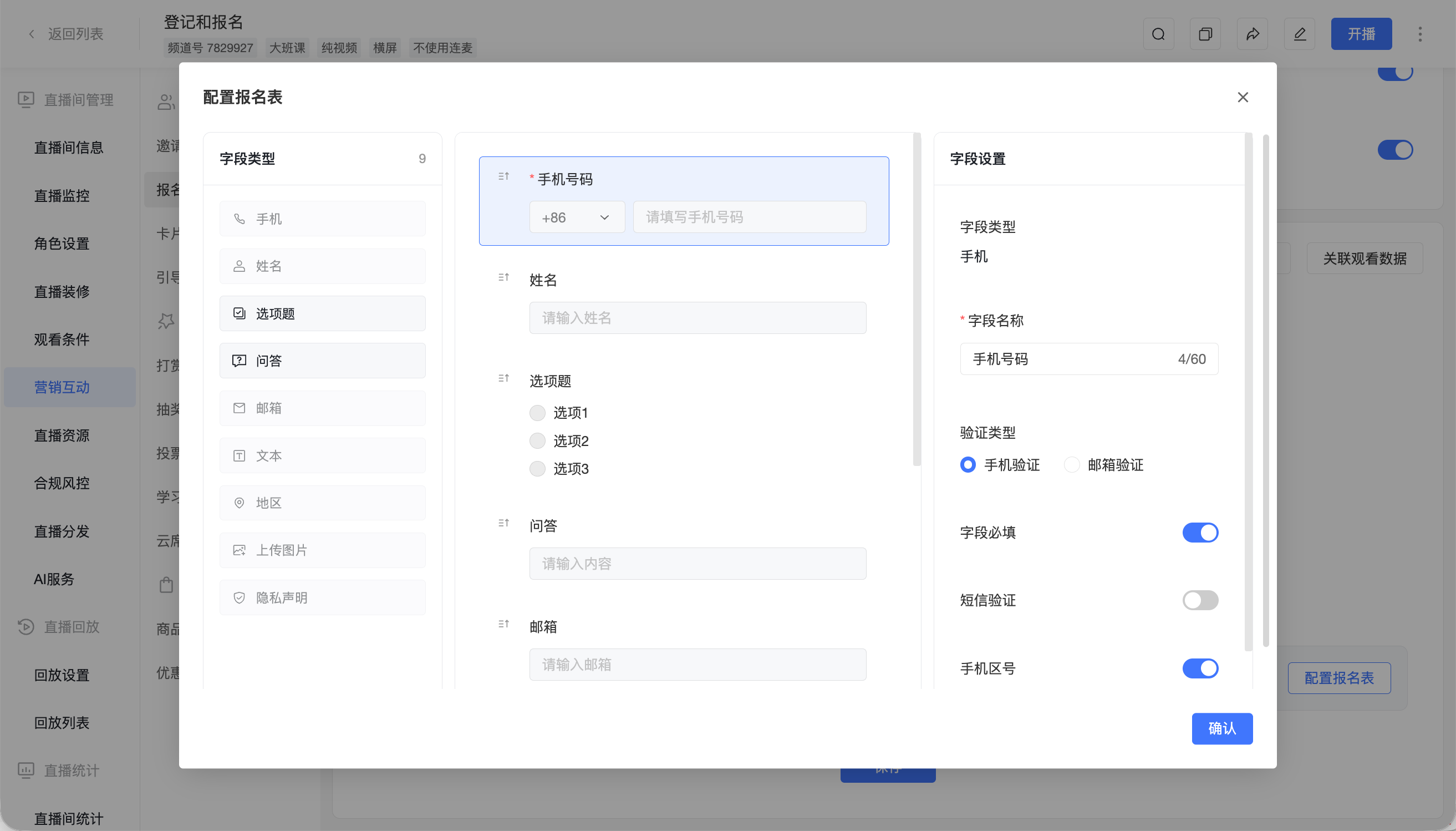
The registration form supports adding the following fields:
- Phone
- Name
- Multiple Choice
- Q&A
- Text
- Region
- Upload Image
- Privacy Statement
After adding a field, you can configure the field name, whether it is required, placeholder text, validation type, etc., in the [Field Settings] on the right. The supported configuration items may vary for different field types. Please refer to the actual page display.
The Phone field supports setting validation types, including [Phone Verification] and [Email Verification]. If you need to collect phone numbers, you can also enable [SMS Verification] and [Phone Area Code] as needed.
After configuration, click [Confirm], then click [Save] at the bottom of the page.
4. Registration Review
After enabling [Registration Review], click [Go to Review] to enter the registration review page.
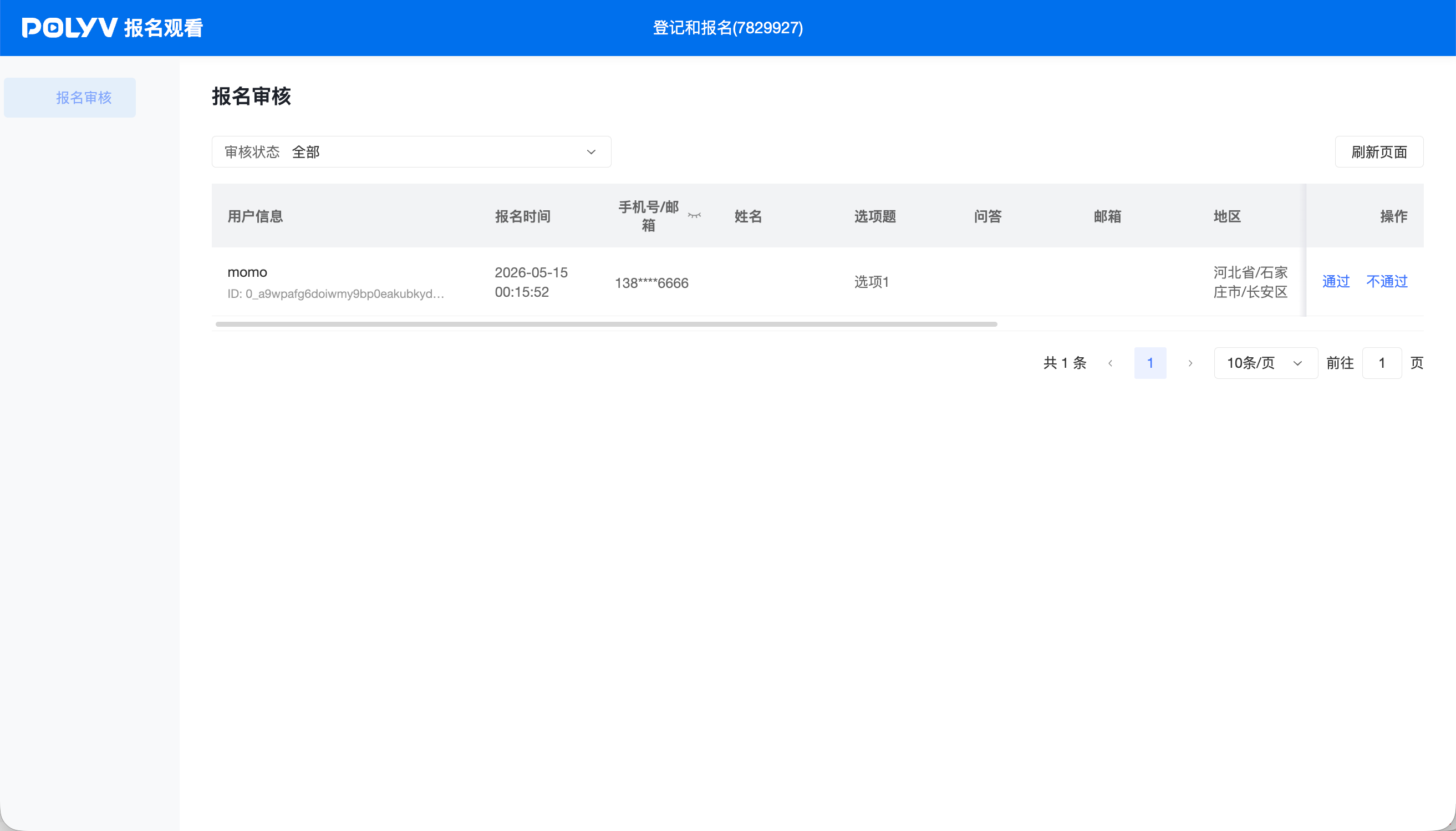
The review page allows filtering registered users by review status. The list displays user information, registration time, phone number/email, name, registration fields, etc.
You can perform the following operations on registered users:
- Click [Approve] to allow the user to enter the live room.
- Click [Reject] to deny the user entry to the live room.
- Click [Refresh Page] to update the current review list.
5. Registration Records
Click [Registration Records] to view the data of registered users for the current live stream.
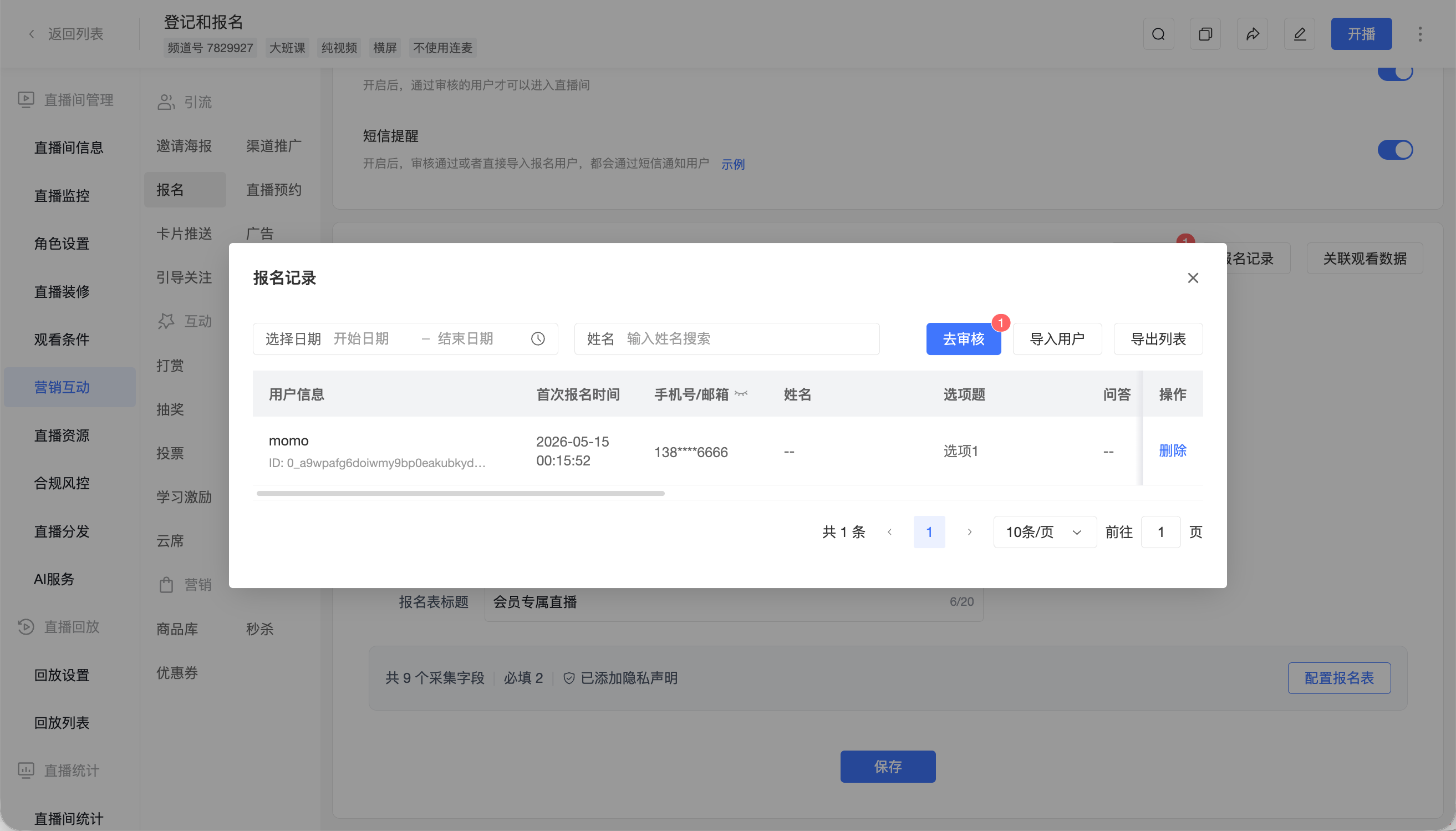
Registration records support:
- Filtering by registration time.
- Searching for registered users by name.
- Clicking [Import Users] to batch import collected user information.
- Clicking [Export List] to export the current registration records.
- Clicking [Delete] in the action column to delete the corresponding registration record.
The registration record list displays corresponding information based on the registration form fields, such as phone number/email, name, multiple choice, Q&A, etc.
6. Link Viewing Data
Click [Link Viewing Data] to link registration fields with viewing data and interaction data.
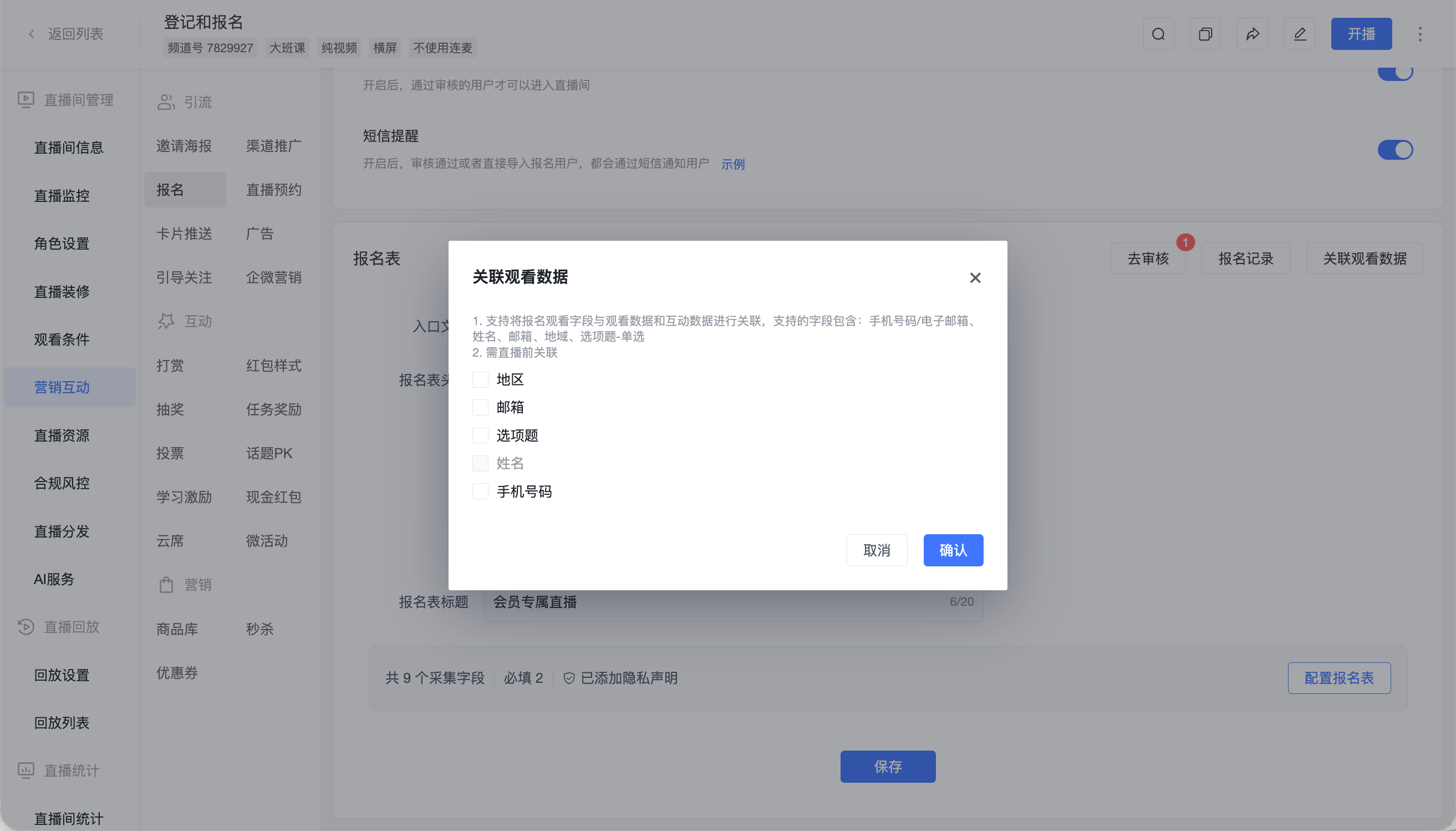
The fields that can be linked include:
- Phone Number/Email
- Name
- Region
- Multiple Choice - Single Select
This linking must be completed before the live stream starts. After linking, you can view user data combined with registration fields in the viewing statistics and interaction statistics.
III. Effect Display
1. Web Viewing Effect
2. H5 Mobile Viewing Effect
IV. About Registration for Viewing
1. Key Highlights of the Registration Feature
- Registration information only needs to be filled in once. Subsequent logins can be done via phone number, avoiding the awkward situation of re-registering (to use phone verification login, go to Development Settings > SMS Platform Settings to enable the "Polyv SMS Service").
- Statistics add a "Viewed" dimension, allowing clients to know whether registered users ultimately watched the live stream.
- Viewing behavior is continuous. If a user watches a live stream via registration, the next time the same user logs in with the same phone number, the assigned user ID will remain the same as the previous one. 2. Limitations of the Registration Feature
- No limit on the total number of registration submissions.
- If both viewing conditions and registration for viewing are enabled, the viewing conditions must be met first before accessing the registration page.
- One phone number can only correspond to one user ID. If viewing conditions pass a user ID (Whitelist/External Authorization/Independent Authorization/Third-Party Authorization), and multiple user IDs use the same phone number to log in, the final statistical correspondence will be based on the last user ID.
- The phone number is a required field and cannot be edited. Login only supports phone number login; other login methods are not supported.
