


Real-Time Captions
1. Feature Overview
Feature Info |
Description |
|---|---|
| Feature Name | Real-Time Captions |
| Feature Description | Automatically generates captions during live streaming, and supports configuring multilingual captions for real-time translation display. |
| Purpose | Provides caption assistance for viewers to help understand live content, and meets the viewing needs of audiences speaking different languages. |
| Use Cases | Suitable for training sessions, cross-language live streaming, and live streaming scenarios using OBS or third-party tools for broadcasting. |
| Operation Path | 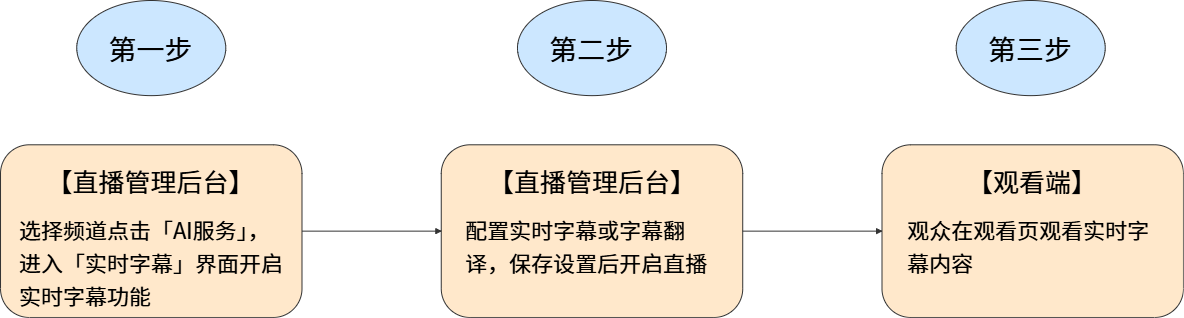 |
2. Usage Instructions
Prerequisites
- Contact sales to enable this feature.
- Real-Time Captions supports the following caption generation methods:
- Live Client Mode: Captions are recognized and generated by the live client. Suitable for scenarios where broadcasting starts via the live client.
- Cloud Mode: Captions are recognized and generated by the cloud based on the live room's stream pull address. Suitable for scenarios using OBS or third-party tools for broadcasting.
Audio Recognition Notes for Live Client Mode
- Speech recognition applies to mixed audio, which can capture microphone sound, system audio, and multimedia sound.
- In [Live + Interactive] mode, system audio will not be recognized.
- When using the live client on a Mac system and selecting [Live Only] mode, [BlackHole 2ch] must be enabled to output system audio.
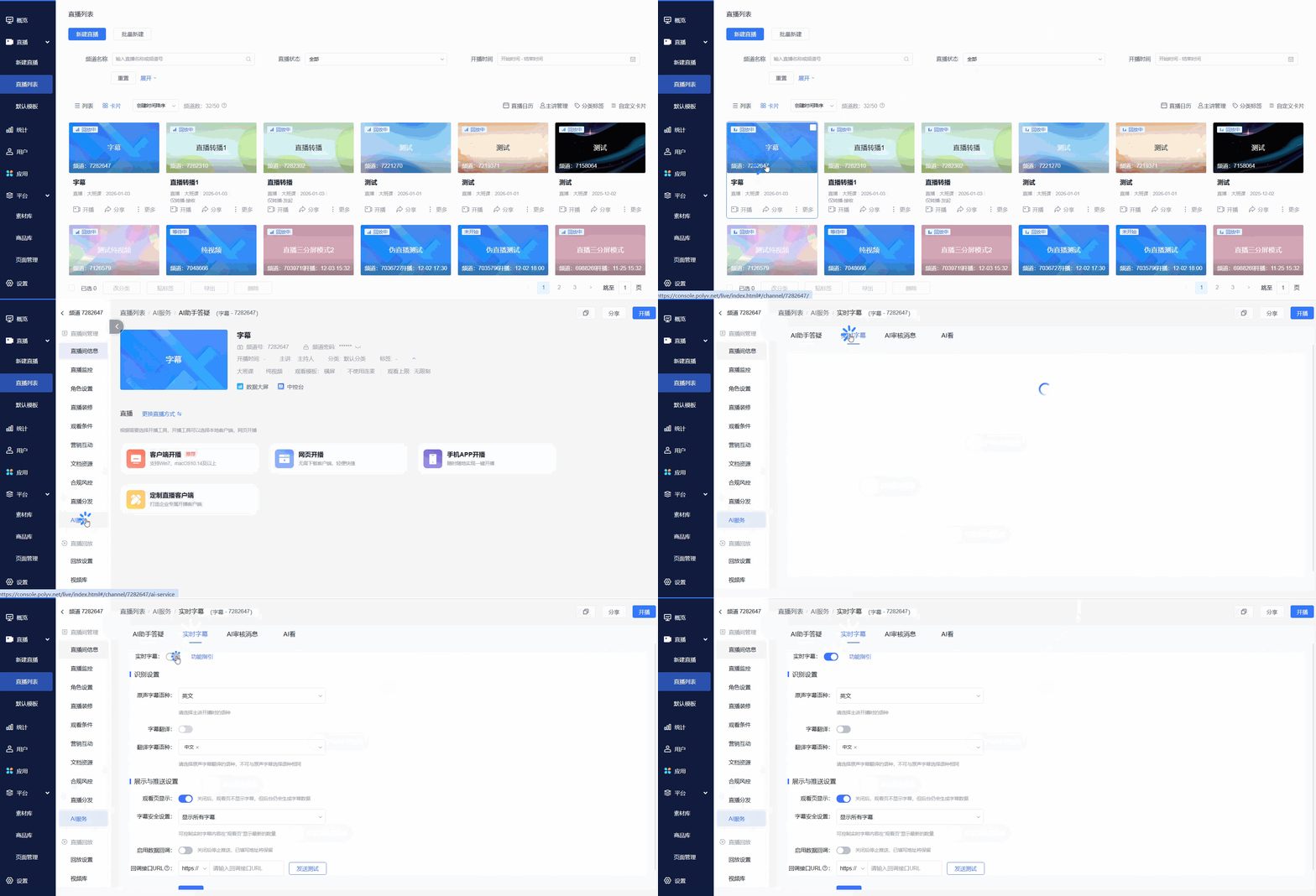
1. Feature Entry Point
Operation Path: [Live List] — Select Channel — [AI Services] — [Real-Time Captions] — Enable the Real-Time Captions feature.
2. Recognition Settings
After enabling Real-Time Captions, complete the following settings:
Caption Generation Method
- Live Client Mode: Captions are recognized and output by the live client. When using this mode, broadcasting must start via the live client.
- Cloud Mode: Captions are recognized and output by the cloud based on the live room's stream pull address. When using OBS or third-party tools for broadcasting, this mode can be selected.
After enabling Cloud Mode, the live client will not generate or send captions to avoid duplicate display of client and cloud captions.
Caption generation methods include [POLYV Live Client] and [Cloud Recognition]. Once specified, switching is not possible during the live stream.
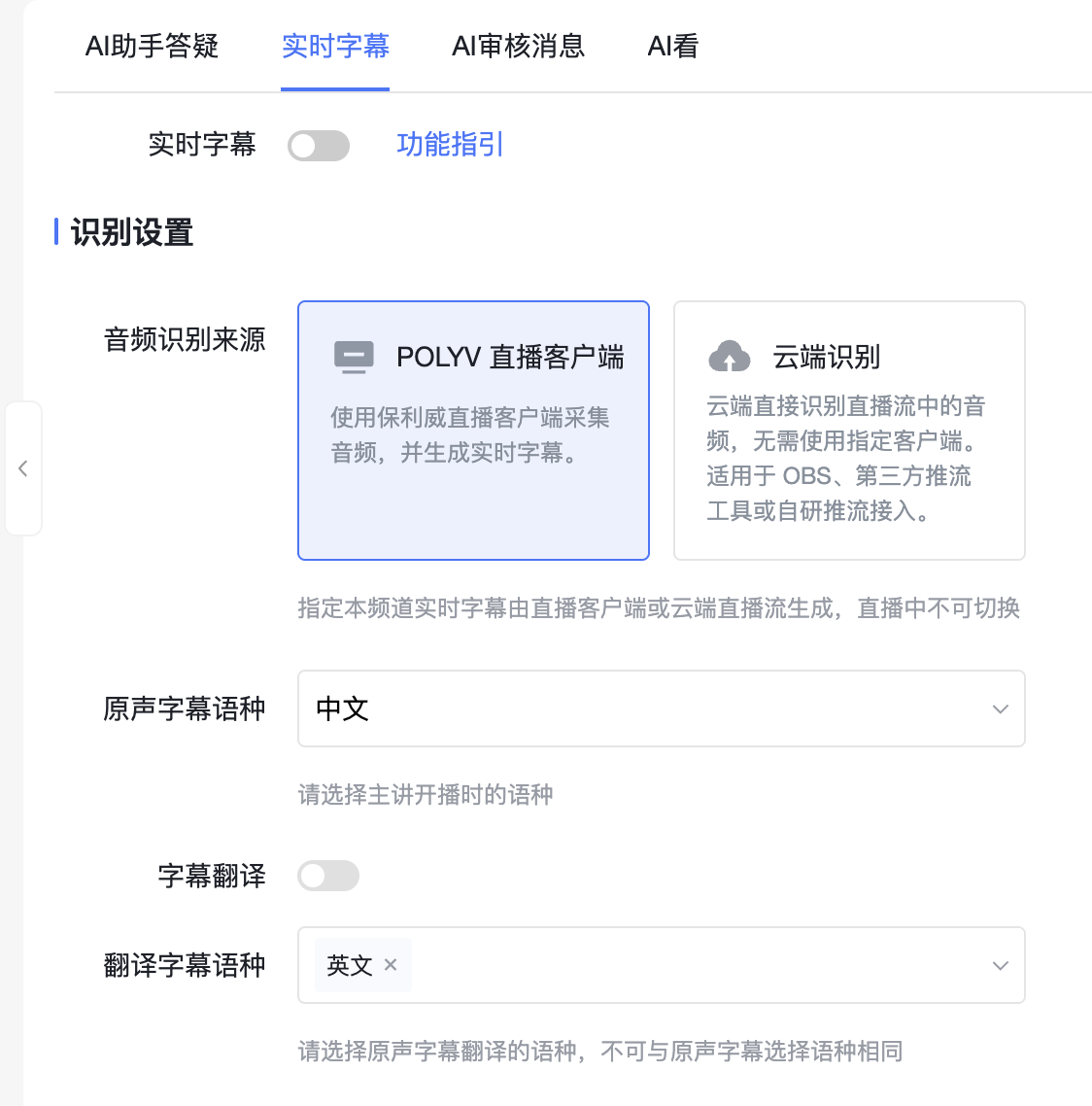
- Original Caption Language: Synchronizes the language used by the host during the live stream in real time.
- Supports Chinese, English, Filipino, Thai, Korean, Japanese, German, Malay, Indonesian, Vietnamese, French, Portuguese, Arabic, Spanish, Turkish, and other languages.
- Caption Translation: When enabled, the original captions can be translated into the selected language.
- Translated Caption Language
- Supports Chinese, English, Filipino, Thai, Malay, Indonesian, Lao, Burmese, Vietnamese, Russian, Turkish, Portuguese, Spanish, Khmer, Tamil, Japanese, Korean, French, German, Arabic, and other languages.
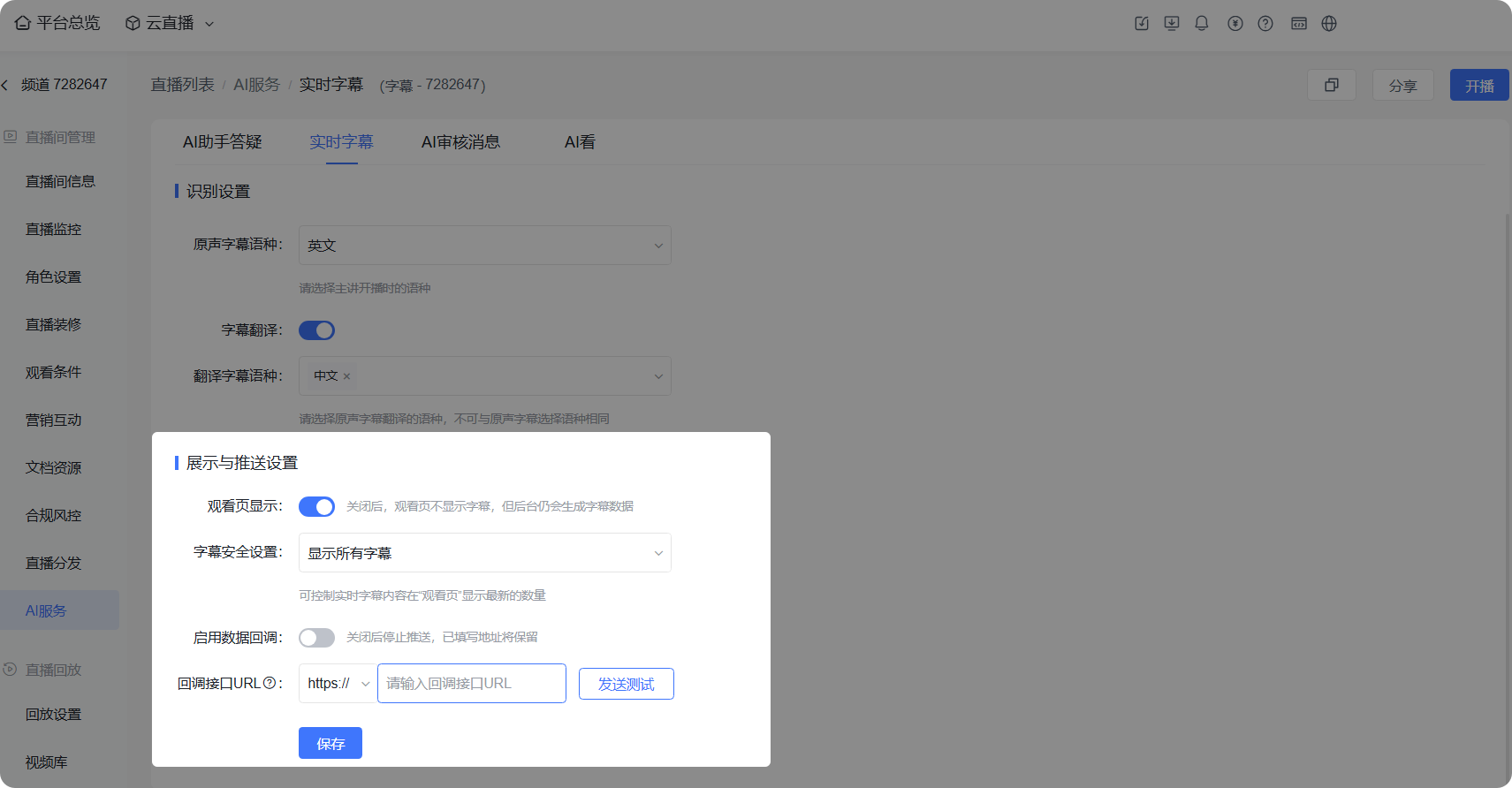
3. Display and Push Settings
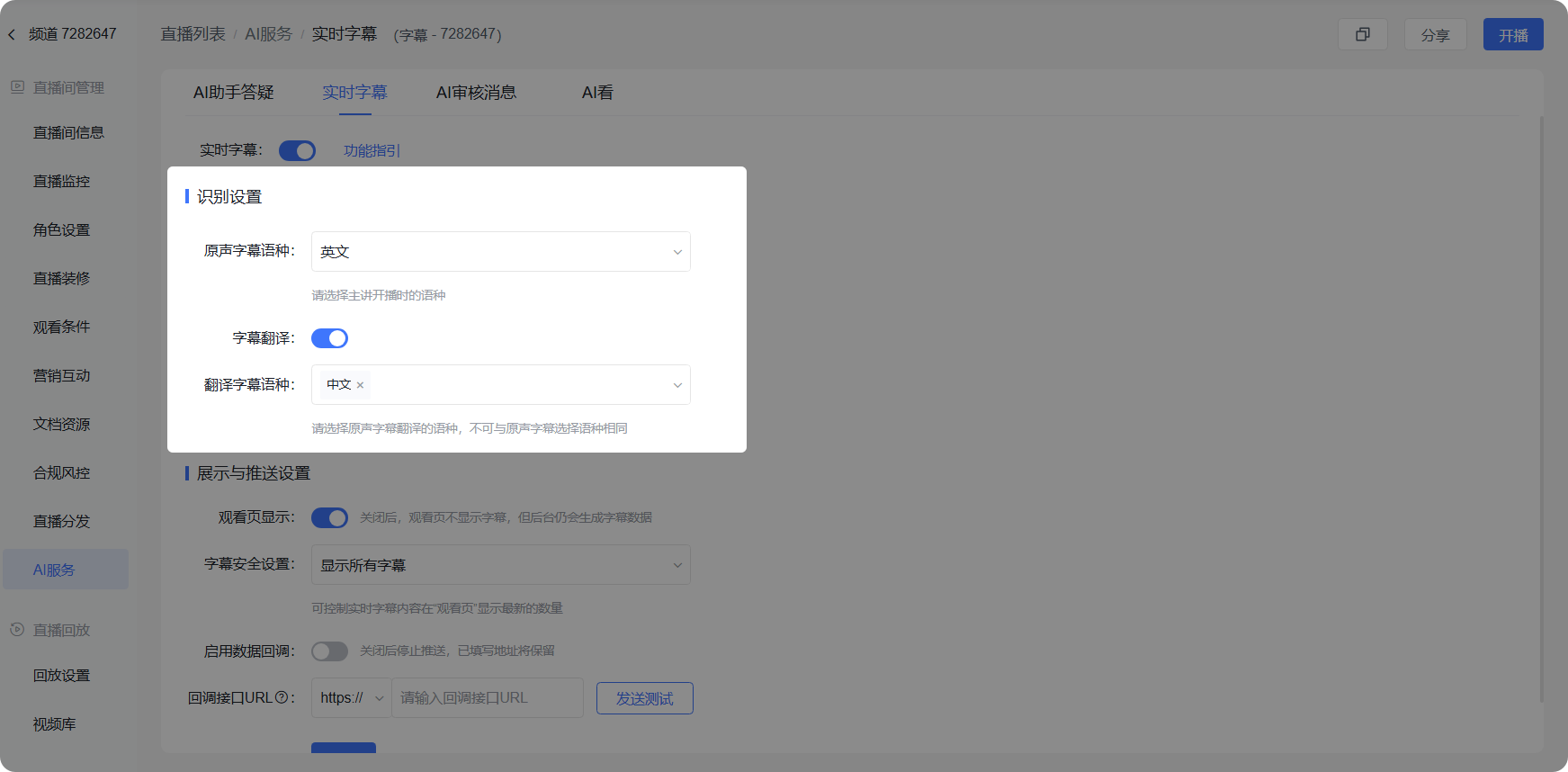
- Show on Watch Page: When disabled, captions are not displayed on the watch page, but caption data is still generated in the backend.
- Caption Safety Settings: Controls the maximum number of recent real-time caption entries displayed on the watch page.
- Enable Data Callback: When disabled, push stops, but the filled callback URL is retained.
- Callback Interface URL: Supports entering a callback URL to receive caption data.
4. Enabling Real-Time Captions in Live Client Mode
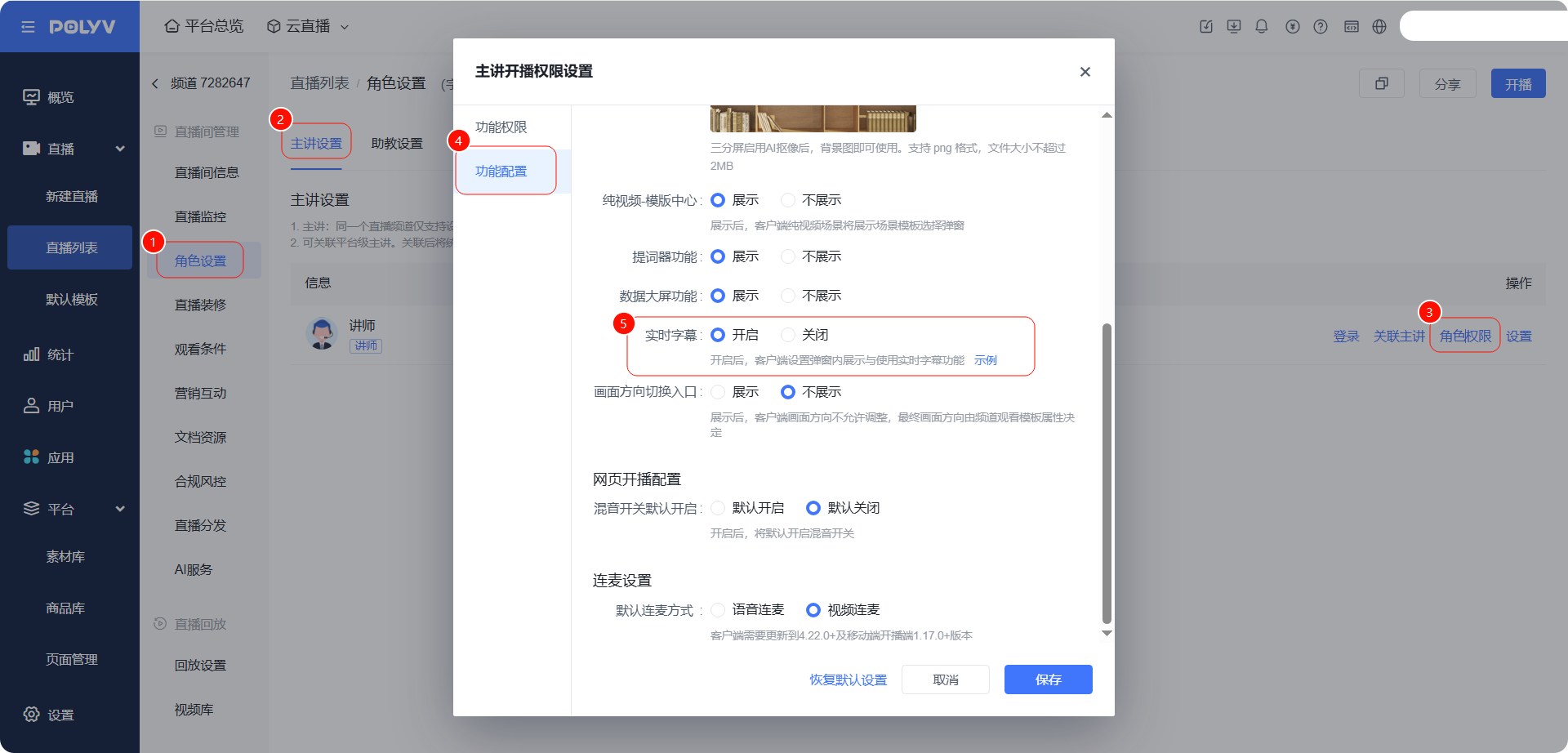
When using Live Client Mode, the host role must be granted permission for Real-Time Captions.
- Operation Path: [Role Settings] — [Host Settings] — [Role Permissions] — [Feature Configuration] — [Real-Time Captions].
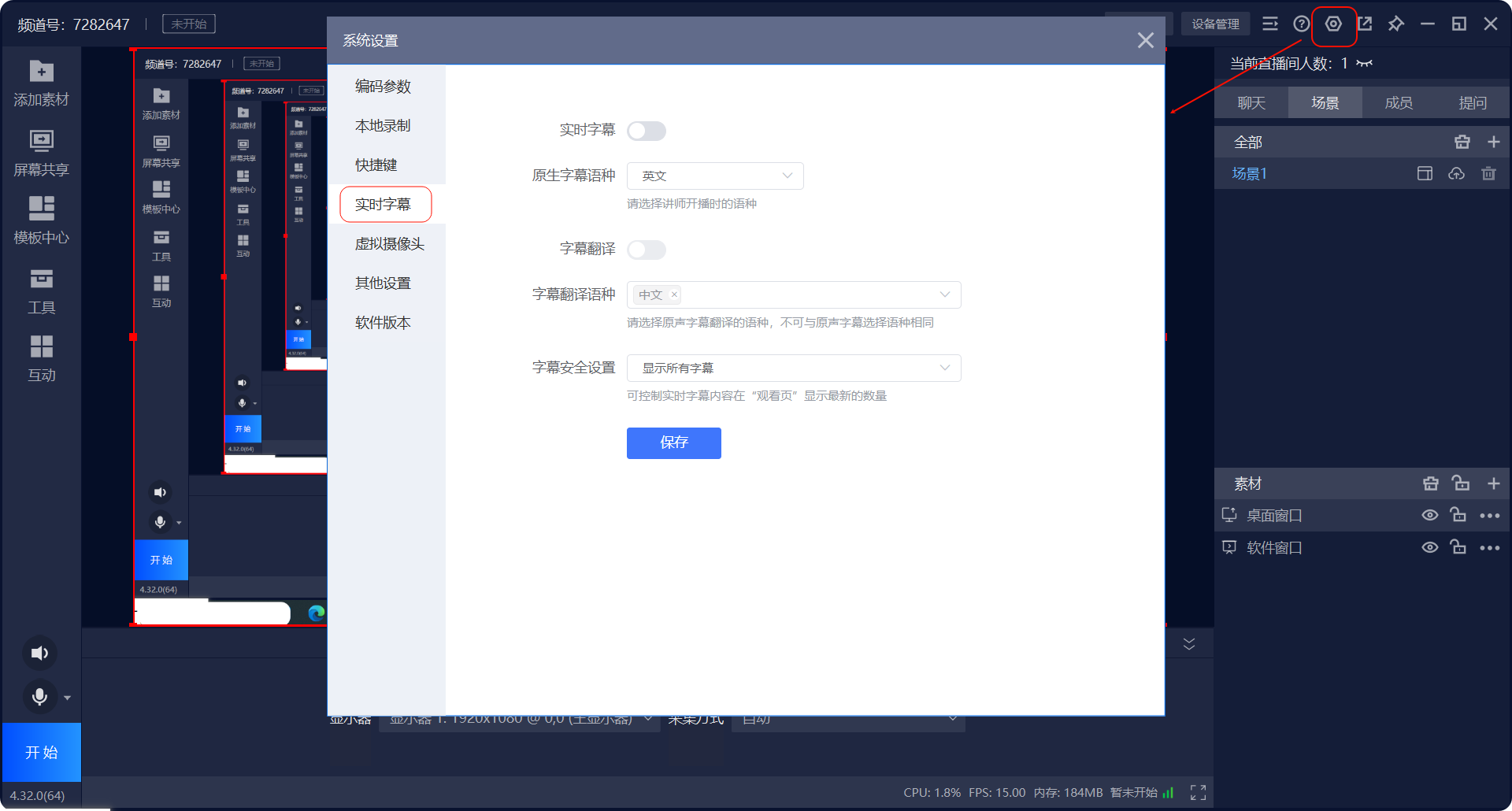
- After enabling, the Real-Time Captions feature will be displayed in the live client's settings popup.
When not broadcasting, you can click [System Settings] — [Real-Time Captions] in the live client to complete caption settings.
When selecting Cloud Mode, there is no need to enable Real-Time Captions in the live client; the cloud will generate captions and translations after the live stream starts.
5. Playback Caption Settings
For specific operations, refer to Video Library - Captions.
3. Viewer Watch Page Effects
1. Real-Time Captions
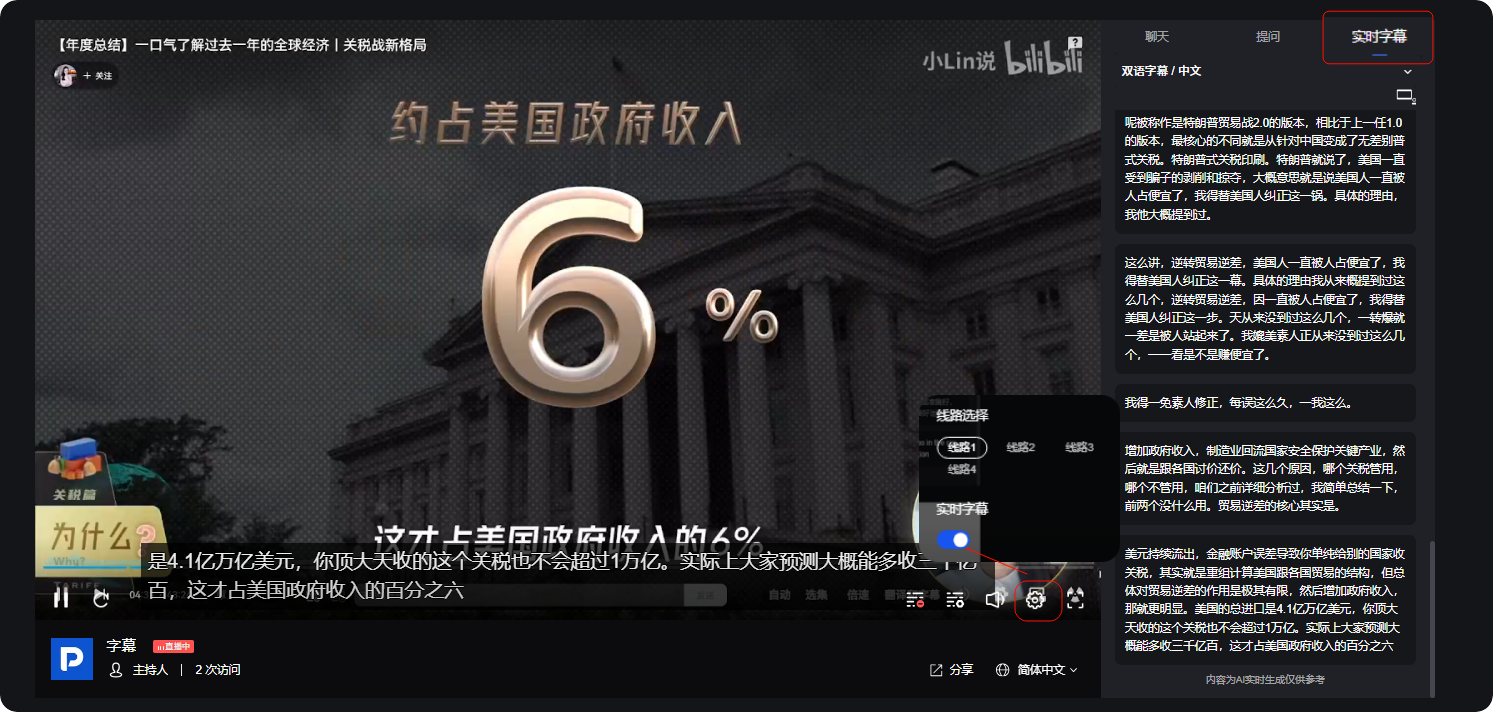
- PC Watch Page
- Click [Real-Time Captions] in the chat room to view synchronized captions.
- Enable [Real-Time Captions] in settings to view captions at the bottom of the video.
- Mobile Watch Page
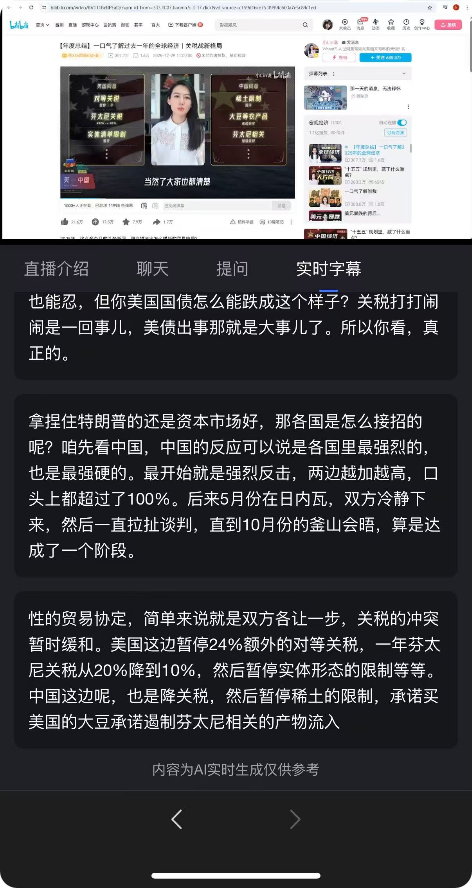
2. Caption Translation
- PC Watch Page
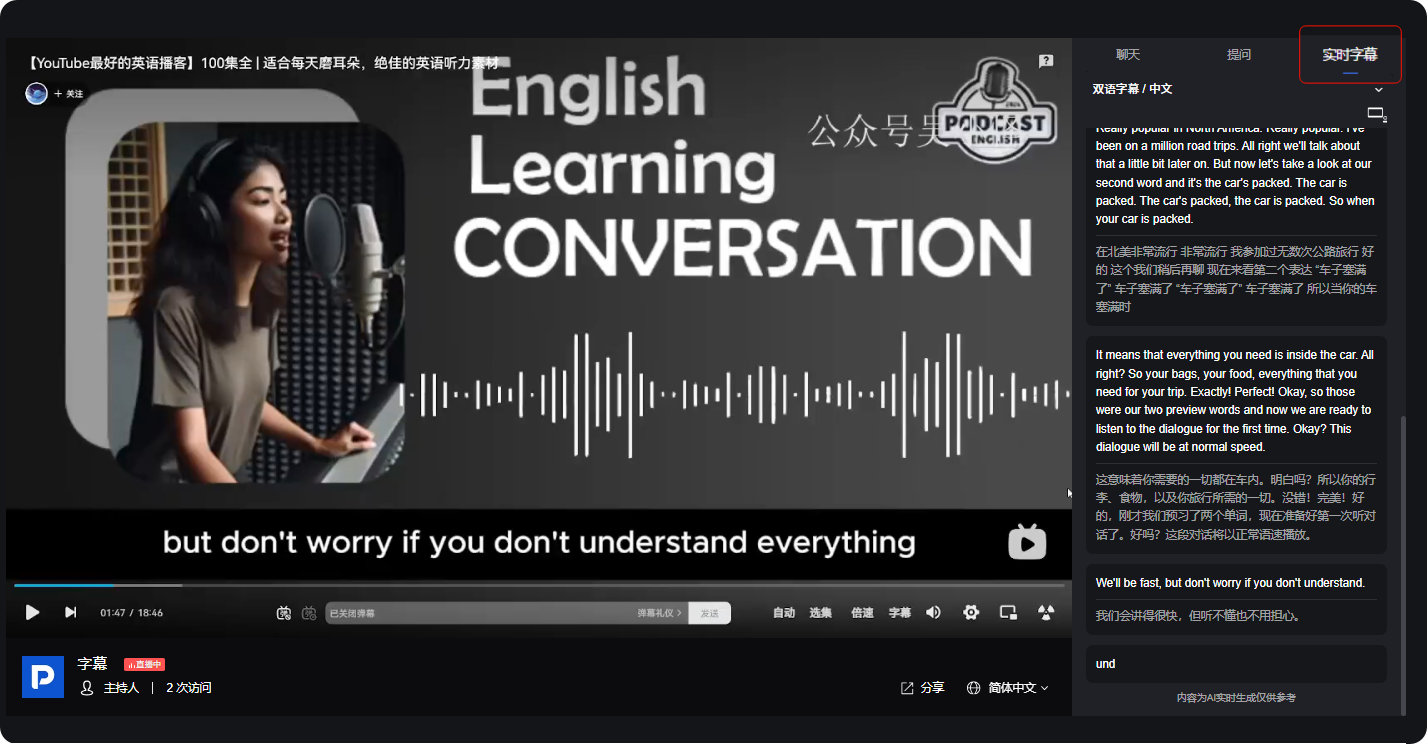
- Mobile Watch Page
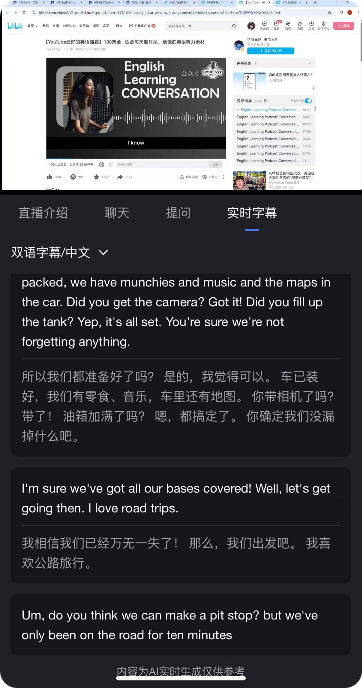
4. Frequently Asked Questions
For operational issues during use, refer to Real-Time Captions FAQ.
