Product Library - Product Explanation
Updated: 2026-08-17 11:27:00
I. Feature Overview
Feature Info |
Description |
|---|---|
| Feature Name | Product Explanation |
| Feature Description | Used to record product explanations during live streams and generate explanation videos displayed on the product detail page |
| Purpose | Allows viewers to review product explanations at any time, helping them understand product information |
| Use Case | Suitable for live streaming e-commerce scenarios |
| Operation Path | 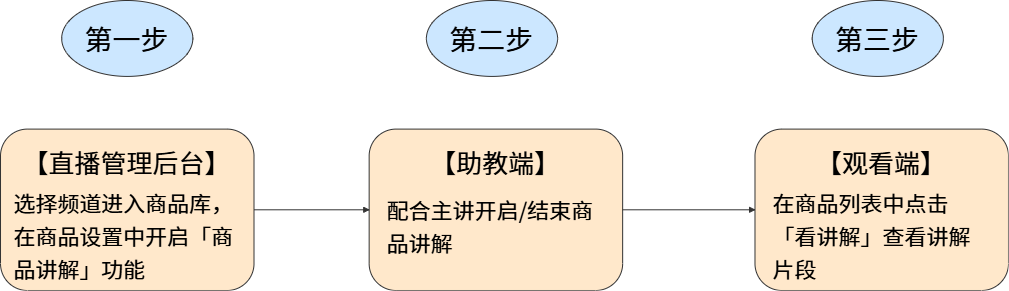 |
II. Usage Instructions
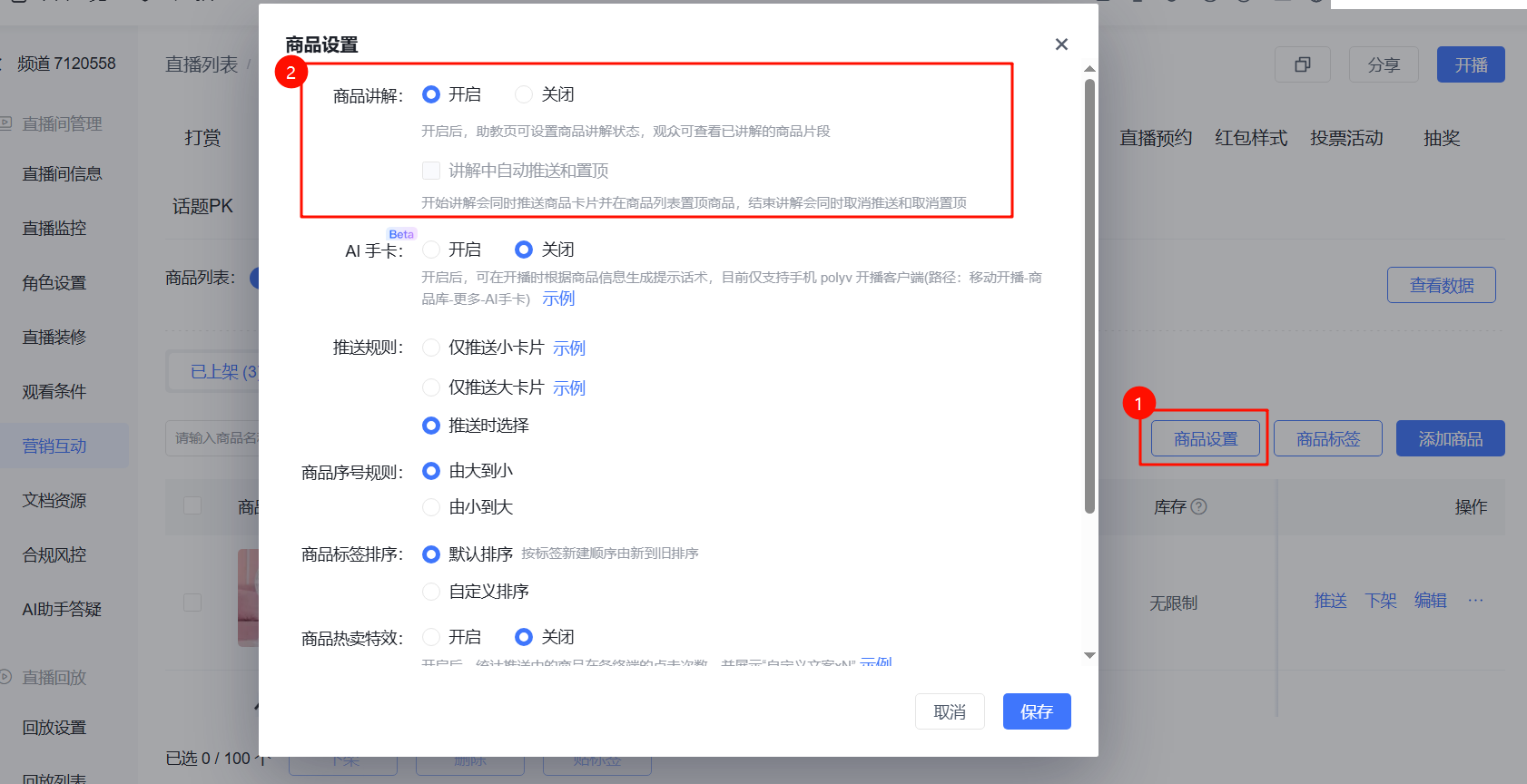
1. Enable Product Explanation Feature (Contact Business Team to Activate)
- The product explanation feature must be enabled before the live stream; it cannot be enabled during the live stream.
- If the "Time Shift Marking" feature is not enabled, this feature cannot be activated. Contact the business team to enable it first.
2. Assistant Operations for Product Explanation Feature
The product explanation feature can only be operated when the live stream is "in progress."
(1) Start Explanation
- Once an explanation starts, it cannot be ended within 30 seconds.
- If multiple assistant pages are open simultaneously, the explanation status will be synchronized across all pages.
- Products currently being explained cannot be removed or deleted from the assistant page.
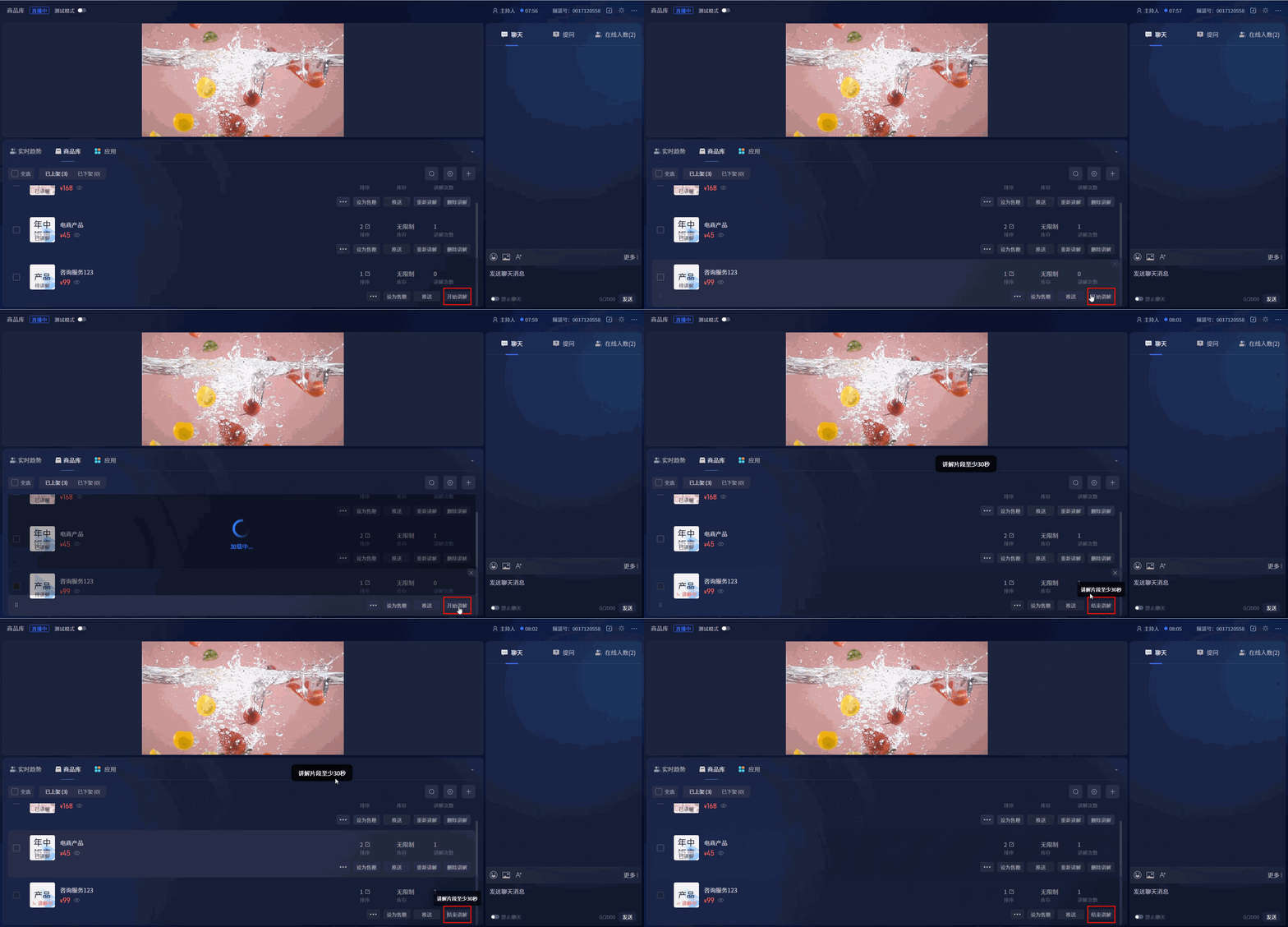
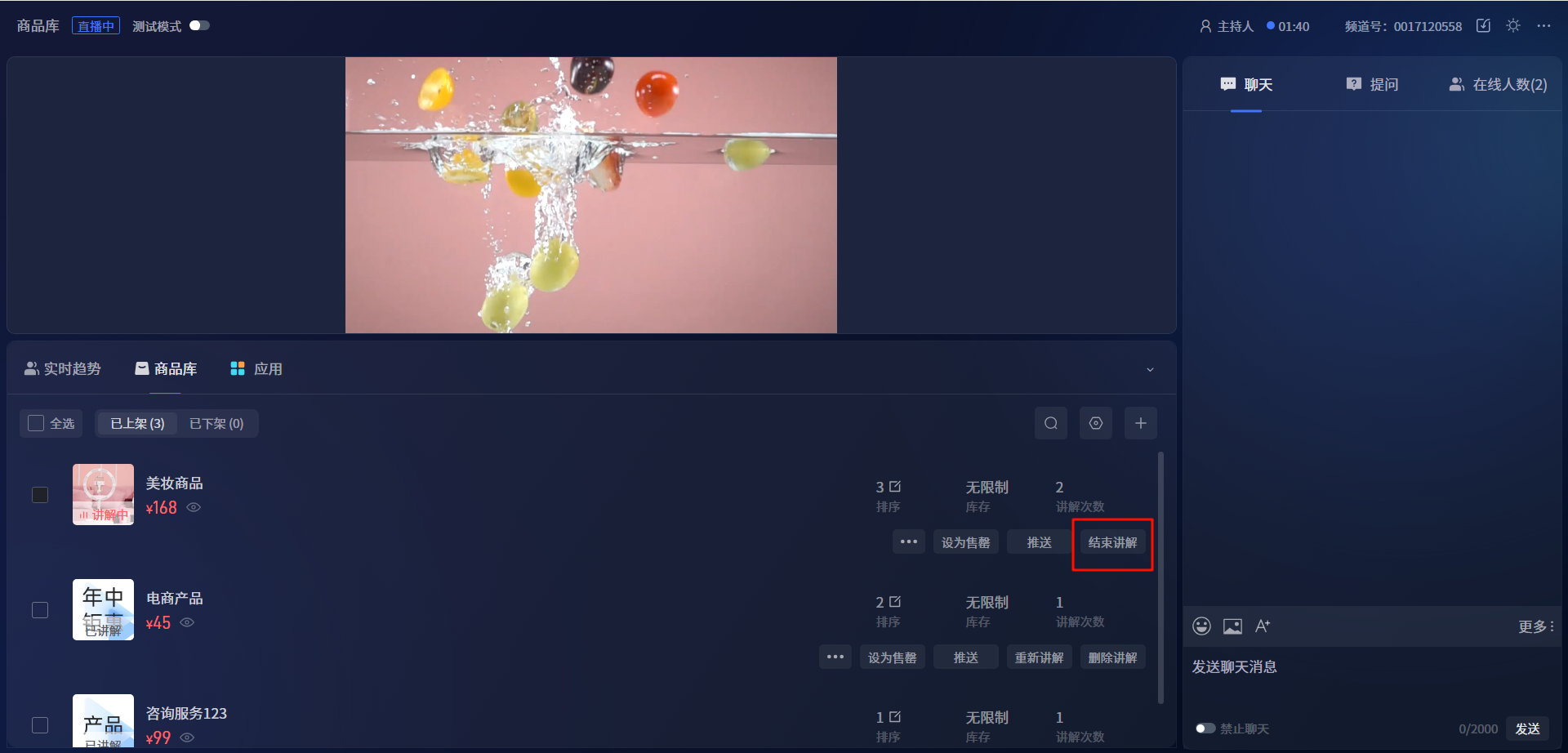
(2) End Explanation
- During a live stream, if an explanation has not ended after more than 6 hours, clicking "End Explanation" again will reset it to "Pending Explanation."
- If the live stream ends without manually ending the explanation, it will be automatically terminated.
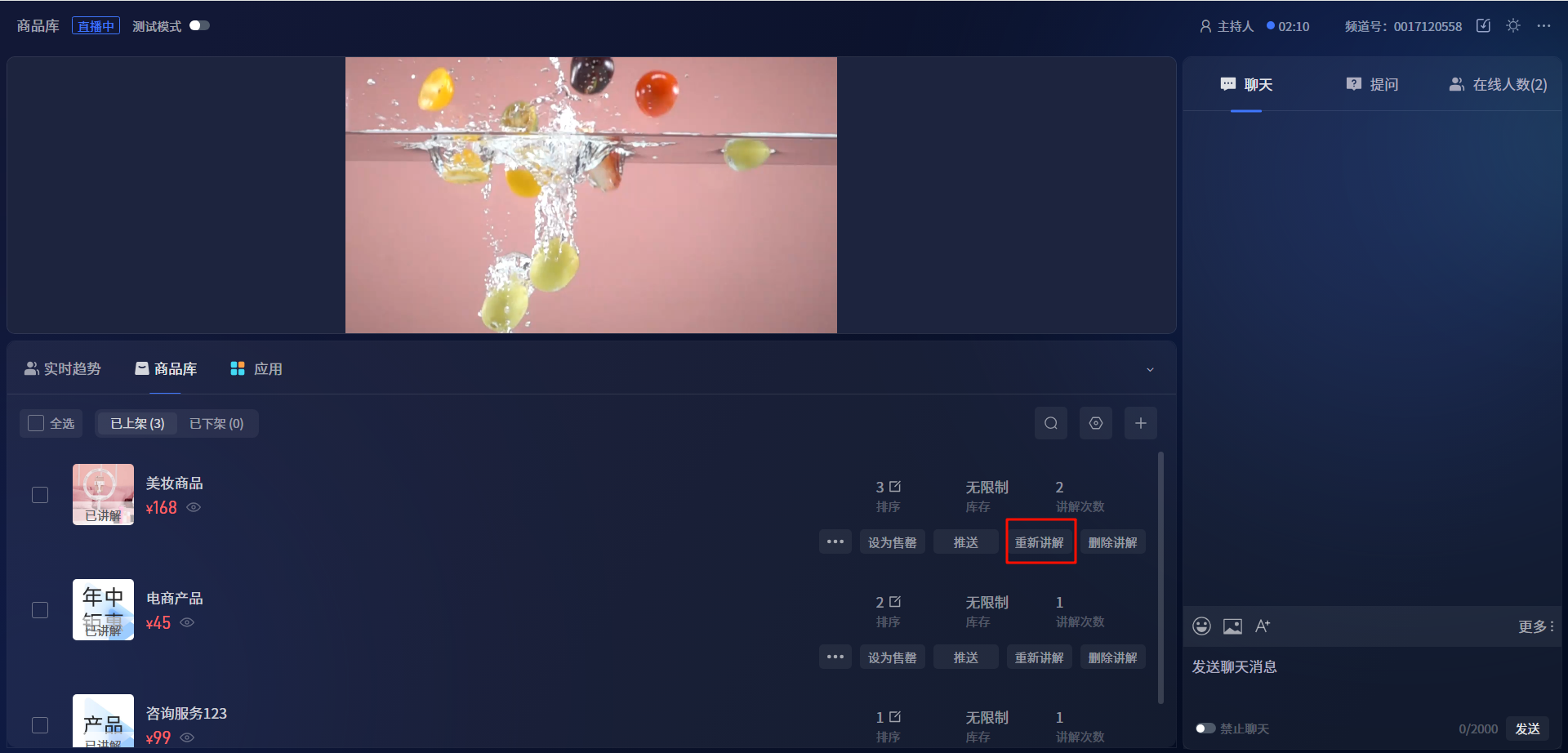
(3) Re-explain
- For products with a "Explained" status, clicking "Re-explain" will start recording a new explanation segment, which will overwrite the old one.
- If a product is currently "Explaining" and you click "Start Explanation" for another un-explained product or "Re-explain" for an already explained product, the current explanation will automatically end, and the new explanation will begin immediately.
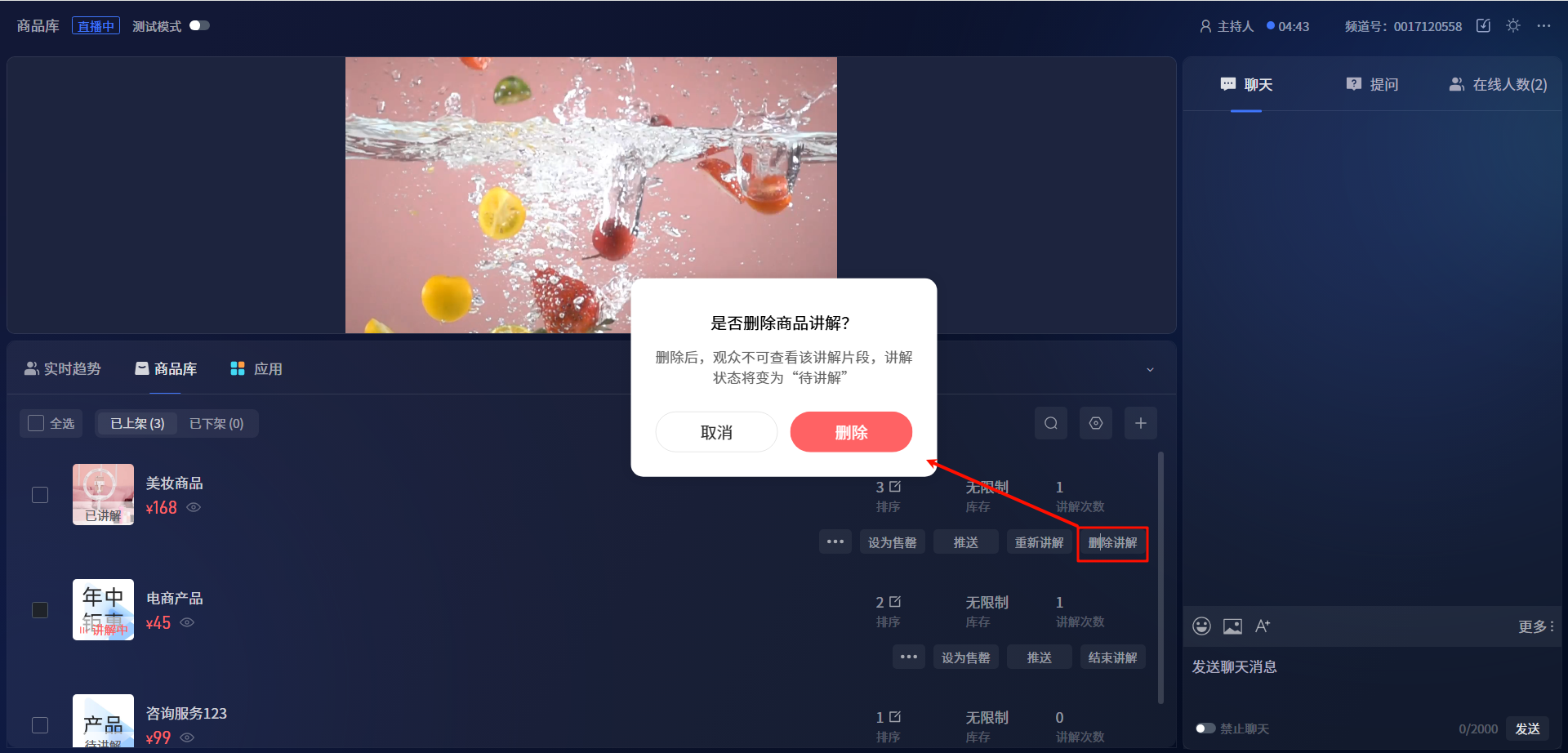
(4) Delete Explanation
After deletion, viewers will no longer be able to view the explanation segment, and the explanation status will change to "Pending Explanation."
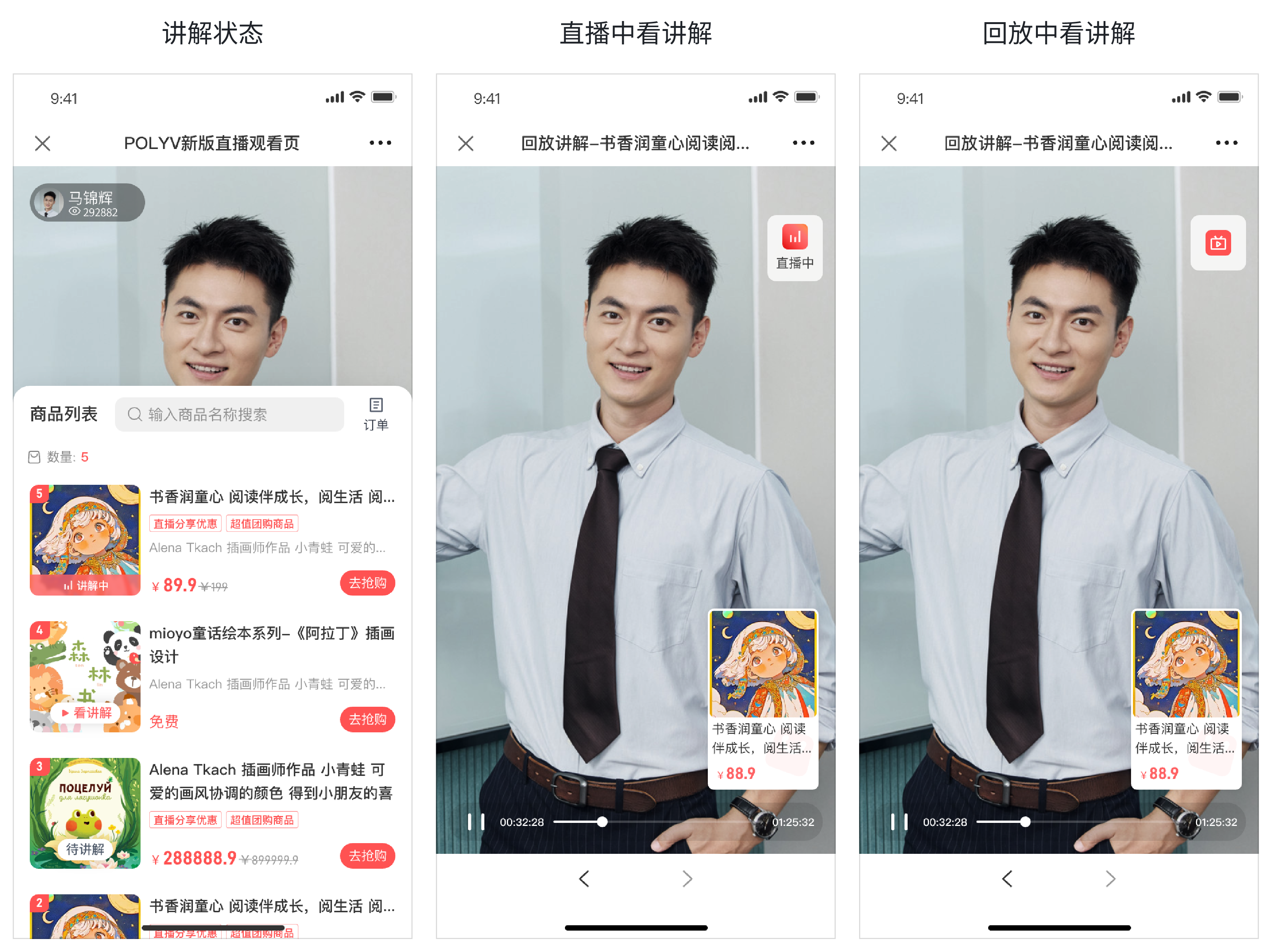
3. Viewers Click "View Explanation" to Enter the Explanation Segment Page
- The viewing page displays the product explanation status: Pending Explanation, Explaining, and View Explanation. Only one product can be in the "Explaining" status at any given time.
- Clicking "View Explanation" enters the explanation segment page, from which viewers can quickly return to the live stream.
- Both live streams and replays support viewing explanations.