


Pop-up Ad
Updated: 2026-08-17 11:27:00
I. Feature Overview
| Feature Information | Description |
|---|---|
| Feature Name | Pop-up Ad |
| Feature Description | Supports placing pop-up ads on aggregation pages, feeds, and channel viewing pages, with unified configuration for ad images, display time, and redirection method. |
| Purpose | Used to display marketing campaigns or business content, attract viewer attention, and guide them to target pages. |
| Operation Path | App Page: Admin Console - App - Pop-up Ad Within Channel: After entering a channel, select [Pop-up Ad] under [Marketing & Interaction] |
| Notes | 1. Pop-up ads will not be displayed when visiting aggregation pages or feeds in guest mode. Pop-up ads are only shown to logged-in users. 2. The display record of pop-up ads is saved in the local browser. The ad may be displayed again after switching browsers. 3. The default template does not show the [Pop-up Ad] entry within a channel. |
II. Creating a New Pop-up Ad
Enter the Admin Console, find and navigate to [Pop-up Ad] under the [Operations] category on the [App] page.
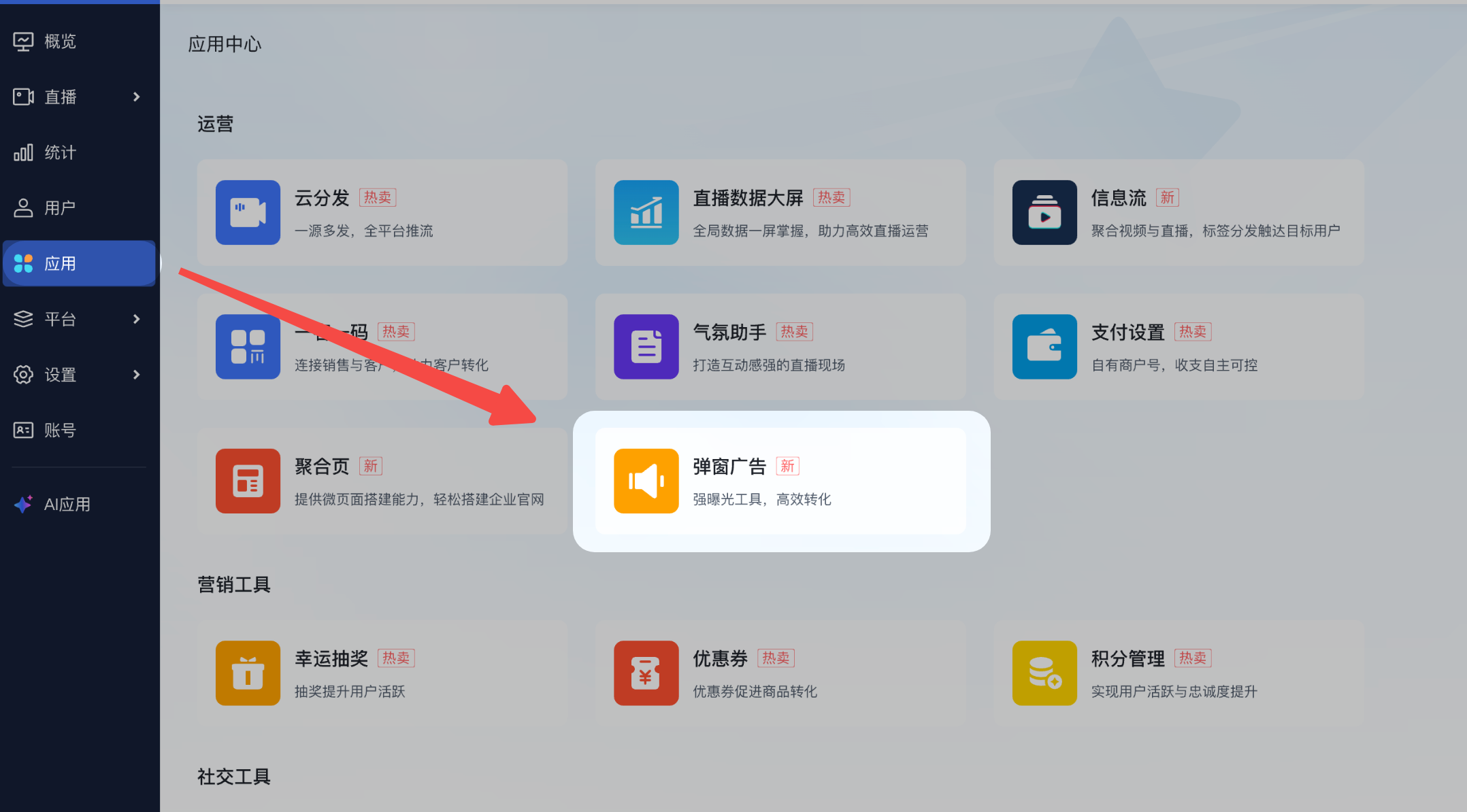
- Click [New Ad].
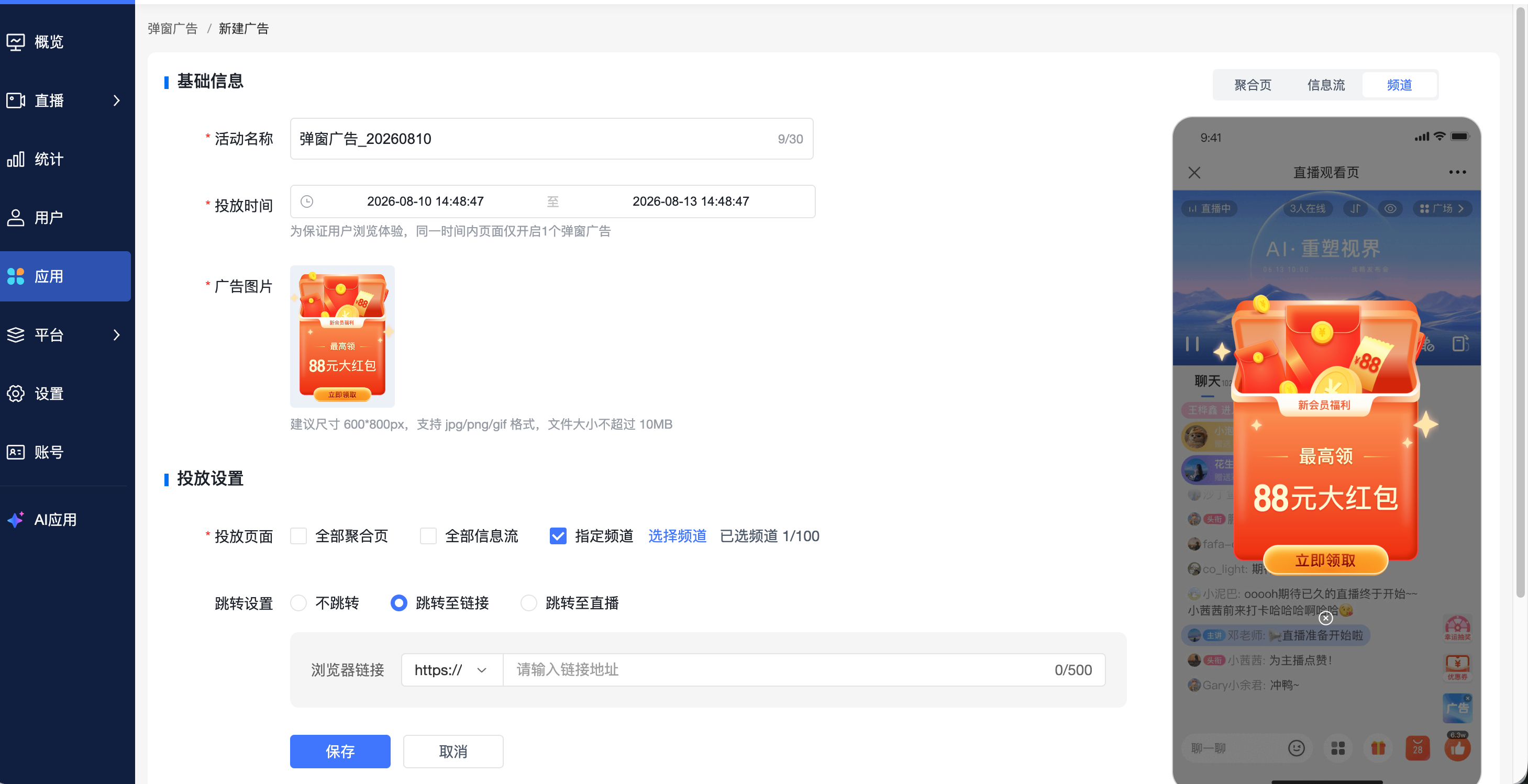
- Select the placement page based on your account permissions. Options include [All Aggregation Pages], [All Feeds], and [Specific Channels]. When the account has permission for the corresponding page or channel, the corresponding placement page will be checked by default when creating a new ad.
- After selecting [Specific Channels], click [Select Channels] and choose the target channels from those visible to your current account. At least 1 channel must be selected; multiple selections are supported. The page will display the number of selected channels.
- Set the display time. When multiple placement pages or channels are selected, all targets share the same display time settings.
- Upload the pop-up ad image. Recommended size is 600 × 800 px. Supported formats are JPG, PNG, and GIF. The file size must not exceed 10 MB.
- Set the redirection method after clicking the ad. Options include [No Redirection], [Redirect to URL], or [Redirect to Live Stream]. Select [Redirect to URL] and fill in the browser link. When [No Redirection] is selected, no link is required, and clicking the ad card will not redirect the viewer.
- After completing the configuration, click [Save]. Once saved successfully, you can view the ad in the associated channels.
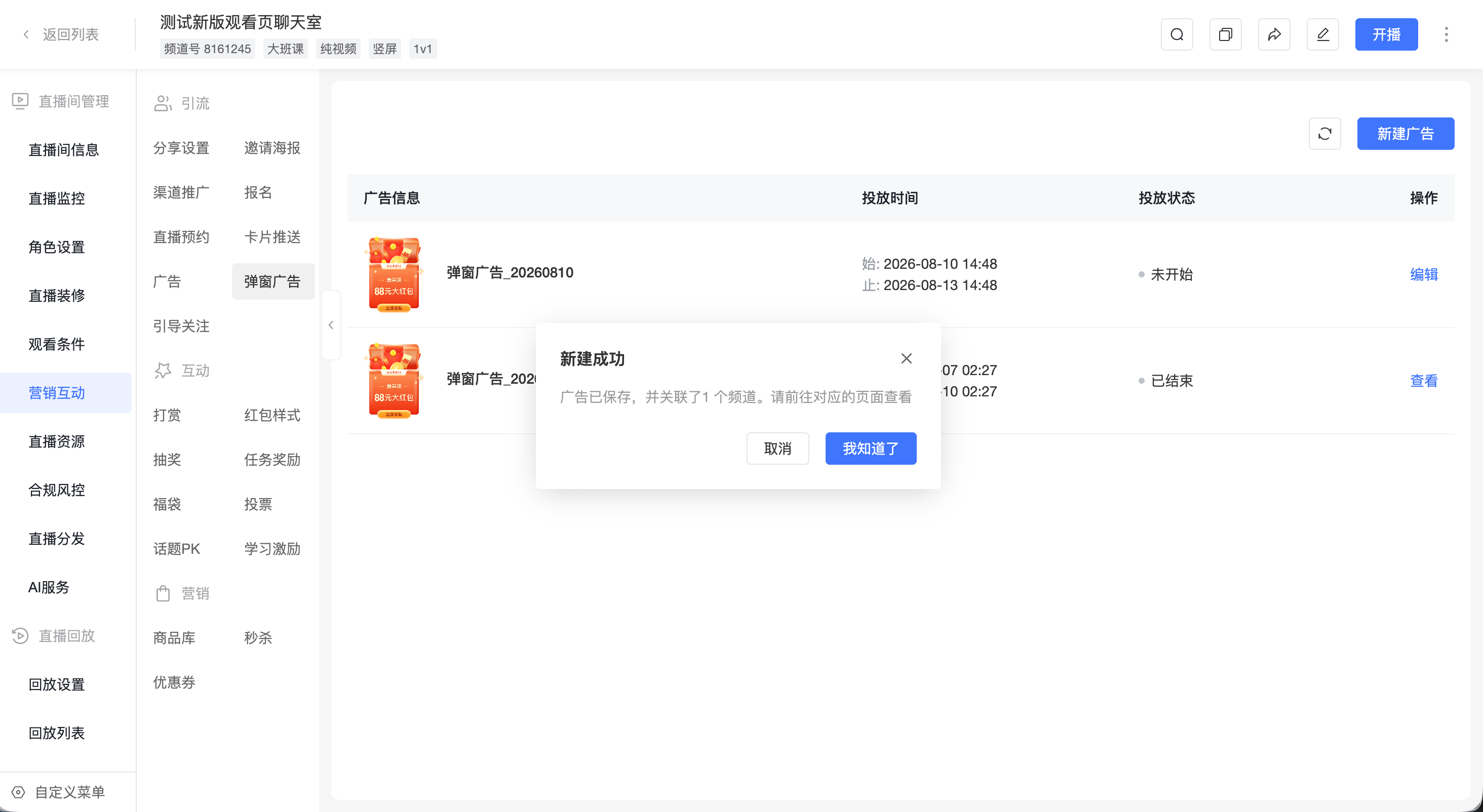
To ensure a good browsing experience, only 1 pop-up ad is active on the same page at any given time.
III. Managing Pop-up Ads Within a Channel
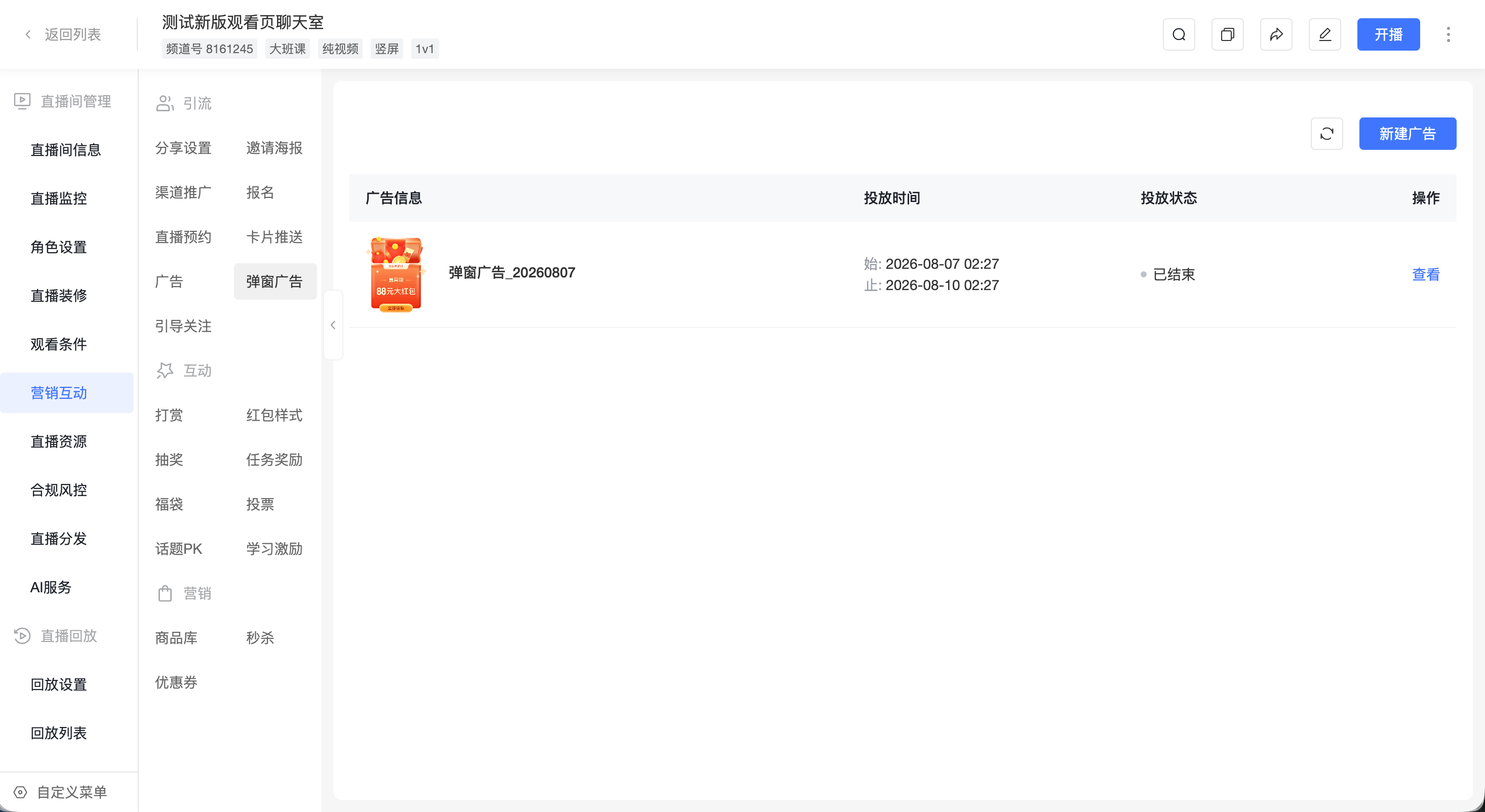
After entering a channel, you can view ads whose placement scope includes the current live stream under [Marketing & Interaction - Pop-up Ad].
The list displays ad information, display time, display status, and edit options.
- New Ad: The [New Ad] button is displayed when logged in via the app. Clicking it navigates to the pop-up ad creation page in the app console, with the current channel pre-selected. This button is not displayed when logged in via the channel.
- Edit Ad: Users with edit permissions can click [Edit] to navigate to the editing page for the corresponding ad in the app console. Users without edit permissions will see the [Edit] option greyed out and unclickable.
IV. Display Rules on the Viewing Page
The display effect of pop-up ads on the viewing page is as follows:
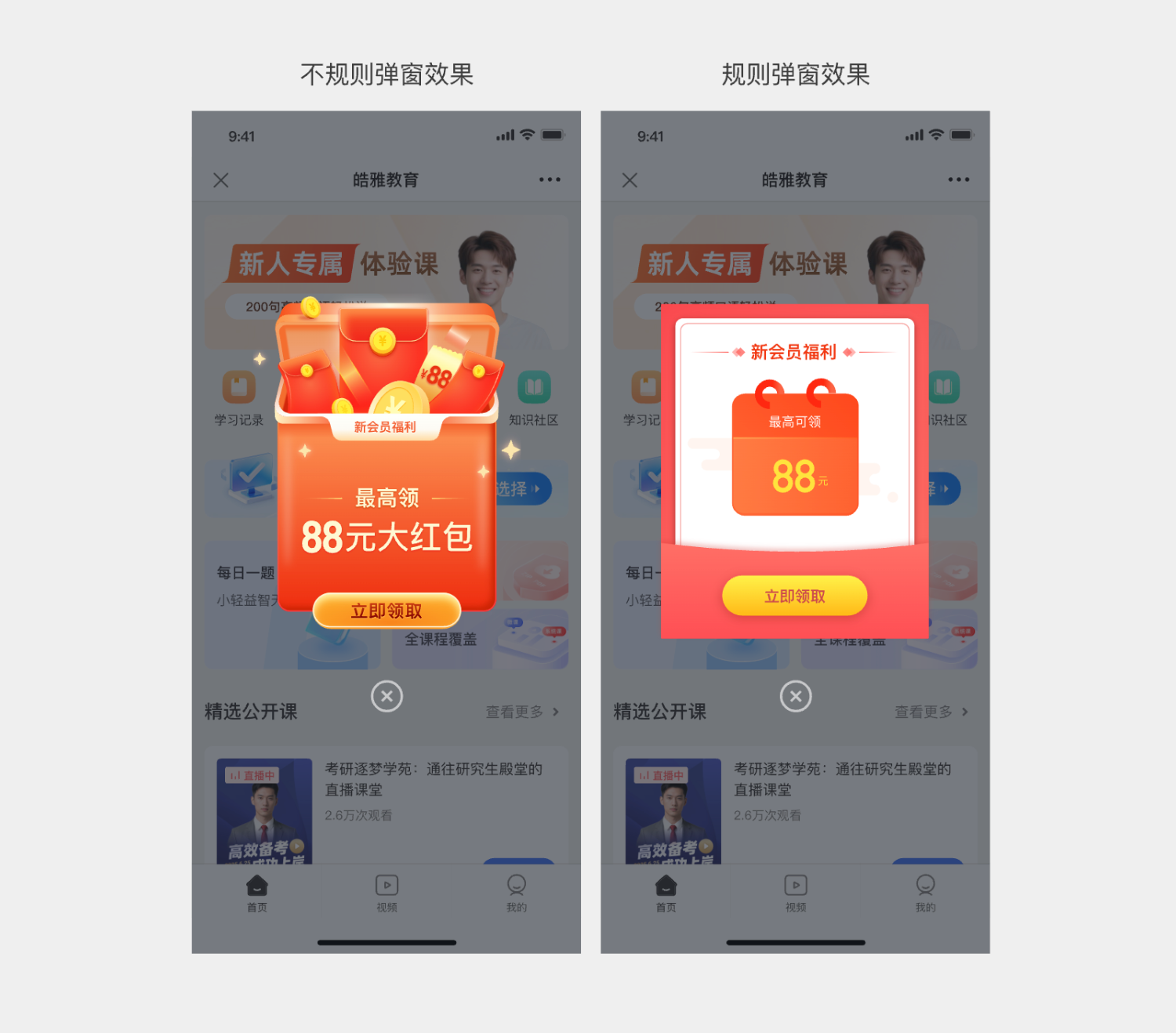
- Once the pop-up ad reaches its scheduled display time, it will be shown on the selected aggregation pages, feeds, or live stream rooms.
- If a redirect link has been filled in, viewers will be taken to the target page upon clicking the ad card. If the redirect link is empty, clicking the ad card will not trigger a redirect.
- If a pop-up ad and an interactive pop-up are triggered simultaneously, the interactive pop-up will be displayed first.
