


Inviting Audience Members to Go on Stage
I. Feature Overview
| Feature Info | Description |
|---|---|
| Feature Name | Audience Member Going on Stage Process |
| Feature Description | The audience member going on stage feature is a specialized function designed for online live streaming, interactive meetings, and similar scenarios. It allows audience members to participate in discussions or share content in real-time, thereby enhancing the interactivity and engagement of the event. |
| Purpose | Using the going on stage feature, audience members can conveniently apply for speaking permission. After review by the host or administrator, they can express their views and opinions in the live room or meeting. |
| Applicable Scenarios | Promotes communication and collaboration among participants, improving meeting efficiency. |
| Tutorial | .png) |
| Feature List | 1. Voice co-streaming 2. Video co-streaming 3. Allow audience co-streaming 4. Remove all from stage |
II. Prerequisites
Version Requirements
- Broadcasting
- Client version 4.22.0 or higher required; Mobile version 1.17.0 or higher required.
- Watching
- Mobile viewing SDK requires version 1.17.0 or higher; Web viewing requires v3 viewing page.
III. Detailed Operation Guide
1. Client and Web Operations:
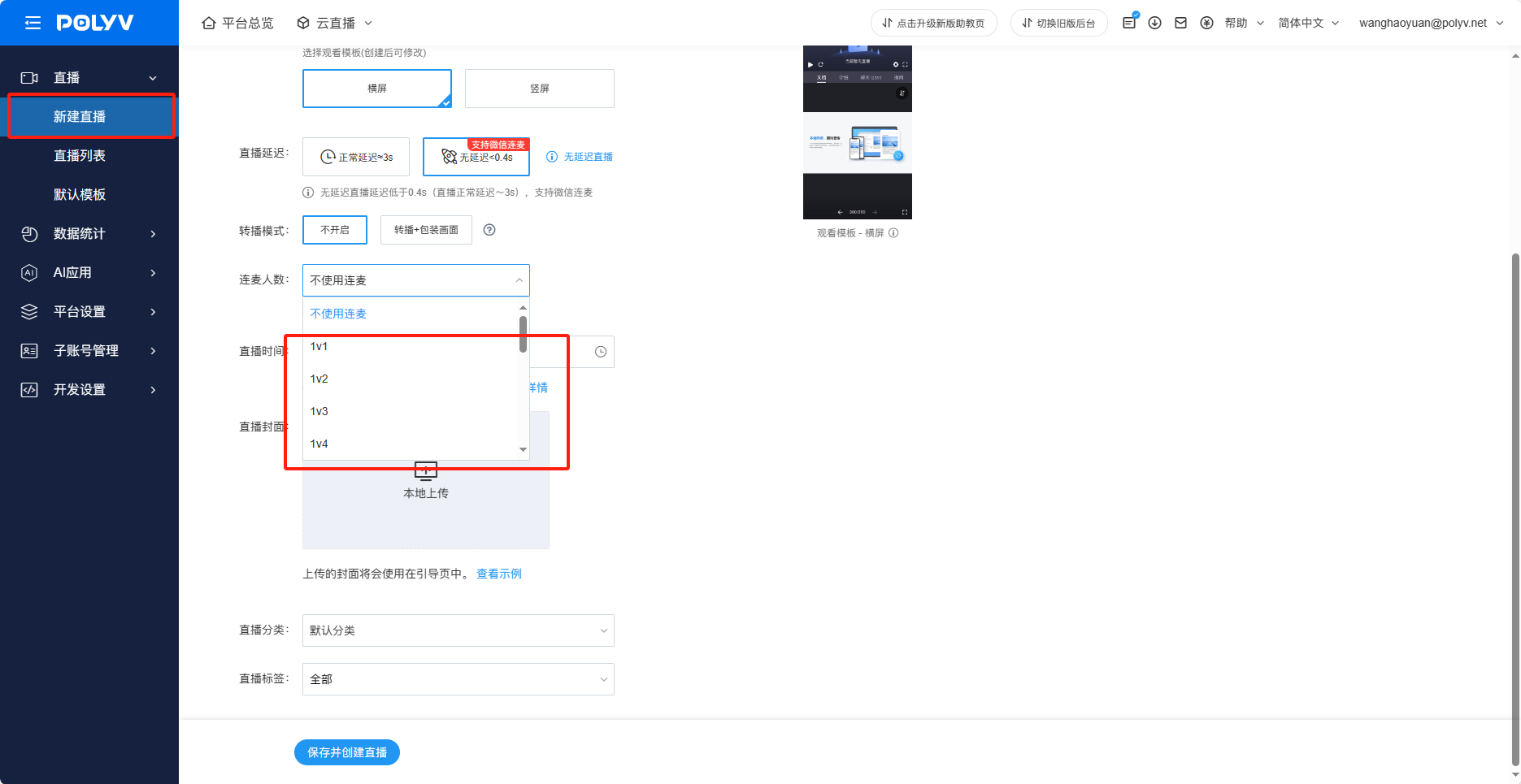
Step 1: Create and start a co-streaming live broadcast. In the live list, ensure the number of co-streaming participants is greater than 0 to display the co-streaming related buttons.
Step 2: The host can invite target audience members to co-stream from the member list.
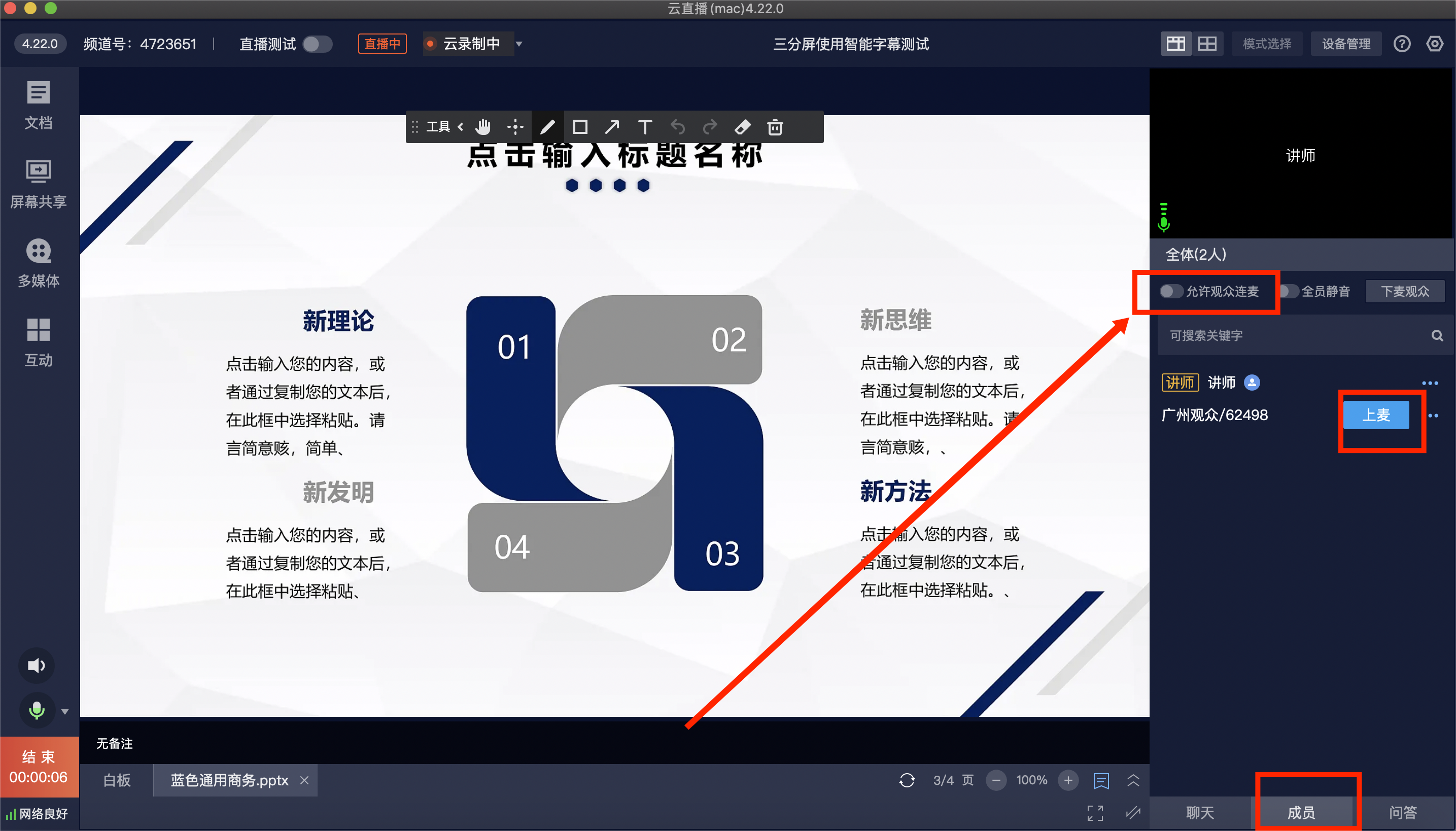
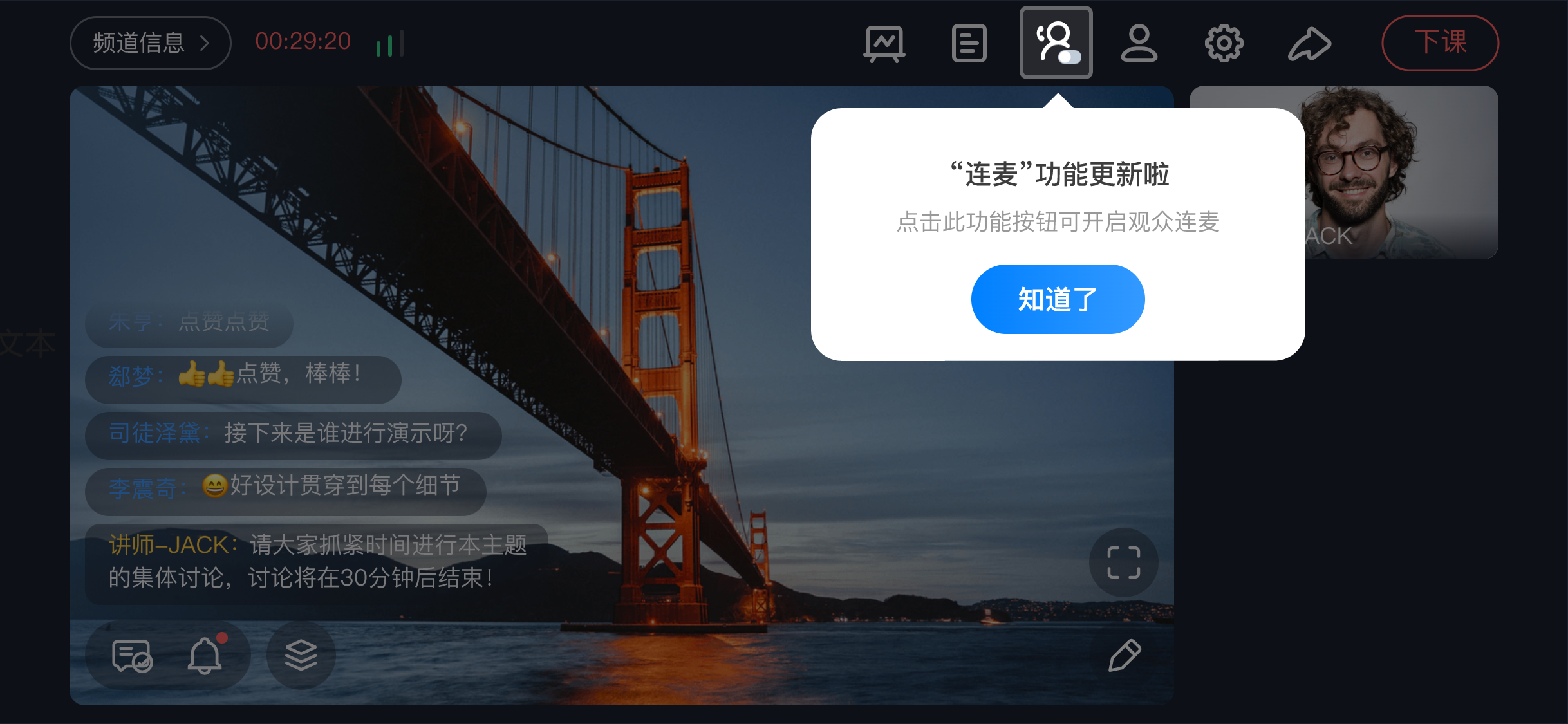
Allow audience co-streaming: When enabled, the audience side will display a button to co-stream with the host, allowing them to actively apply to go on stage. When disabled, this button will not be shown to users.
2. Mobile Operations:
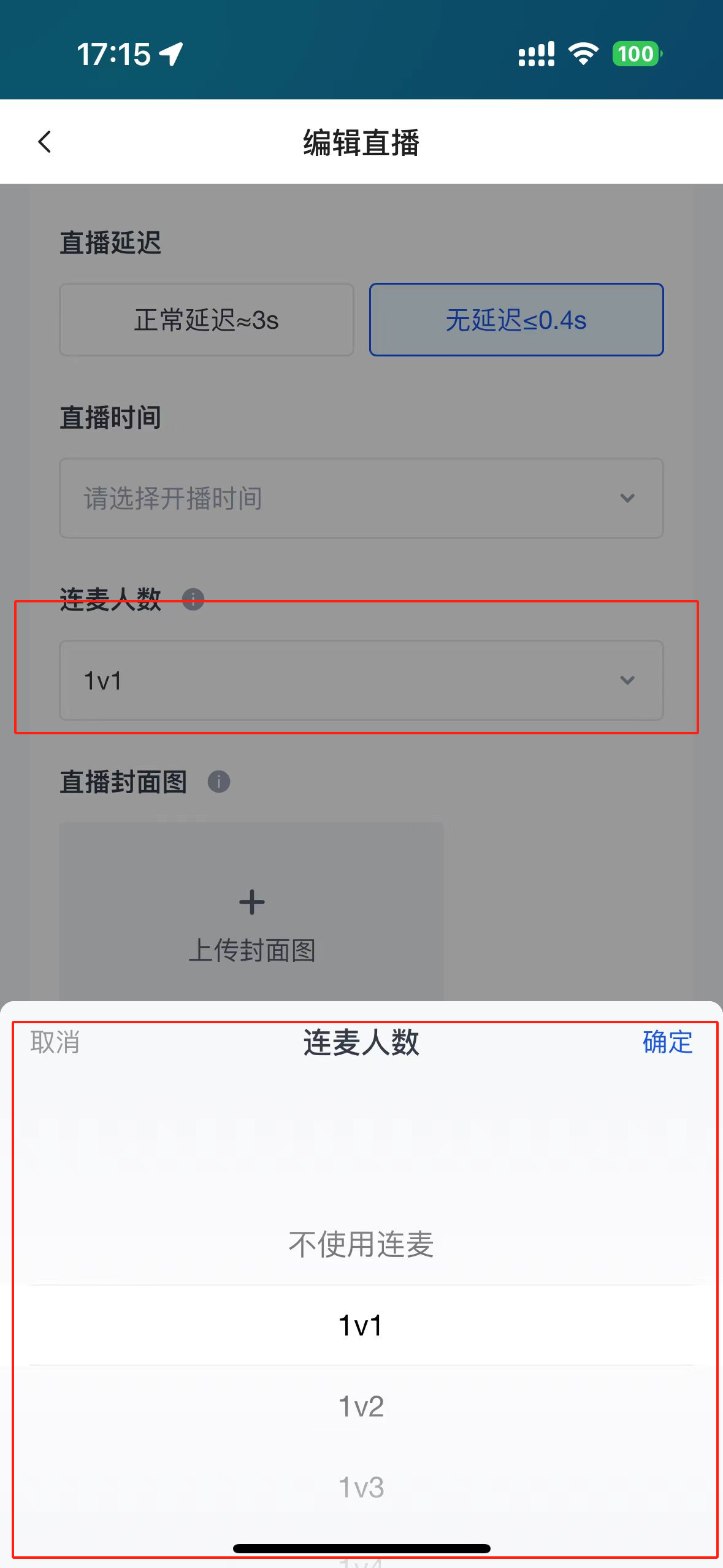
Step 1: Create and start a co-streaming live broadcast. Same as above, ensure the number of co-streaming participants is greater than 0 to display the co-streaming related buttons.
Step 2: Click the member list – Select the target user to invite them to go on stage (you can also switch to video co-streaming, disconnect, mute, etc.) 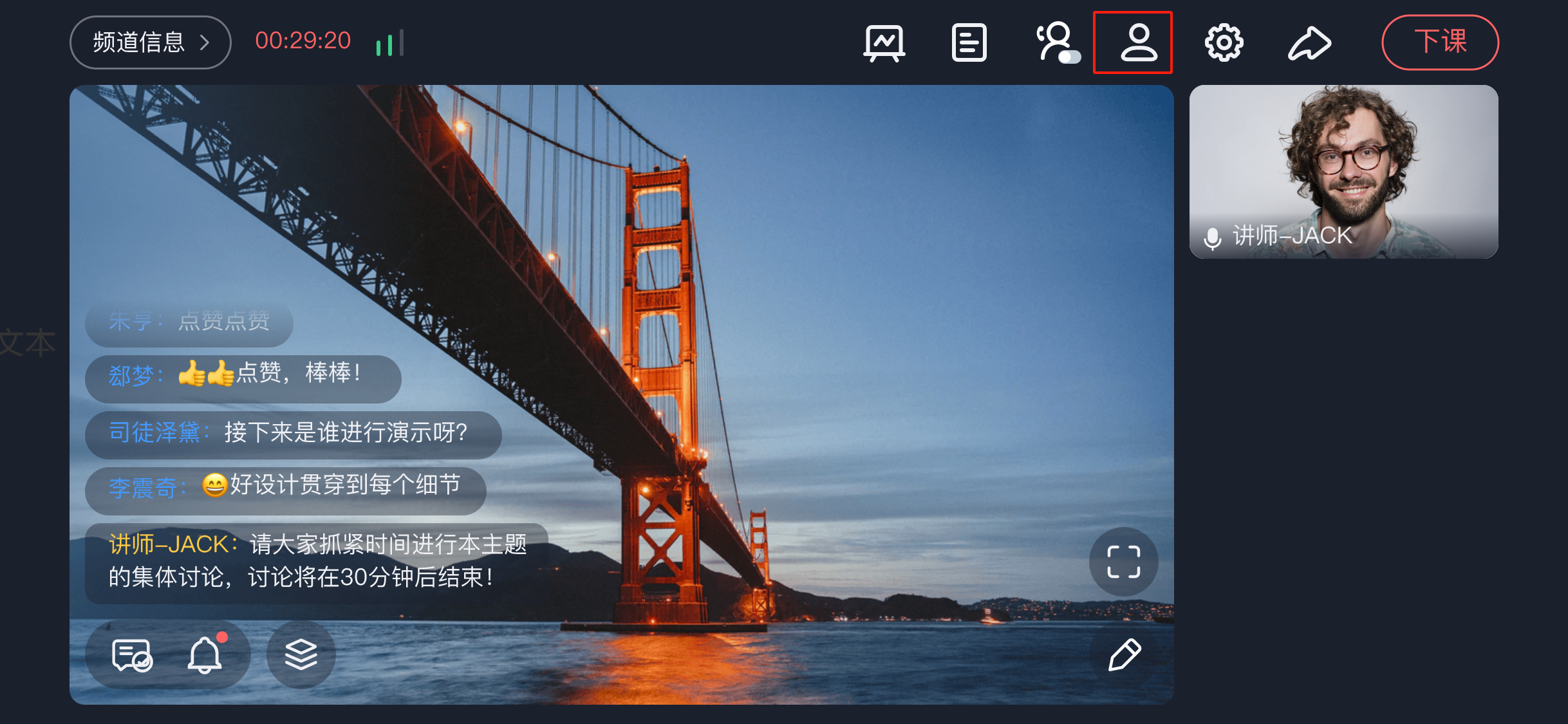
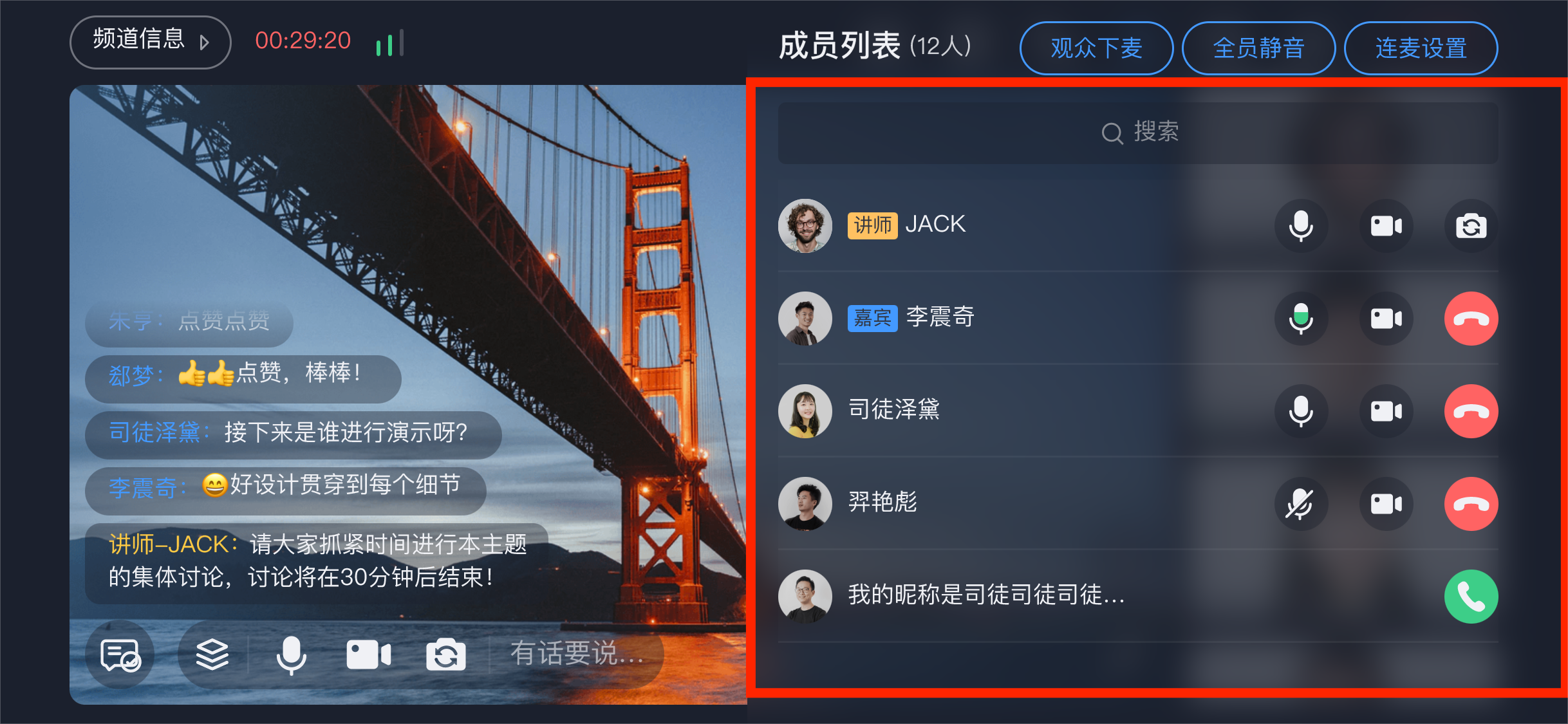
Allow audience co-streaming: When enabled, the audience side will display a button to co-stream with the host, allowing them to actively apply to go on stage. When disabled, this button will not be shown to users.
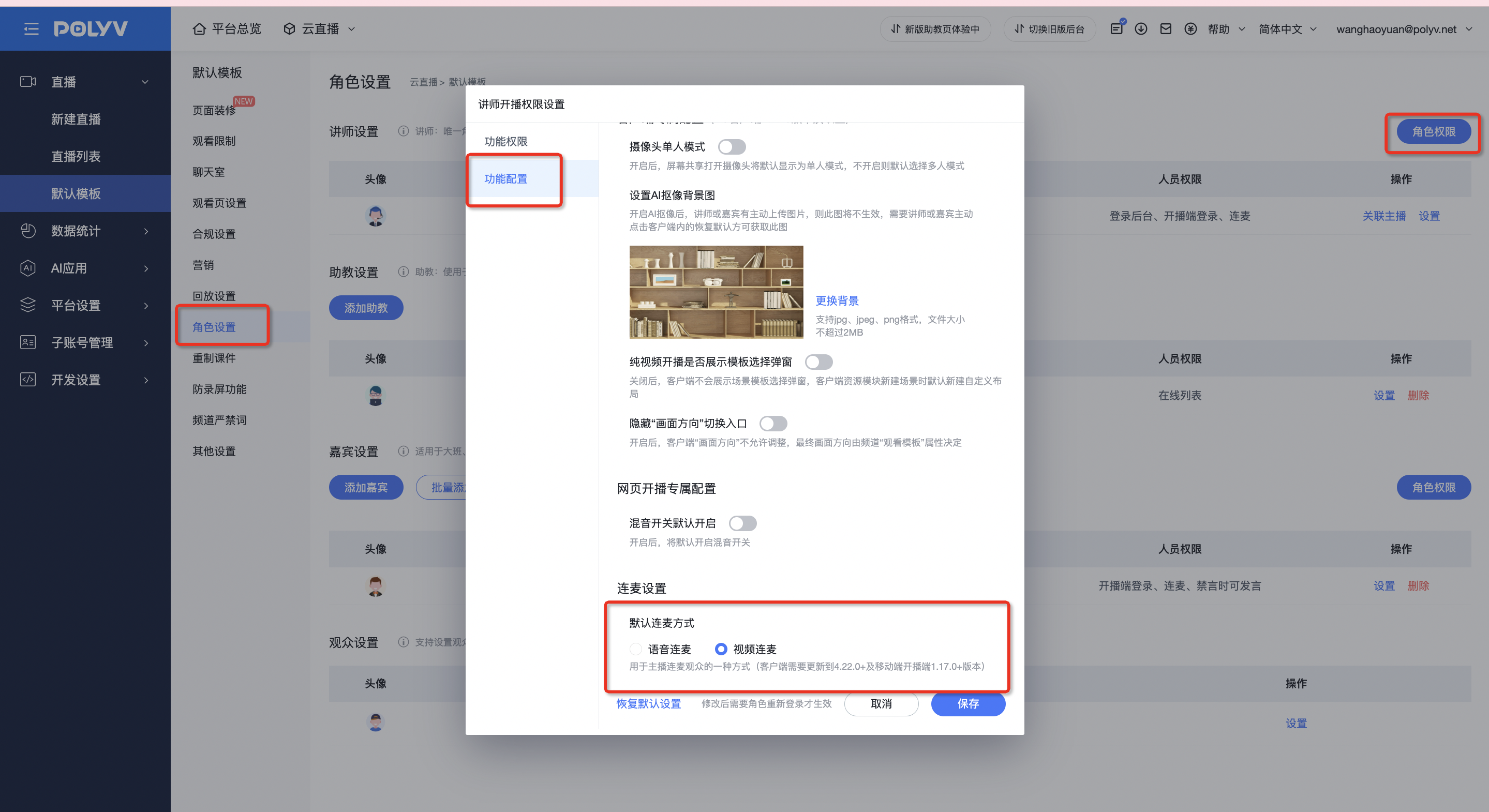
3. Setting the Default Co-streaming Method for Account Roles
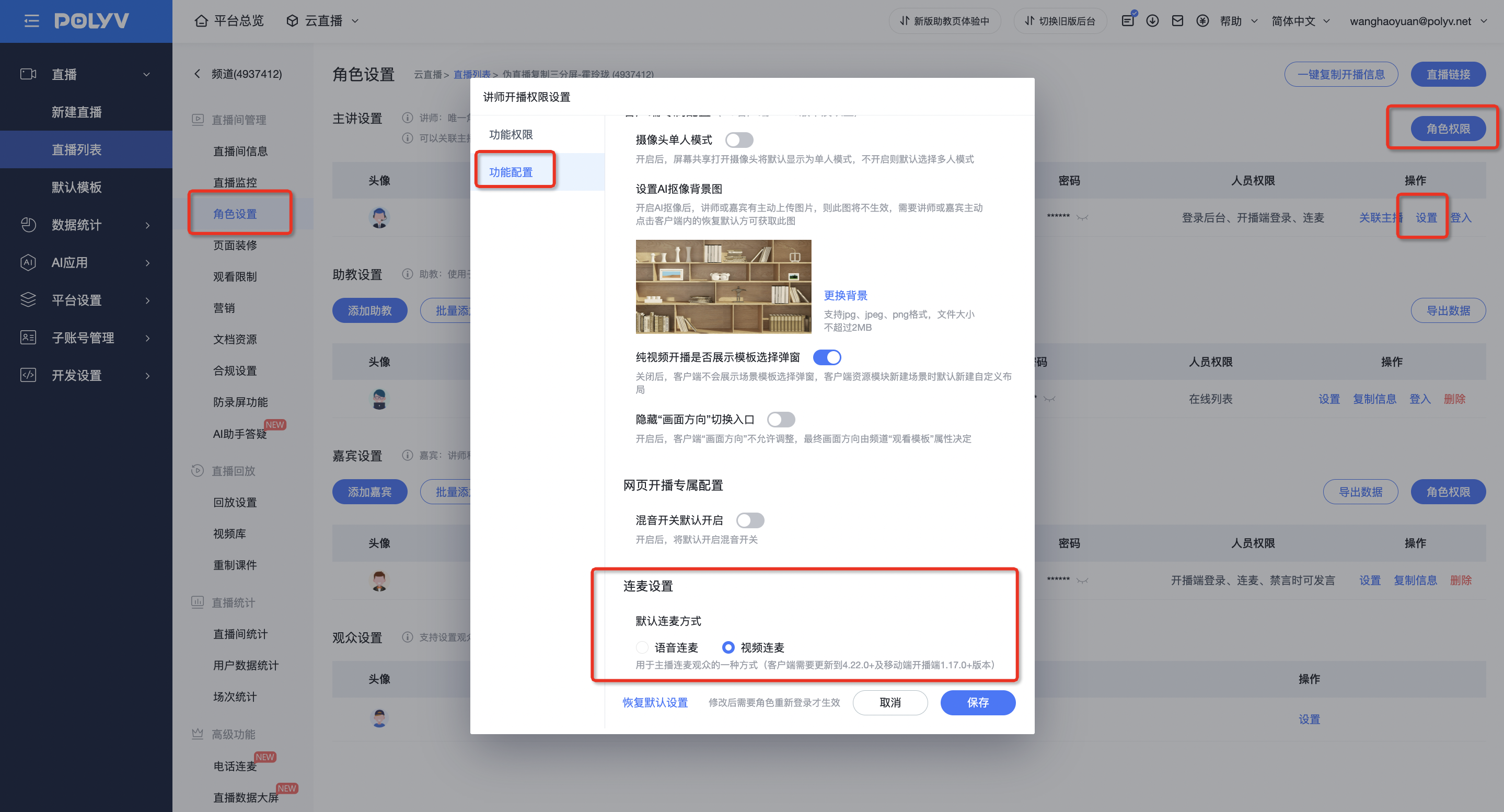
4. Setting the Default Co-streaming Method for a Channel
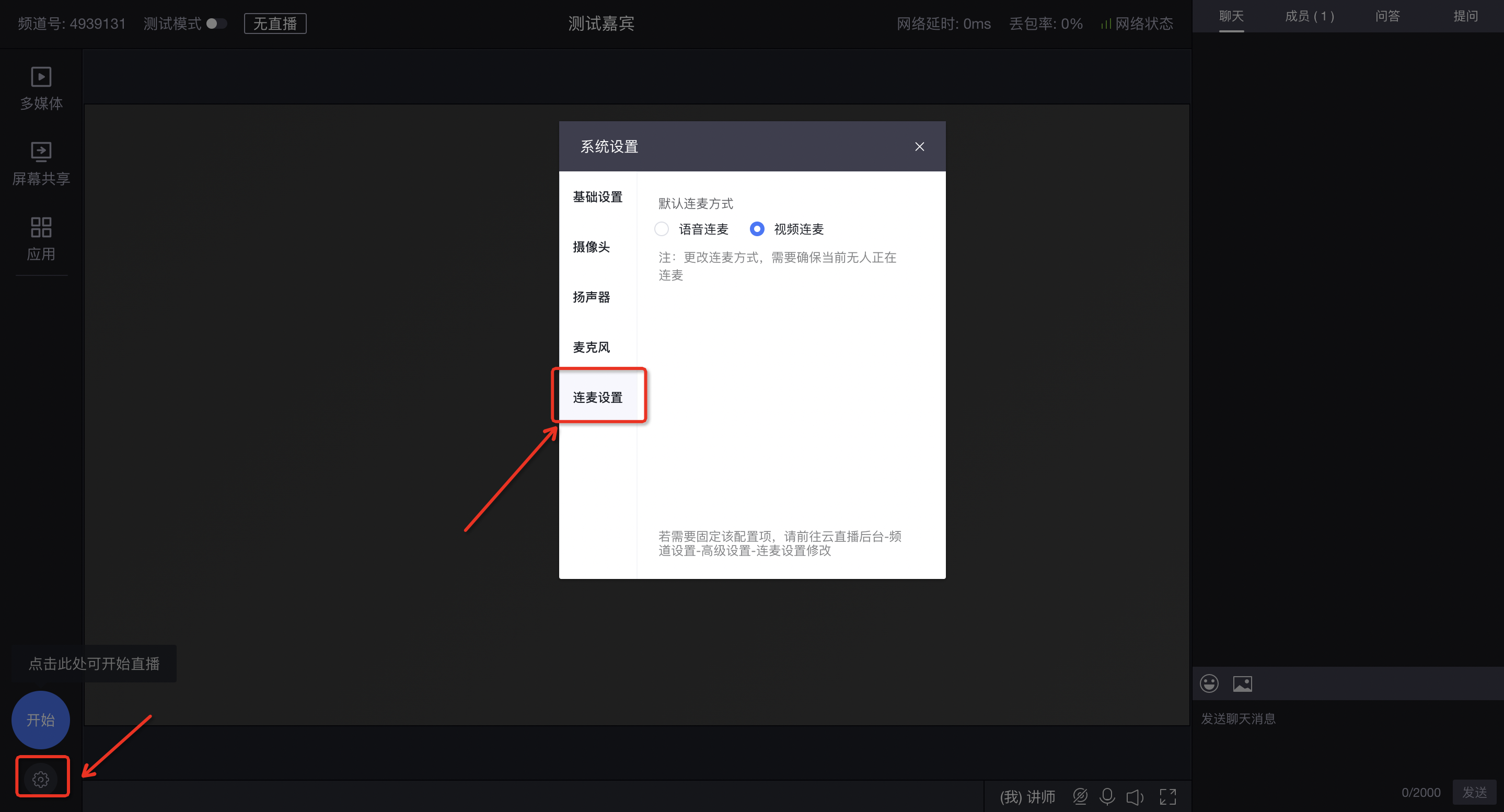
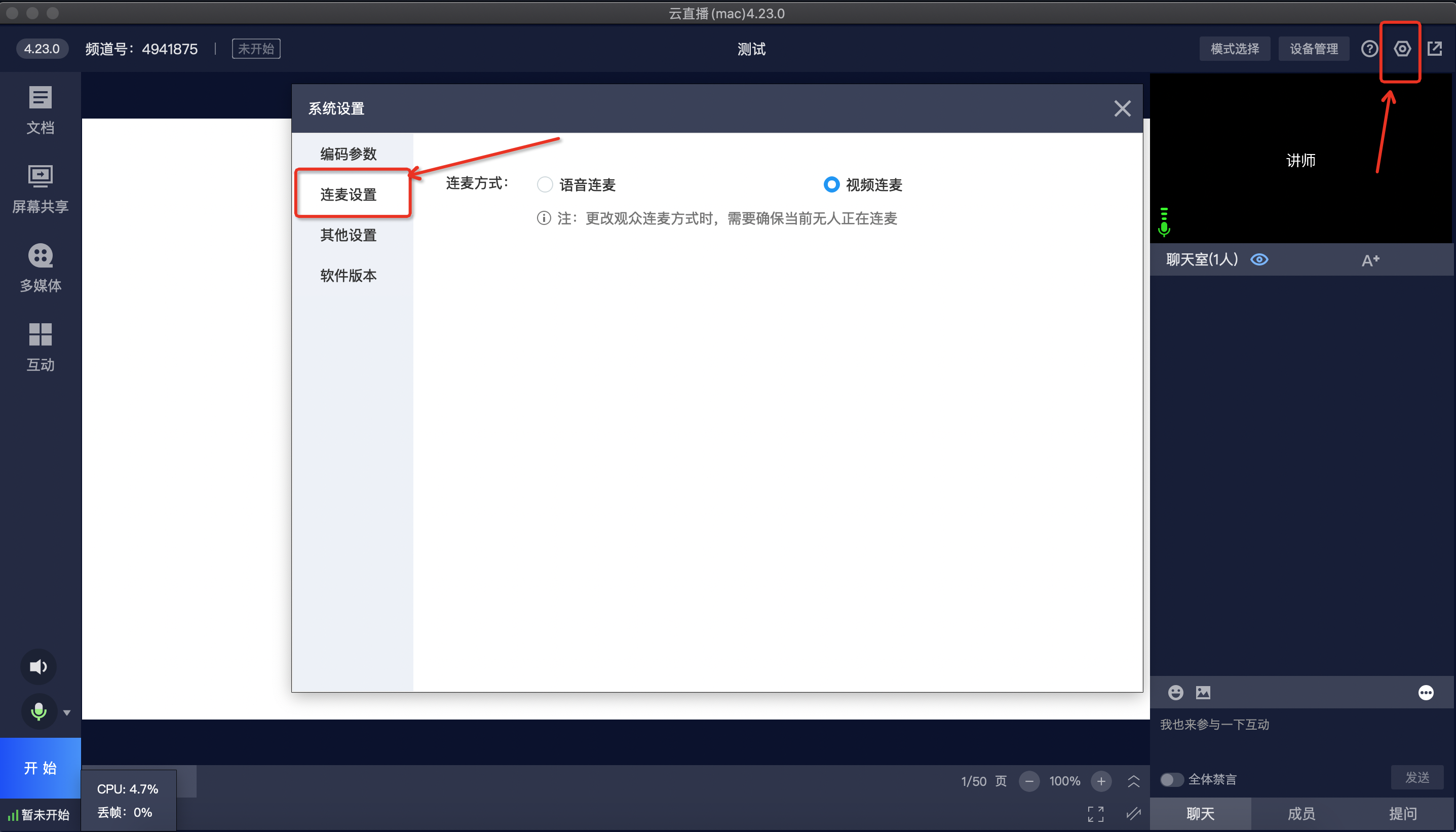
5. Setting the Default Co-streaming Method within the Live Room
Web:
Client:
IV. Notes:
1. Version Requirements for the New Co-streaming:
Broadcasting end: Client version 4.22.0 or higher required; Mobile broadcasting version 1.17.0 or higher required.
Viewing end: Mobile viewing SDK requires version 1.17.0 or higher; Web viewing requires v3 viewing page.
2. If the viewing end uses an older version with the new co-streaming, the following two issues may occur:
The invited audience member disconnects immediately after going on stage. Solution: Enable "Allow audience to raise hand" before initiating the co-stream invitation. This can resolve the issue.
2) During co-streaming, disabling "Allow audience to raise hand" disconnects audience members who are already on stage. Solution: The audience end needs to update to the new version.
