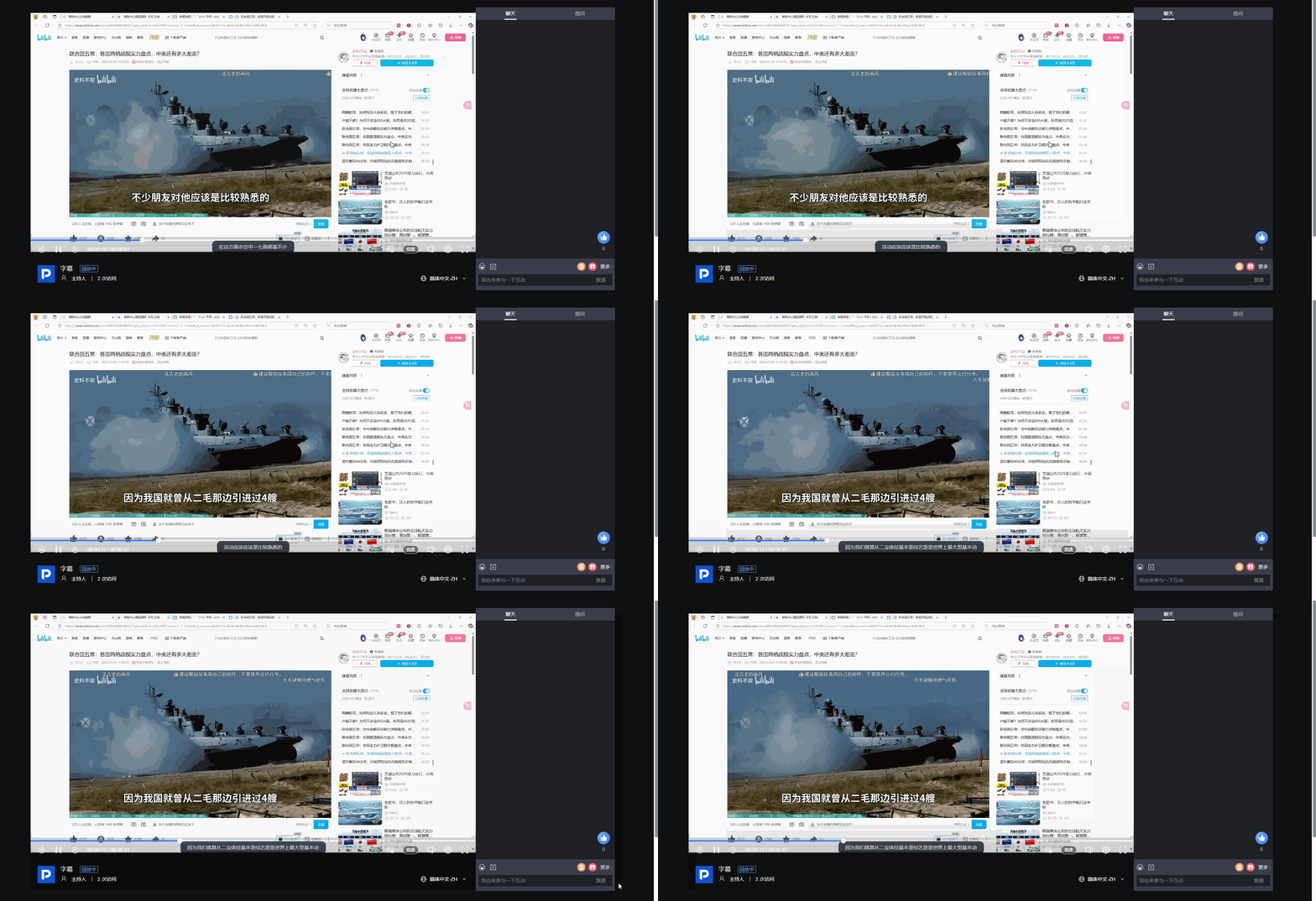
Video Library - Subtitles
1. Feature Overview
Feature Info |
Description |
|---|---|
| Feature Name | Video Library - Subtitles |
| Feature Description | The subtitle feature can automatically or manually generate subtitles for playback videos. Subtitles are generated based on the live speech content. Users can proofread the generated subtitles to ensure they accurately present the live content. After proofreading, users can choose to publish the subtitles. Additionally, users can download subtitle files for use in other scenarios. Subtitles that are no longer needed can also be deleted. |
| Purpose | Improve content accuracy, enhance viewing experience, meet diverse needs |
| Use Cases | Educational live replay, conference live replay, entertainment live replay |
| Operation Path | 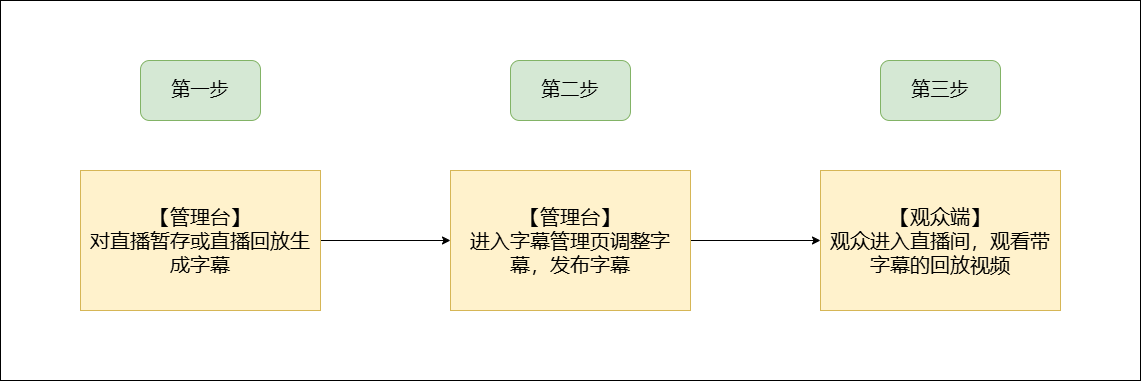 |
| Notes | 1. Contact business to enable the "Smart Subtitles" feature 2. Media library accounts can also use the smart subtitle feature |
2. Usage Instructions
1. First, open the live room backend and find the video library. Videos in both the temporary list and replay list have subtitle functionality.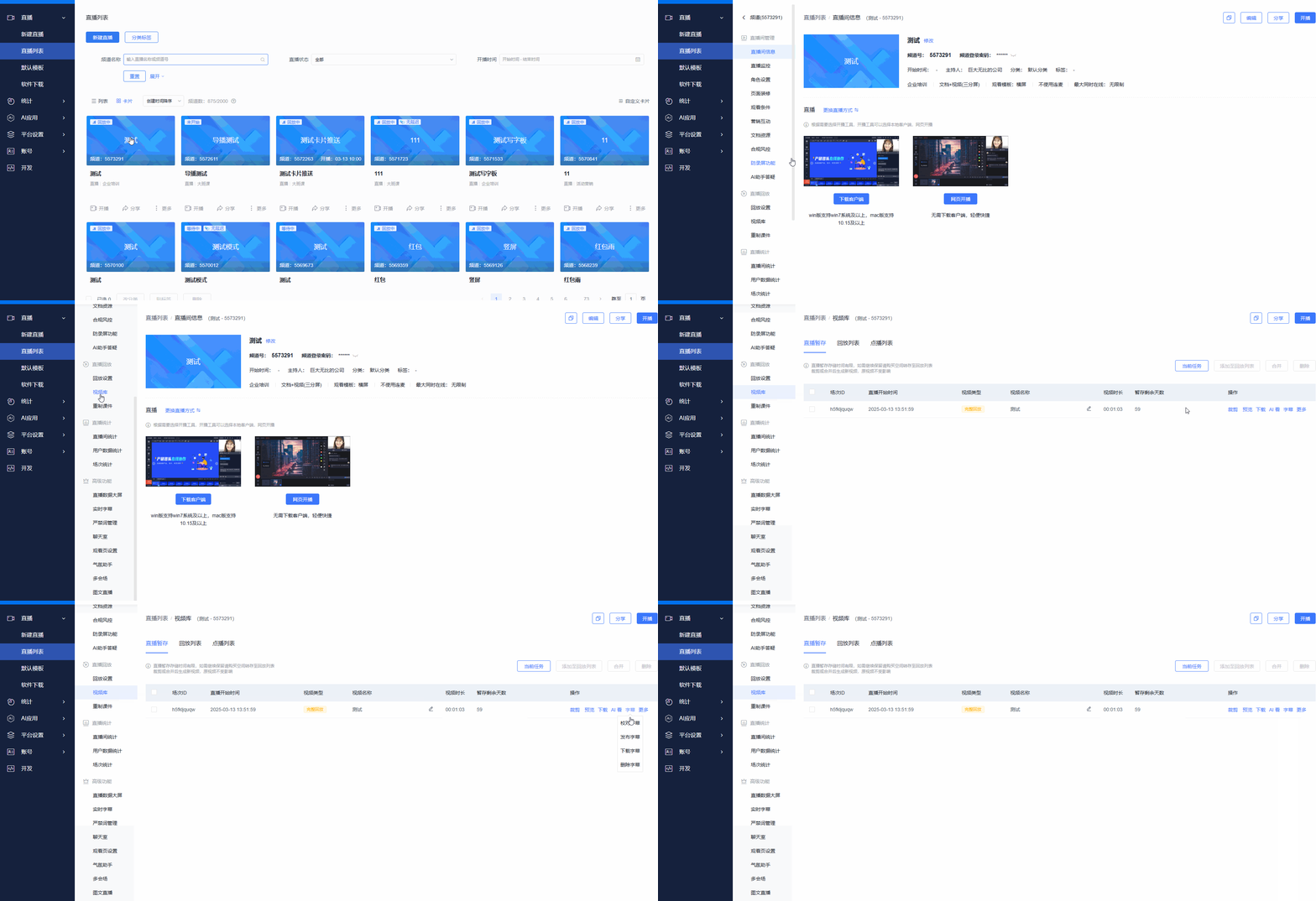
2. After the live room has temporary recordings or replays, click "Generate Subtitles" to create subtitle files for the video.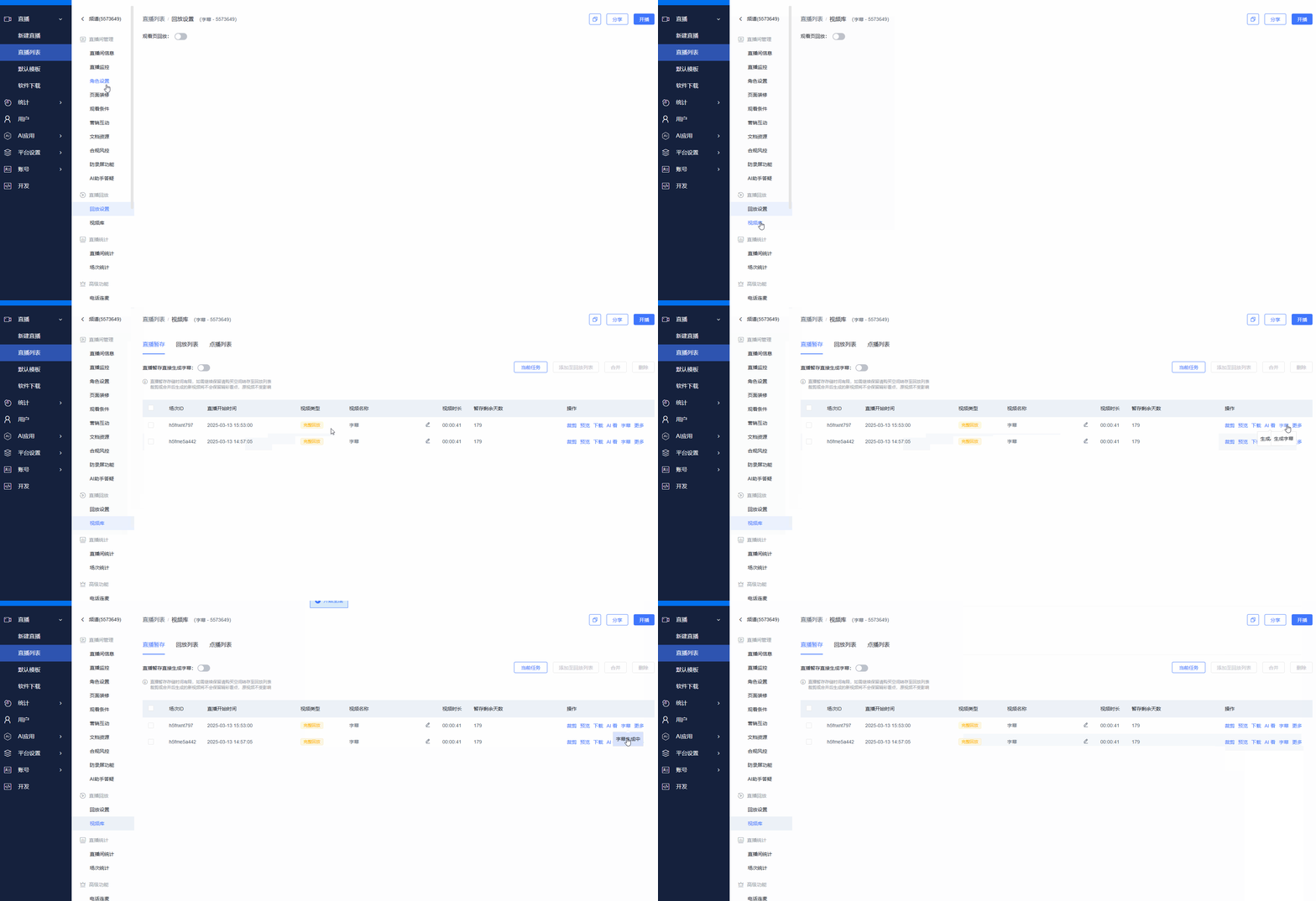
3. After waiting for a while, you will see that the subtitles have been generated.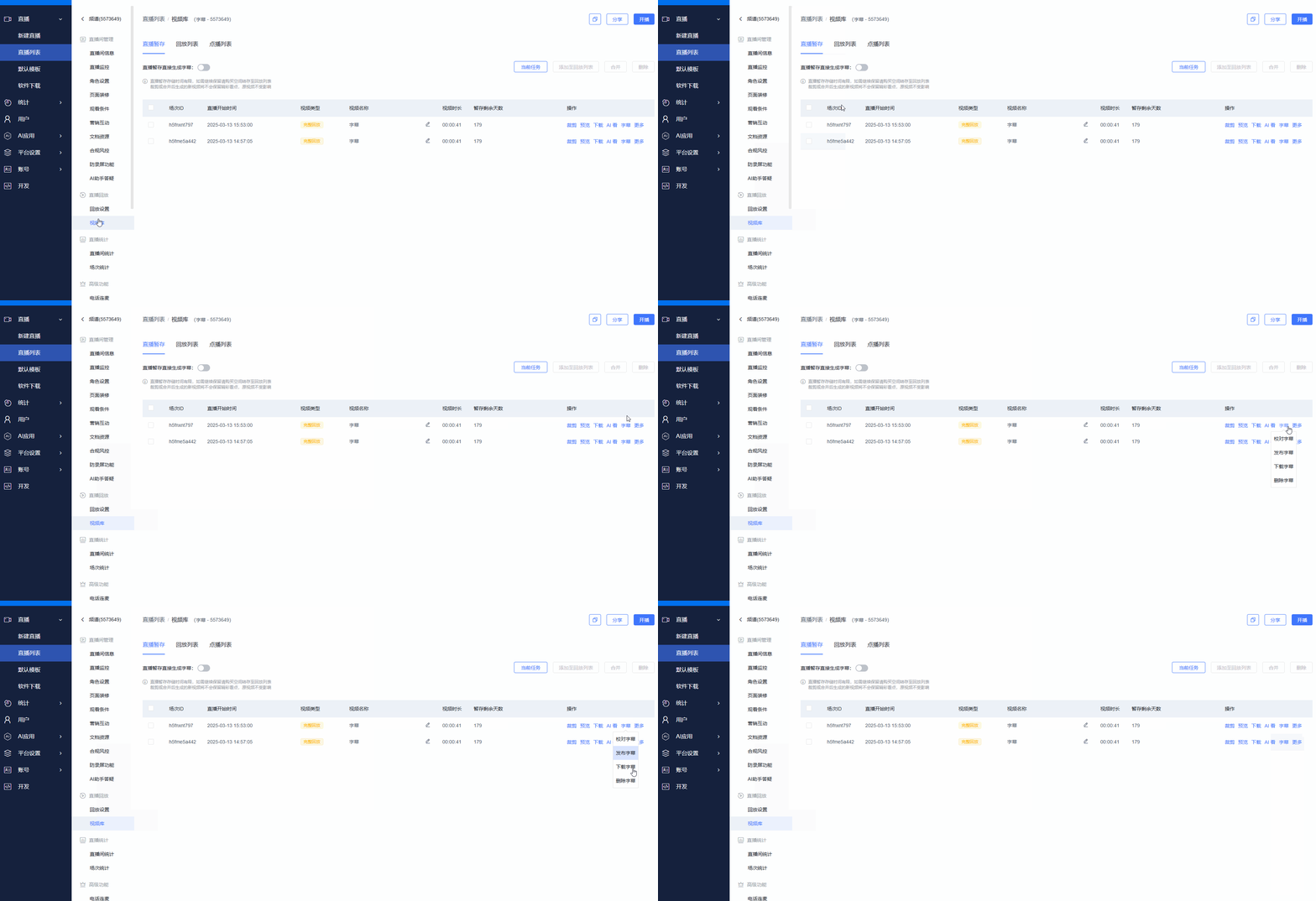
Proofreading Subtitles
1. Click "Proofread Subtitles" to enter the subtitle management page.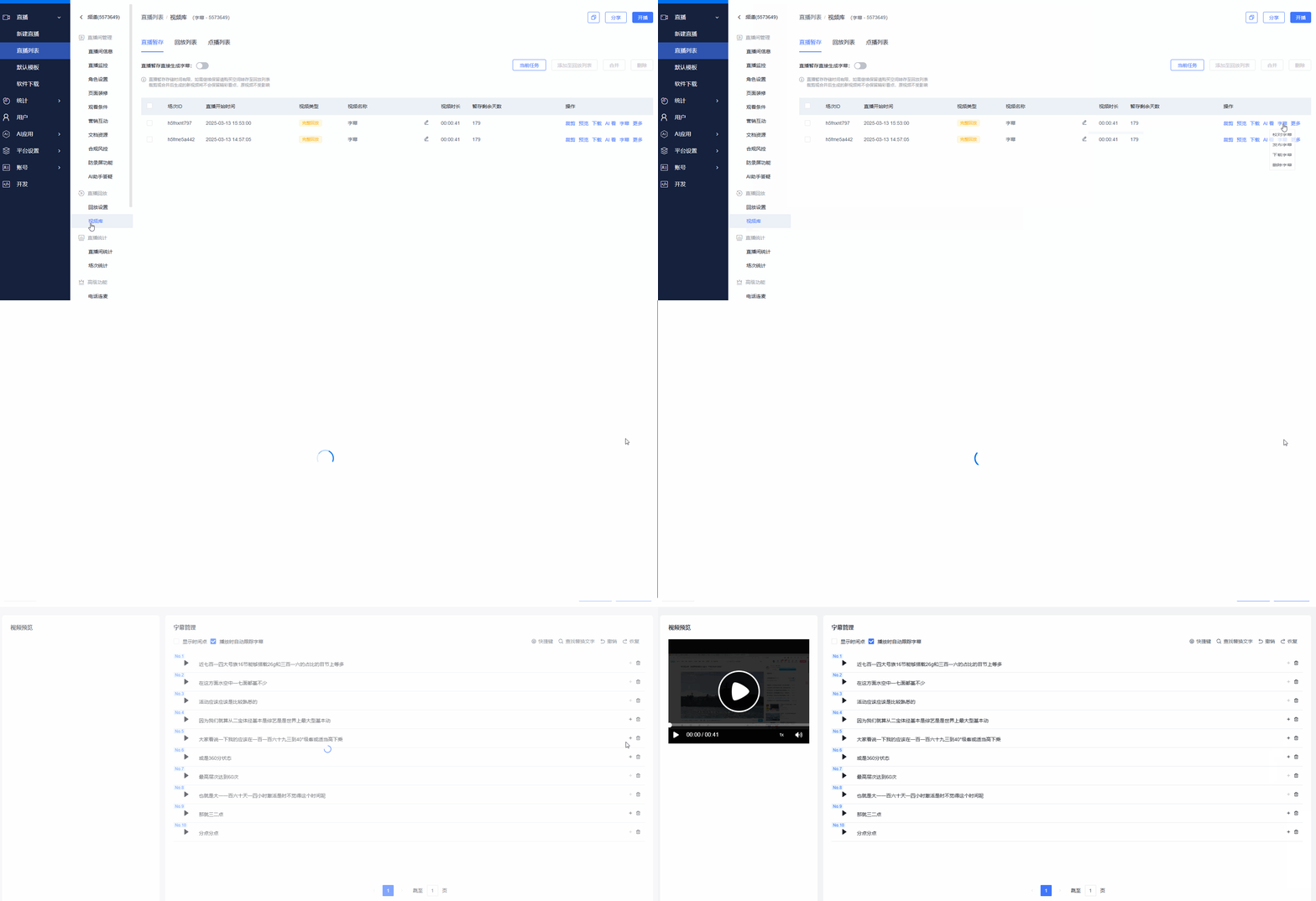
2. Click "Show Time Points" to fine-tune the start and end time segments of each subtitle in the video.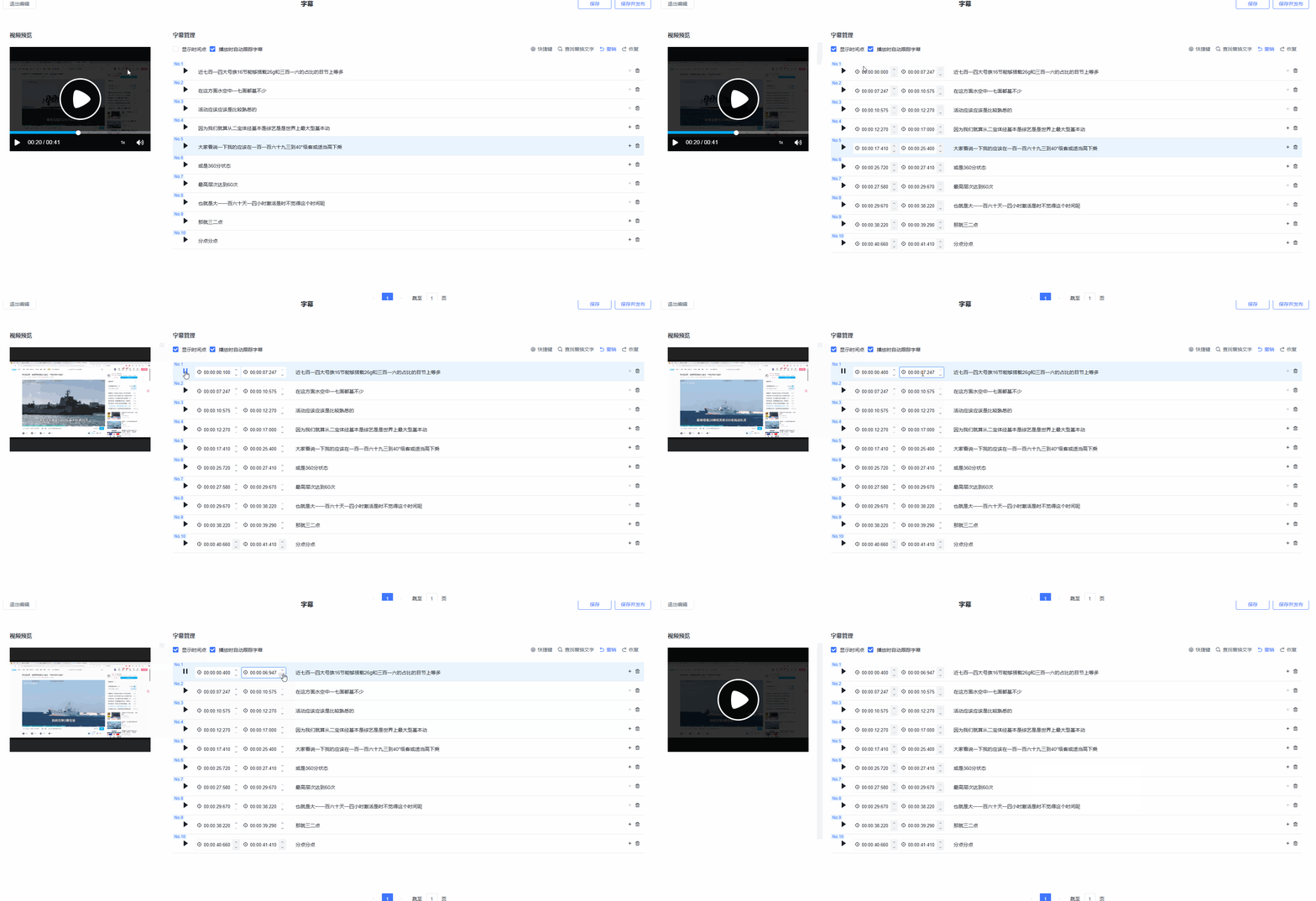
3. Click "Add" or "Delete" to add or remove a subtitle segment.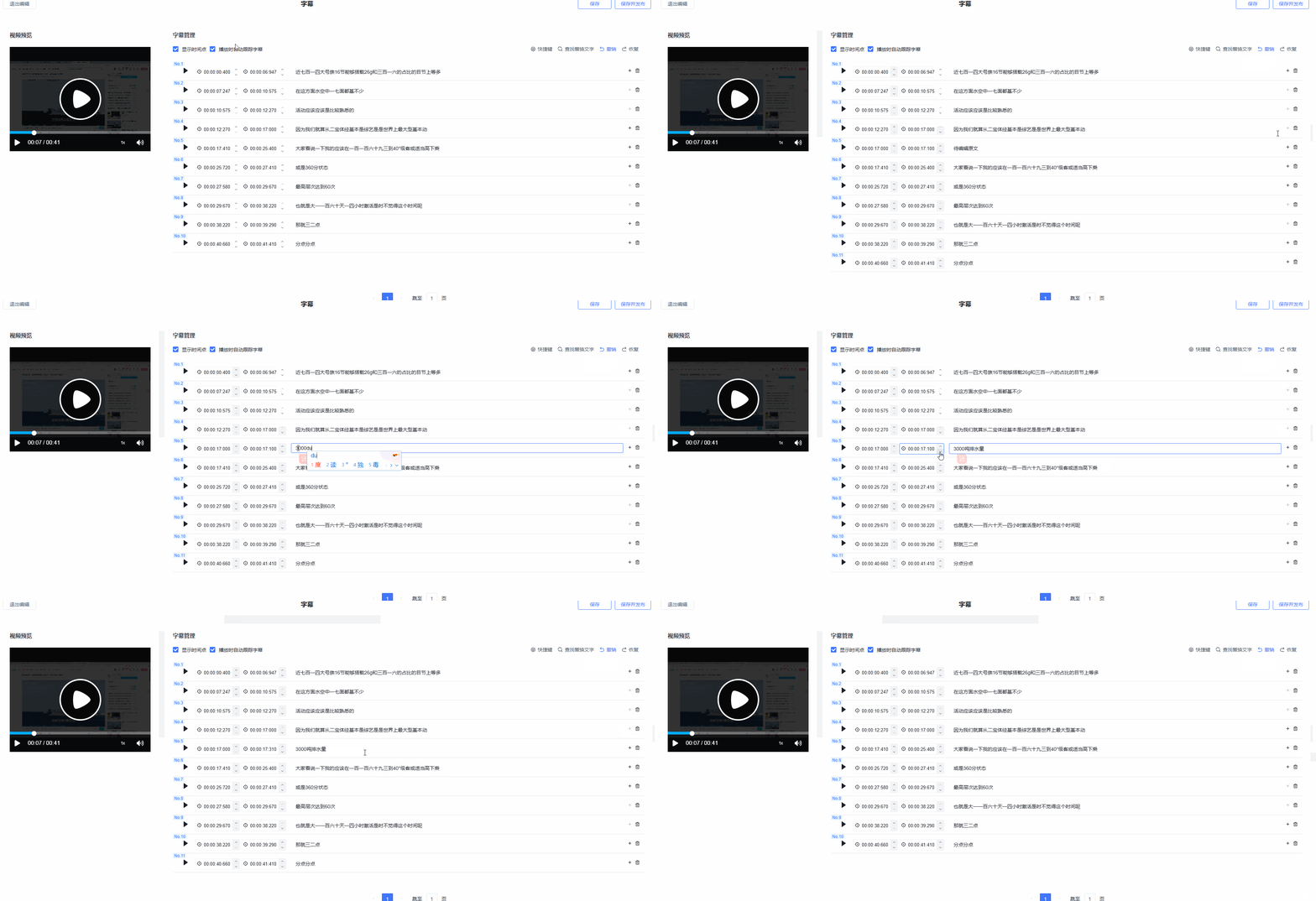
4. Click "Find and Replace Text" to batch replace subtitle content.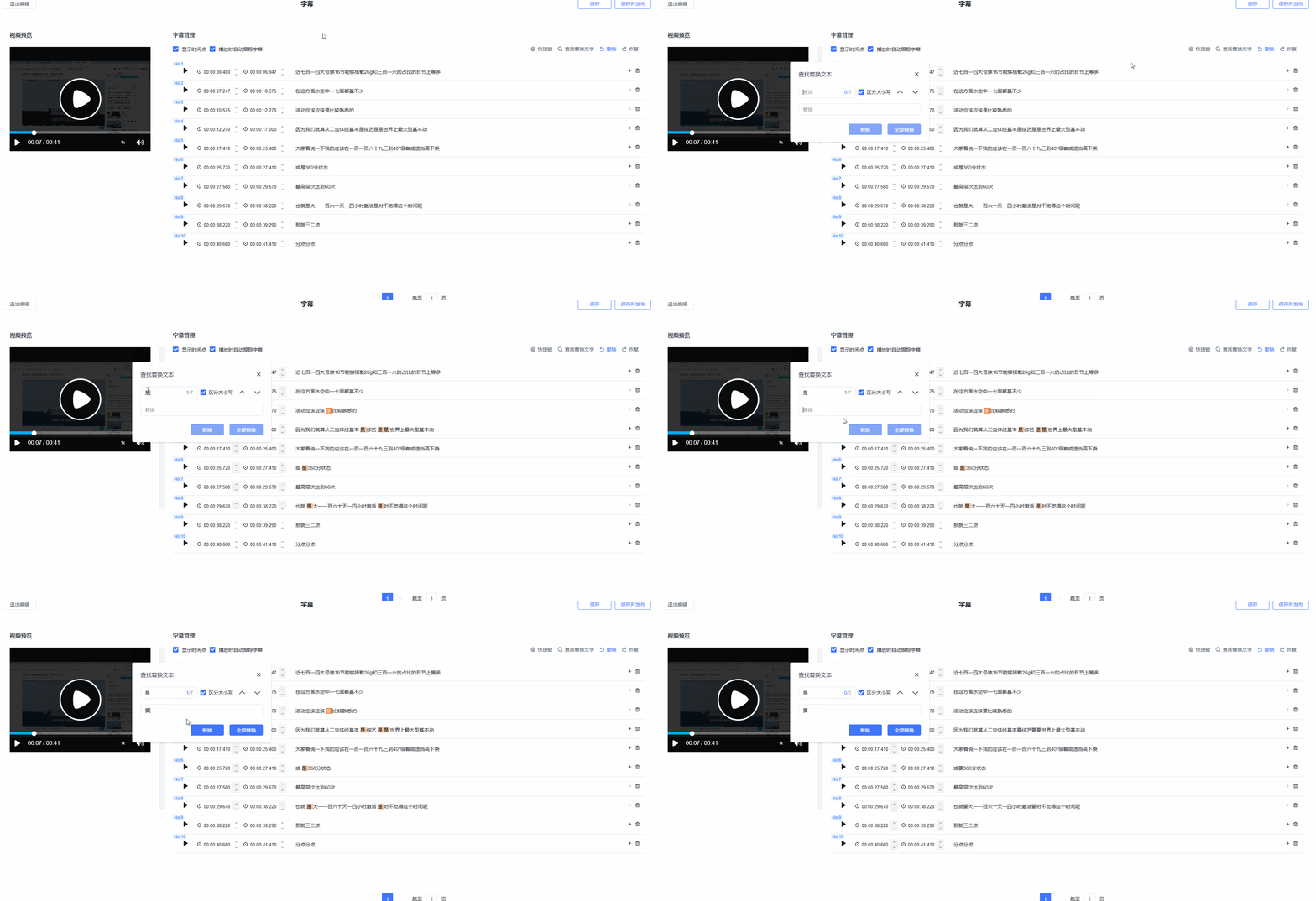
5. Click "Save and Publish" to display the subtitles in the viewing page replay according to the set time segments.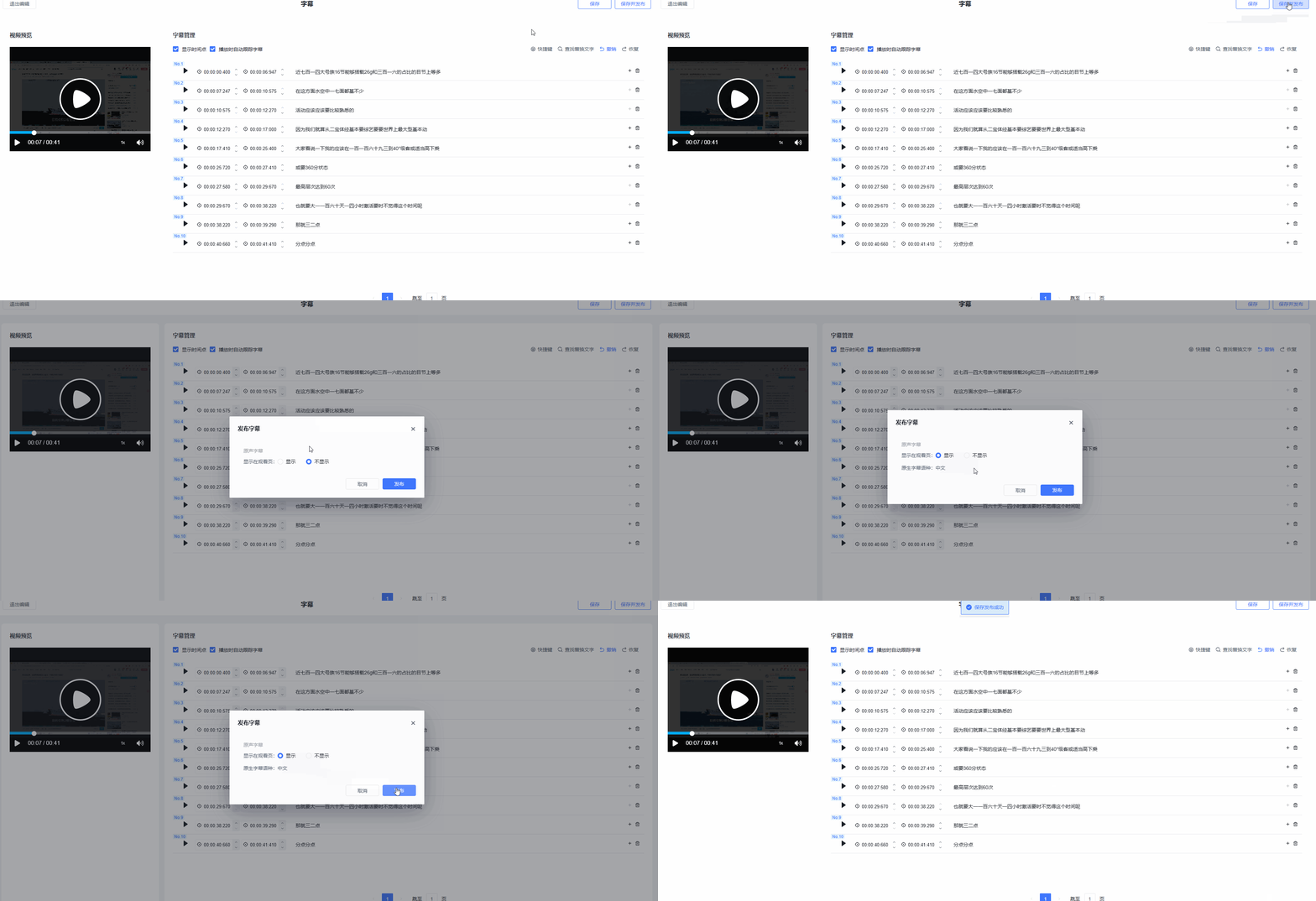
Publishing Subtitles
You can directly publish subtitles on the current page.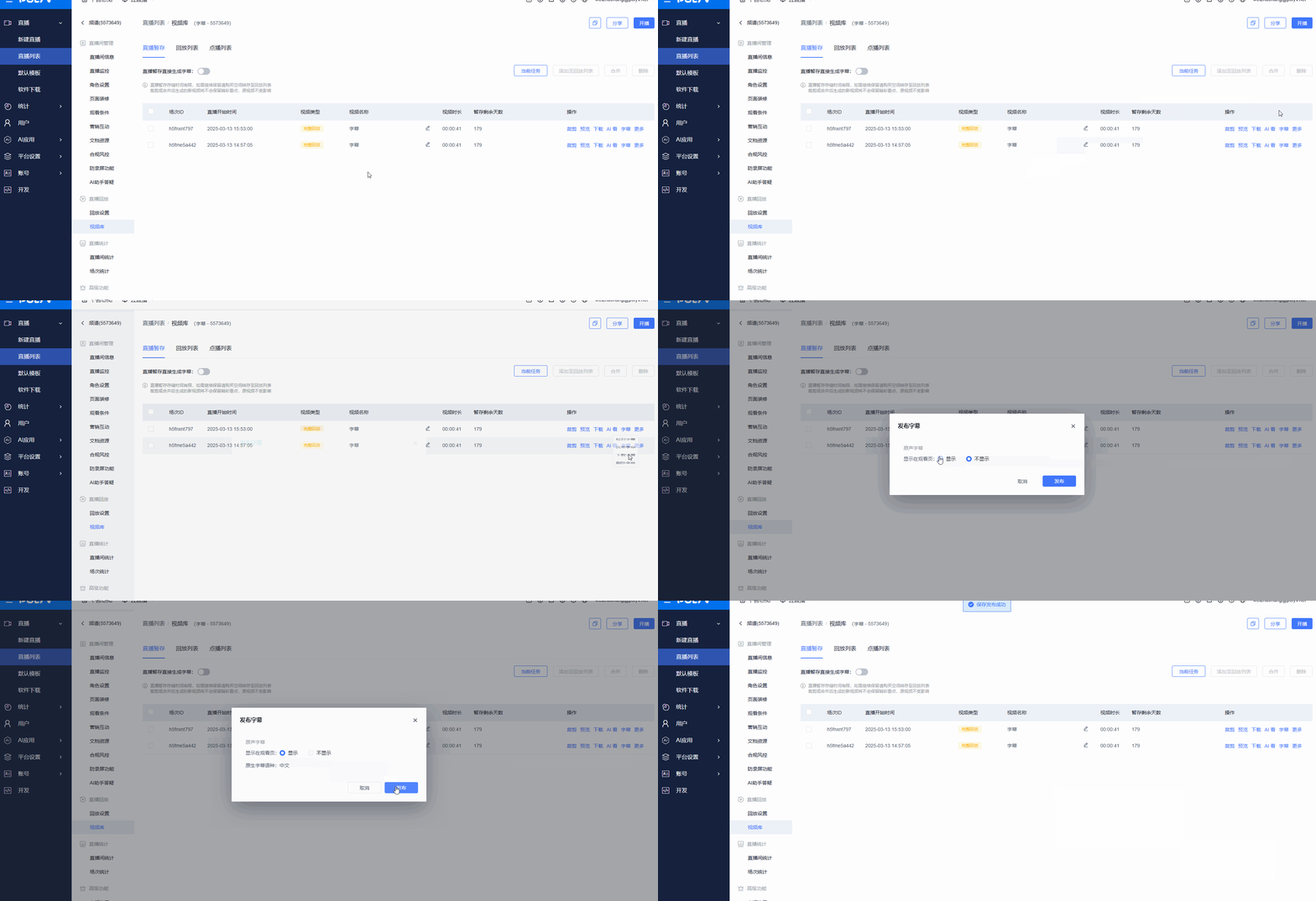
Downloading Subtitles
Download subtitle files to your local device as a ZIP archive.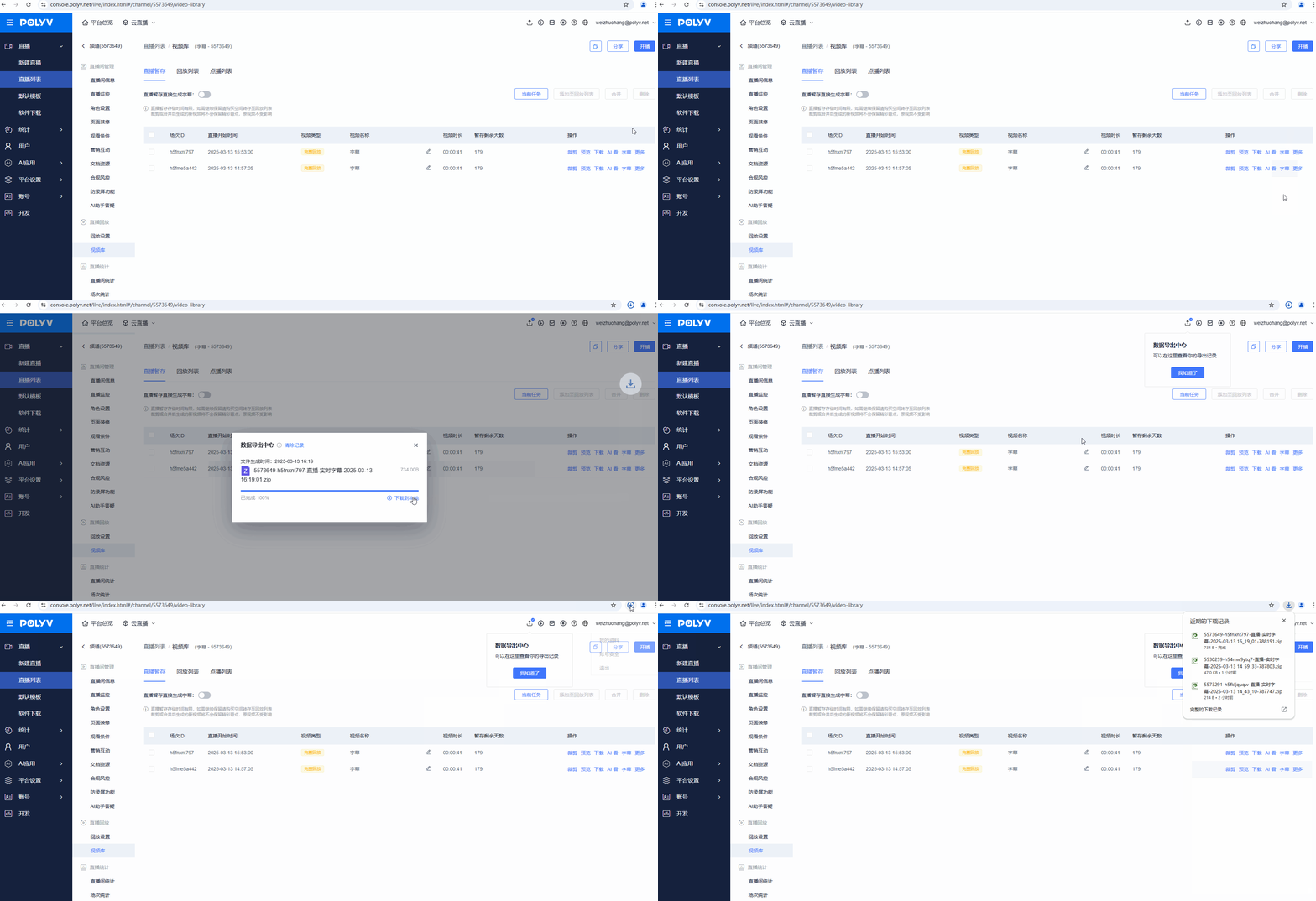
Deleting Subtitles
Delete video subtitle files.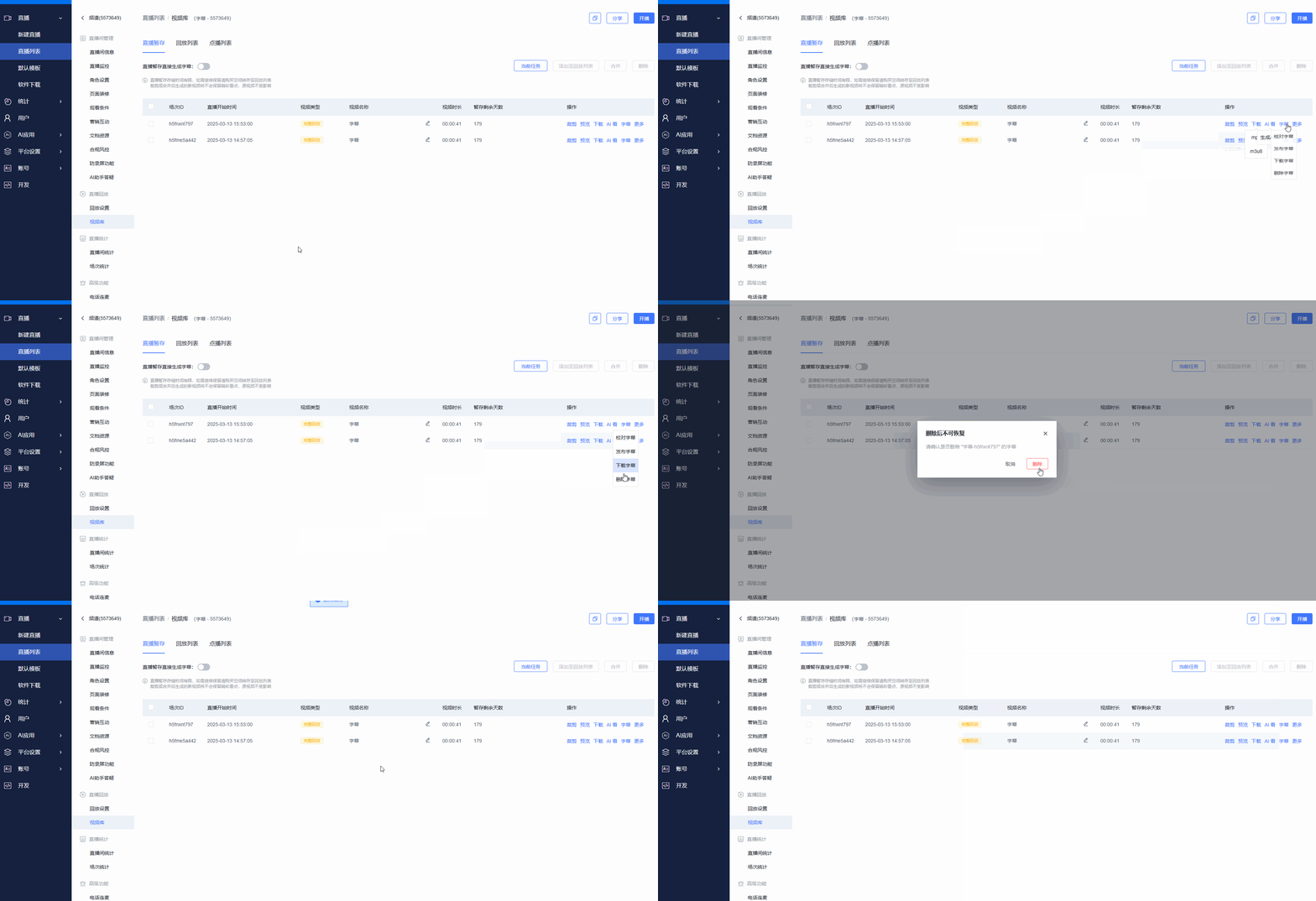
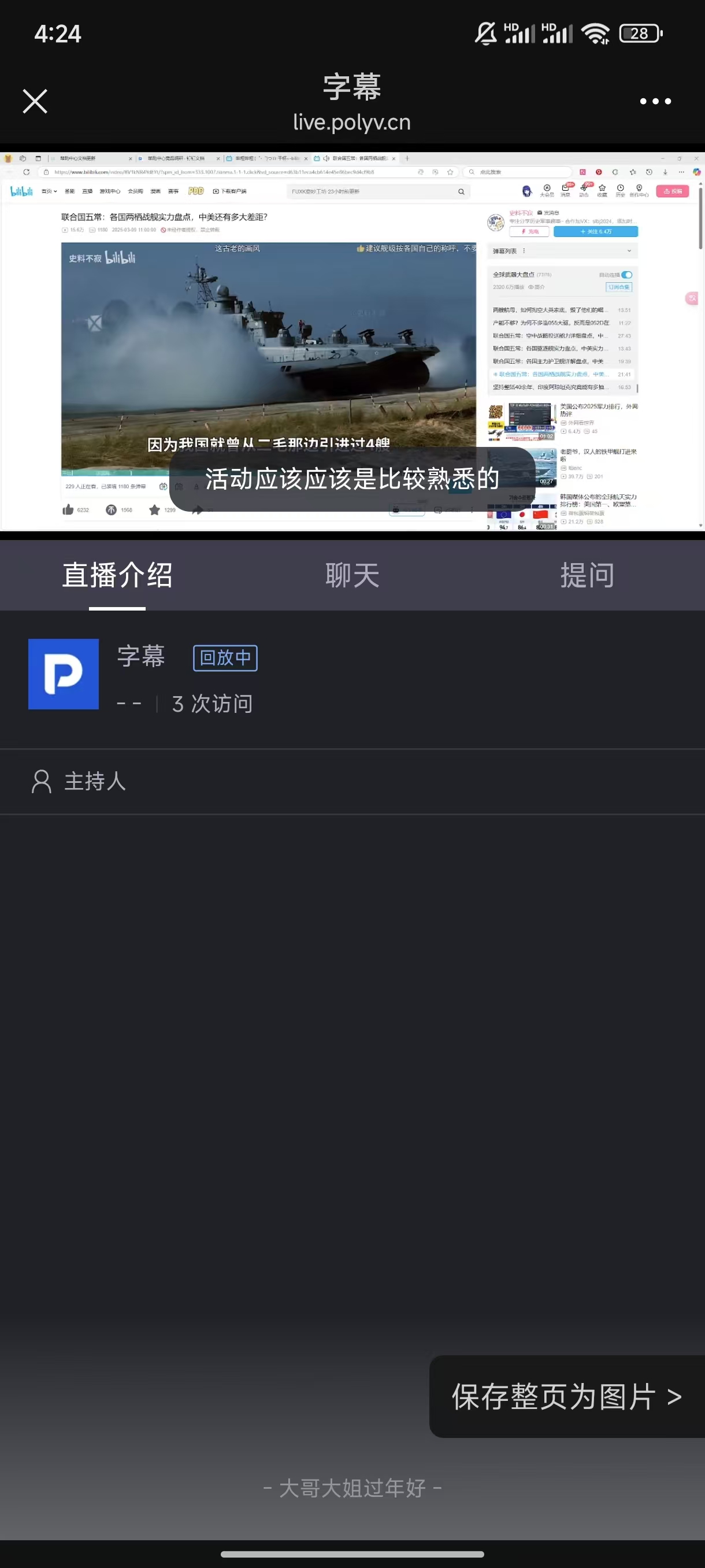
3. Effect Display
Mobile
<img src="https://liveimages.videocc.net/help_doc/f439104b-b044-47ca-b917-d84e90100fed.jpg"" alt="" width="40%">
Portrait settings: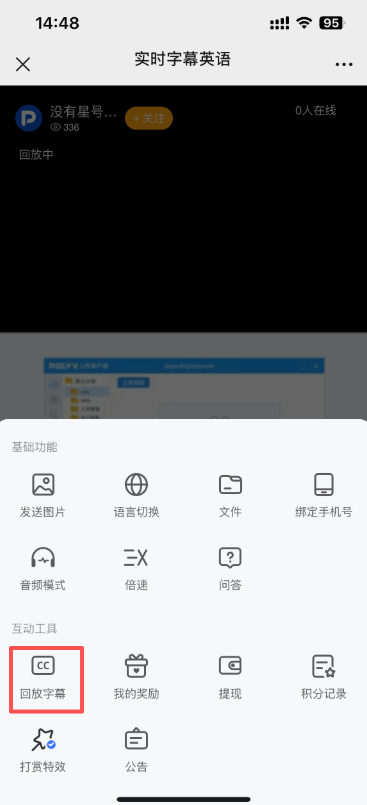
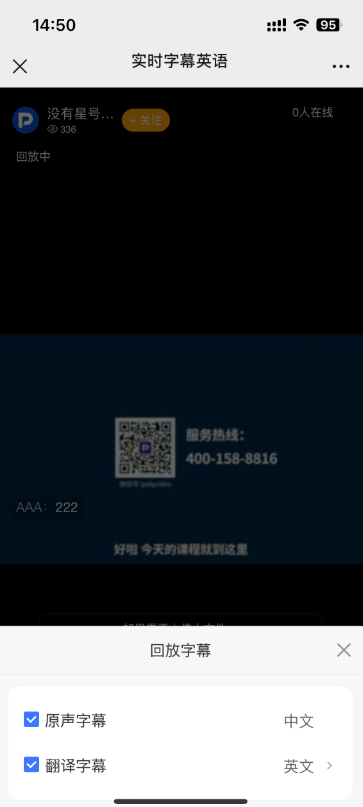
PC