Answer Sheet
Feature Description
The answer sheet is used to initiate interactive quizzes during a live stream. It supports creating questions, setting correct answers, choosing timed or untimed answering, and importing questions from the platform’s question bank.
Applicable Scope
Applicable to the web broadcast interface, PC assistant page, and live streaming console.
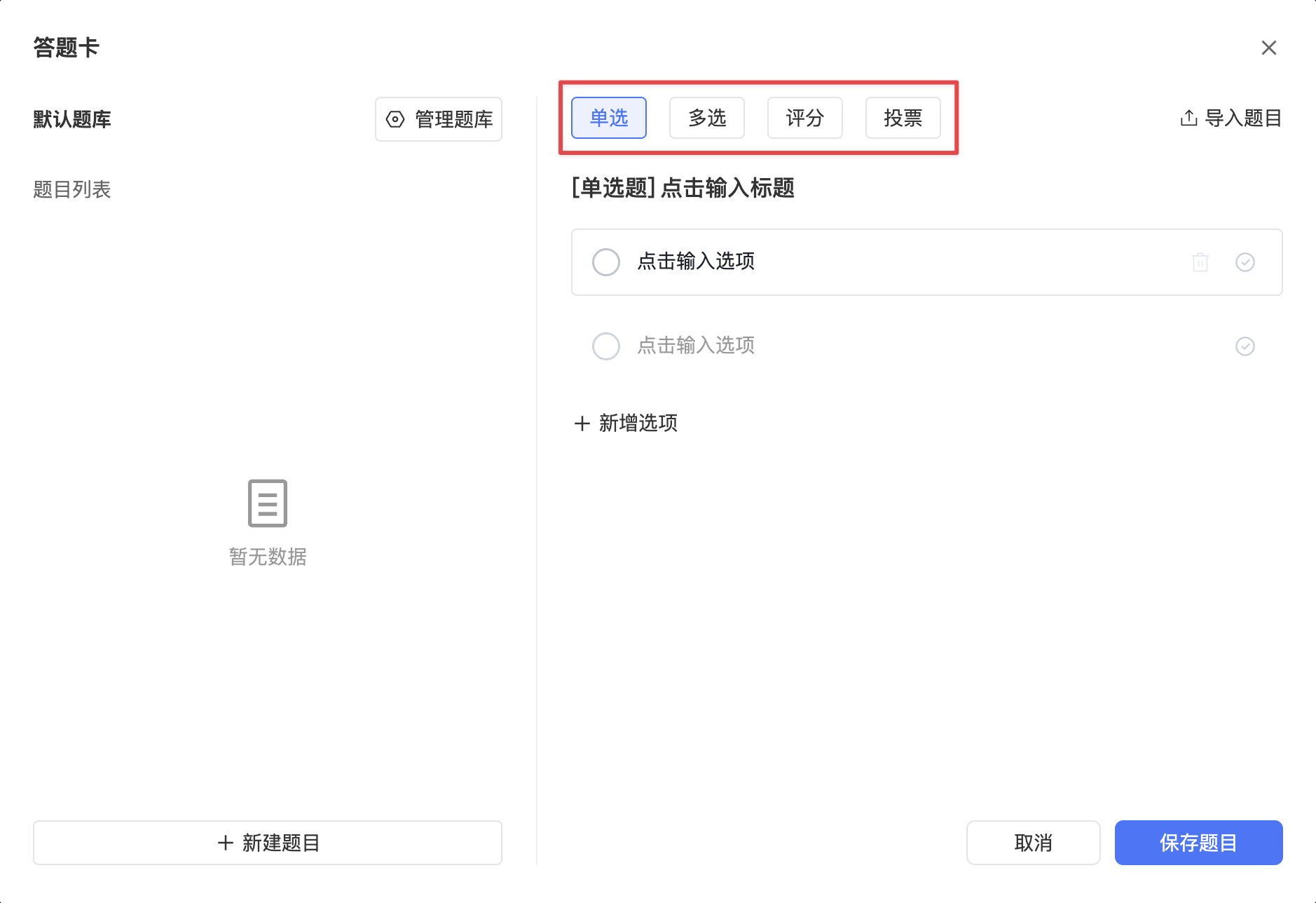
Supported Question Types
| Question Type | Configuration Notes |
|---|---|
| Single Choice | Up to 15 options; question text up to 500 characters; option text up to 200 characters. |
| Multiple Choice | Up to 15 options; question text up to 500 characters; option text up to 200 characters. |
| Rating | 5 rating items; question text up to 500 characters. |
| Poll | 5 options; question text up to 500 characters; option text up to 200 characters. |
Create a New Question
The following steps use the live streaming console as an example:
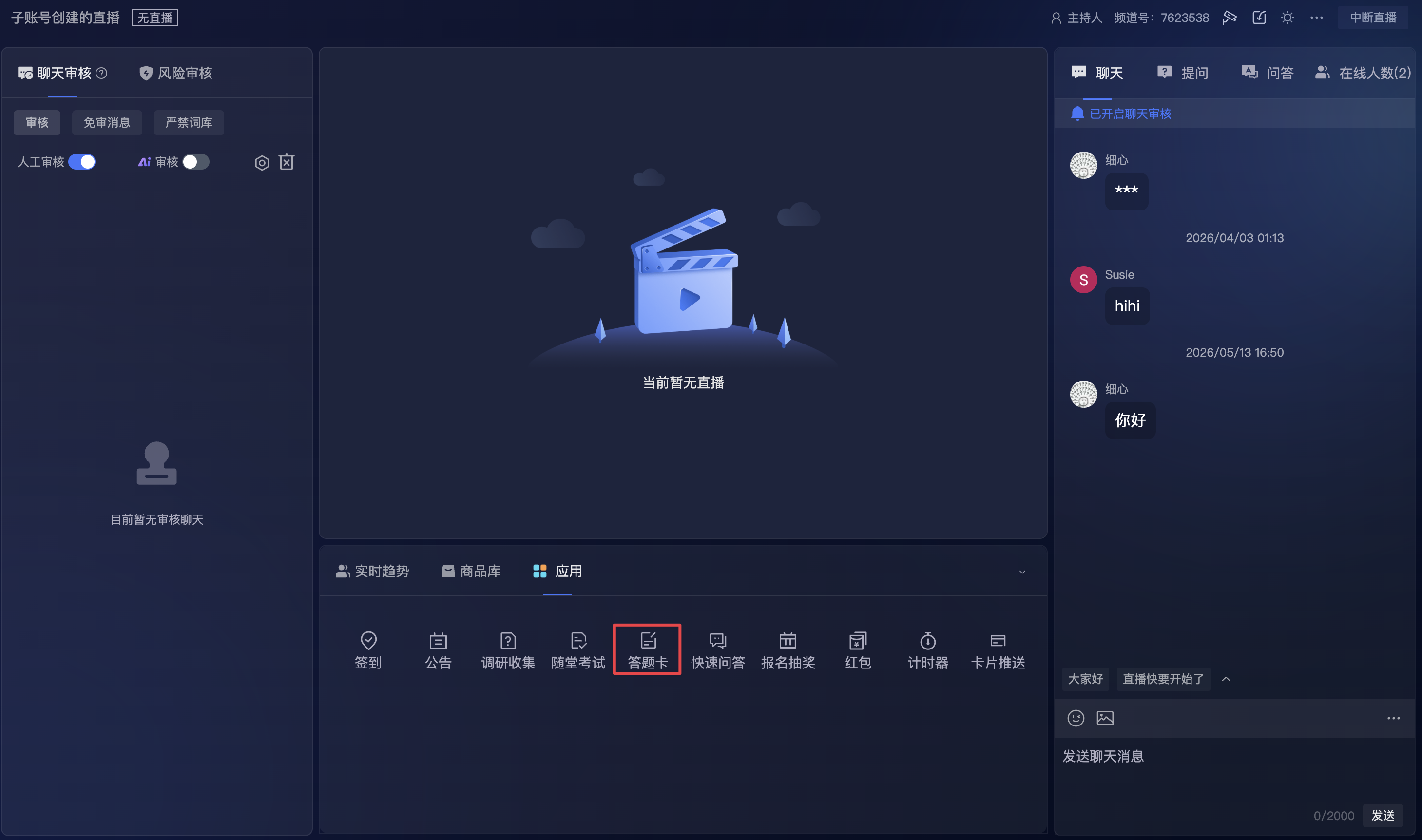
- Enter the application module.
- Click the [Answer Sheet] entry.
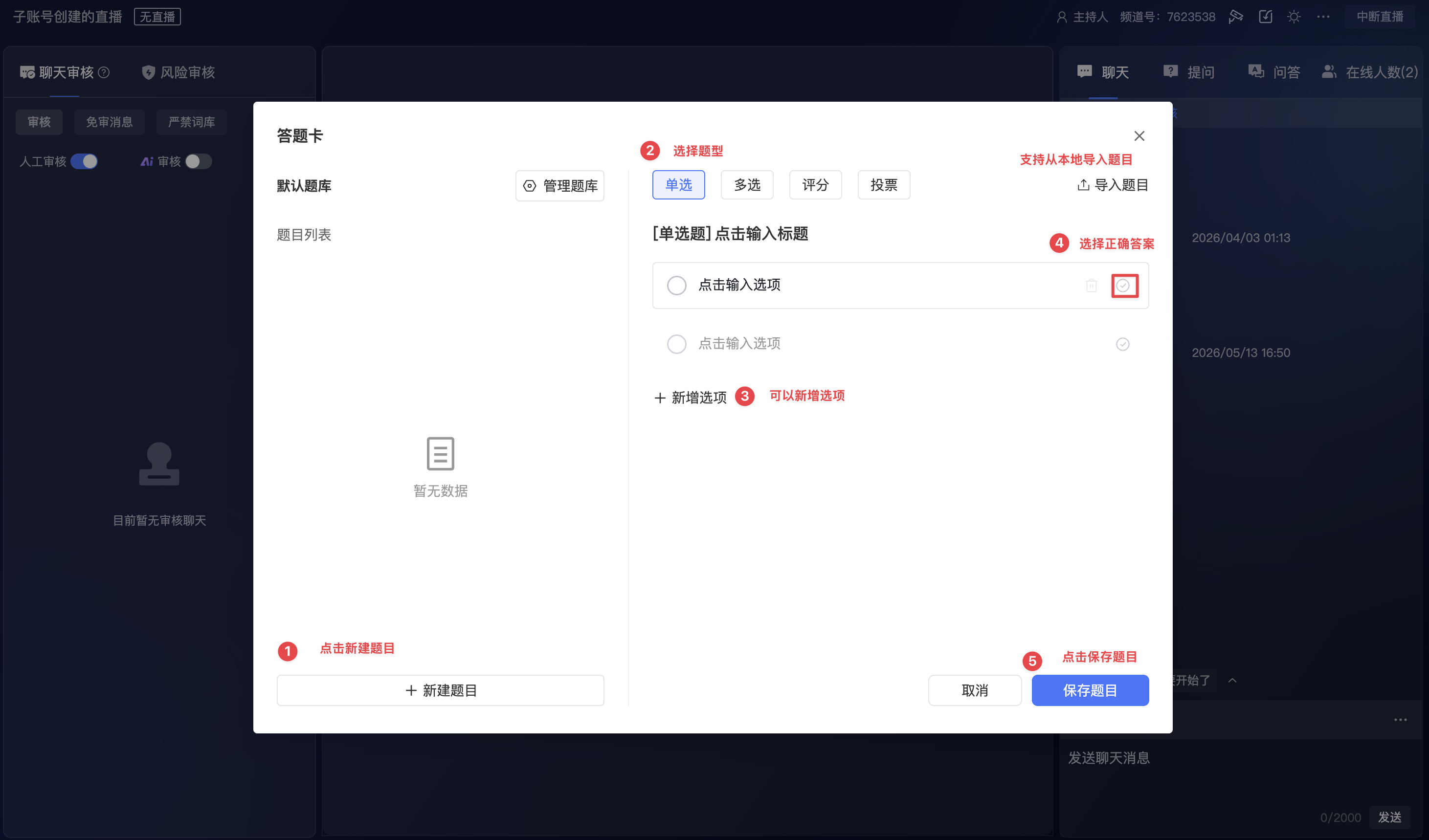
- Create a new question and select the question type (supports importing questions from local files).
- Fill in the question content, options, and correct answer.
Start a Quiz
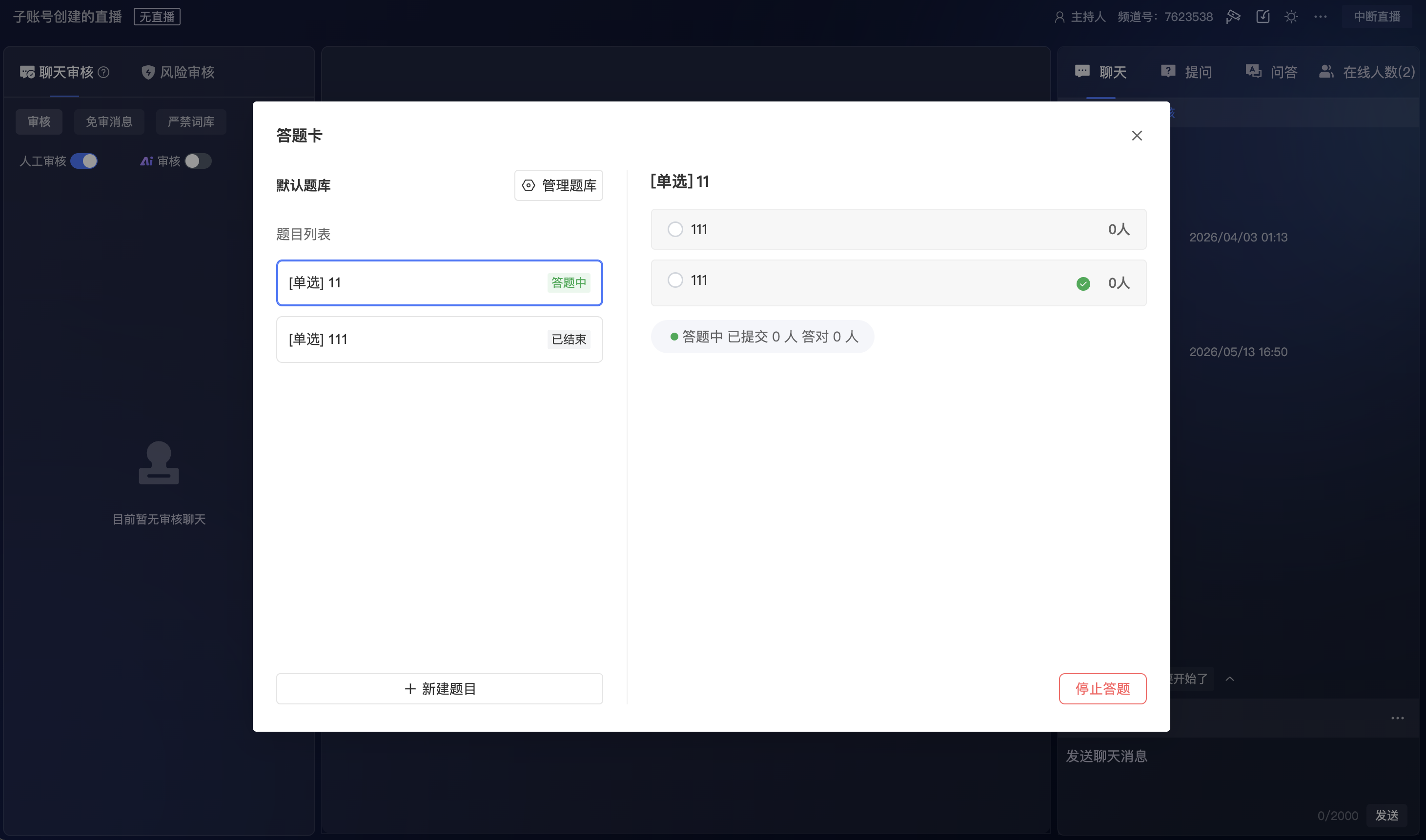
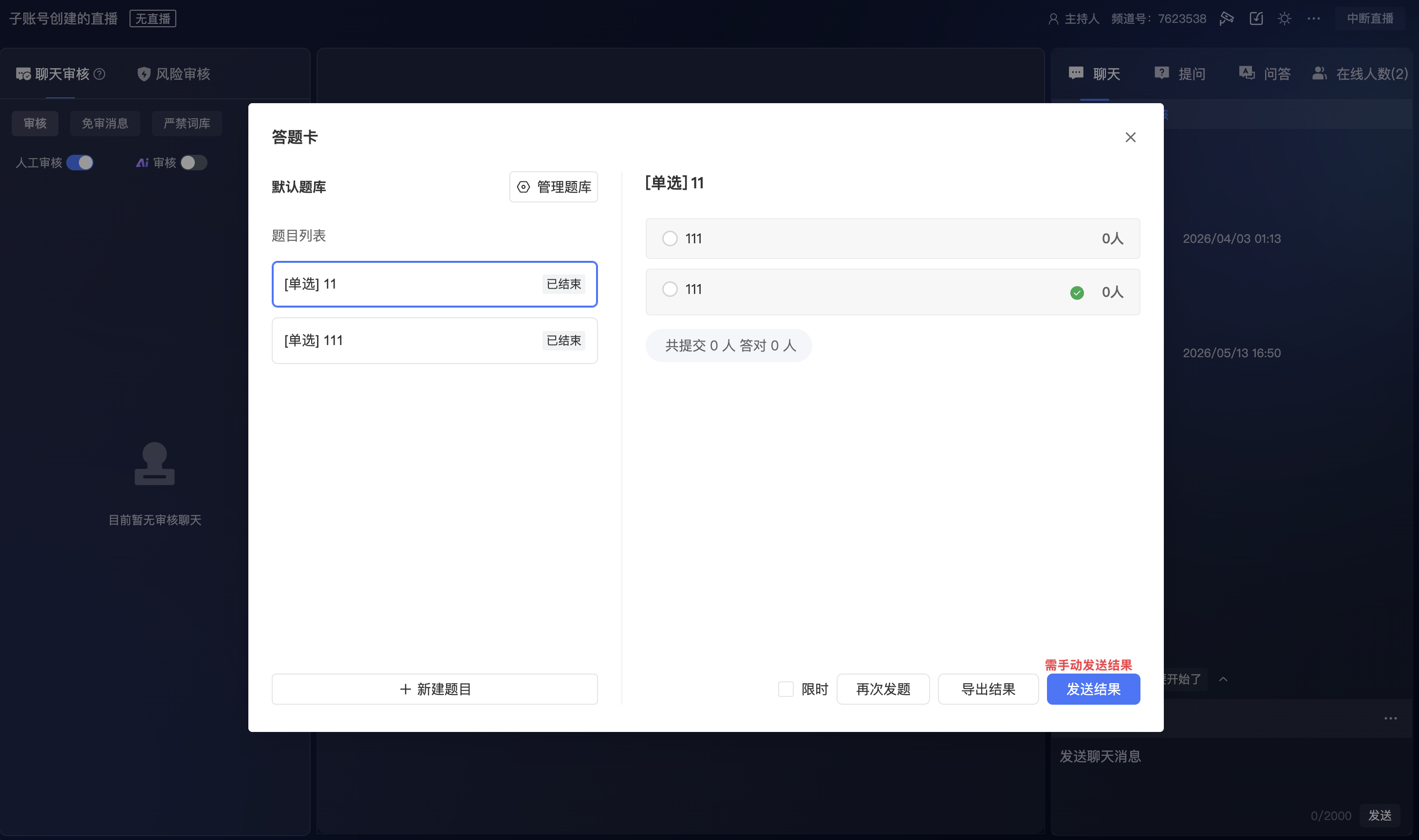
Supports timed and untimed quizzes.
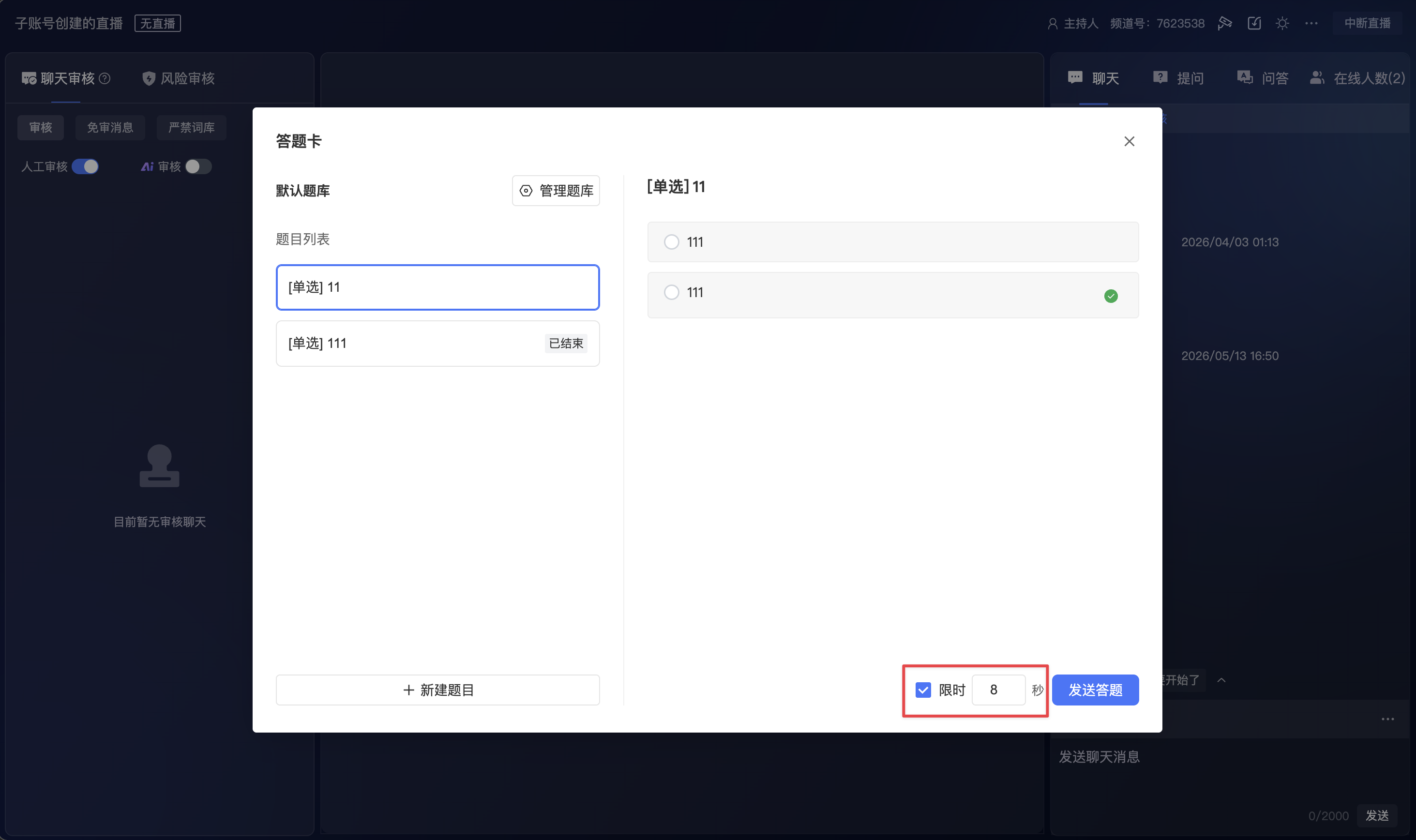
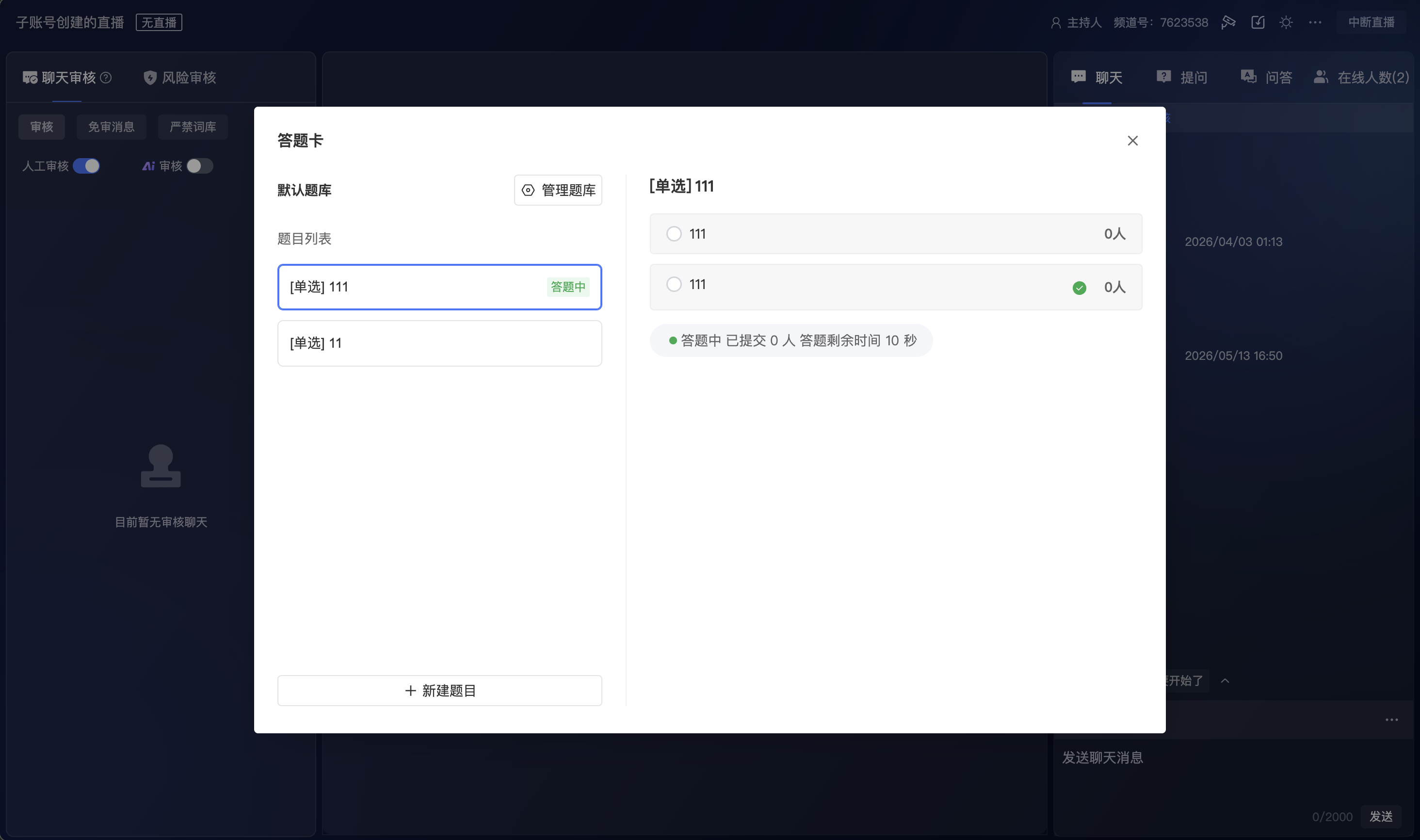
- Timed quiz: Supports a countdown; automatically stops when the countdown ends and automatically sends results to viewers.
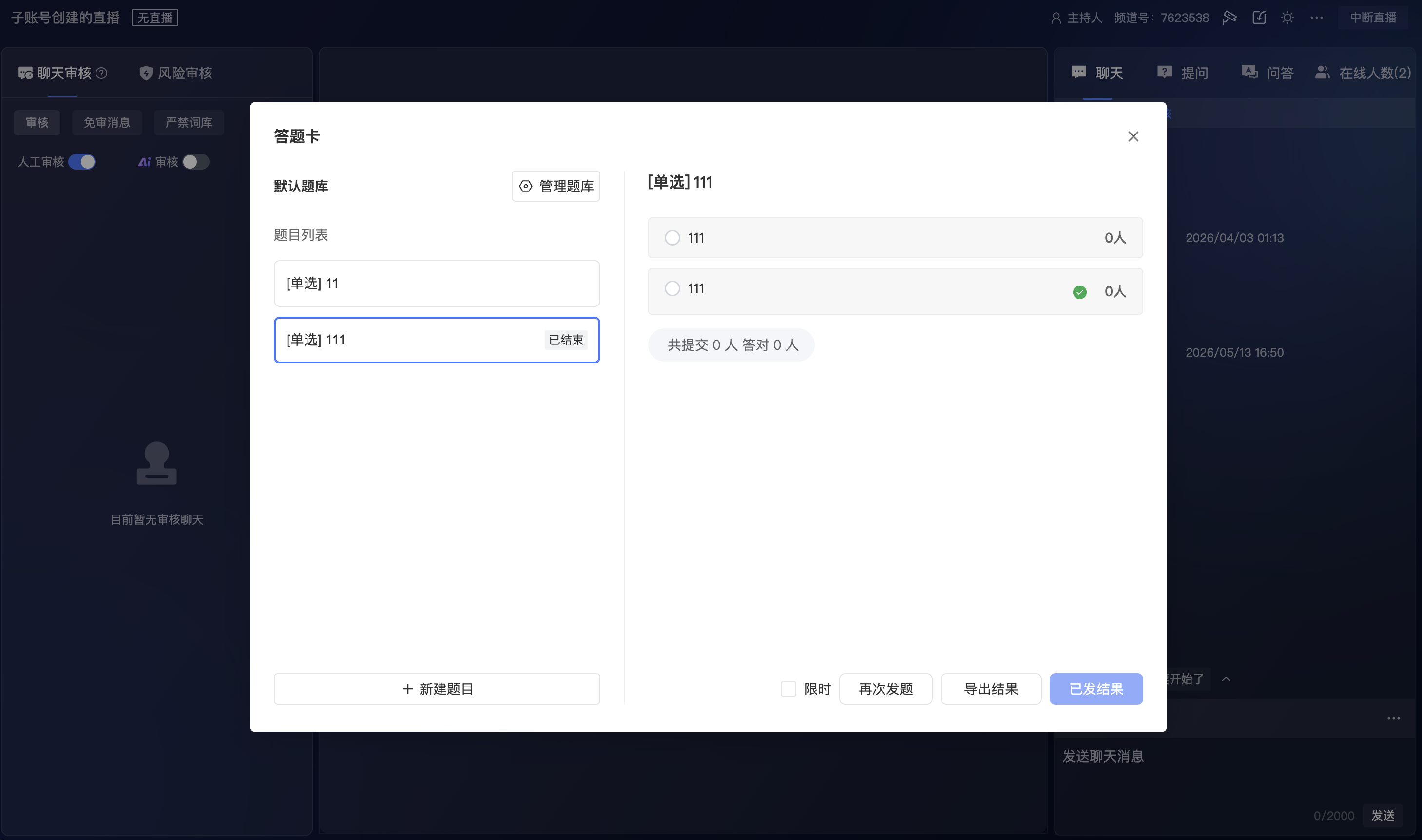
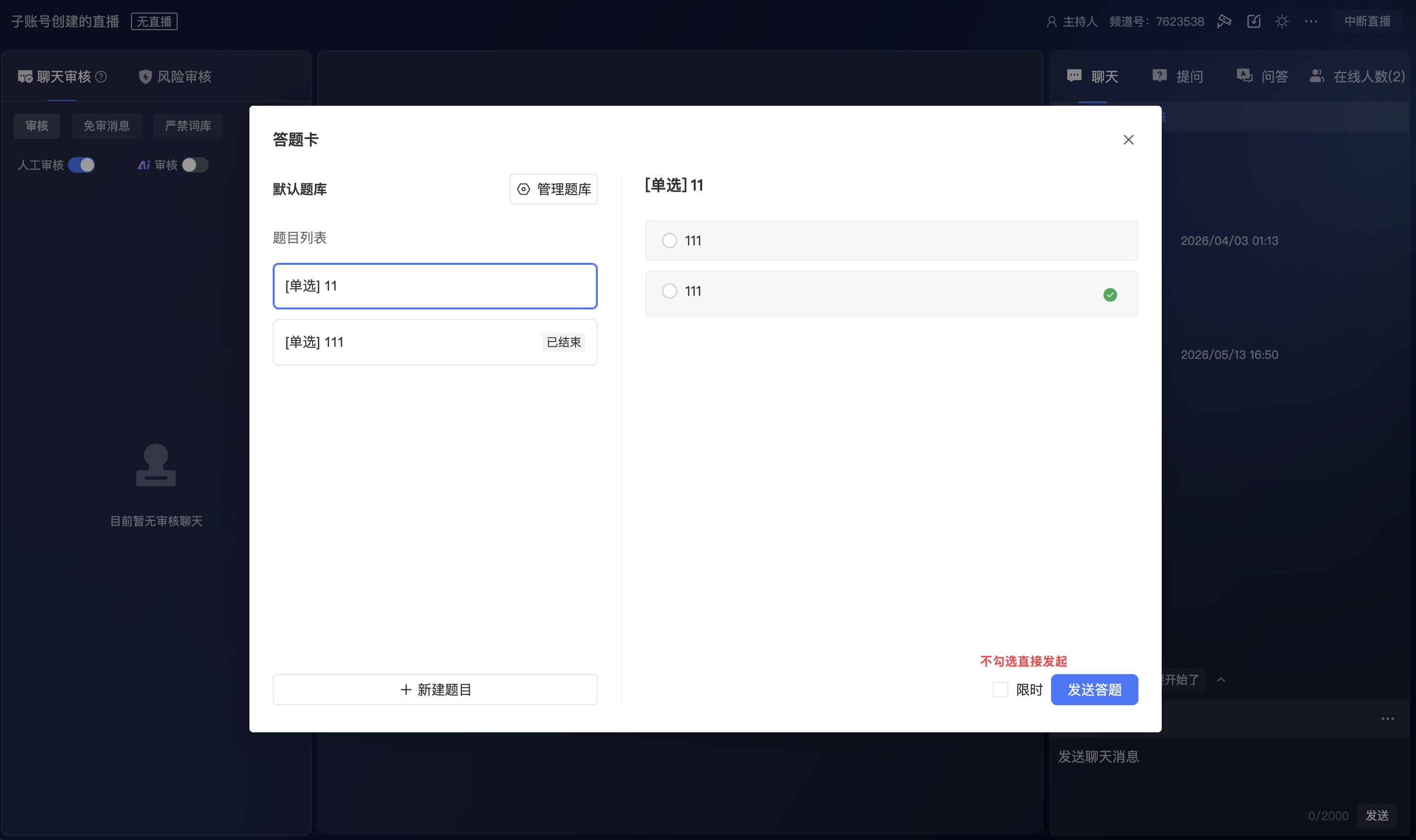
- Untimed quiz: Requires manually stopping the quiz and manually sending results to viewers.
Question Bank Management
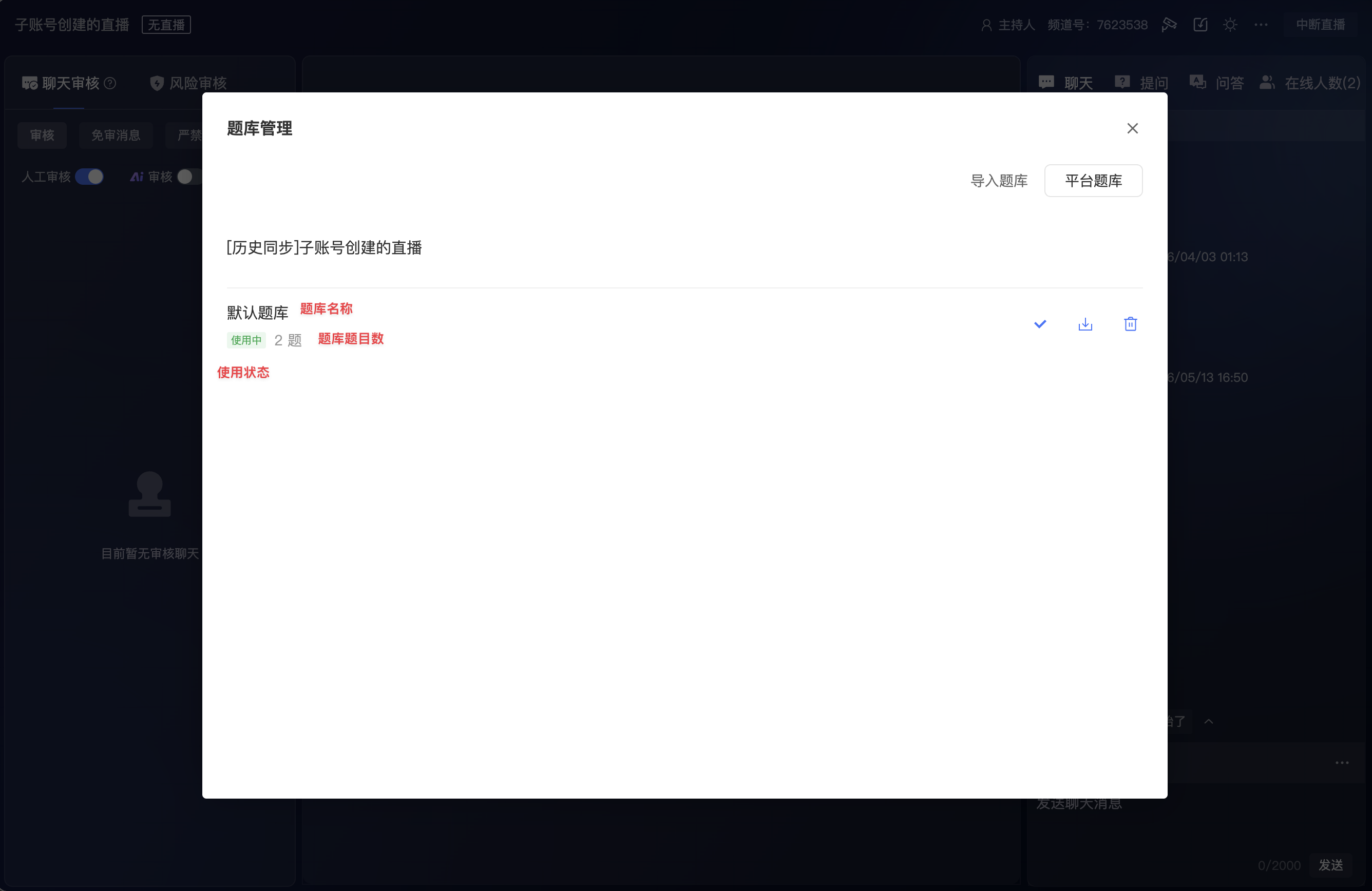
Question bank management is used to view and maintain reusable answer sheet question banks. In the [Question Bank Management] popup, you can view the available question banks for the current channel, their usage status, and the number of questions.
The question bank list displays the bank name and usage status. For example, [Default Question Bank] shows whether it is currently [In Use] and the number of questions it contains.
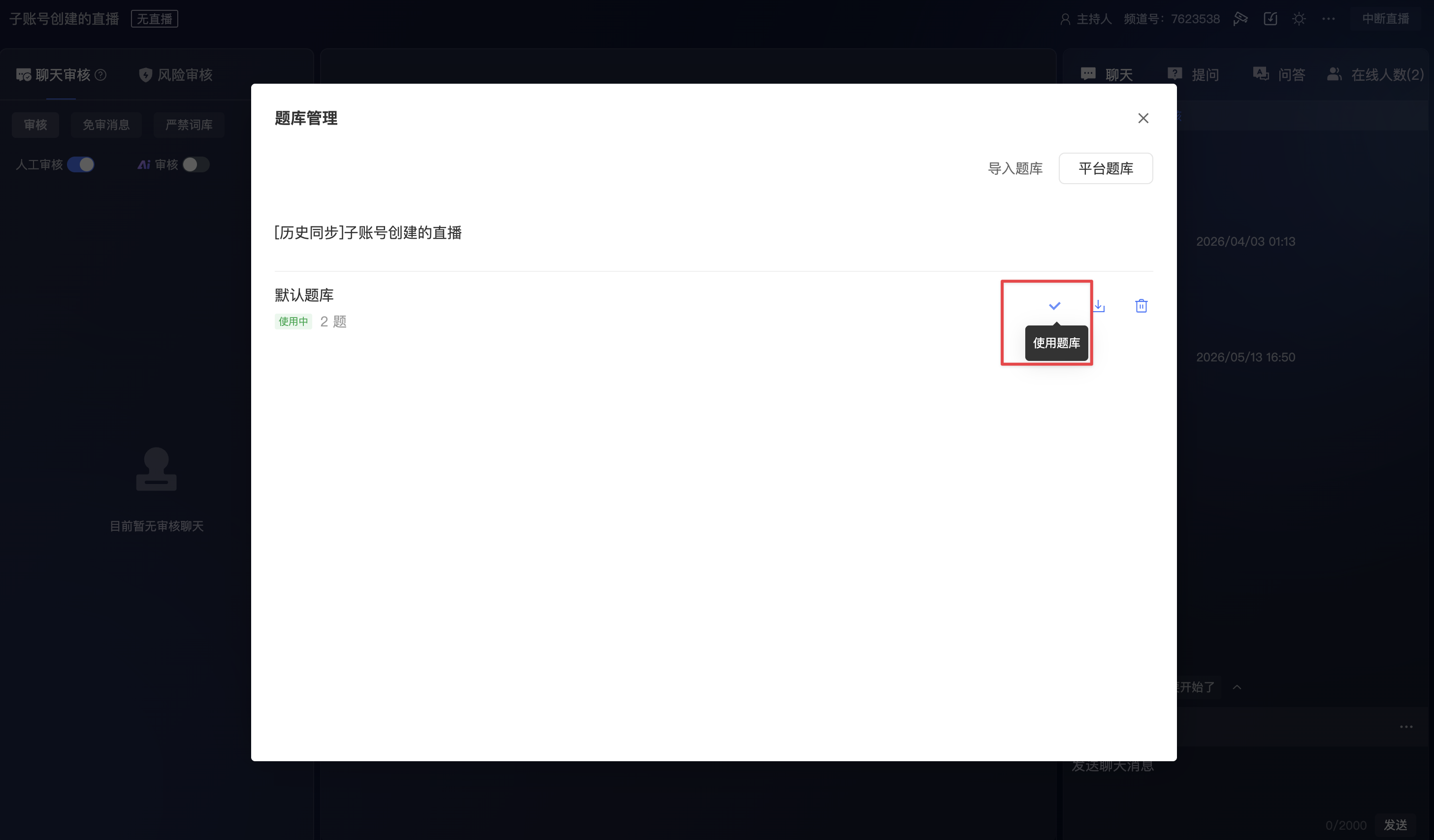
Question bank management supports the following operations:
- Select question bank: Set a specified question bank as the current active bank. The active bank will display [In Use].
- Download question bank: Download the content of the corresponding question bank.
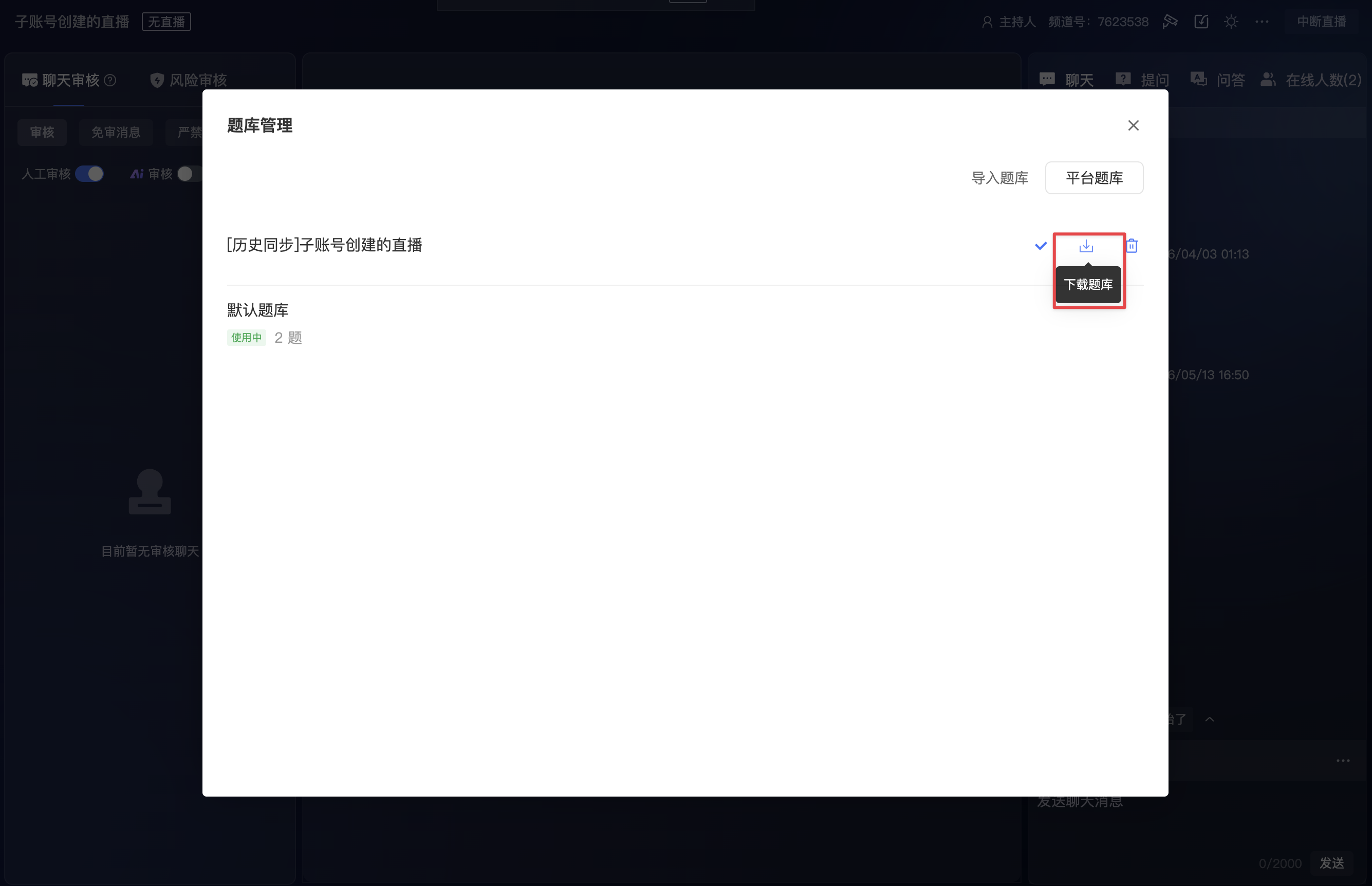
- Delete question bank: Delete a question bank that is no longer in use.
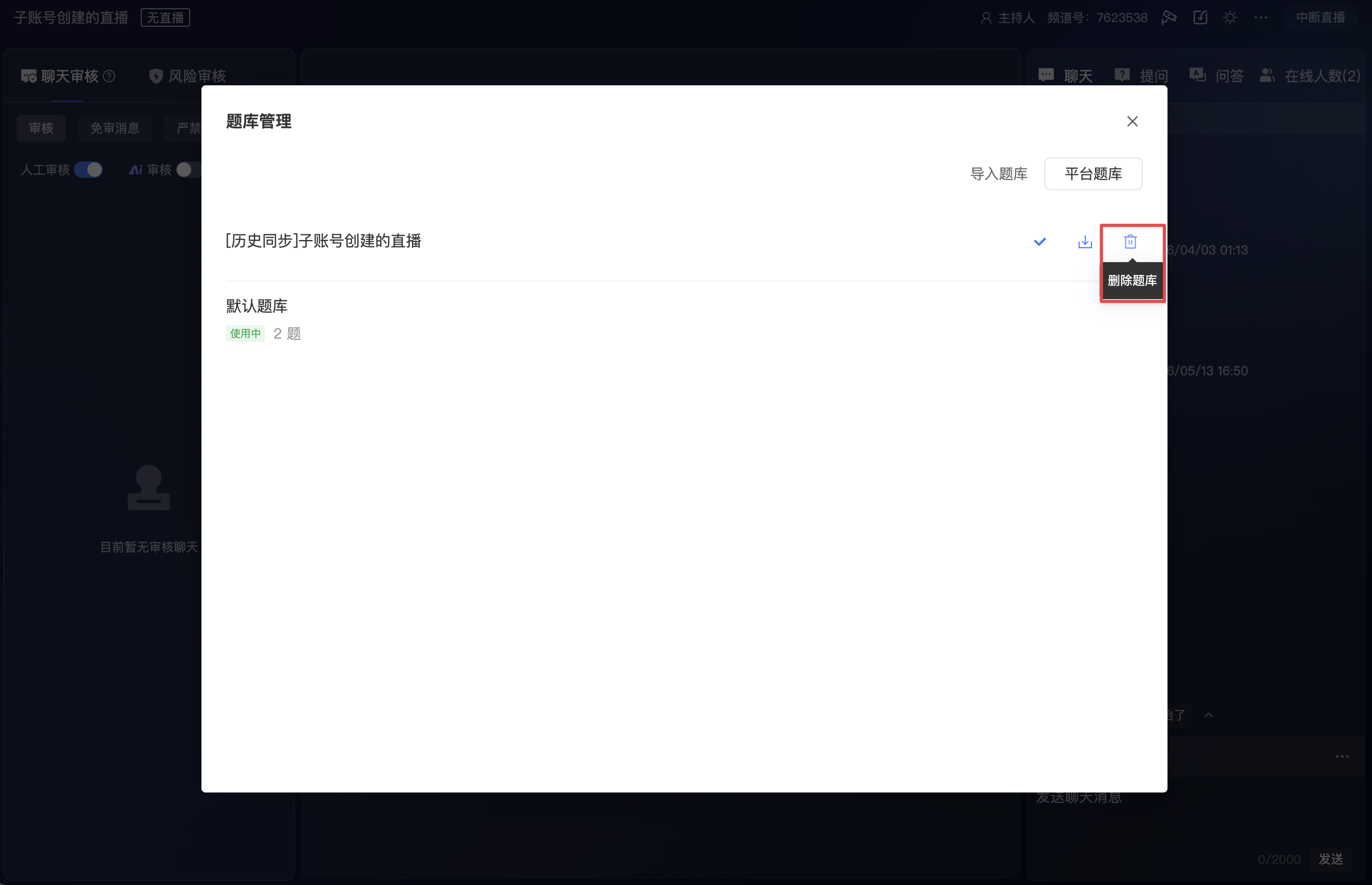
- Import question bank: Import local question bank content into question bank management.
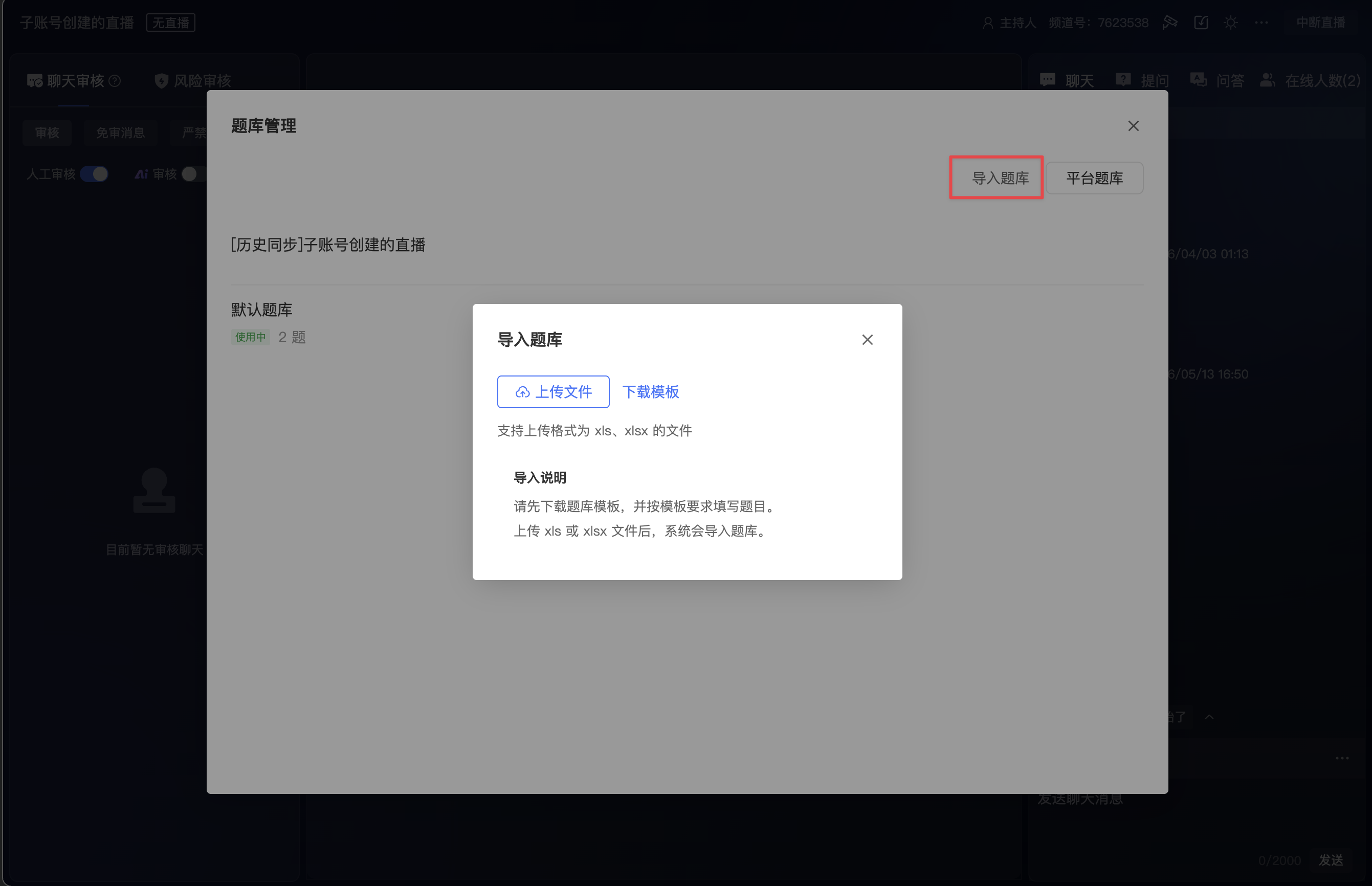
- Platform question bank: Select question resources from the platform’s question bank in the admin console.
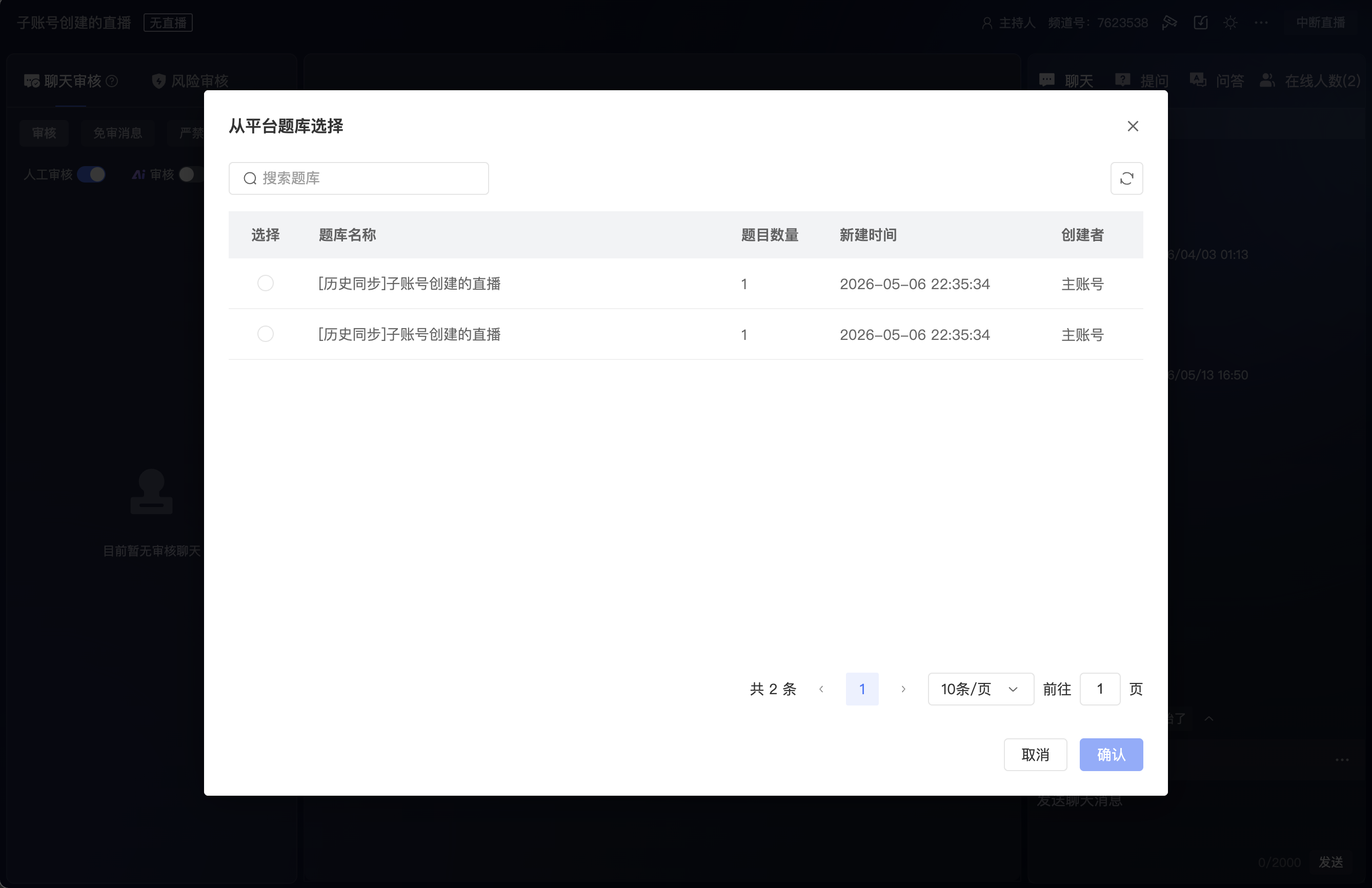
Viewer Page Display
PC viewer page:
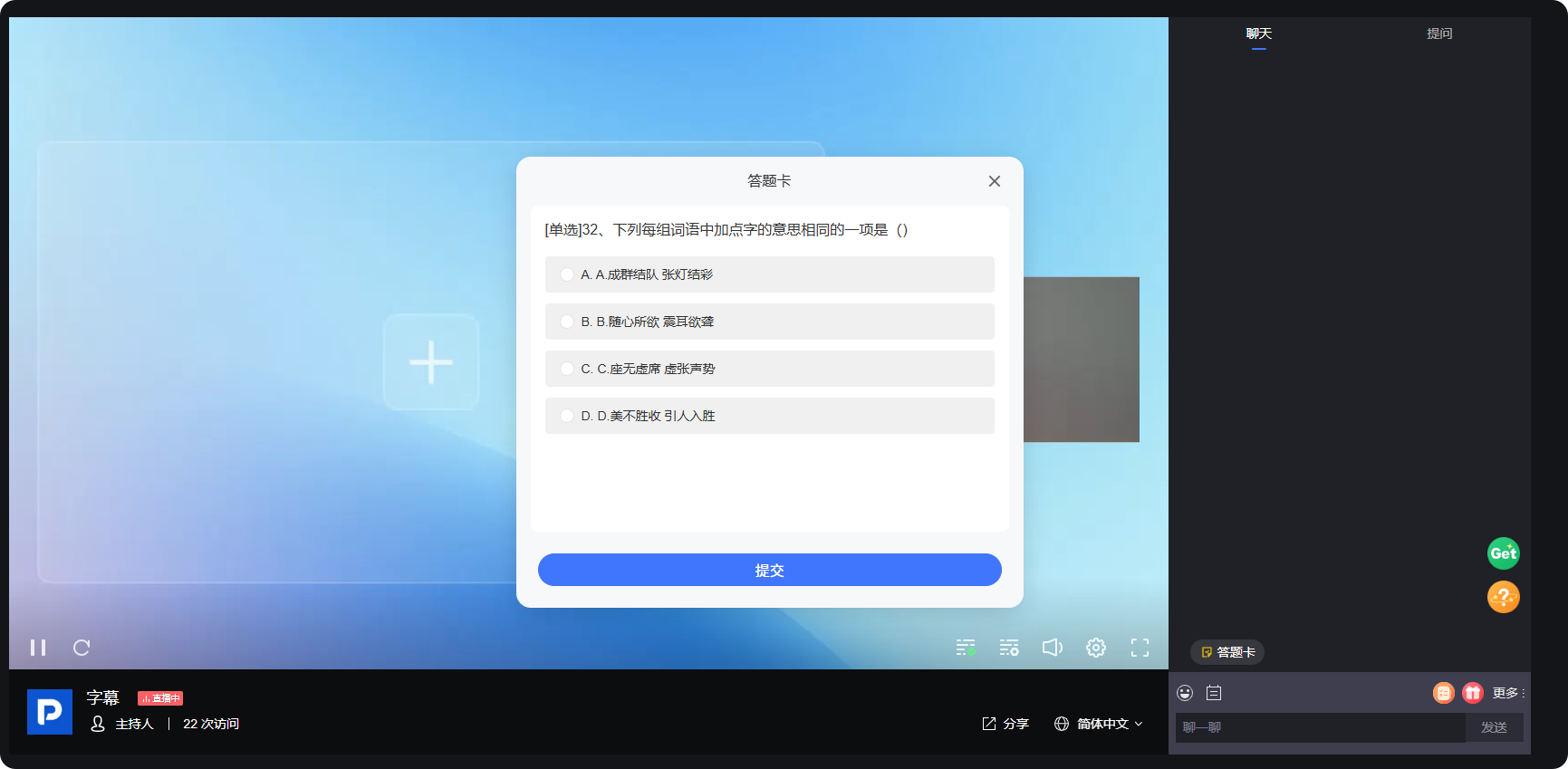
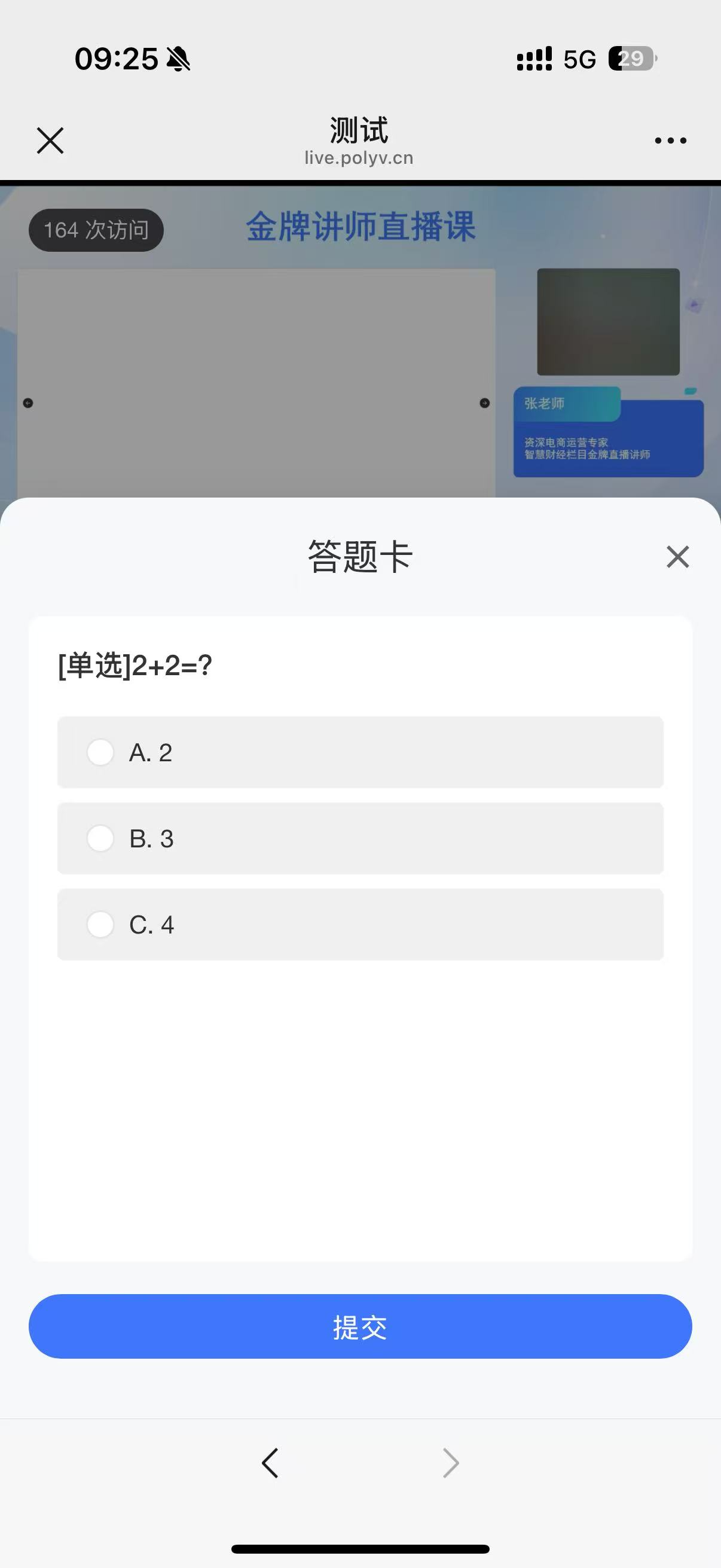
Mobile viewer page:
<img src="https://liveimages.videocc.net/help_doc/0ef88ff5-43f3-49e6-afd3-09eed7e366b9.png"" alt="" width="50%">
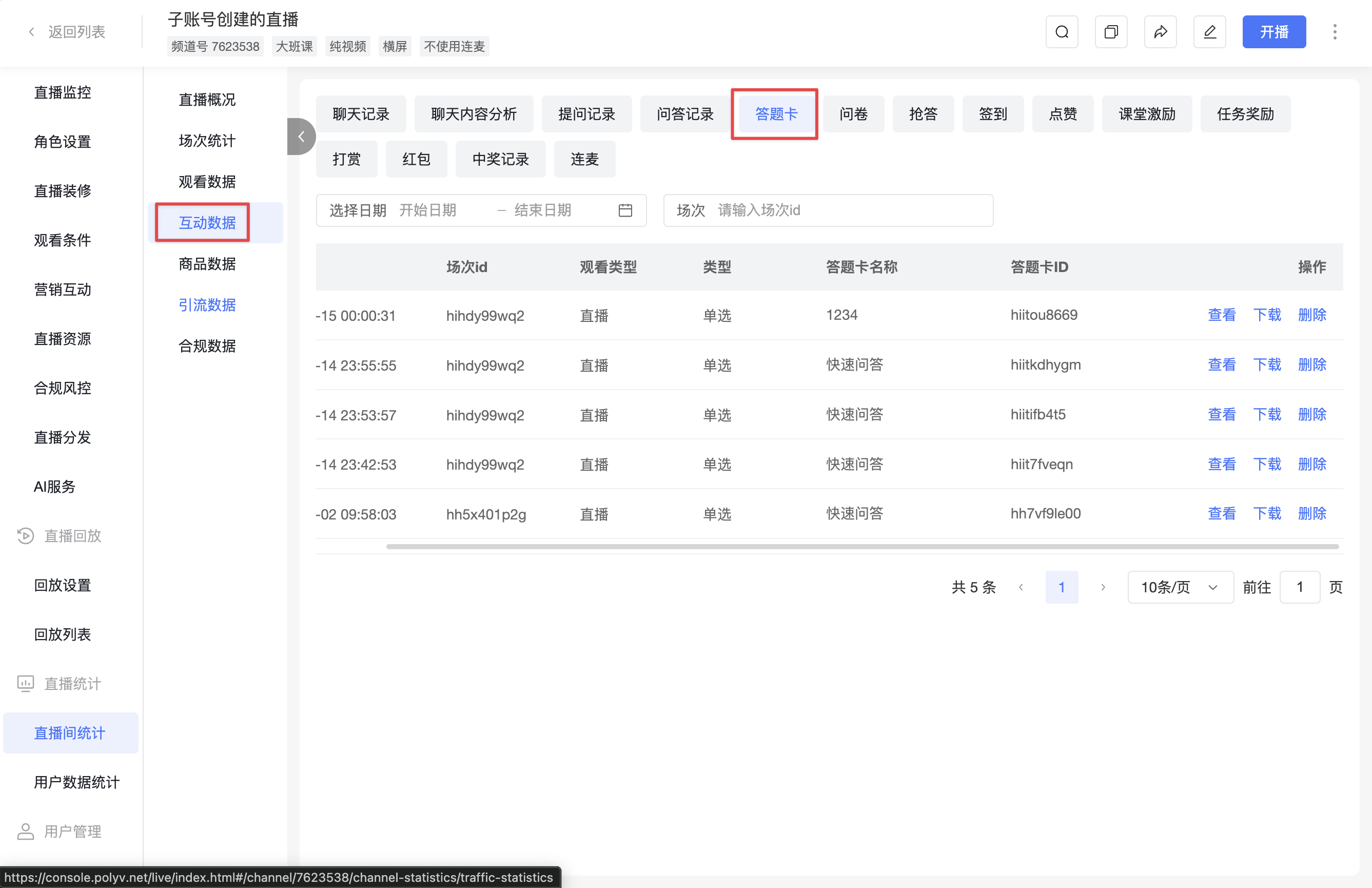
Admin Console - View Answer Sheet Data
Navigation path: [Live Stream Statistics] → [Interaction Data] → [Answer Sheet]
Notes
- If a quick Q&A is in progress, it must be ended before starting an answer sheet question.
- If an answer sheet quiz is currently in progress, it must be stopped before starting a quick Q&A.