Live Streaming Console
Updated: 2026-09-18 00:40:58
1. What is the Live Streaming Console
- The Live Streaming Console is a unified management and monitoring center during a live broadcast. It centralizes capabilities such as interactive features, process control, content review, and customer insights into a single page, helping the live streaming team collaborate efficiently and maintain stable control.
- Purpose:
- Ensure Content Safety: Monitor audio/video and chat content in real-time to reduce compliance risks.
- Maintain Interaction Order: Manage audience comments and behavior to foster a positive interactive atmosphere.
- Improve Streaming Efficiency: Centralize key functions to reduce multi-device switching and communication costs.
2. How to Log in to the Live Streaming Console
- Log in directly via the Admin Console.
- Applicable Role: Admin Console administrators.
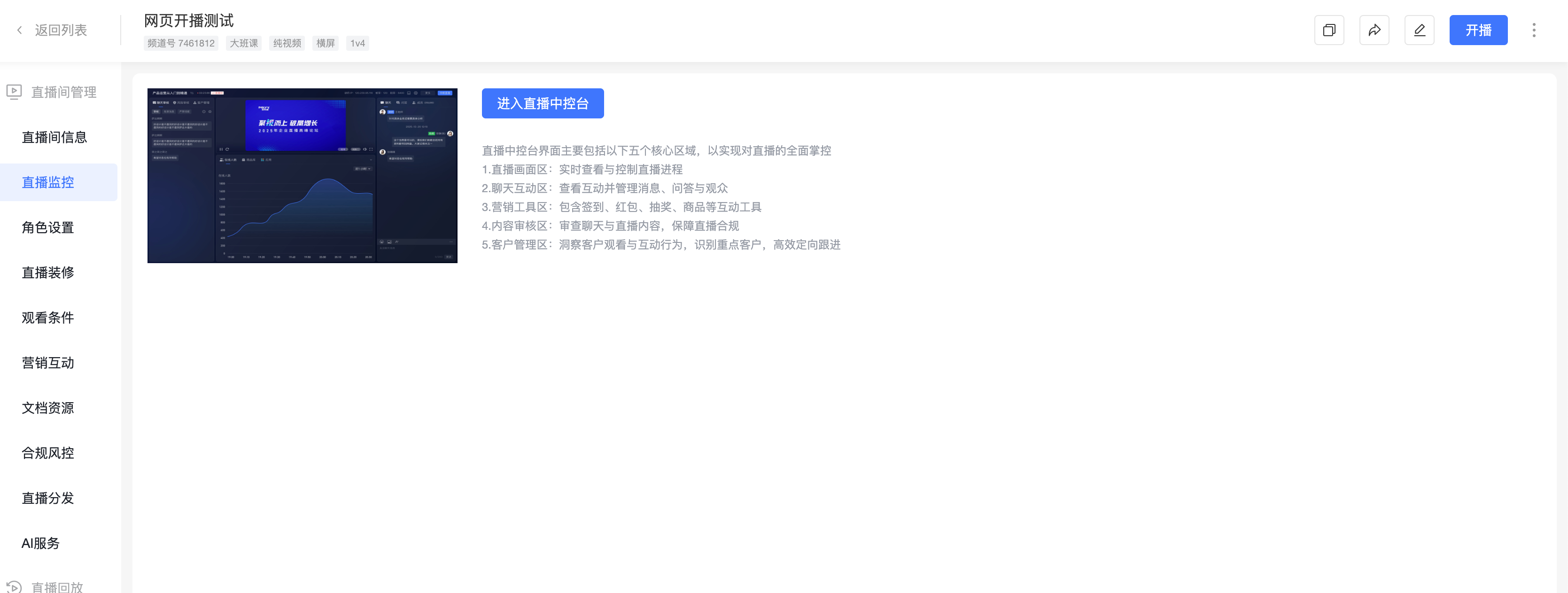
- Login Path: Navigate to "Admin Console - Live Monitoring - Live Streaming Console".
3. Feature Overview
- The PC console interface is mainly divided into five core areas for comprehensive live stream control:
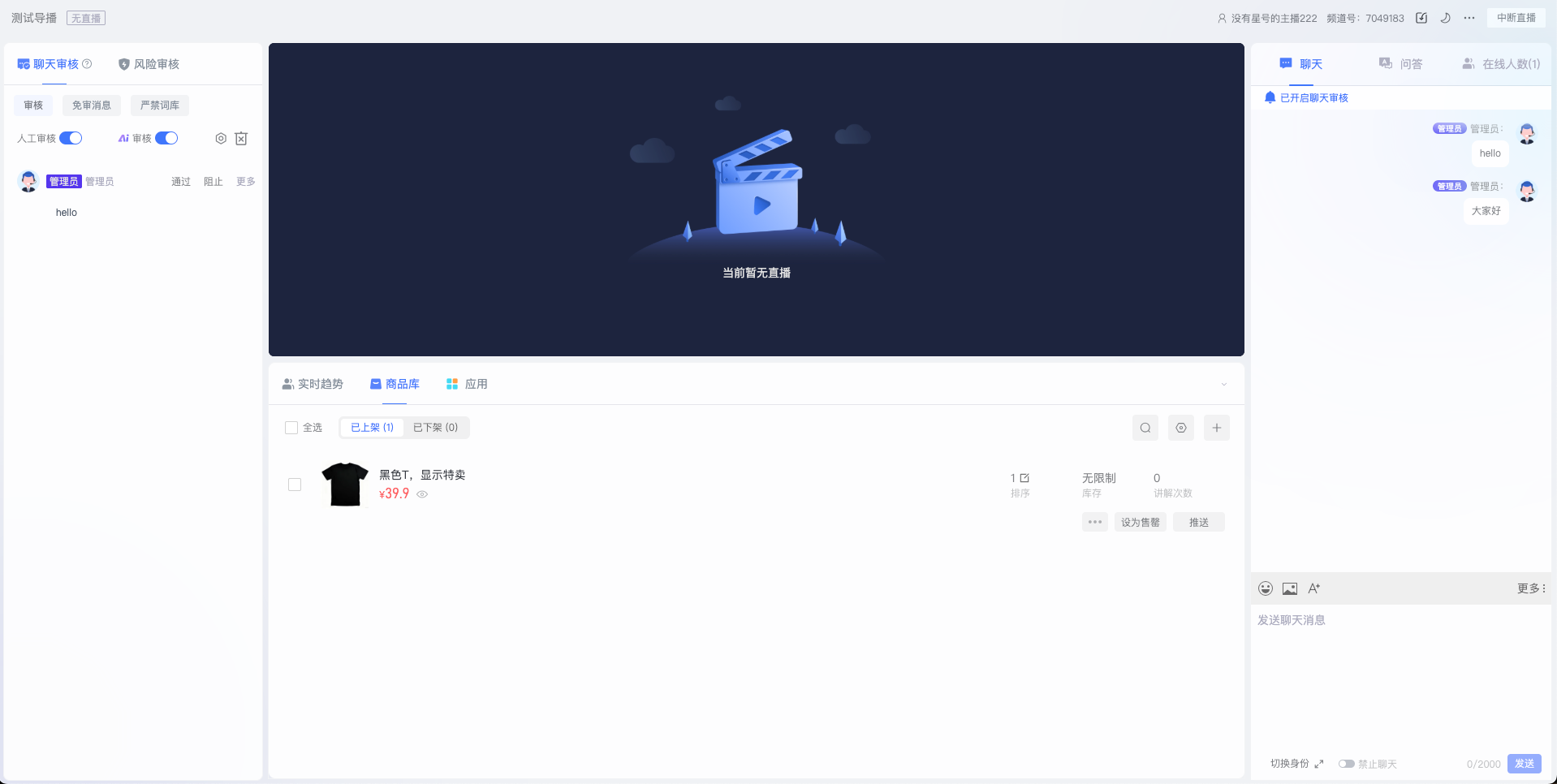
- Live Video Area: Located in the center of the interface, used for viewing the live stream in real-time.
- Chat & Interaction Area: Located on the right side, used for managing and viewing real-time audience interactions, including chat, questions, Q&A, and the online user list.
- Marketing Tools Area: Integrates various interactive tools such as check-in, lottery, red packets, and product library. This is the core functional area for enhancing live stream effectiveness and audience engagement.
- Content Review Area: Used for reviewing chat messages and monitoring live audio/video content to ensure a compliant streaming environment.
- Customer Management Area: Provides insights into audience viewing and interaction behavior, identifies key customers, and enables efficient targeted follow-ups.
4. Operation Instructions
4.1 Chat & Interaction Area
- View Messages: View different types of audience messages under the "Chat", "Questions", and "Q&A" tabs.
- The "Questions" and "Q&A" features need to be enabled in the Admin Console under Chat Room settings.
- Manage Audience: Under the "Online Users" tab, view the list of all current audience members. For individual users, you can mute, kick out, reply to comments, send private messages, or give likes/praise.
- Global Mute: Mute all audience members with one click, suitable for scenarios requiring focused explanation or maintaining order.
4.2 Marketing Tools Area - Real-time Trends
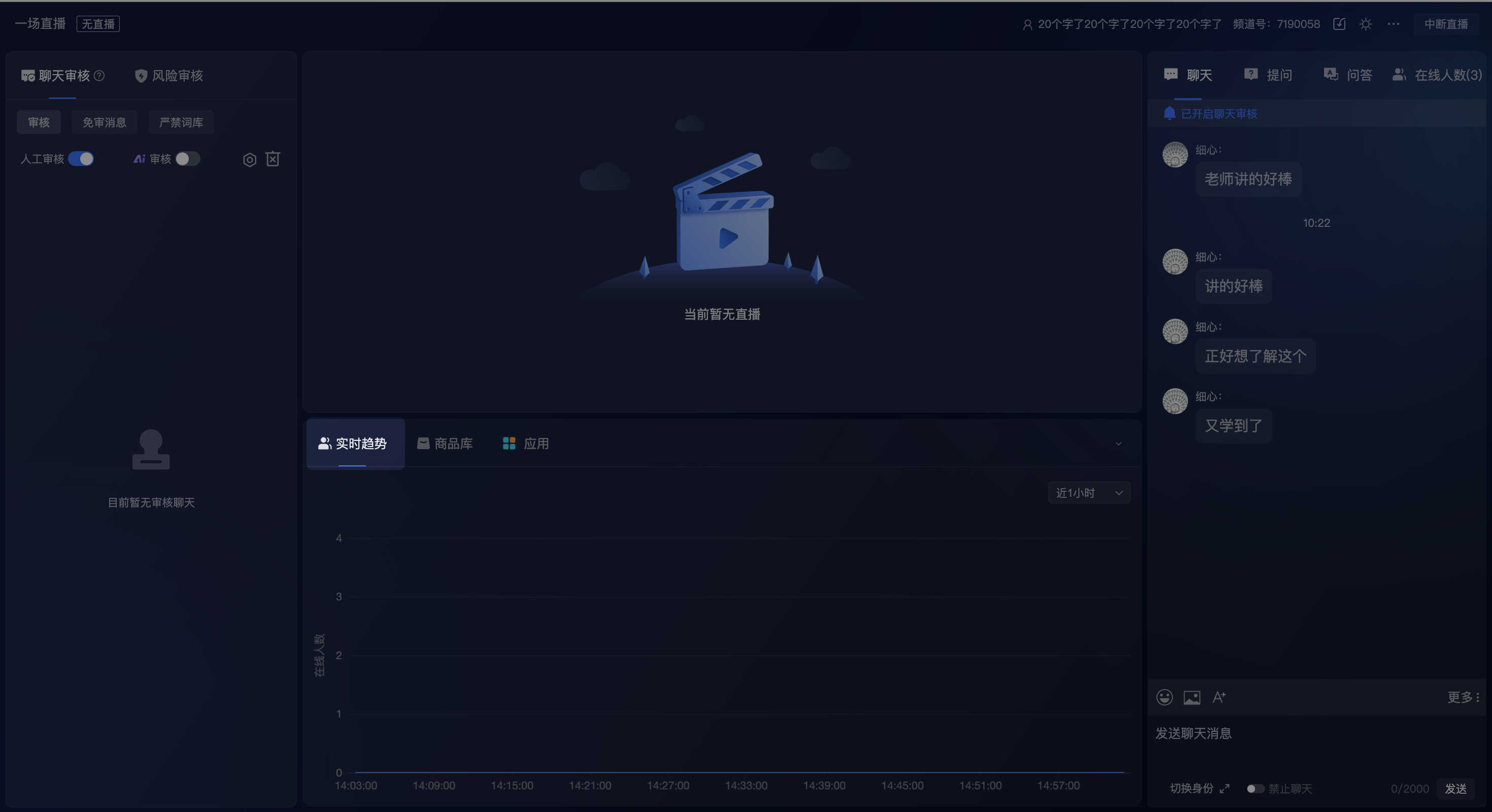
- Supports displaying the online user trend for the channel over the last 2 hours / last 1 hour (special roles like host and teaching assistant are not counted).
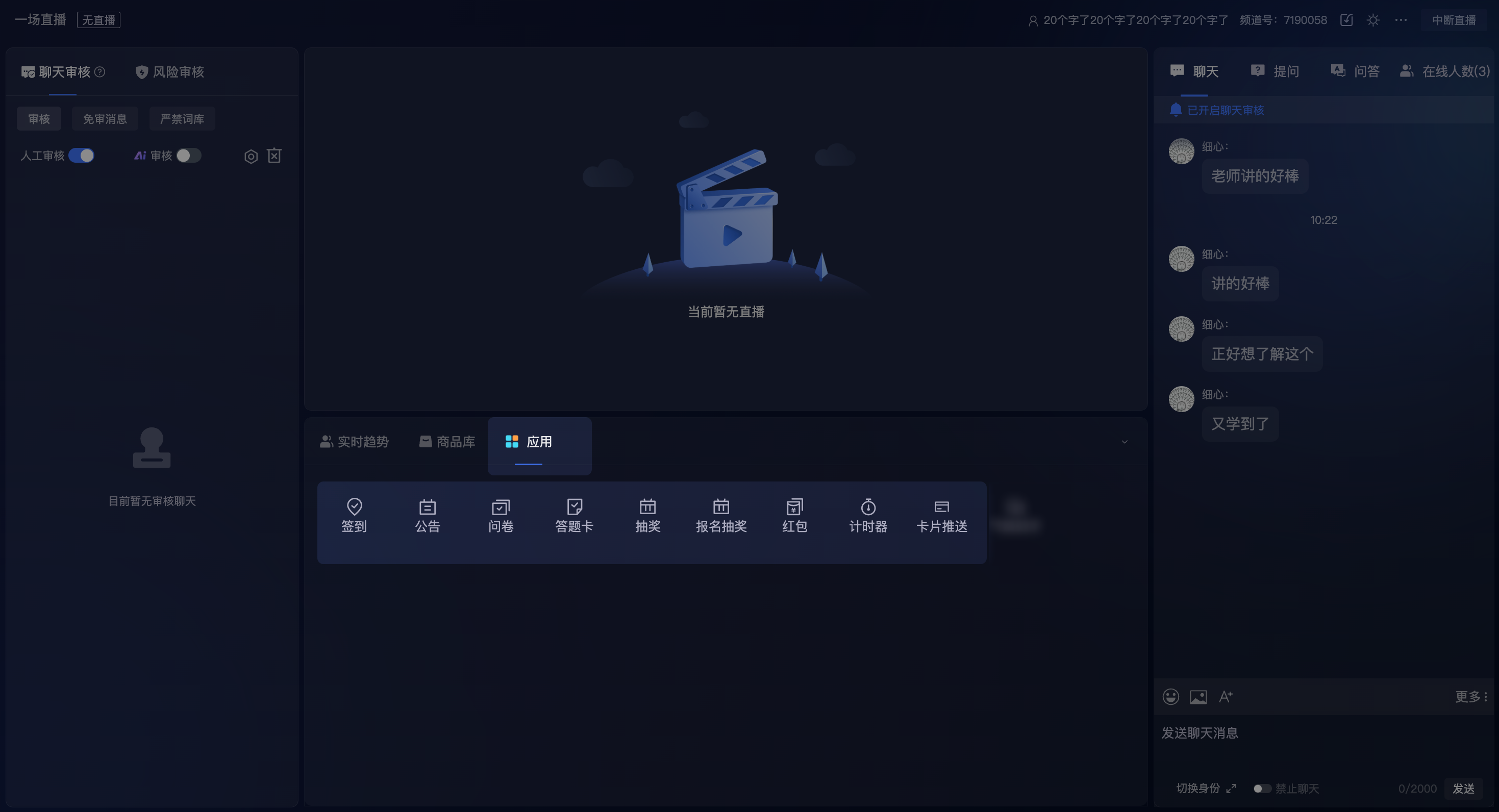
4.3 Marketing Tools Area - Applications
- Check-in: Used for tracking attendance or as proof of event participation.
- Announcement: Display important information prominently in the live room.
- Survey/Quiz Card: Used for collecting audience feedback, conducting market research, or testing learning outcomes.
- Lottery: Liven up the atmosphere and increase audience participation through various lottery formats.
- Lucky Draw: Supports creating and managing lucky draw activities for the current channel, and viewing activity data for the current channel.
- Red Packet: Supports sending cash or external points red packets, an effective tool for quickly boosting live room popularity.
- Card Push: Push preset product links, official account cards, and other information to all audience members in card format, effectively guiding conversions.
4.4 Marketing Tools Area - Product Library
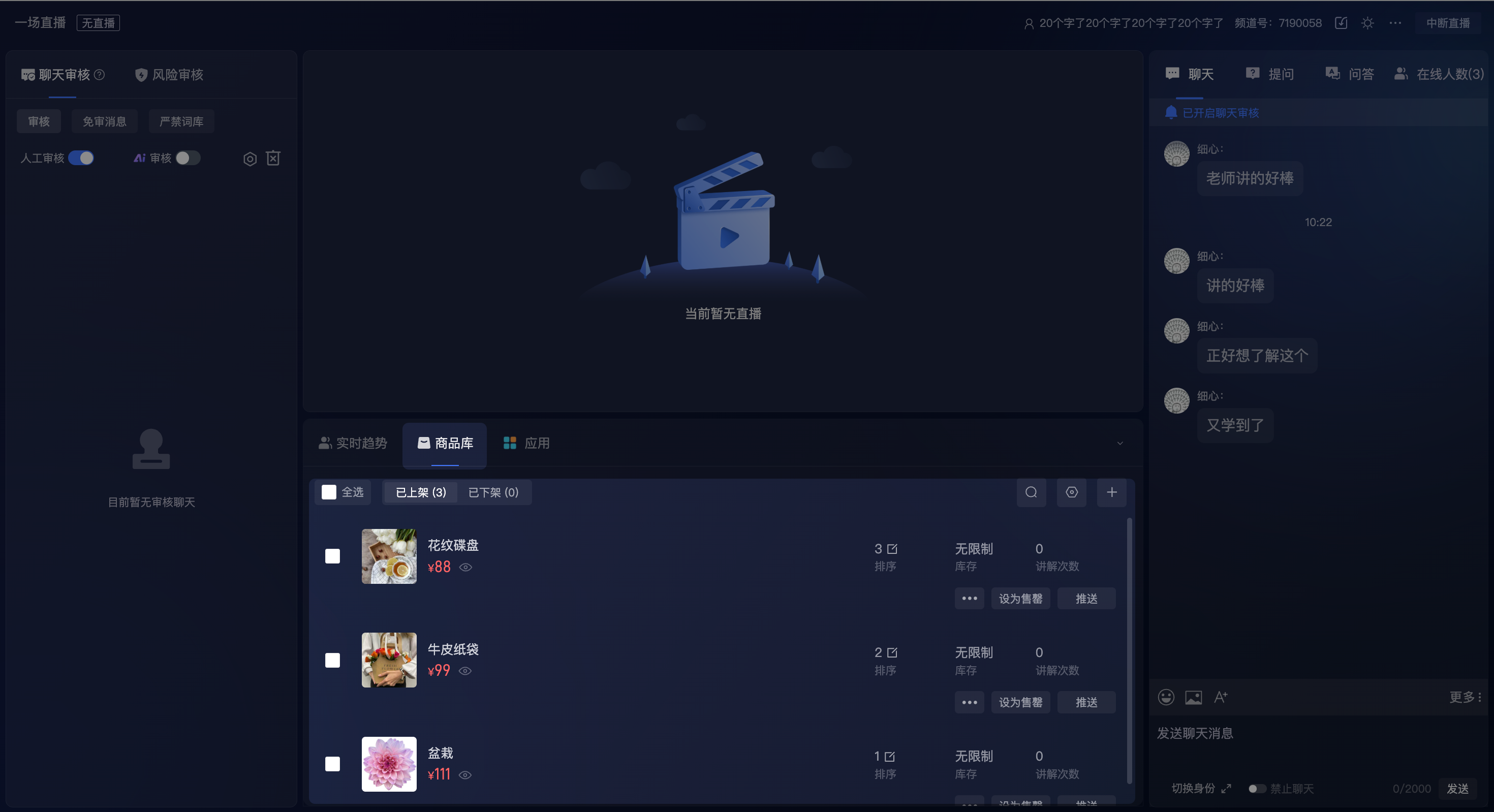
- The Product Library is the core functional area for live commerce.
- Product List: The product library is divided into "Listed" and "Unlisted" lists, managing products currently for sale and those removed from sale, respectively.
- Add & Search: Click "Add Product" to enter new product information, or quickly search for existing products by name.
- Core Operations: For "Listed" products, the following operations are available:
- Push: Display products prominently in the live room as small or large cards to guide audience purchases.
- Sort/Pin: Adjust the order of products in the list, or pin popular products to the top.
- Unlist: Move products to the "Unlisted" list; the audience will no longer be able to see or purchase them.
- Hide Price/Show Price: Control the display and hiding of product prices according to the live stream rhythm to attract audience purchases.
- Product Explanation: Record explanation videos for products, allowing the audience to replay product explanations anytime during the live stream without missing key details.
- Mark as Sold Out: Flexibly mark external link products as sold out or cancel sold out status based on the live sales rhythm (this operation is not supported for direct purchase products).
4.5 Content Review Area
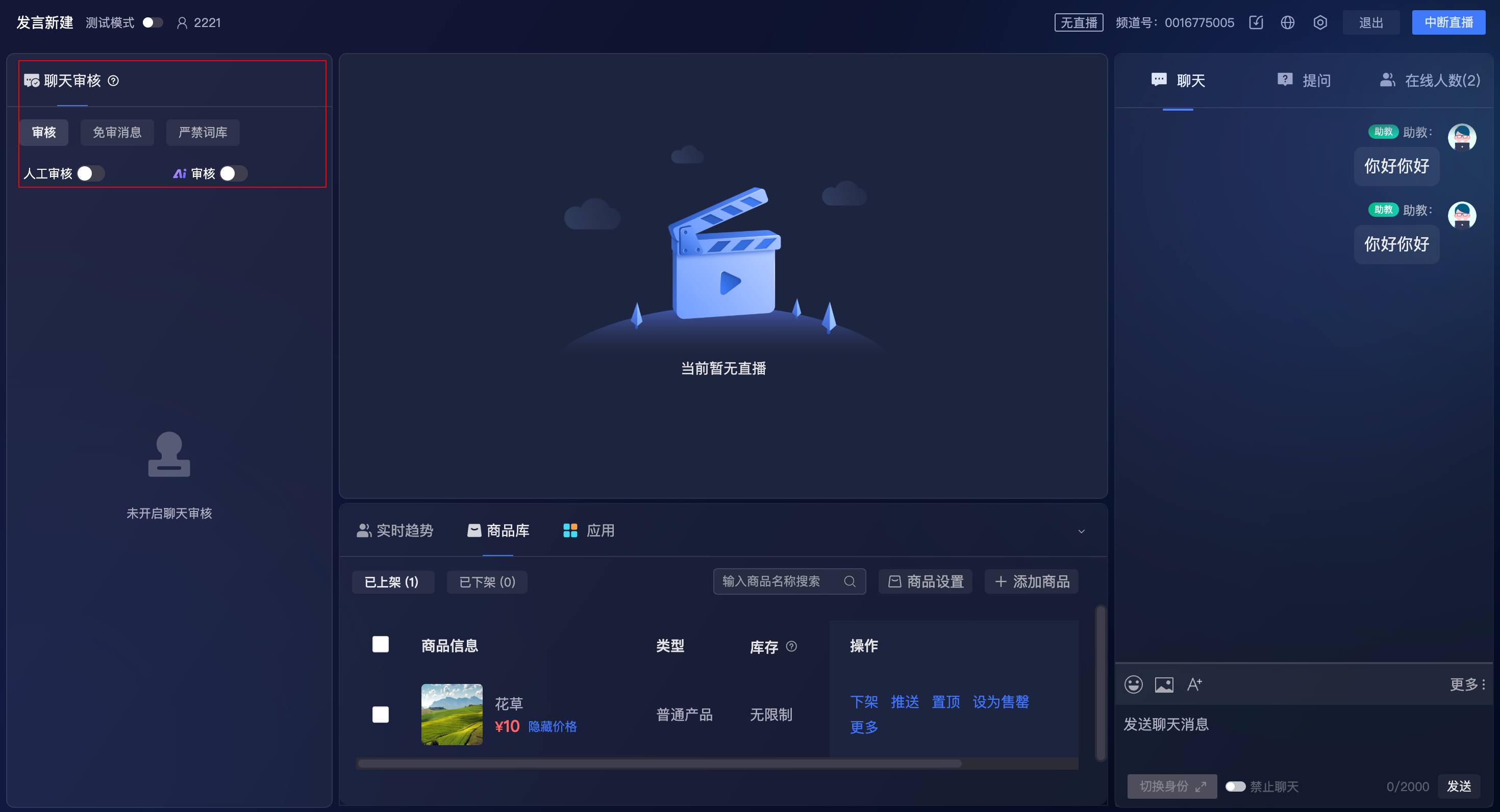
- Chat Review:
- Choose between AI Smart Review or Manual Review modes as needed to intercept inappropriate comments.
- Also supports setting up a whitelist for auto-approval and a prohibited words list for automated filtering.
- Risk Review: This feature requires activation and is only visible to admin users. It is used for strict control of audio/video content, identifying compliance risks, and preventing negative impacts.
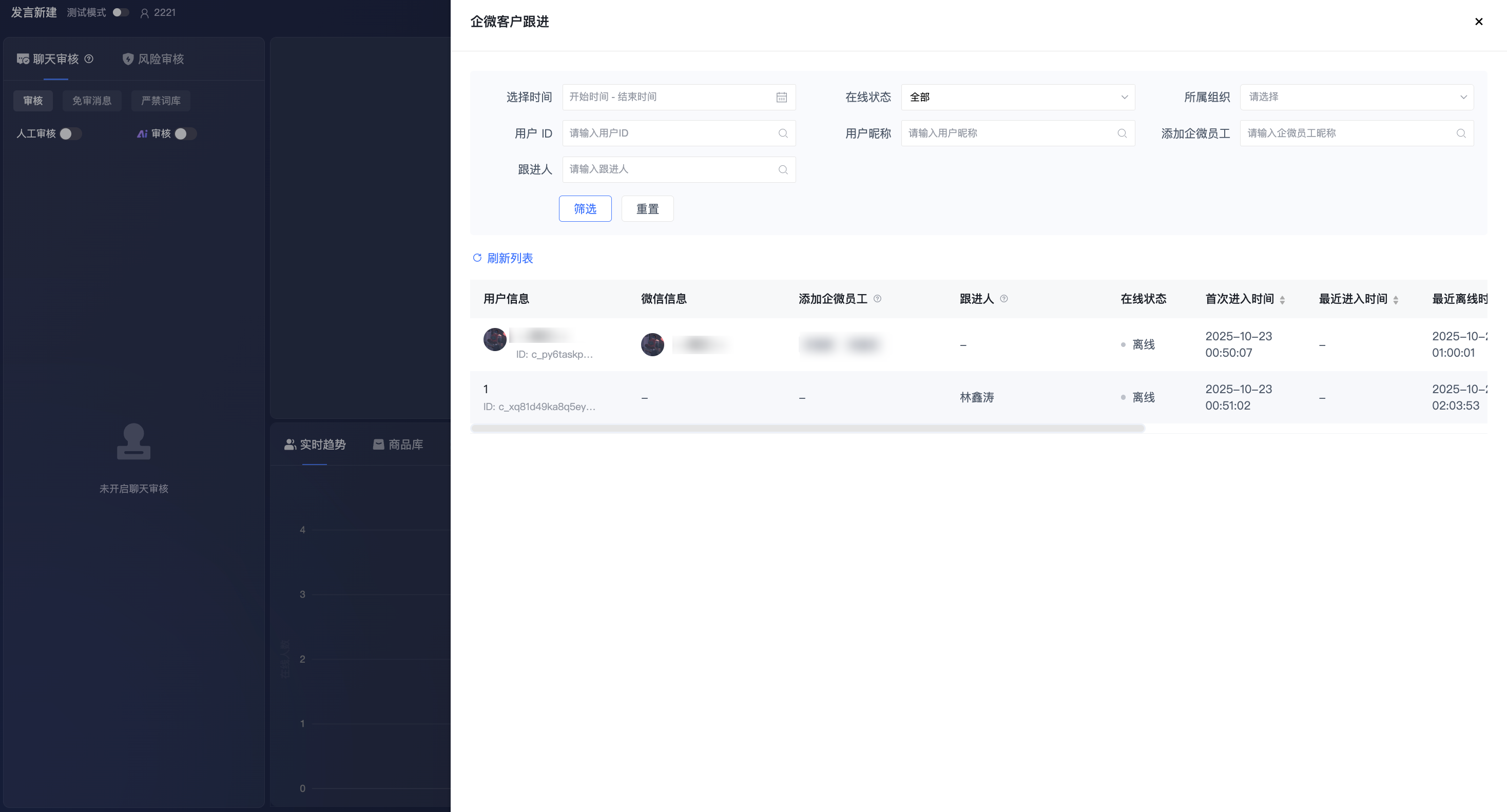
4.6 Customer Management Area
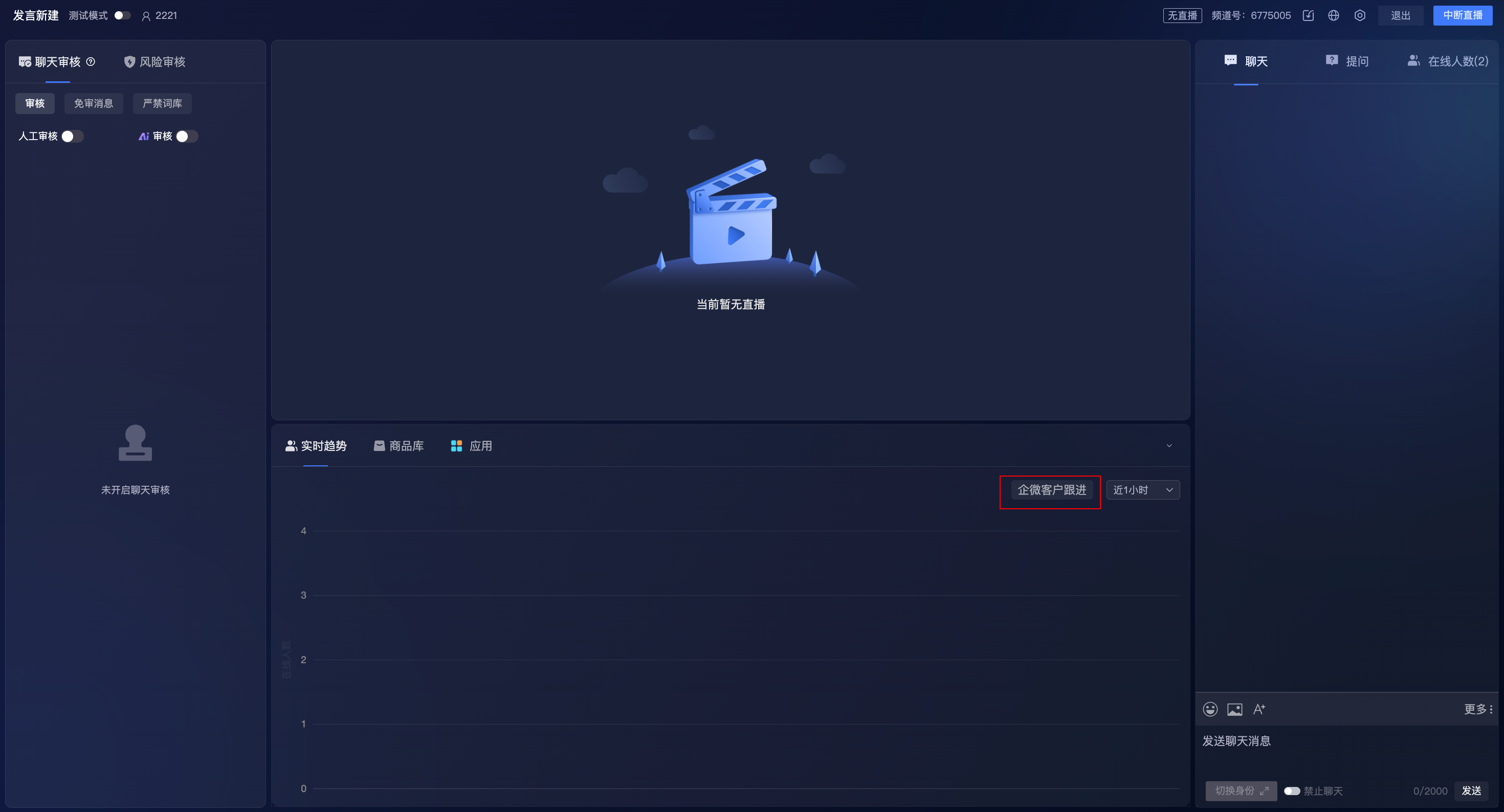
- Location: Real-time Trends - WeCom Customer Follow-up
- Note: The account needs to be integrated with WeCom.
4.7 Top Action Bar
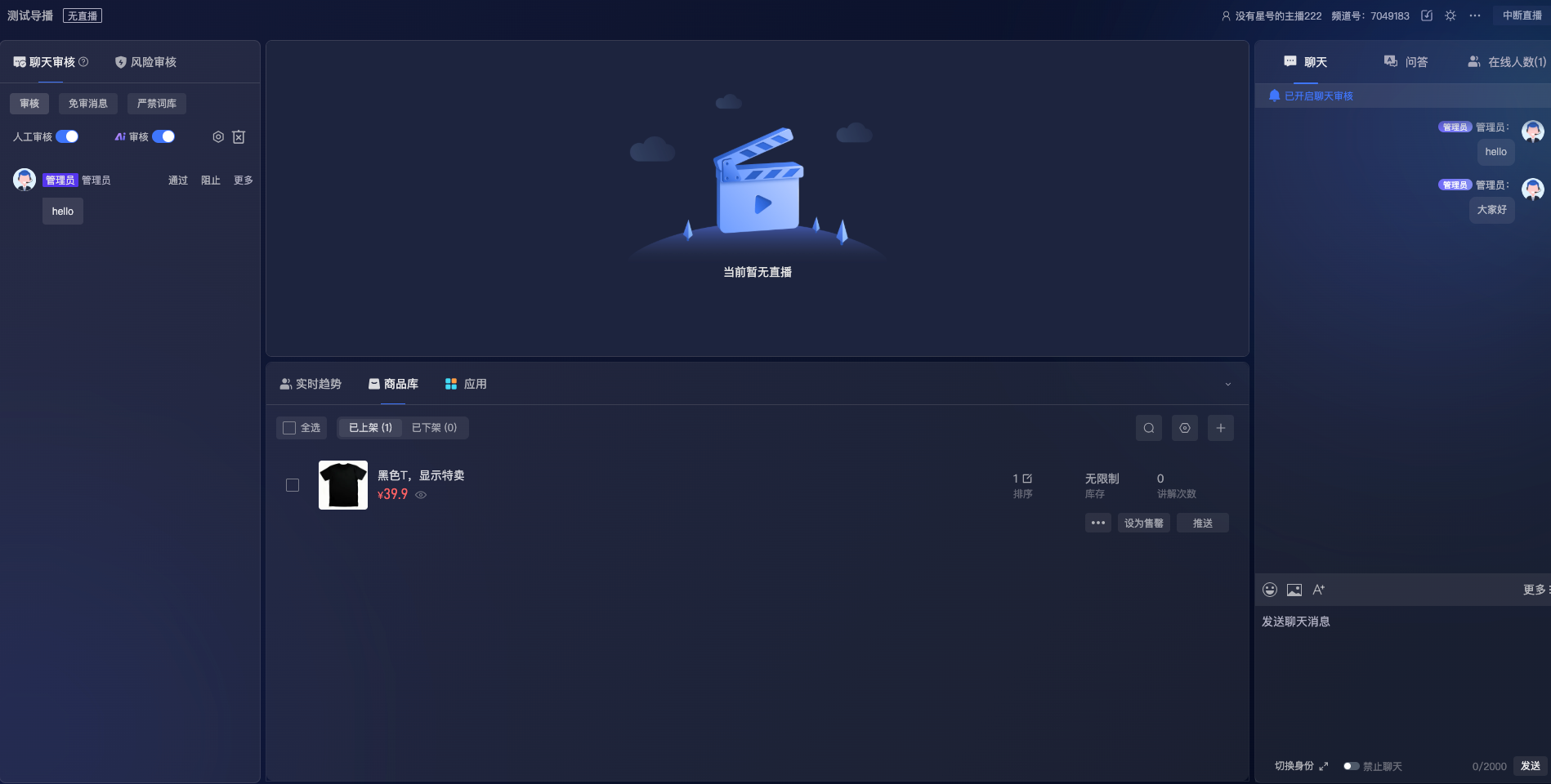
- Displays the live room name, live status, host information, and channel ID at the top.
- Supports downloading exported data, switching between light/dark modes, switching the console layout, viewing the streaming feeds of all active channels, switching accounts, and ending the live stream.