Product Library
I. Feature Overview
Feature Info |
Description |
|---|---|
| Feature Name | Product Library |
| Feature Description | Supports configuring products before a live stream, allowing products to be displayed on the viewer page during the stream. |
| Purpose | Allows operators to prepare product information uniformly before a live stream, reducing frequent switching and repeated configuration during the stream. |
| Use Case | Scenarios where multiple products need to be displayed and explained during a live stream. |
| Operation Path | 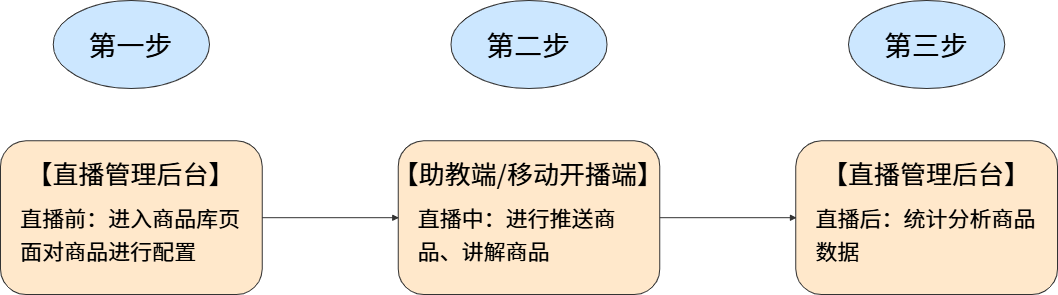 |
II. Usage Instructions
1. Prerequisites
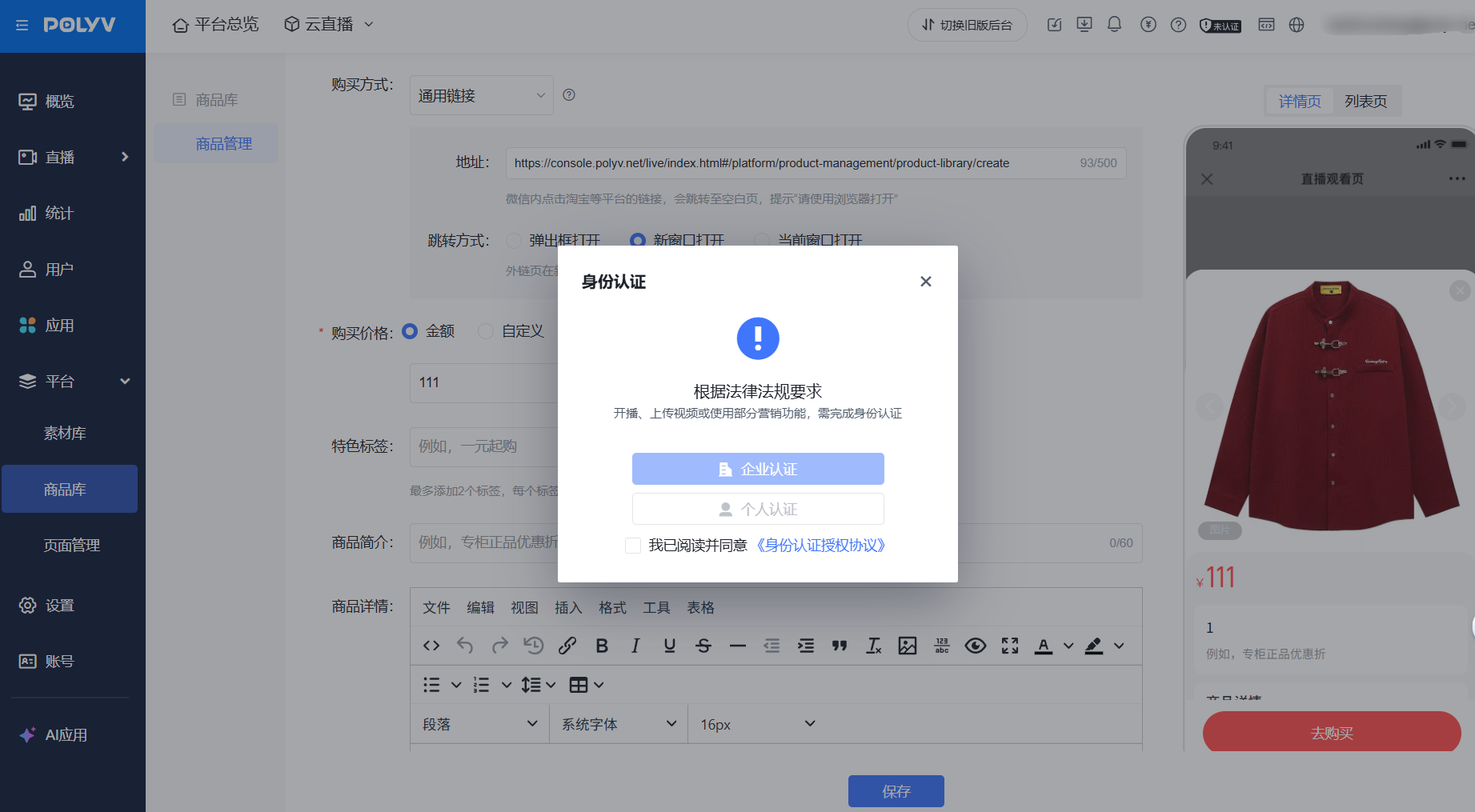
Note: Users who have not completed verification, or have completed personal verification, will not be able to use the channel or platform product library.
2. Feature Entry
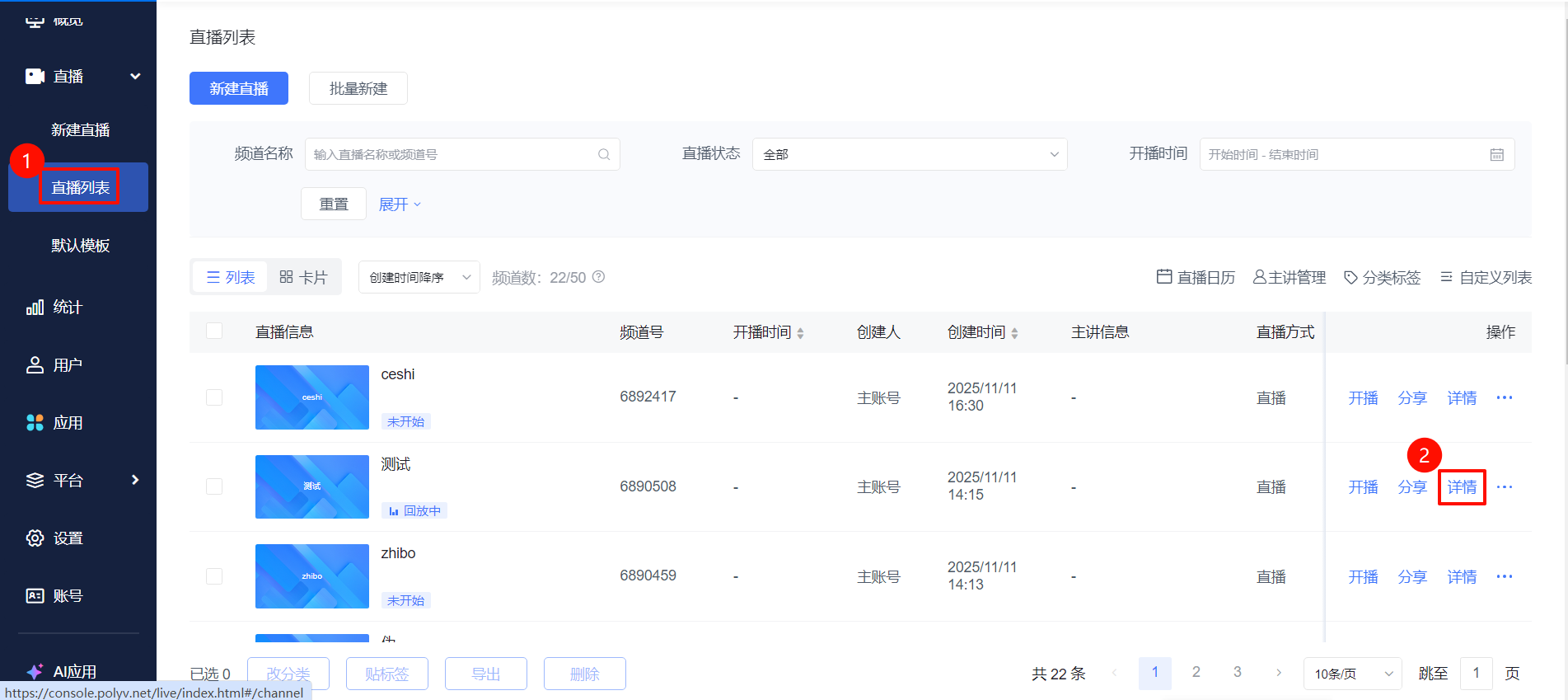
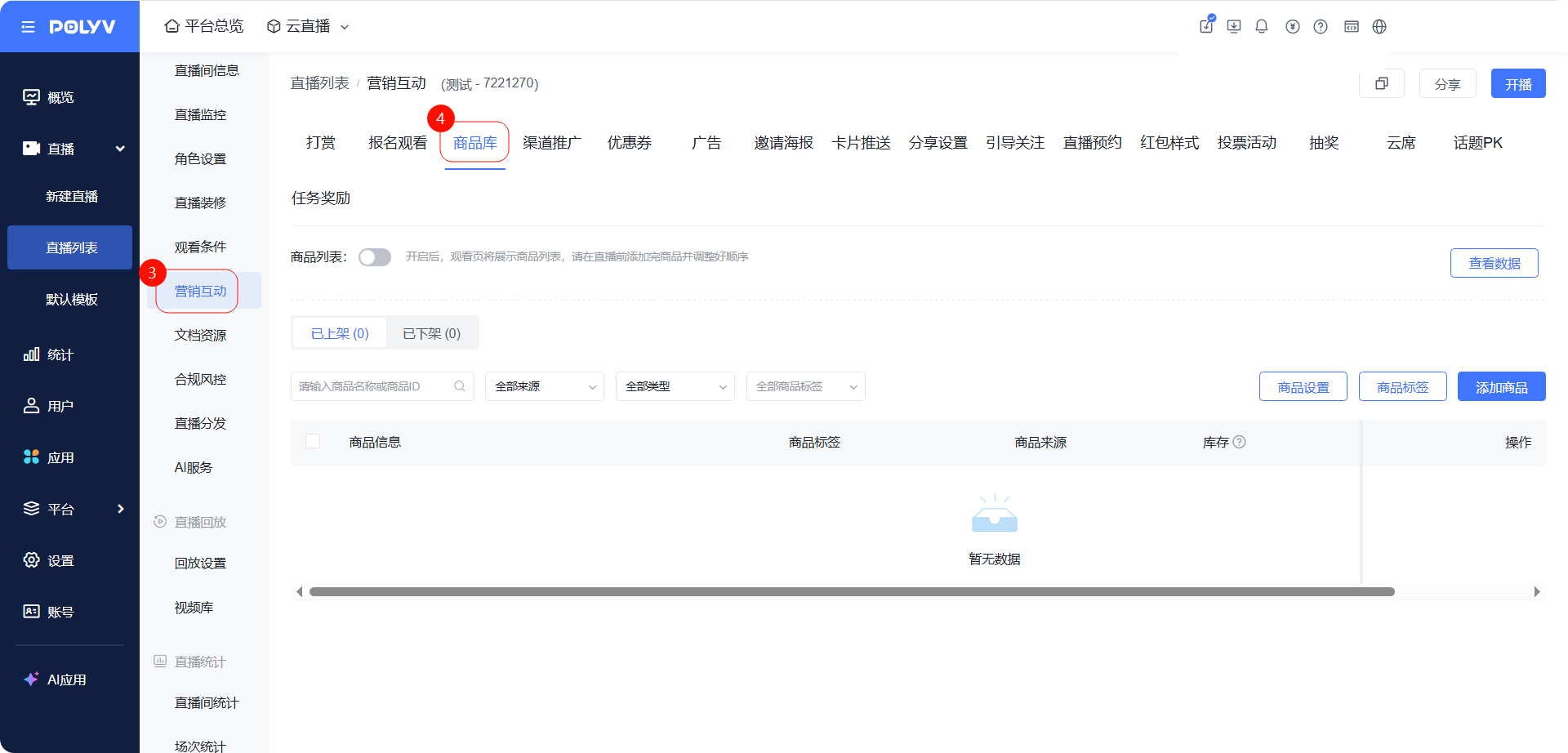
- Go to the "Live List" page, select a live stream and click "Details". In the live room management module, click "Marketing Interaction" - "Product Library".
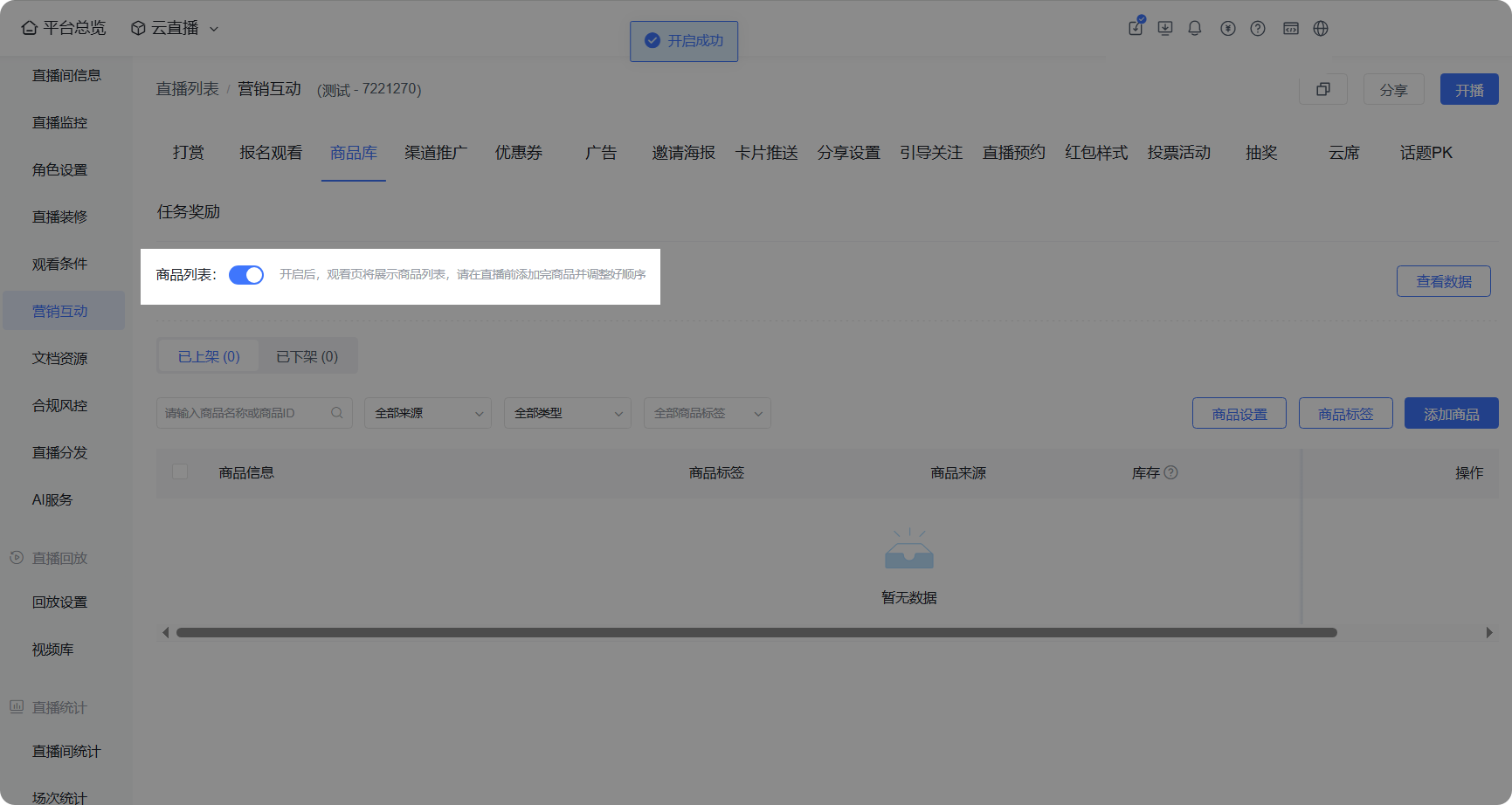
- Product List: Supports adding products and adjusting their order before the live stream, then enabling it. Once enabled, the product list will be displayed on the viewer page.
III. Product Configuration
Before the live stream: Configure products for sale in the channel.
1. Add Products
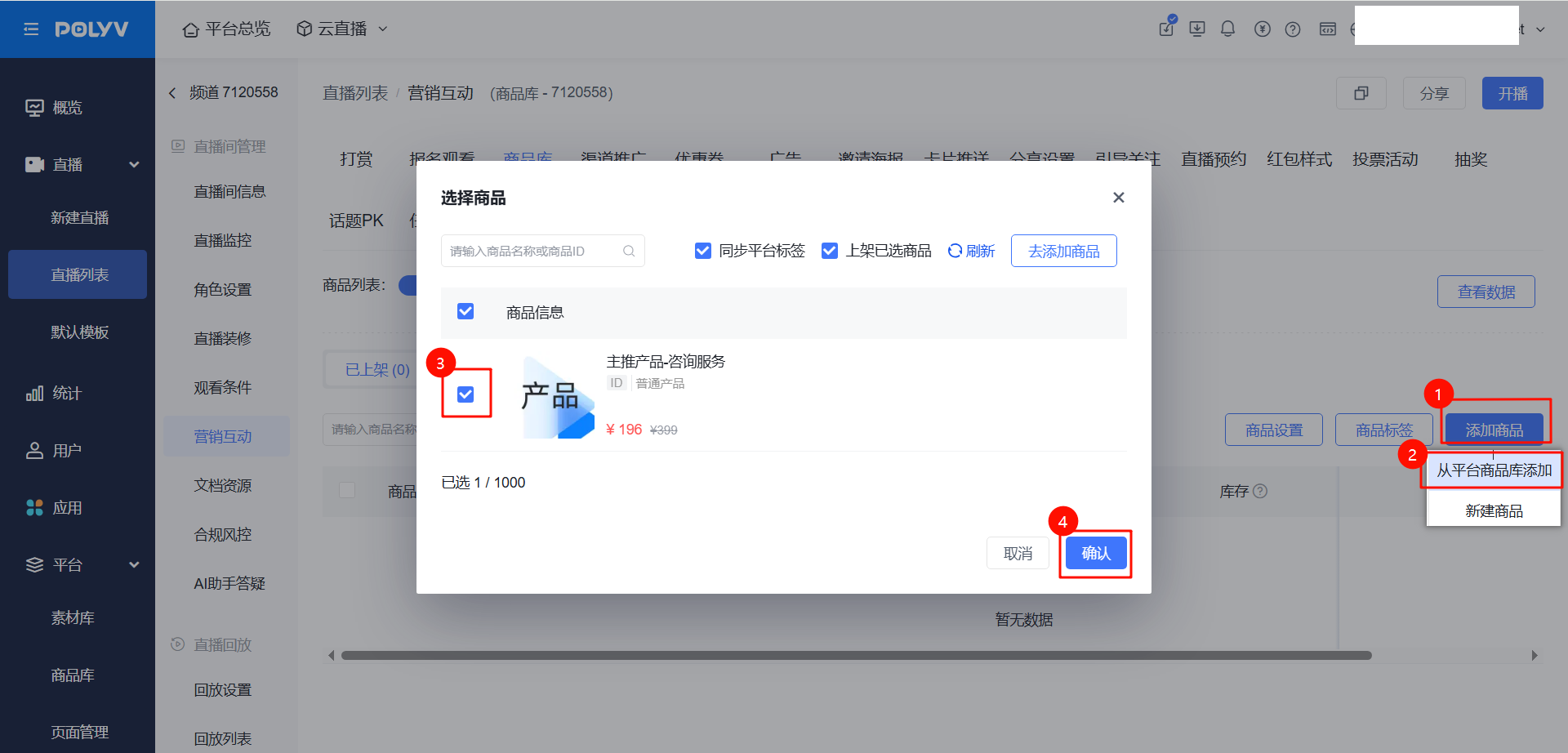
(1) Add from Platform Product Library
Select the desired products and click confirm to add them successfully. This avoids creating the same product repeatedly in different channels, improving configuration efficiency. For specific operations on the platform product library, click -> Platform Product Management
(2) Create New Product
Operation Path: "Add Product" - "Create New Product"
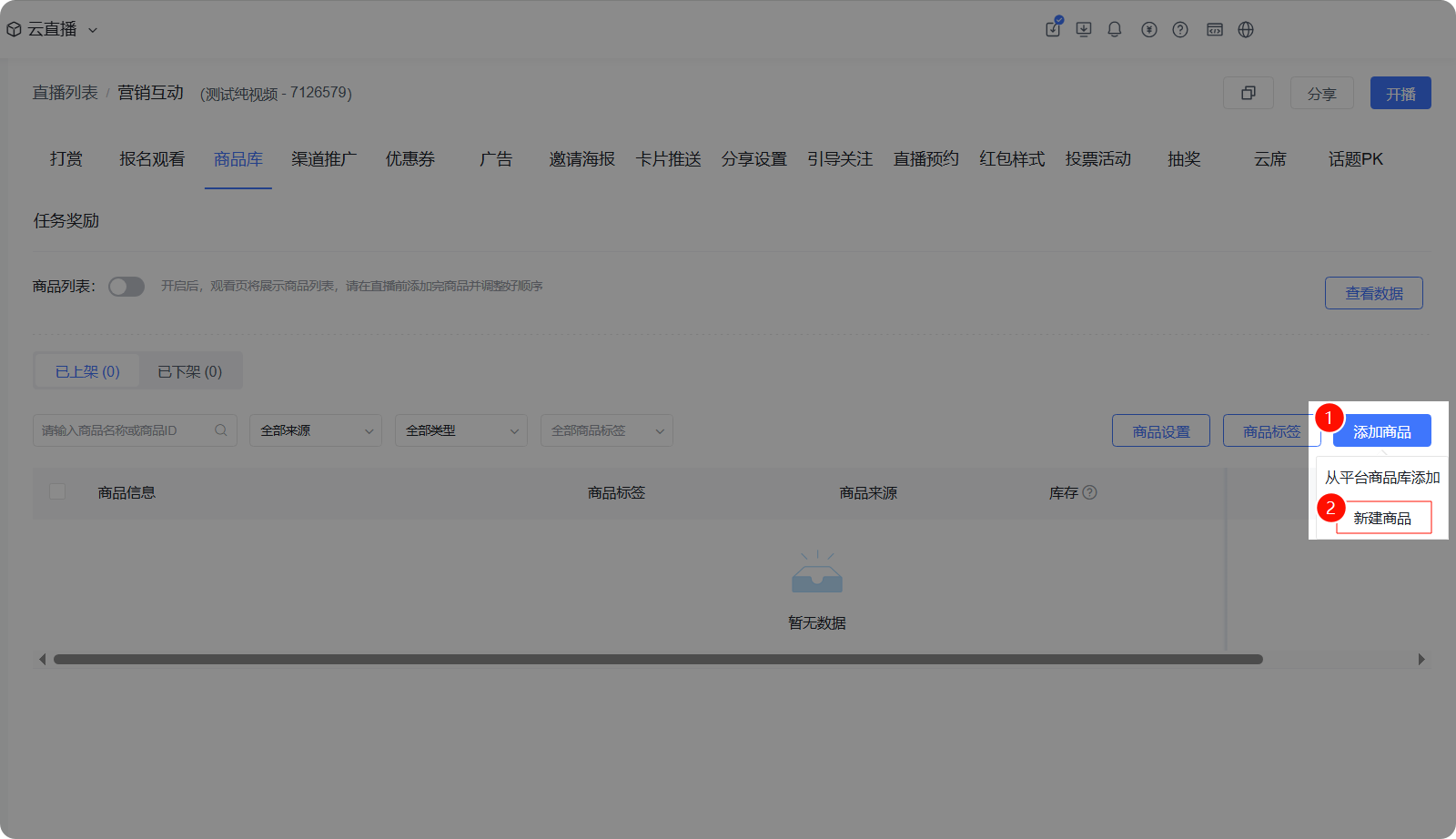
Create New Product Feature Introduction:
Feature |
Description | Illustration |
|---|---|---|
| Create New Product - Type | Provides three product types: General Product, Financial Product, and Job Product. | 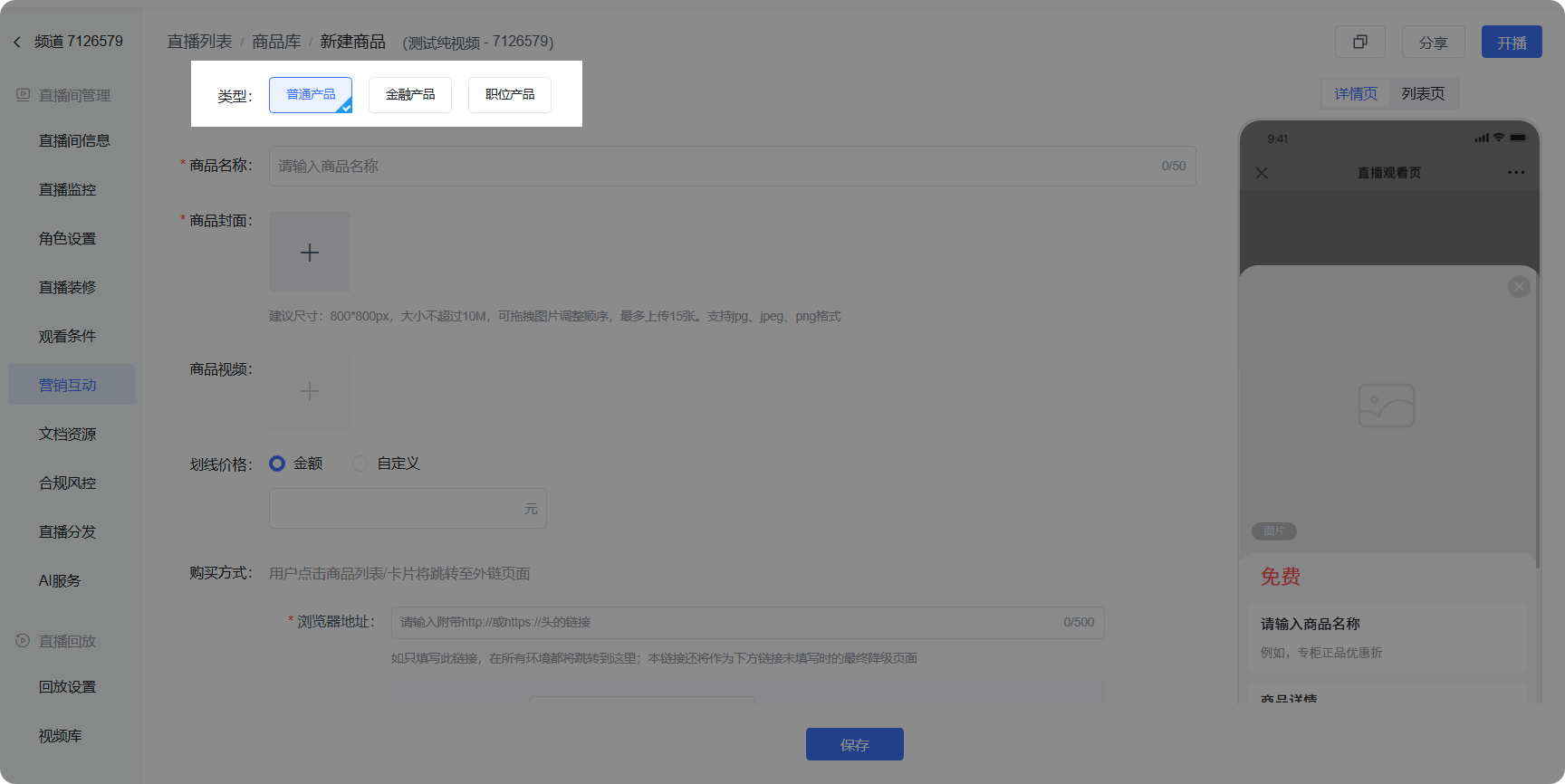 |
| Create New Product - Product Cover/Product Video | Supports configuring multiple product images and videos, displaying product details through multi-page covers, allowing viewers to better understand the product. | 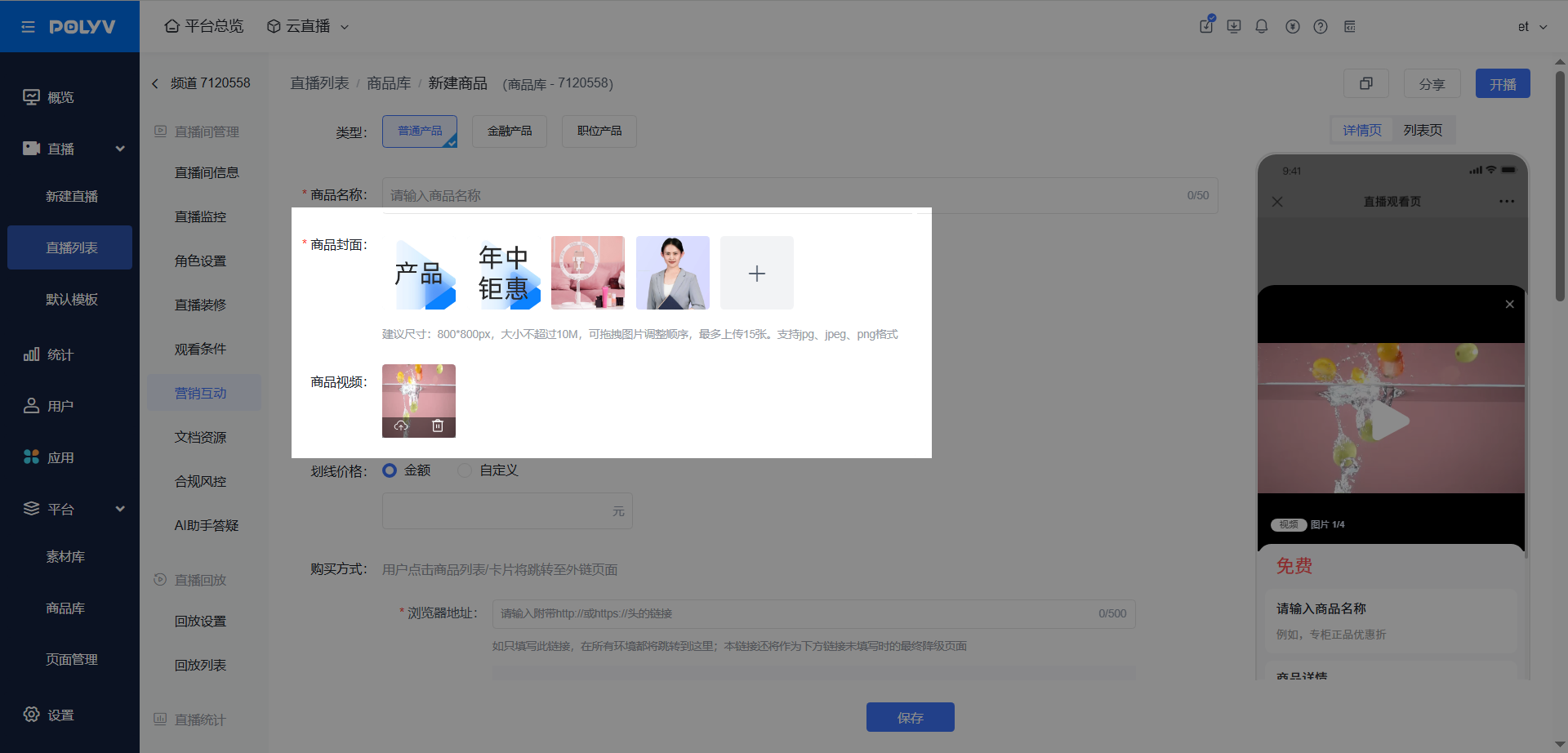 |
| Create New Product - Purchase Method | Supports multiple viewing terminals and configuring multi-platform links, allowing viewers to access different forms of external links on different terminals. For scenarios where the live room requires viewers to access via WeChat/non-WeChat web pages: Supports configuring a universal link and setting different jump methods (popup window / new window / current window) based on business needs. External links support carrying the following parameters: openId, unionId, userId, nickname, inviteOpenId, inviteUserUnionId, promoteId, channelId, sessionId, saleId, inviteWatchSaleId, param4, param5, for traceability after the jump. |
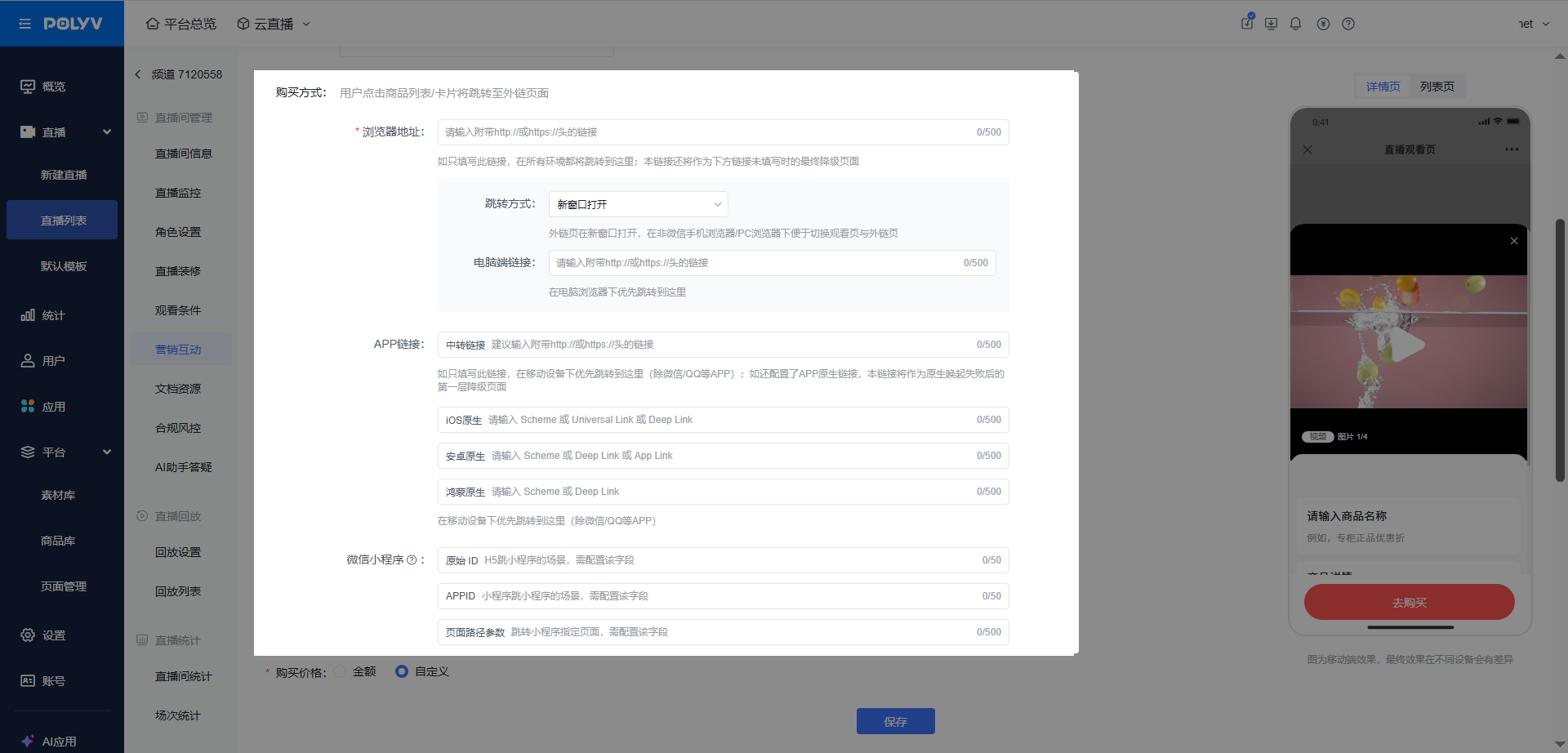 |
| Create New Product - Purchase Price | Supports configuring an amount; supports customization. When customizing, you can freely fill in text like price range, starting price, or even individual quotes. | 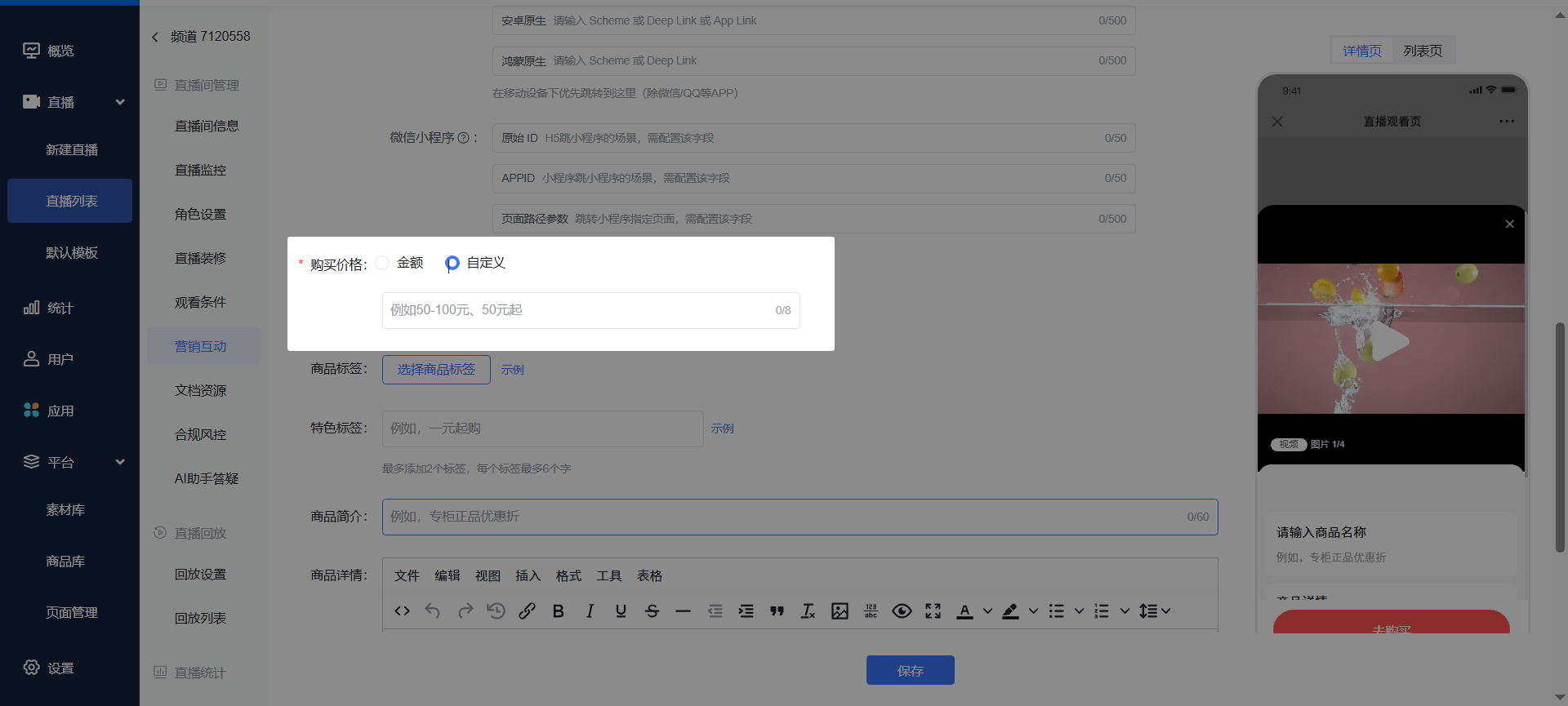 |
| Create New Product - Product Tag | Supports configuring product tags to distinguish products sold during live streams. Viewers can distinguish different categories of products through tags, improving product search efficiency. | 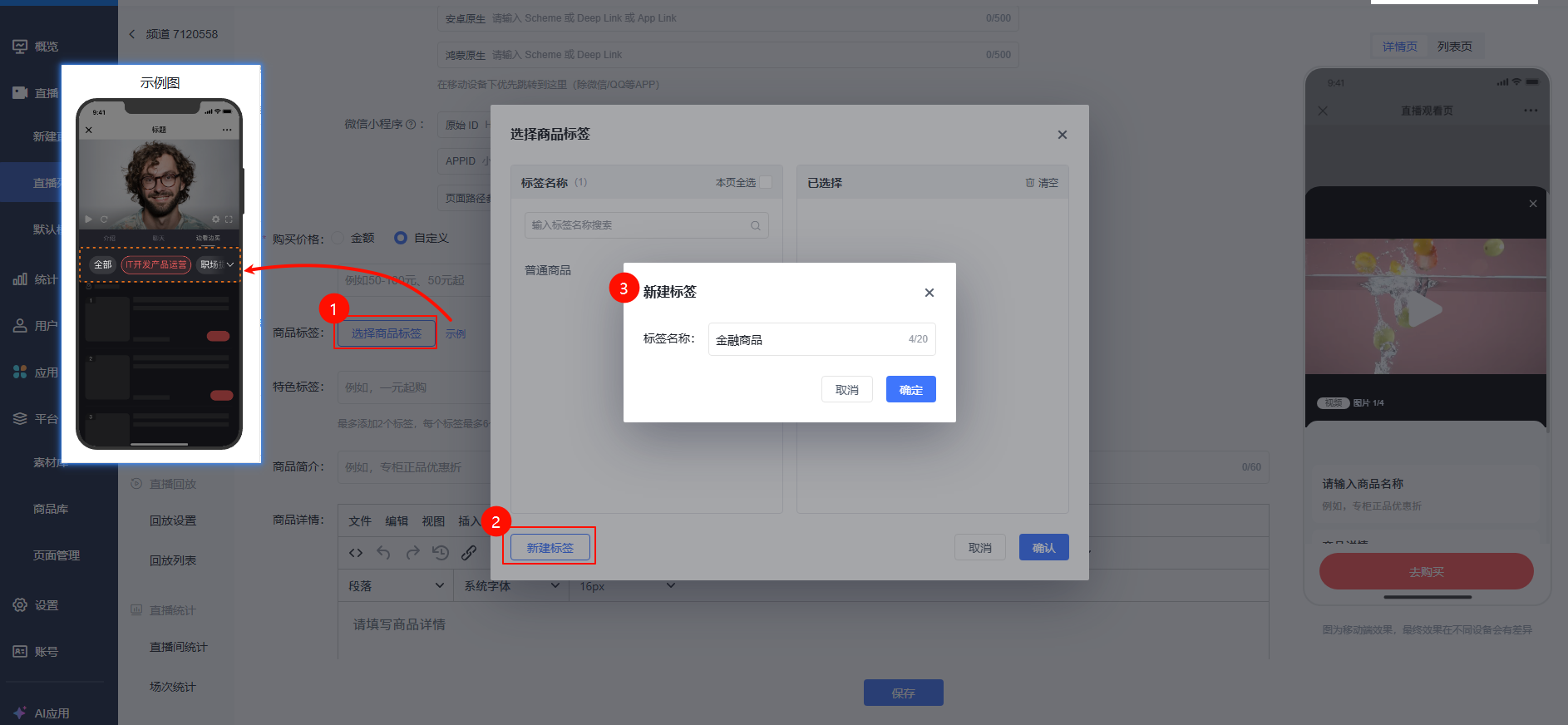 |
| Create New Product - Strikethrough Price | The strikethrough price supports configuring an amount, and can also be customized. By contrasting the strikethrough price with the regular price and using special tags to highlight promotional information, lightweight marketing is achieved. | 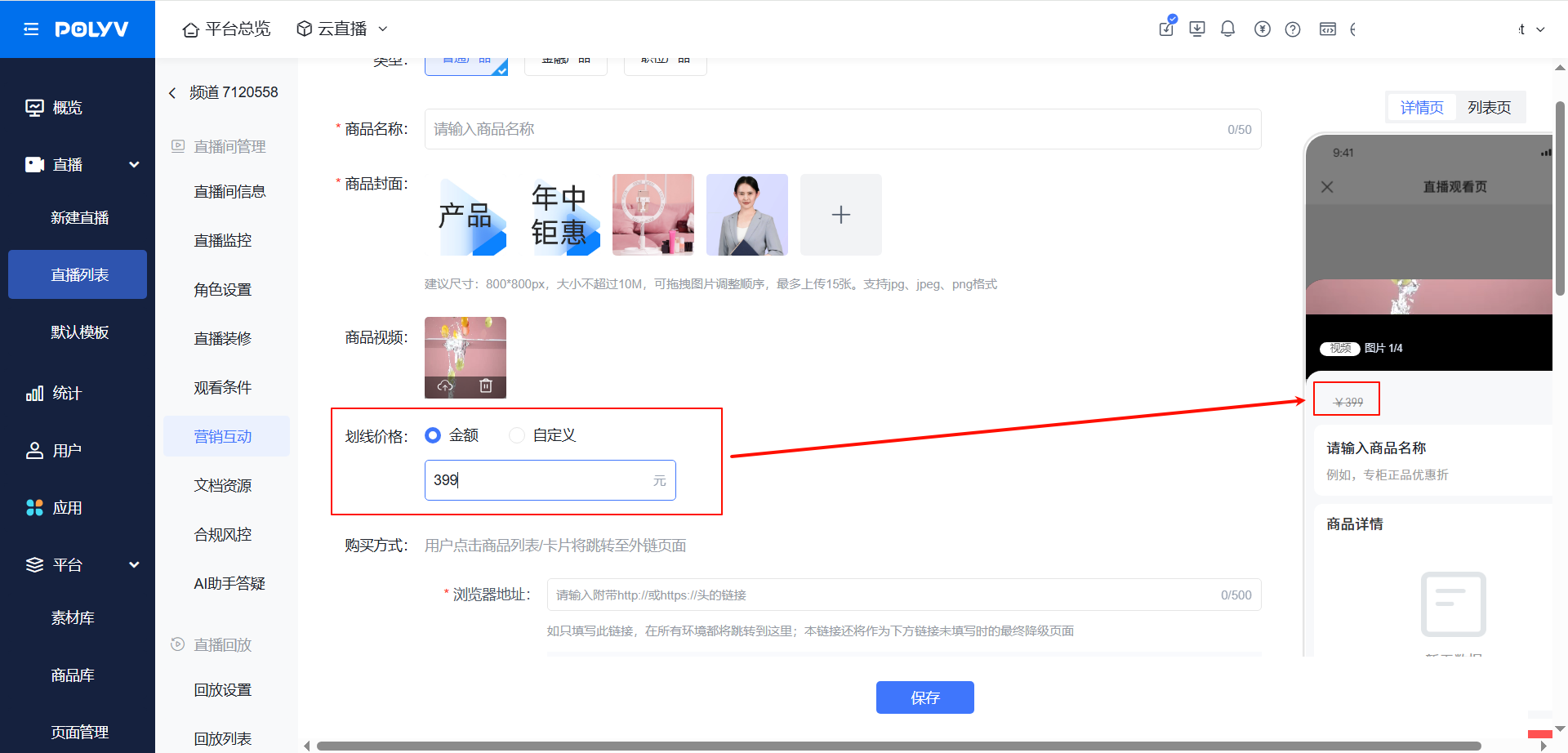 |
| Create New Product - Button Text | Supports customizing the text of the main button. You can configure text that fits the business needs, effectively guiding viewers to click external links. | 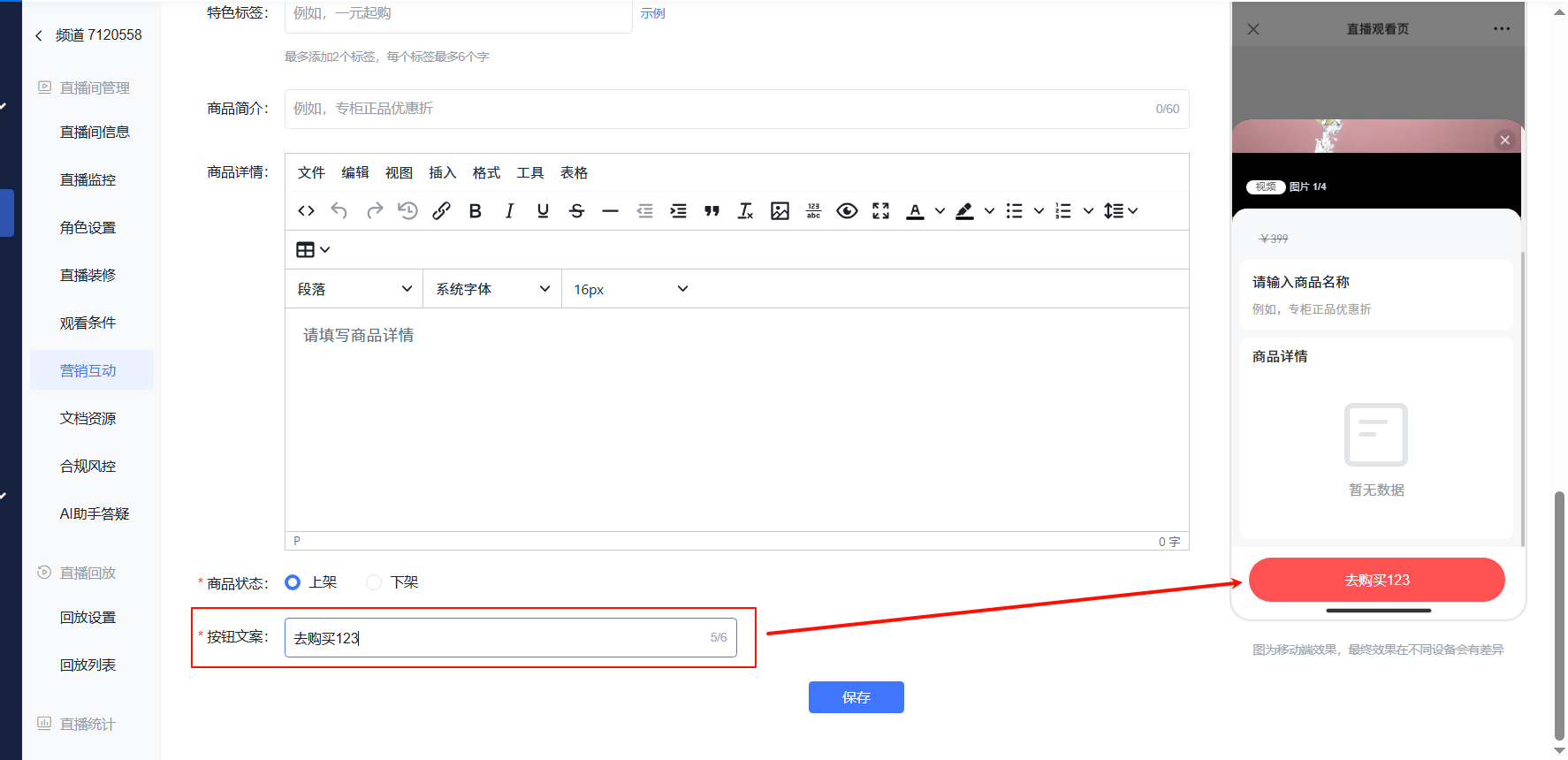 |
2. Product Settings
- Feature Entry:
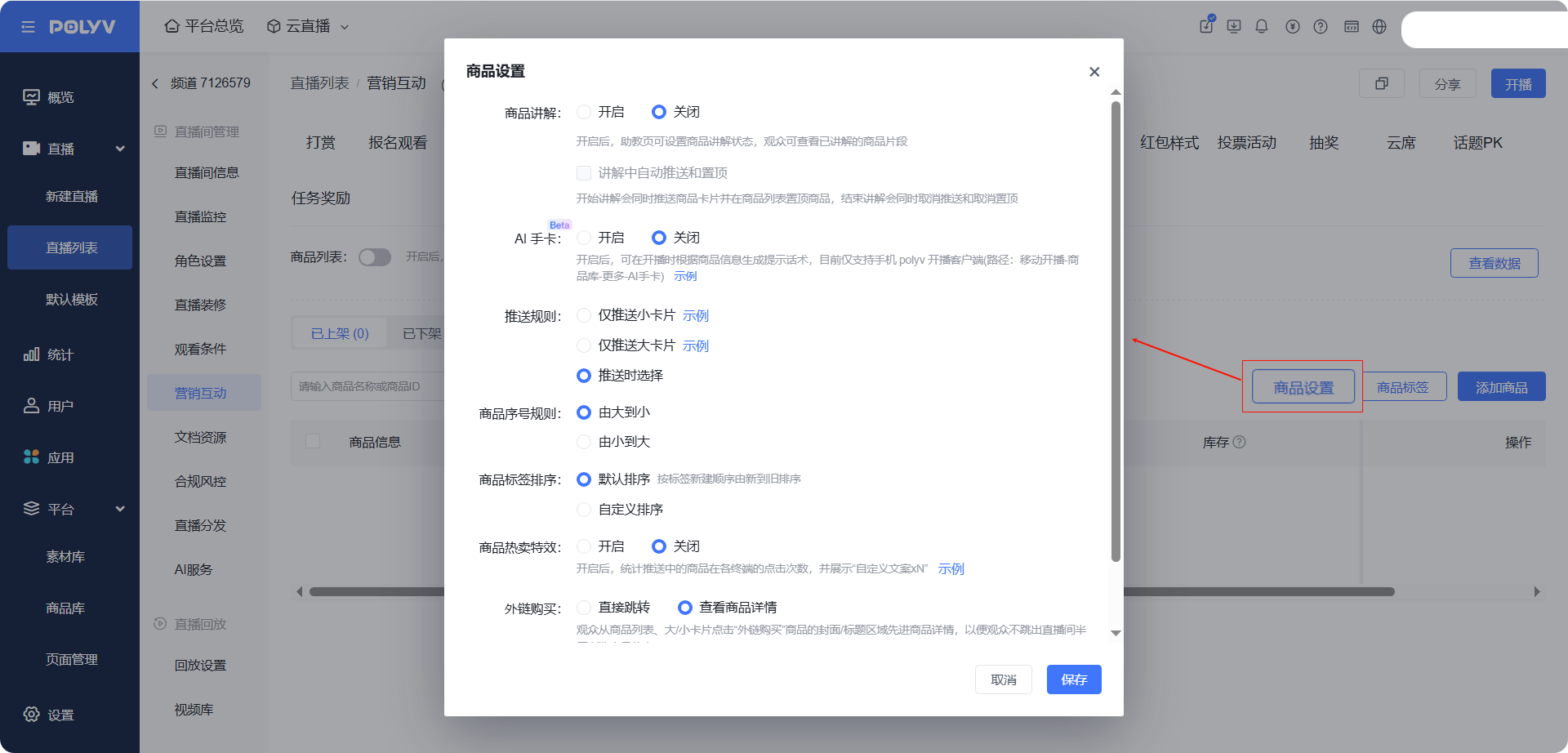
- Product Settings Feature Introduction
Feature |
Description | Illustration |
|---|---|---|
| Product Explanation | During the live stream, the explanation status can be controlled on the assistant page. Viewers can review the product explanation at any time during the stream. By checking "Auto-push and pin during explanation", three operations are combined into one, greatly improving assistant operation efficiency. For a detailed tutorial on product explanation, see: Product Explanation | 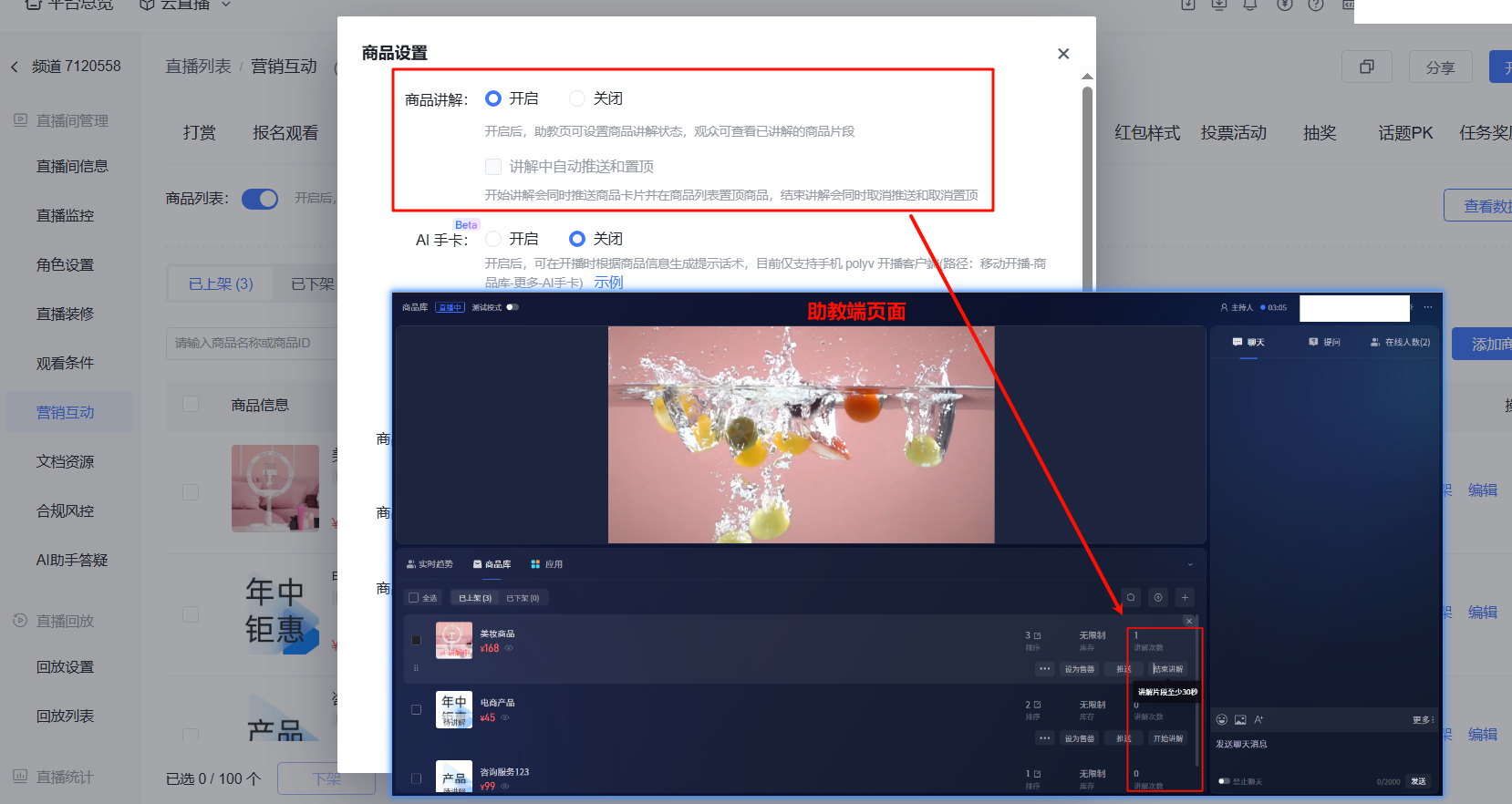 |
| AI Cue Card | When enabled, prompt scripts can be generated based on product information when the stream starts. Currently only supported on the mobile POLYV broadcast client (Path: Mobile Broadcast - Product Library - More - AI Cue Card). | 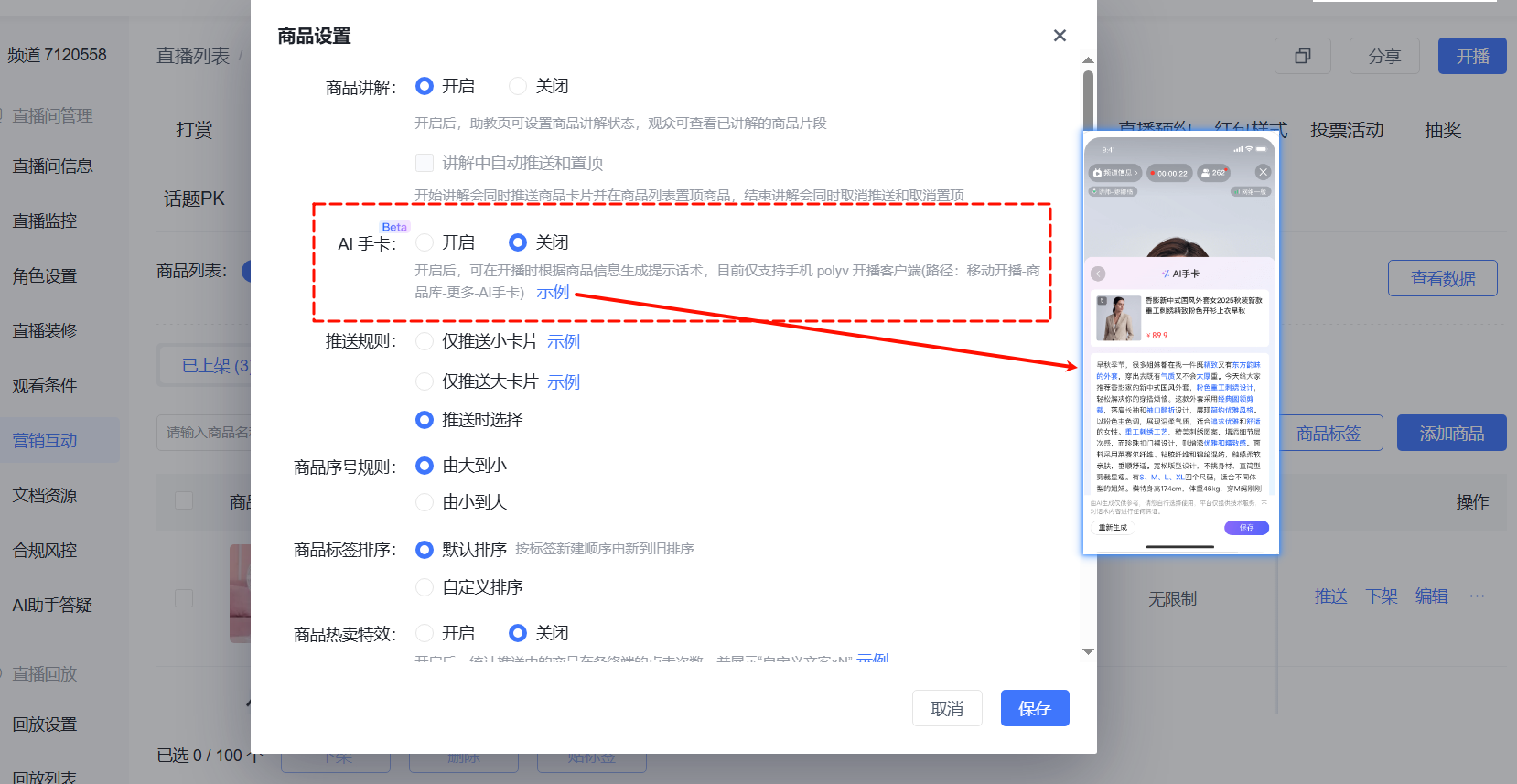 |
| Push Rules | Select the push card style based on business needs. Large cards have a strong reminder effect, while small cards do not affect viewers watching the stream. | 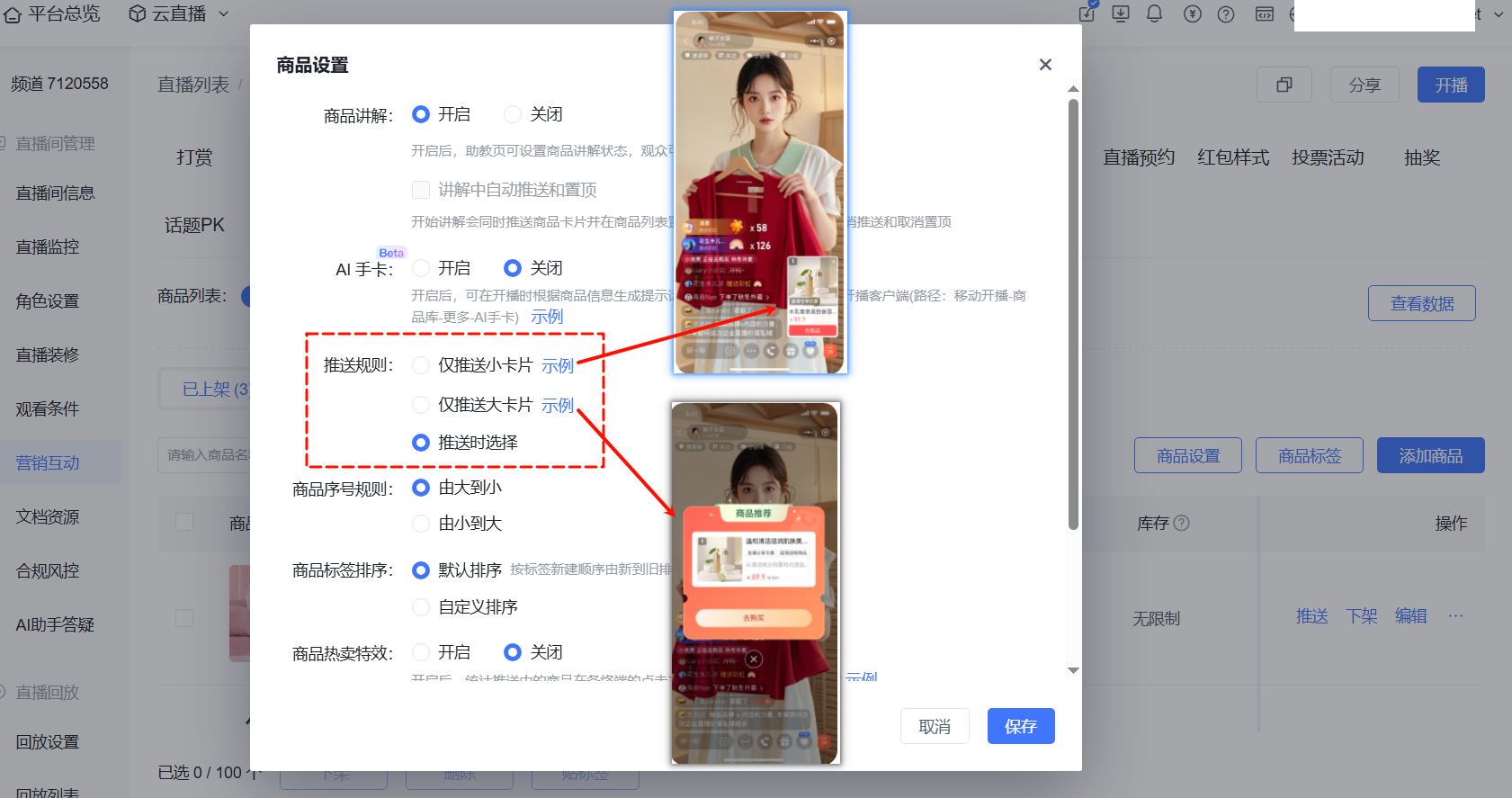 |
| Product Sequence Rules | From large to small: Suitable for scenarios where products are added during the live stream. Newly added products are ranked first. From small to large: Suitable for scenarios where products are configured before the live stream, and the host explains them from beginning to end, making it easier for viewers to understand. |
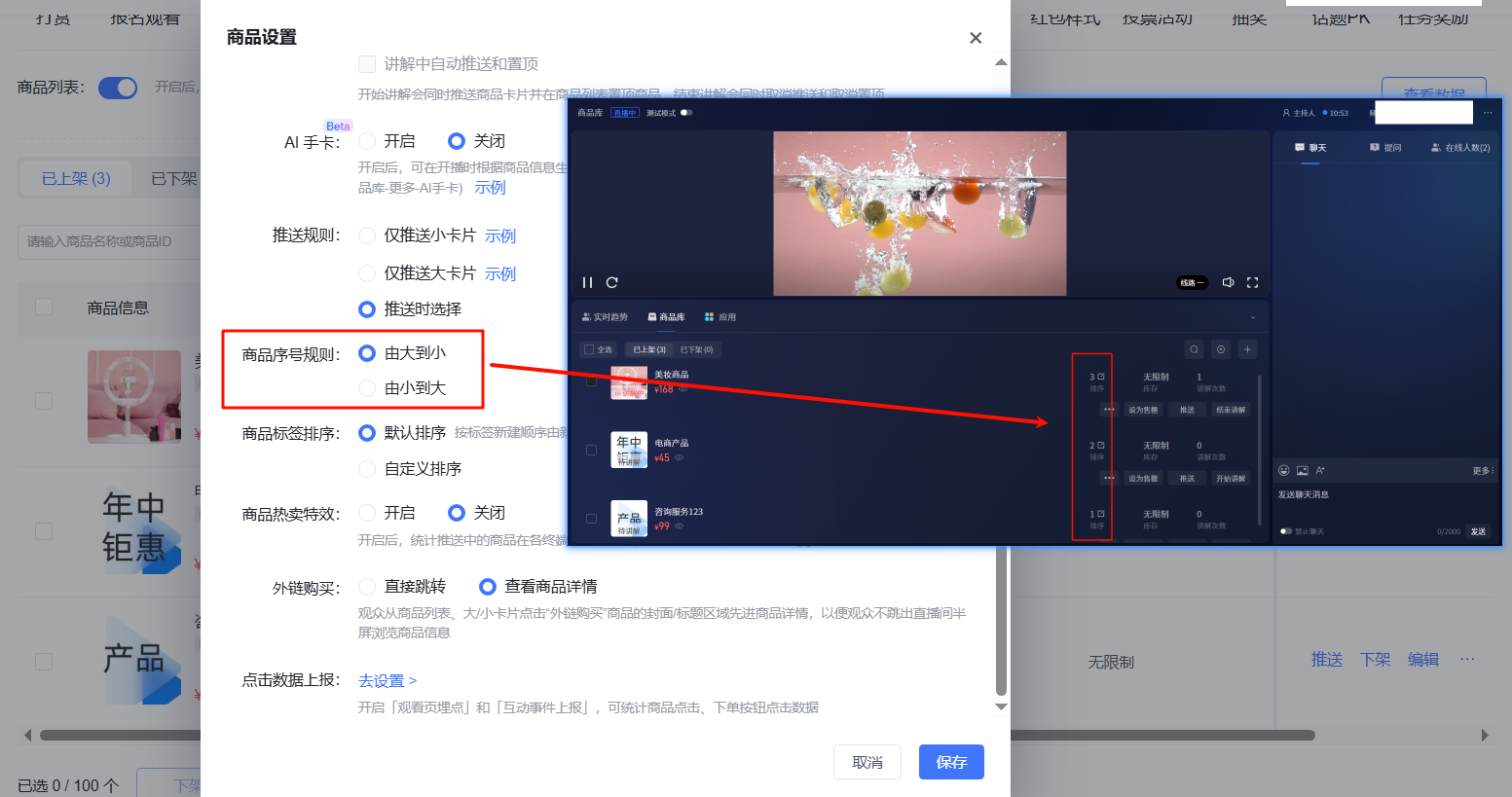 |
| Product Hot Selling Effects | Customize the special effects text. The system displays numerical effects based on click data from each terminal, enhancing the live room atmosphere. | 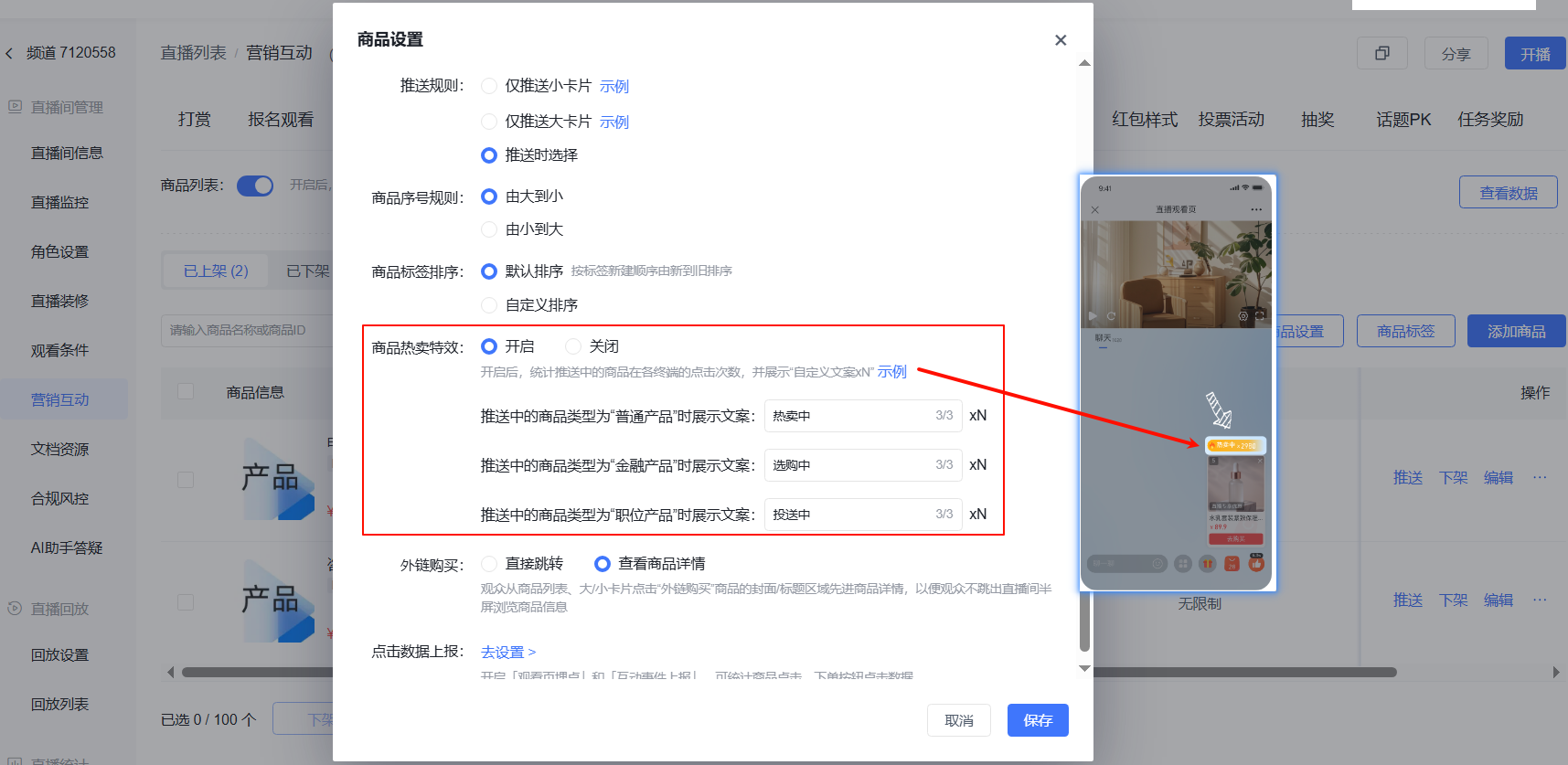 |
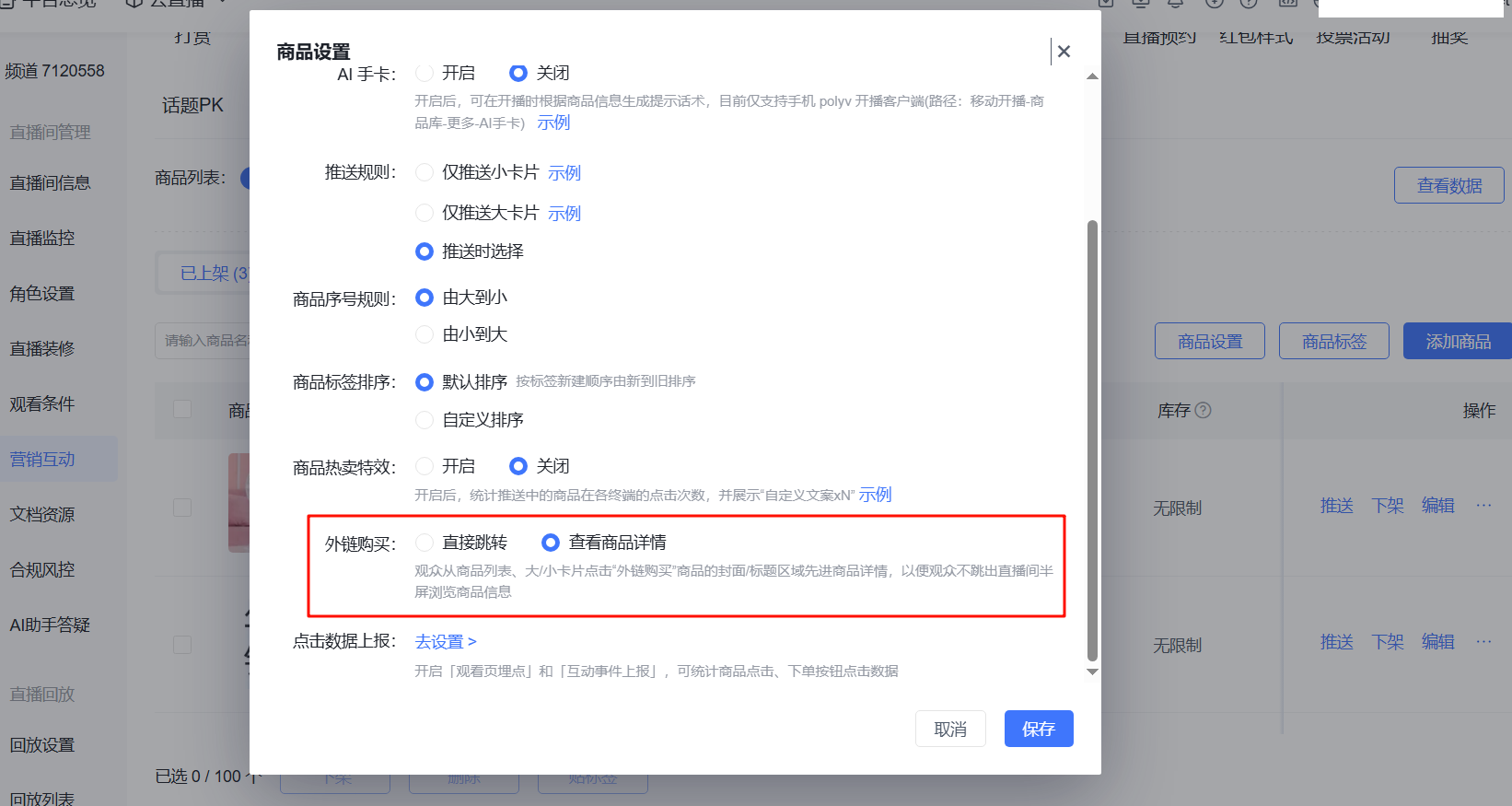
| External Link Product Jump Timing | ● Direct Jump: If you have your own online store and embed the viewer page into your own mini-program/APP, jump directly to your own store. No secondary configuration is needed by the user. Viewers stay within your own system, making it easy to guide them back to the viewer page. ● View Product Details: If you do not have your own online store, configure product details. Viewers browse without leaving the live room, ensuring the live stream is not interrupted. |
 |
| Click Data Reporting | Enable "Viewer Page Tracking" and "Interaction Event Reporting". After the live stream, you can view product click counts/unique users, and purchase button click counts/unique users. | 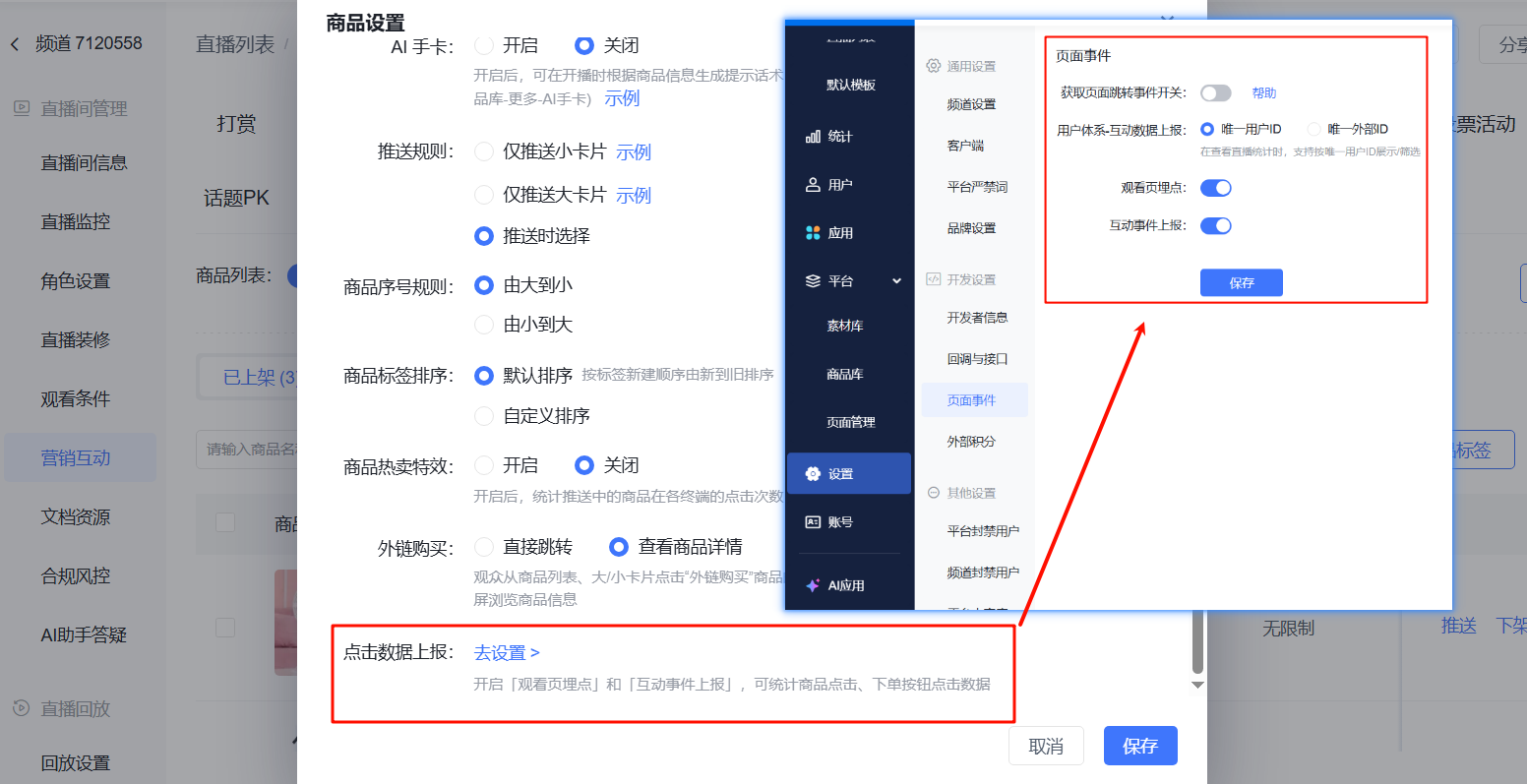 |
3. Related Features
The direct purchase feature supports setting inventory, refunds for physical products awaiting shipment, and supports both WeChat Pay and Alipay payment methods. You need to configure your own merchant account in advance. See the following documents:
III. Product Sales Operations
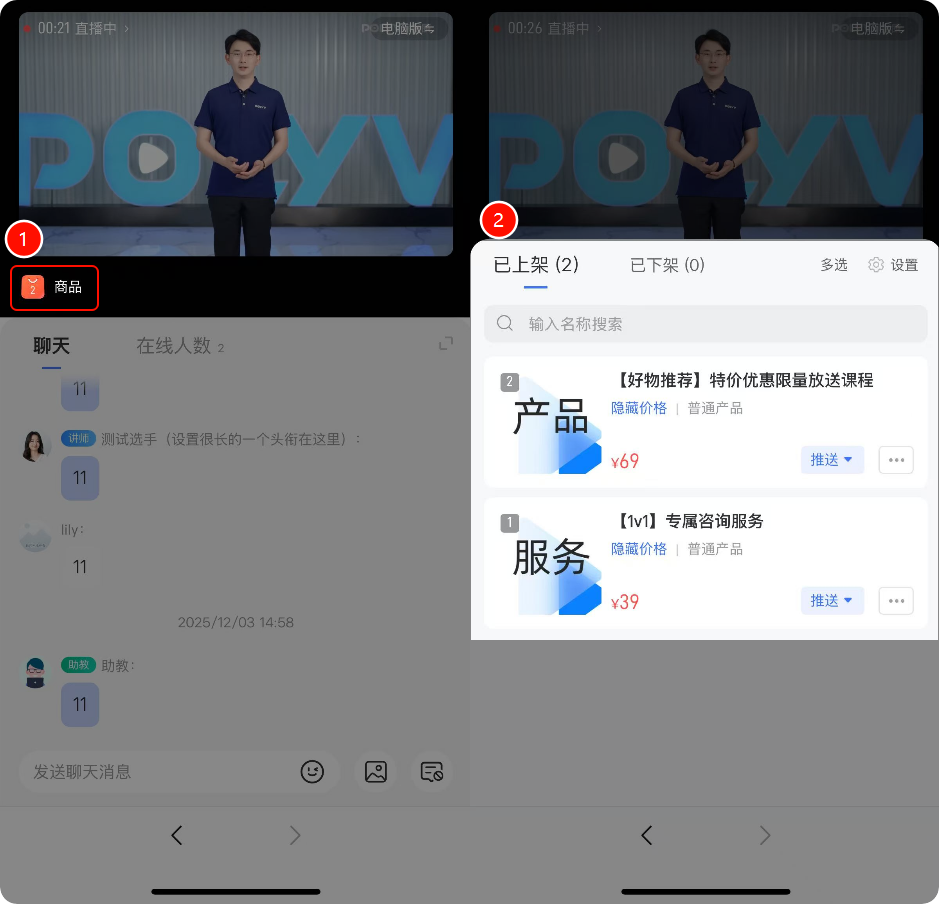
During the live stream: The PC assistant page, mobile assistant page, client, and mobile POLYV broadcast client all support operating the product library.
- PC Assistant Page
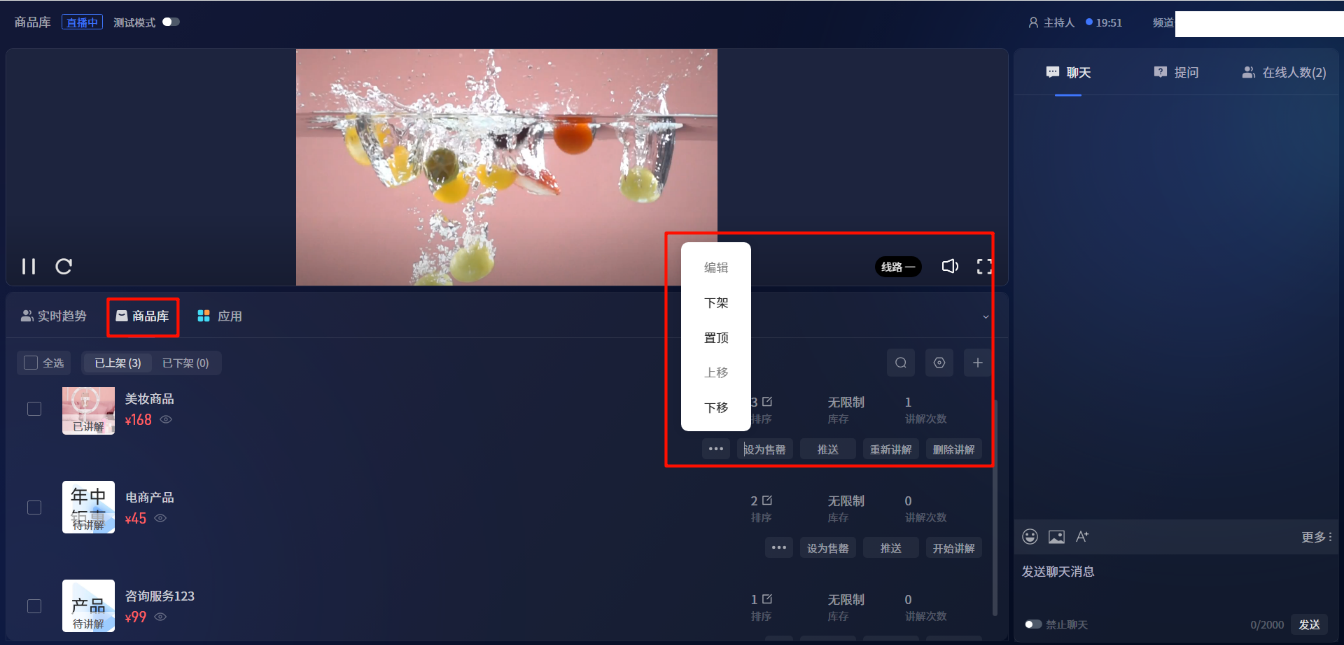
- During the live stream, the assistant can act as a stage manager on the assistant page to assist the host, flexibly controlling the timing of price reveals, listing/unlisting, pushes, pins, explanations, and sold-out status according to the host's speaking rhythm.
- Mobile Assistant Page
- During the live stream, the assistant can act as a stage manager on the assistant page to assist the host in operating the product library.
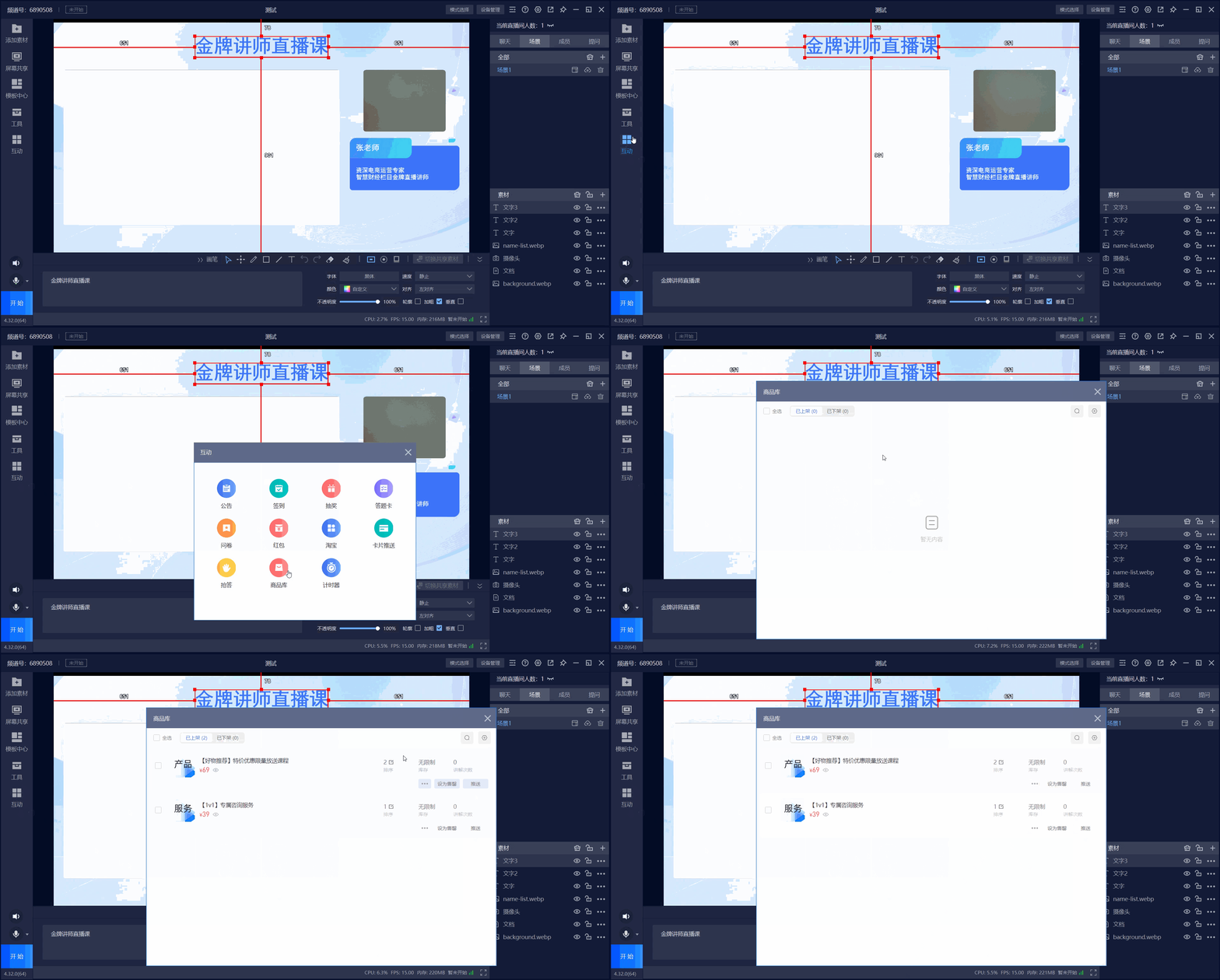
Client Host Page
- Operation Path: "Interaction" - "Product Library"
- Supports the host operating the product library on the client.
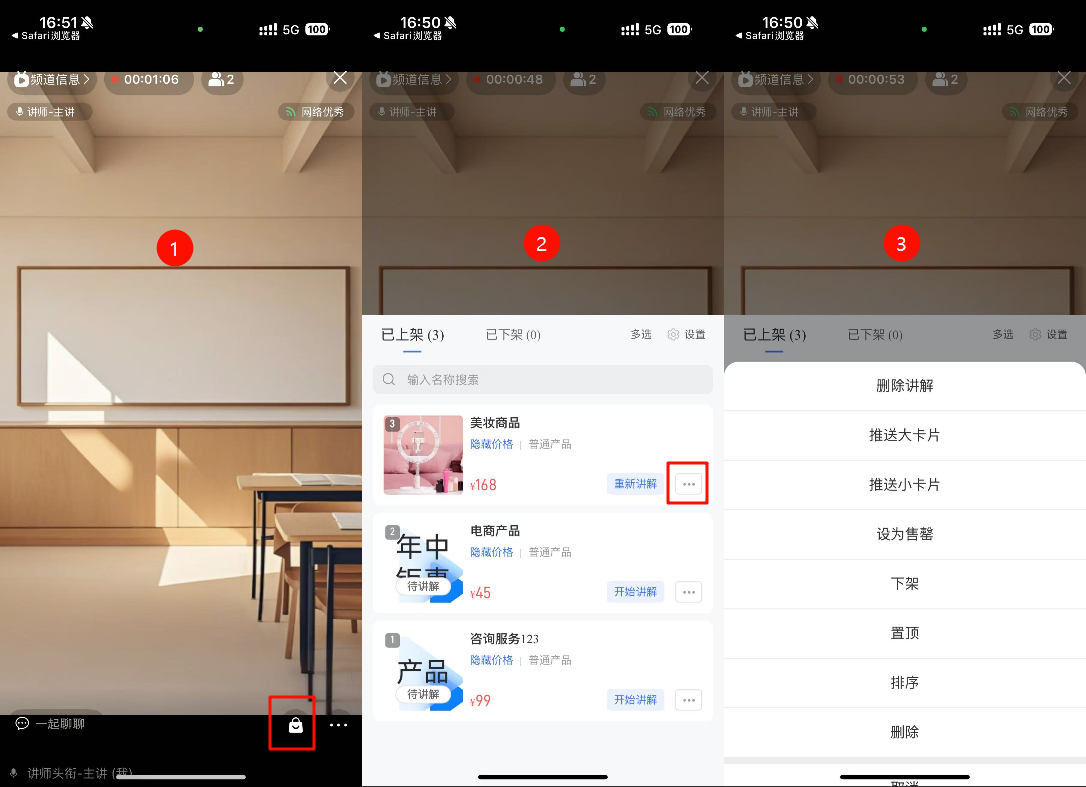
- Mobile Host Page
- During the live stream, the host can also operate the product library via the "POLYV Broadcast" APP (independently manage product pushes, listing/unlisting).
IV. Product Data
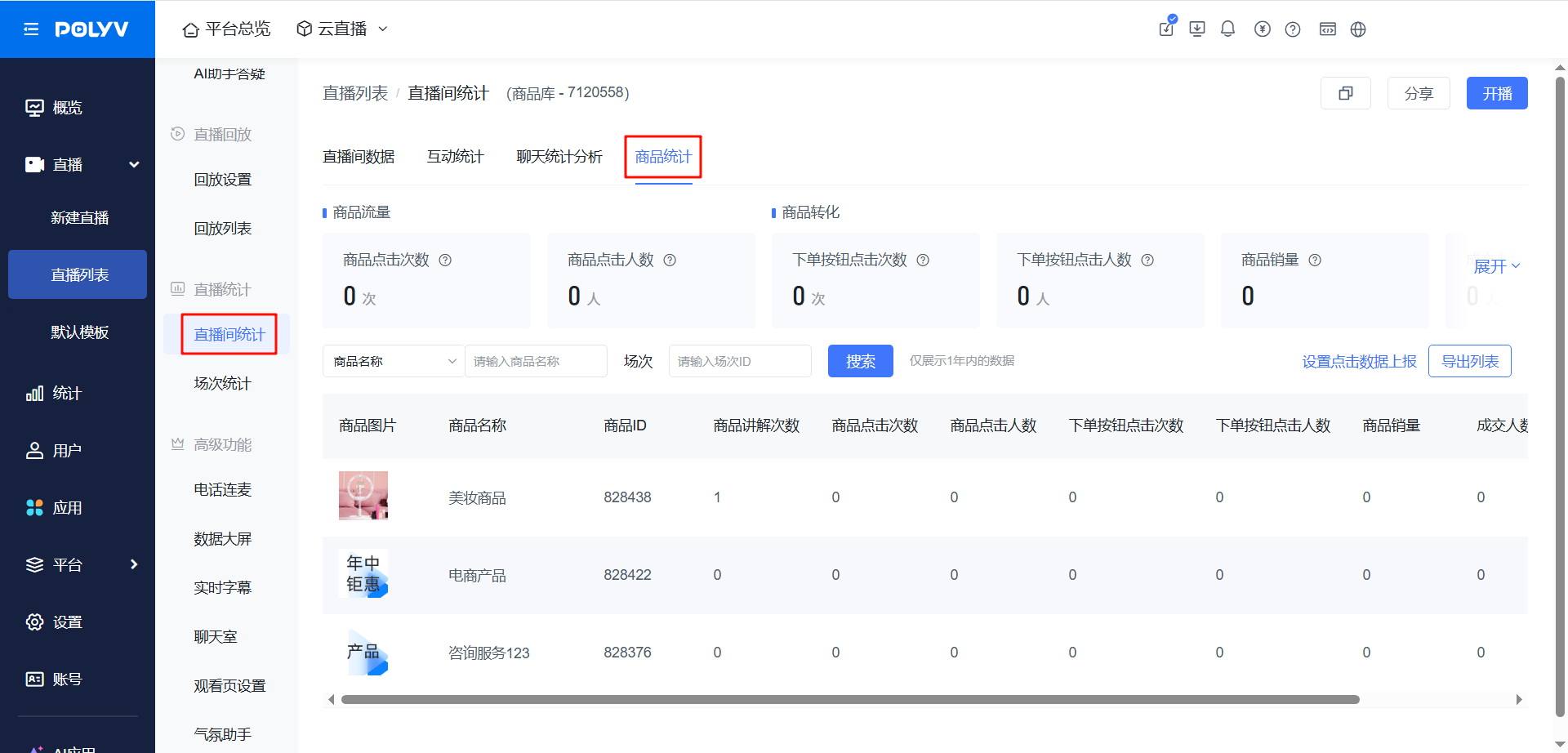
After the live stream: View product data in the management console.
- After the live stream ends, you can view product data in the "Live Stream Statistics" module by clicking "Live Room Statistics" - "Product Statistics" to analyze sales performance.
- Supports filtering data for a specific session during the live stream.