


Viewing Conditions - Invitation to Watch
1. Feature Overview
Feature Info |
Description |
|---|---|
| Feature Name | Viewing Conditions - Invitation to Watch |
| Feature Description | The "Invitation to Watch" feature allows you to vet viewers to ensure only genuine target users enter; you can establish a binding relationship with viewers for long-term engagement |
| Purpose | Leverage community or private domain channels for traffic, enabling more precise live streaming operations |
| Use Cases | When promoting a live stream, merchants often use channels like group leaders, group admins, KOLs, and partner customers to broadcast the stream, boosting traffic and conversions. However, without a screening mechanism, issues may arise: 1. Promotional benefits are taken by non-target users: Activities like coupons and red packets intended for precise users may be claimed by irrelevant viewers, reducing conversion rates for genuine users. 2. Decreased live interaction quality: Irrelevant viewers may only claim benefits without genuine interest in the product, distorting live data and affecting marketing strategies. 3. Impact on private domain traffic operations: The intent is precise traffic from communities or private channels, but without a screening mechanism, core users may be lost, lowering long-term repurchase rates. |
| Operation Path | 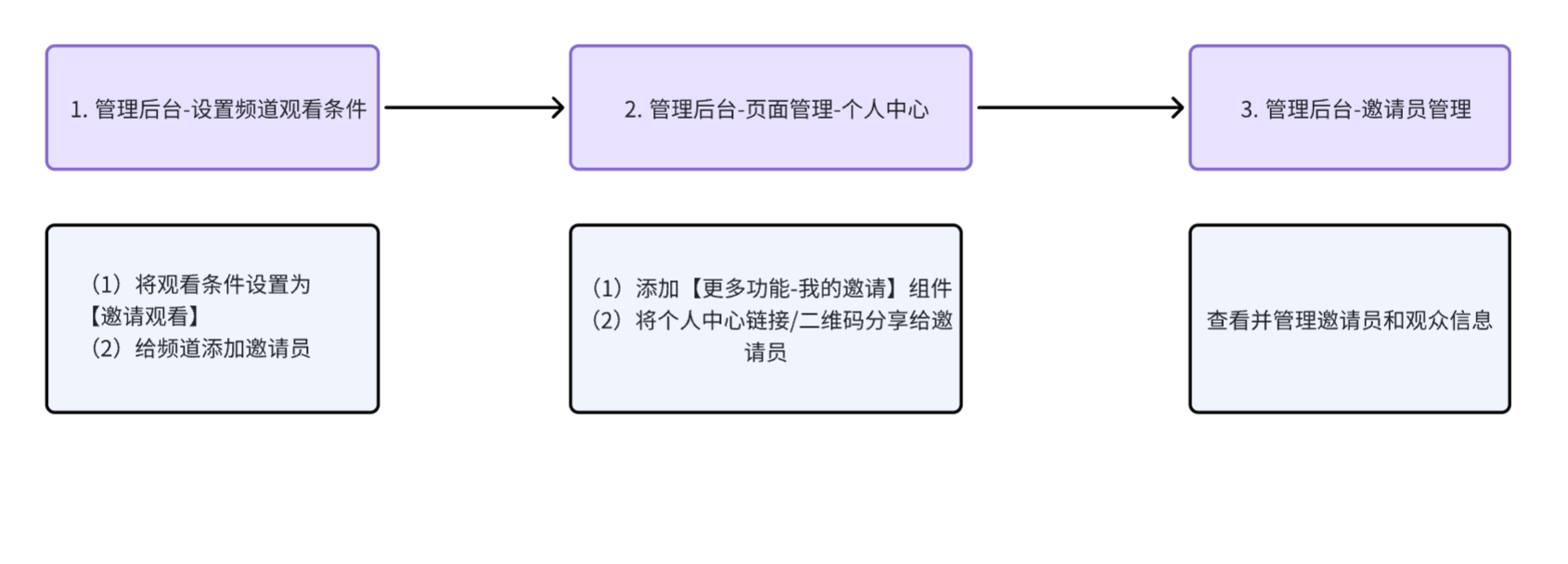 |
| Feature List | Viewing Condition Configuration, Personal Center - My Invitations Component |
2. Operation Instructions
- Prerequisite: "User Management" must be enabled first.
- Requires use with "Page Management - Personal Center".
2.1 Viewing Conditions - Invitation to Watch
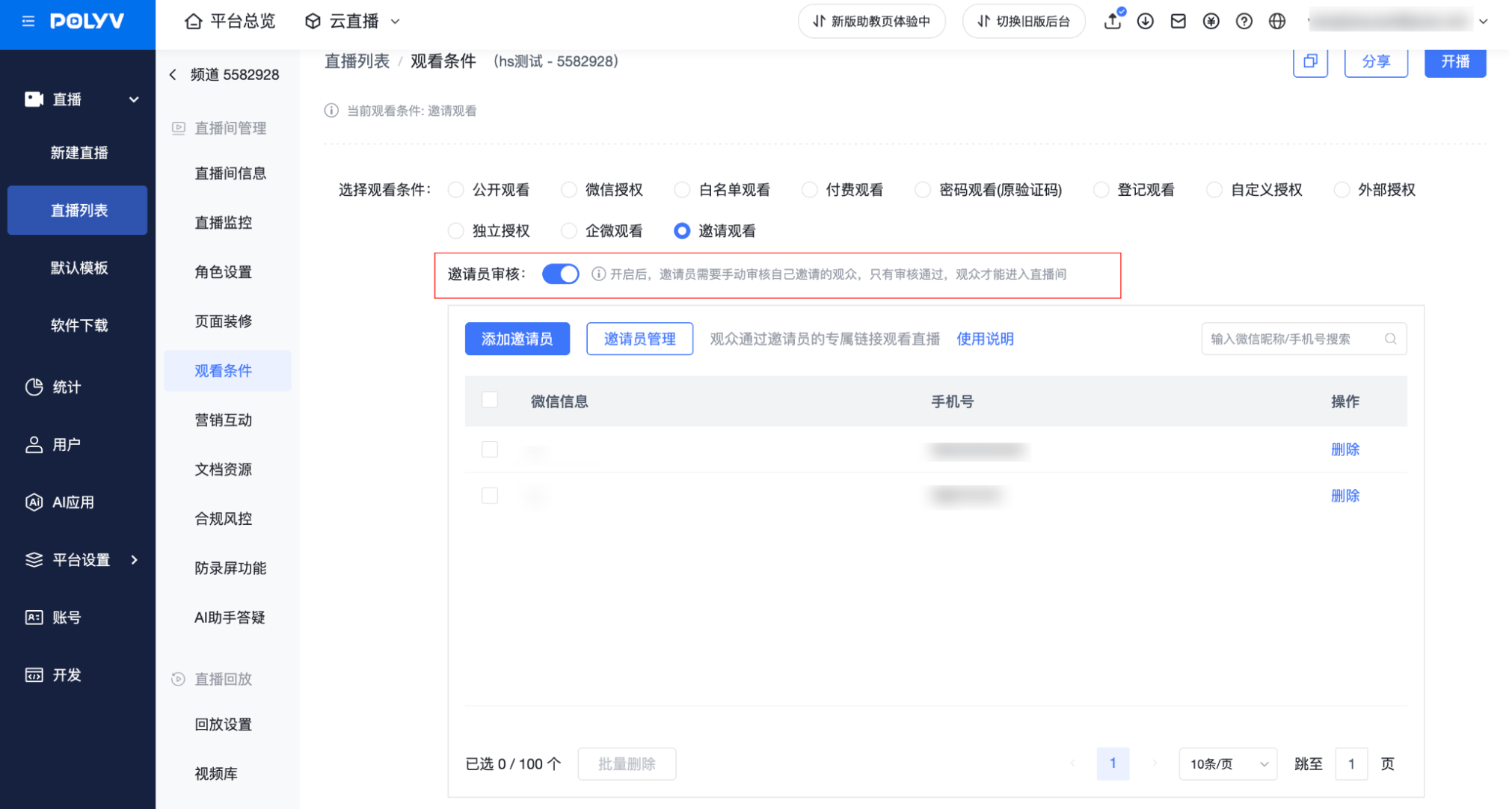
Path: Admin Backend -> Live Stream Management -> Viewing Conditions -> Invitation to Watch
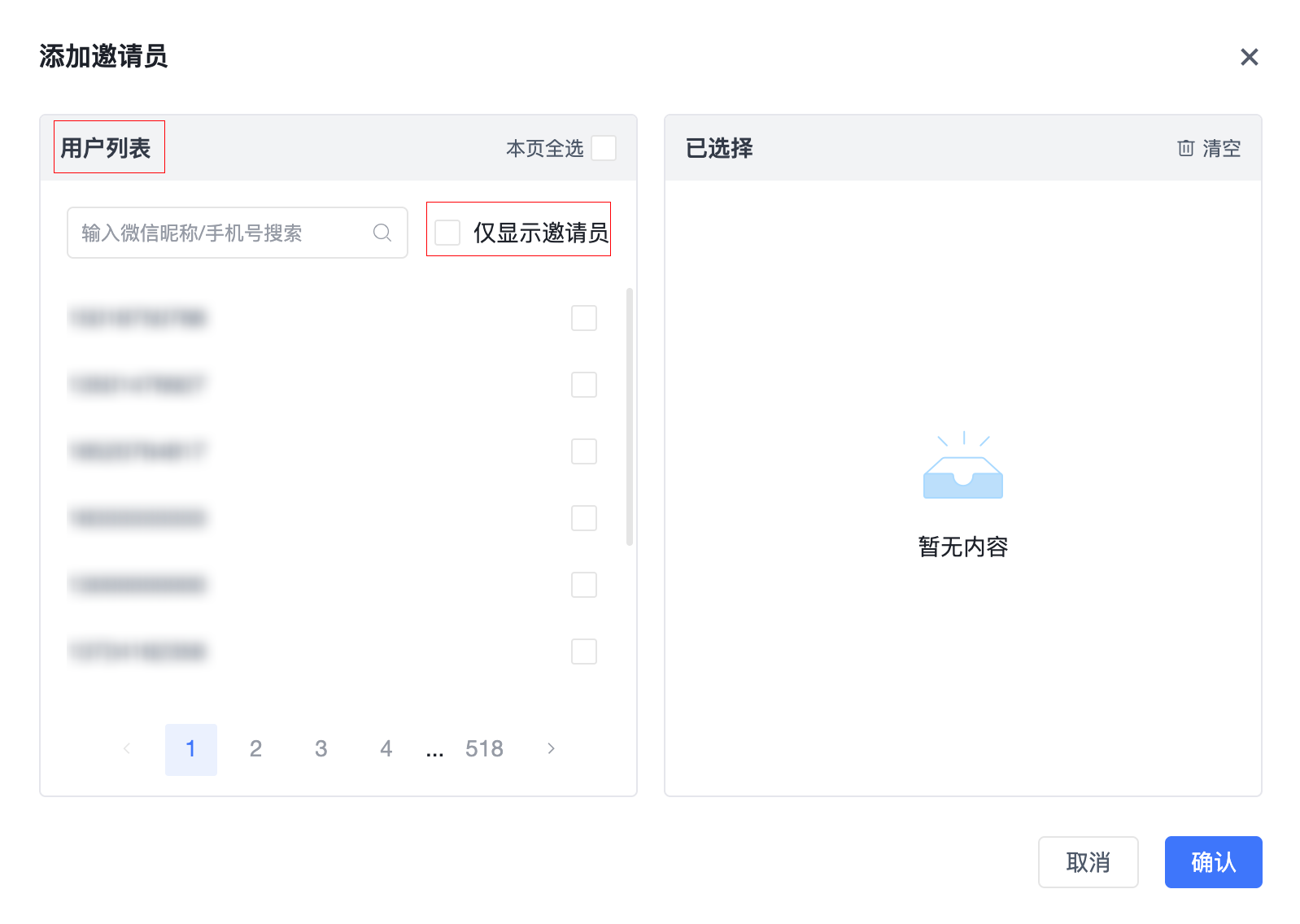
Add Inviters:
- The list defaults to displaying users from the user list.
- After a user is added as an inviter, sharing the live stream will automatically generate an exclusive viewing link.
- Users added for the first time will automatically become inviters of the primary organization.
- Check "Show Inviters Only" to quickly add from the list of users who already have inviter status.
Special Reminder:
- Only inviters can enter the live stream via a regular link without parameters.
- Regular viewers must watch the live stream through the exclusive viewing link shared by an inviter.
Inviter Review Toggle:
- When enabled: Viewers without an inviter binding relationship who click an inviter's shared link with inviter parameters must be manually reviewed by the inviter in the inviter interface before accessing the live stream, automatically forming a binding relationship.
- When disabled: Viewers can directly access the live stream without manual review by the inviter, automatically forming a binding relationship.
2.2 Admin Backend - Personal Center - My Invitations
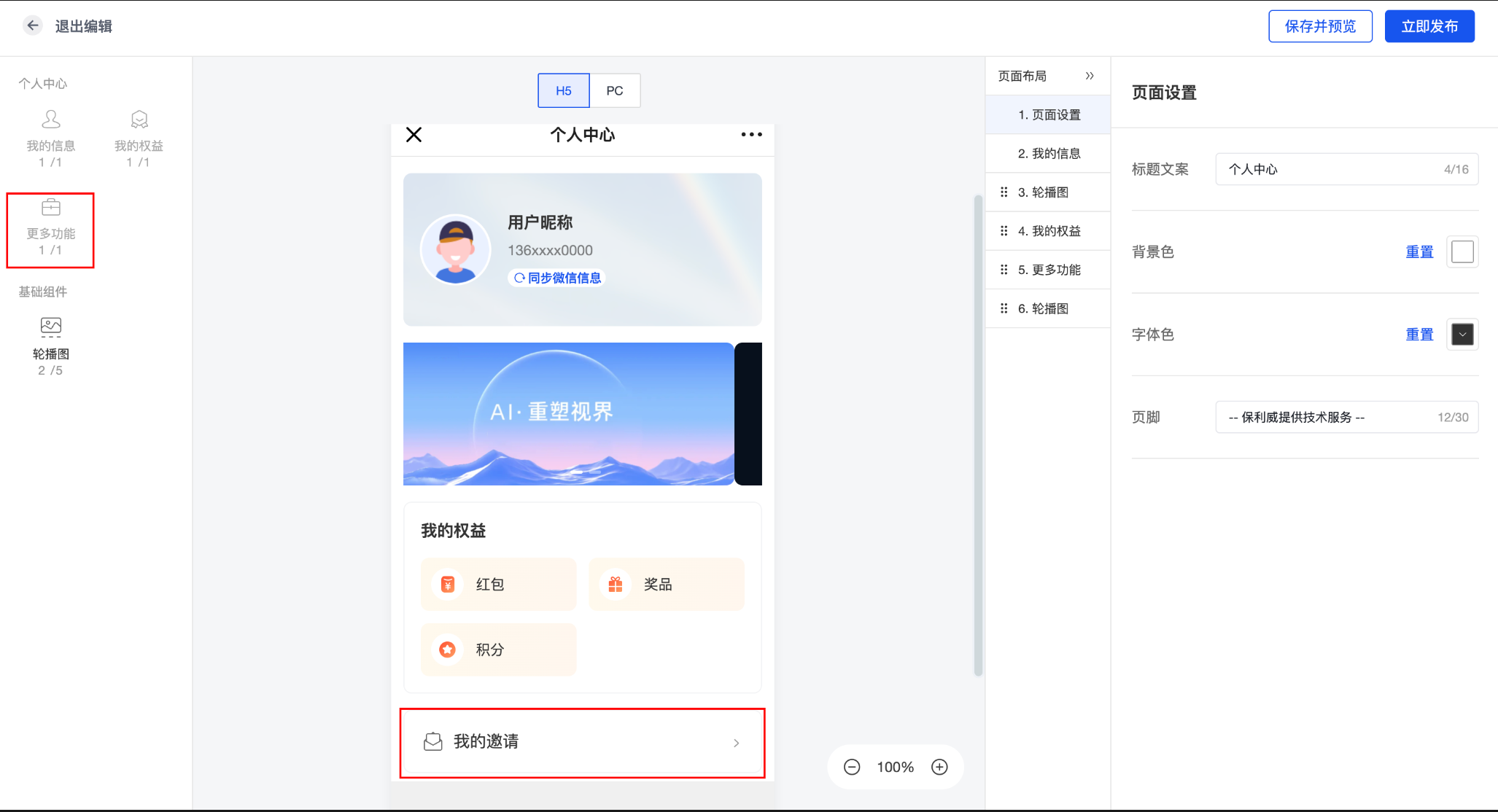
- Path: Admin Backend -> Page Management -> Personal Center -> Add More Feature Components -> My Invitations
2.3 Viewer Interface - Personal Center - My Invitations
- Note: Viewer Interface - Personal Center Entry
- Personal Center Jump Link: Admin Backend -> Personal Center -> Publish Now -> Get Link -> Distribute to Inviters
- Viewer Page - More - My: Requires enabling the "Show Personal Center" toggle in the admin backend.
2.3.1 Personal Center - My Invitations - My Live Streams
- Feature Description: Inviters can view live streams they are allowed to share.
- Operation Instructions: Click "Share" to copy the exclusive live stream link to the clipboard.
2.3.2 Personal Center - My Invitations - My Reviews
- Feature Description: Inviters can view and process (Approve/Remove) review requests from viewers who clicked their exclusive link.
- Operation Instructions:
- Approve: After the viewer's review request is approved, they can view the live stream by refreshing or re-entering.
- Remove: If the viewer's review request is not approved, they cannot view the live stream.
- Special Note: Supports batch approval and batch removal.
2.3.3 Personal Center - My Invitations - My Invitations
Feature Description: Viewers who have passed the review will appear under this tab.
Operation Instructions:
- Inviters can unbind viewers. After unbinding, the viewer will no longer be able to view the live stream.
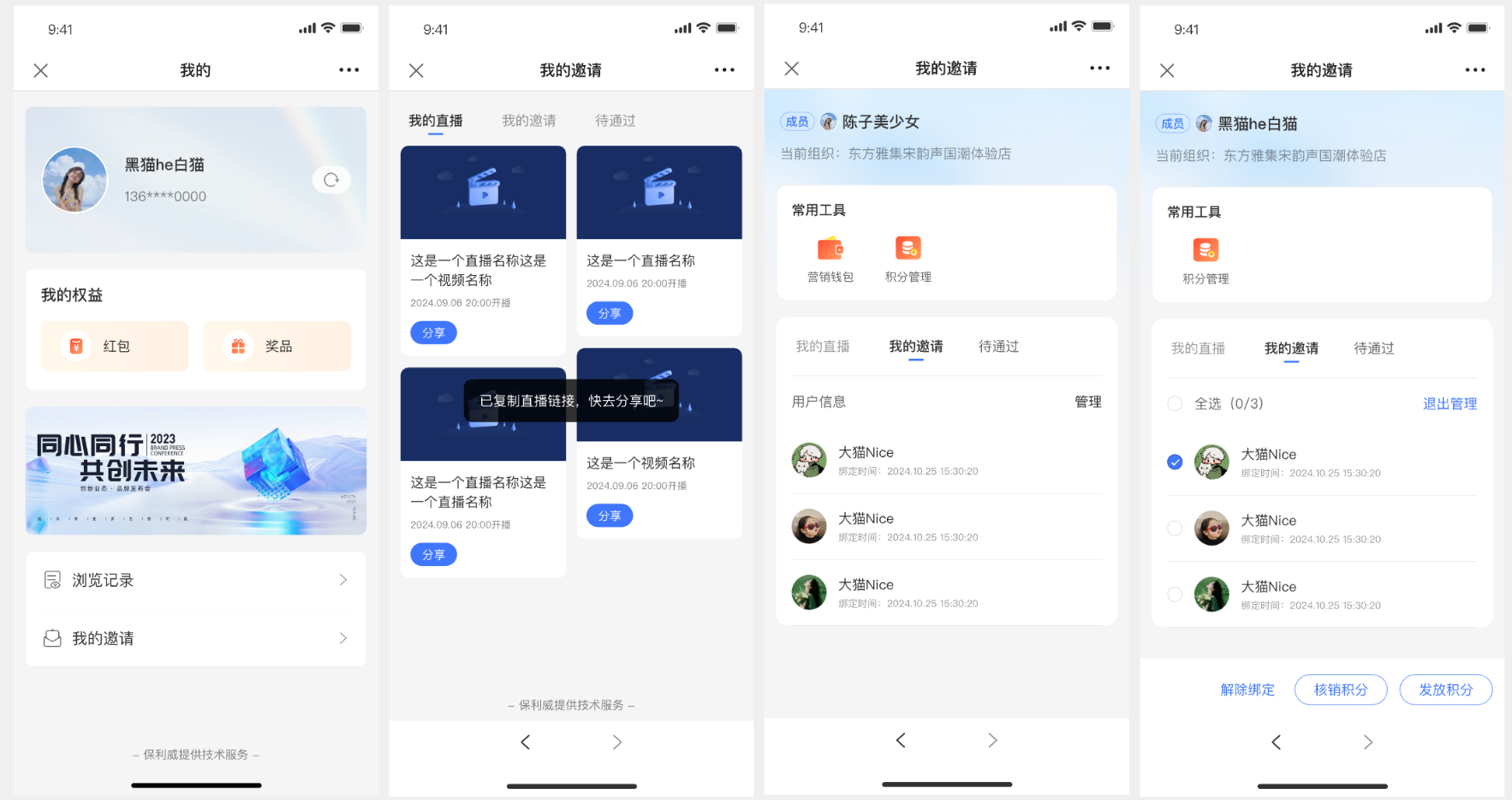
- Inviters can unbind viewers. After unbinding, the viewer will no longer be able to view the live stream.
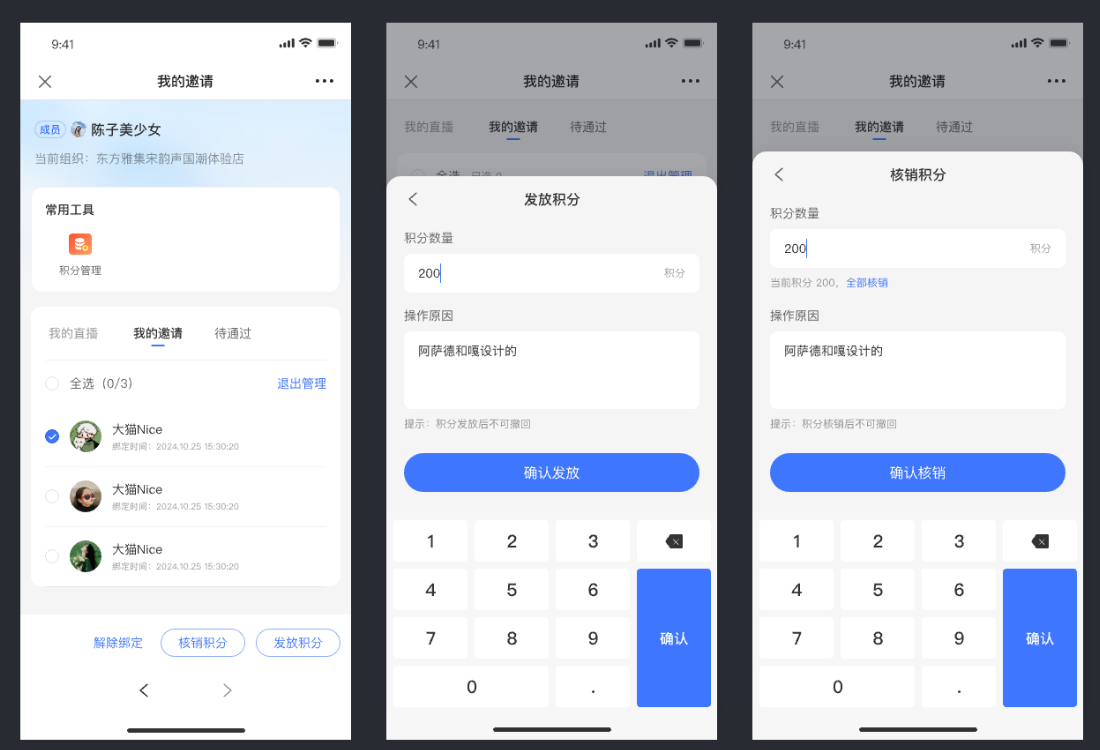
Inviters can grant/deduct points to viewers (requires setting permissions for the inviter in the admin backend, see 2.4.4).
 Special Note: Viewer Live Stream Access Permission Explanation
Viewers not bound to an inviter: First click on a live stream viewing link with inviter parameters -> Inviter reviews -> Passes review -> Binds with inviter -> Can view live stream.
Viewers already bound to an inviter: Whether they can enter the live stream depends on whether their bound inviter has sharing permissions for that specific live stream (i.e., whether the bound inviter is set as an inviter for that channel).
Special Reminder: A viewer can only be bound to one inviter at a time.
2.4 Inviter Management
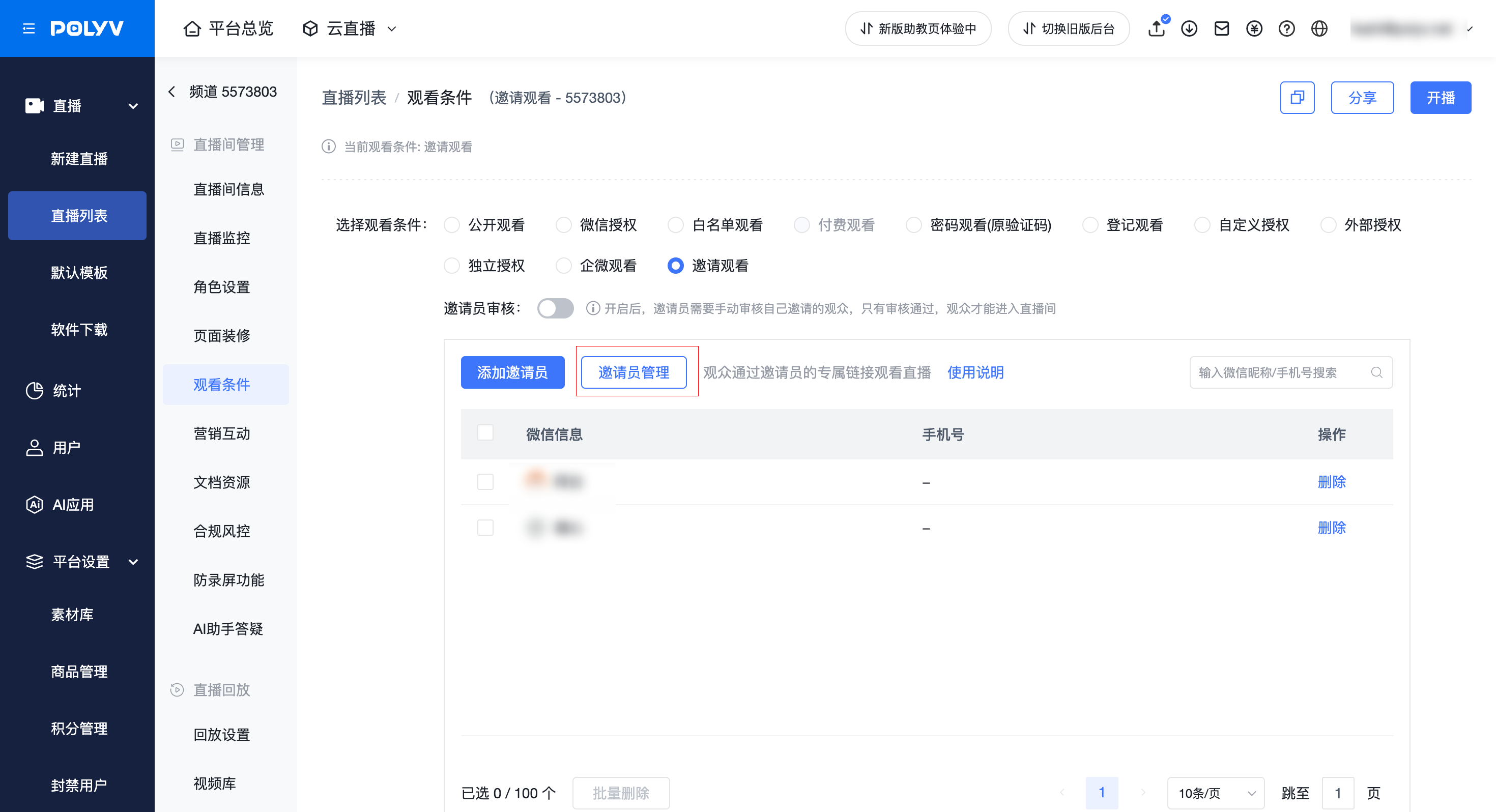
Location: Channel/Default Template -> Viewing Conditions -> Invitation to Watch -> Inviter Management Permission Description:
- Currently, only the main account can see the [Inviter Management] entry; sub-account permission nodes for [Inviter Management] will be added later.
- If a sub-account has both [User List] and [Viewing Restrictions] permissions, it can set the channel's viewing condition to "Invitation to Watch" and use [Invitation to Watch - Add Inviters].
2.4.1 Inviter Management - Data Overview
- Total Inviters: Total count of all inviters under the account.
- Bound Viewers: Count of all viewers with a [Bound] status under the account.
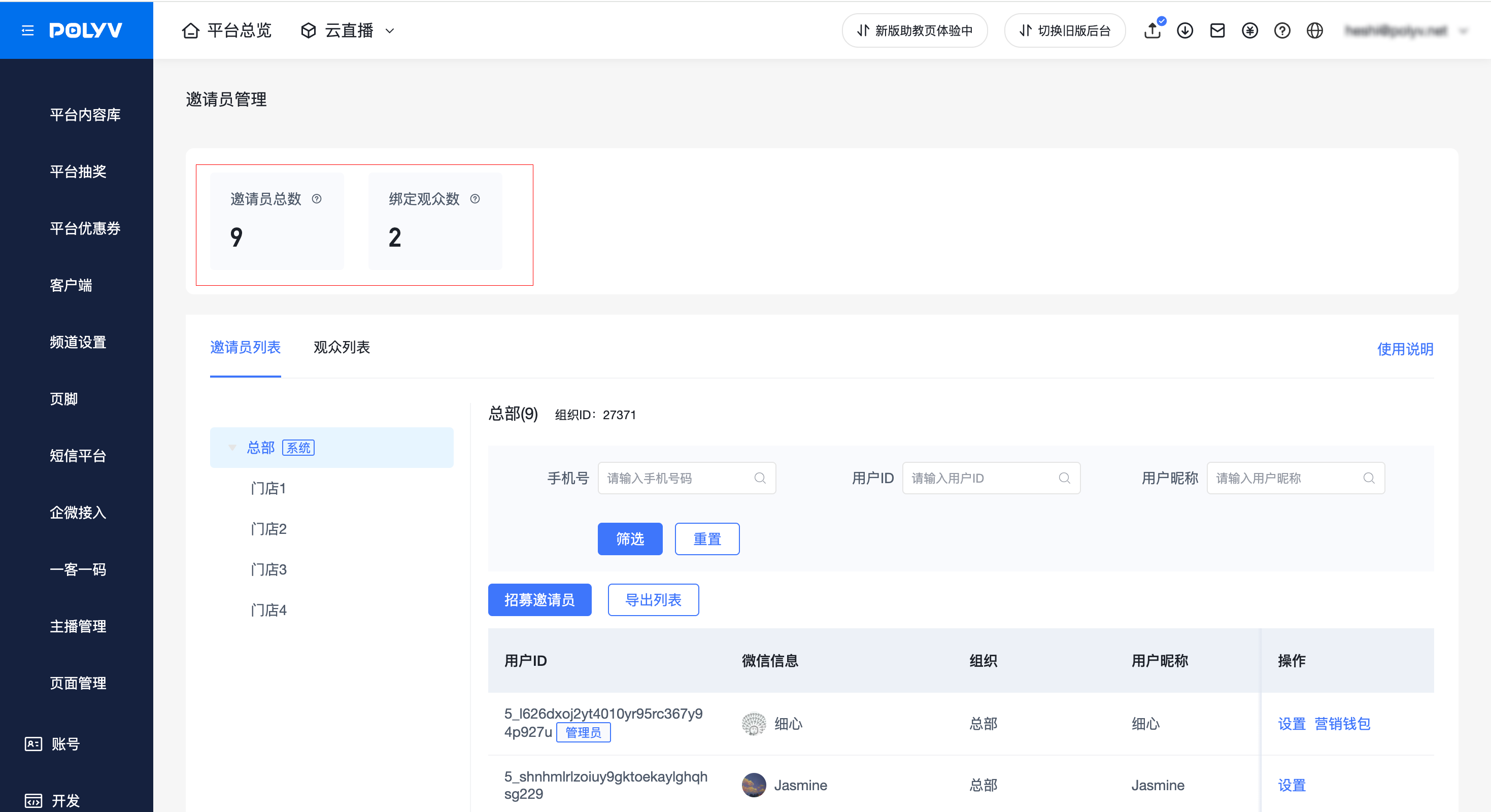
2.4.2 Inviter Management - Inviter List
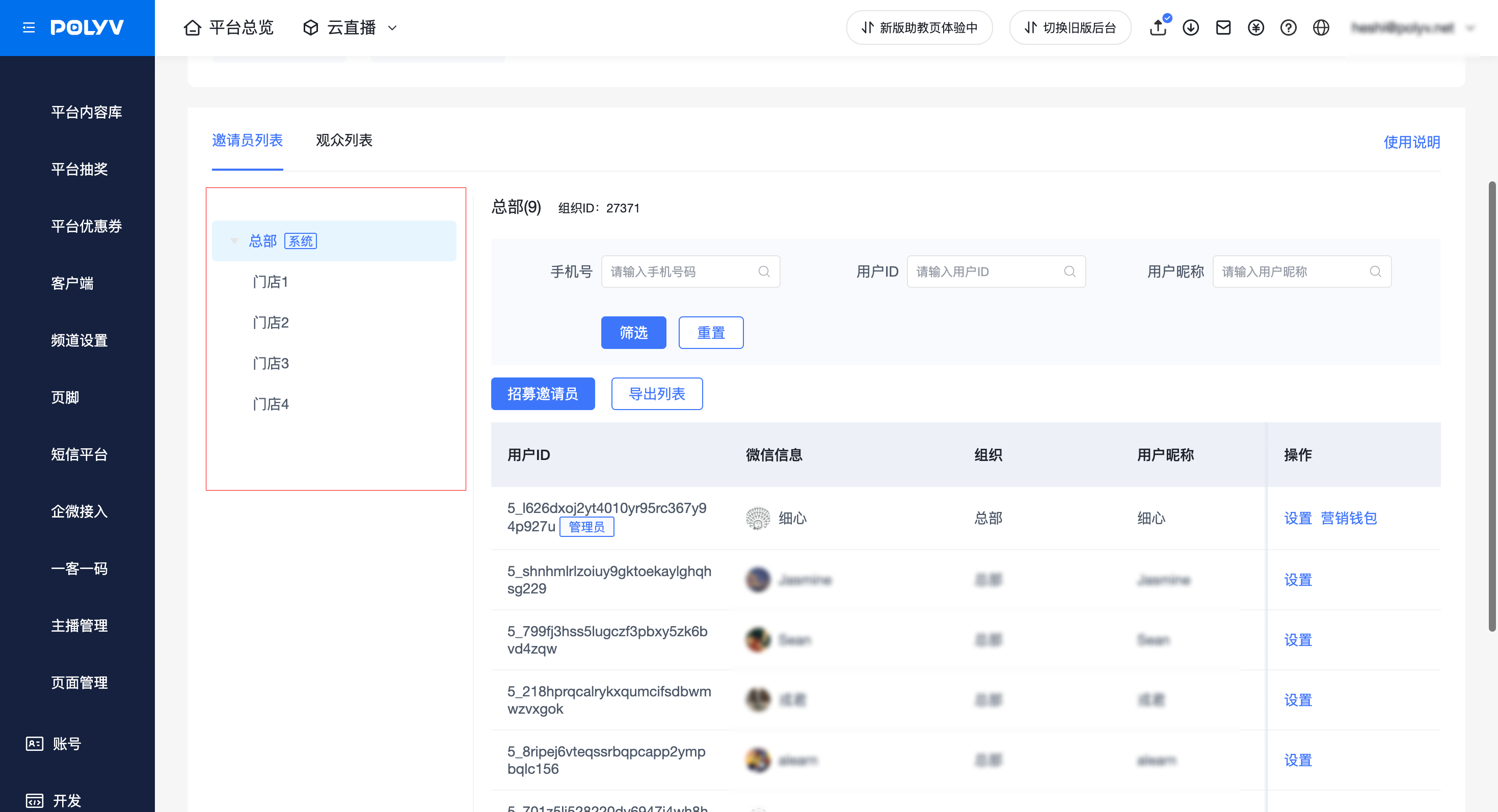
(1) Left [Organizational Structure]: Consistent with the secondary organization directory under [Sub-account Management - Organizational Structure]. Click [Go to Manage Organization] to jump to [Sub-account Management - Organizational Structure].
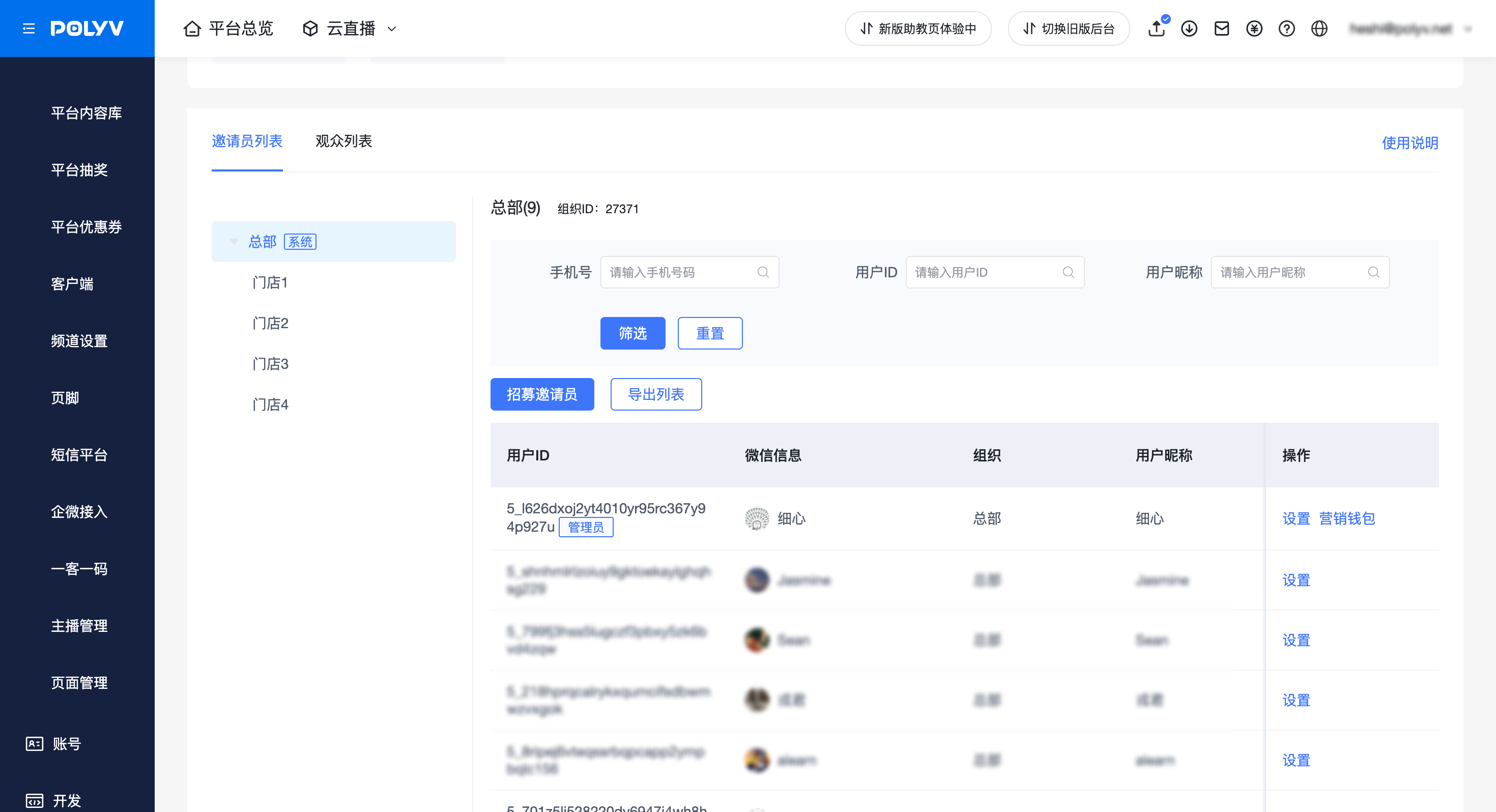
(2) Right [Inviter List]: Displays information for all current inviters under the account. Note: Does not include [Removed Inviters].
(3) Recruit Inviters
- Requires use with Account - Sub-account Management - Organizational Structure.
- Click [Recruit Inviters] to obtain an exclusive recruitment link and QR code with organizational parameters.
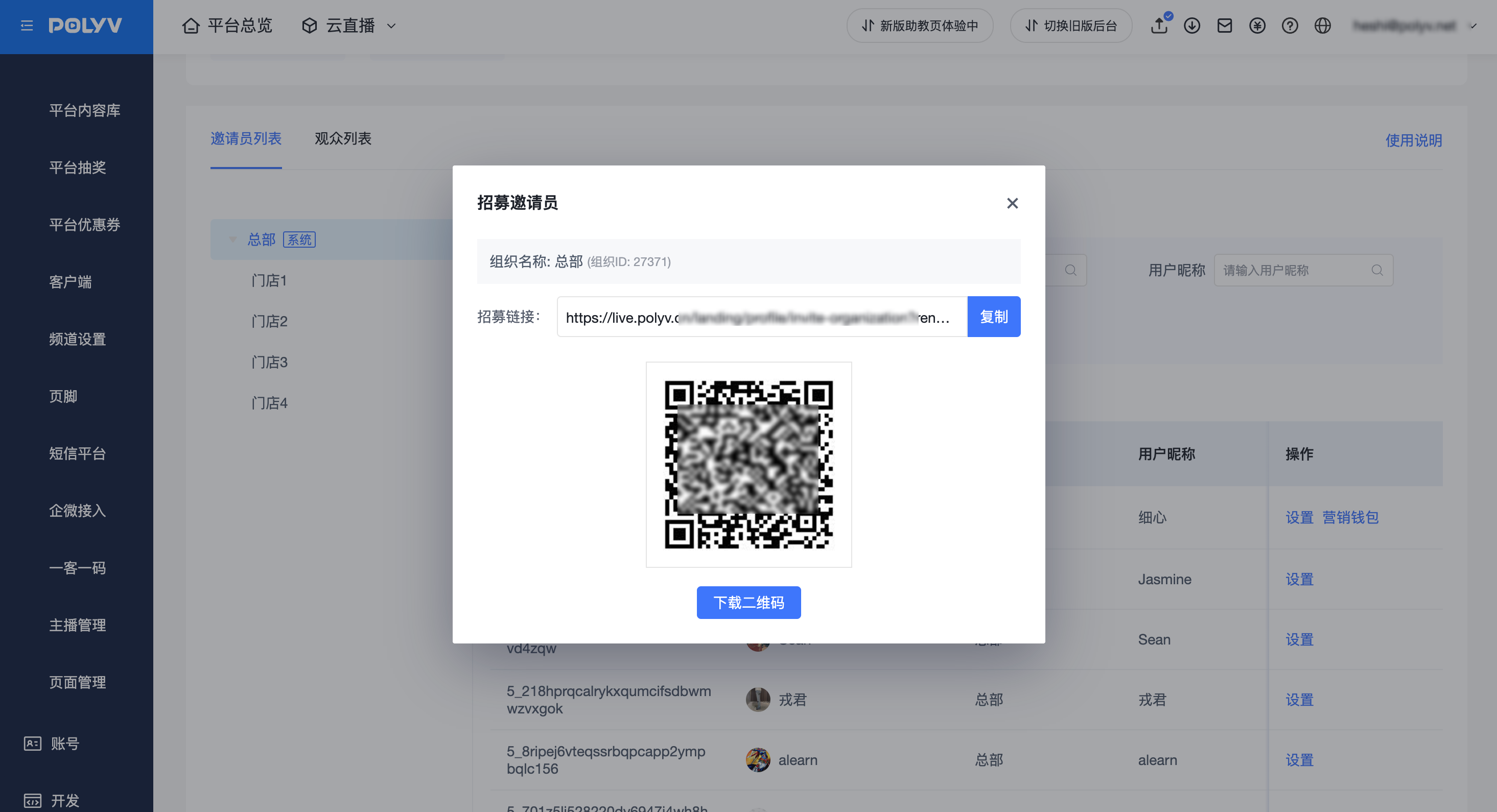
Regular viewers/users can become inviters under the corresponding organization via the recruitment link or QR code. Users who are already inviters cannot be bound again.
- Note: There is no approval process; viewers will automatically become inviters upon acceptance. Please share the link/QR code cautiously.
The [Recruit Inviters] here differs from the [Add Inviters] mentioned earlier under Channel/Default Template as follows:
- Recruit Inviters: After accepting the invitation, the user automatically becomes an inviter of a specific organization and appears in the [Inviter List].
- Add Inviters:
- If the selected user is not yet an inviter, they will appear in the [Inviter List] after being added, with the organization defaulting to [Headquarters].
- To grant an inviter permission to share a live stream, regardless of whether they already have inviter status, you must click [Add Inviters] under the Channel/Default Template.
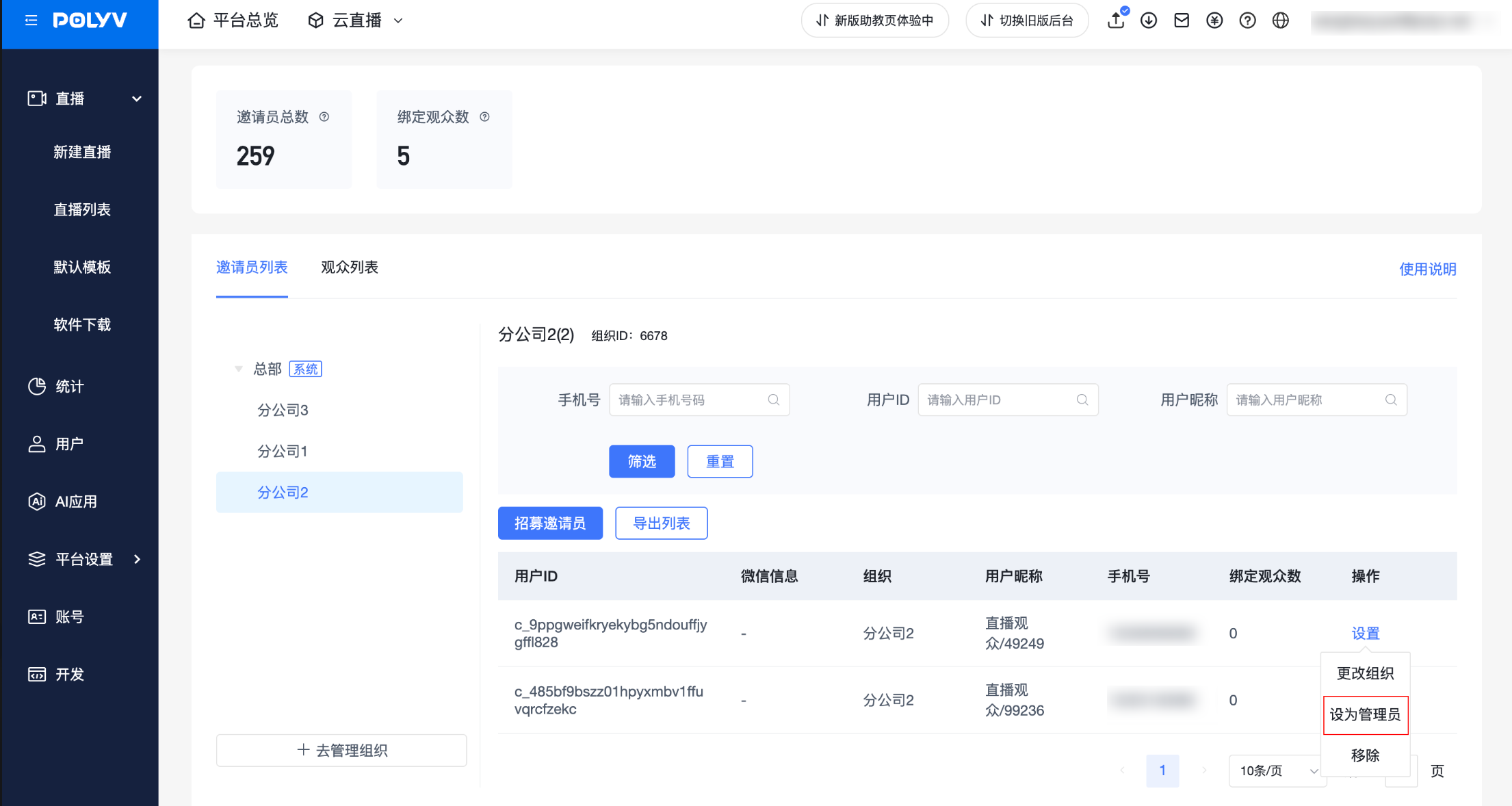
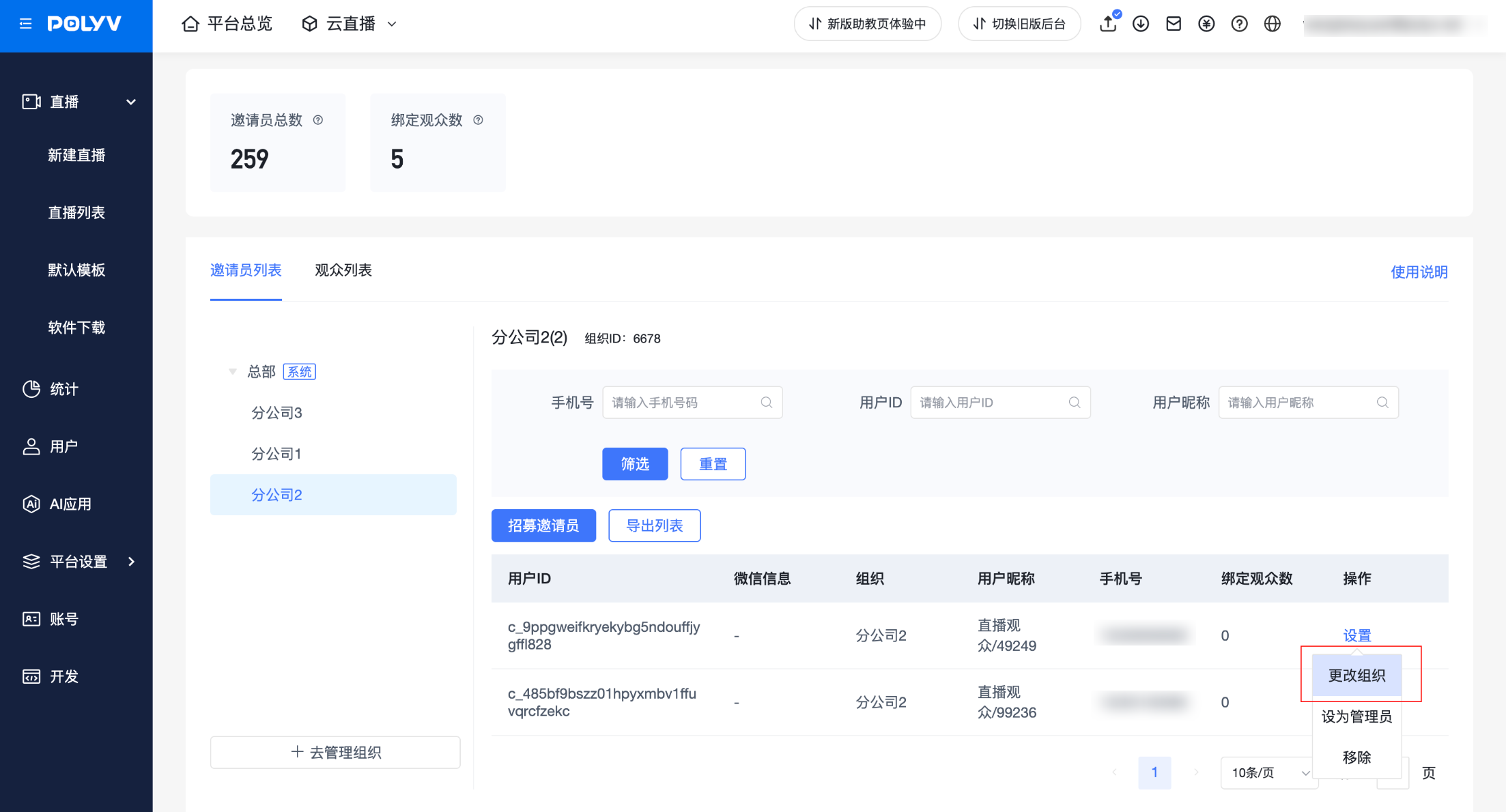
(4) Operations - Settings
- Set as Admin:
- Only one admin can be set per organization.
- An inviter set as admin gains [Inviter Interface - Marketing Wallet] permissions.
- Change Organization:
- Allows changing the organization for a specific inviter.
- If the inviter is an admin, changing the organization will revoke their admin permissions.
- Changing the organization does not affect the binding status of the inviter's viewers.
- Remove:
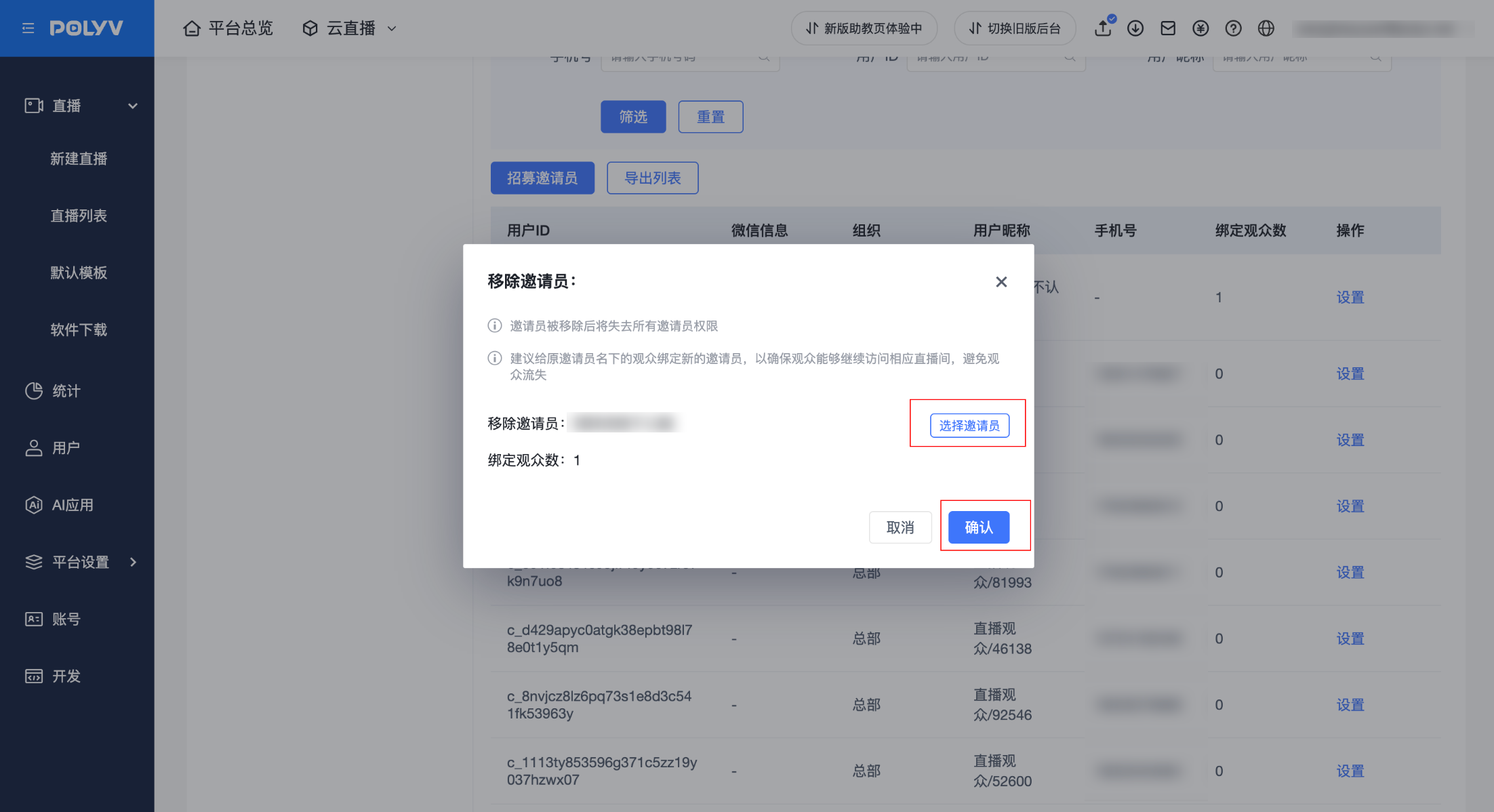
- Removing means revoking the inviter's status.
- When removing, you can choose [Remove Directly] or [Select New Inviter].
- Remove Directly: Directly removes the inviter's status. Viewers bound to them will be automatically unbound and lose access to previously accessible live streams (but can re-bind by clicking another inviter's parameterized link).
- Select New Inviter: Transfers the viewers bound to the inviter being removed to a new inviter. After the transfer, the viewers' live stream access permissions will follow the new inviter.
- Role Settings
- Supports assigning roles to inviters.
- The inviter will gain all permissions associated with the assigned role.
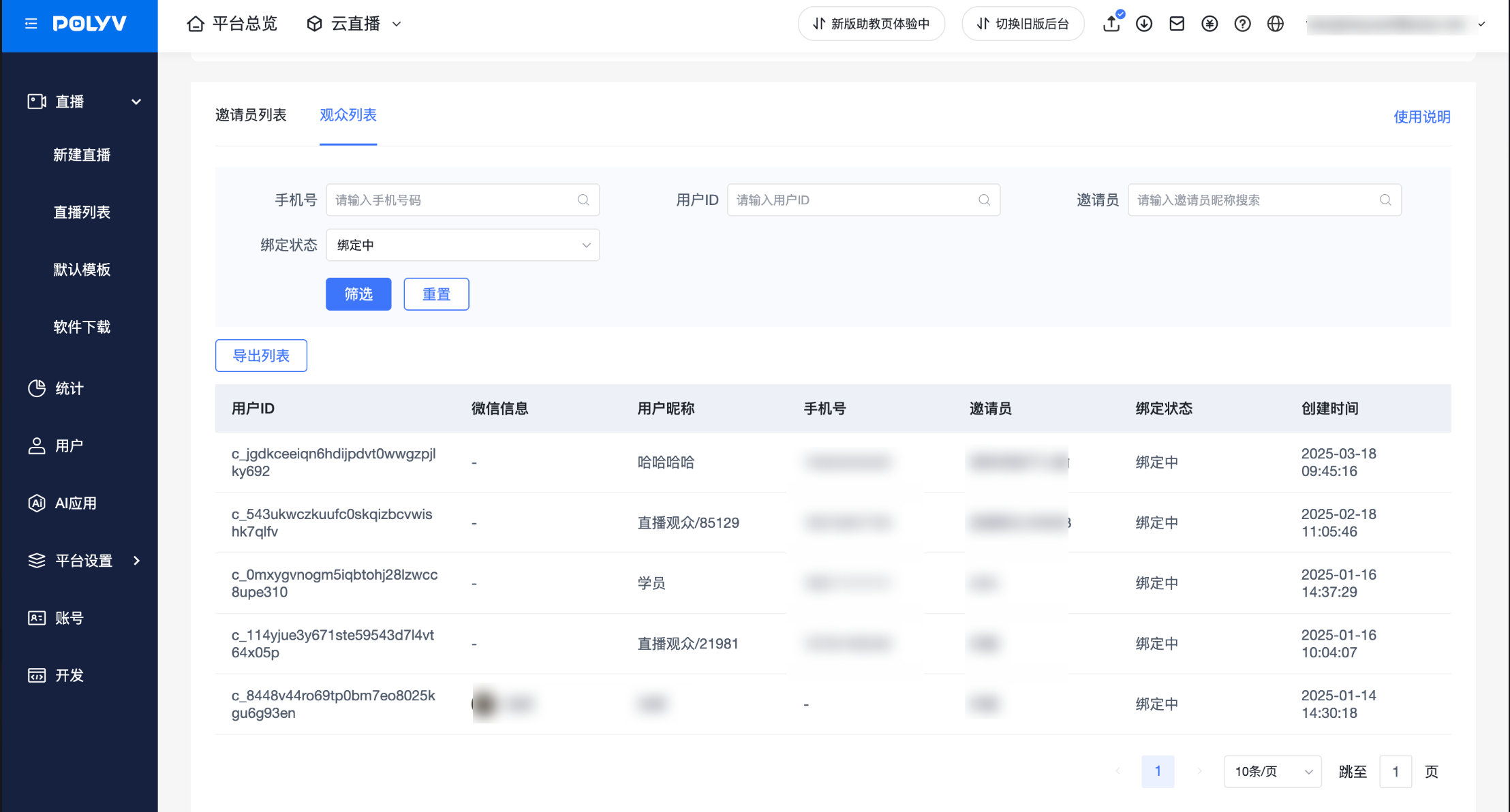
2.4.3 Inviter Management - Viewer List
- Displays information for all viewers who have had a binding relationship, including both [Bound] and [Unbound] statuses. Default selection is [Bound].
2.4.4 Inviter Management - Role Management
- Supports creating/editing/deleting roles.
- Permissions can be set for roles.
- Currently supports configuring points granting/deduction permissions (requires enabling the points management toggle. Points management help document: https://help.polyv.net/index.html#/live/product/live_bgm/Points_management)
- After setting up roles, return to the Inviter List, select inviters, and click Role Settings to associate a role with them. The associated inviters will gain all permissions under that role.
