Video Trimming
Updated: 2026-08-17 11:27:00
1. Feature Overview
Feature Info |
Description |
|---|---|
| Feature Name | Video Trimming |
| Feature Description | Trim live replay videos using the video editing tool |
| Purpose | Edit live replay content for subsequent reuse |
| Use Case | Suitable for repurposing and distributing live replay content |
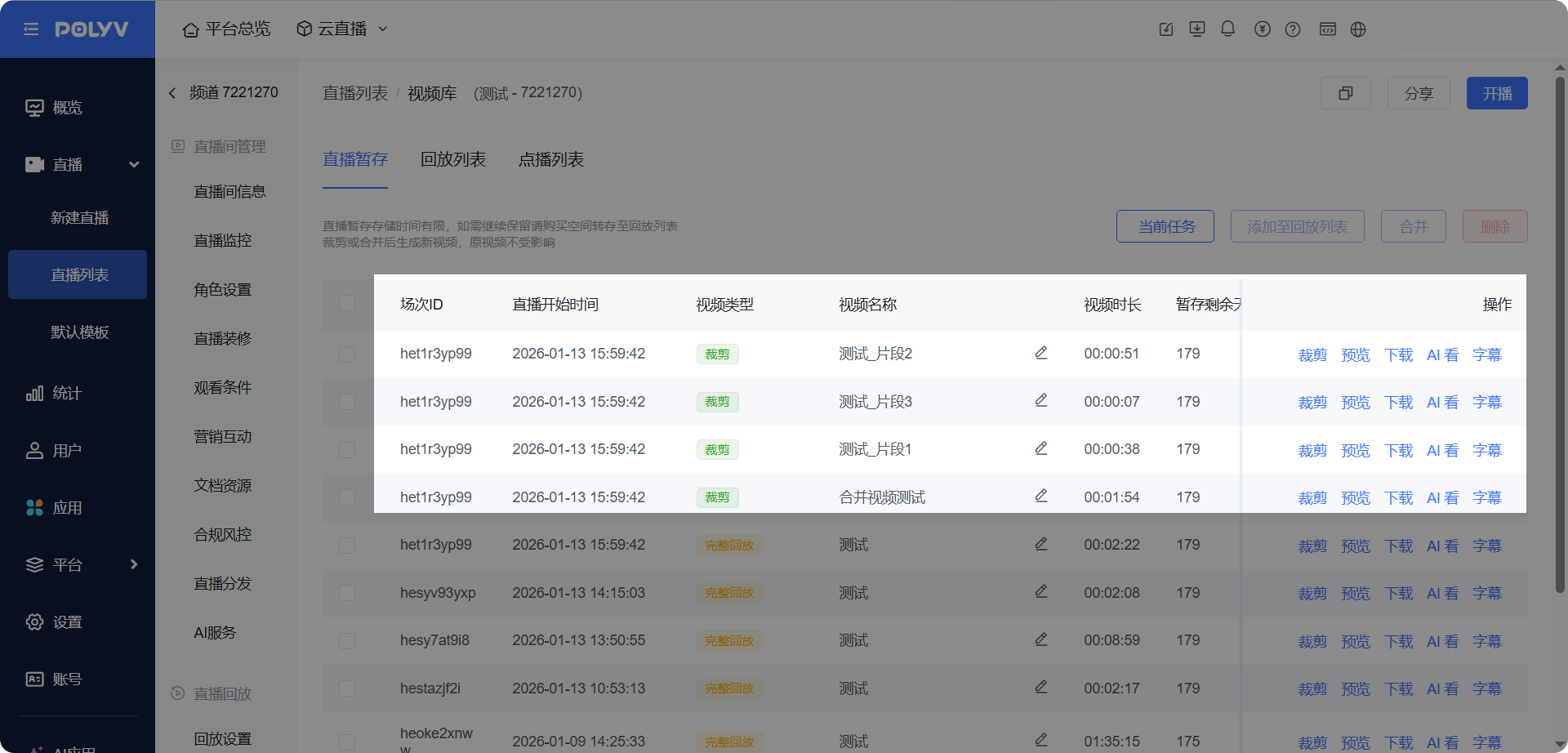
| Operation Path | 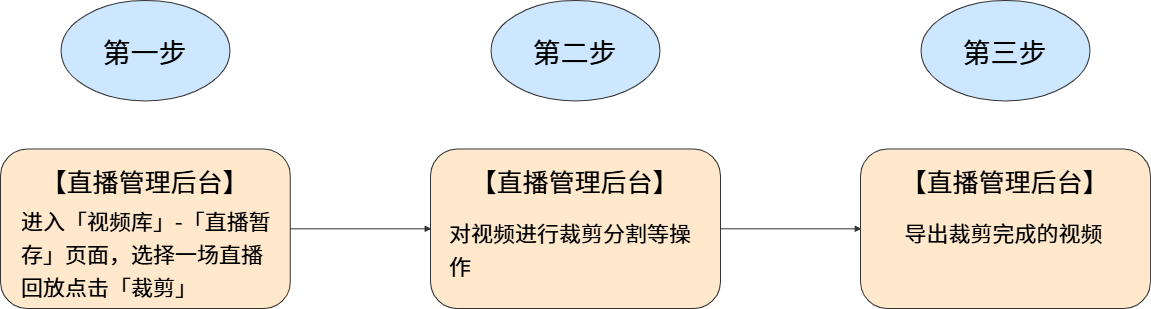 |
2. Operation Instructions
2.1 Feature Entry
Operation path: Click [Live List] - Select a channel - Click [Video Library] - Click [Trim] on the Live Staging page
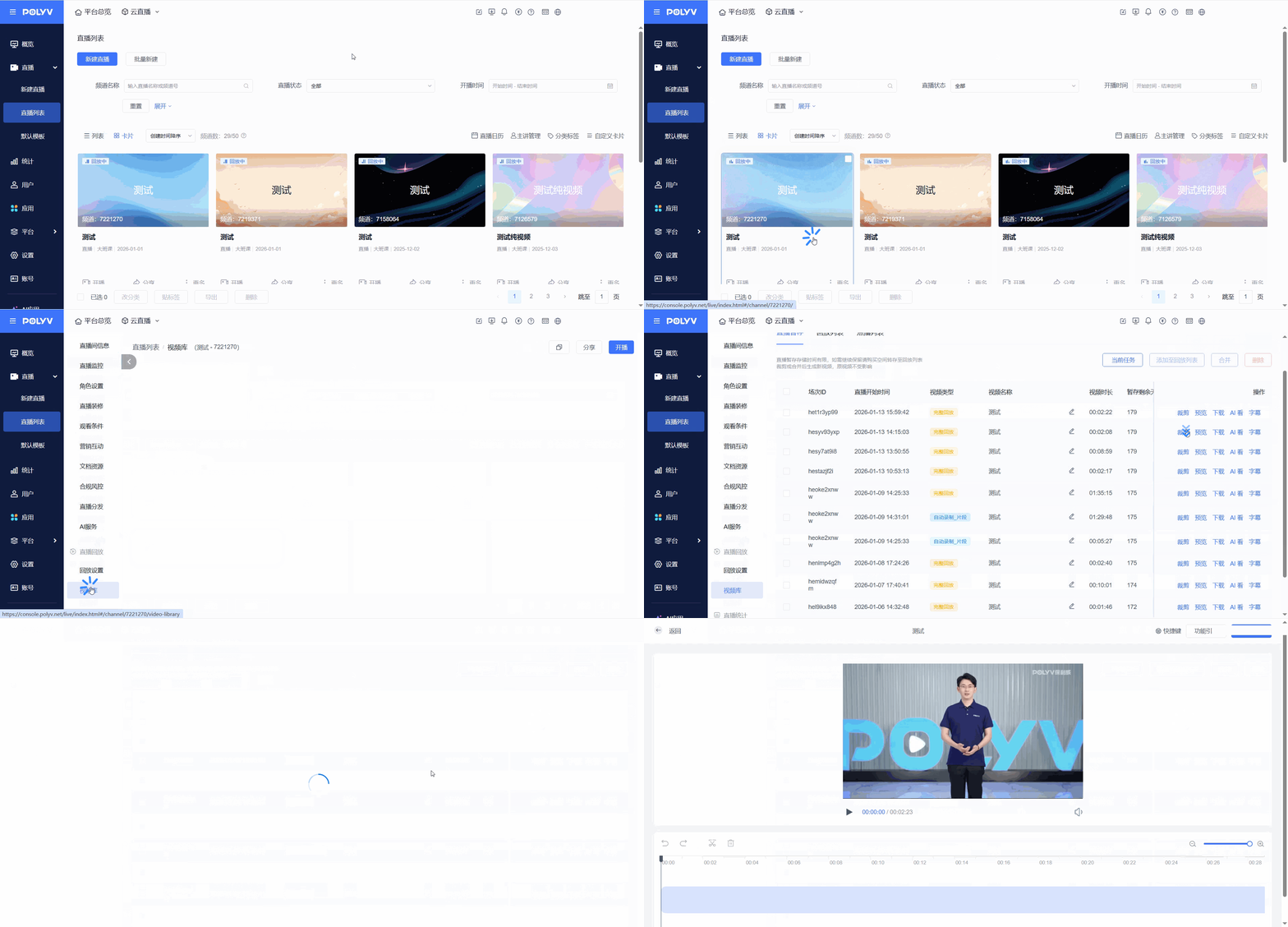
2.2 Trimming Operations
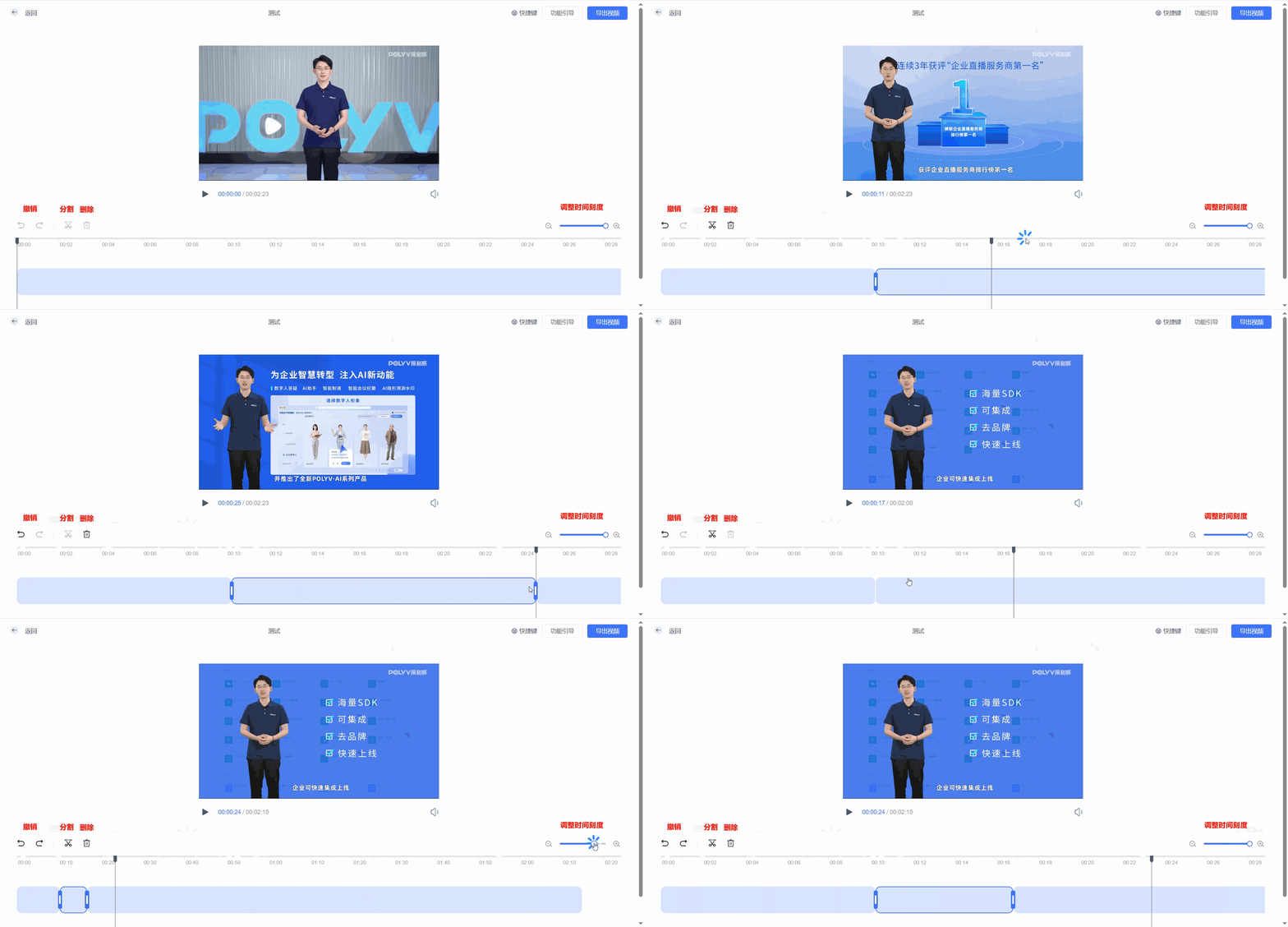
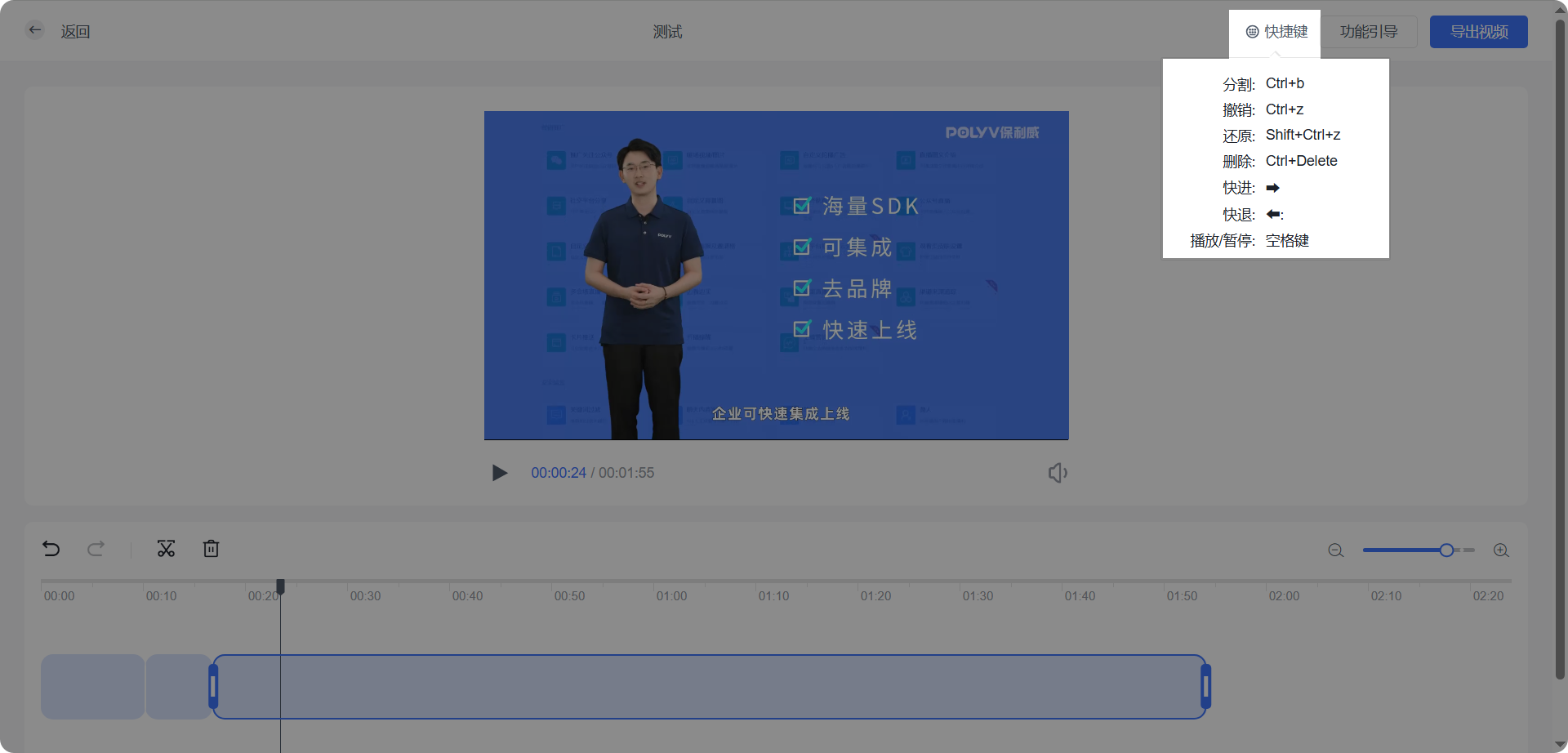
- On the editing page, the bottom toolbar supports [Undo], [Split], [Delete], and dragging to adjust the time scale
- Follow these steps to locate the start or end point of the trim:
- Play the video (or drag the pointer to an approximate position)
- Preview playback: Use the spacebar to quickly play/pause the video and find the exact cut point
- Click Split (or use the shortcut key)
- Adjust the cut point: Fine-tune by dragging the edges of the segment left or right
- After selecting a split segment, you can drag its borders left or right to adjust the time range (this version only supports shrinking the segment by dragging inward, not expanding outward). Note: A segment cannot be dragged beyond its original length.
- Shortcut key operations
2.3 Exporting Videos
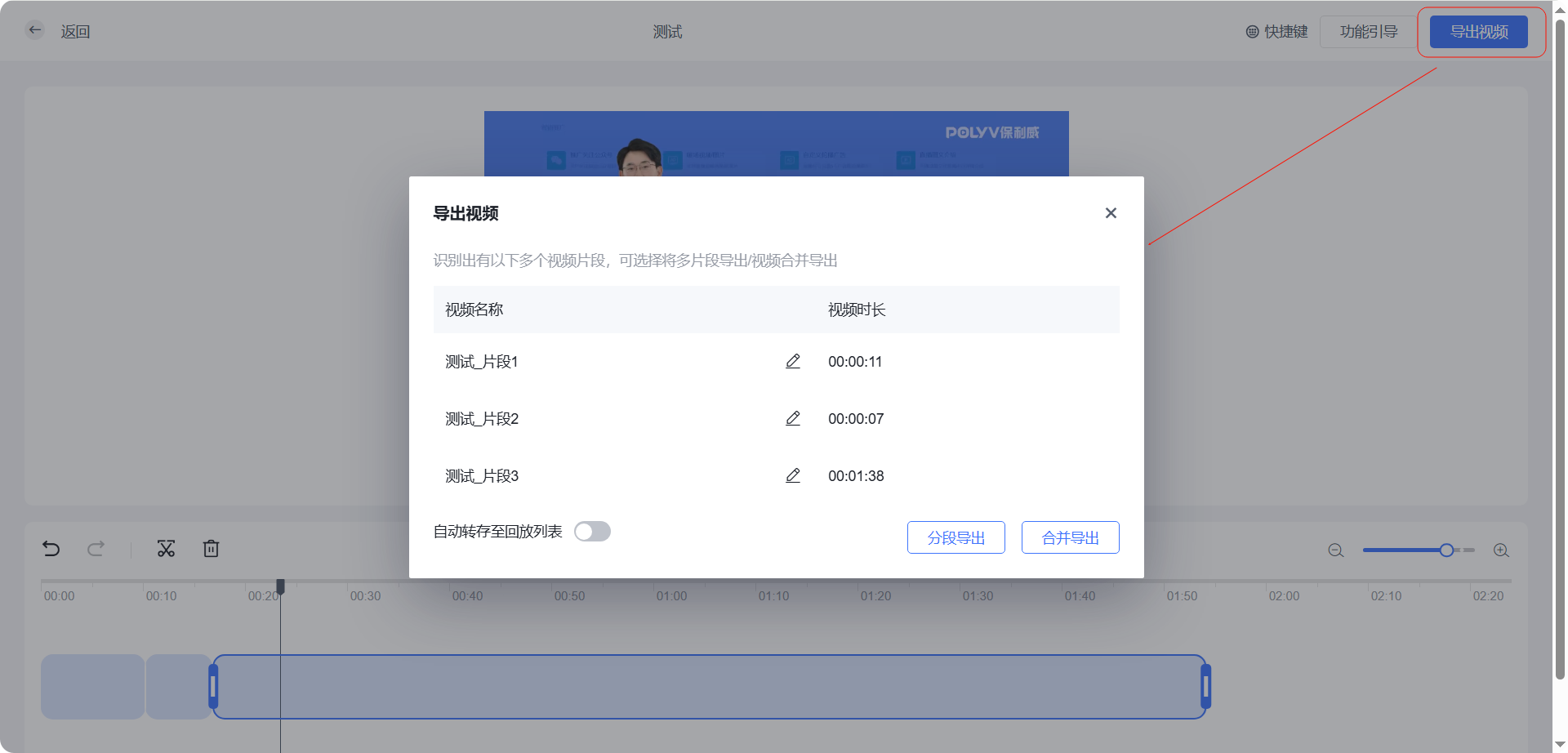
- Export by segment: Suitable for trimming parts of a video; supports exporting split segments independently
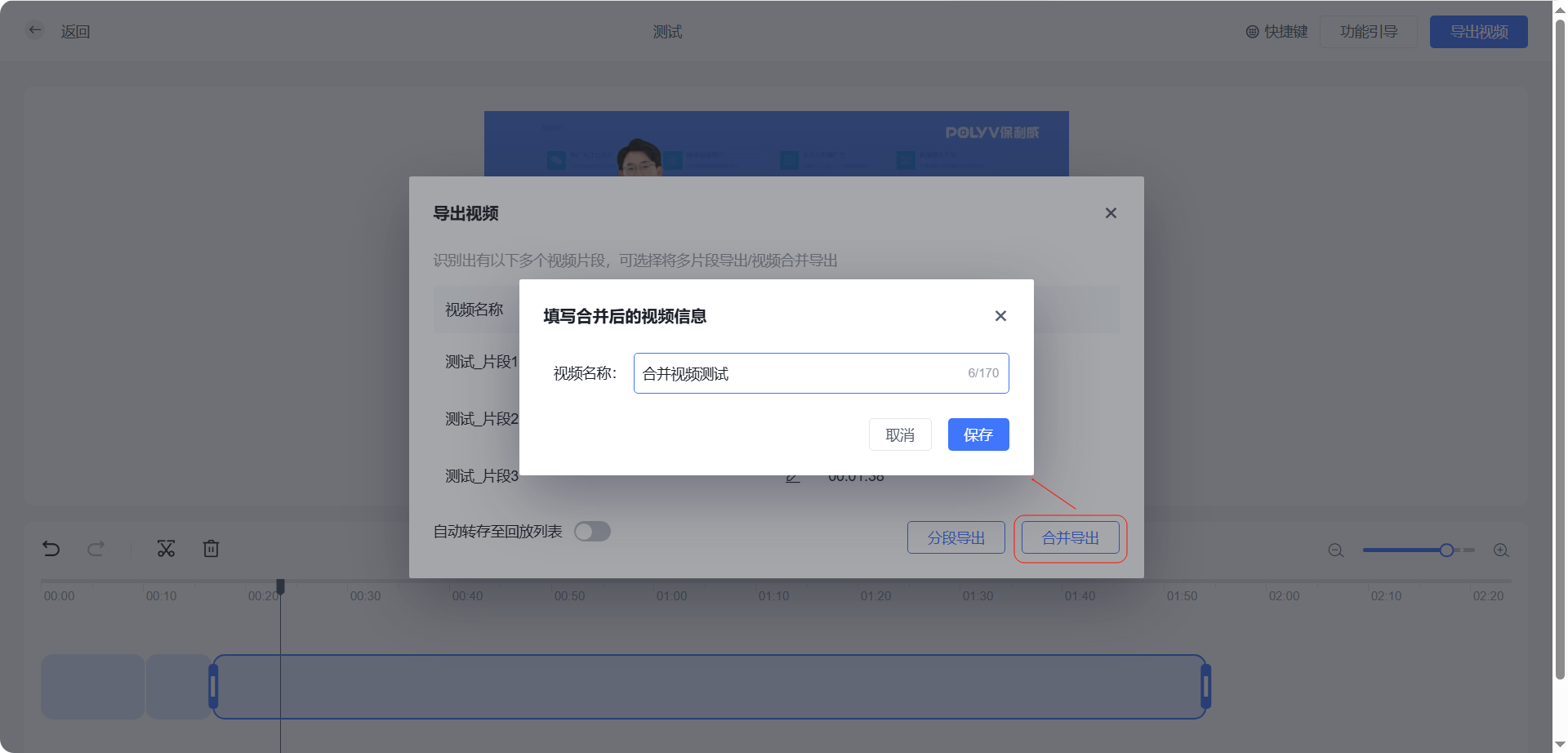
- Merge and export: Combine multiple trimmed segments into a single independent video for export
- Note: After trimming, if the original video contains subtitle files, the exported video will only retain subtitle segments corresponding to the video content. If the subtitle file is inaccurate, you can regenerate it.
- Merge and export: Supports modifying the name of the merged video
- Current task: Supports viewing the status of the trimming task
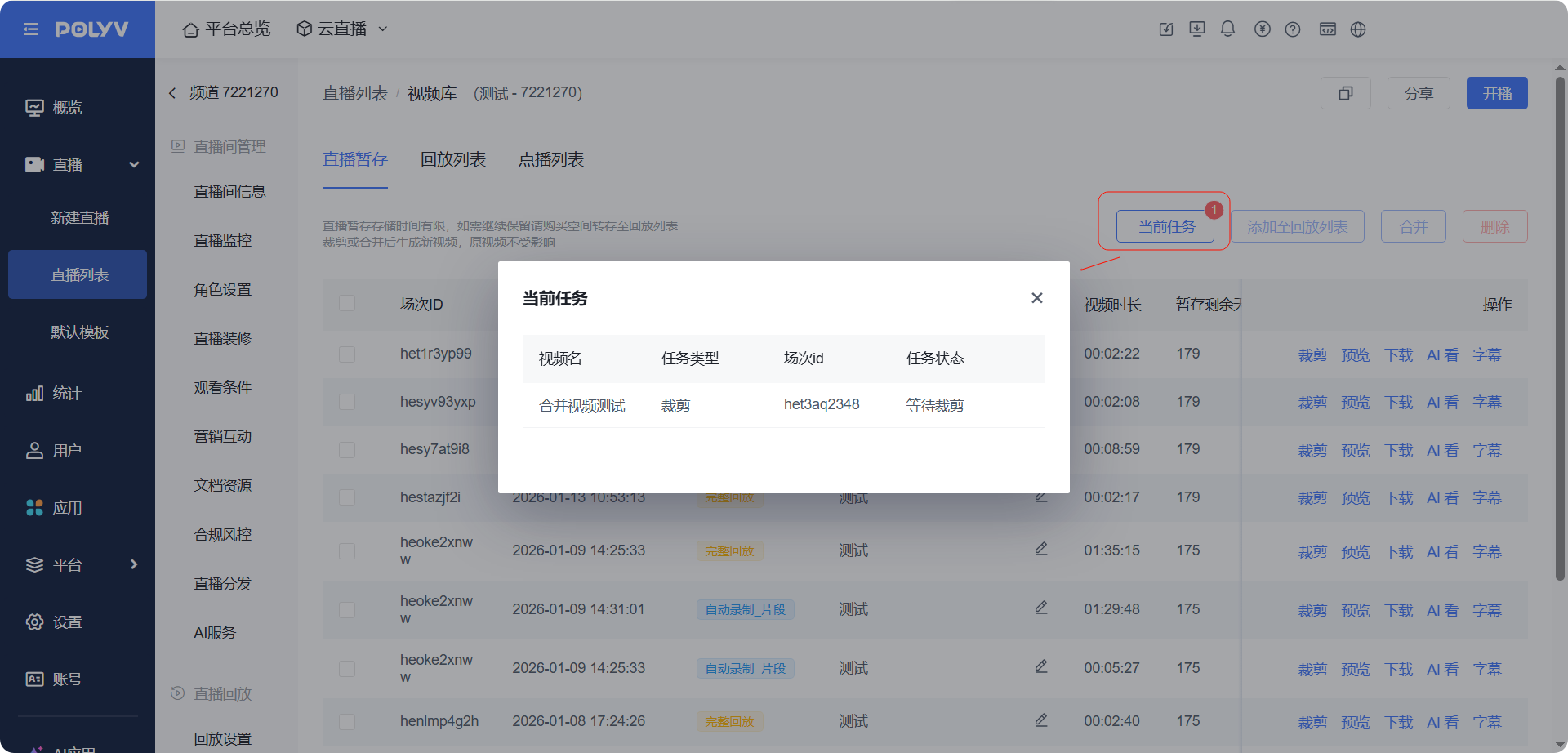
- The trimmed video is saved to the "Live Staging" interface