


How to Integrate an RTSP Camera Feed into the Live Streaming Client?
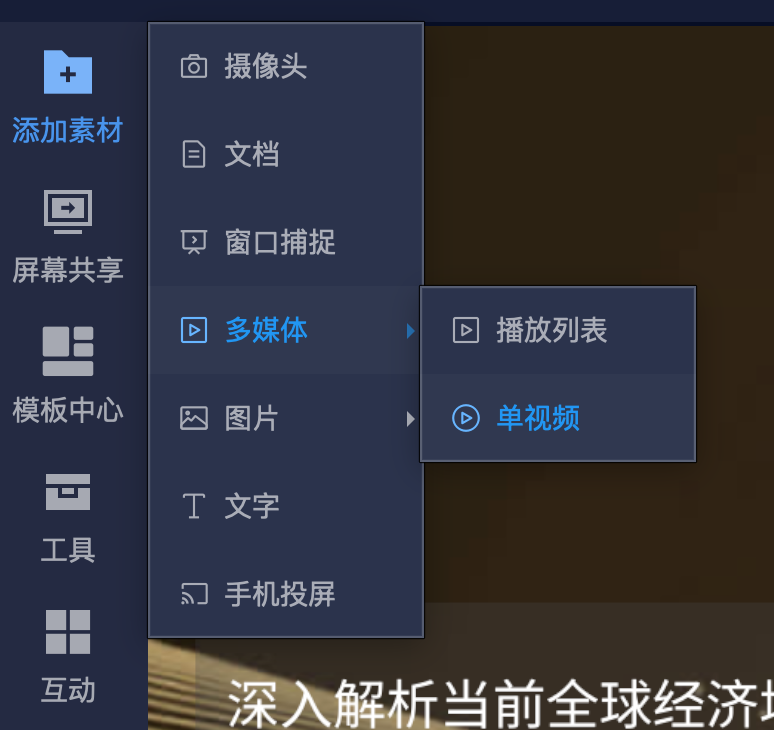
The live streaming client can add an RTSP online video stream by selecting [Add Material] → [Multimedia] → [Single Video], placing the real-time feed from a surveillance camera into the live stream. Common scenarios include displaying monitoring feeds from production workshops, stores, or event venues.
1. Preparation Before Integration
- Confirm that the camera supports RTSP and obtain the complete RTSP video stream address from the device administrator. Address formats, ports, and access authentication methods may vary by device; refer to the device configuration.
- Ensure the computer running the live streaming client can access the camera. When using a local area network (LAN) address, the computer and camera must be on a mutually accessible network.
- Confirm that you have authorization to use the camera feed to avoid displaying personal privacy or other inappropriate content during the live stream.
The RTSP address is used by the live streaming client to read the camera feed, not as the push stream address for the live channel. If the address includes a username and password, keep it secure and do not disclose it to the audience.
2. Steps
1. Add a Single Video Material
Log in to the live streaming client and enter the channel you intend to broadcast. Click [Add Material] on the left, then select [Multimedia] → [Single Video].
2. Enter the RTSP Video Stream Address
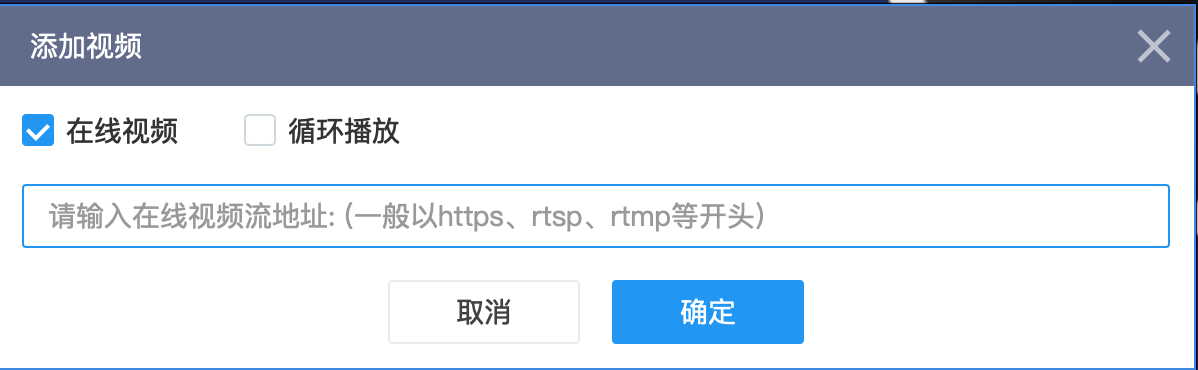
In the [Add Video] popup, check [Online Video], paste the complete RTSP address you obtained into the input field, and then click [OK].
Use the actual video stream address provided by the camera, starting with rtsp://, and do not enter the camera's management page URL.
3. Confirm the Feed and Start Broadcasting
After adding, check whether the client displays the camera's real-time feed normally. Adjust the material's position and size in the scene as needed for the live stream. Only start broadcasting after confirming the feed is working, and check the actual playback effect on the viewer side.
3. Common Issues
No feed after adding, how to troubleshoot?
- Check if the camera is online and if the RTSP service is enabled.
- Verify that the address is complete, including the device address, port, video stream path, and authentication information.
- Check network connectivity between the live streaming computer and the camera; a LAN address cannot be accessed directly from other networks.
- If the feed still does not display, ask the device administrator to verify that the RTSP address can play normally on the same computer. If the address plays but the client still fails, contact technical support with the client version, device model, and error screenshot. Do not expose usernames or passwords in public screenshots.
What if the camera feed disconnects during the live stream?
Check the camera's power supply, device status, and network connection. After recovery, first confirm the feed in the client, then check the viewer side effect. Do not rely solely on the material being added as an indicator of successful integration.
