


Viewing Conditions
I. Feature Overview
Feature Info |
Description |
|---|---|
| Feature Name | Viewing Conditions |
| Feature Description | Supports setting viewing thresholds for live streams, and configuring primary and secondary viewing conditions based on different audience types |
| Purpose | Used to control the viewable range of live content, ensuring content is only accessible to the target audience |
| Use Cases | Suitable for live streaming scenarios requiring restricted viewing permissions, such as internal meetings and paid live streams |
| Operation Path | 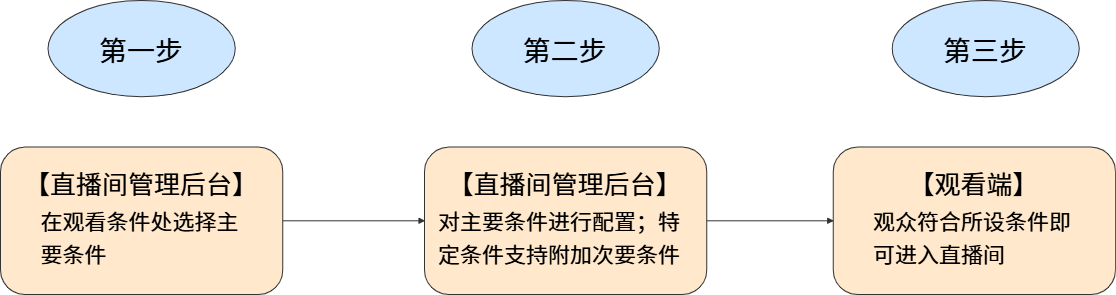 |
II. Feature Entry Points
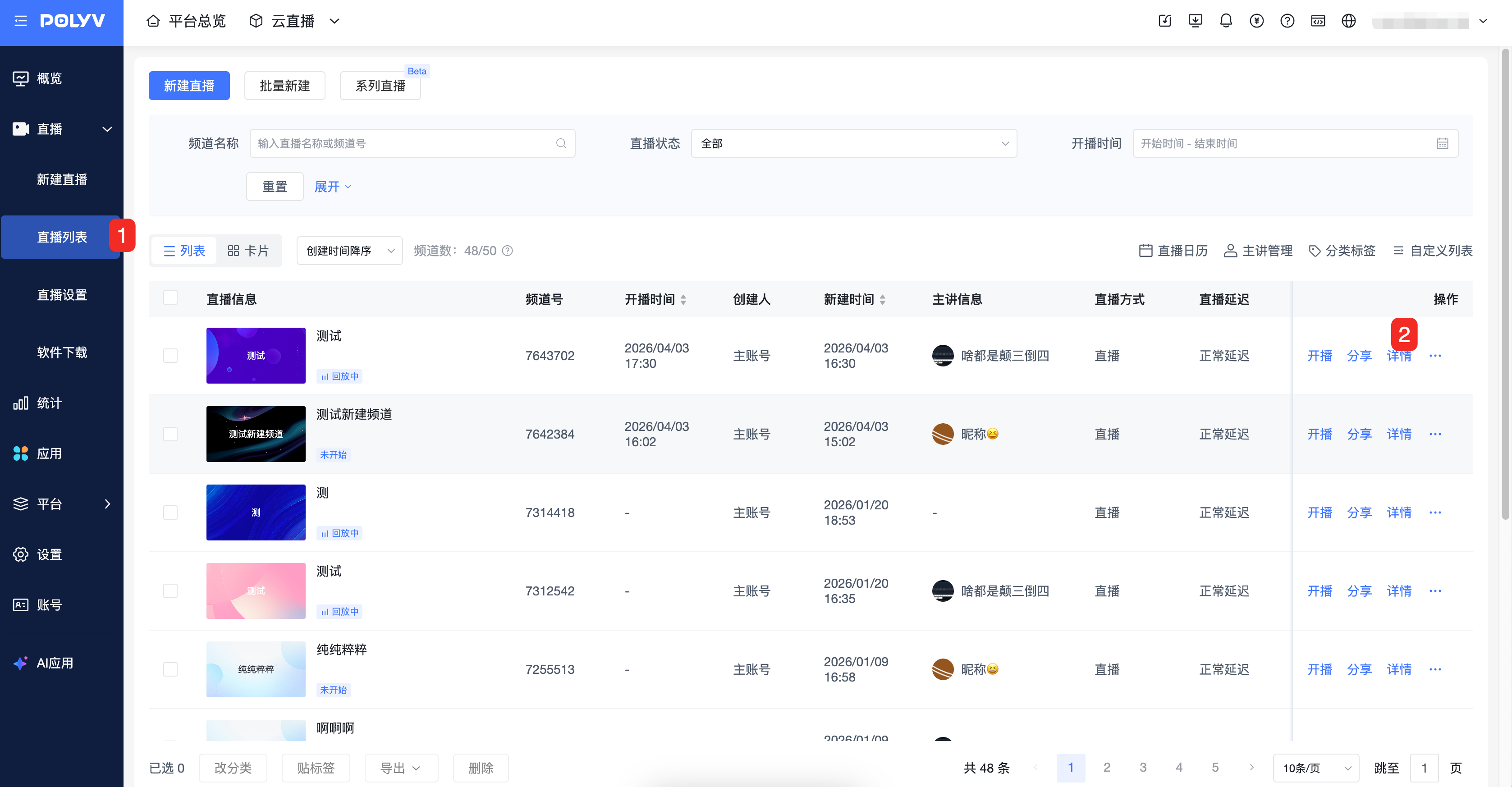
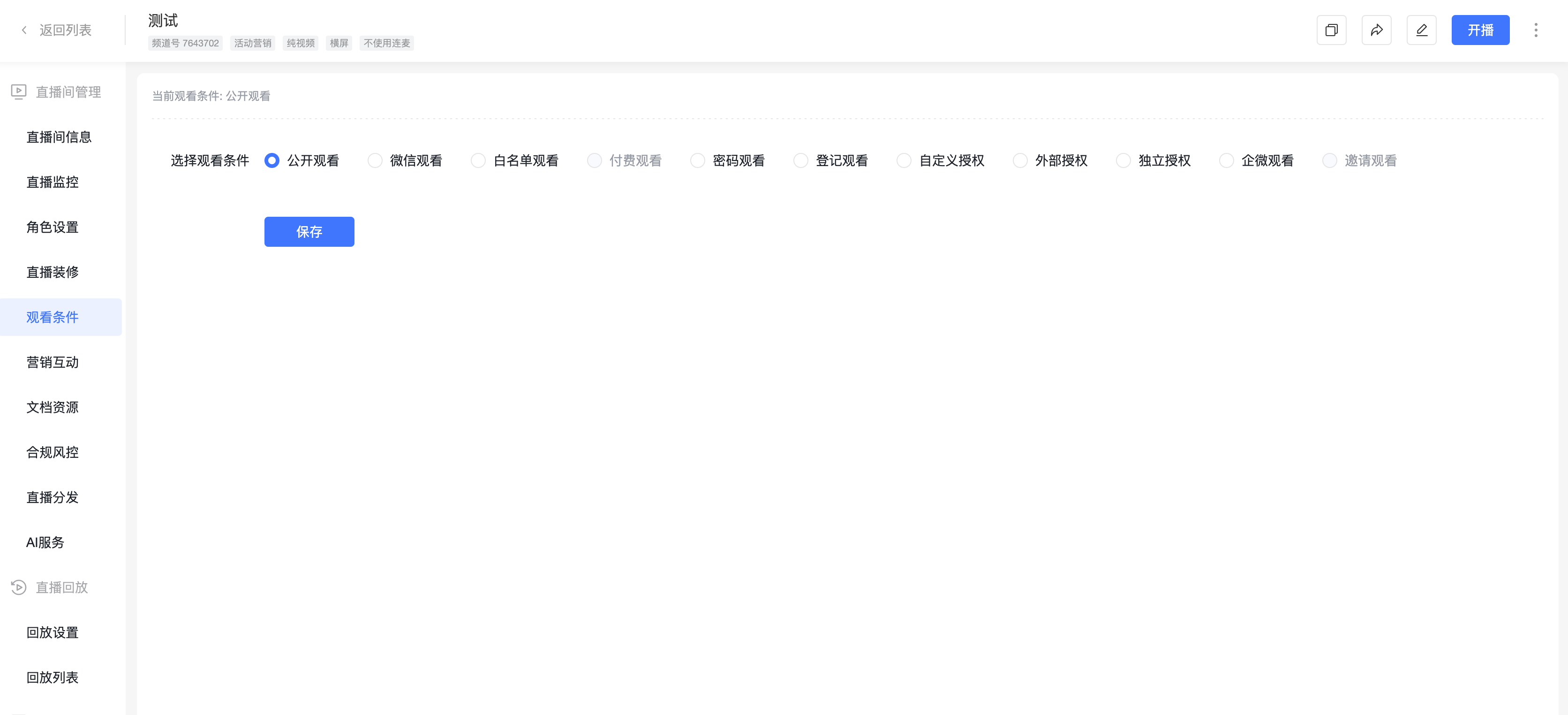
- Go to the "Live List" page, select a live stream and click "Details". In the live room management module, click "Marketing & Interaction" - "Viewing Conditions"
- To configure once and reuse multiple times, use the "Default Template" settings
III. Viewing Conditions Introduction
1. Public Viewing
(1) Applicable Scenarios
Suitable for public live streams; no viewing restrictions for the audience.
(2) Usage Instructions
- Select "Public Viewing" and save to start a public live stream.
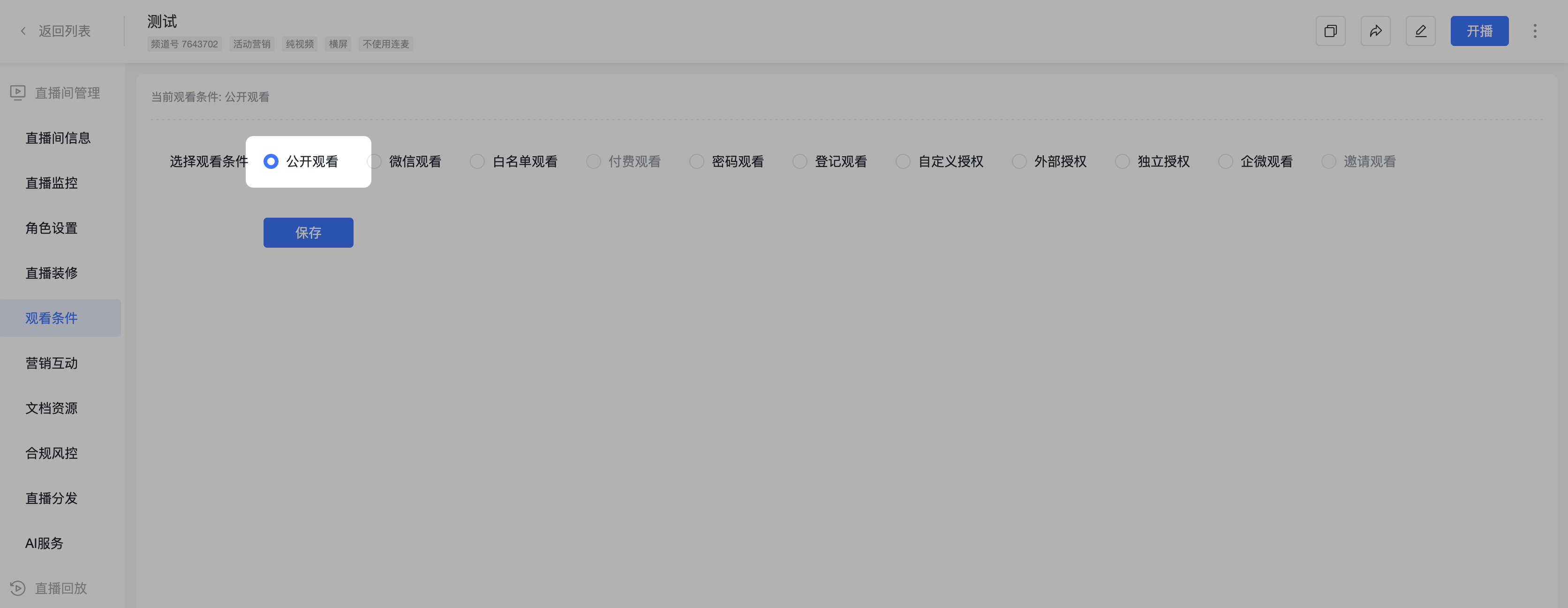
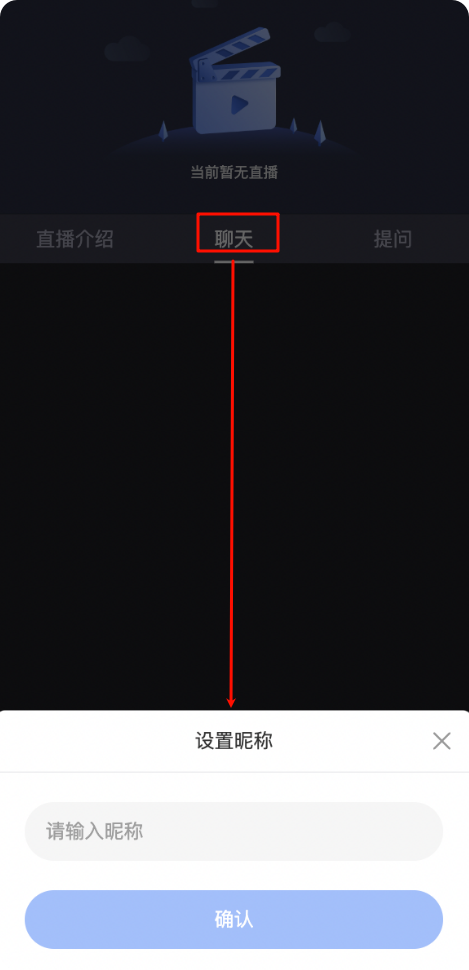
- When watching a live stream under public viewing conditions, viewers will be prompted to set a nickname before speaking.
2. WeChat Viewing
(1) Applicable Scenarios
Suitable for WeChat private domain live streams; viewers must enter the live room via the WeChat environment and complete WeChat authorization to watch.
(2) Usage Instructions
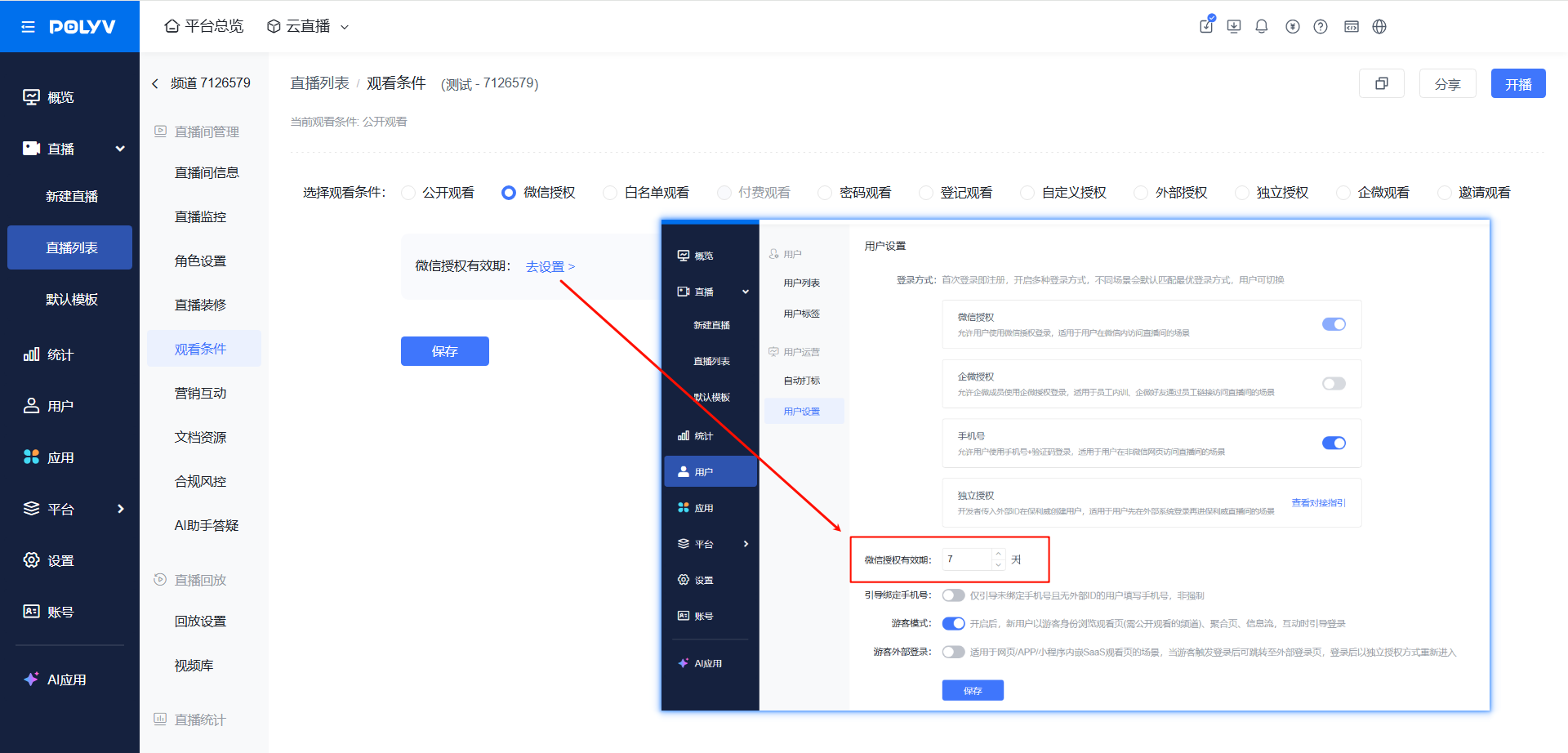
- Enable User System:
- Supports obtaining the viewer's OpenID, WeChat avatar/nickname; can be used with invitation posters/invitation boards for WeChat private domain live stream virality.
- Supports setting a "WeChat Authorization Validity Period". Viewers entering the live room within the validity period do not need to re-authorize, preventing audience loss.
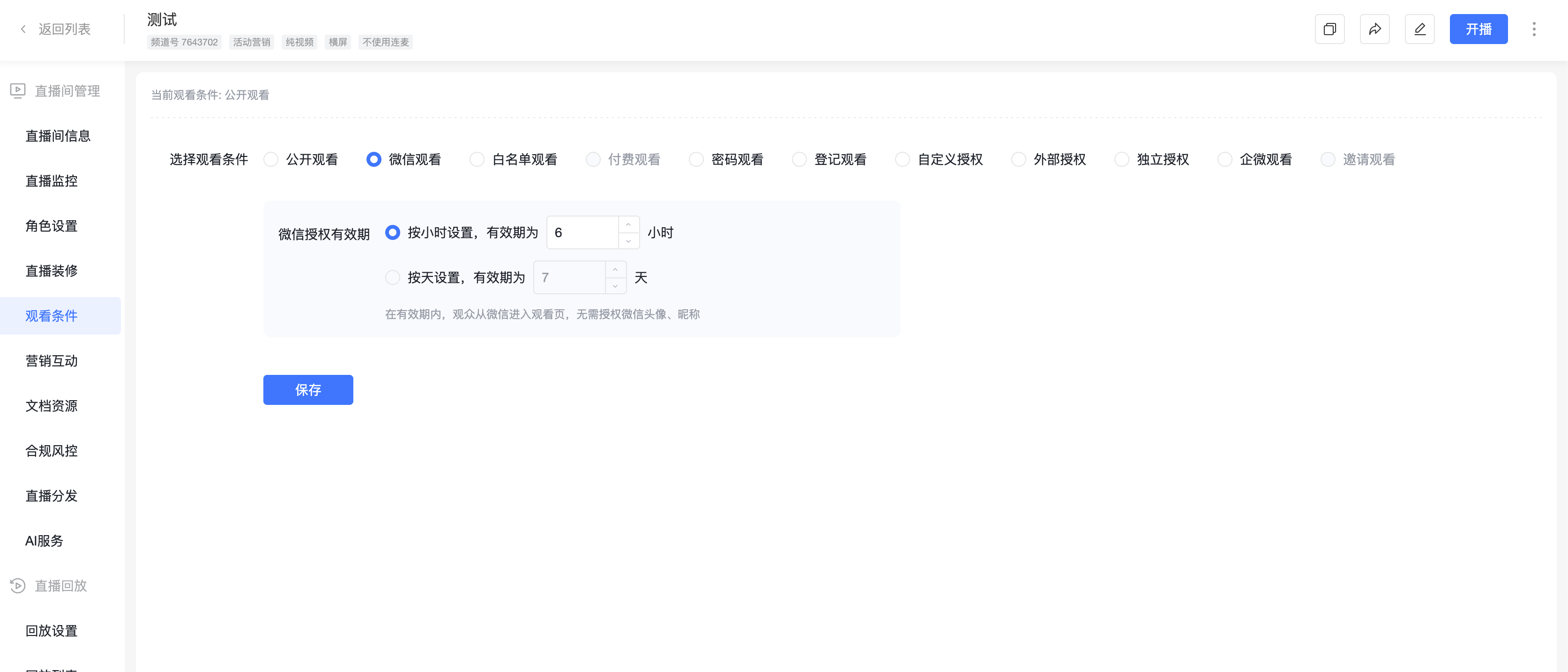
- User System Disabled:
- Supports setting a "WeChat Authorization Validity Period" by hours/days. Viewers entering the live room within the validity period do not need to re-authorize, preventing audience loss.
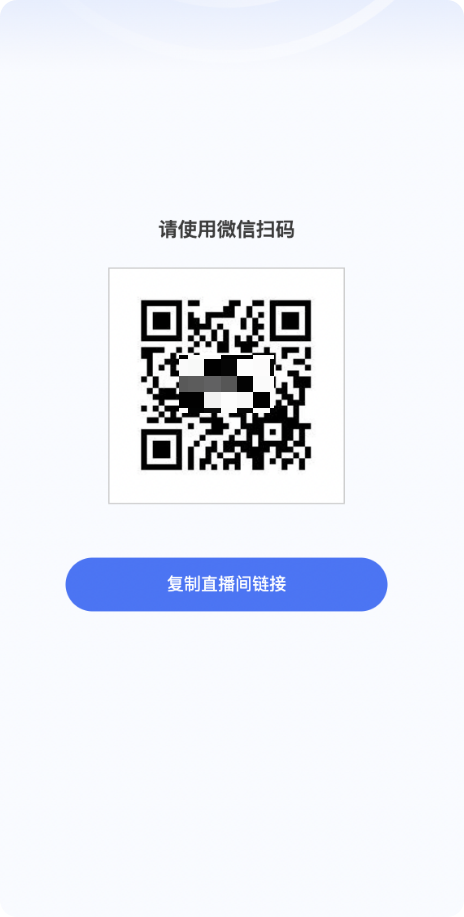
- Viewers entering a "WeChat Authorization" live room from a non-WeChat environment will be guided to open it in WeChat.
3. Whitelist Viewing
(1) Applicable Scenarios
Suitable for internal training live streams and course delivery live streams; viewers can watch after entering a "Membership Code", with different codes for different viewers.
(2) Usage Instructions
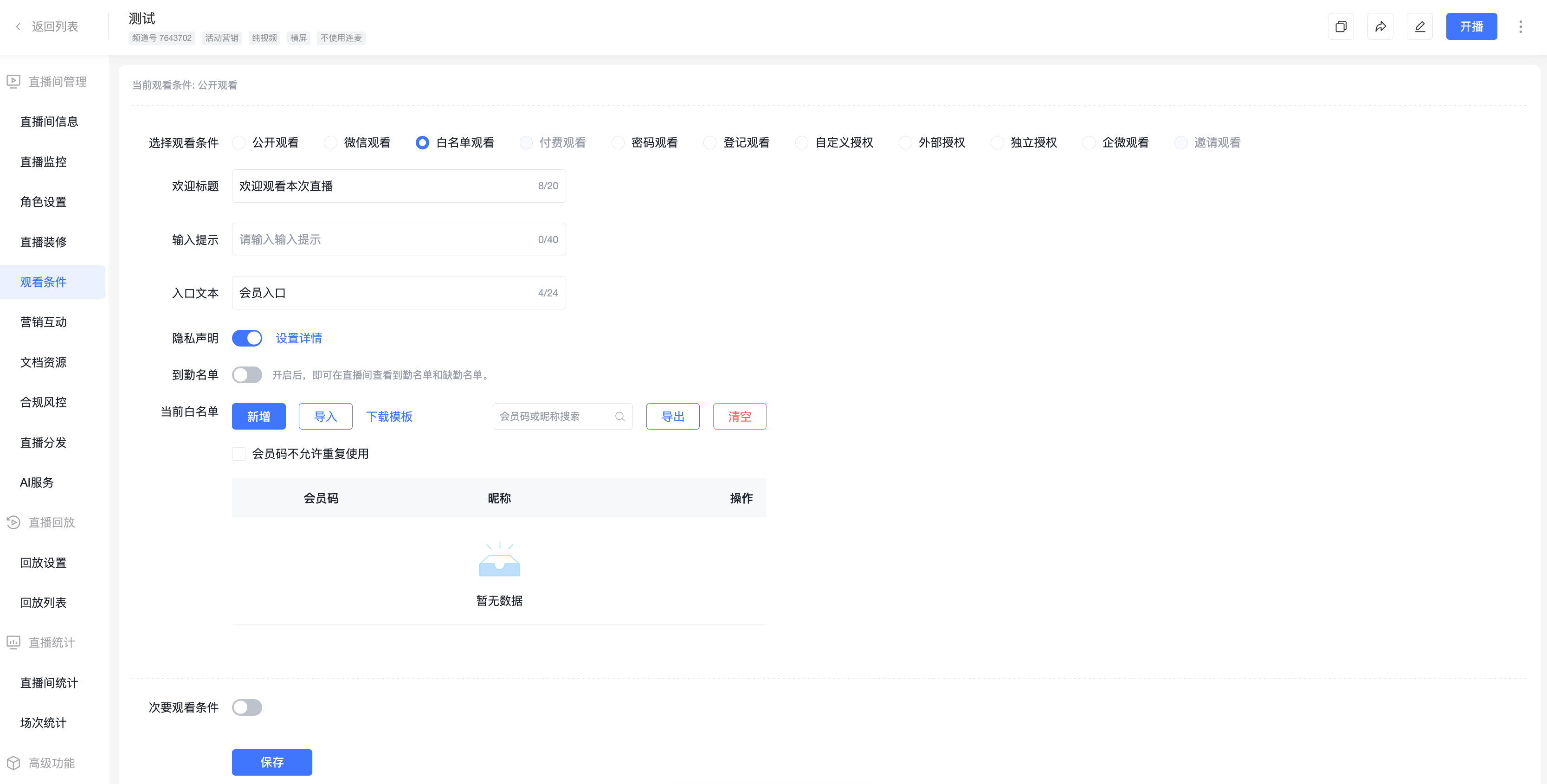
- Supports configuring the whitelist:
- Single Whitelist Entry: Click "Add New", set the "Membership Code".
- Multiple Whitelist Entries: Click "Download Template", save the whitelist table, then "Import" the table.
- Privacy Statement: When enabled, viewers must agree to the set privacy statement before entering the live room.
- Attendance List: When enabled, the attendance and absence lists can be viewed in the live room.
- Membership Code Non-Reusable: A single membership code can only be used by one viewer.
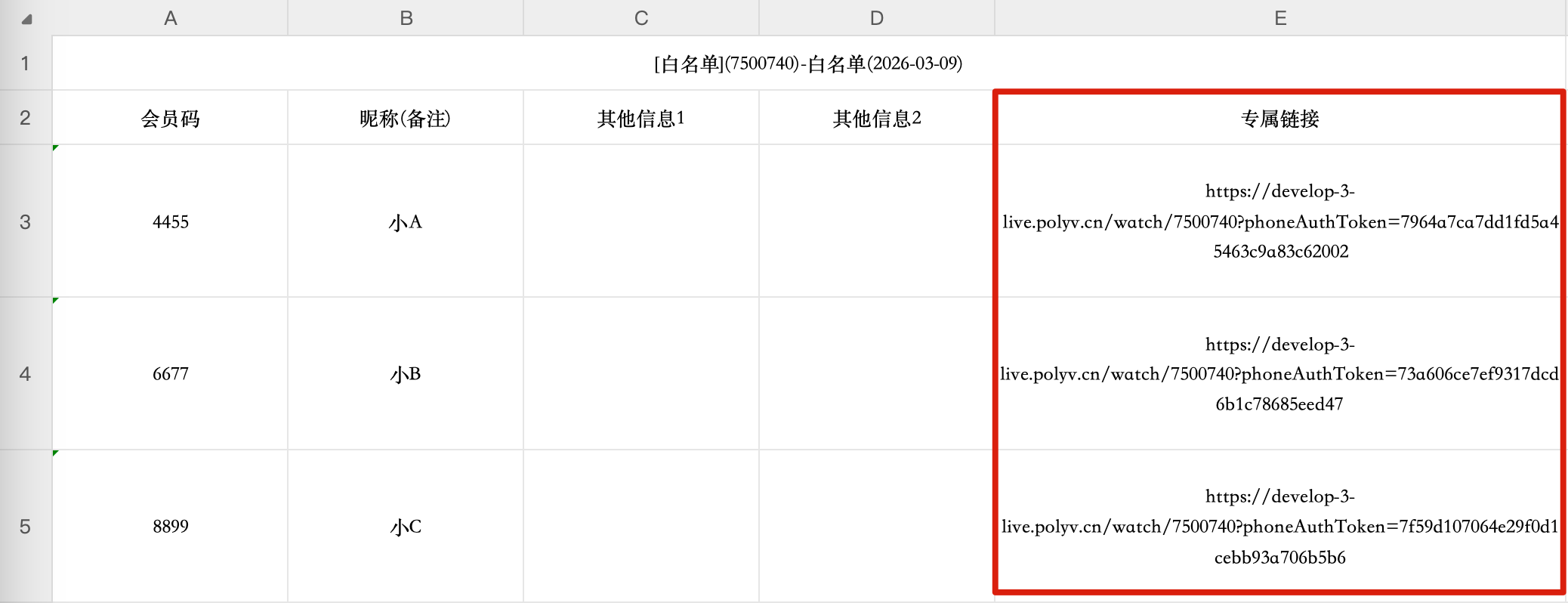
- Export the whitelist list to obtain exclusive password-free links (each user generates a unique password-free viewing address). Users click the link to enter directly and activate the whitelist. Suitable for scenarios where viewing links are pushed to users via email/SMS/WeCom.
4. Paid Viewing
(1) Applicable Scenarios
Suitable for paid course live streams and paid event live streams; viewers must pay to watch the live stream.
(2) Usage Instructions
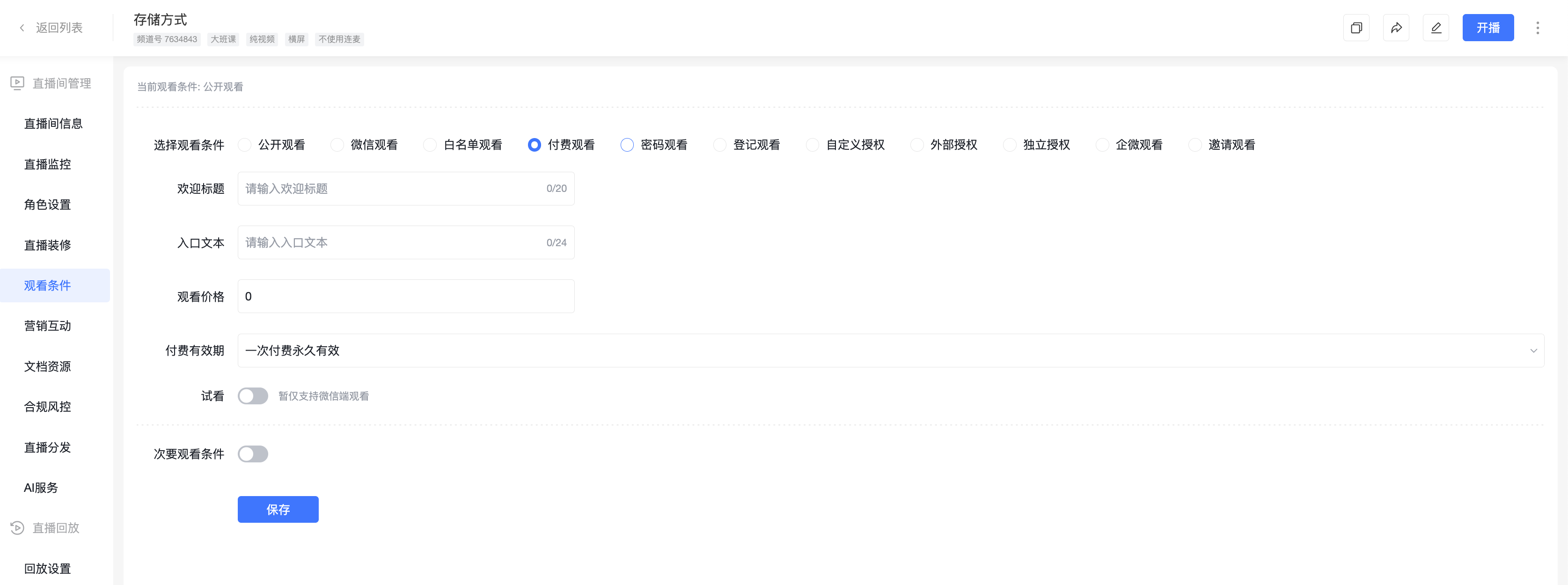
- This feature requires binding a WeChat Pay merchant account first.
- Supports setting the viewing price, payment validity period, and whether a preview is available (if yes, continue to set the preview duration and preview validity period).
- Viewers entering a "Paid Viewing" live room from a non-WeChat environment will be guided to open it in WeChat.
5. Password Viewing
(1) Applicable Scenarios
Suitable for semi-public live streams; viewers can watch after entering a "Password", with the same password for all viewers.
(2) Usage Instructions
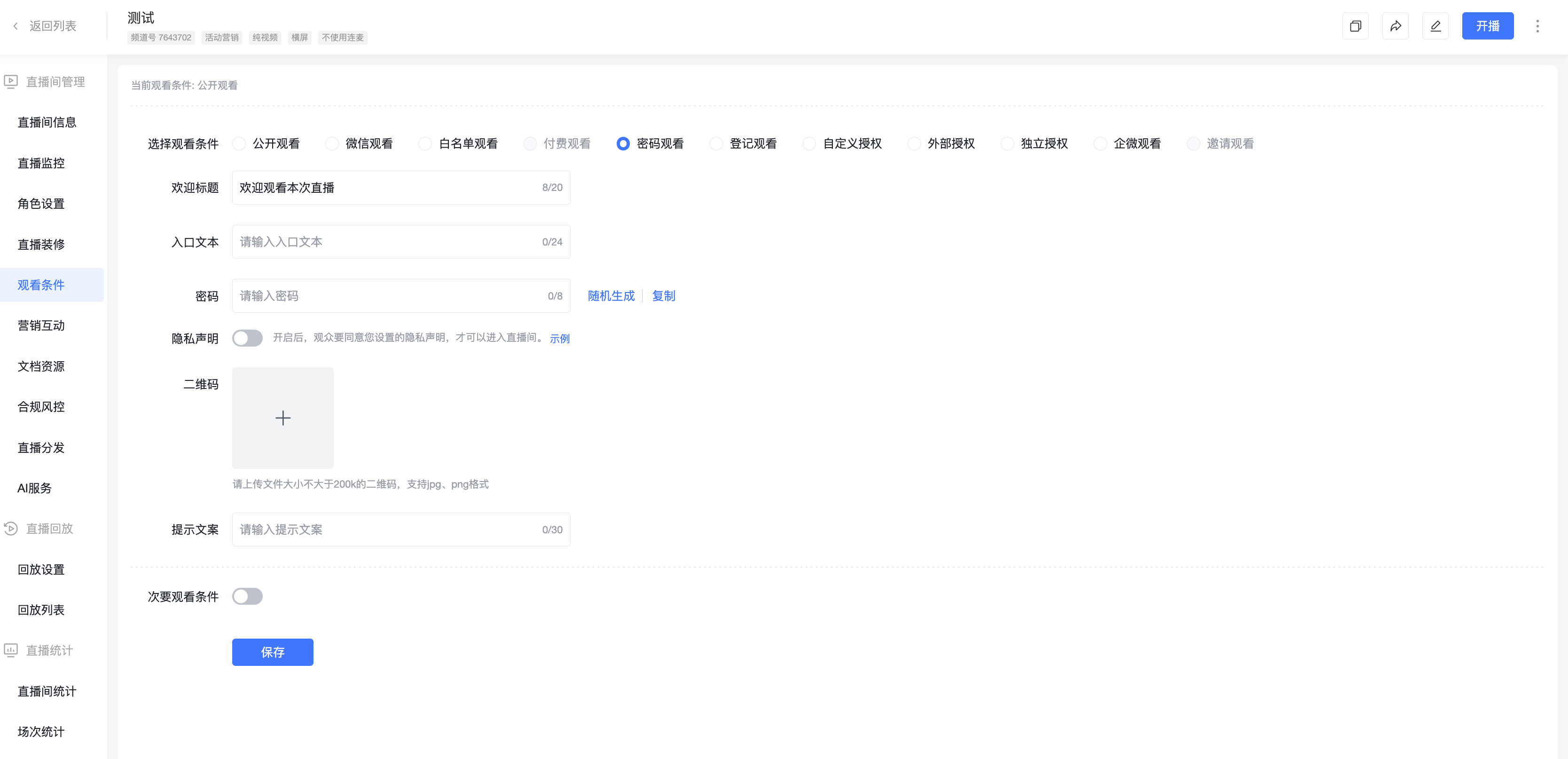
- Password Settings
- Supports customizing the password entry prompt text.
- Supports random password generation.
- Supports uploading a QR code image.
6. Registration Viewing
(1) Applicable Scenarios
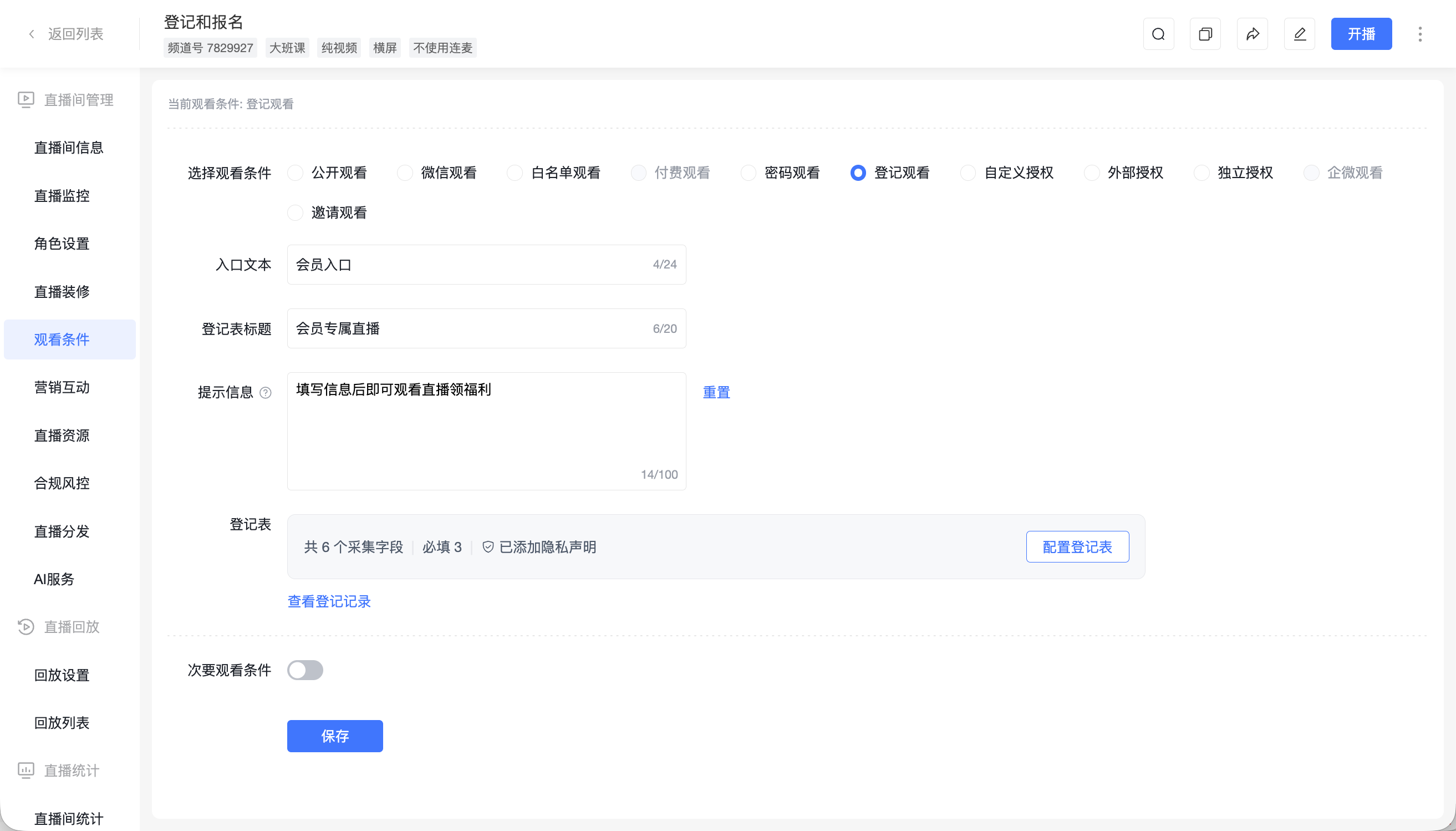
Suitable for event live streams; viewers can watch after filling out a registration form.
(2) Usage Instructions
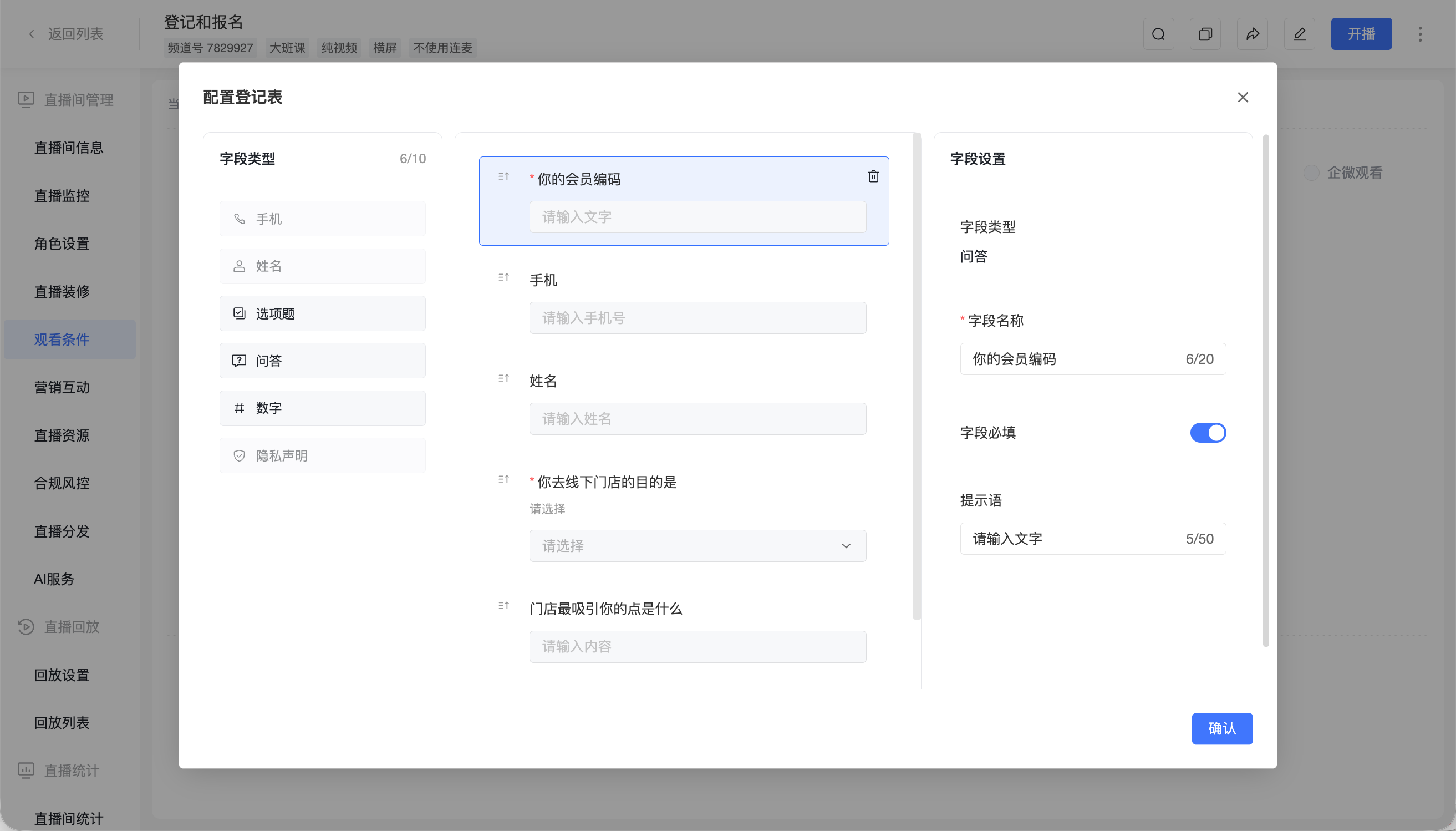
- Configure registration form fields to collect viewer information.
- Supports customizing information types; all fields can be set as optional.
- Supports viewing/exporting registration list data.
- For scenarios involving channel promotion of live streams and obtaining user information via registration forms, it can be used in conjunction with the "Channel Promotion" feature.
7. Custom Authorization
(1) Applicable Scenarios
Suitable for live streams requiring custom authorization development.
(2) Usage Instructions
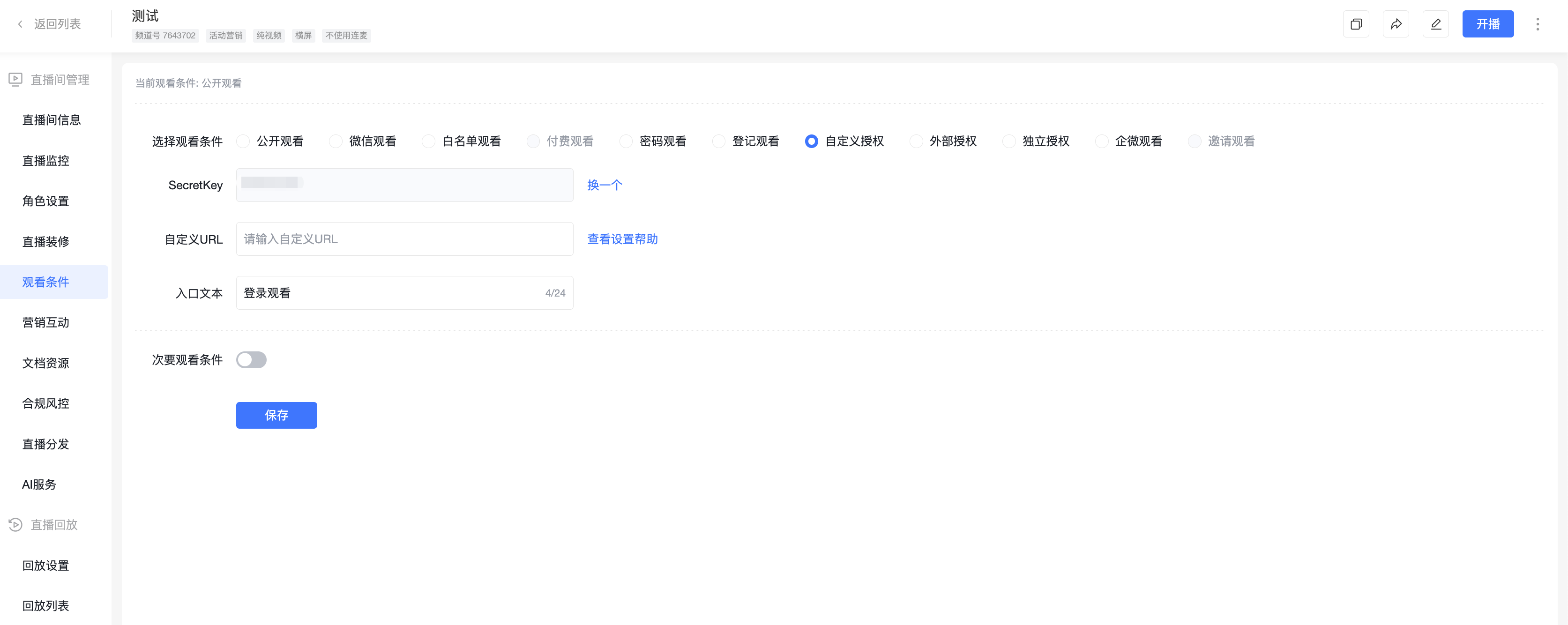
- Developers configure a "Custom URL" in the management console in advance. When viewers enter the live room, they click "Login to Watch" and are redirected to the custom URL, which carries parameters such as channel ID, timestamp, signature, and authorization success callback URL.
- The client system validates the parameters. Upon successful validation, the client system must redirect back to the "Authorization Success Callback URL" from the previous step, including parameters like user ID, nickname, and signature in this callback URL.
- The POLYV system validates the relevant parameters. Upon successful validation, the viewer enters the POLYV live room with the corresponding identity. If validation fails, an error page is displayed.
8. External Authorization
(1) Applicable Scenarios
Suitable for live streams requiring external authorization.
(2) Usage Instructions
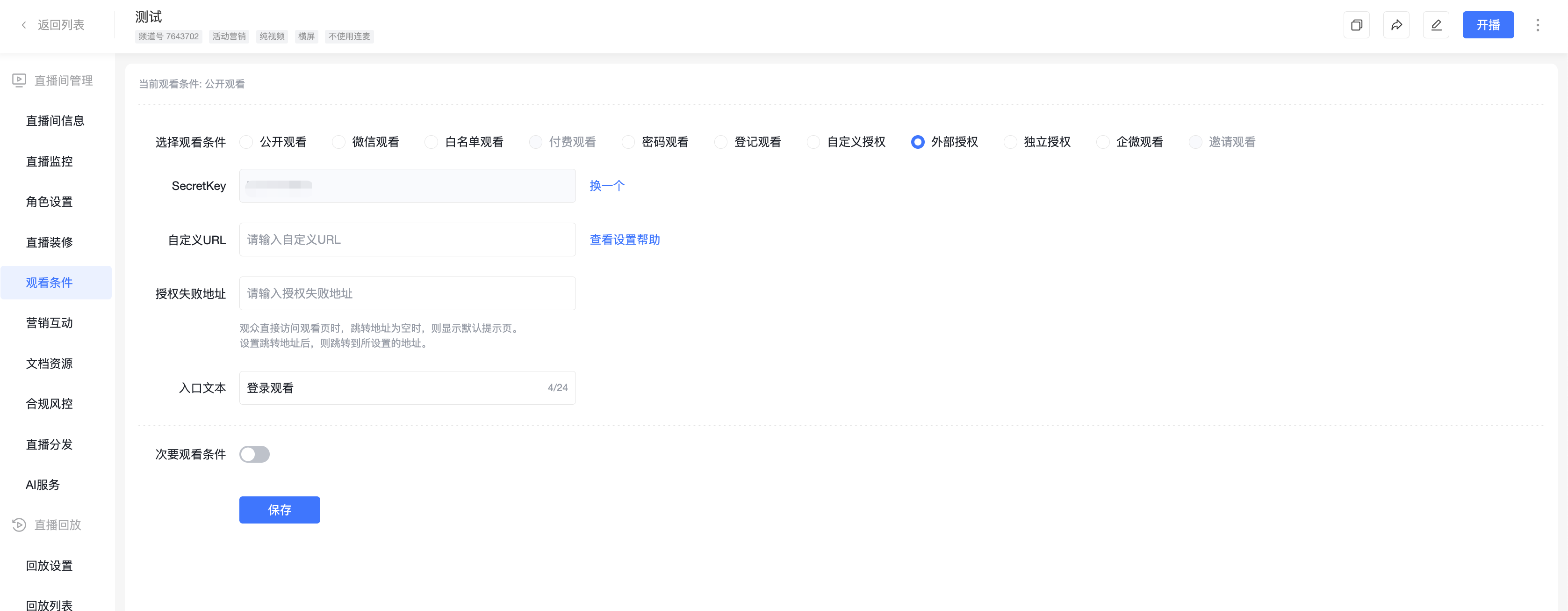
Developers configure a "Custom URL" and "Authorization Failure URL" in the management console in advance. Viewers enter the POLYV live room via the client system, carrying parameters such as user ID, timestamp, and signature. The POLYV live stream performs an initial validation of the URL parameters. Upon success, it calls the custom URL for a secondary validation by the client system. After the client system validates successfully, it returns detailed user information to the POLYV live stream system. Upon receiving the validation result and user identity information, the viewer enters the live room with the corresponding identity.
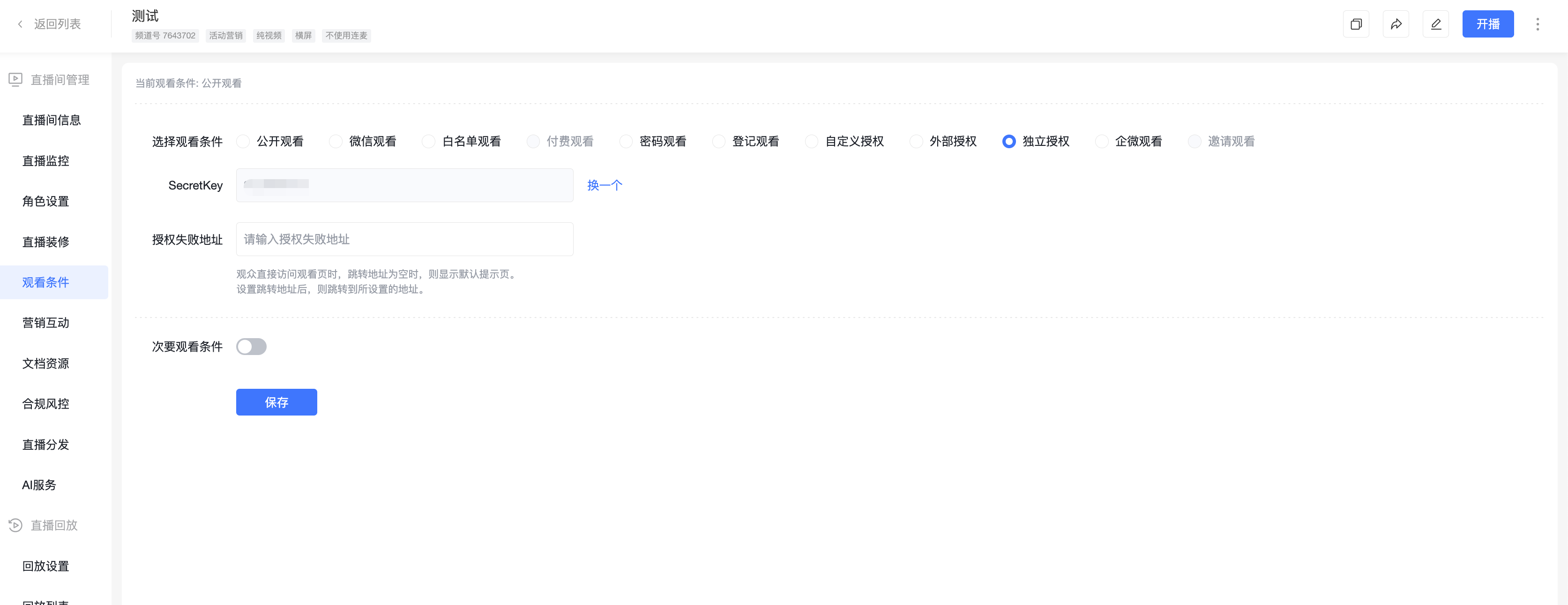
9. Independent Authorization
(1) Applicable Scenarios
Suitable for live streams requiring independent authorization.
(2) Usage Instructions
Viewers enter the POLYV live room via the client system, carrying parameters such as user ID, nickname, and signature. The POLYV live stream validates the URL parameters. Upon successful validation, the viewer enters the live room with the corresponding identity. It also supports the failRedirectUrl parameter for redirection upon authorization failure.
10. WeCom Viewing
(1) Applicable Scenarios
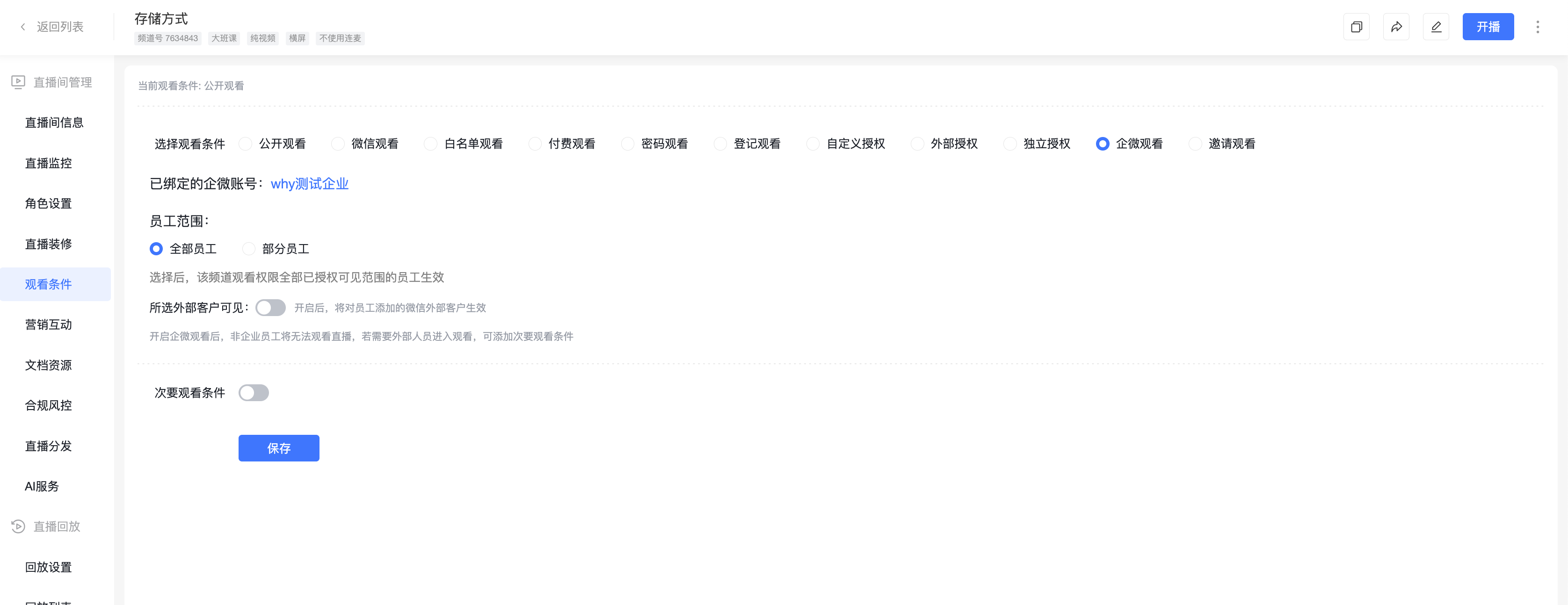
Suitable for WeCom internal training live streams and WeCom private domain marketing live streams. Viewers must be the selected WeCom employees or the customers of the selected WeCom employees to watch the live stream.
(2) Usage Instructions
- This feature requires binding WeCom first.
- Supports setting the employee scope and whether the employees' external customers can view.
11. Invitation Viewing
(1) Applicable Scenarios
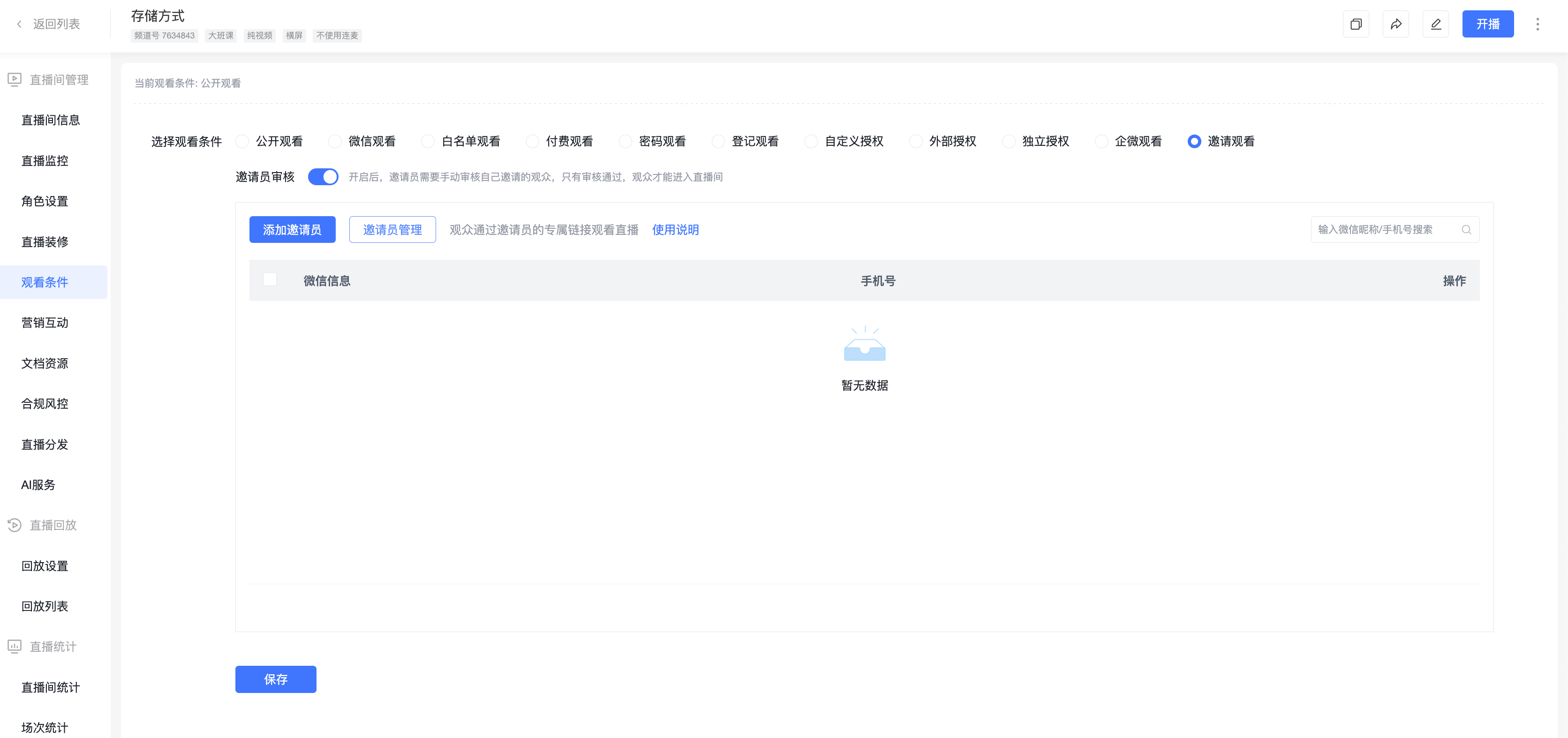
Suitable for WeChat private domain marketing live streams. Viewers must complete verification via the inviter's exclusive invitation link to watch the live stream.
(2) Usage Instructions
For specific operations, please click the help document link to jump: > https://help.polyv.net/index.html#/live/product/live_tools_basic/live_watch_limit_Invite
IV. Combined Use of Viewing Conditions
1. Applicable Scenarios
Suitable for live streams with two types of audience groups. Supports setting primary and secondary viewing conditions.
2. Combination Rules
- Public Viewing, WeChat Authorization, and Invitation Viewing can only be set as primary viewing conditions and do not support setting secondary viewing conditions.
- After setting Whitelist Viewing, Paid Viewing, Password Viewing, Registration Viewing, Custom Authorization, External Authorization, Independent Authorization, or WeCom Viewing as the primary viewing condition, an additional secondary viewing condition (different from the primary one) can be attached.
