Assistant Page
Updated: 2026-09-18 00:40:50
1. What is the Assistant Role
An assistant is a co-manager in the live room, with primary permissions including:
- Assisting the host in managing the room and engaging the audience
- Managing the audience and chat order
- Operating interactive, marketing, and product tools
- Monitoring the live stream status and handling anomalies promptly Assistant permissions are flexible and configurable, suitable for various live streaming scenarios such as training, marketing, and e-commerce.
2. Assistant Role Settings
2.1 Setting Entry
- Admin backend path: Channel → Role Settings → Assistant Settings
2.2 Configurable Permission Scope
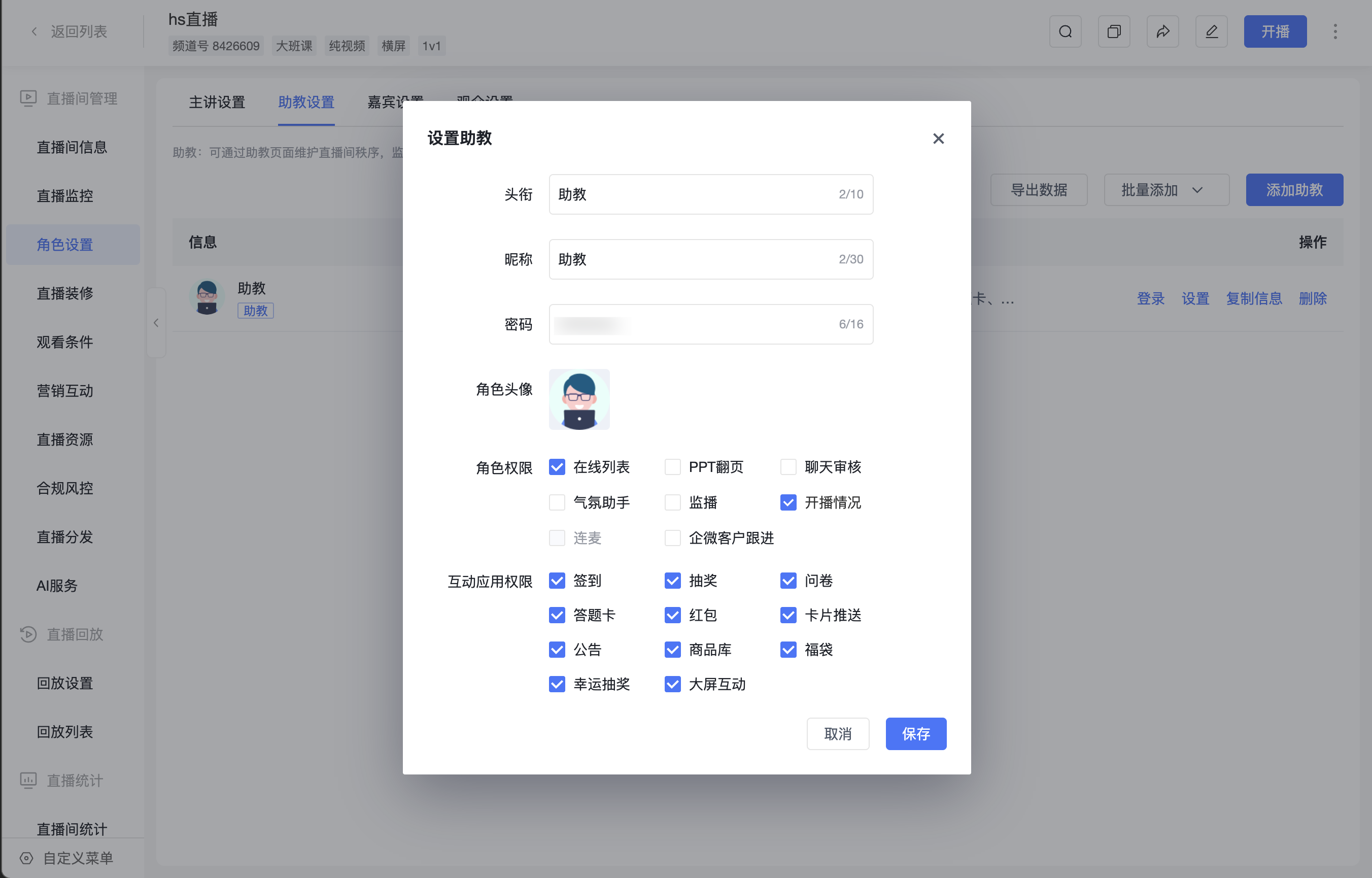
- Find the corresponding assistant in the assistant list, click [Settings], check the desired permissions, and click [Save].
- Role Permissions: Online list, PPT page turning, chat review, atmosphere assistant, stream monitoring, stream status, co-streaming, WeCom customer follow-up.
- Interactive Application Permissions: Check-in, lottery, survey, answer sheet, red envelope, card push, announcement, product library, lucky bag, lucky draw, large screen interaction.
- For more role configuration details, please refer to Role Settings.
3. Assistant Login Methods
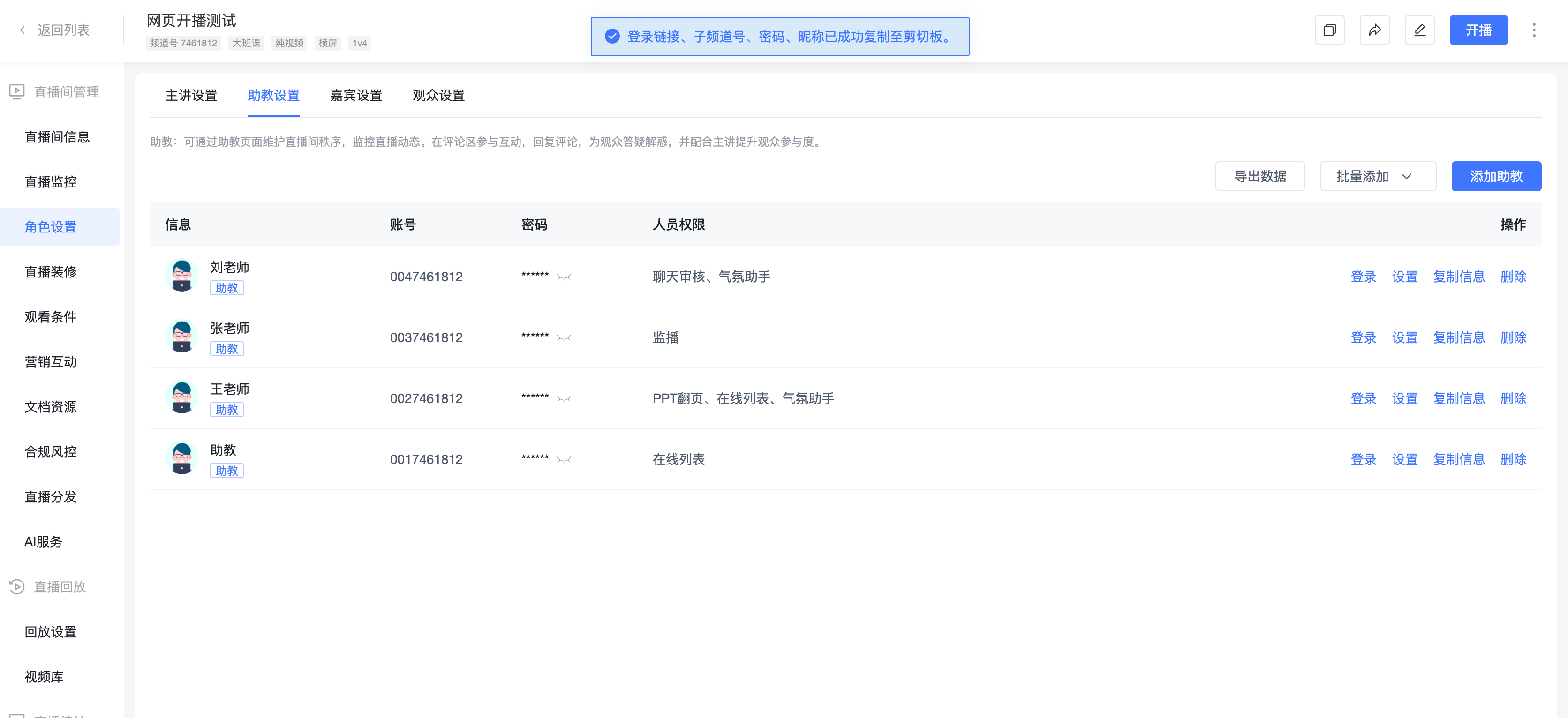
- Assistants log in to the live assistant page via account, supporting multiple methods without needing to install an App, ready to use immediately:
- Account password login
- Password-free login
- Supported Terminals
- PC browser
- Mobile H5 (mobile browser)
4. PC - Assistant Page Operation Instructions
4.1 Managing Chat Interactions
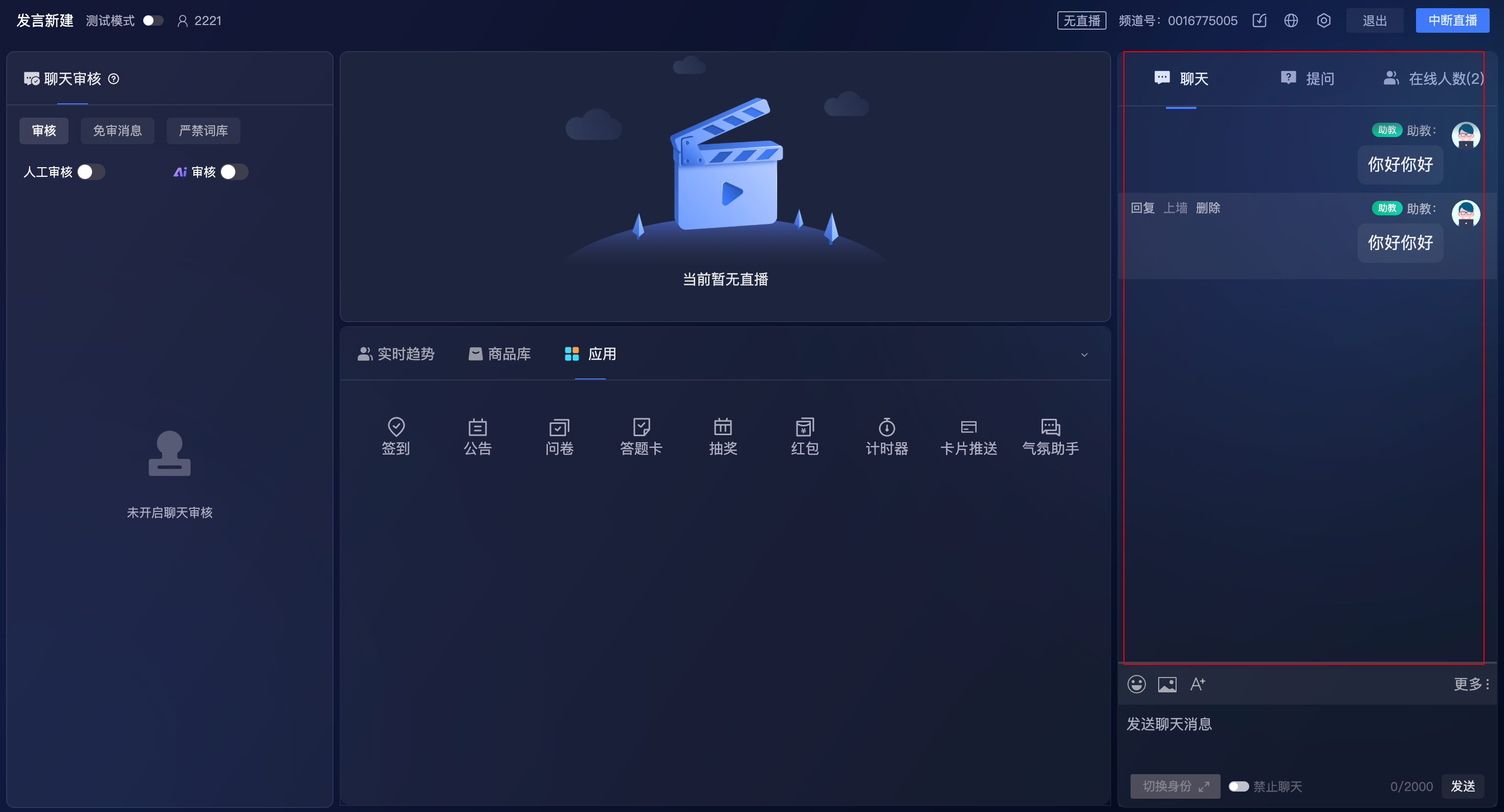
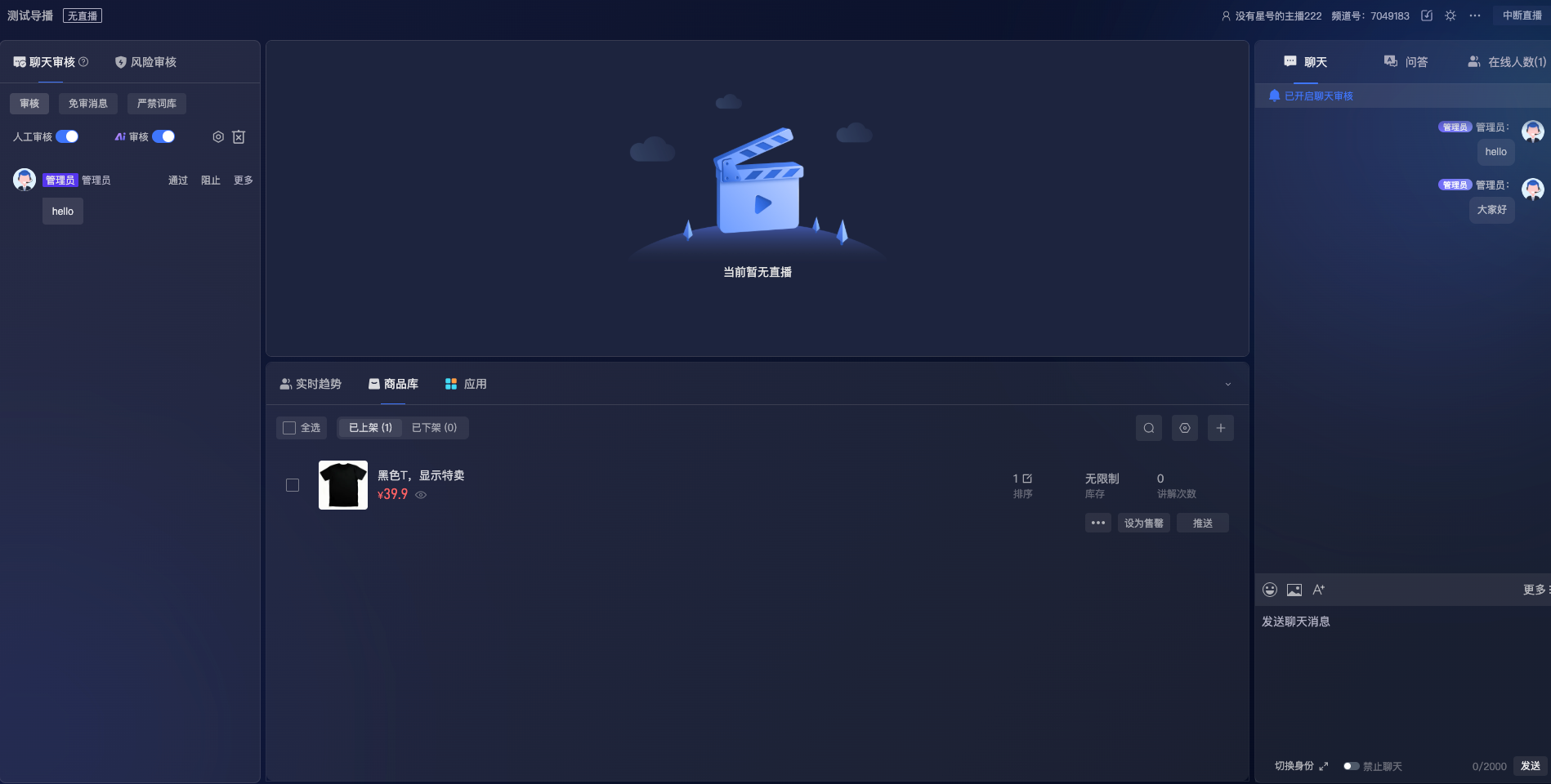
- Chat Review: Choose AI intelligent review or manual review mode to intercept inappropriate comments. Also supports setting a whitelist for exemption and a prohibited word library for automated management.
- View Messages: View different types of audience messages under the "Chat", "Questions", and "Q&A" tabs.
- Questions and Q&A need to be enabled in the admin backend chat room settings.
- Manage Audience: Under the "Online Users" tab, view a list of all current audience members. For individual users, you can mute, kick, reply to comments, private message, or praise them.
- Global Mute: Mute all audience members with one click, suitable for scenarios requiring focused explanation or maintaining order.
- Pin Message: Pin high-quality audience comments to the live room display.
- Switch Identity: Switch between different preset identities (e.g., different titles and nicknames) to speak and liven up the live room atmosphere.
4.2 Using Marketing Tools
- Initiate Check-in: Used to count attendance or as proof of event participation.
- Post Announcement: Display important information prominently in the live room.
- Push Survey/Answer Sheet: Used to collect audience feedback, conduct market research, or test learning outcomes.
- Initiate Lottery: Use various lottery formats to liven up the atmosphere and increase audience participation.
- Lucky Draw: Supports creating and managing lucky draw activities for the current channel, and viewing activity data for the current channel.
- Distribute Red Envelopes: Supports distributing cash or external point red envelopes, an effective tool for quickly boosting live room popularity.
- Card Push: Push preset product links, official account cards, etc., to all audience members in card format, effectively guiding conversion.
4.3 Managing Products
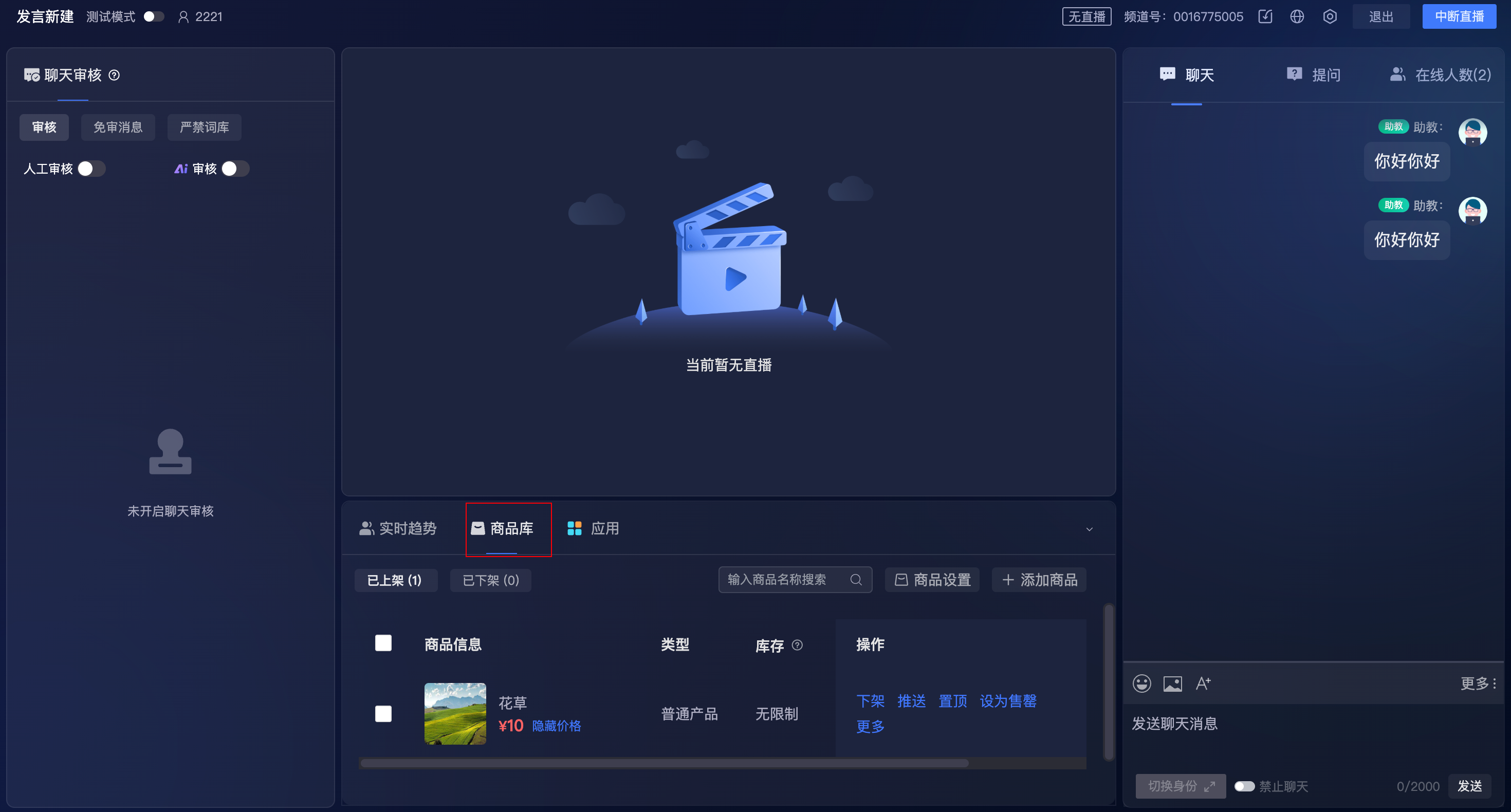
- The product library is the core functional area for live streaming e-commerce.
- Product Library - Help Document
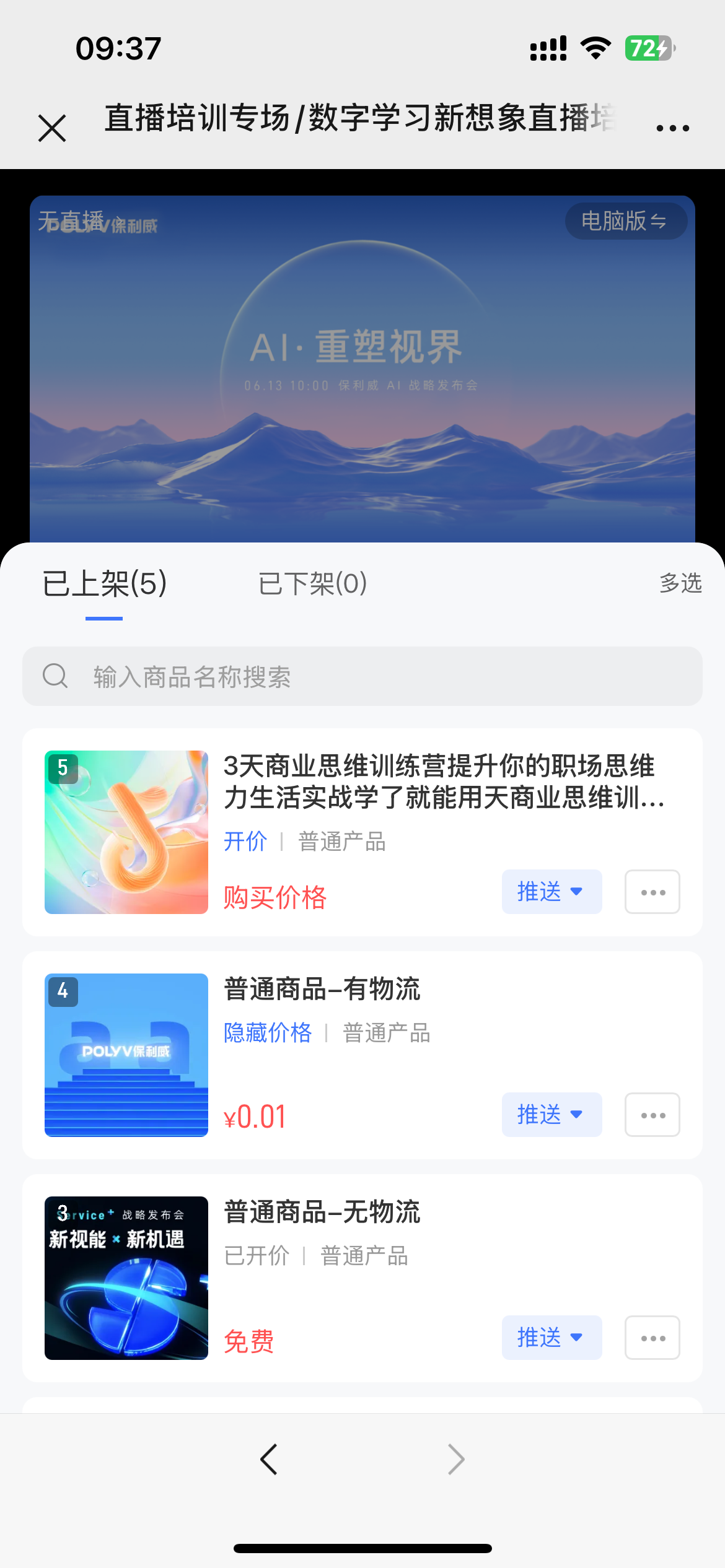
- Product List: The product library is divided into "Listed" and "Unlisted" lists, managing products currently for sale and those removed from sale.
- Add and Search: Click "Add Product" to enter new product information, or quickly search for existing products by name.
- Core Operations: For "Listed" products, the following operations are available:
- Push: Display products prominently in the live room in small or large card format to guide audience orders.
- Sort/Pin: Adjust the order of products in the list, or pin popular products to the top.
- Unlist: Move products to the "Unlisted" list; the audience will no longer see or be able to purchase them.
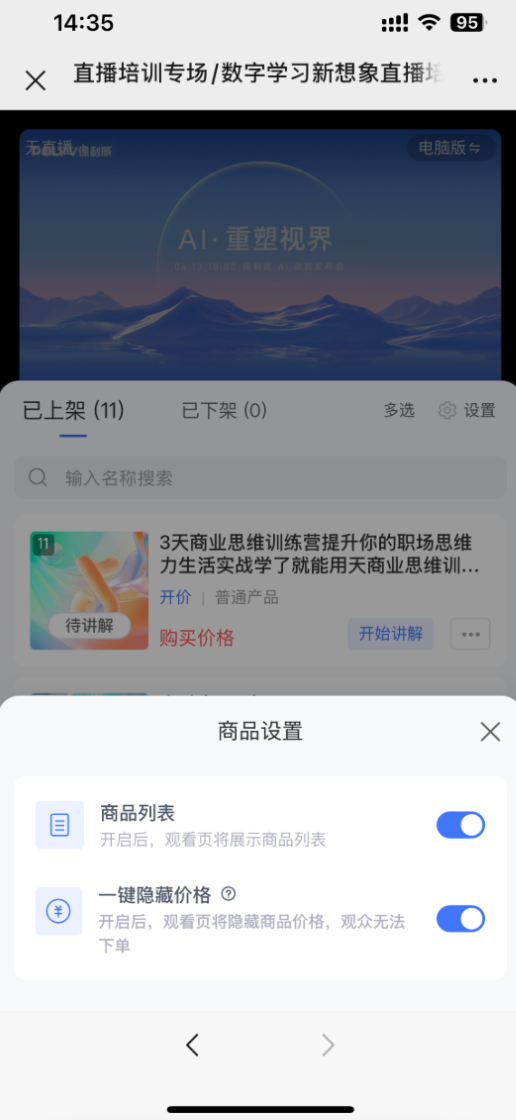
- Hide Price/Show Price: Control the display and hiding of product prices according to the live stream rhythm to attract audience orders.
- Product Explanation: Record explanation videos for products, allowing the audience to review product explanations during the live stream without missing key highlights.
- Mark as Sold Out: Flexibly mark external link products as sold out or cancel sold out status based on the live sales rhythm (direct purchase products do not currently support this operation).
4.4 WeCom Customer Follow-up
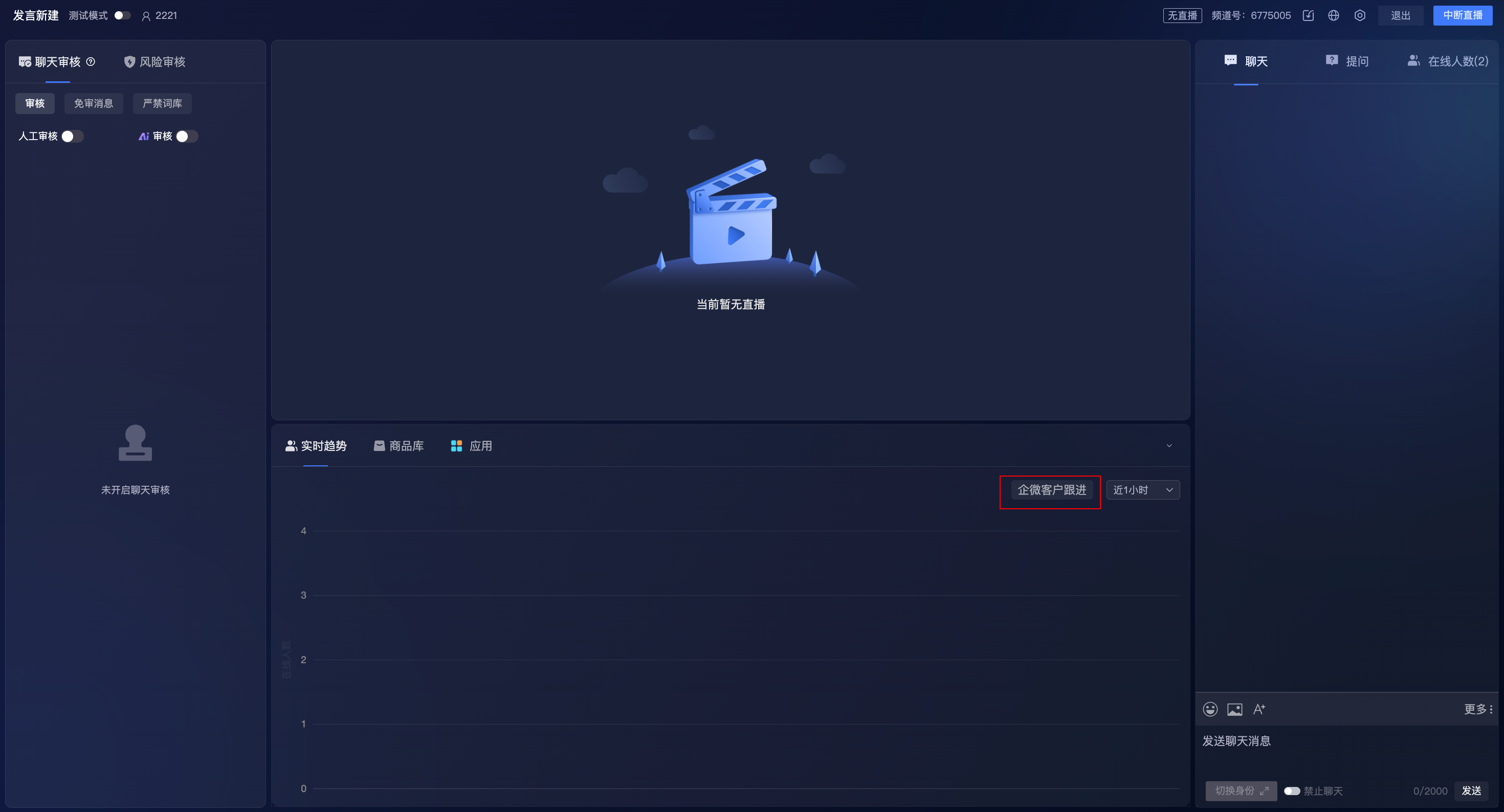
- Enable the "WeCom Customer Follow-up" permission for assistants in "Admin Backend - Assistant Page - Role Settings"; after enabling, the assistant can see the "WeCom Follow-up Customers" entry under the "Real-time Trends" module on the assistant page (Note: The account needs to be connected to WeCom).
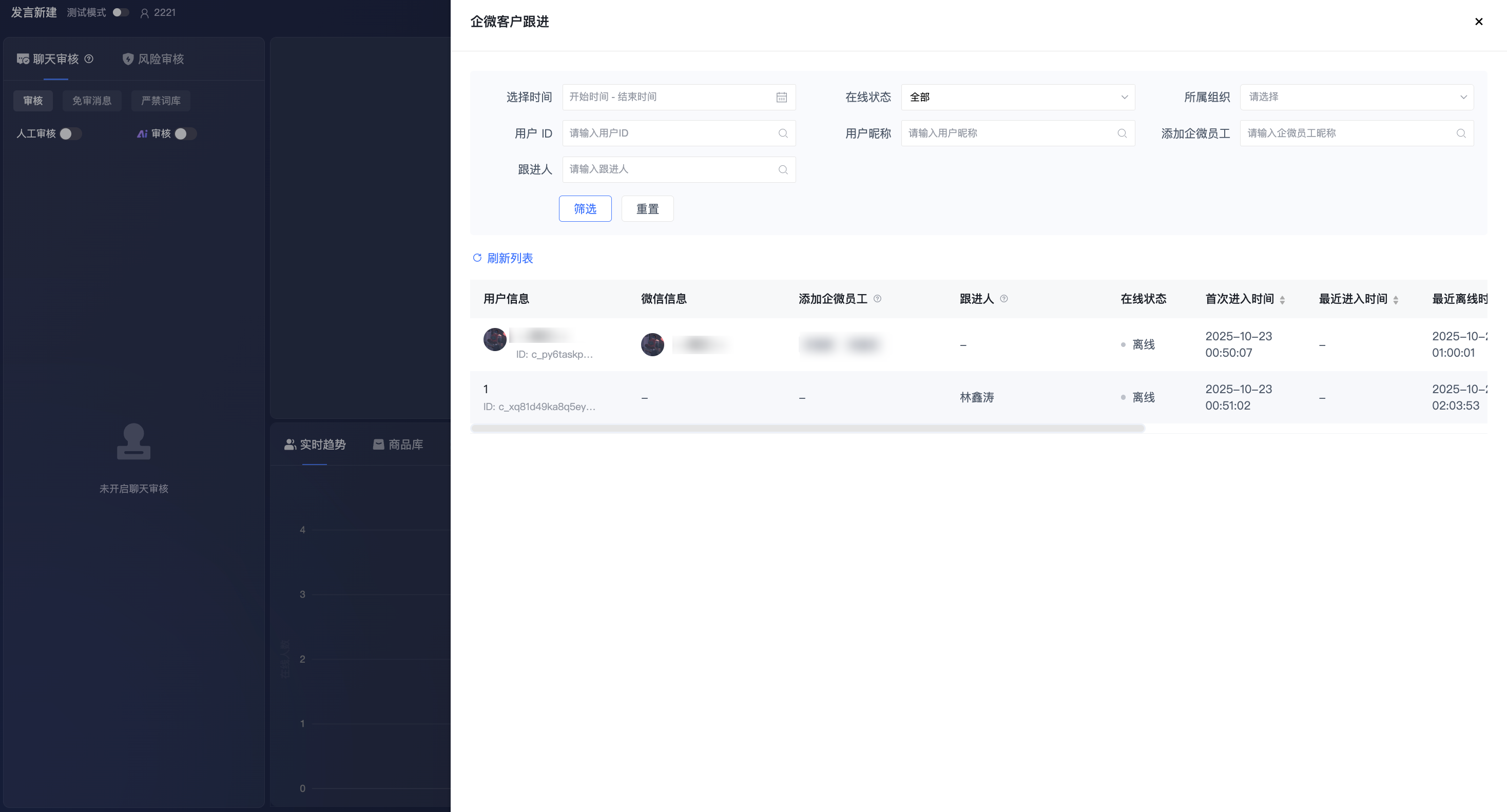
- The WeCom follow-up customer page on the assistant end will fully synchronize the data table from "Admin Backend - WeCom Marketing - Follow-up Records", including consistent list fields and filter options, facilitating timely query of customer follow-up status by the assistant.
4.5 Top Information Display & Operation Area
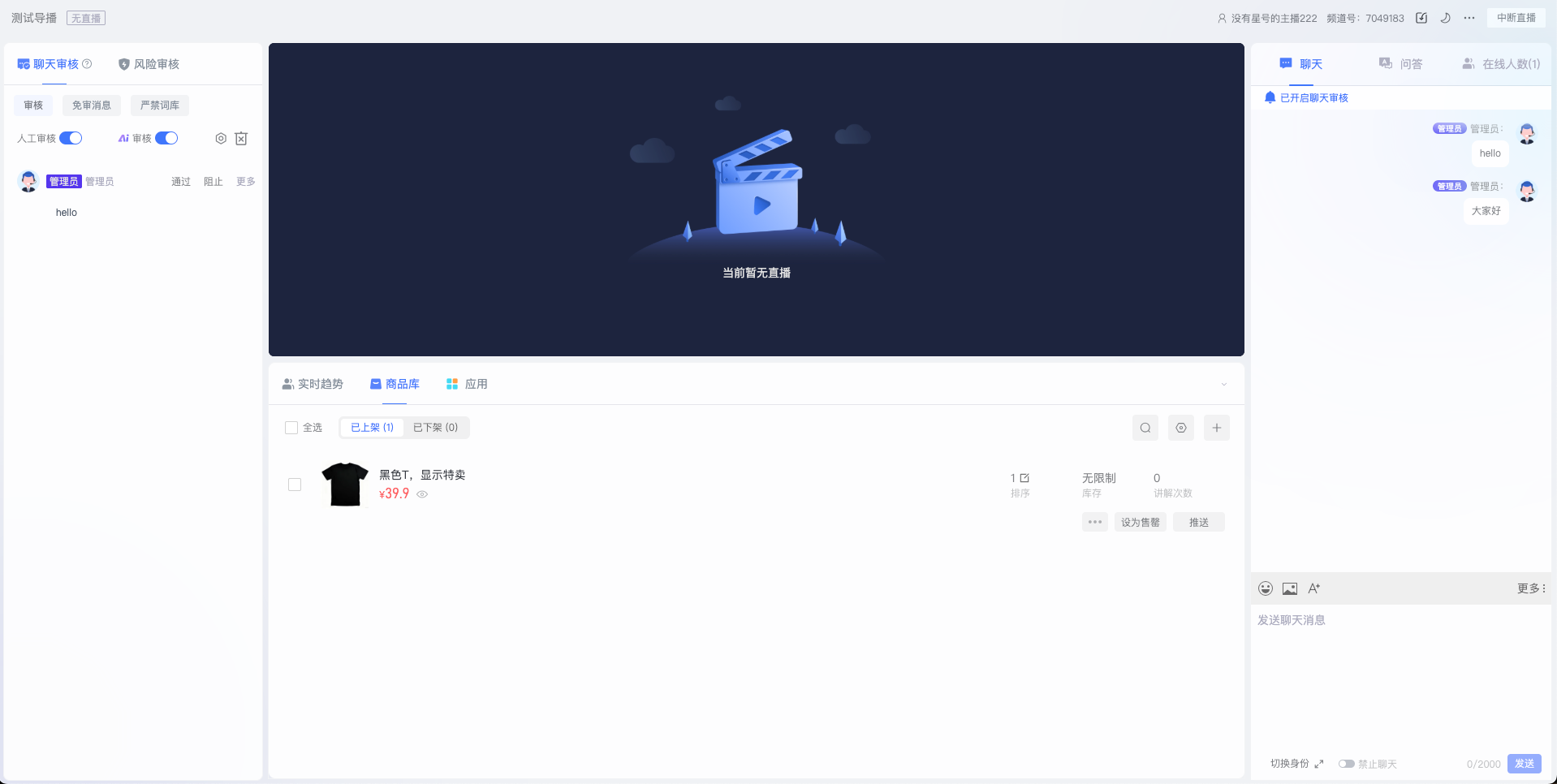
- The top displays the live room name, live stream status, host information, and channel number.
- Supports downloading exported data, switching between light/dark modes, setting the assistant page layout, switching accounts, and interrupting the live stream from the top.
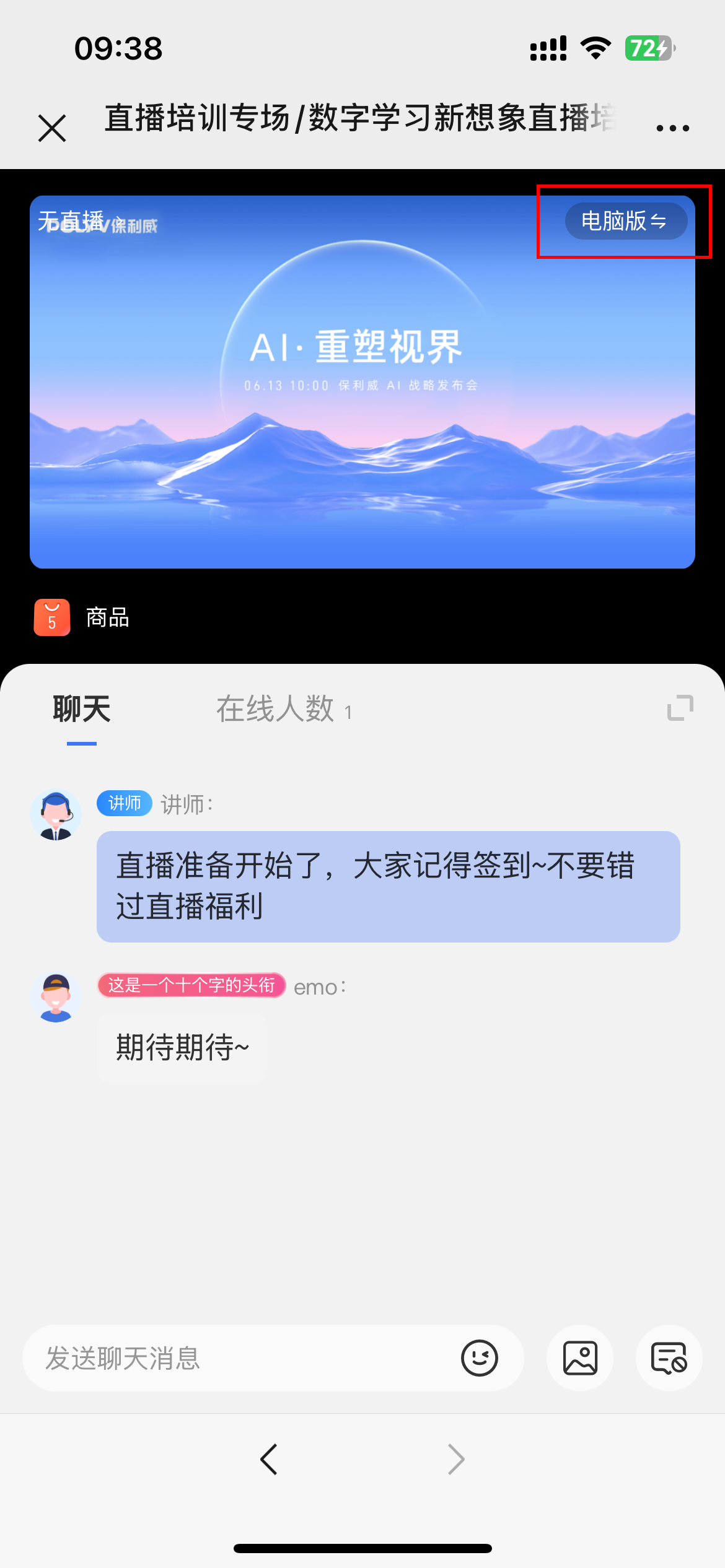
5. Mobile - Assistant Page Operation Instructions
5.1 Access Method
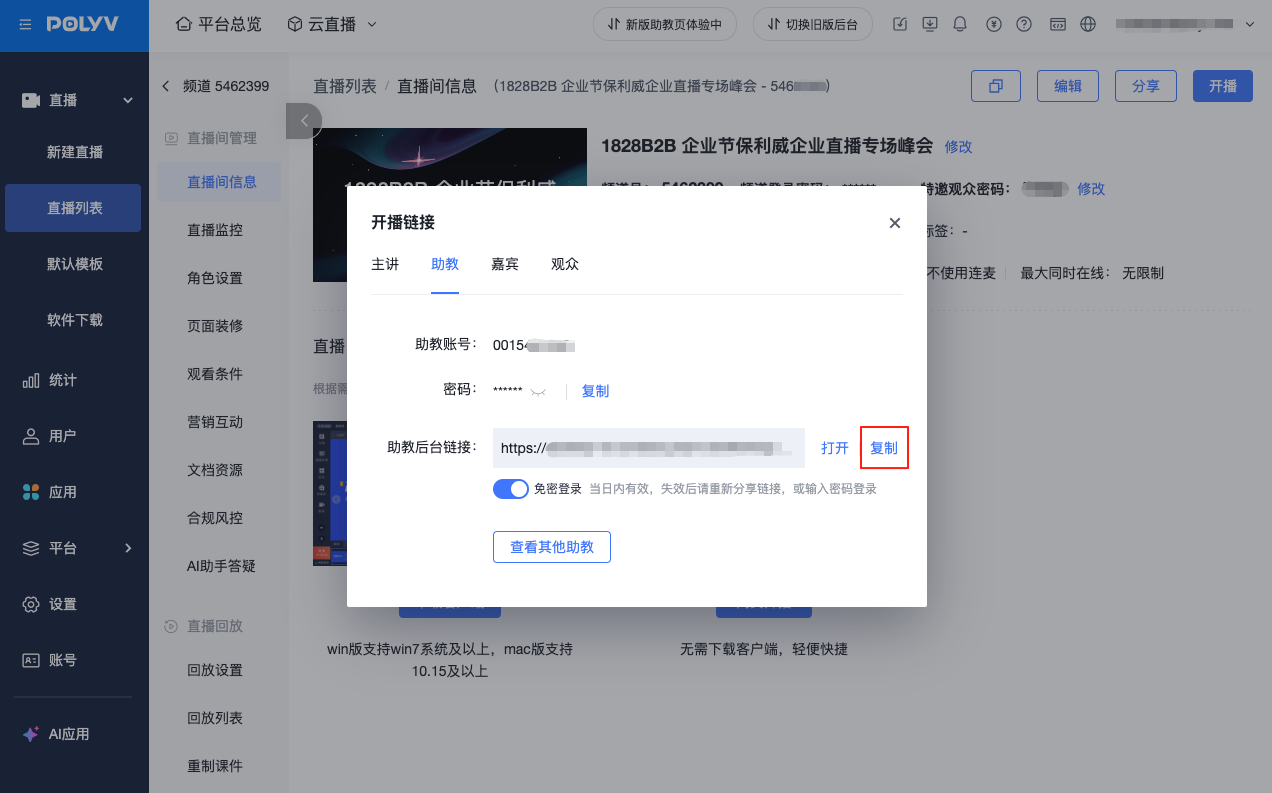
- Open the assistant backend link in a mobile browser to access the mobile assistant page, suitable for on-the-go or scenarios without a computer.
5.2 Core Functions
- The mobile assistant page focuses on high-frequency core operations, making it easy to manage live streams without a computer.
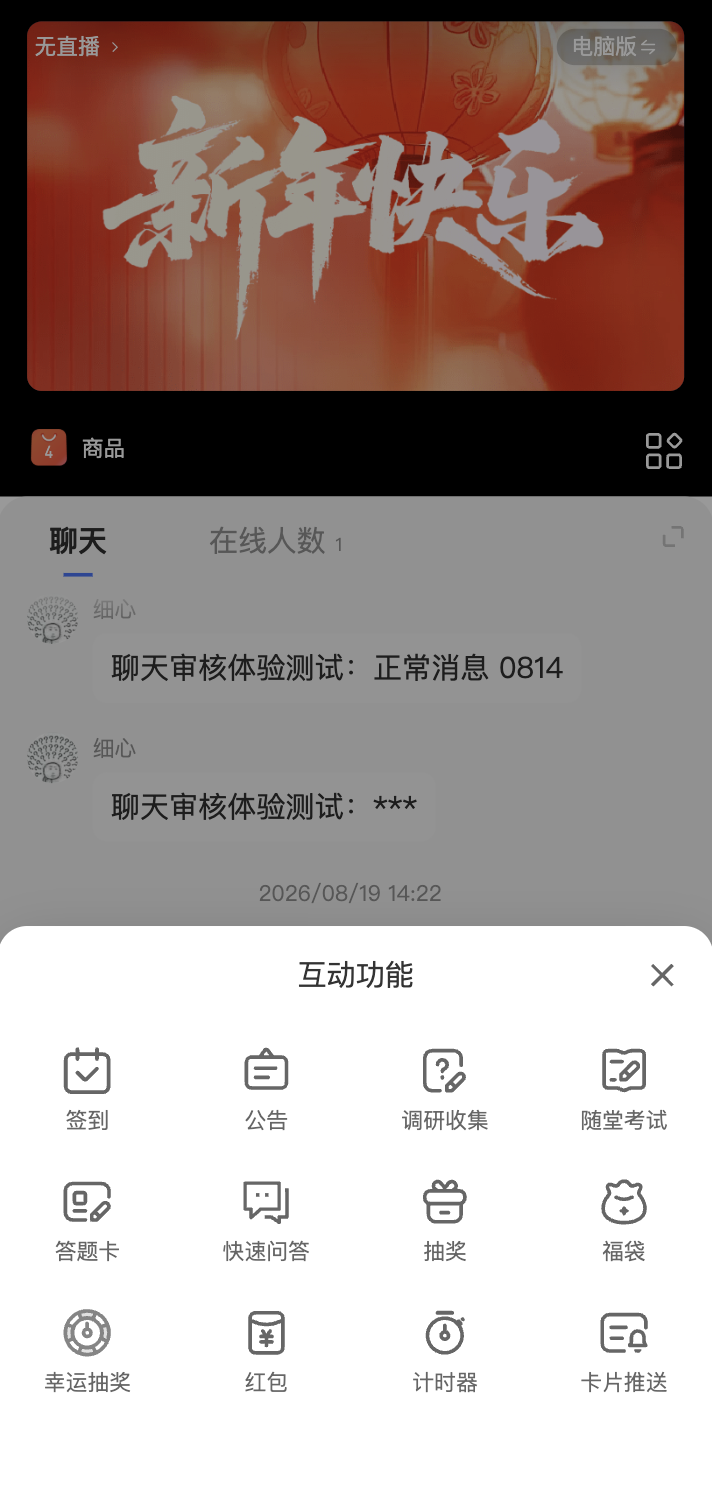
- Interactive Functions: The mobile assistant page supports initiating and managing live interactive functions, with product logic consistent with the PC assistant page. Currently supports check-in, announcement, survey collection, in-class test, answer sheet, quick Q&A, lottery, lucky bag, lucky draw, red envelope, timer, and card push.
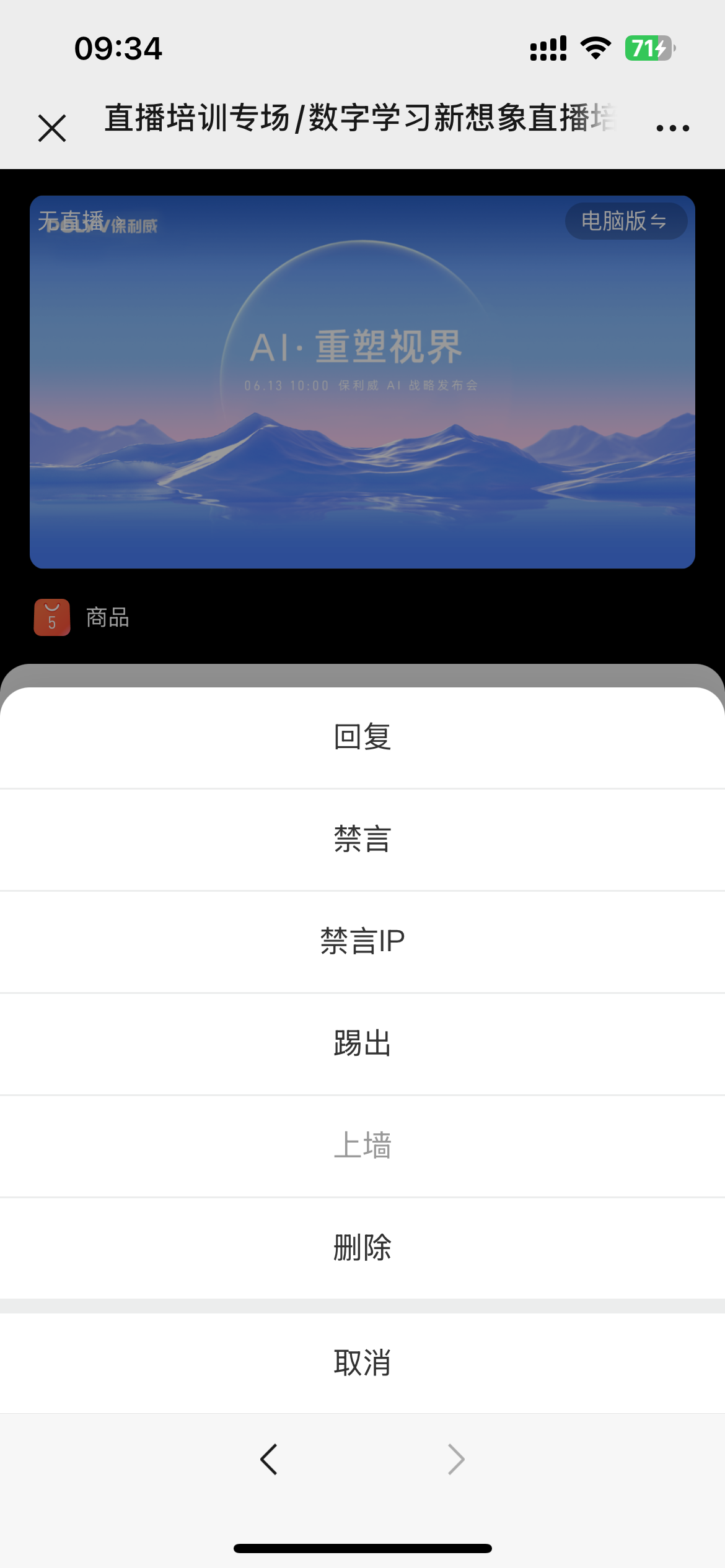
Efficient Chat Management: Supports sending text, images, and emojis, and performing operations like replying, muting, kicking, or deleting audience comments.
Convenient Product Management: Supports high-frequency operations such as pushing products, listing/unlisting, and batch management.
- Online Users: Assistants can view and search for audience members in real-time, and perform actions like muting or kicking to efficiently maintain order in the live room.
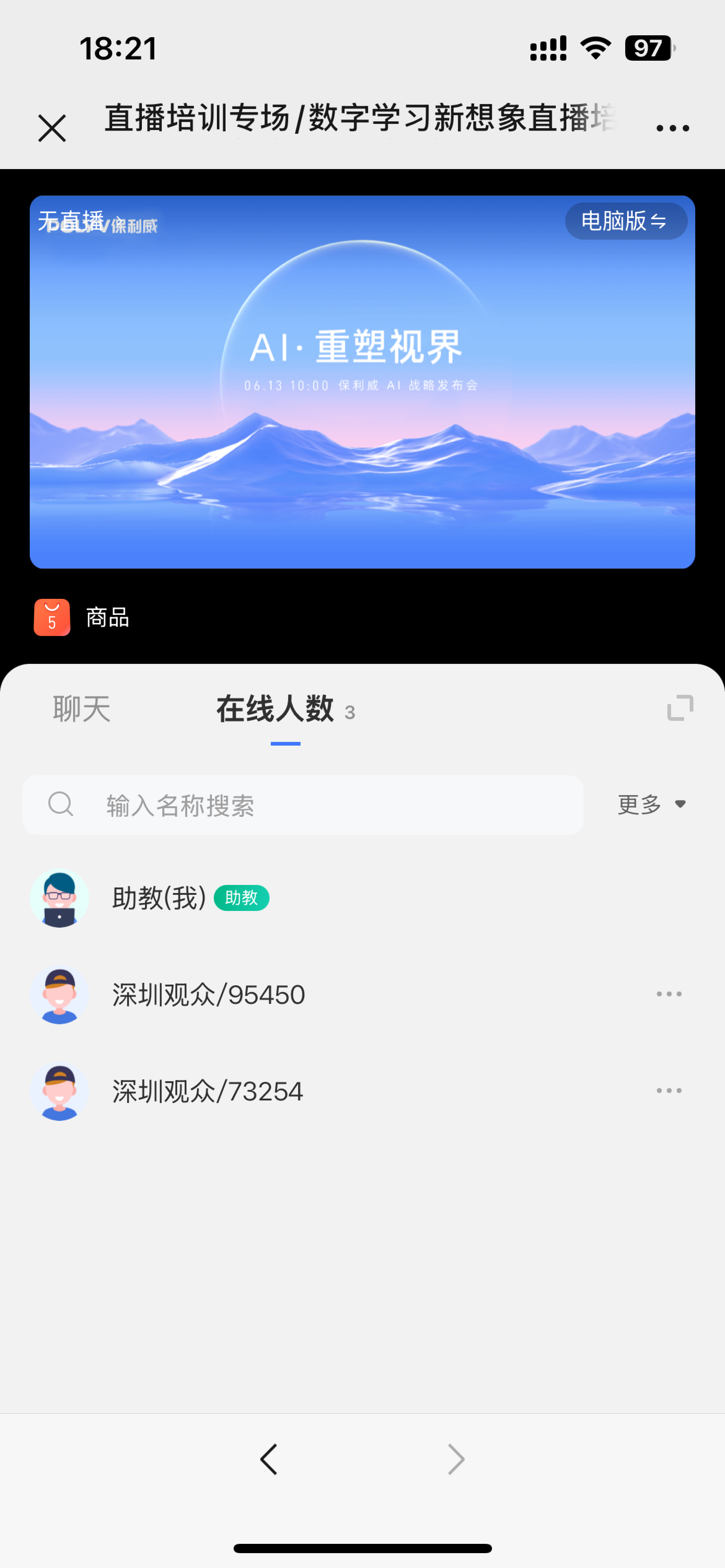
- Switch to PC Version: Click the "PC Version" button in the top right corner at any time to switch to the more feature-rich PC interface for management.