Live Stream List
Updated: 2026-08-17 11:27:00
1. Feature Overview
Feature Info |
Description |
|---|---|
| Feature Name | Live Stream List |
| Feature Introduction | The live stream list centrally displays the total number of live streams under the account, etc. |
| Purpose | The live stream list is used to centrally display and manage live stream information, making it easy to find, join live streams, and perform data statistics and analysis. |
| Use Case | Example: An operator views the upcoming live stream schedule through the list, quickly filters out streams that haven't started yet, and prepares for pre-launch promotion in advance. They can also find completed streams, count the number of participants and duration, analyze the stream's effectiveness, and optimize future streaming strategies. |
| Feature List | Category tags, filter conditions, card mode, list mode, batch management, copy live stream |
2. Operation Instructions
1. Feature Entry
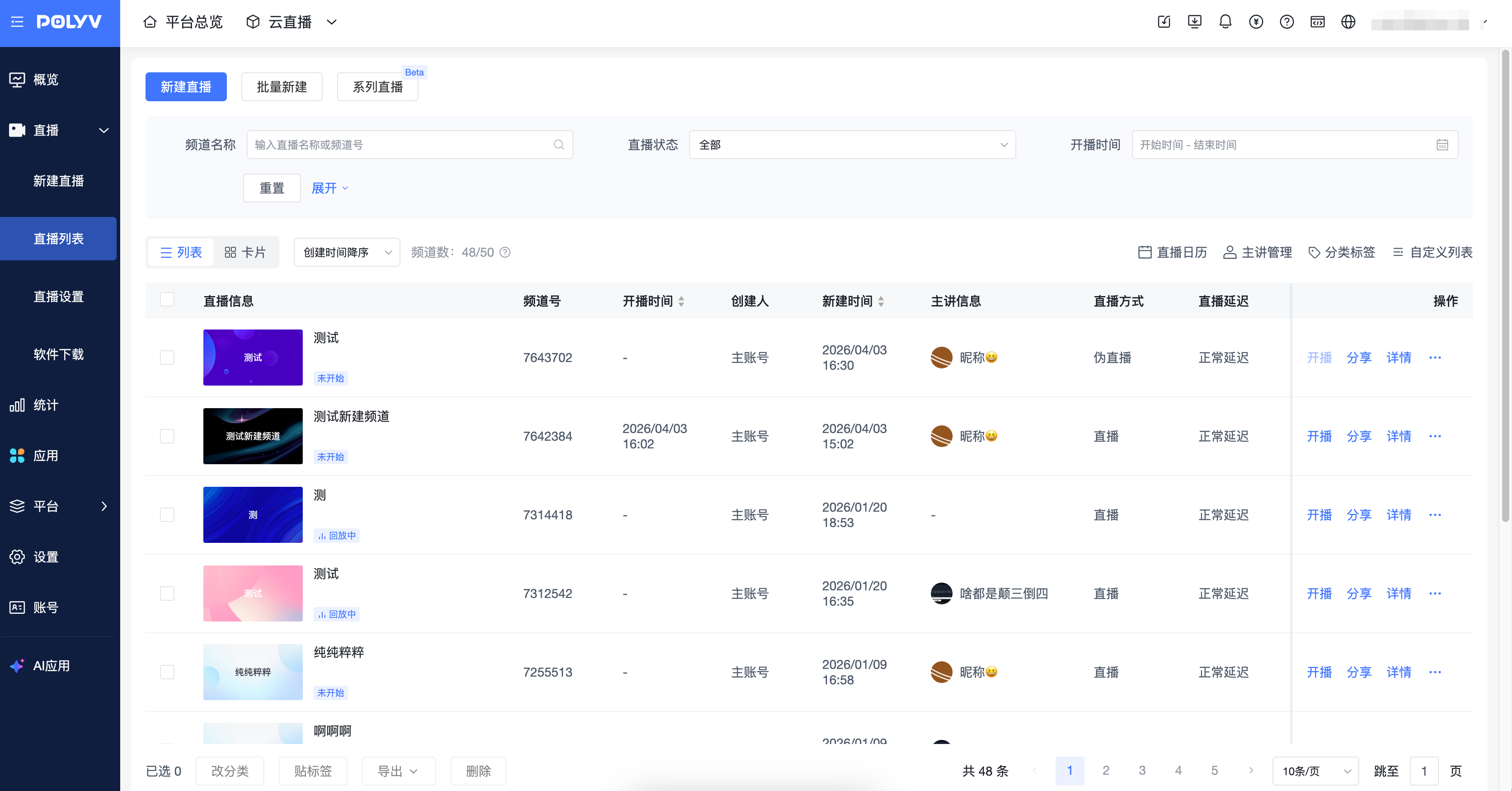
- Access Path: Cloud Live -> Live Stream List
2. Category Tags
a. Categories
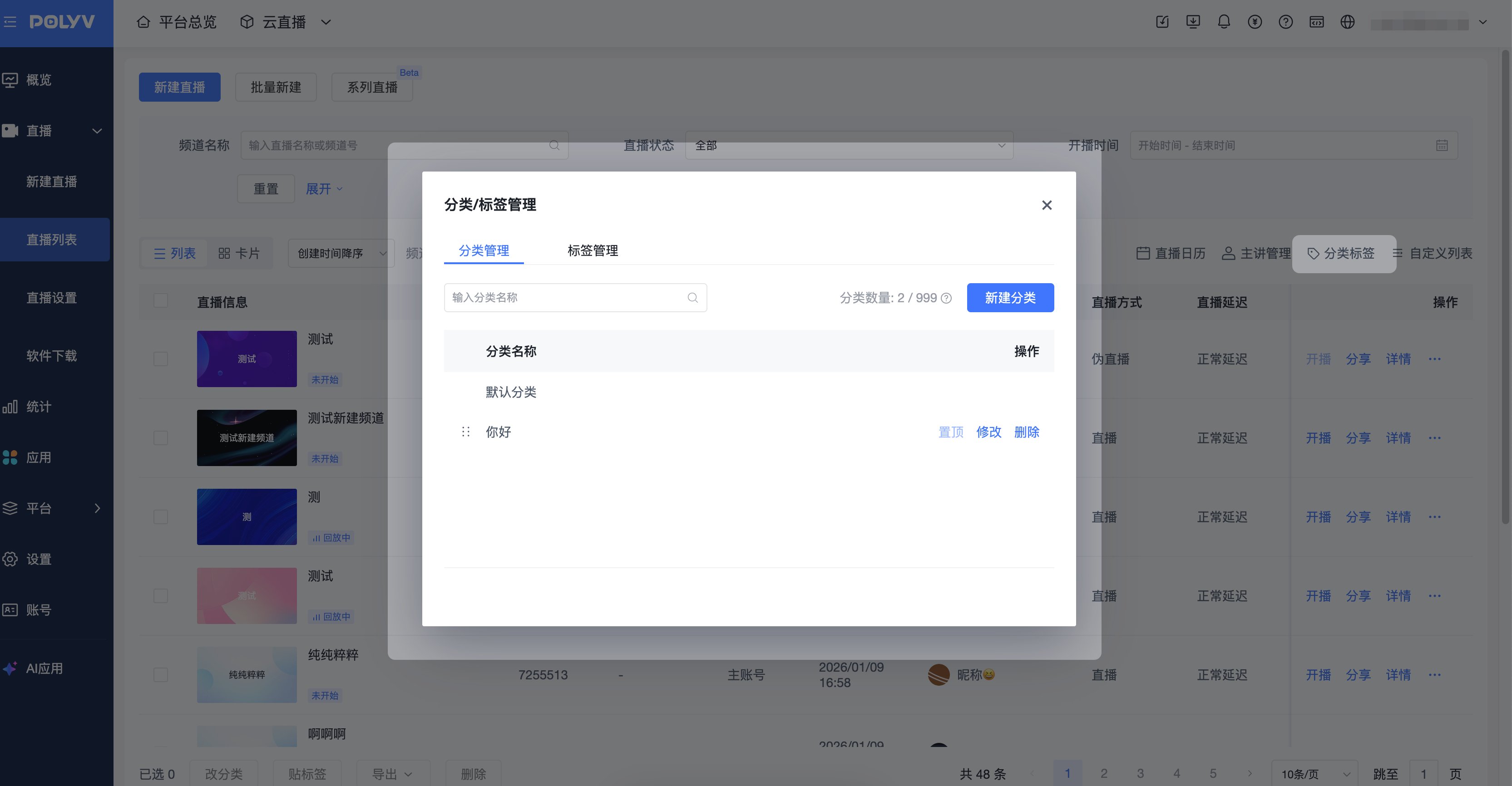
- Category Access Path: Cloud Live -> Live Stream List -> Category Tags;
- To create a new category, click "New Category". The input field must not exceed 20 characters. Save to create it.
- Pin/Drag to sort: When there are many categories, you can drag to prioritize important ones. The default category is a default item, pinned by default and cannot be changed or edited.
- To edit a category, you can modify its name. Select the corresponding category, click "Edit", and enter the new name in the edit box.
- To delete a category, disband the current category without deleting the channel.
- To search for a category, use the keyword search in the category management popup.
b. Tags
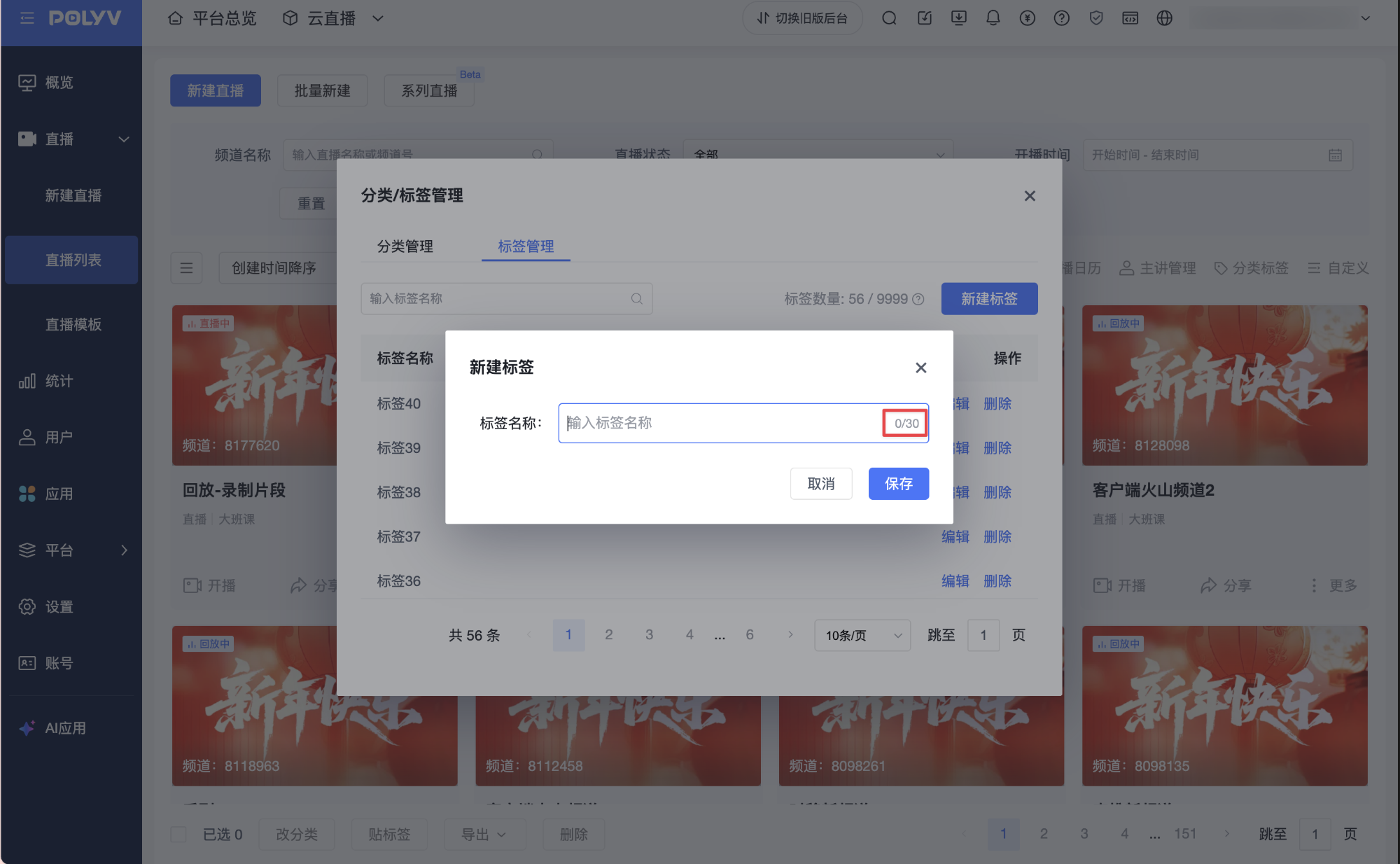
- Tag Access Path: Cloud Live -> Live Stream List -> Category Tags -> Tag Management;
- To create a new tag: Click "New Tag", enter the tag name, and save. A single account can create up to 9999 tags, with a maximum tag name length of 30 characters.
- Once the tag limit is reached, no new tags can be created. Filtering, editing, deleting, and associations of existing tags are unaffected.
- A single channel can be associated with up to 50 tags; a single tag can be associated with up to 5000 channels.
- To edit a tag, you can modify its name. Select the corresponding tag, click "Edit", and enter the new name in the edit box.
- Use related API interfaces to create/manage tags: Create Tag, Query Tag, Edit Tag, Delete Tag
- Use the API interfaces for creating or editing channels to associate tags: Create Channel, Edit Channel
- Use the API interface for getting the channel list to retrieve channel data under a specific tag.
- The live stream detail page displays the tags associated with the channel. Use the channel info interface to query the tags associated with the channel.
3. Filter Conditions
- Access Path: Cloud Live -> Live Stream List -> Filter Area;
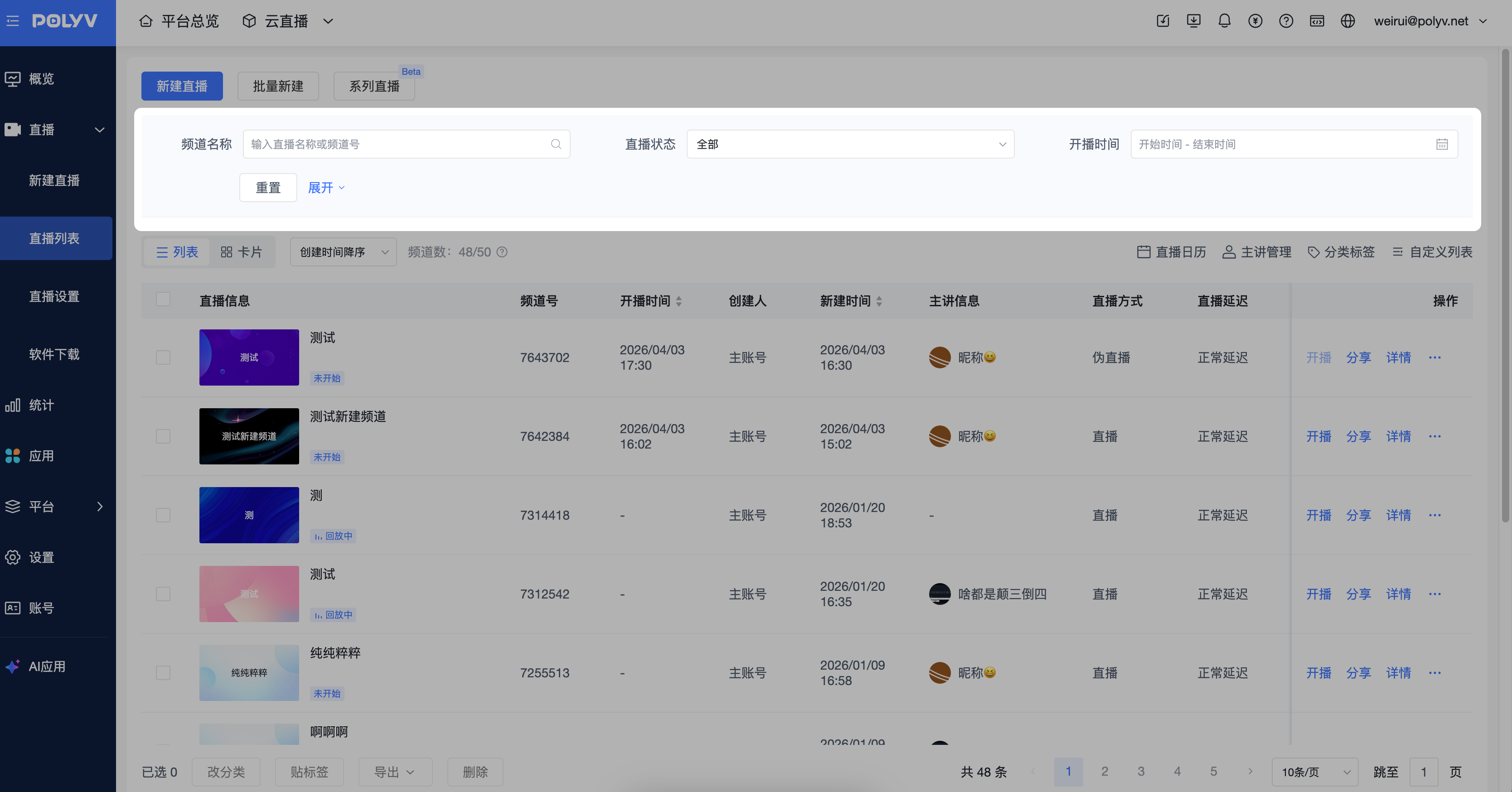
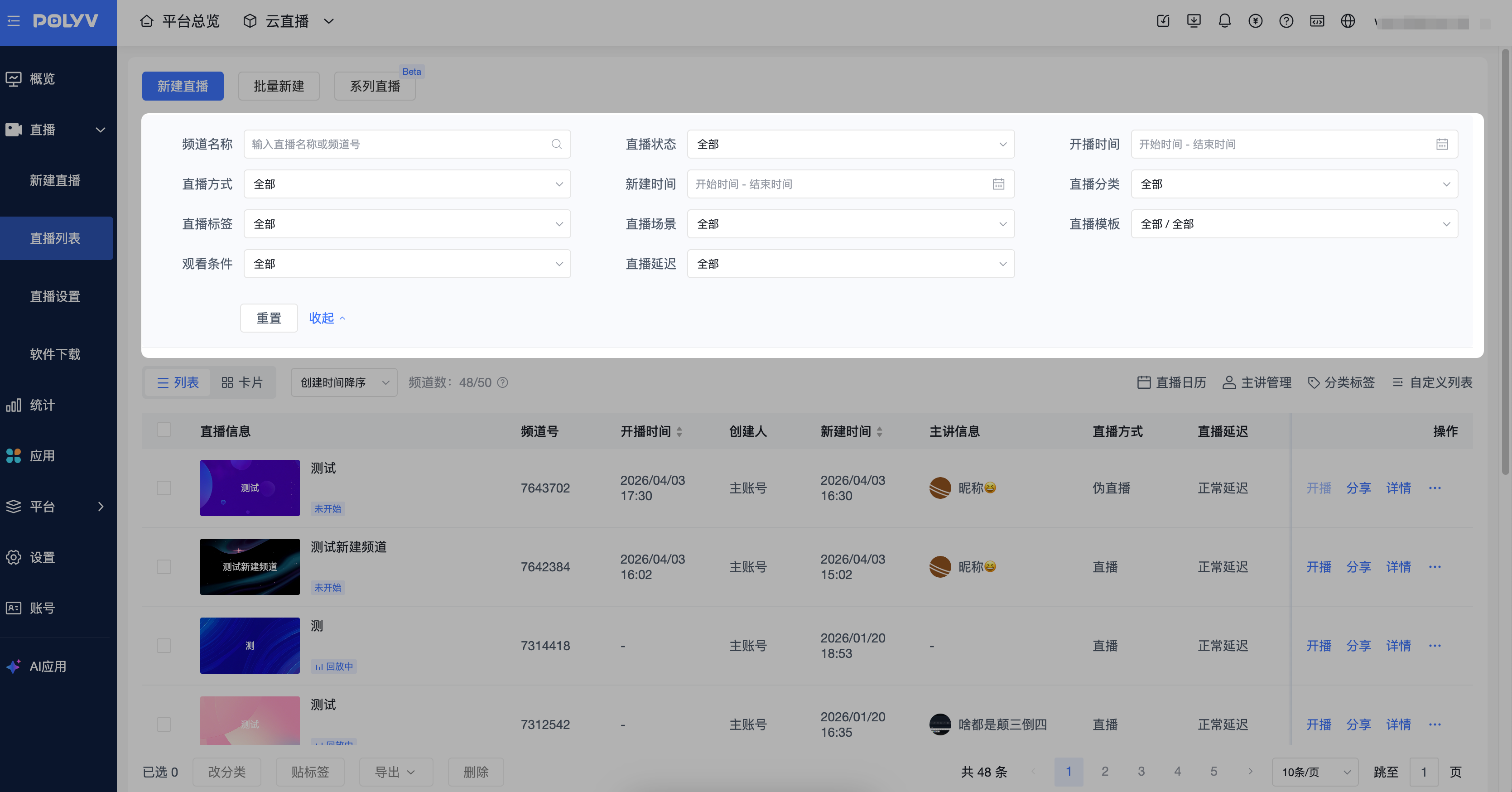
- Supports filtering by 12 types of criteria, including channel name, live stream status, start time, etc., to easily find target live stream channels.
- When too many filters are applied, supports resetting all current filter options with one click.
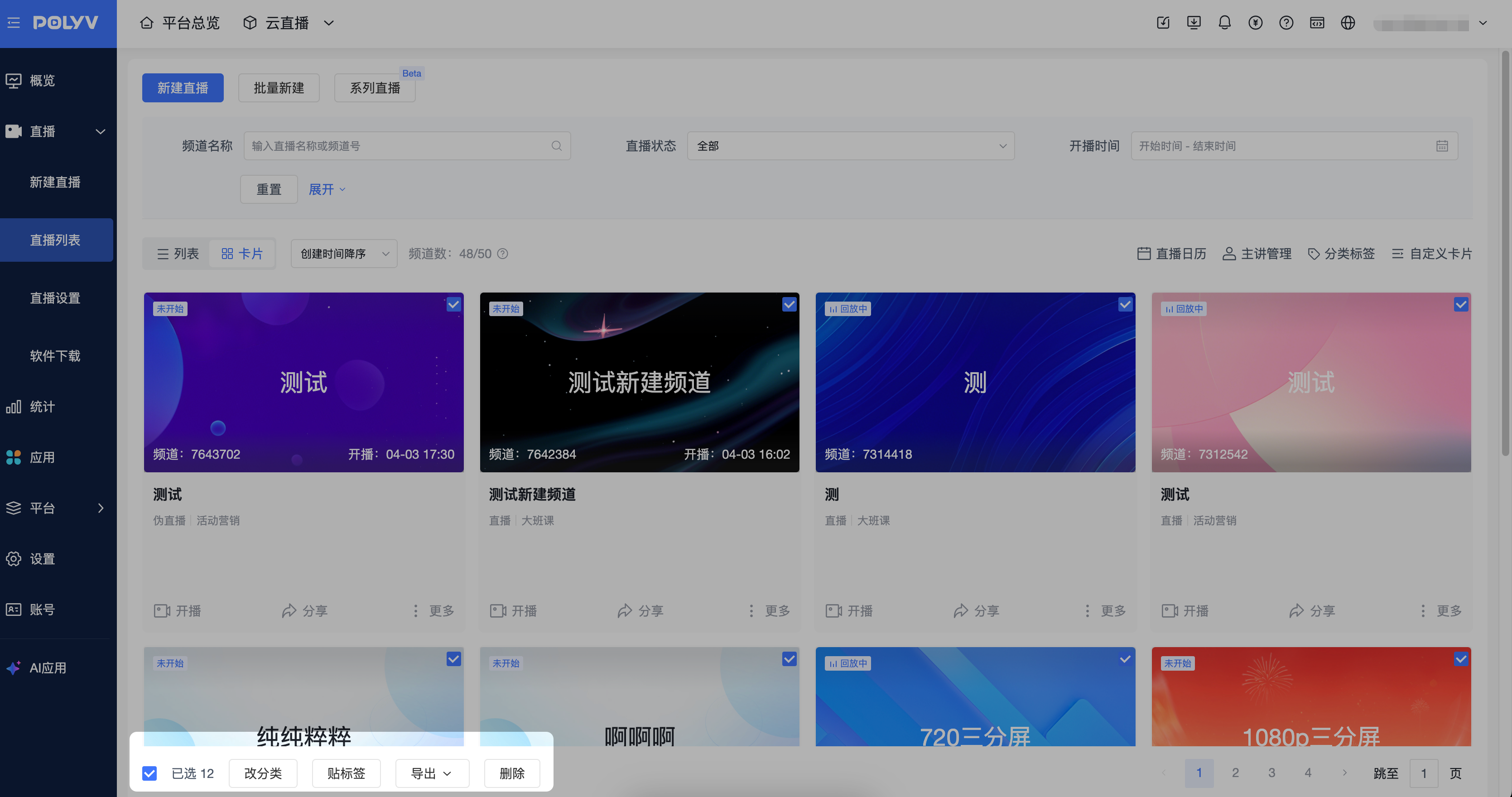
4. Card Mode
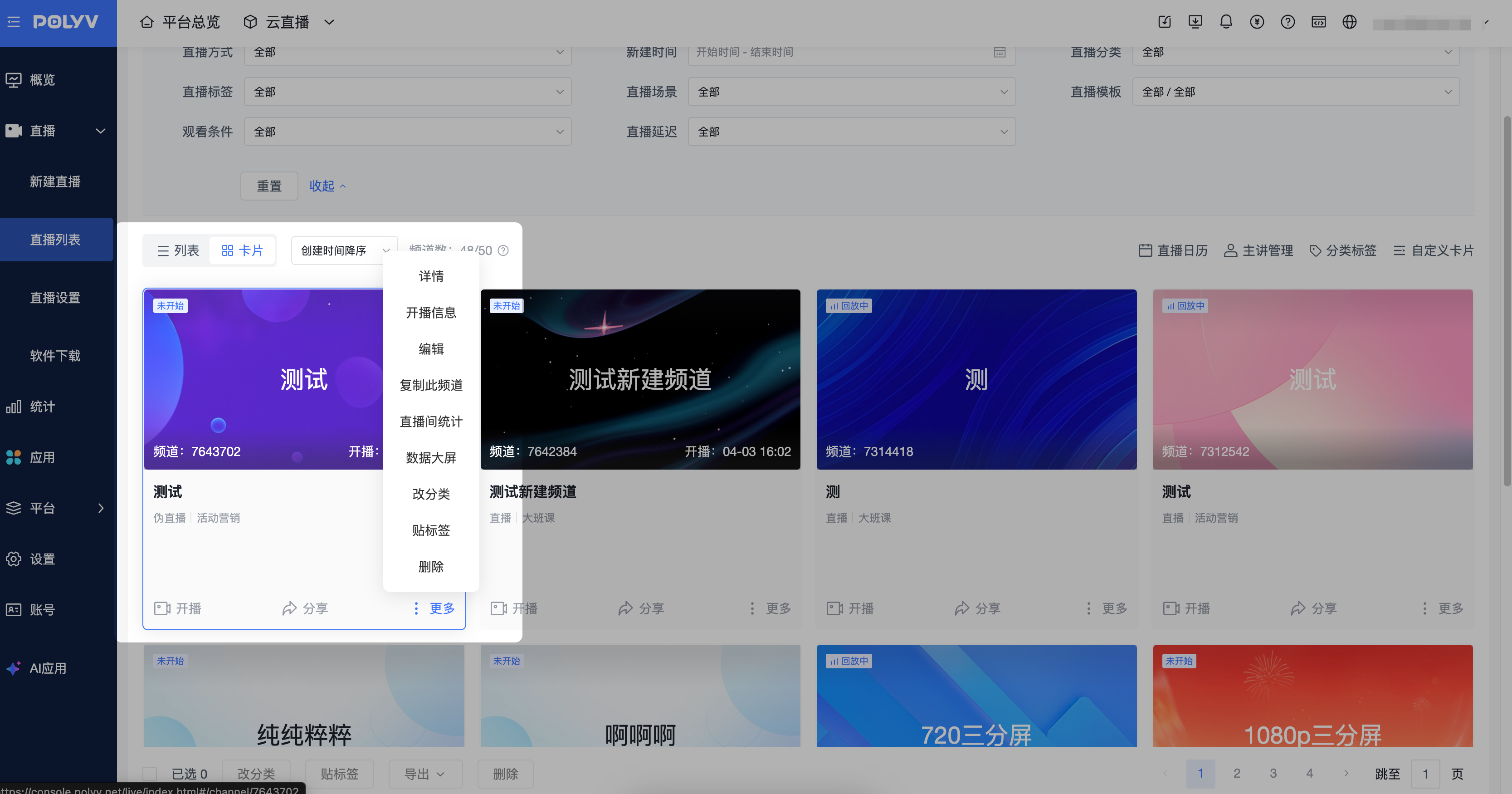
- In card mode, the live stream list displays created live stream rooms, sorted by creation time in descending order by default.
- In card mode, the live stream cover shows the stream status and whether low-latency mode is enabled.
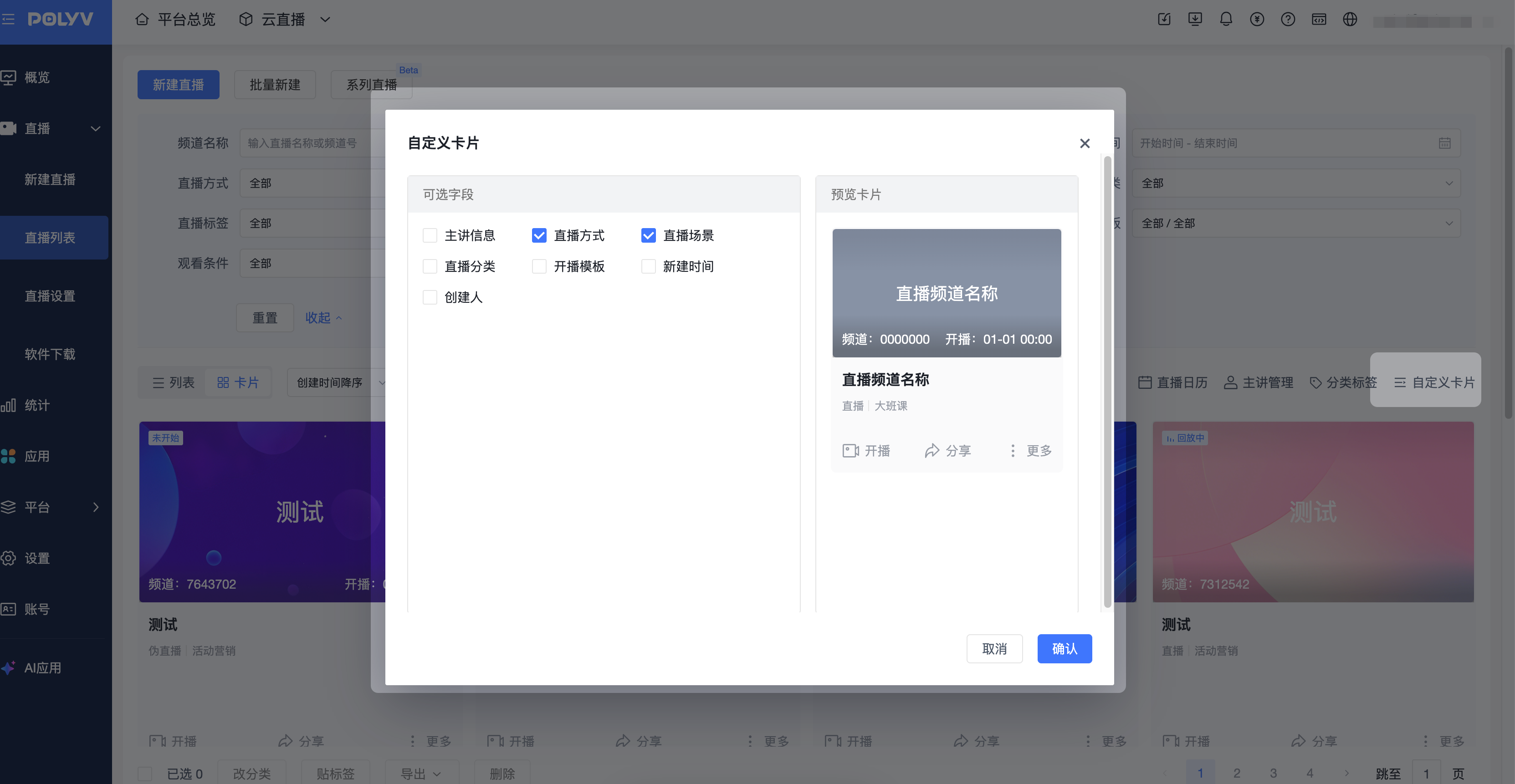
- Customize the content information on the card to display information customers care about, supporting configuration of 1-3 fields.
- In card mode, supports quick access to stream start information, sharing viewer information, and more quick action entry points.
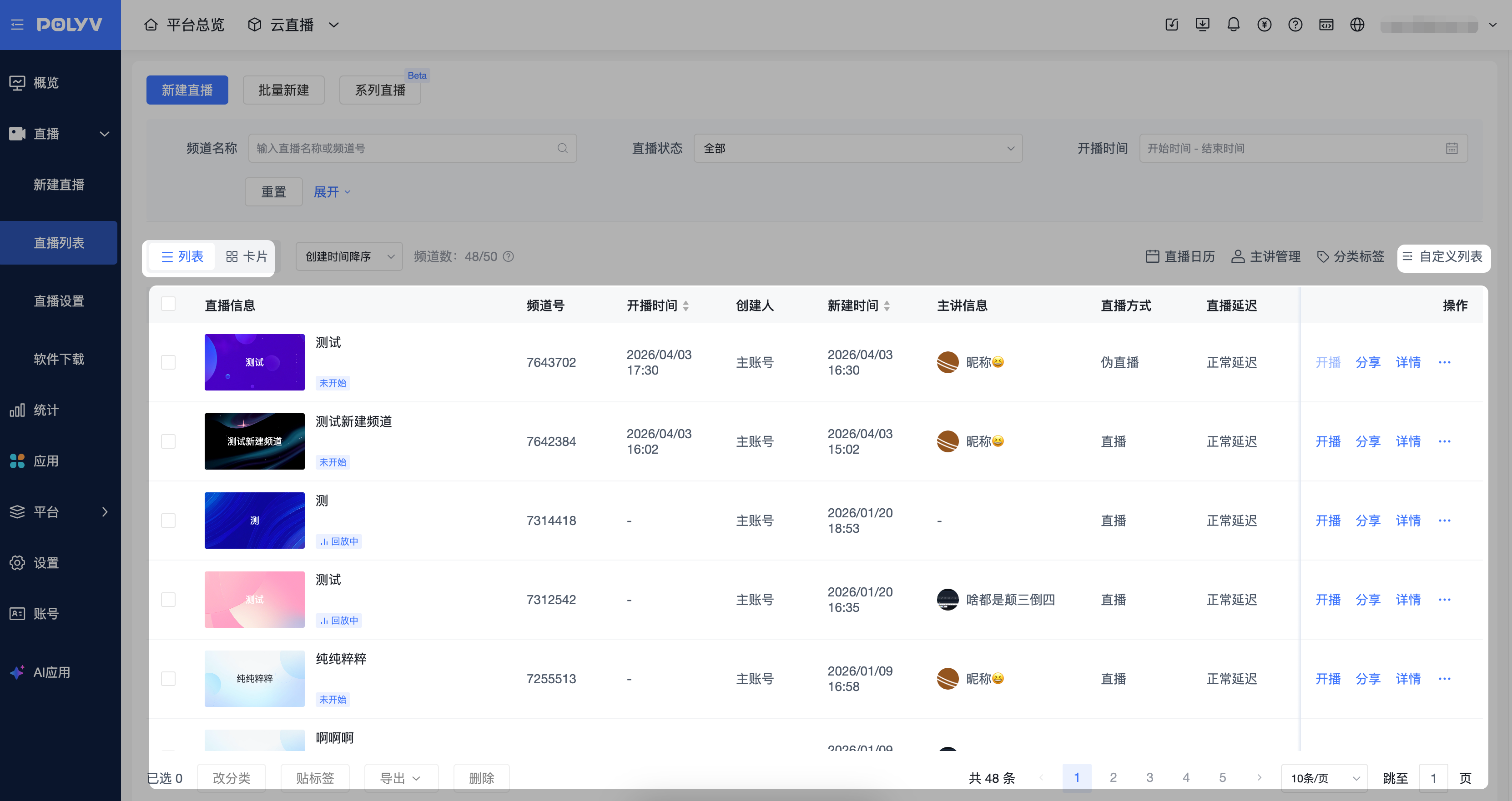
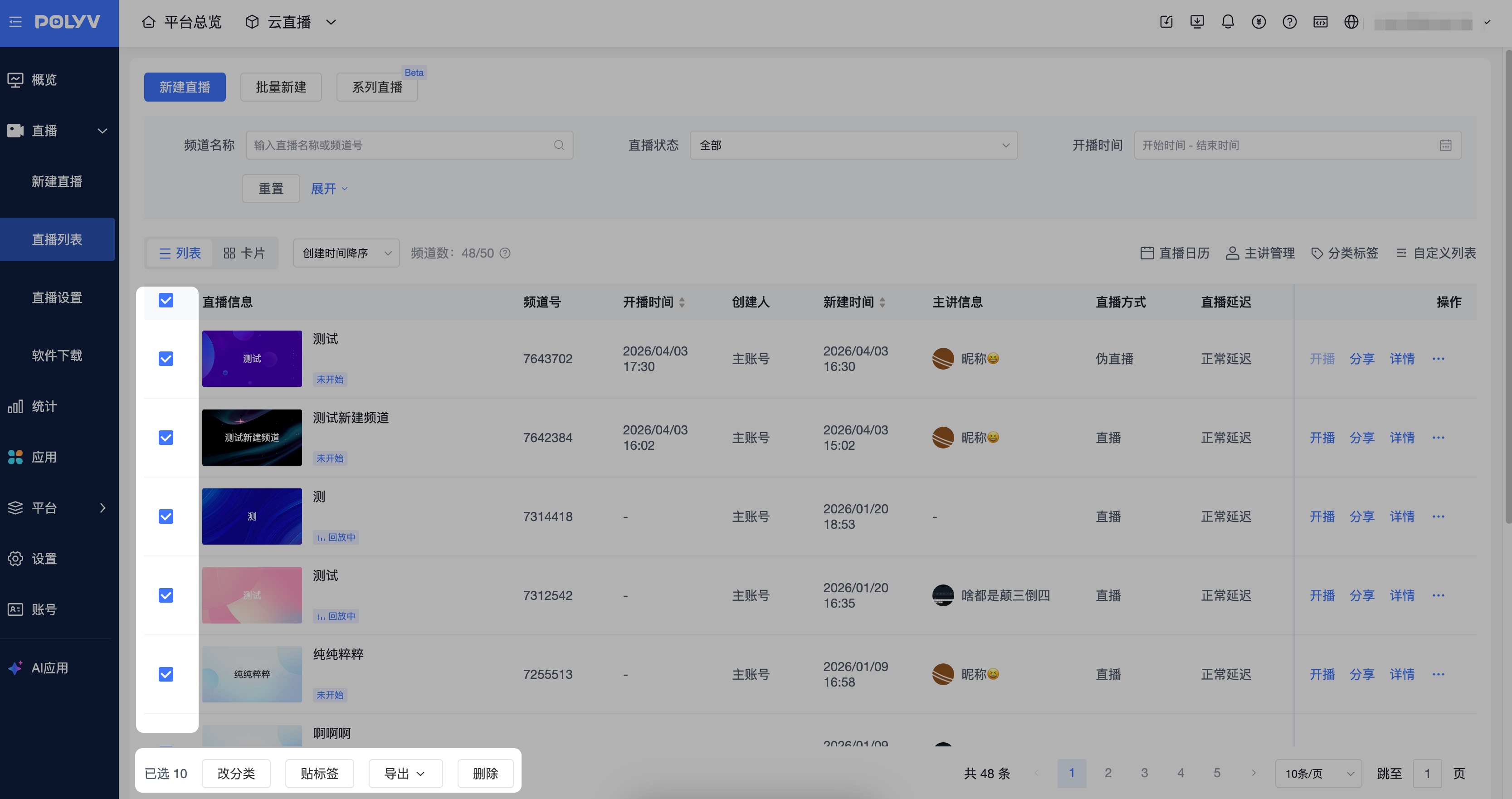
5. List Mode
- In list mode, the live stream list displays created live stream rooms, sorted by creation time in descending order by default.
- In list mode, all information from the filter options is displayed by default, including channel name, live stream status, start time, etc.
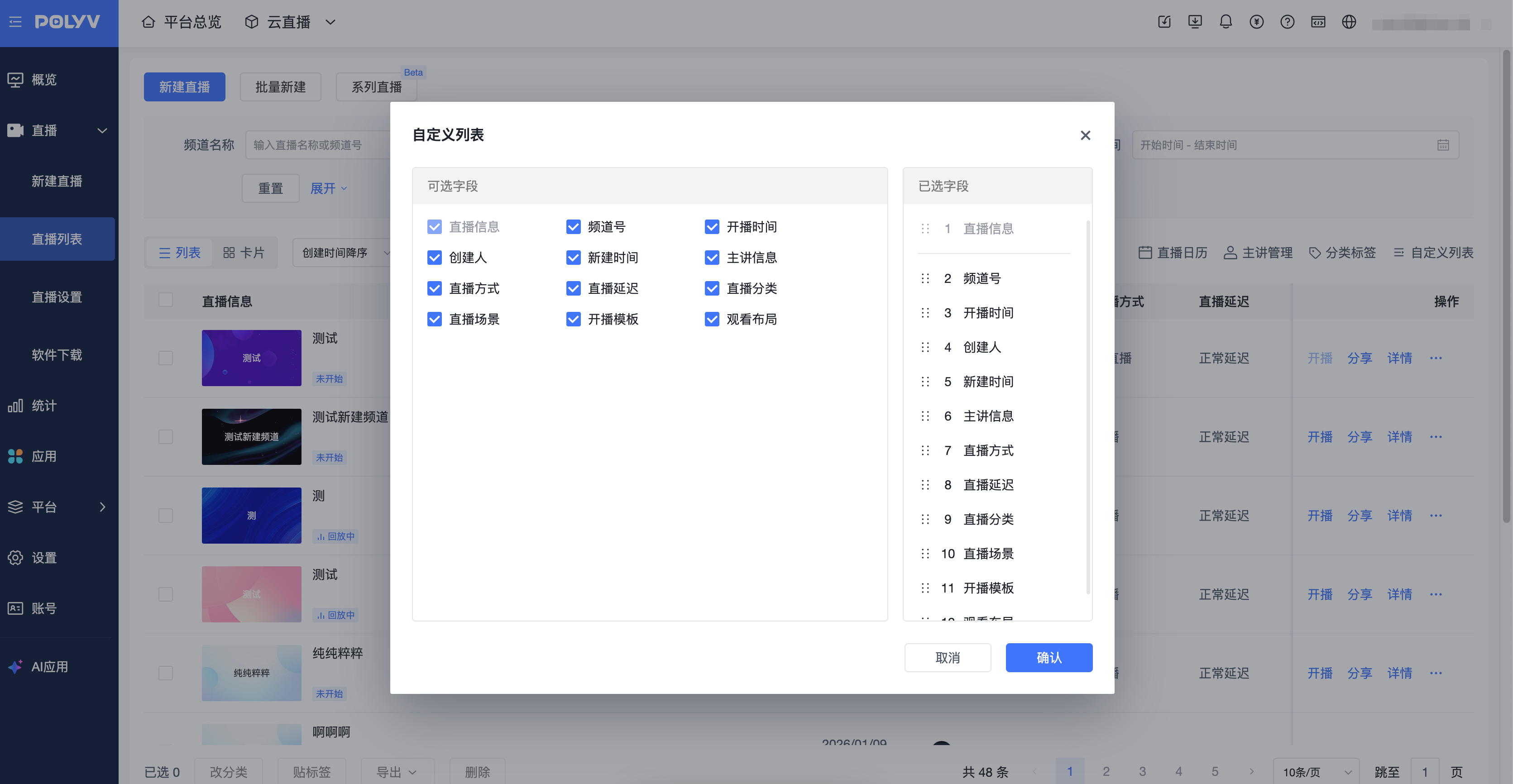
- Customize the list content information, supporting show/hide and sort fields, helping customers focus on the content they care about. Live stream information cannot be hidden or have its sort order modified.
- In list mode, supports quick access to stream start information, sharing viewer information, more quick action entry points, and entering the live stream details.
6. Live Stream Calendar
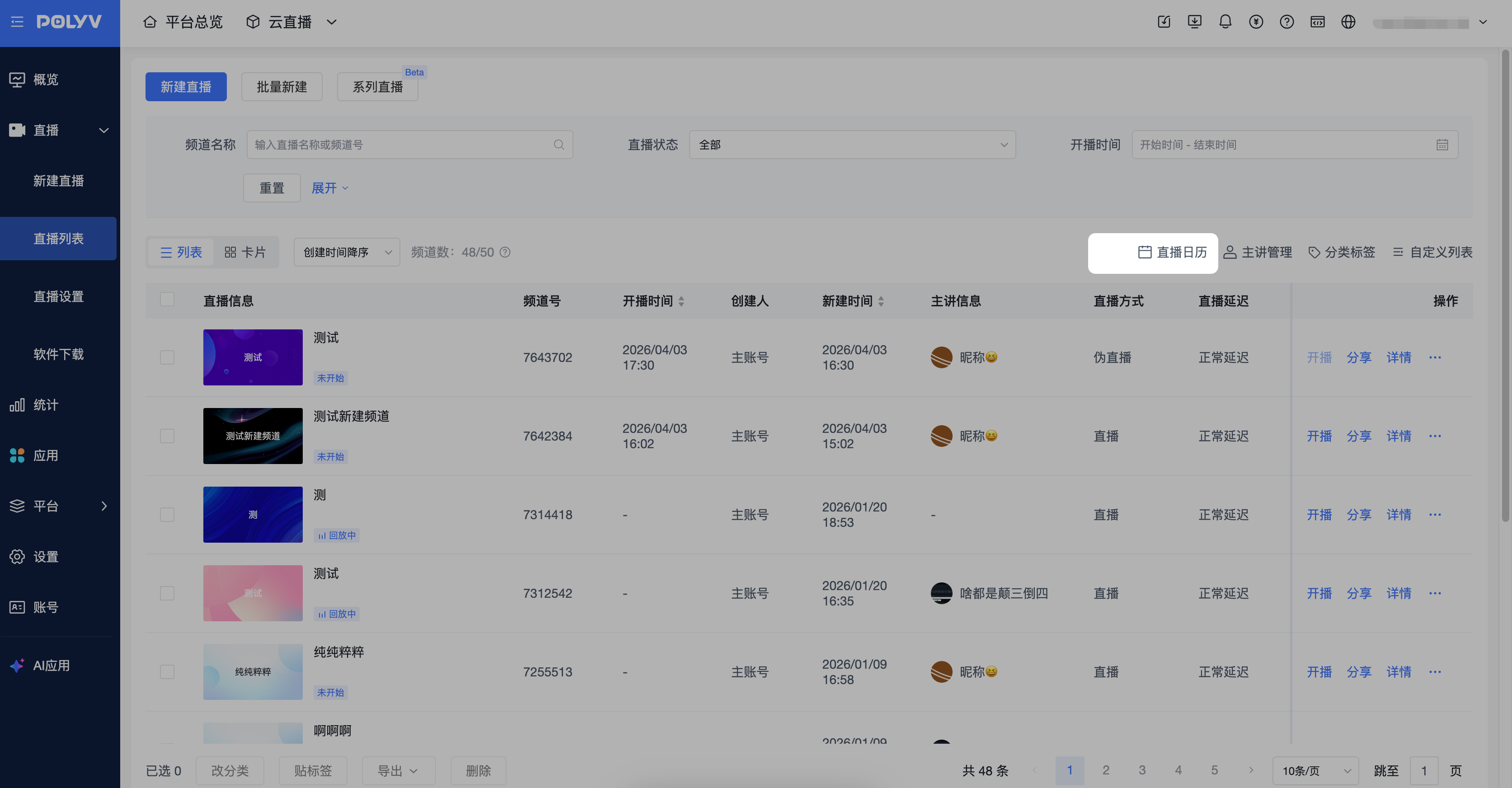
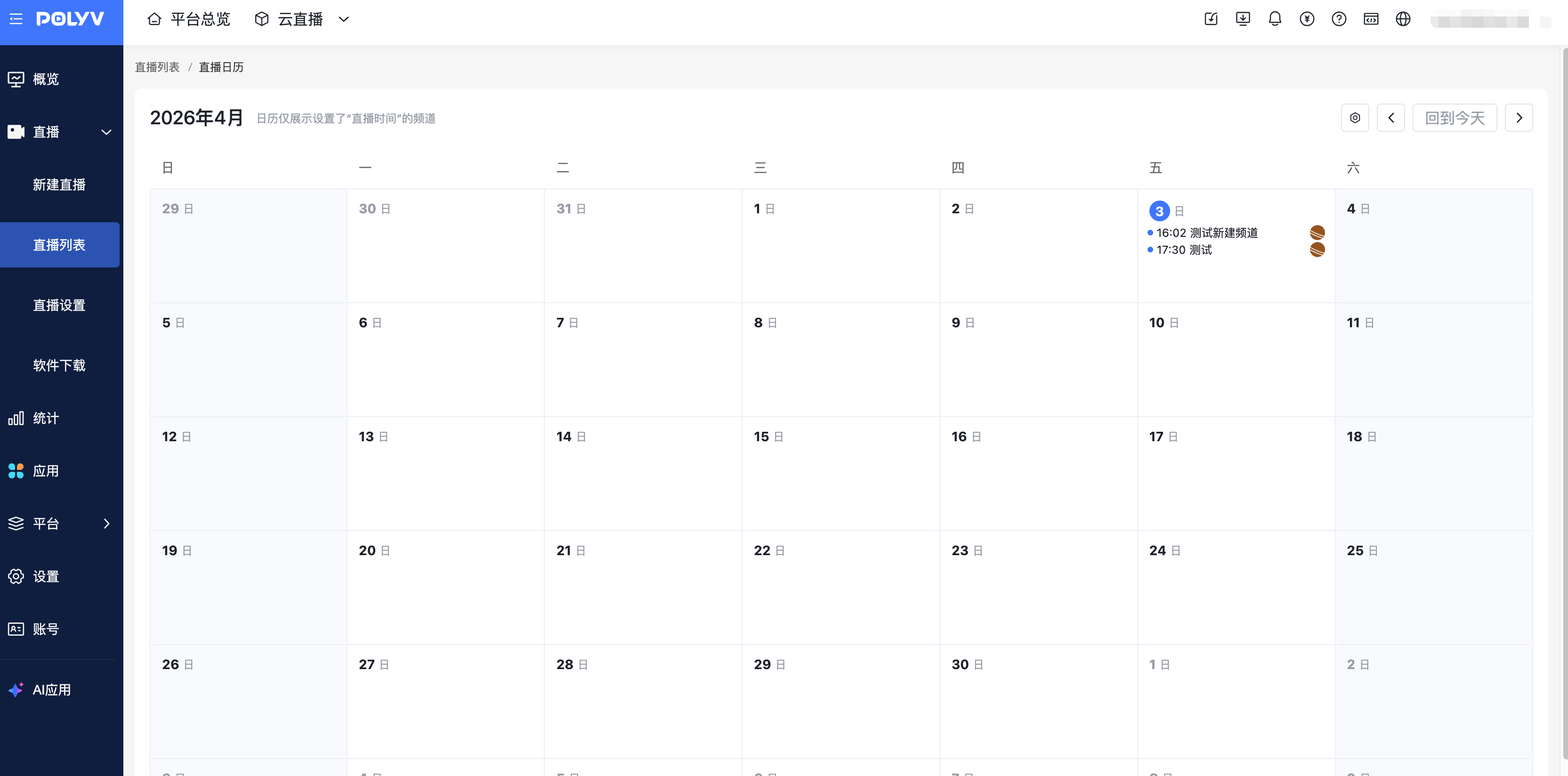
- Under Live Stream List -> Live Stream Calendar, information on created live stream rooms is displayed. The calendar only shows channels with a set "Live Stream Time".
- Under the live stream calendar, the channel name, channel ID, and live stream time are displayed by default.
- Supports monthly page turning for viewing, facilitating live stream scheduling.
7. Batch Management
- Supports batch operations on live stream rooms, including changing categories, applying tags, exporting stream start information, and deleting.
- In list mode, all information from the filter options is displayed by default, including channel name, live stream status, start time, etc.
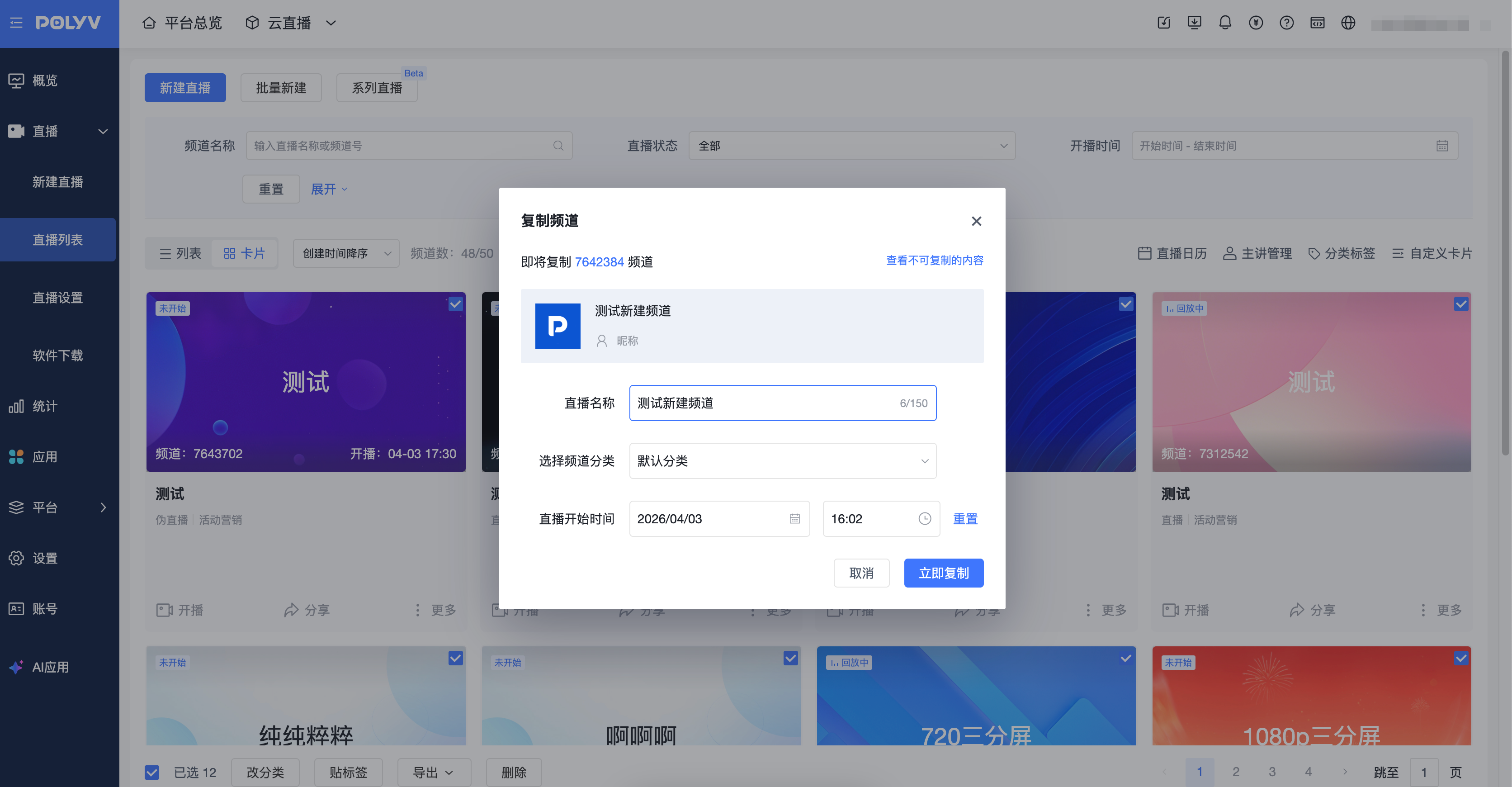
8. Copy Live Stream Room
- Supports copying an existing live stream room.
- After successful copying, adjust the newly copied live stream room to complete the configuration of the new room.
- Copying a live stream room only copies the room settings. Data such as replays, statistics, documents, chat records, and registration records are not copied.