Audio/Video Live Connection
Updated: 2026-08-17 11:27:00
1. Feature Overview
Feature Info |
Description |
|---|---|
| Feature Name | Audio/Video Live Connection |
| Feature Description | The audio/video live connection feature allows real-time audio and video interaction between the host and viewers in a live room. Viewers can request a connection, and once approved by the host, they can join the live stream for two-way or multi-party interaction. |
| Purpose | Enhance interactivity, enrich content formats, and bridge the gap between host and viewers |
| Use Cases | Entertainment live streaming, educational live streaming, e-commerce live streaming, online meetings/events, etc. |
| Notes | 1. Ensure the computer has a working camera and microphone. 2. For PC connections, it is recommended that students use the latest version of Chrome browser for more stable connections. 3. The viewer's upstream network should ideally be above 2Mbps. 4. Live connection interaction puts some load on the computer; avoid running other applications that consume upstream bandwidth and system performance, such as Baidu Netdisk. |
2. Usage Instructions (Using Web as Example)
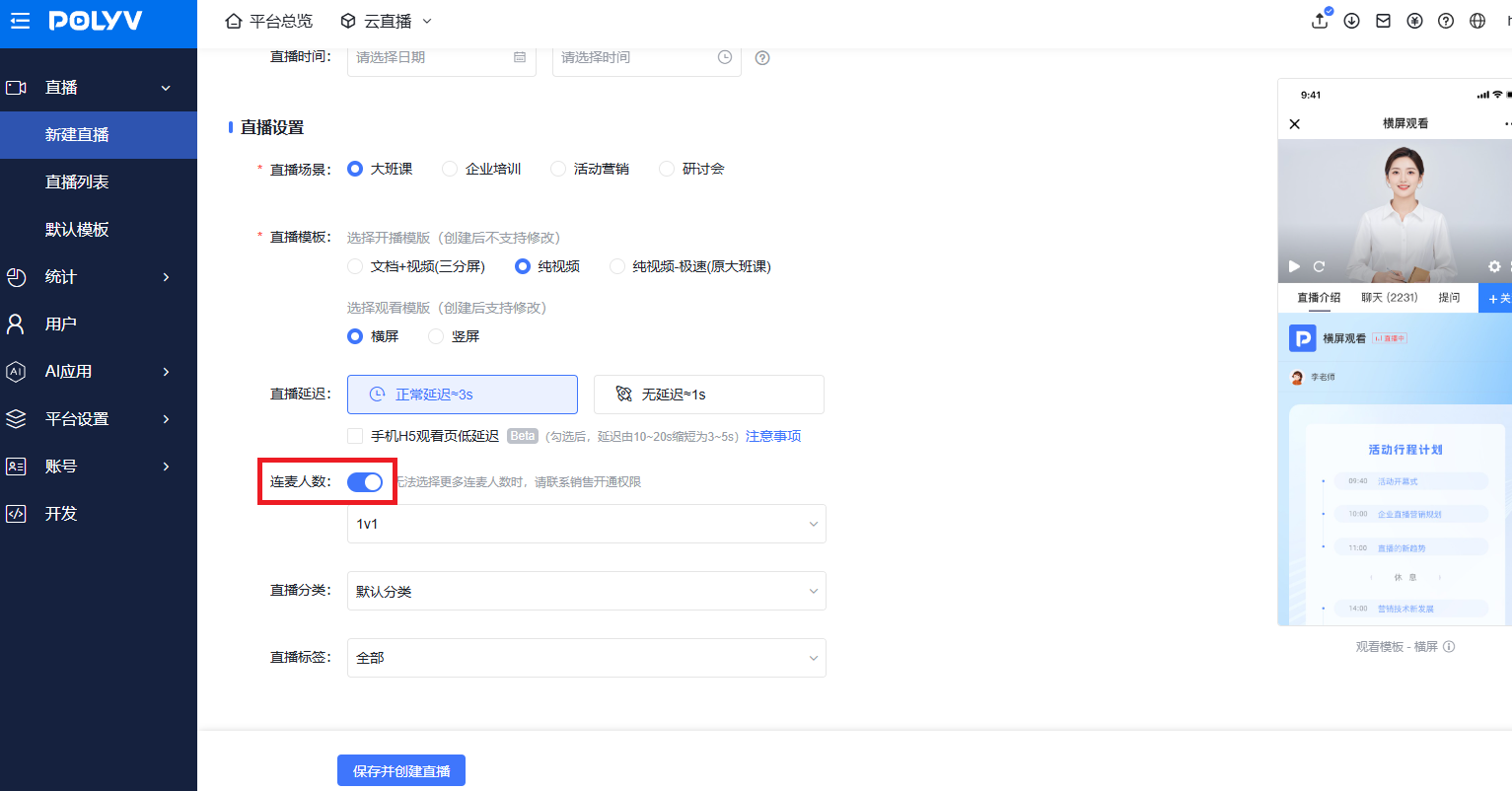
- When creating a live room, the instructor must check the "Number of Connections" button; otherwise, connection is not possible.
- Viewers enter the live room via a link.

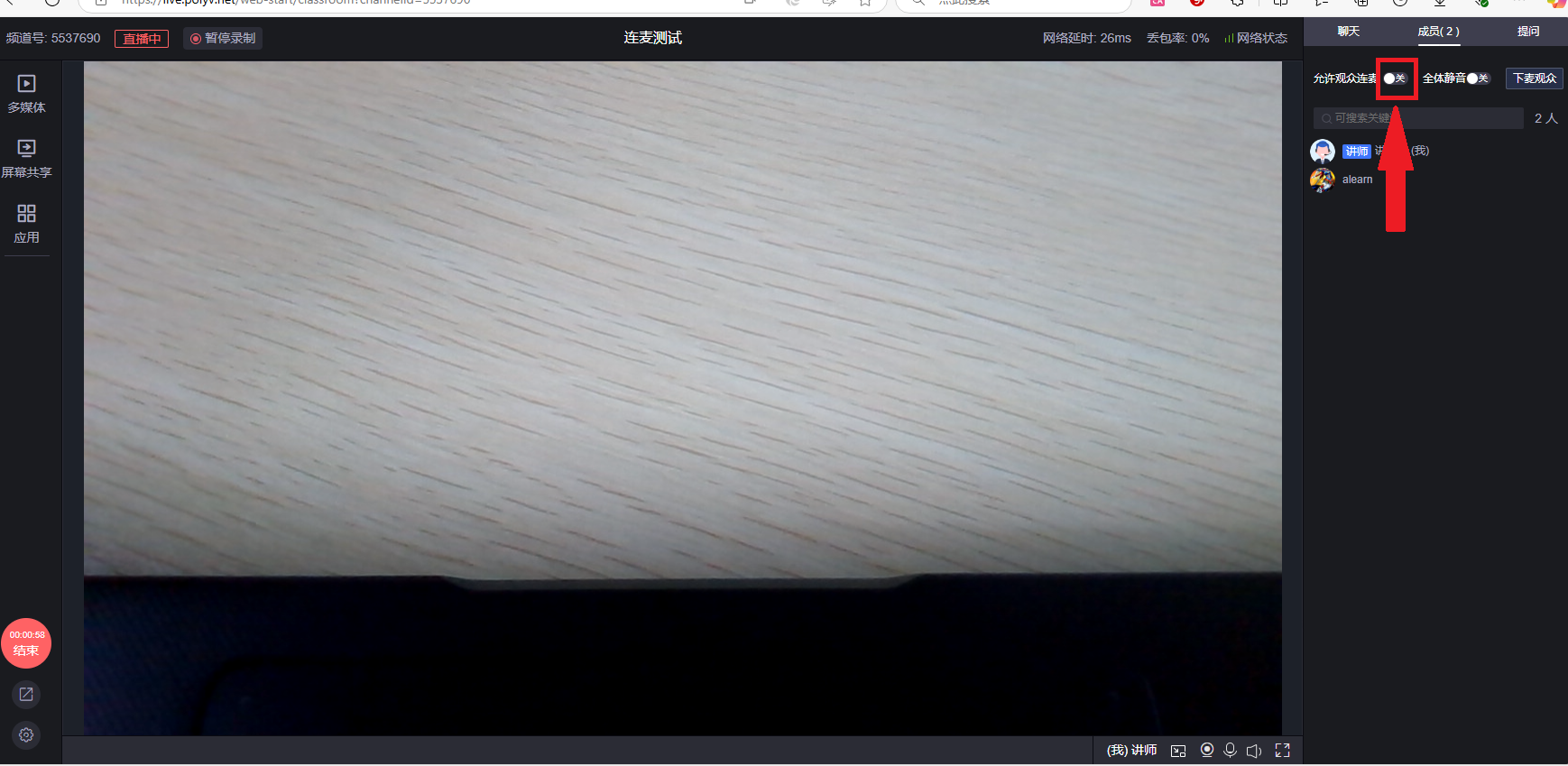
- The instructor turns on the "Allow Viewer Connection" switch under the member list on the right side of the live room.
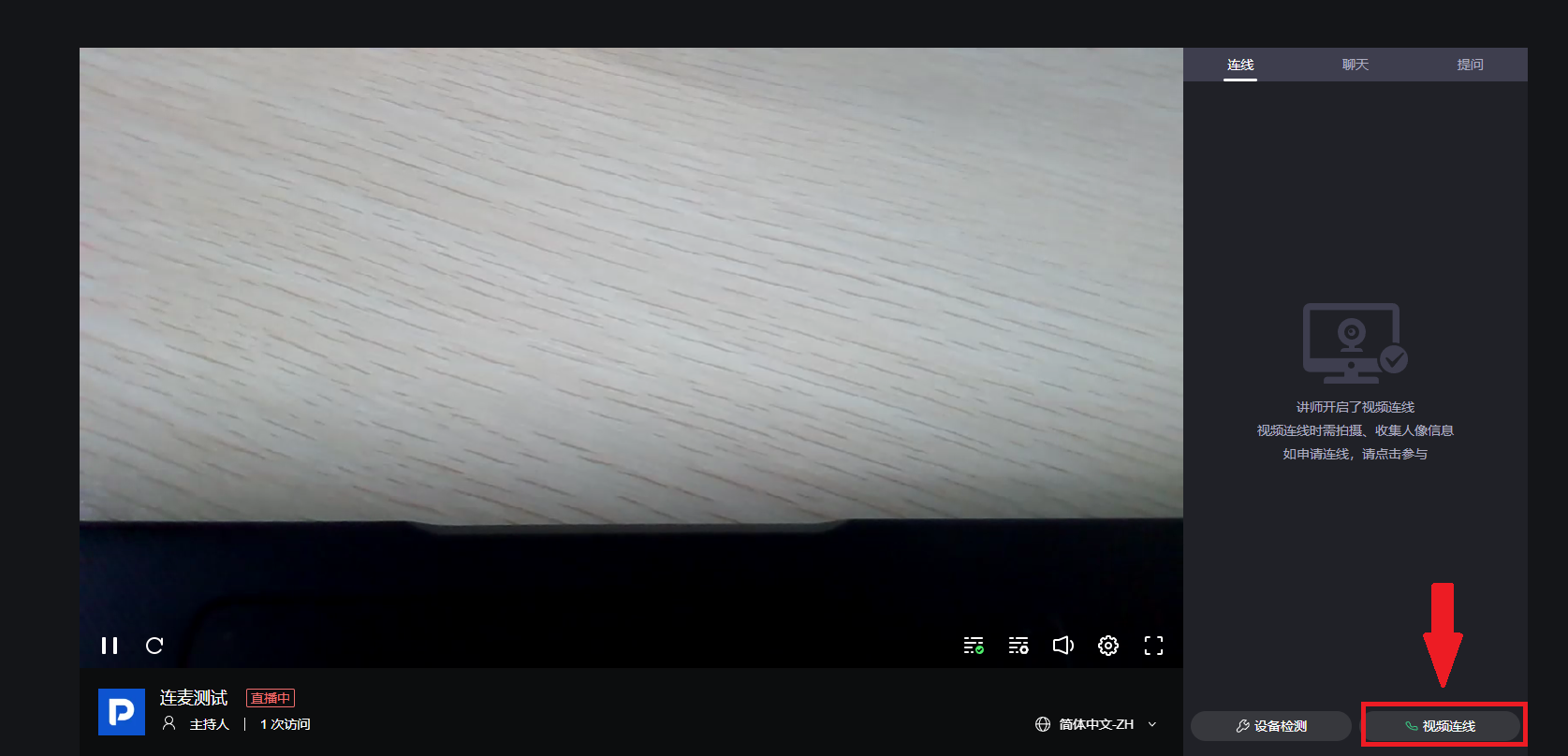
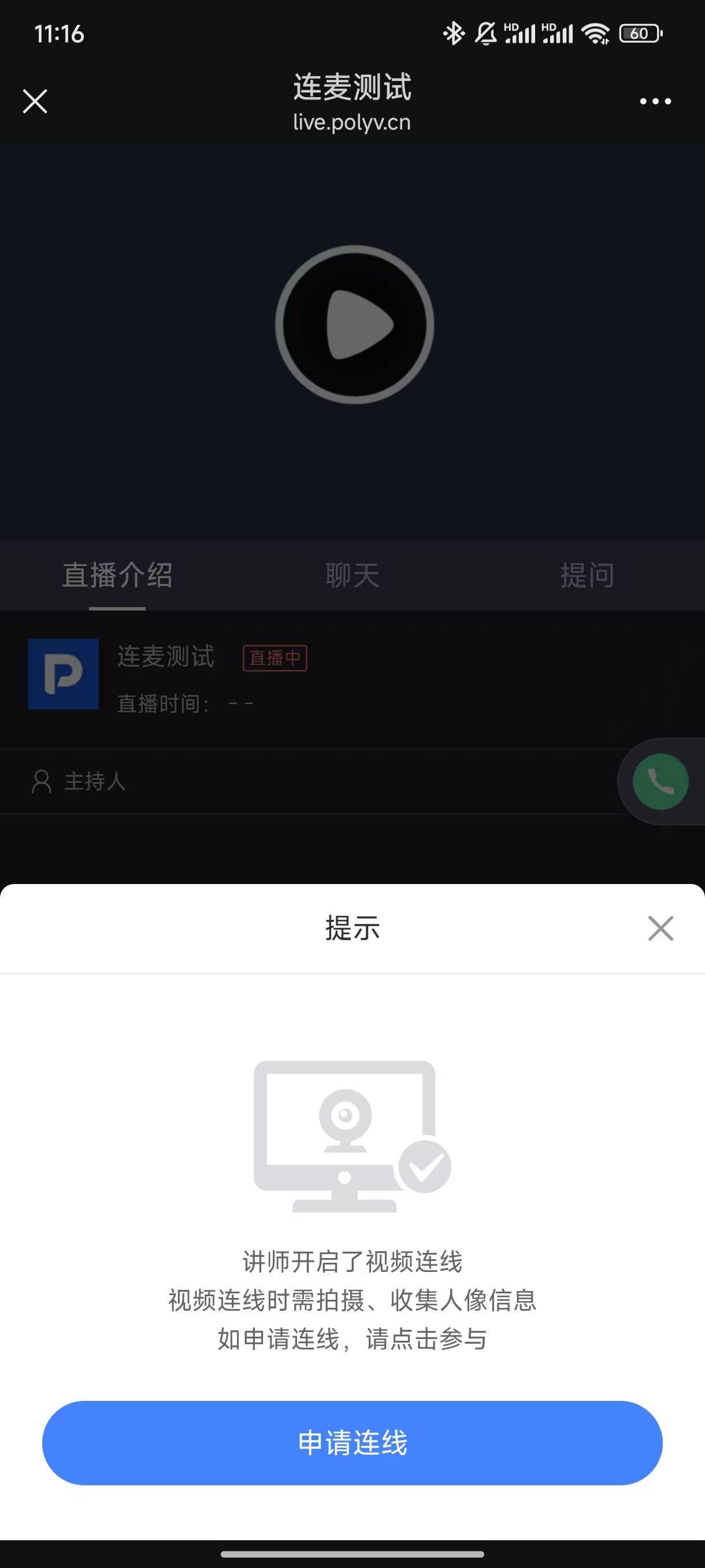
- A connection feature appears on the viewer's end. Click "Video Connection" to send a connection request to the instructor.
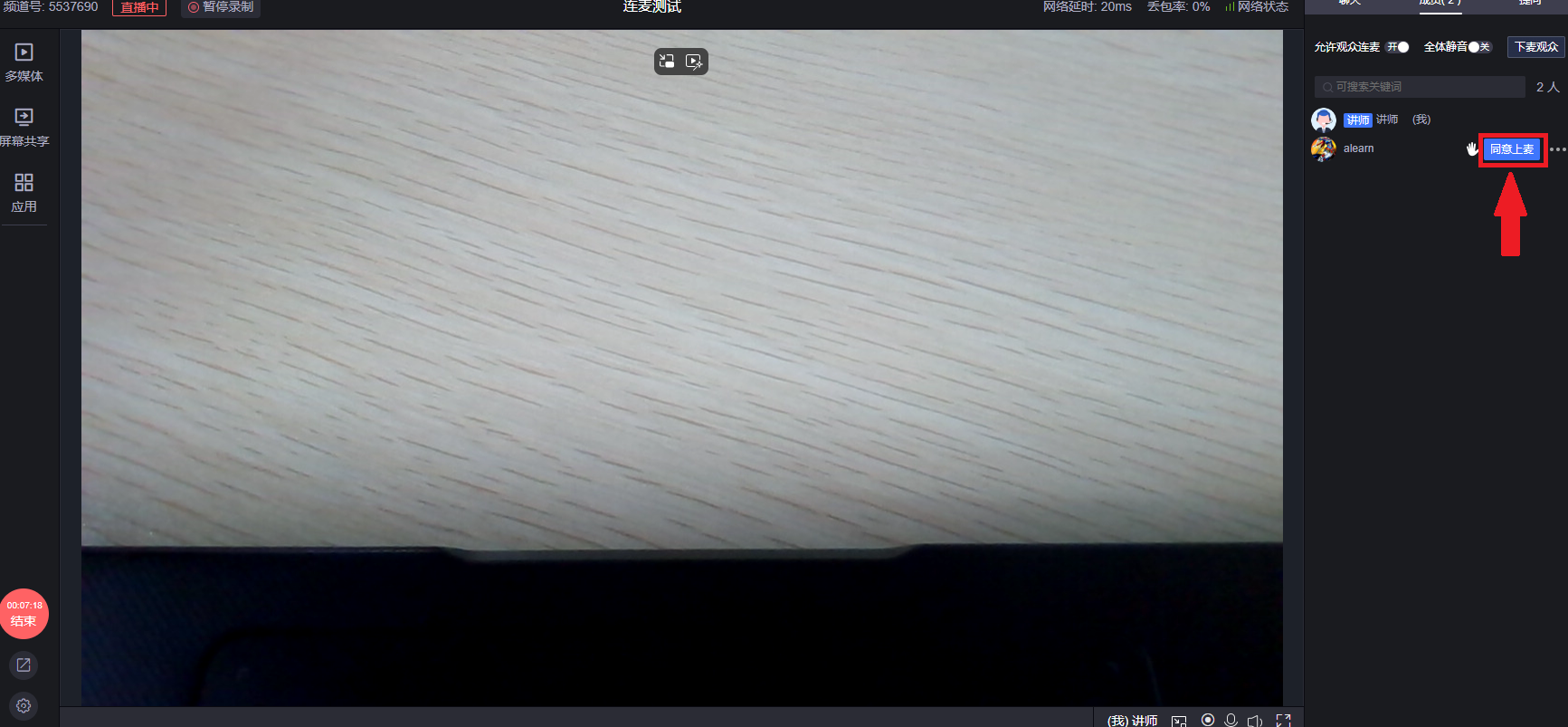
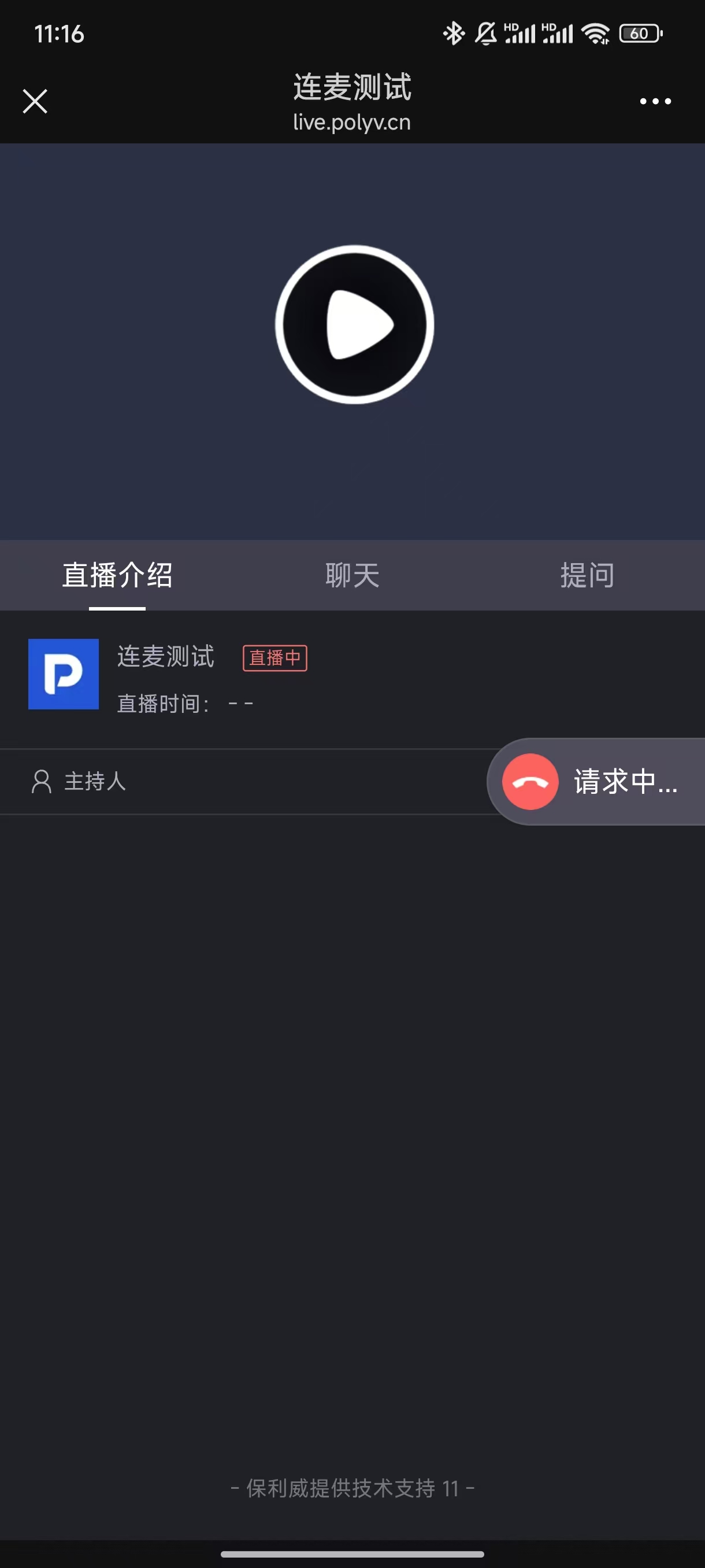
- After the viewer sends the request, the instructor sees the connection applicant and can choose to approve or ignore.
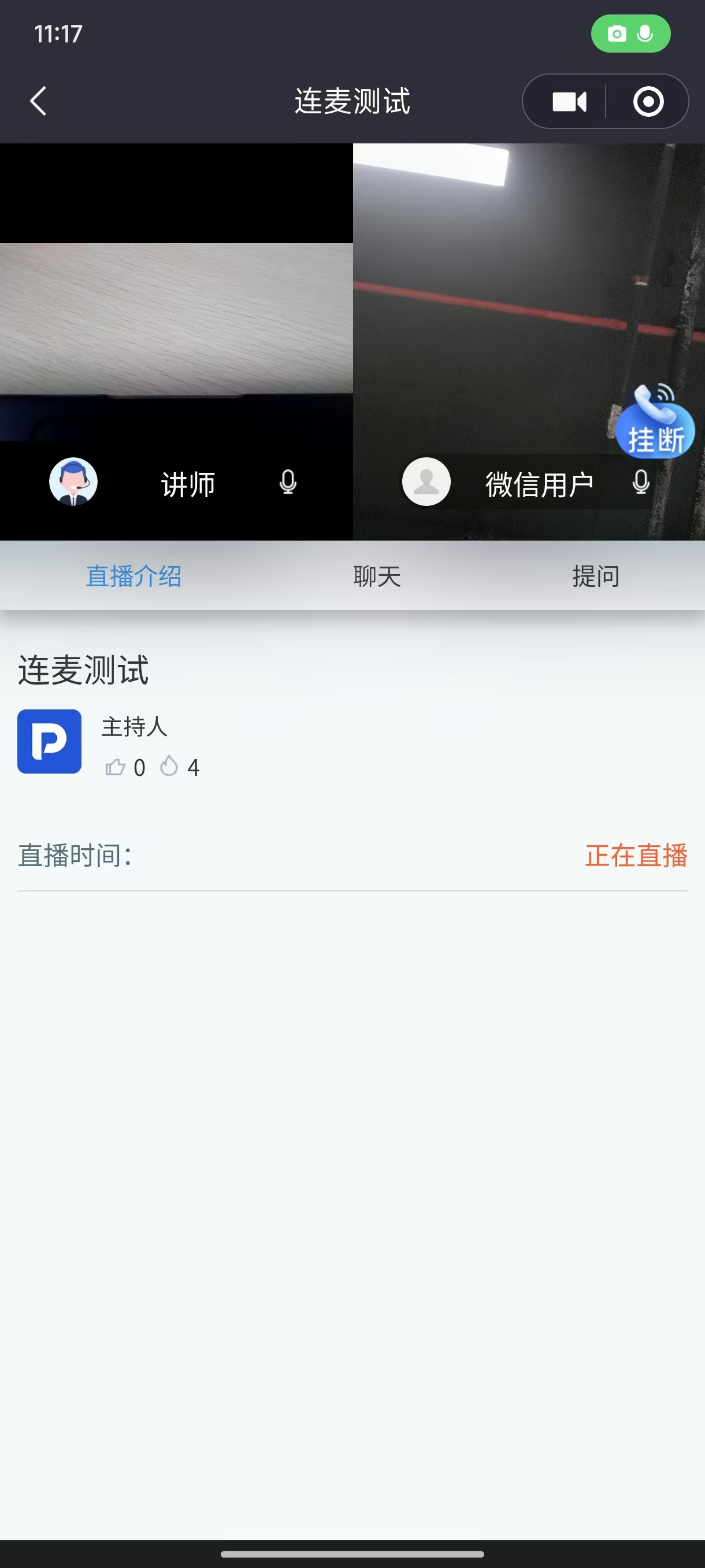
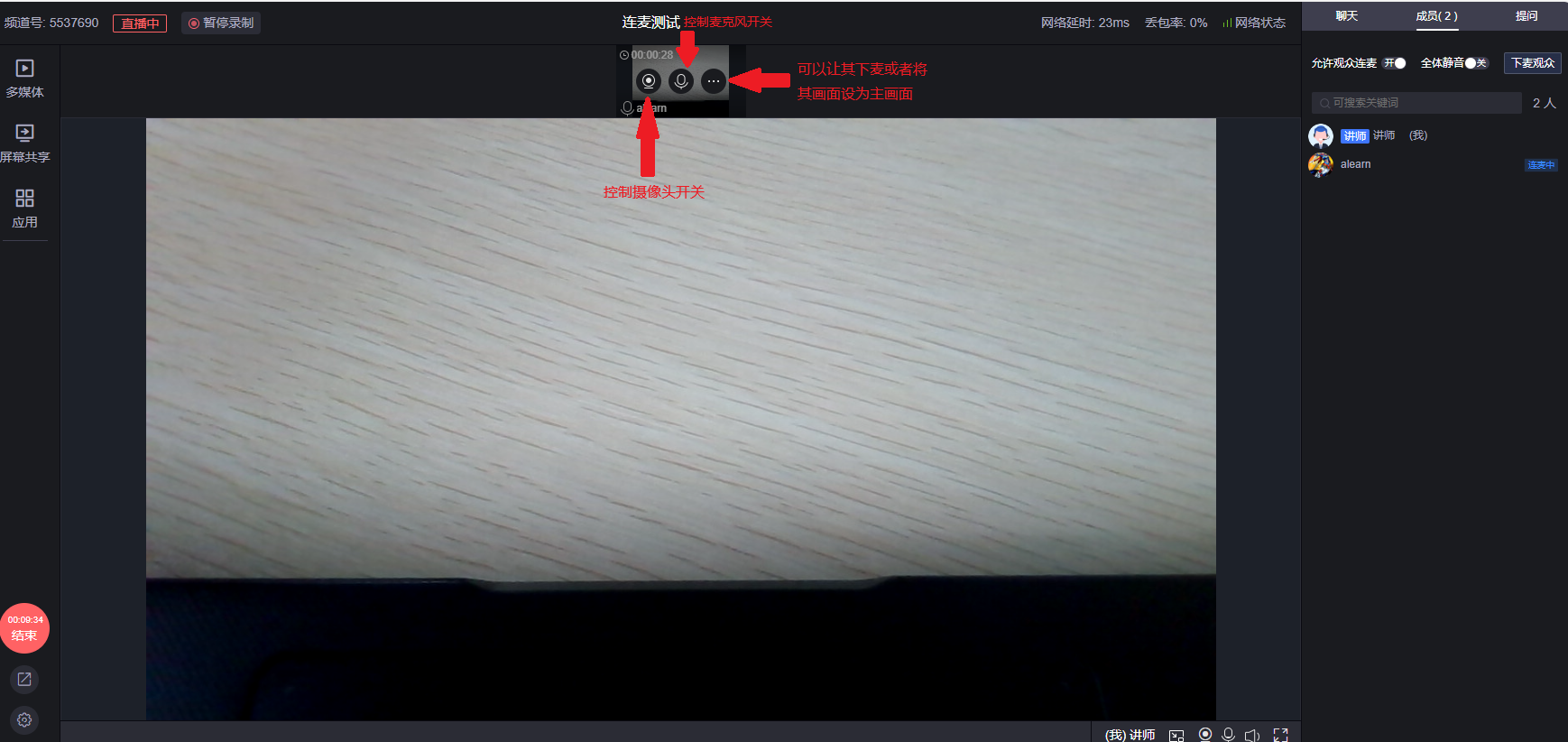
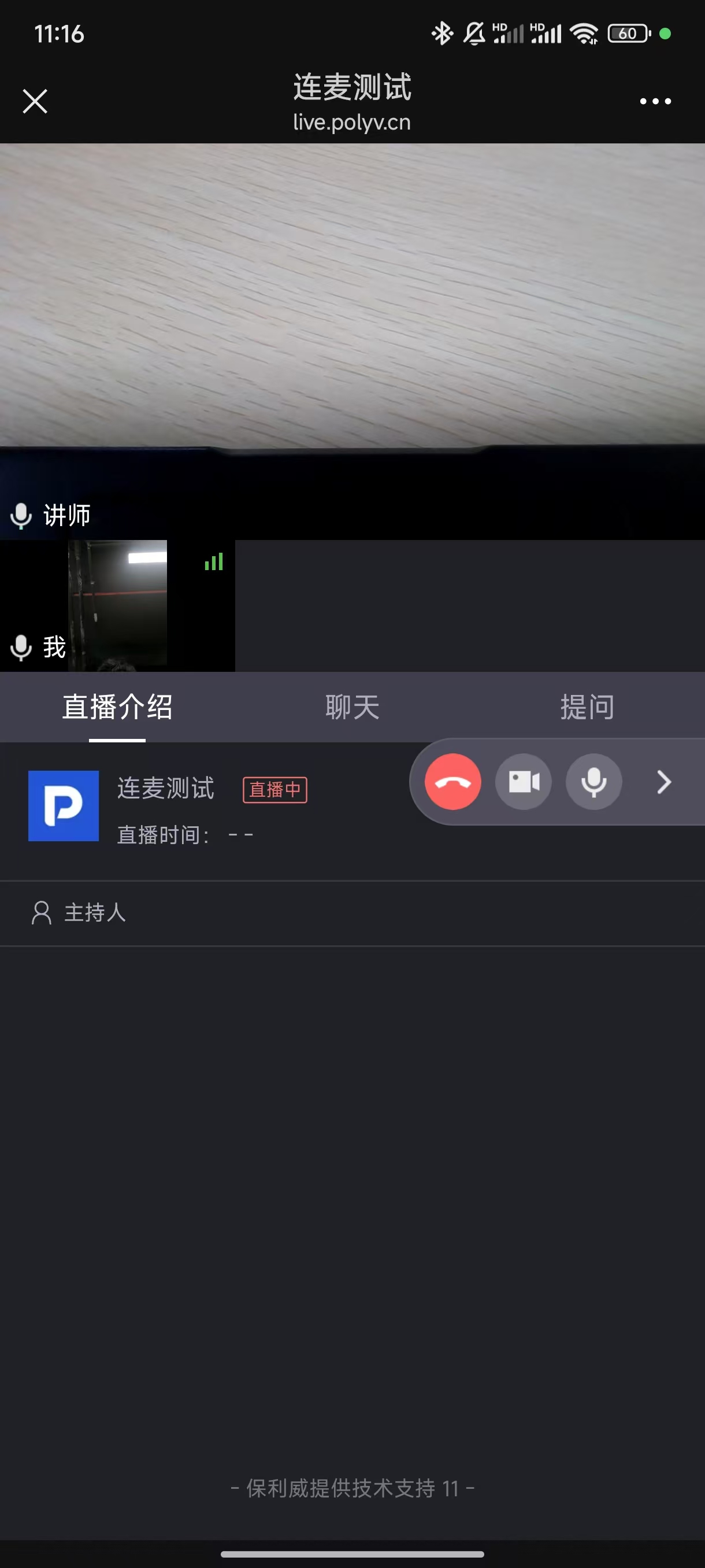
- Once the instructor approves the connection request, the applicant's camera feed appears as a secondary screen in the live room. The instructor can control the applicant's camera on/off, microphone on/off, disconnect switch, and set their screen as the main screen.
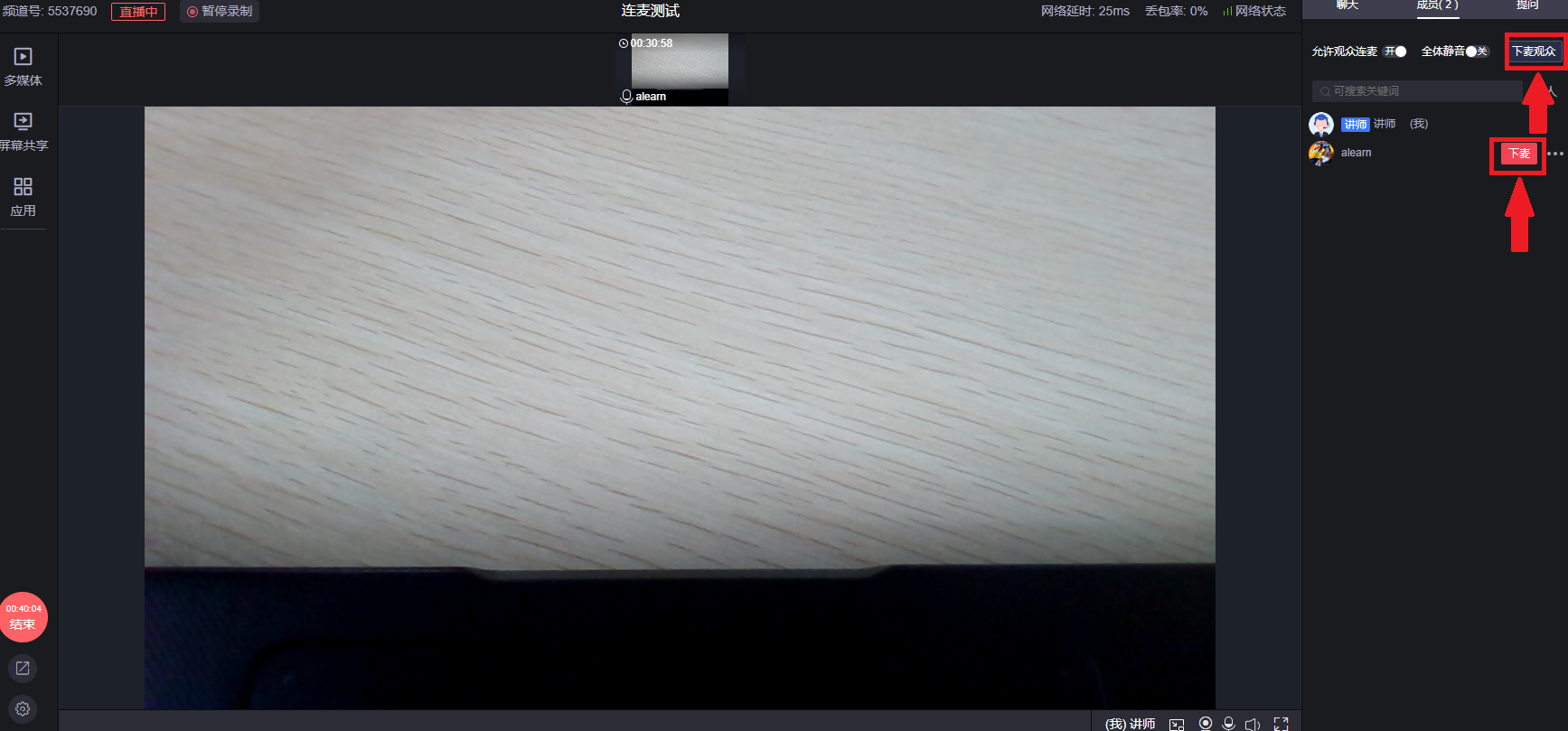
- To batch or quickly disconnect viewers, in addition to the previous button, there are these buttons (click the "Disconnect Viewers" button to disconnect all viewers).
3. Effect Demonstration
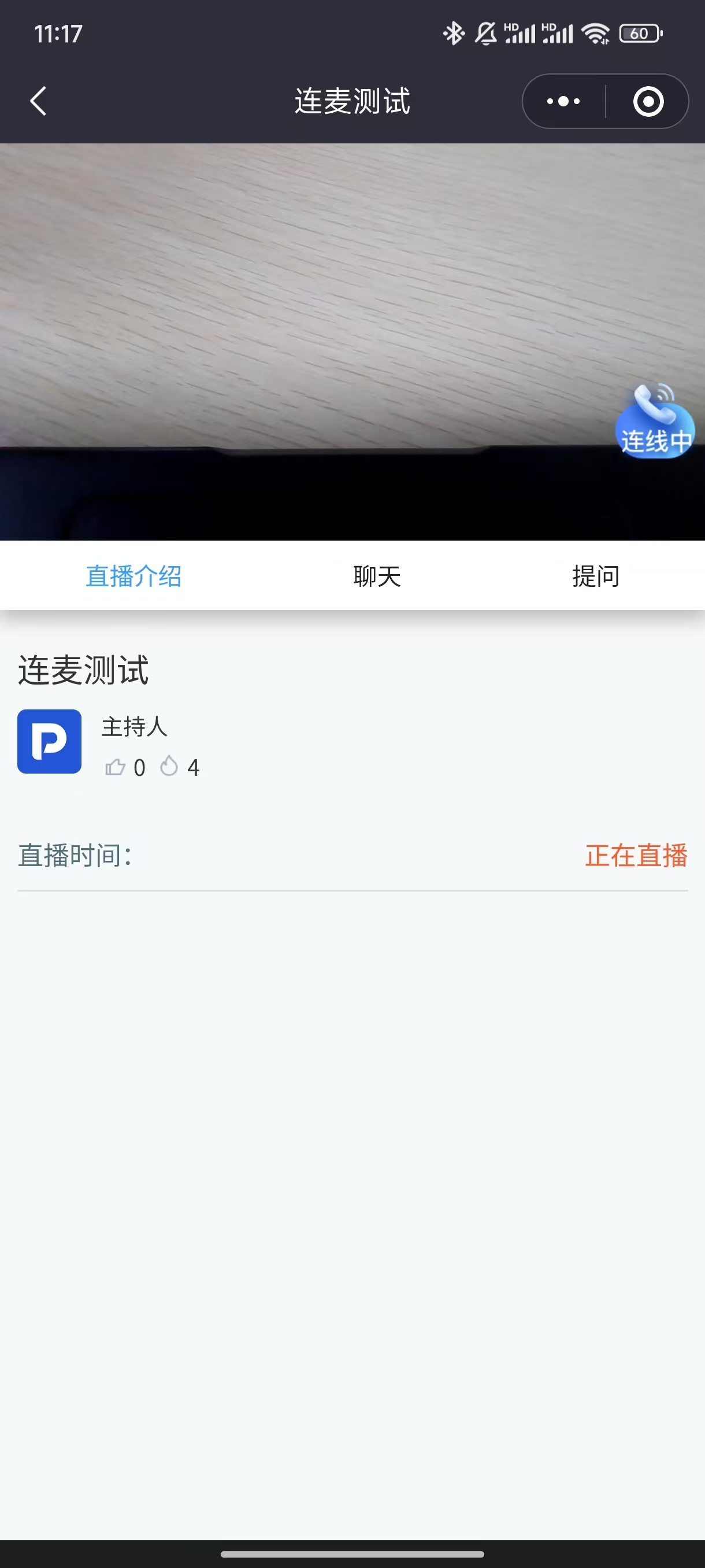
H5 Mobile
Live Learn WeChat Mini Program