


Financial Management
Updated: 2026-08-17 11:27:00
1. Feature Overview
Feature Info |
Description |
|---|---|
| Feature Name | Financial Management |
| Feature Description | Users can view bills, balances, and other financial status on the platform |
| Purpose | Help users understand financial information |
| Usage Scenario | When users need to understand their financial status |
| Feature List | Bill Overview, Bill Details, Usage Details, My Account, Withdrawal, Revenue, Balance, etc. |
2. Detailed Description
2.1 Overview
After logging in to the account and entering the backend, the available balance and credit balance can be directly seen in the upper right corner of the platform overview page.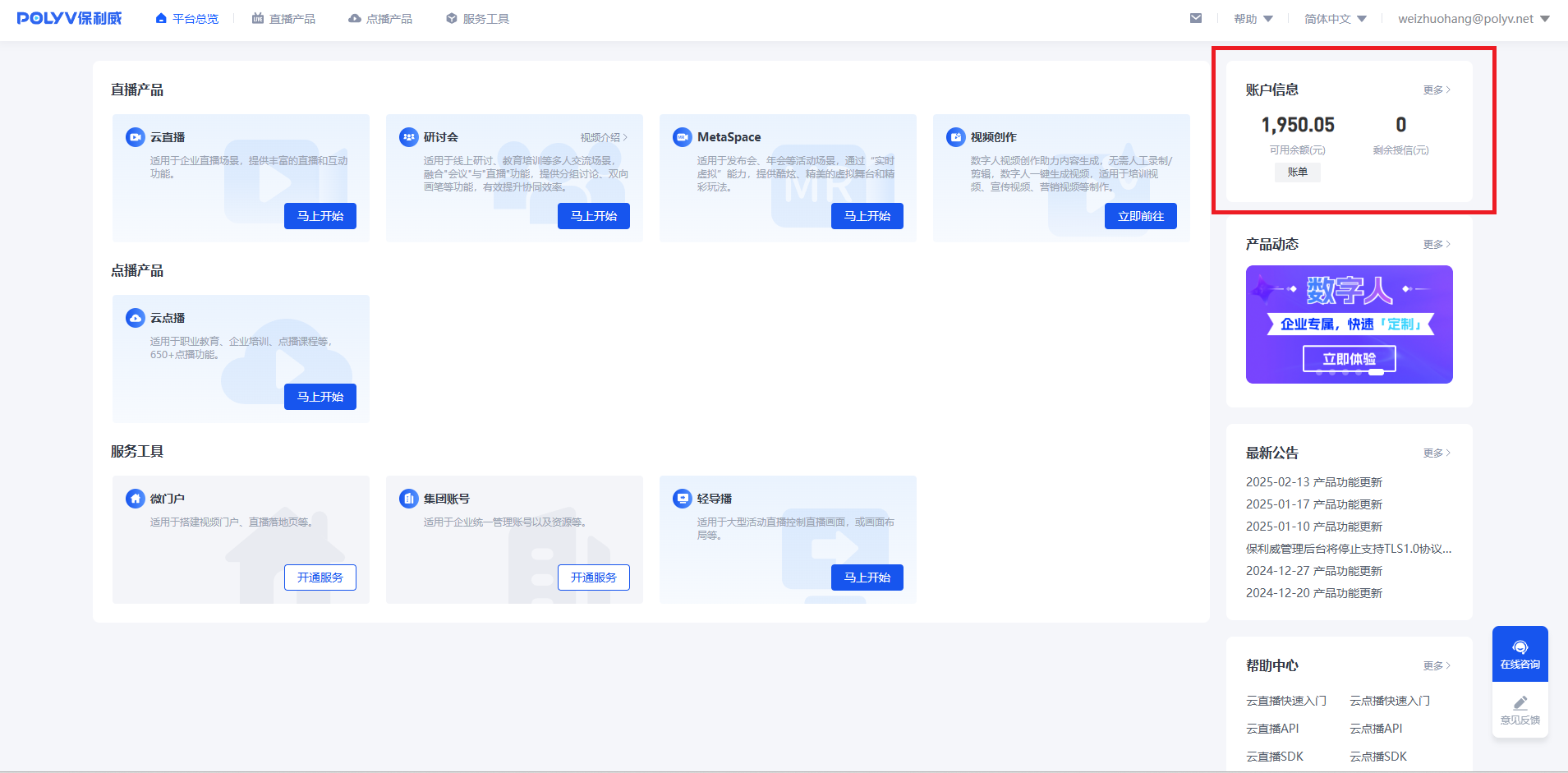
2.2 Bills
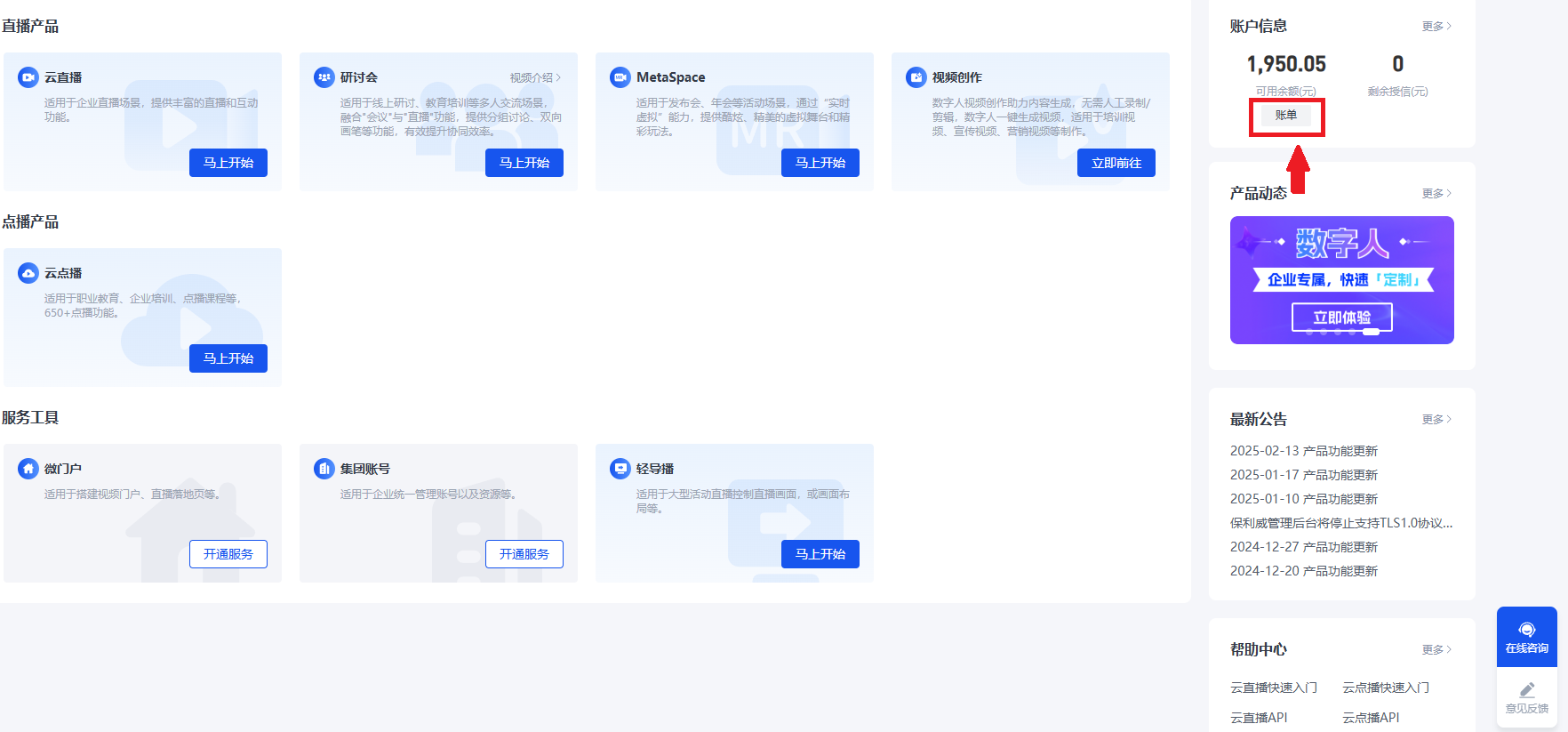
Click on [Bill] at the account information section or enter the [Financial Center - Bill Page] from the top of the corresponding product list.
Bills include three parts: Bill Overview, Bill Details, and Usage Details.
- Bill Overview: View monthly consumption, summarized by day and billing item, mainly used for an overview of consumption.
- Bill Details: View daily consumption, summarized by day and project details, mainly used for viewing daily consumption details.
- Usage Details: View each record of consumption-generating behavior, mainly used for analyzing user viewing behavior, not recommended as a basis for financial reconciliation.
Related term explanations
- Billing Period: A bill cycle divided by calendar month.
- Billing Date: The date the bill is generated, distinct from the usage date.
- Usage Date: The date resources are consumed, distinct from the billing date.
- Transaction Type: Differentiates between usage settlement and amount settlement.
- Usage Settlement: Settlement of usage by deducting resource packages.
- Amount Settlement: Settlement of usage by deducting account balance.
- Record ID: The unique ID of the consumption record, such as viewer ID, task ID, etc.
2.3 Purchased Packages and Resources
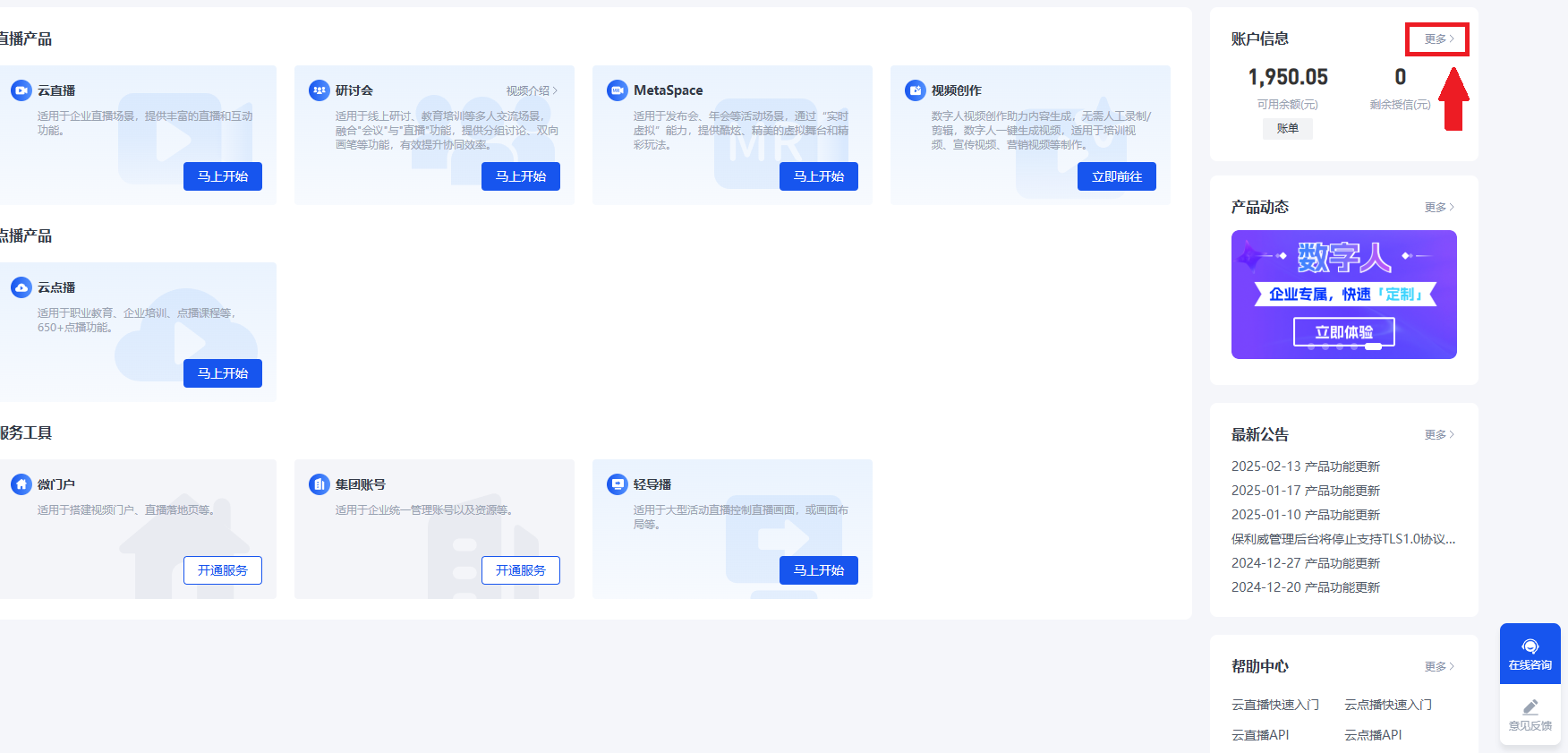
- Click "More" in the upper right corner to enter the Purchased Packages and Resources page.
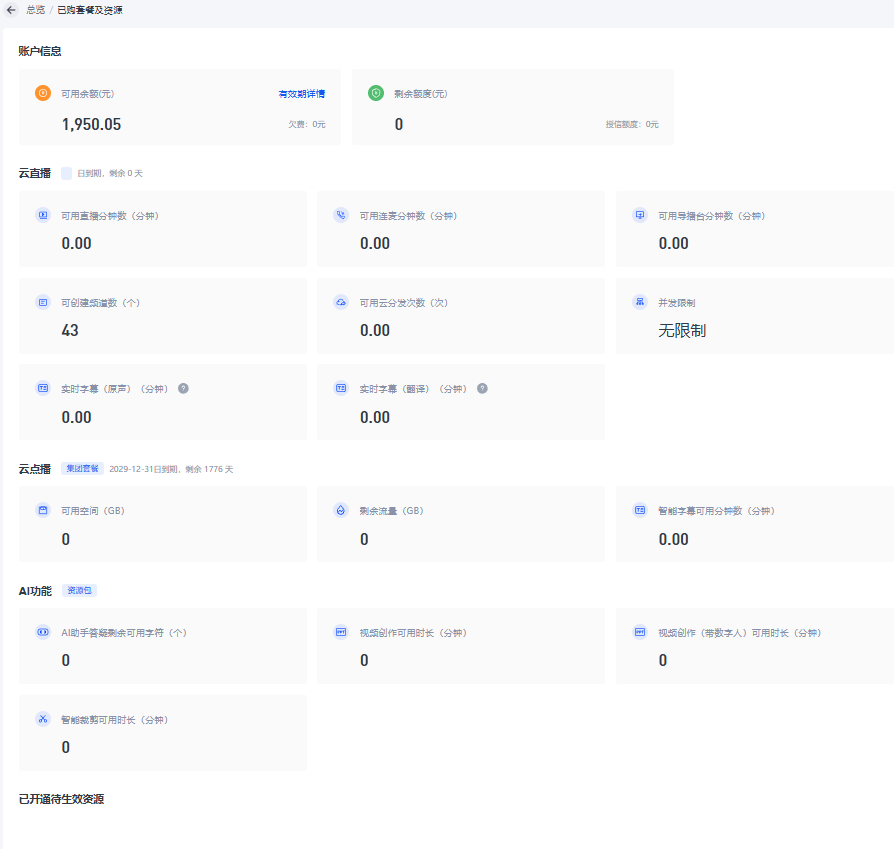
- This section displays the detailed usage status of "Account Information", "Cloud Live Streaming", "Cloud Video on Demand", "AI Features", and "Purchased but Not Yet Activated Resources".
2.4 Viewing Revenue from Tips, Paid Viewing, etc.
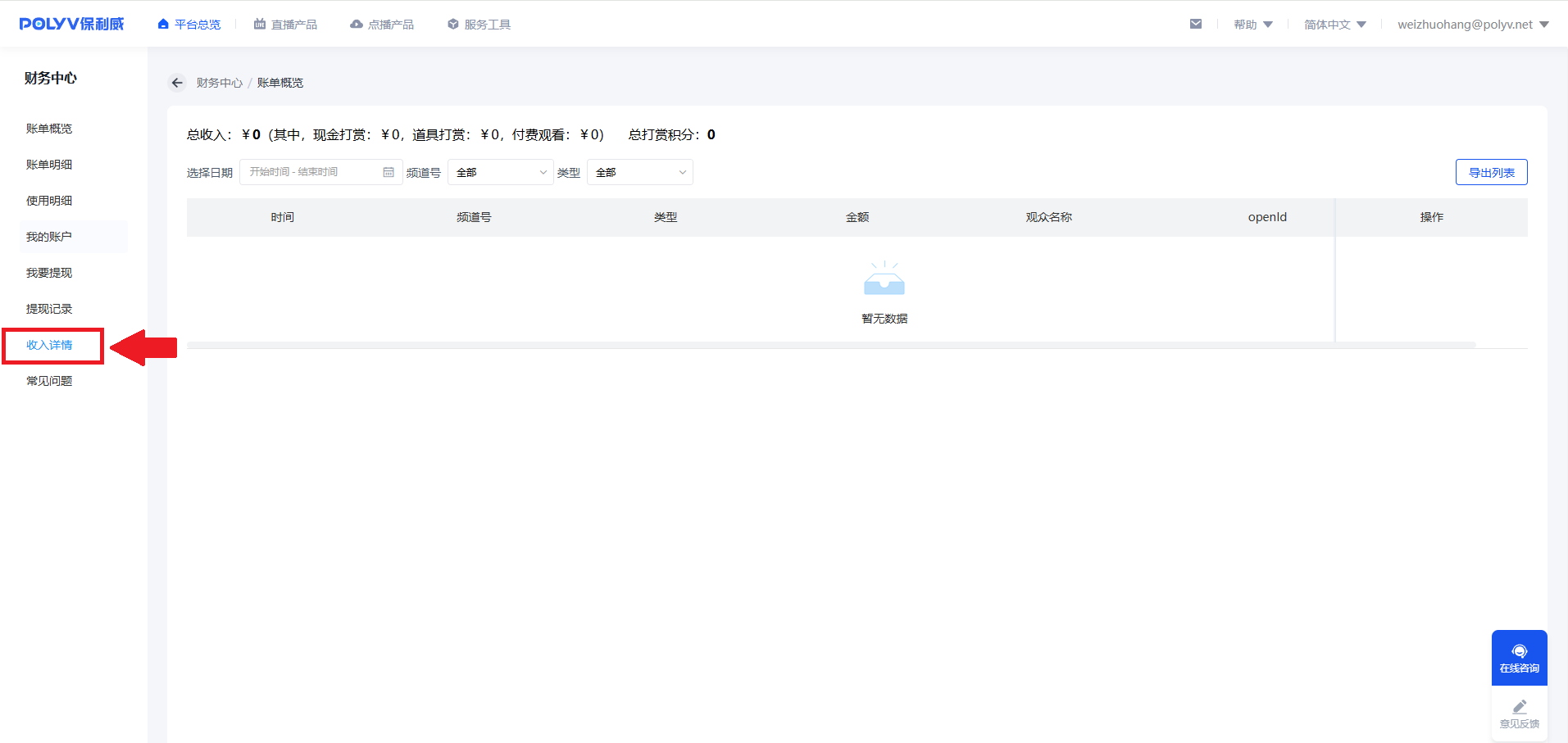
- Enter the Financial Center and click on the Revenue Details section to filter and view data such as cash tips, item tips, and paid viewing.
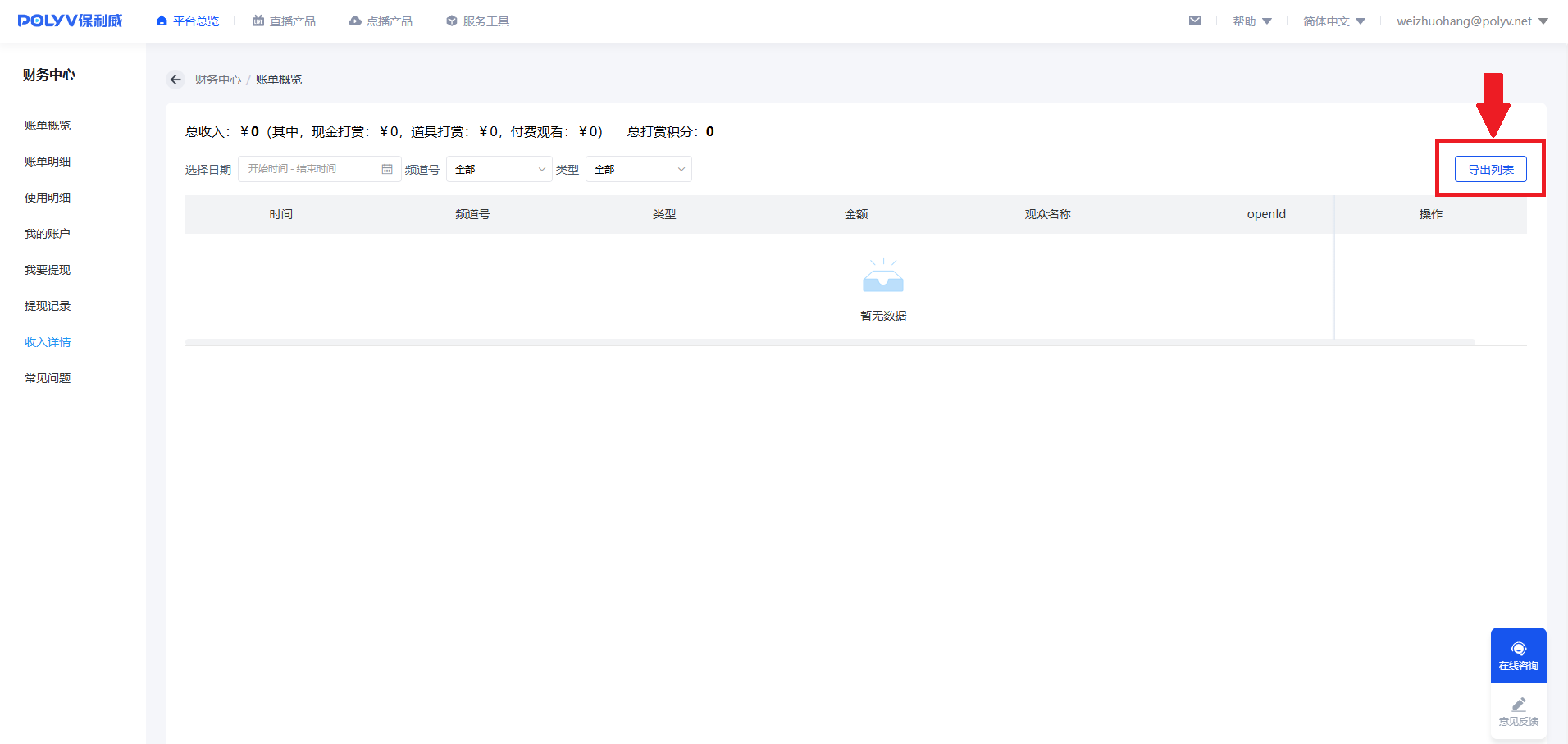
- Export revenue details data.
2.5 Withdrawal
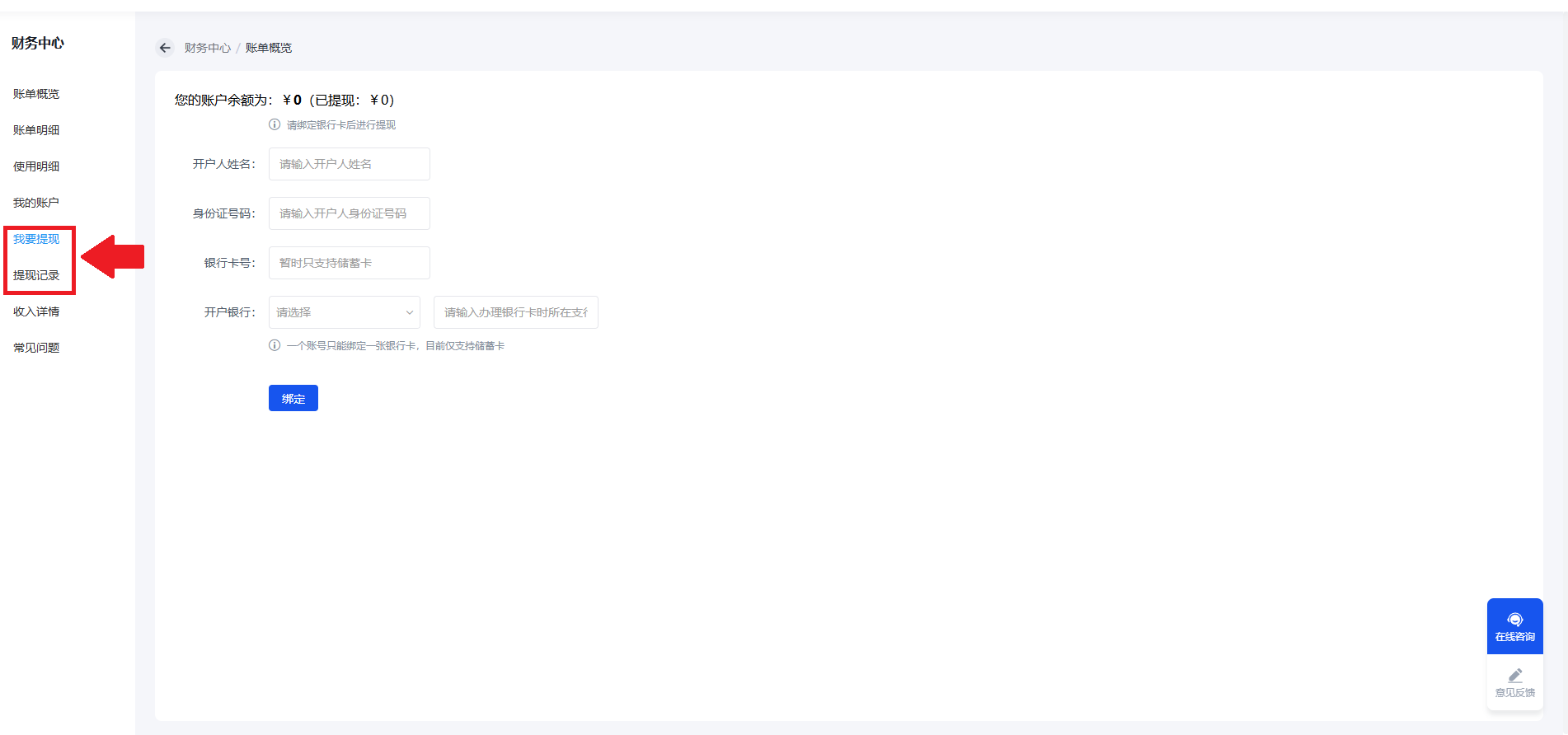
- A bank card must be bound before withdrawal.
- Click on the left navigation bar of the Financial Center - "I Want to Withdraw", bind the bank card information, and click "I Want to Withdraw".
- Note the following for withdrawal:
3.1 Account balance ≥ 1000 yuan.
3.2 Withdrawal is allowed only once per month.
3.3 The settlement period is from the 25th to the 30th of each month; withdrawal operations during this period will be processed in the following month.
