


Video Risk Identification Feature
1. Usage Scenarios
Commonly used in live streaming scenarios with strict compliance requirements or regulatory oversight, where it is necessary to strictly control the live video of instructors, guests, etc., to prevent negative impacts.
2. Operation Steps
1. Backend Settings
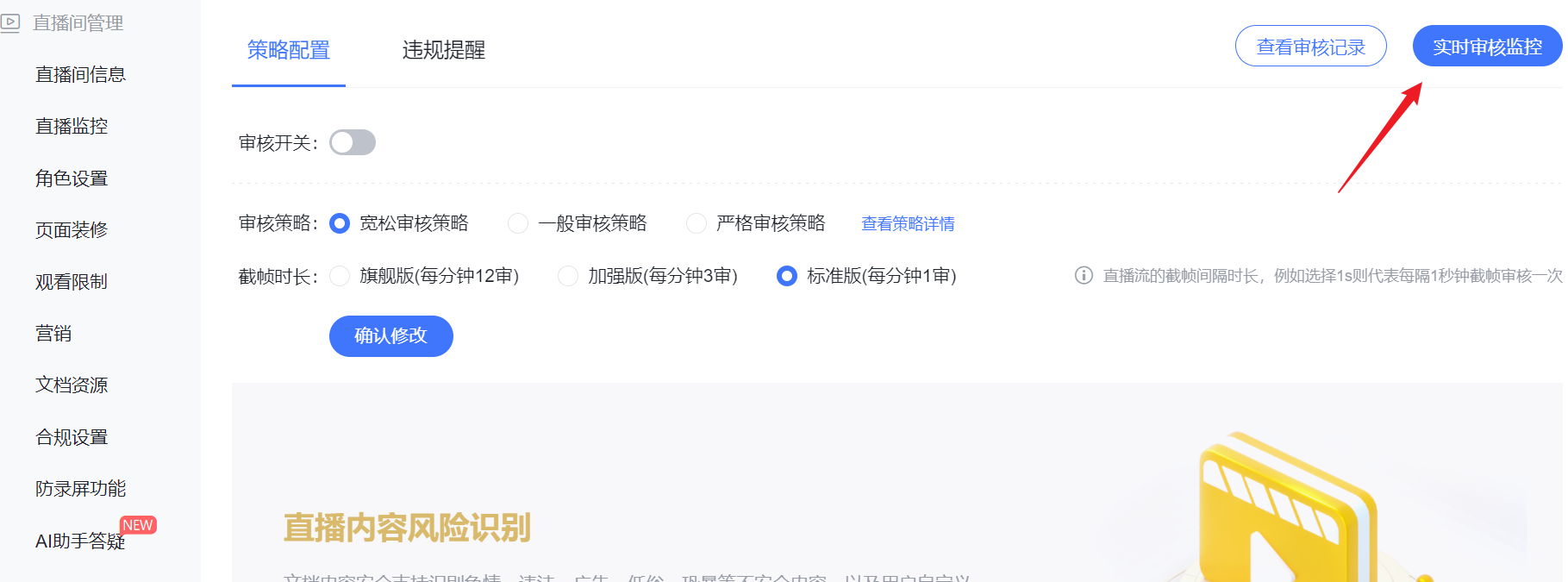
(1) Log in to the Polyv backend, navigate to the compliance settings of a single channel, and find the "Video Risk Identification" feature.
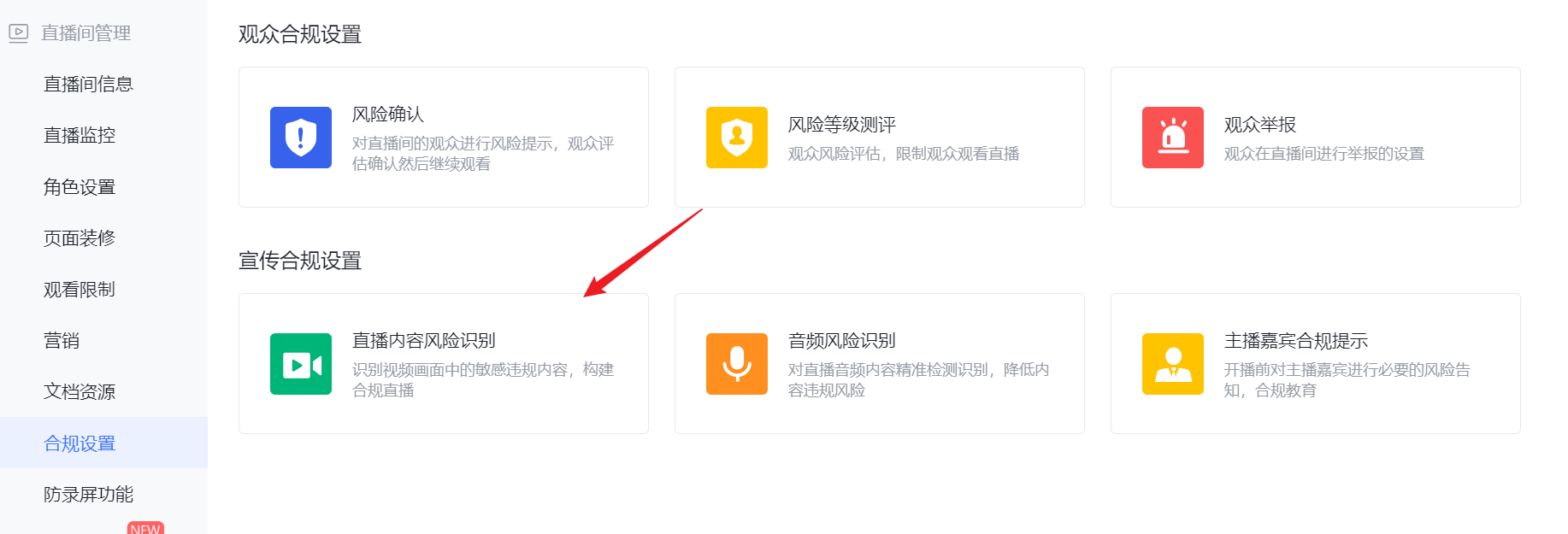 (2) Set the corresponding review strategy.
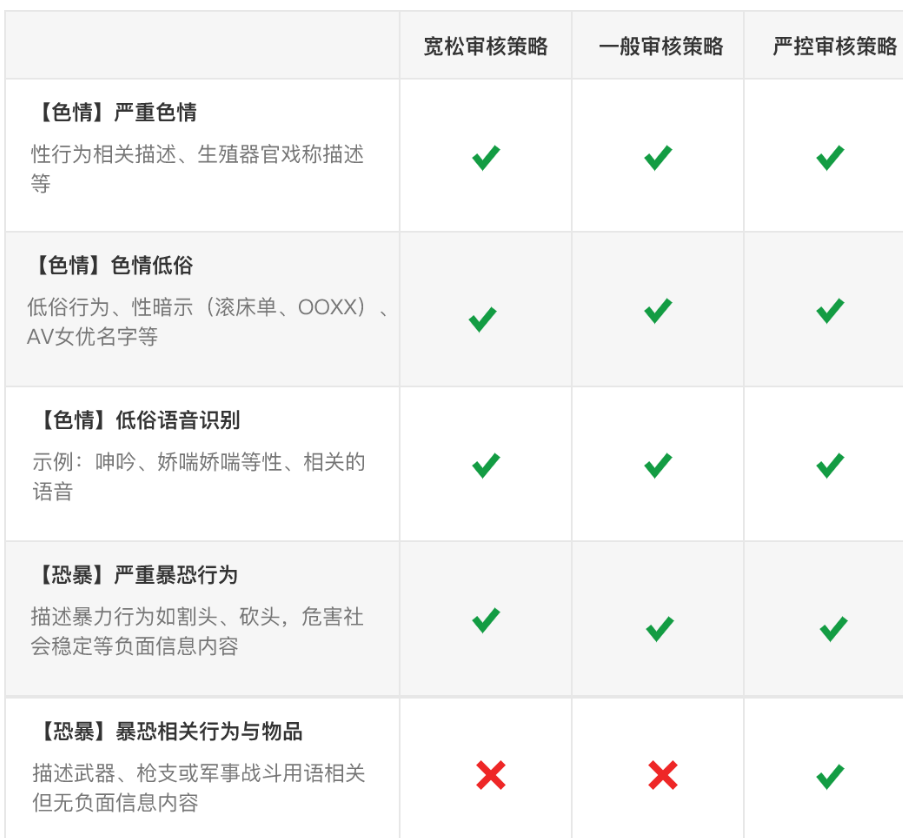
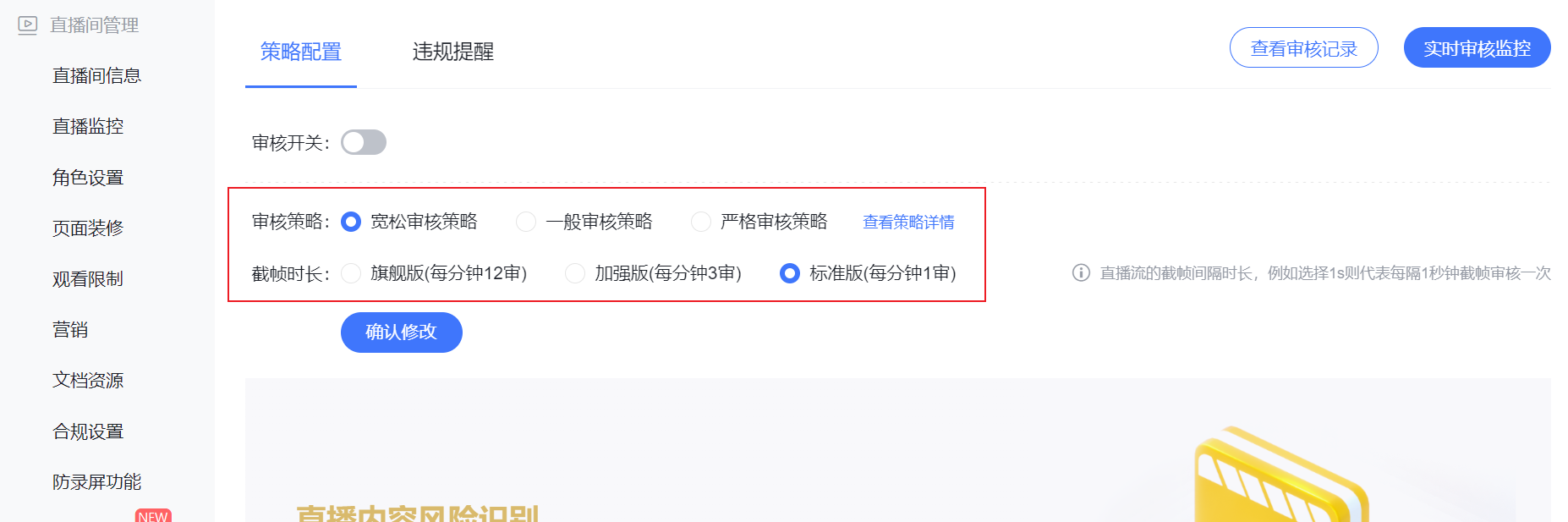 a. Different levels of review strategies have varying degrees of scrutiny during live streaming. Click "View Strategy Details" next to the toggle to see details.
As shown (partial screenshot):
a. Different levels of review strategies have varying degrees of scrutiny during live streaming. Click "View Strategy Details" next to the toggle to see details.
As shown (partial screenshot):
 b. Set the frame capture interval. There are three options: Flagship Edition (12 reviews per minute), Enhanced Edition (3 reviews per minute), and Standard Edition (1 review per minute). This specifically refers to the interval between frame captures of the live stream. For example, selecting 1s means a frame is captured and reviewed every 1 second.
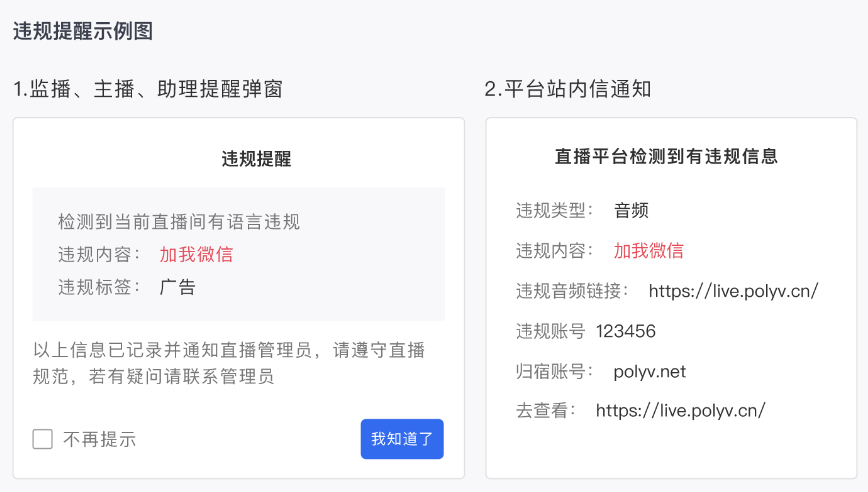
(3) Set violation alerts.
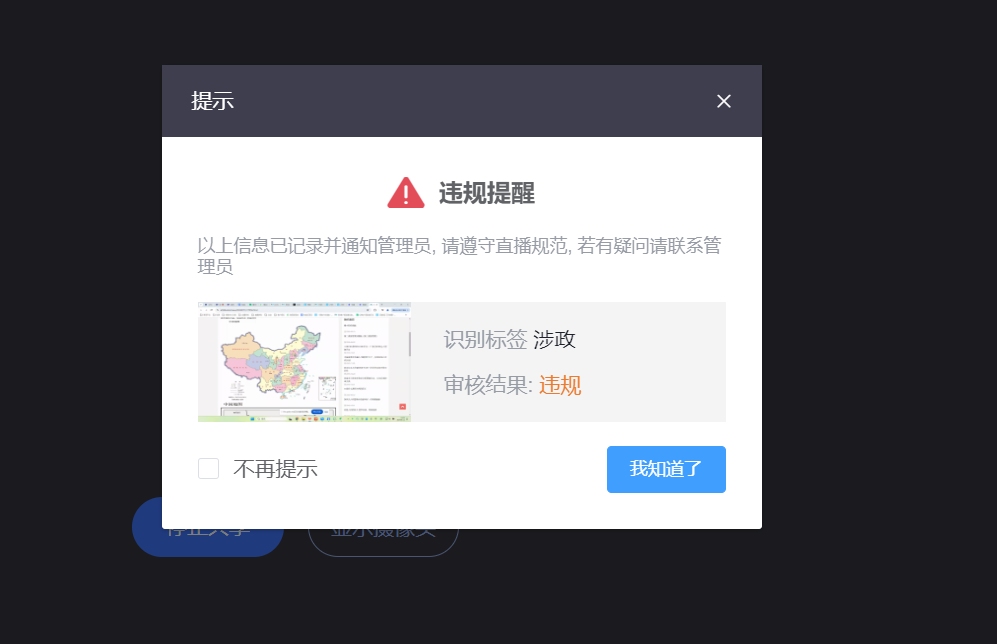
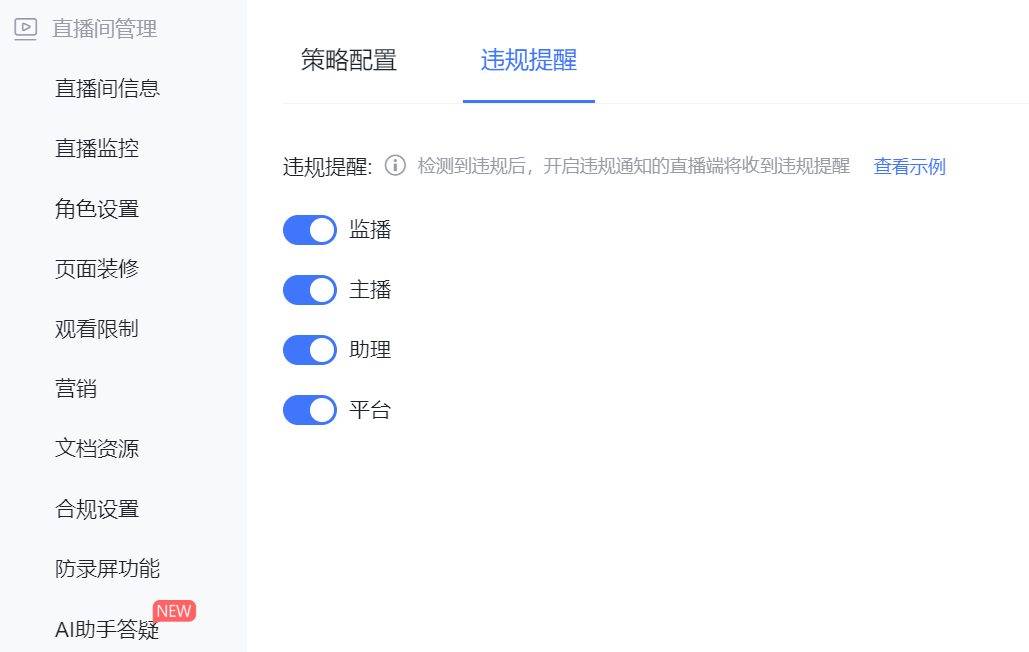 a. Violation alerts can be configured for roles such as monitor, host, assistant, and platform. If an audio violation occurs, a pop-up alert will appear for that role.
b. Click "View Example" to see the pop-up alert style.
2. Review Page
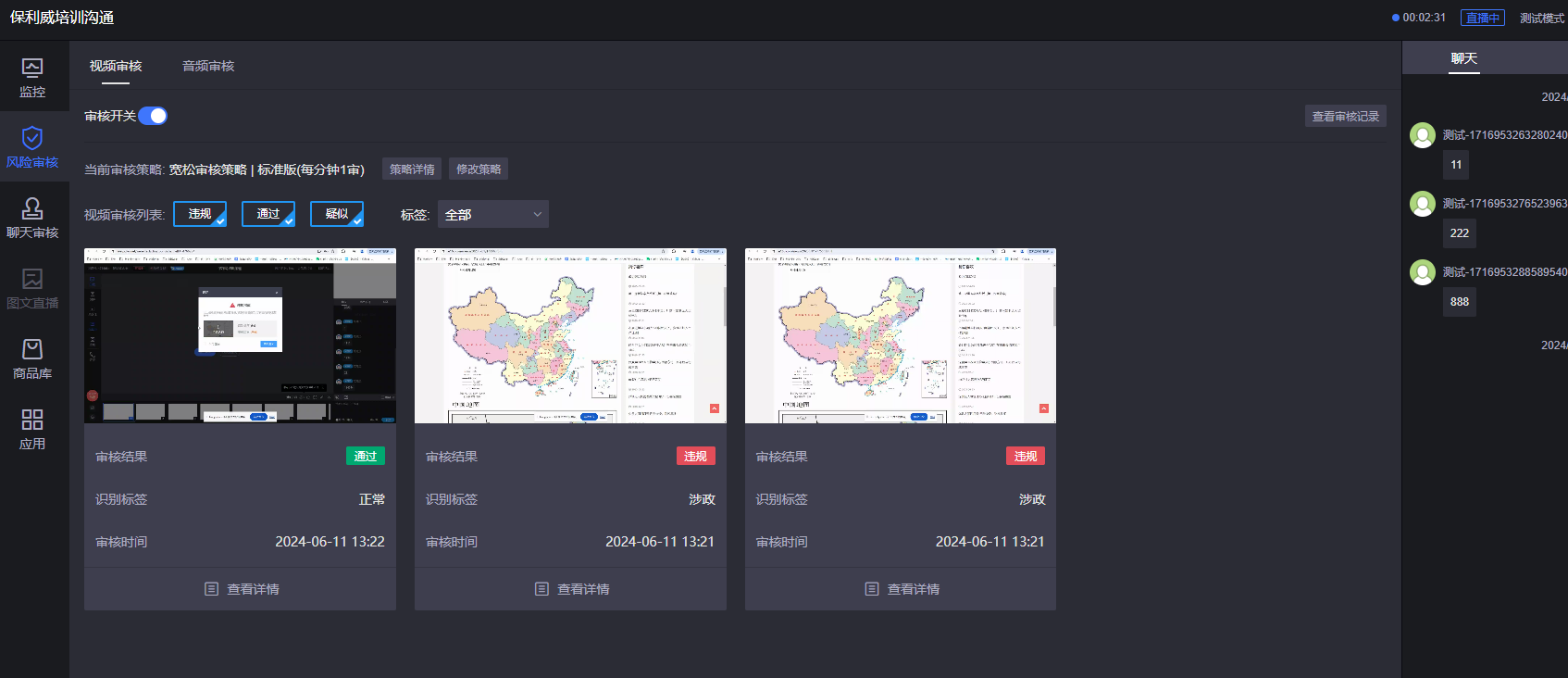
(1) Click "Real-time Review Monitoring" to enter the review monitoring page.
 (2) You can configure risk review settings for the current live room or interrupt the live stream.
 a. If the live room video triggers a review, a corresponding pop-up will appear. You can view the detailed content.
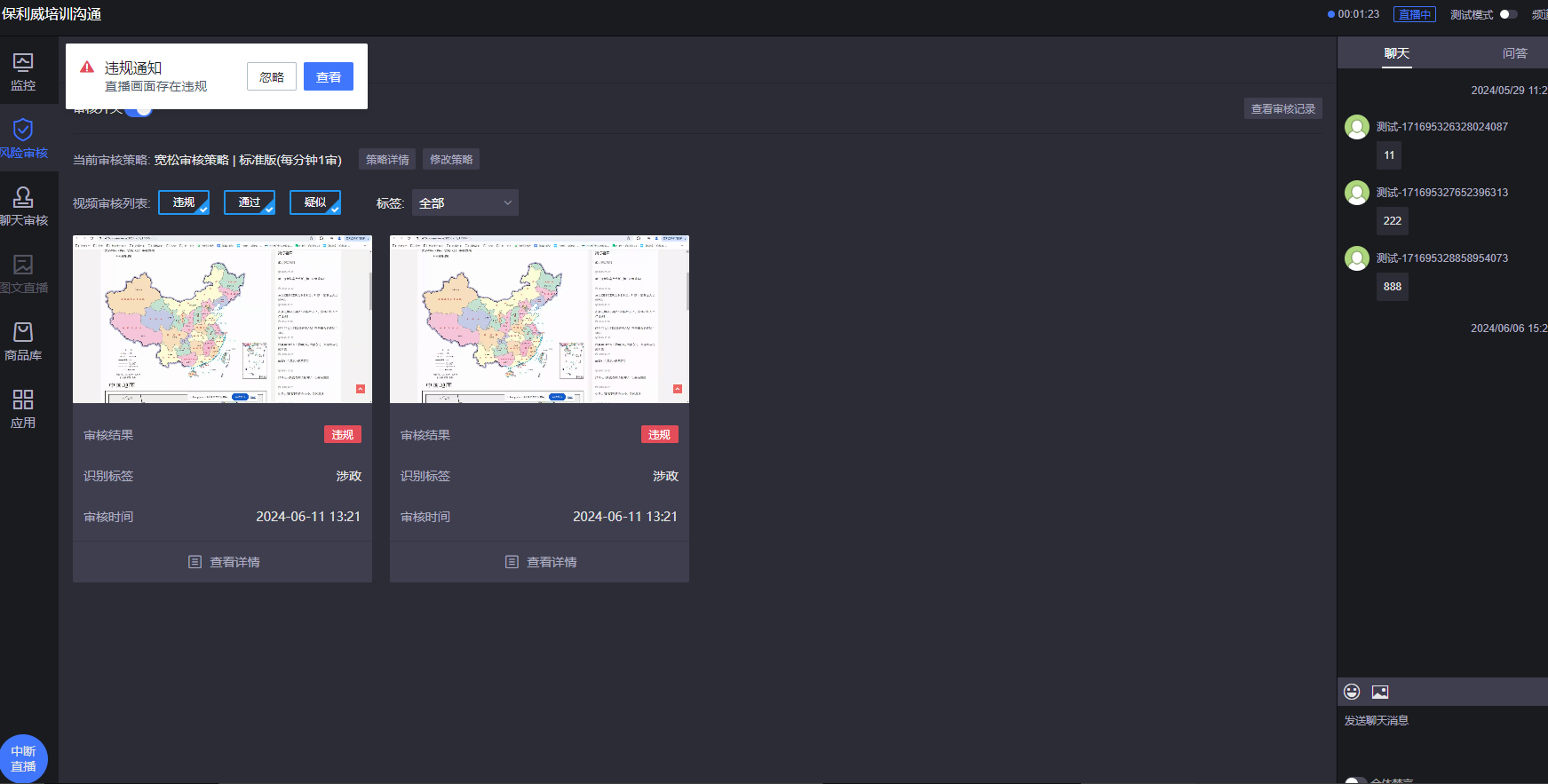 b. Similarly, a corresponding pop-up will appear on the instructor's end.
3. View Review Records
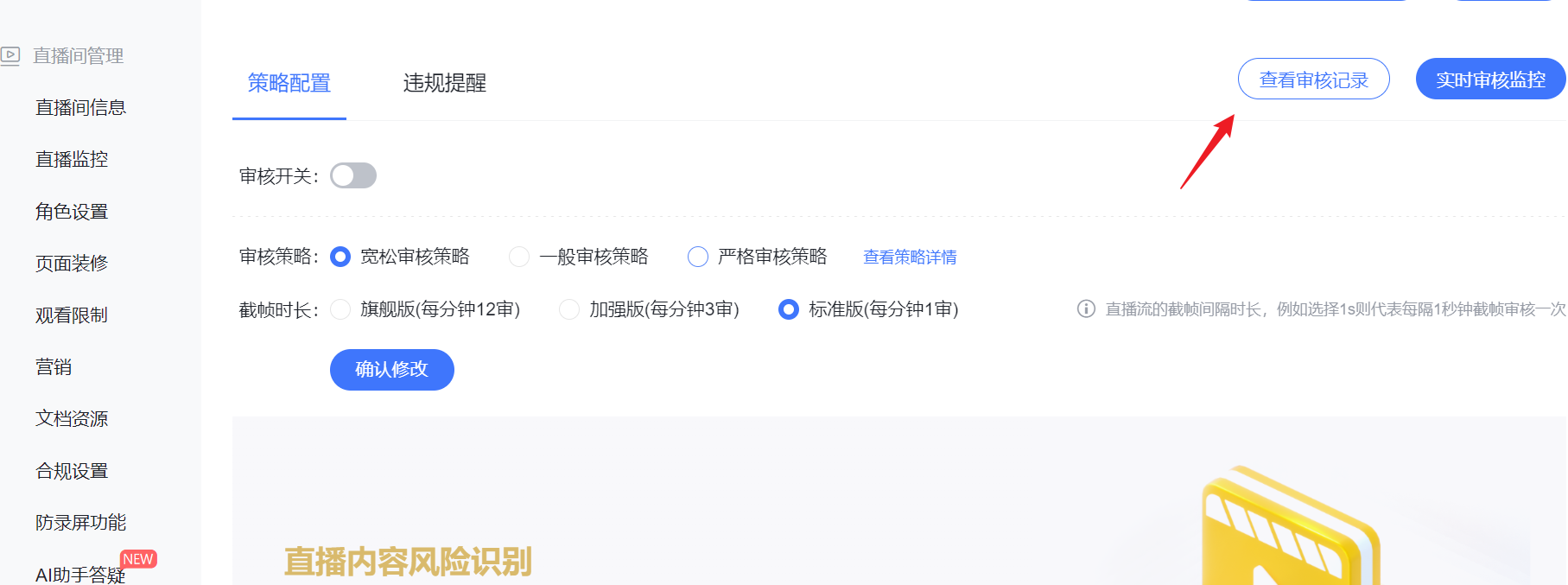 (1) Click the "View Review Records" button to jump to the live content risk identification records in the channel statistics.
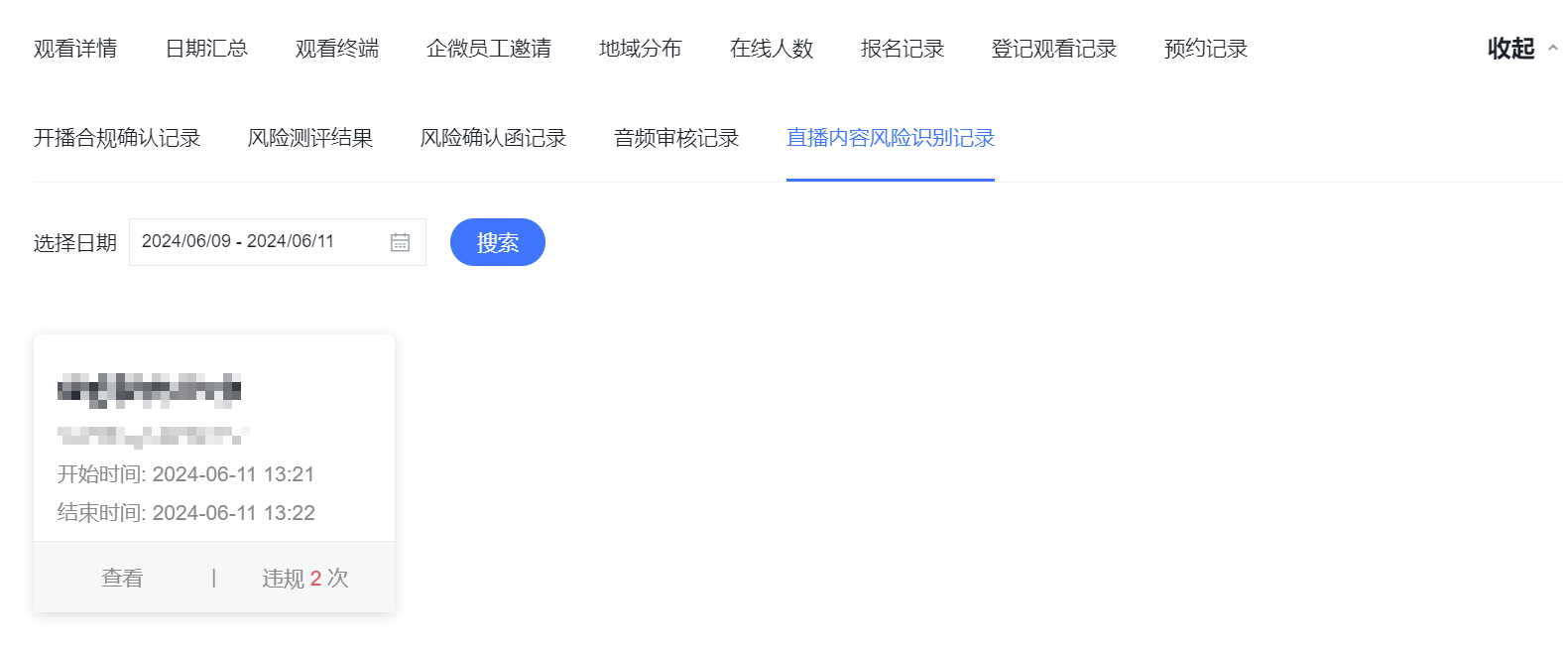 (2) Click to view the live content risk identification records for a single session.
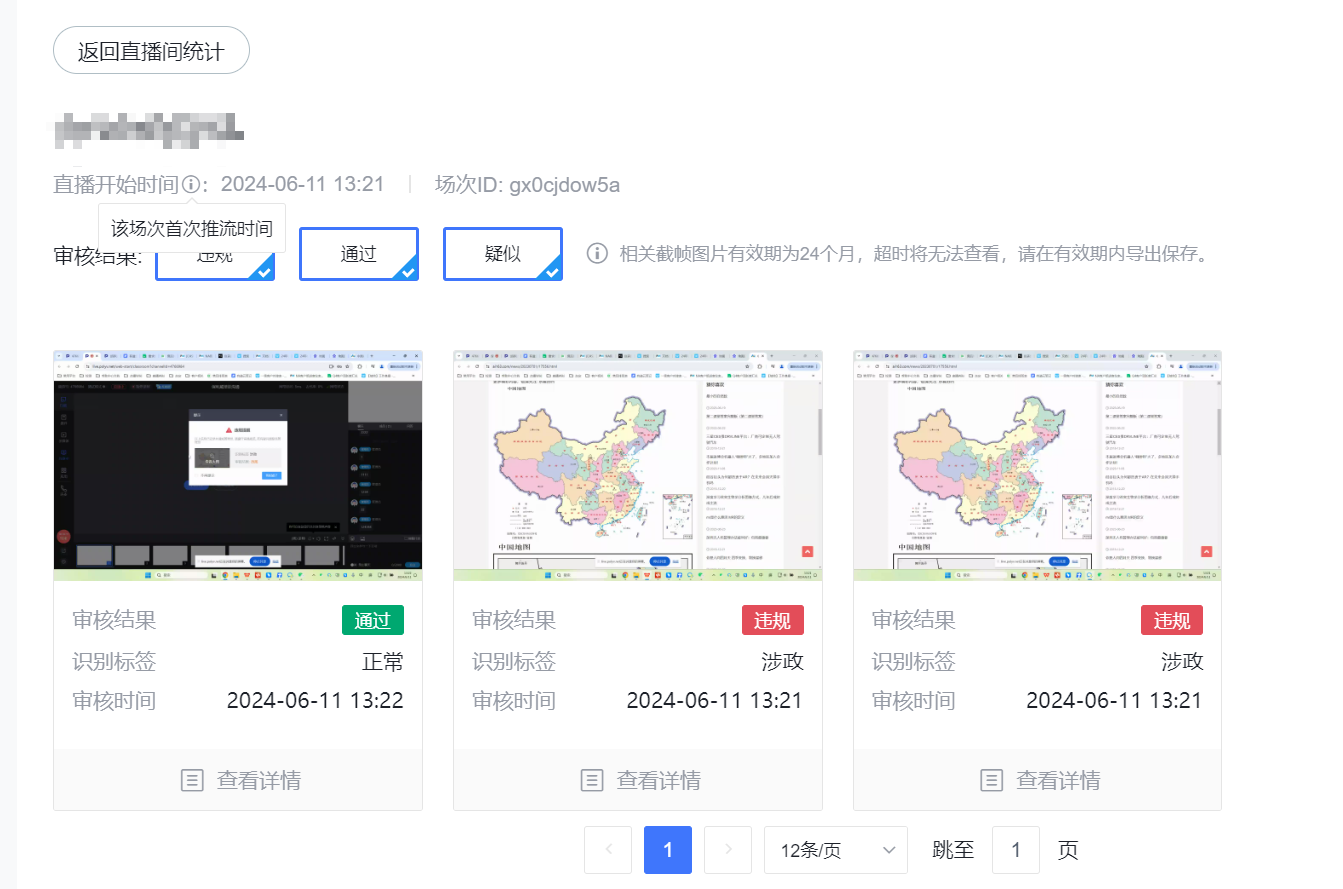 (3) You can filter review results by "Violation," "Pass," or "Suspicious."
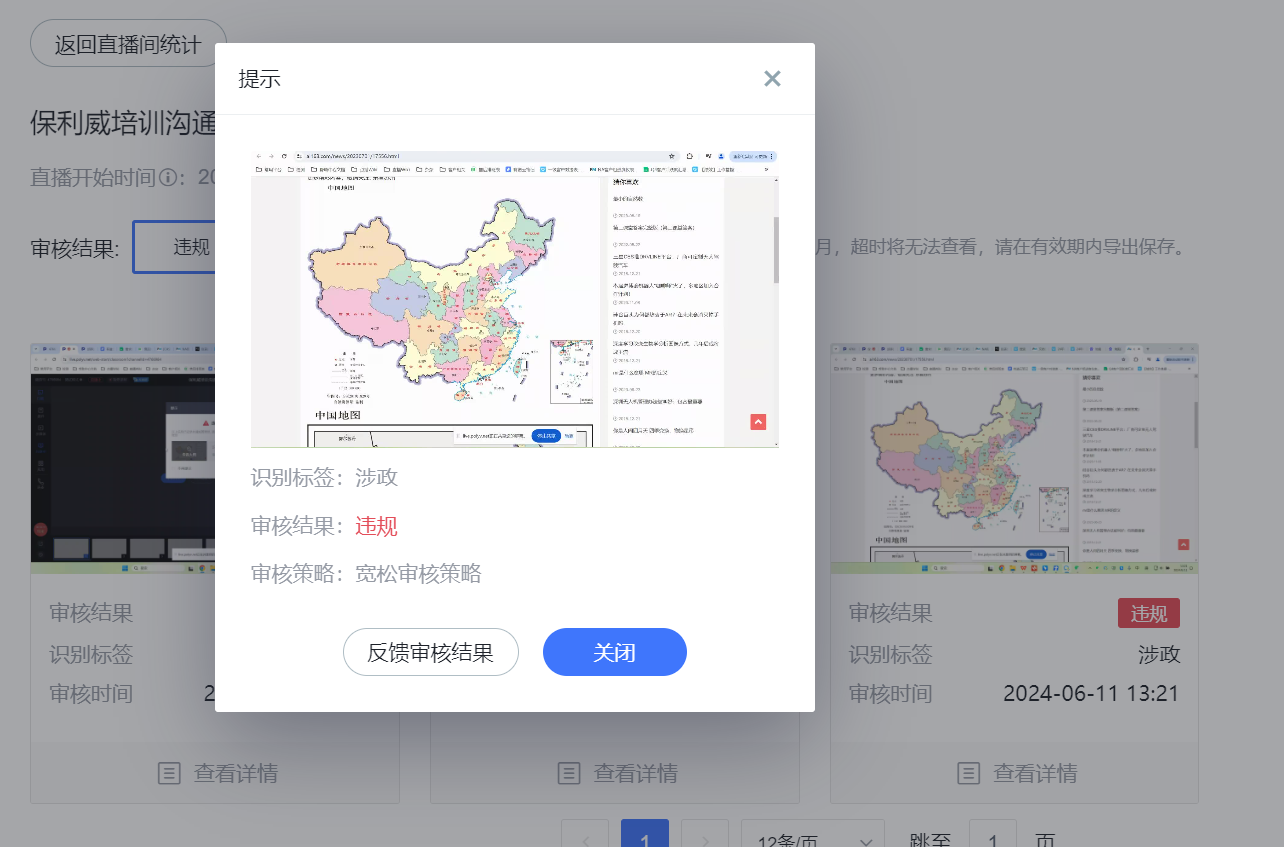
(4) View the details of a single review result.
3. Notes
- The video risk identification feature requires sufficient account balance to function properly. If the account balance is insufficient, the feature cannot be used. Additionally, using this feature incurs costs. For details, consult your business manager.
- If the video image contains visual ambiguities, there is a possibility of system misjudgment.
- For API calls, refer to the official Polyv documentation (contact your business manager to enable access). Below are the corresponding API documentation links:
View Channel Video Review Settings
Update Channel Video Review Settings
View Channel Video Review Record List
