


Live Rebroadcasting
1. Feature Overview
Feature Info |
Description |
|---|---|
| Feature Name | Live Rebroadcasting |
| Feature Description | The rebroadcasting feature is a content distribution technology that allows real-time synchronization of live content from one main channel to multiple sub-channels. Through this feature, the live video, audio, and interactive content of the main channel can be presented simultaneously across different sub-channels, allowing viewers to watch the same live content on any sub-channel. |
| Purpose | Expand audience reach, improve content distribution efficiency, enhance brand exposure, optimize resources, enable cross-platform distribution |
| Use Cases | Dual-teacher instruction, large event live streaming, audience viewing via separate channels, etc. |
| Operation Path | Admin Console - Live List - Enter Target Live Room - Live Distribution - Rebroadcasting |
2. Operation Procedure
1. First, contact your account manager to enable the rebroadcasting feature, then enter the live room list and create a new live stream.
No rebroadcasting mode needs to be set when creating a new live stream. After creation, go to the live room's [Live Distribution - Rebroadcasting] to configure it.
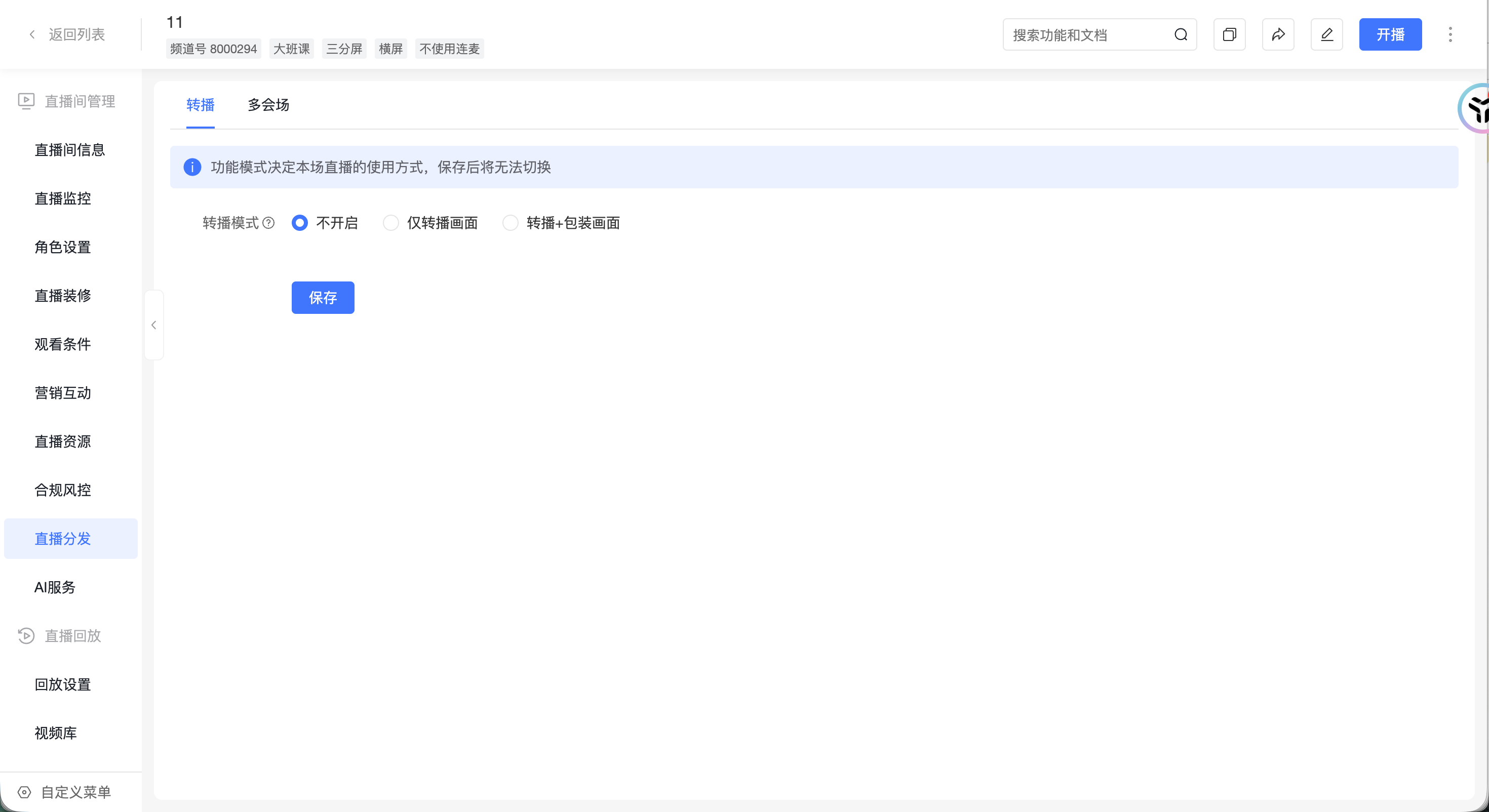
2. When using rebroadcasting, set the rebroadcasting mode to [Video Only] or [Video + Overlay]
Notes
(1) Characteristics of Video Only rebroadcasting:
- Multiple receivers share the initiator's audio and video stream.
- The initiator's main/assistant end can collect chat messages from all receiver viewers, but chat messages between receivers are isolated.
(2) Characteristics of Video + Overlay rebroadcasting:
- Multiple receivers share the initiator's video stream and independently overlay their own audio and video.
- Receiver viewer chat messages are not shared with the initiator.
(3) The channel type defaults to initiating rebroadcasting, i.e., the main channel. To set a channel as a receiver of rebroadcasting, go to [Live Distribution - Rebroadcasting] after creating the channel. Sub-channels will have a receiving rebroadcast indicator. This means you need to create one channel that initiates rebroadcasting and several channels that receive rebroadcasting (There is an automated method for creating receiving channels, see below).
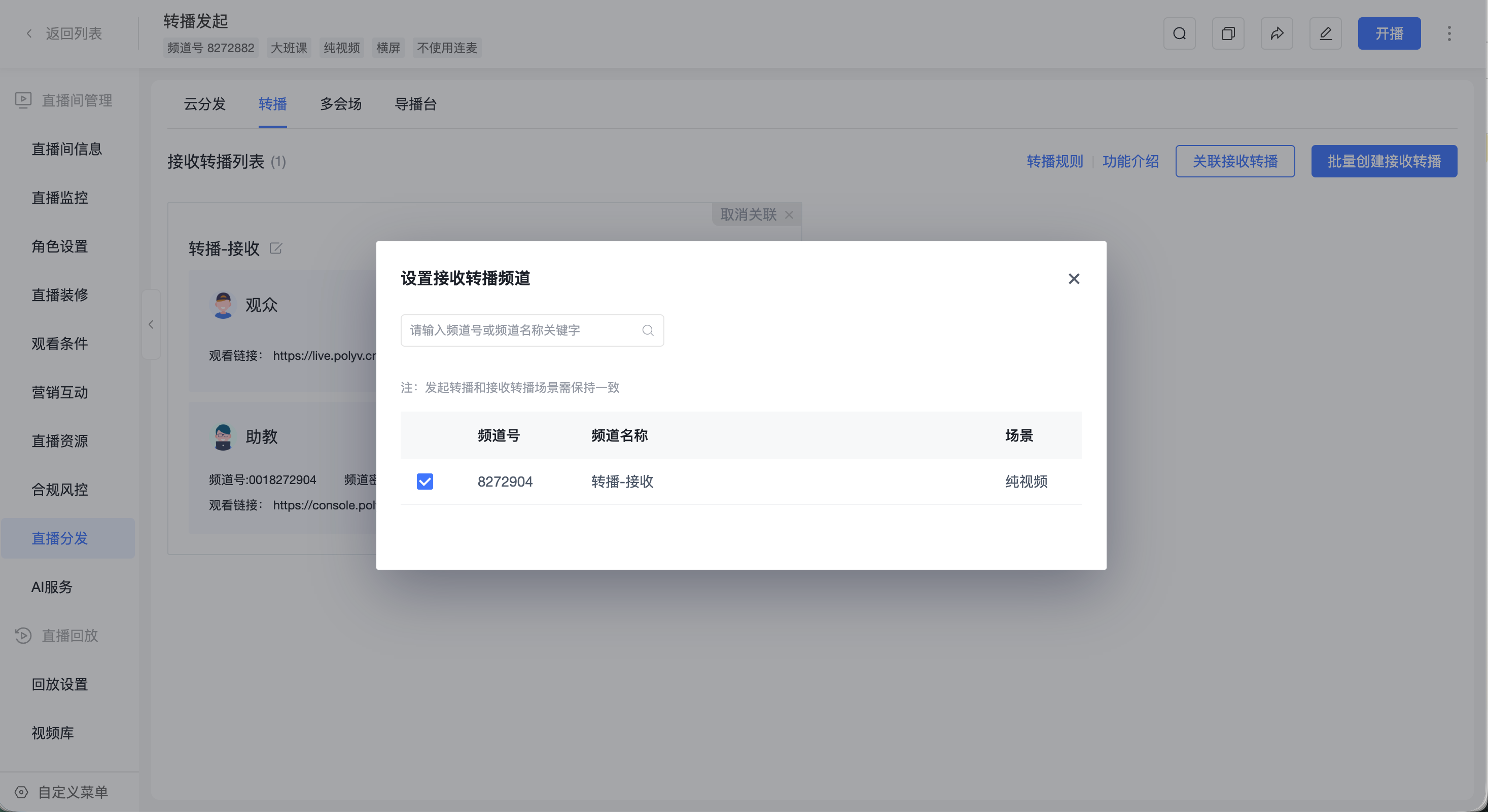
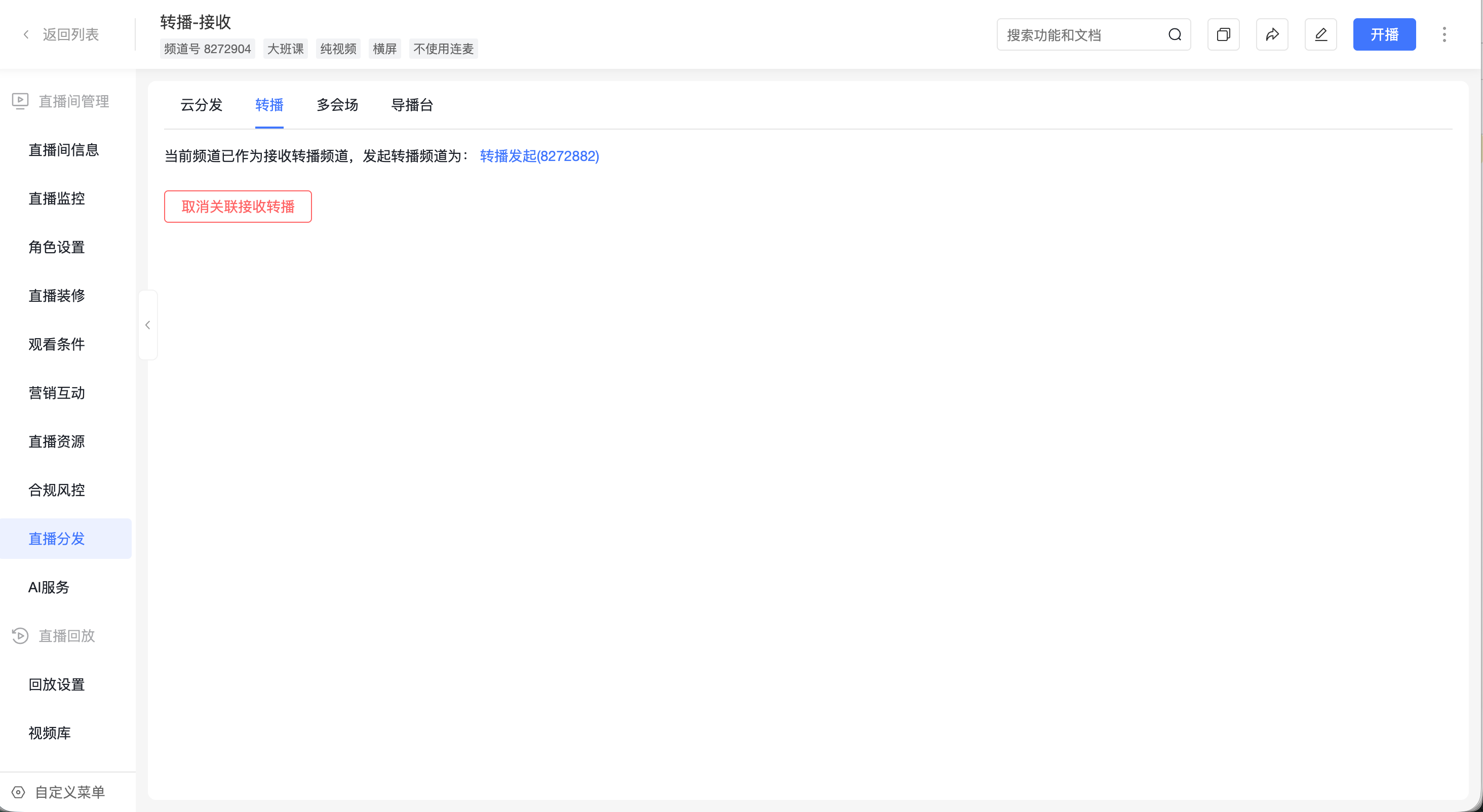
(4) The rebroadcasting channel and the channel being rebroadcast must use the same live template; rebroadcasting between different templates is not possible.
(5) The main channel can view chat content from all sub-channels, manage all viewers centrally, and initiate interactive applications across all sub-channels.
(6) Chat rooms between sub-channels are independent; viewers can only see chat content from their own sub-channel. Assistants in sub-channels can cooperate with the main channel's instructor to manage students in the current channel and assist with interactive features like answer sheets, surveys, and lucky draws, which only take effect in the current sub-channel.
3. Initiating Rebroadcasting
(1) Enter the live room backend that initiates rebroadcasting, and open [Live Distribution - Rebroadcasting].
(2) Go to the rebroadcasting page and click [Batch Create Receiving Rebroadcasts] to automatically create sub-channels in bulk.
(3) Enter the number and names of the sub-channels. The system will automatically create and associate the sub-channels.
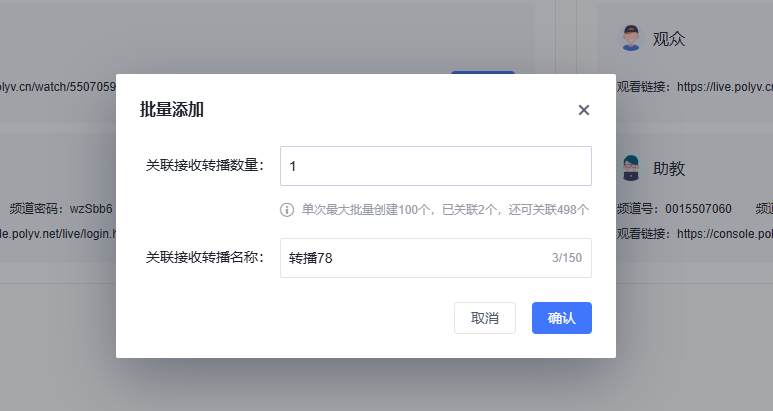
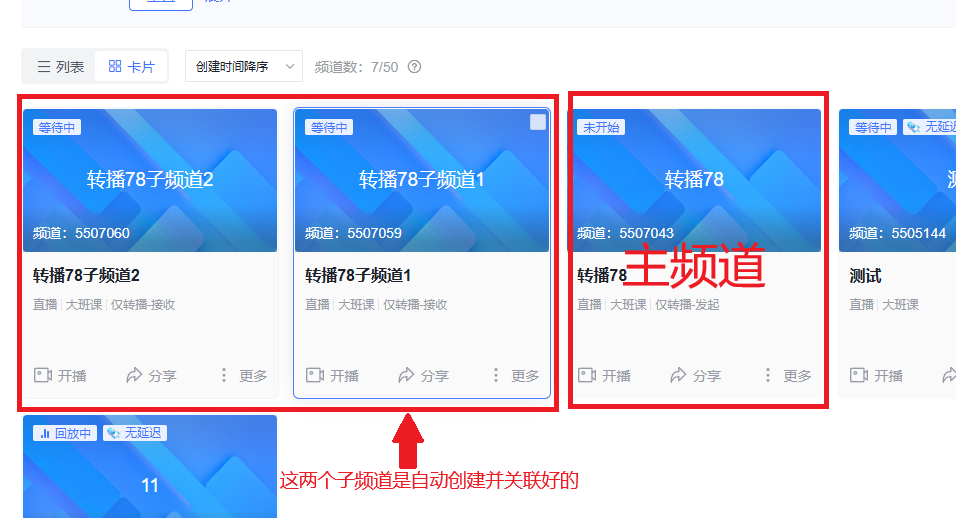
(4) Open the main channel's live room. After going live, viewers can enter the sub-channels to watch (Note: Sub-channels do not allow instructors to go live; they only allow viewers to watch).
