


Information Collection
Feature Overview
Information Collection is used to create and manage collection forms in the backend. Once created, the same information collection form can be reused across business scenarios such as registration, viewing sign-up, and lucky bags, to uniformly collect user-submitted information like name, phone number, email, and region.
Applicable Scenarios
Use the Information Collection feature when you need to collect user information in different live streaming business scenarios. For example:
- Collecting registrant information before event sign-up.
- Collecting viewer identity information during live streaming registration.
- Collecting prize claim information after winning a lucky bag.
- Adding fields such as Q&A, options, and privacy statements as needed by the business.
Operation Guide
1. Enter the Information Collection Page
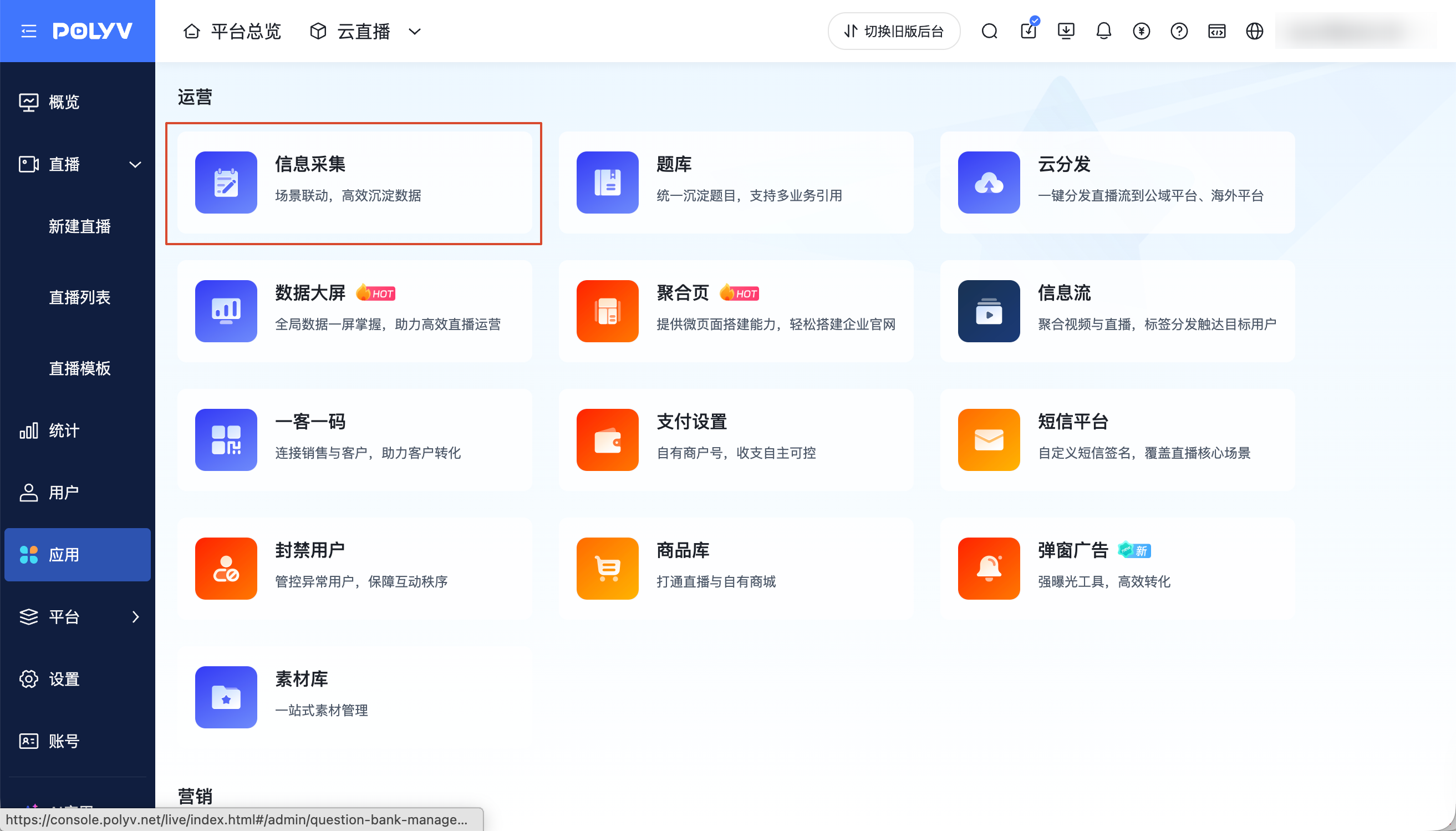
Go to the management backend, select Applications > Information Collection to view the created information collection forms.
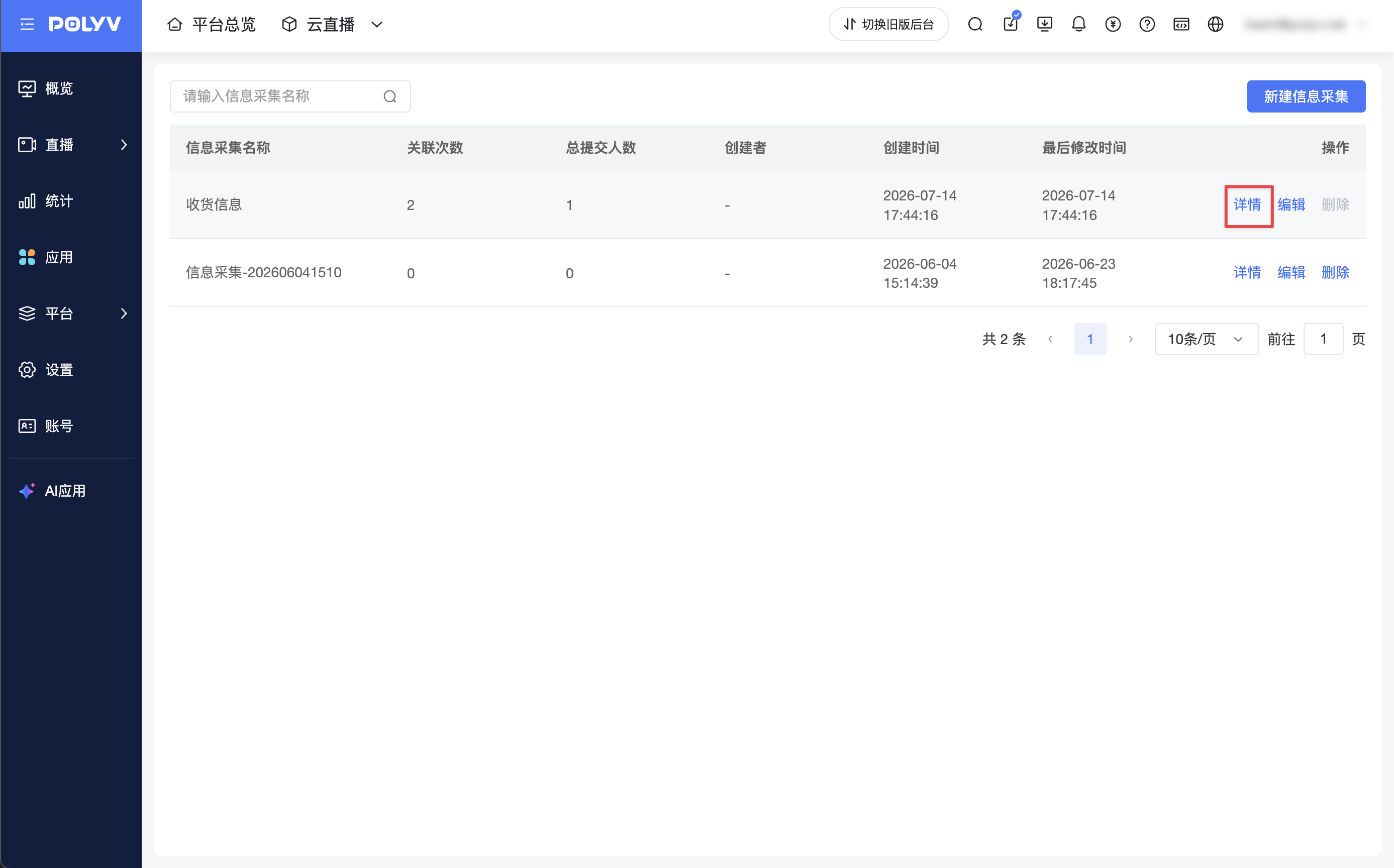
The information collection list supports viewing the following information:
| Field | Description |
|---|---|
| Information Collection Name | The name of the current information collection form |
| Association Count | The number of times the current information collection has been referenced by business |
| Total Submitters | The cumulative number of people who have submitted the current information collection |
| Creator | The creator of the current information collection; default forms created by the system display "-" |
| Creation Time | The time the information collection was created |
| Last Modified Time | The most recent modification time of the information collection |
The system creates a default Shipping Information form, which can be used to collect prize claim information for physical rewards. You can use the search box to perform a fuzzy search by information collection name.
2. Create a New Information Collection and Configure Fields
Click New Information Collection on the information collection list to enter the creation page. Fill in the Information Collection Name at the top, configure the form fields as needed, and finally click Save.
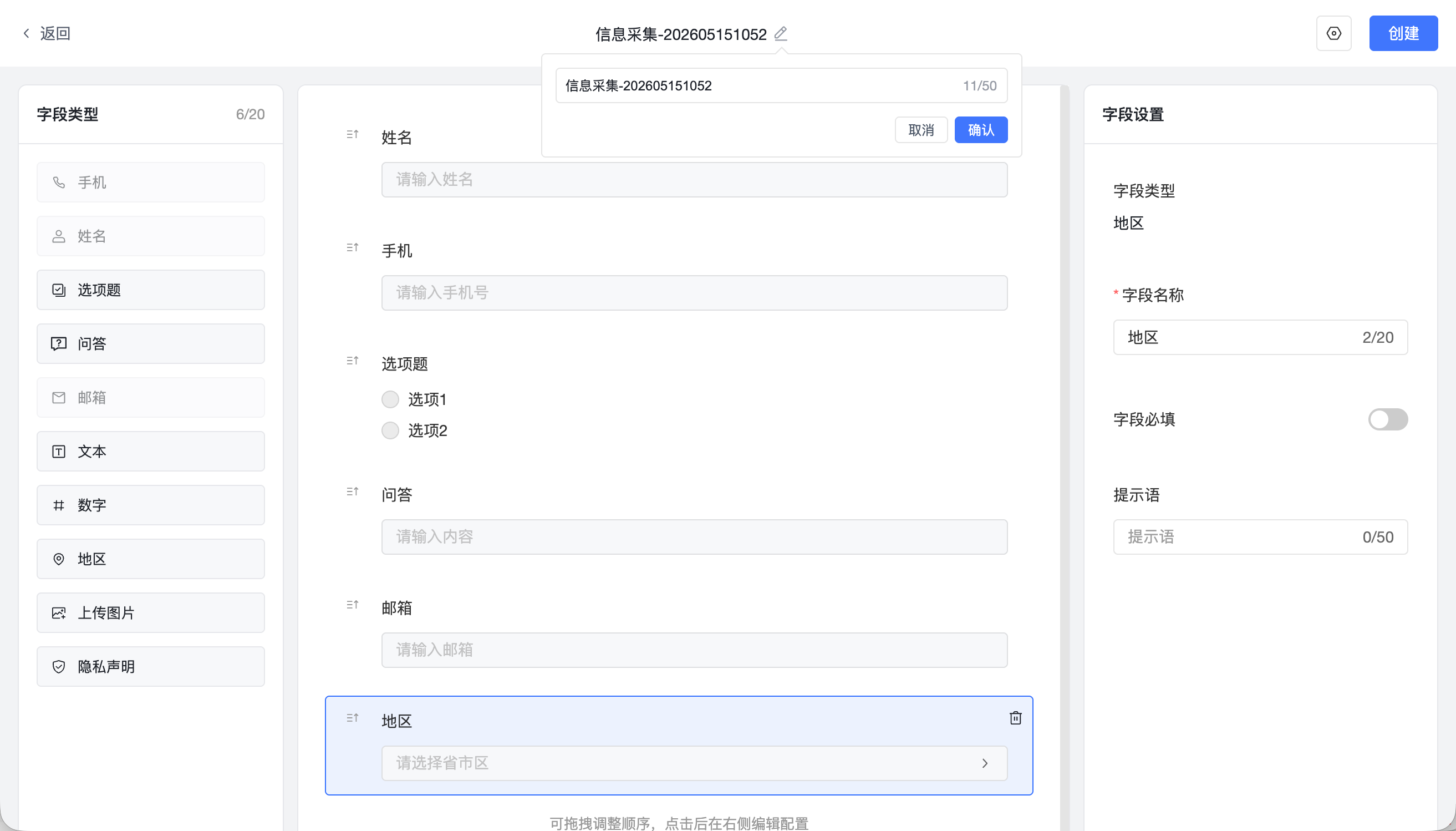
Information collection supports adding the following field types:
| Field Type | Description |
|---|---|
| Phone Number | Collects user phone numbers; can configure phone number area code and SMS verification as needed |
| Name | Collects user names |
| Option Question | Sets single or multiple options |
| Q&A | Collects text answers filled in by users |
| Collects user email addresses | |
| Text | Displays plain text |
| Number | Collects numeric content |
| Region | Collects user region information |
| Privacy Statement | Used to display privacy statement content and require users to read or check it |
After enabling SMS verification for the phone number field, users must obtain and enter an SMS verification code when filling out the form. Once the verification code is validated, the phone number verification is complete. This capability also applies to the lucky bag prize claim information filling scenario.
After adding a field, you can configure the field name, whether it is required, prompt text, options, etc., in the Field Settings on the right. The configuration items supported by different field types may vary; please refer to the actual page display.
3. User Information Sync Description
After enabling the user management system, the following fields will be synced to user information by default each time a user submits an information collection:
- Name
- Phone Number
- Region
4. View Information Collection Details
On the information collection list, click Details to view the data overview, user information, and association records for that information collection.
Data Overview
The details page displays the following data:
| Data | Description |
|---|---|
| Submissions Yesterday | Total collection records generated from 00:00-24:00 yesterday |
| Total Submissions | Cumulative total records generated since the information collection was created |
| Association Count | The number of times the current information collection has been referenced by live streaming business |
User Information
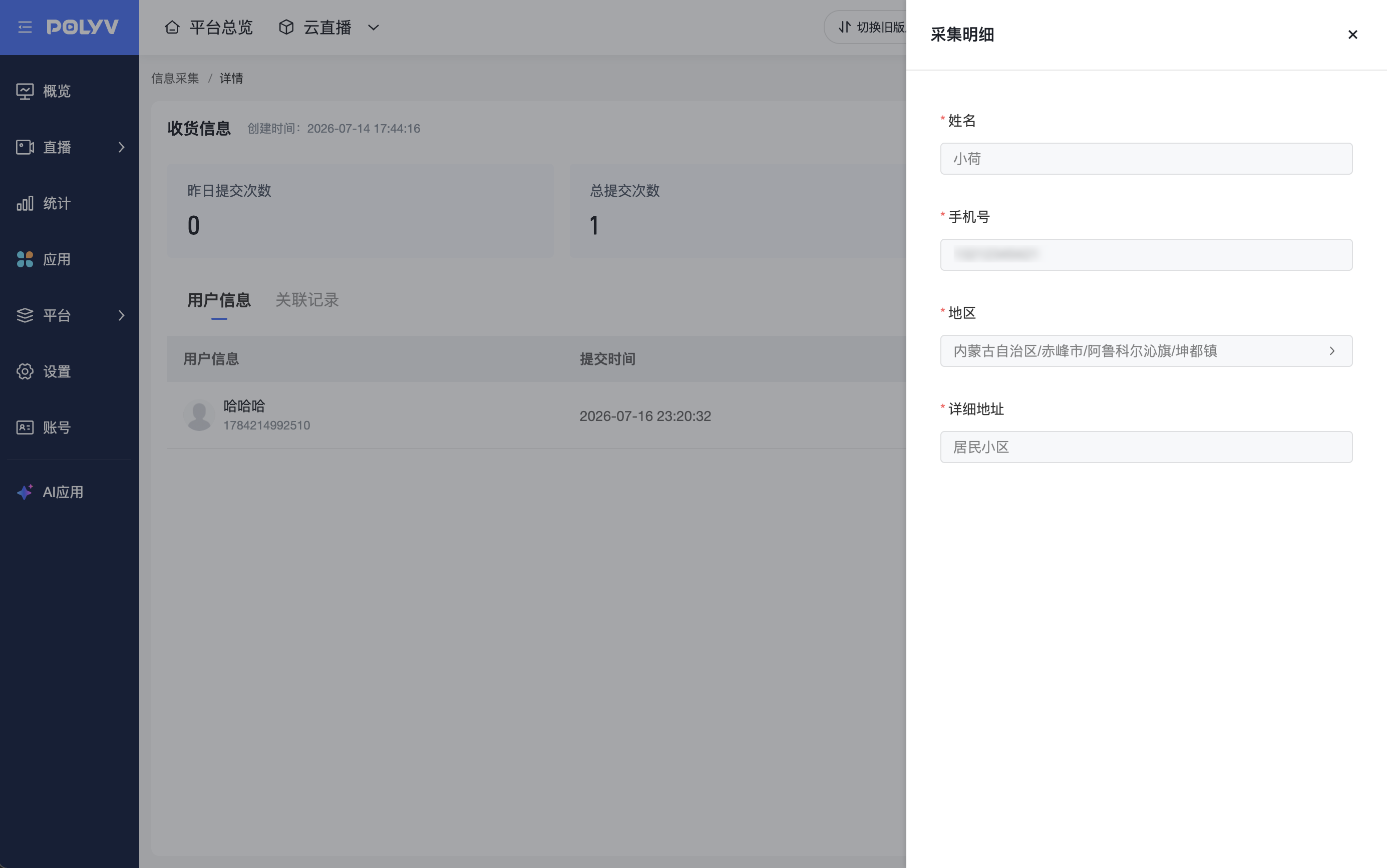
The User Information tab displays user submission records, including user information, submission time, and actions. Each submission generates one record.
After enabling the user management system, you can click User Details to enter the user details page and view the user's historical information collection submissions and complete content.
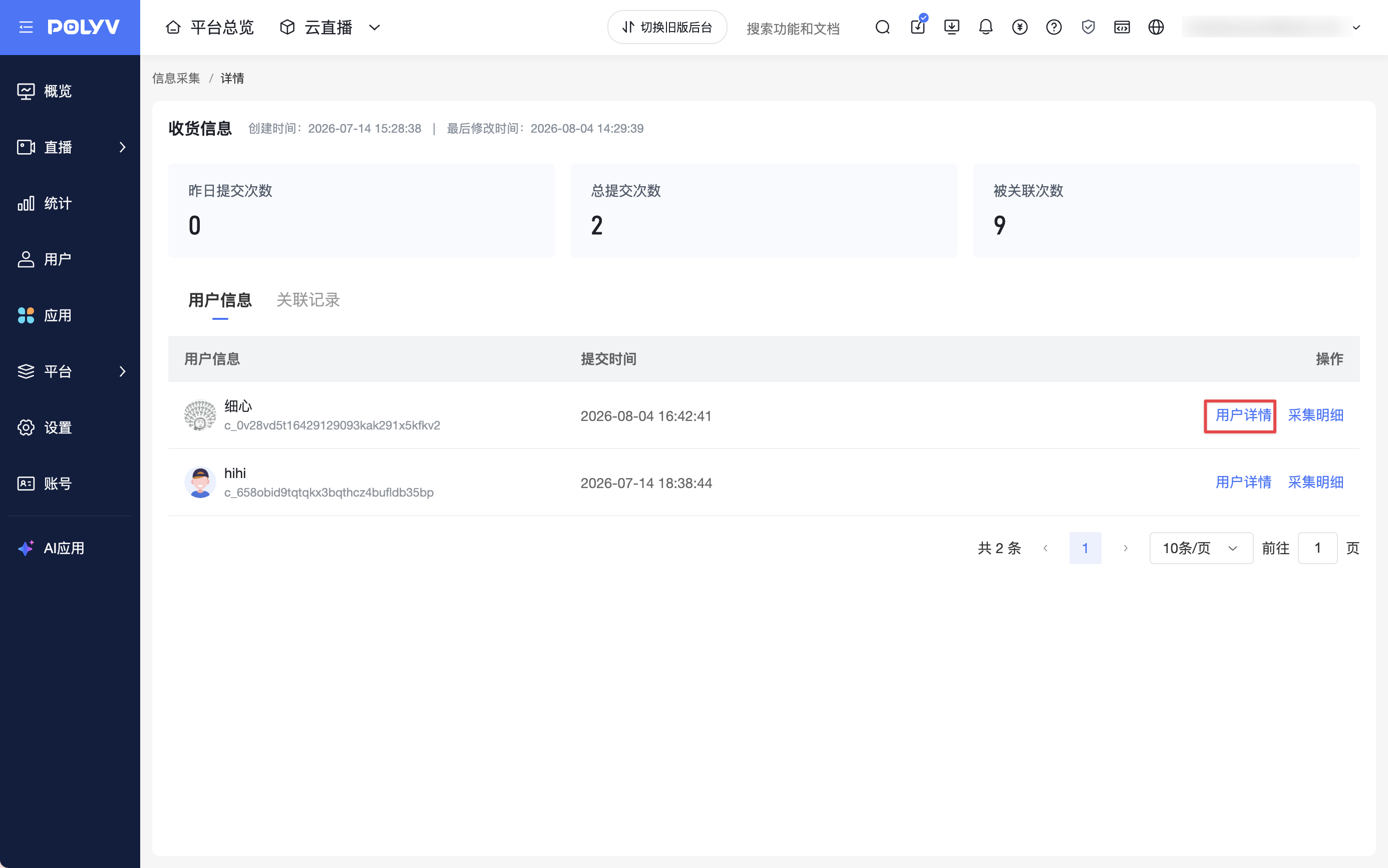
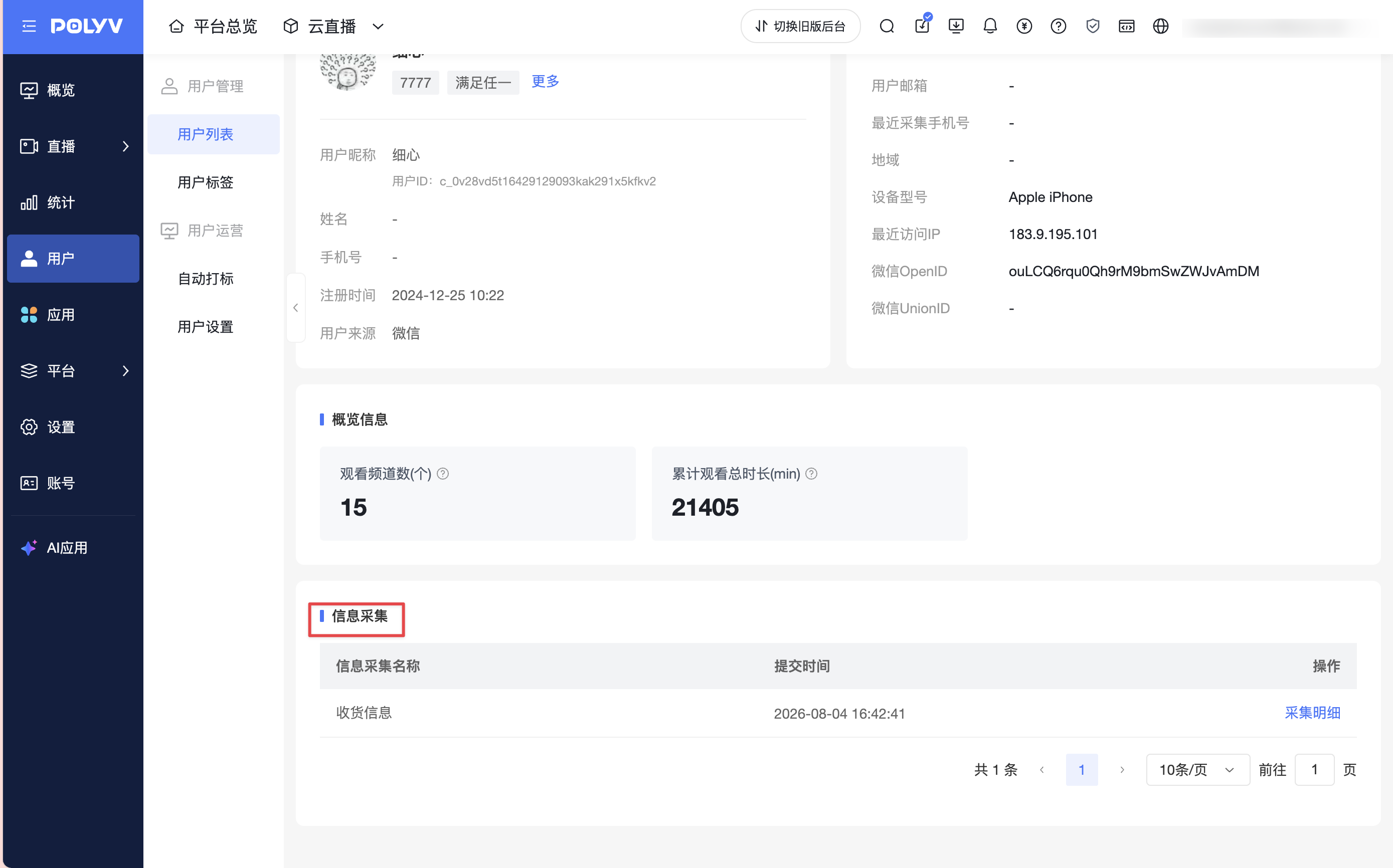
Click Collection Details to view the complete content of that submission in the right-side drawer.
Association Records
The Association Records tab displays the usage of the information collection by business.
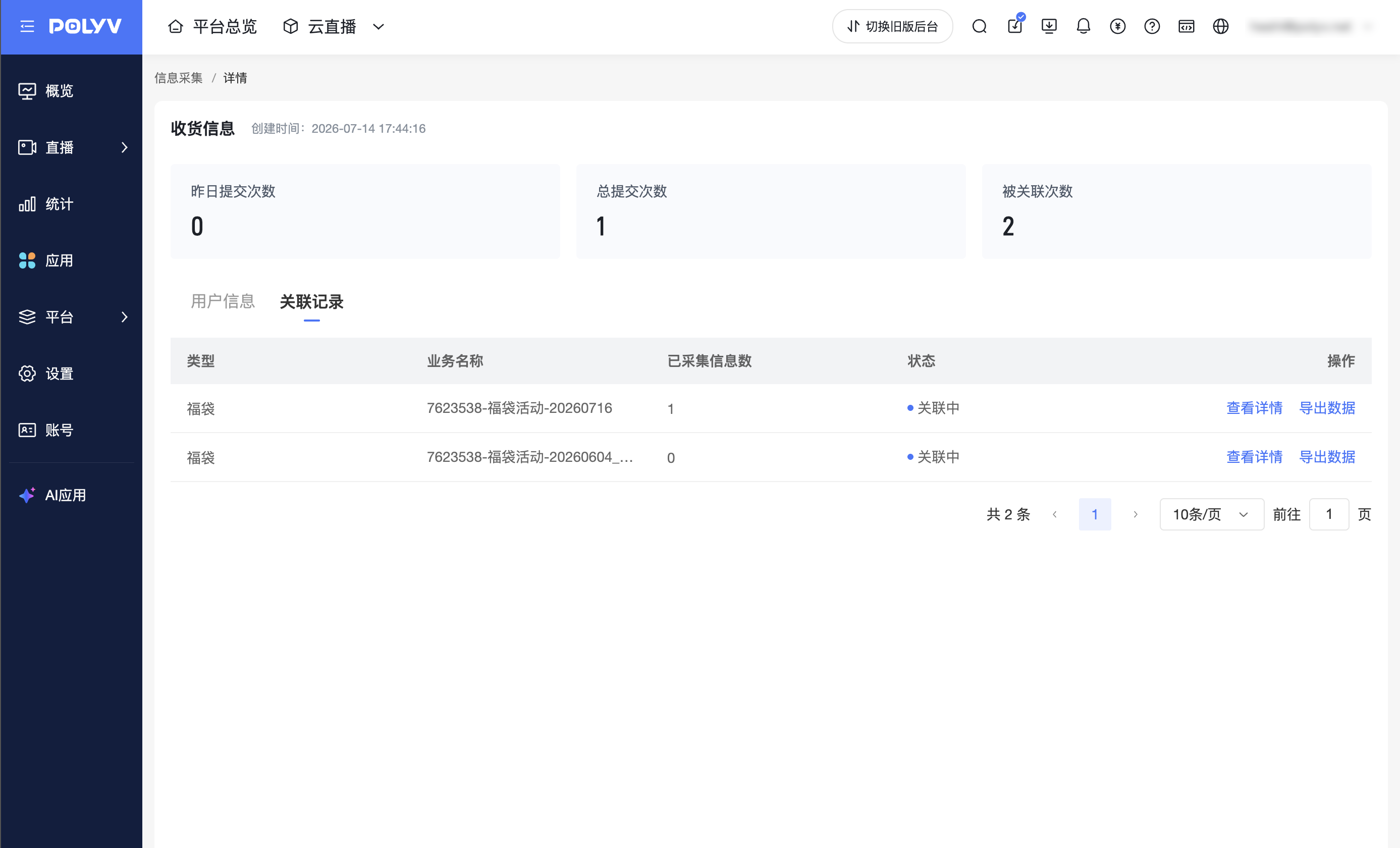
The list includes:
- Type
- Business Name
- Number of Collected Information Items
- Status
The action column supports:
- Click View Details to open the corresponding business details page.
- Click Export Data to export the collected information under the current business.
5. Edit Information Collection
On the information collection list, click Edit to adjust the information collection name, field configuration, privacy statement, etc.
When deleting a field that has already generated collection data, the system will prompt for confirmation. After confirming deletion, the field will no longer be displayed.
6. Delete Information Collection
On the information collection list, click Delete to delete an information collection.
- The system-created default Shipping Information form cannot be deleted.
- If the information collection is currently associated with a business, it cannot be deleted.
- If the information collection is not associated with any business, it can be deleted after confirmation.
7. Permission Description
The role permissions set in the platform include the Information Collection permission node.
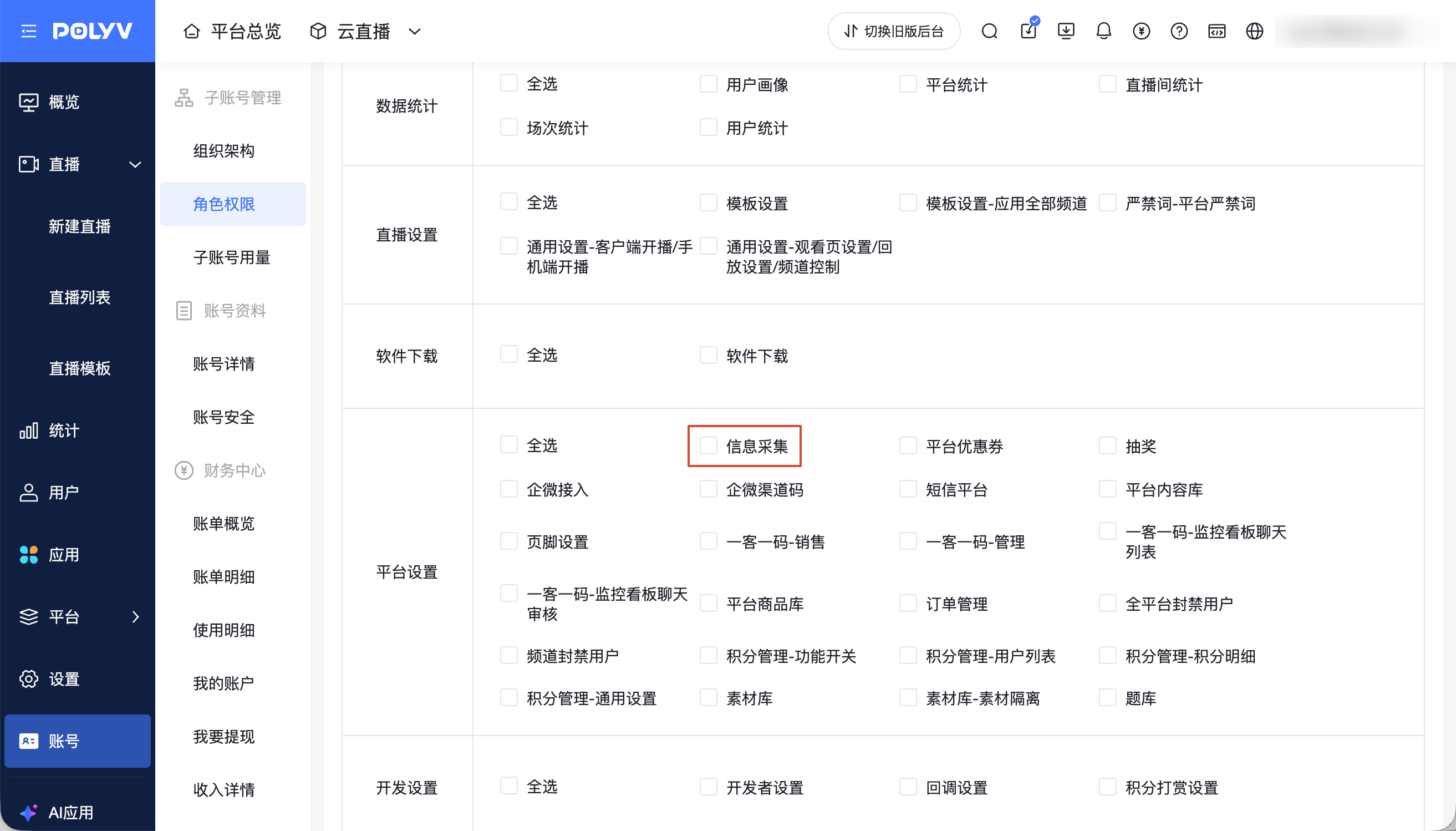
- The default role Administrator has this permission checked by default.
- Other roles do not have this permission checked by default; it can be authorized by the administrator as needed.
