Card Push
In enterprise marketing live streams, to direct viewers to their own mall pages or to provide them with
Supported Endpoints:
Currently, cards can only be received on the web viewing end. The APP does not support receiving cards.
Operation Instructions:
1. Open the New Backend - Channel Settings Page
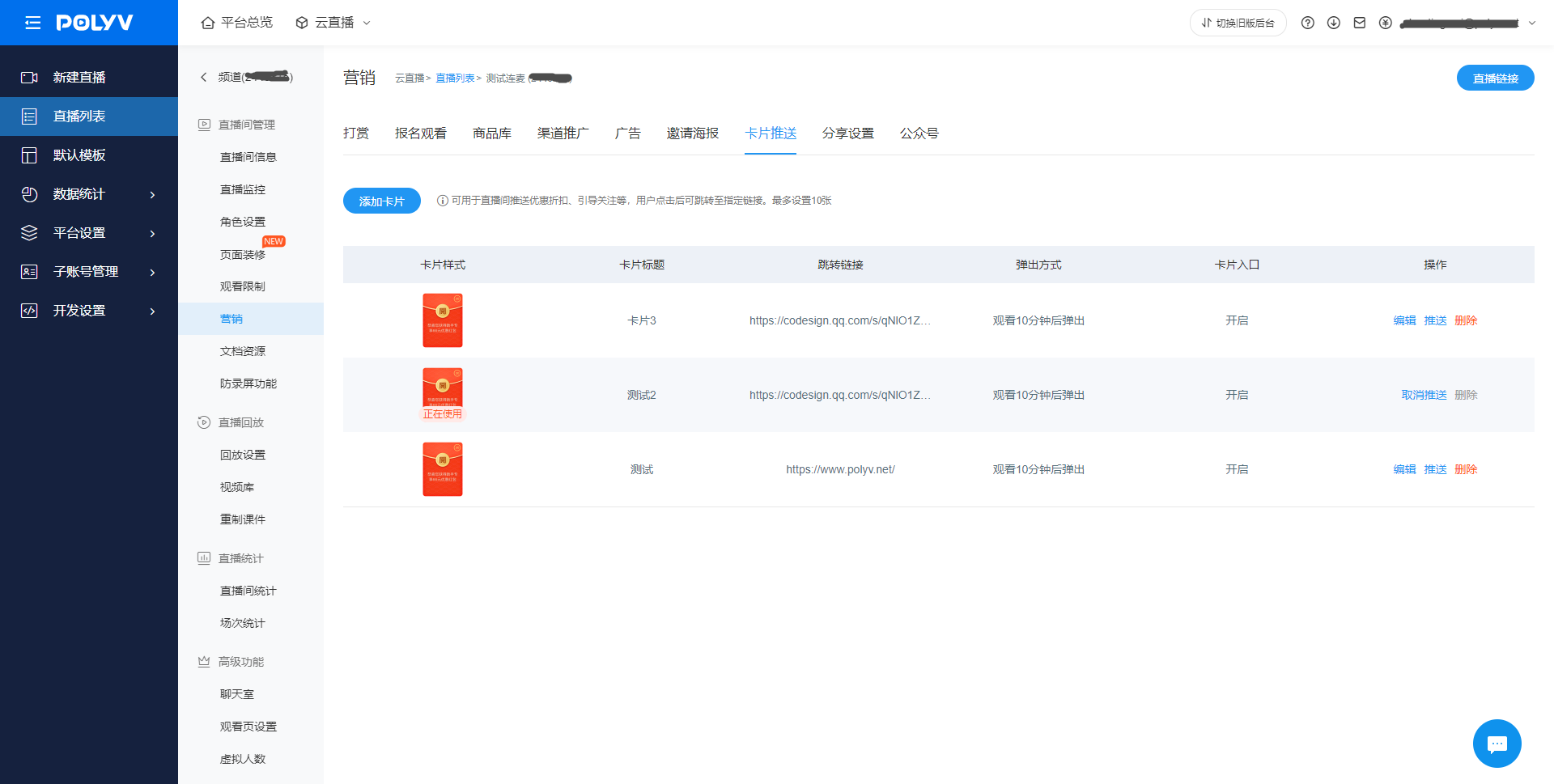
This page displays all cards for the channel. Click "Add Card" to open the card addition interface.
2. Add a Card
Card Style:
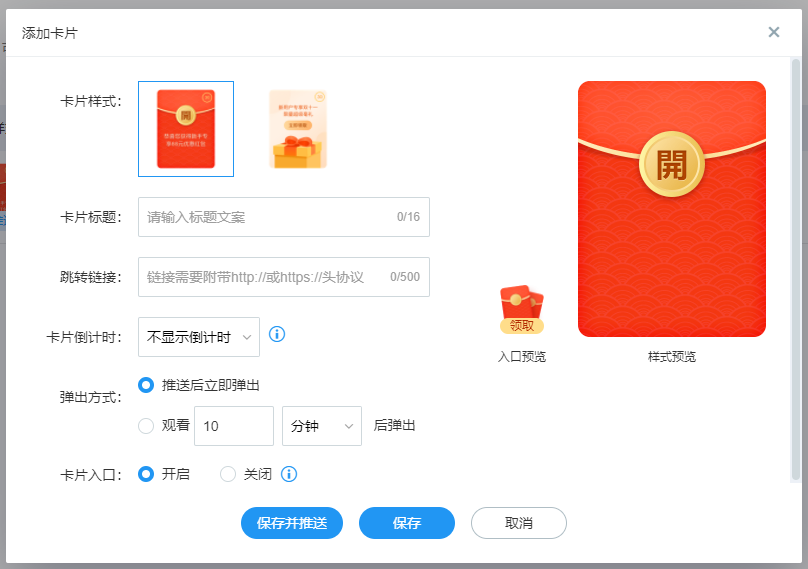
Currently, two styles are available: Red Packet and Gift Box. Custom card styles are not supported.
Card Title:
Displayed on the card.
Redirect Link:
The link viewers are redirected to when clicking the card. Typically set to a mall URL or an online document address.
Card Countdown:
Displayed on the card. You can choose to show or hide the countdown. The difference is: if the countdown is hidden, the card will not close automatically after appearing, and viewers must manually close it. If the countdown is shown, the card will close automatically after the countdown ends. This scenario is often used to create a sense of scarcity, encouraging viewers to click the card within the countdown period.
Pop-up Method:
Divided into "Pop Up Immediately" and "Viewing Countdown". The difference is whether the card appears immediately in the live room upon push, or only after the viewer has watched for a certain duration.
The viewing countdown can be freely set, with units in minutes or seconds, and a maximum value of 99. This setting can increase viewer watch time and create a sense of card scarcity. The countdown is based on each viewer's individual watch time, not a unified Beijing time countdown.
Countdown Text:
Only required when "Viewing Countdown" is selected as the pop-up method. It is displayed on the countdown icon.
Card Entry:
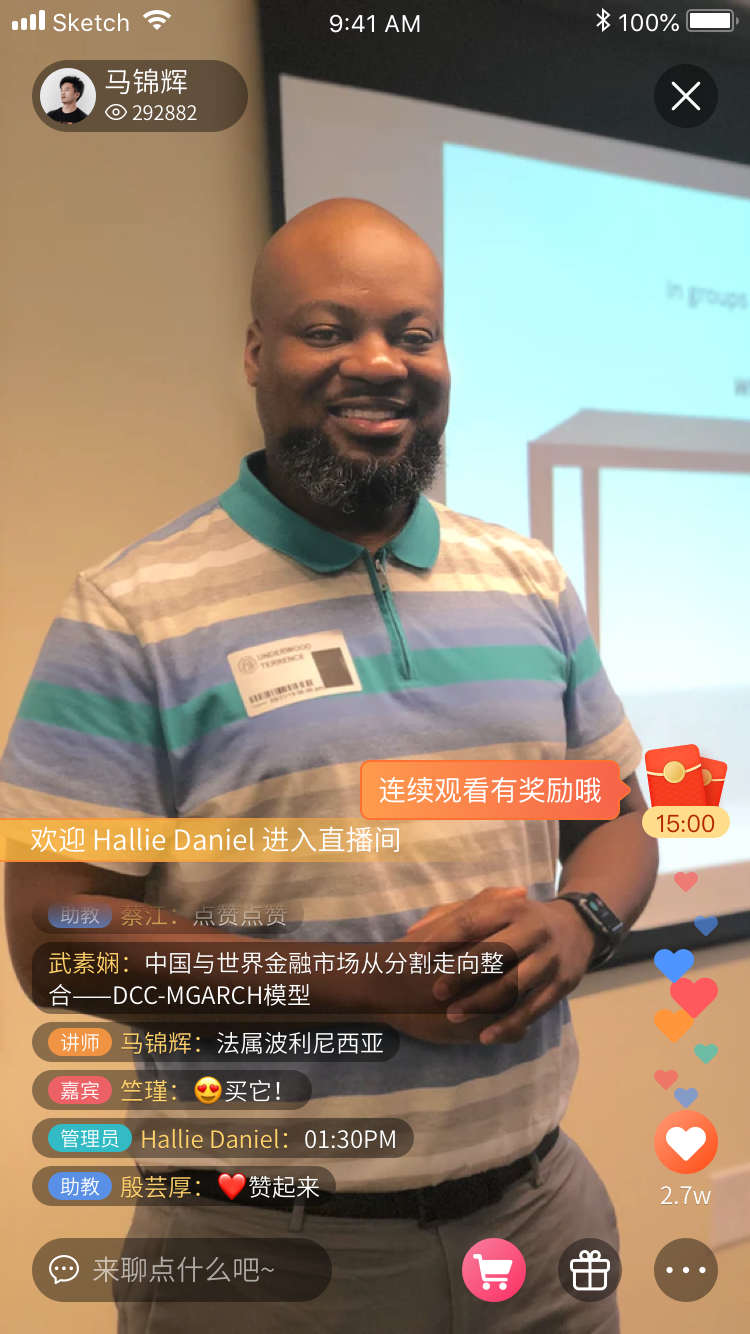
Option to enable or disable the entry. The difference is whether a small icon remains on the viewing page after the card pops up, allowing viewers to click and reopen the card. This is often used in combination with hiding the countdown.
Save & Save and Push:
After configuring the above information, click "Save" or "Save and Push" to create the card. Clicking "Save" only stores the card in the card list without pushing it to the live room. "Save and Push" directly pushes the card to the live room, where viewers will immediately see the card or start the viewing countdown.
3. Live Room
Depending on the pop-up method and viewer status, several scenarios apply:
① Pop-up Method: Pop Up Immediately, Viewer in Live Room
When pushed, viewers currently in the live room will immediately see the card pop up.
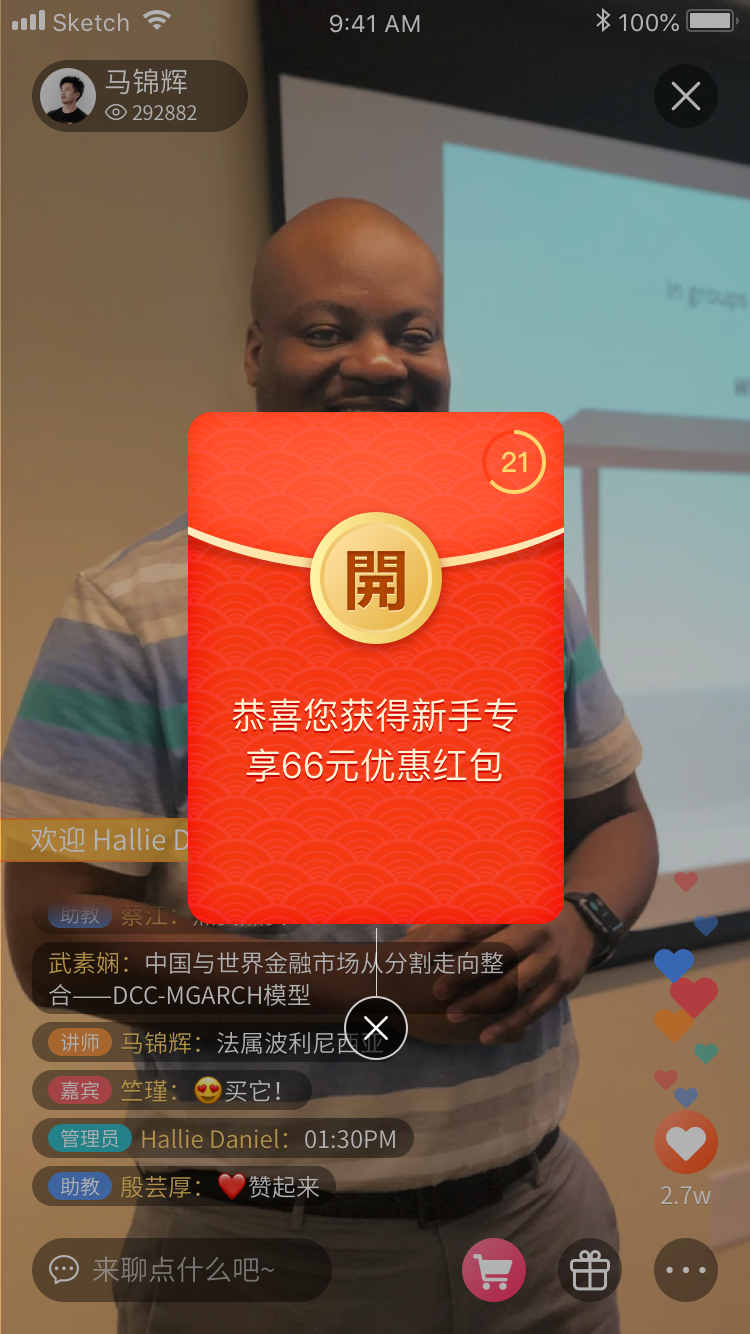
② Pop-up Method: Pop Up Immediately, Viewer Not in Live Room
Viewers not in the live room at the time of push will not see the card pop up upon entering later. However, they can click the card entry to open it.
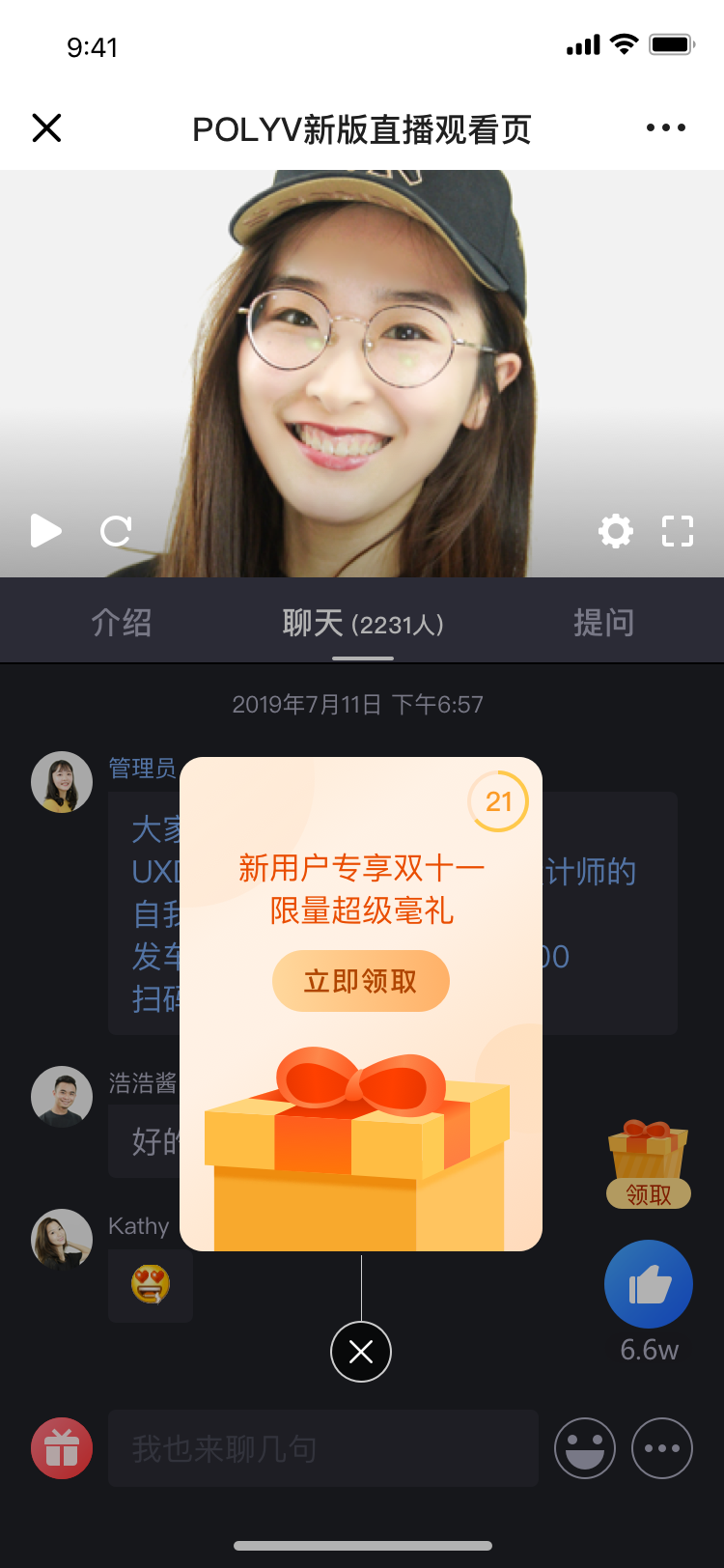
③ Pop-up Method: Viewing Countdown, Viewers in Live Room and New Entrants
The countdown will start, and a small countdown icon will appear. The card will pop up after the countdown ends. If a viewer exits and re-enters the live room, or refreshes the page, the countdown will restart.
④ Pop-up Method: Viewing Countdown, Viewers Who Have Completed the Countdown
Viewers who have already completed the countdown for a specific card will not undergo the countdown again upon re-entering the live room. If the card entry is enabled, they can click the entry to open the card directly.
4. Backend Card List
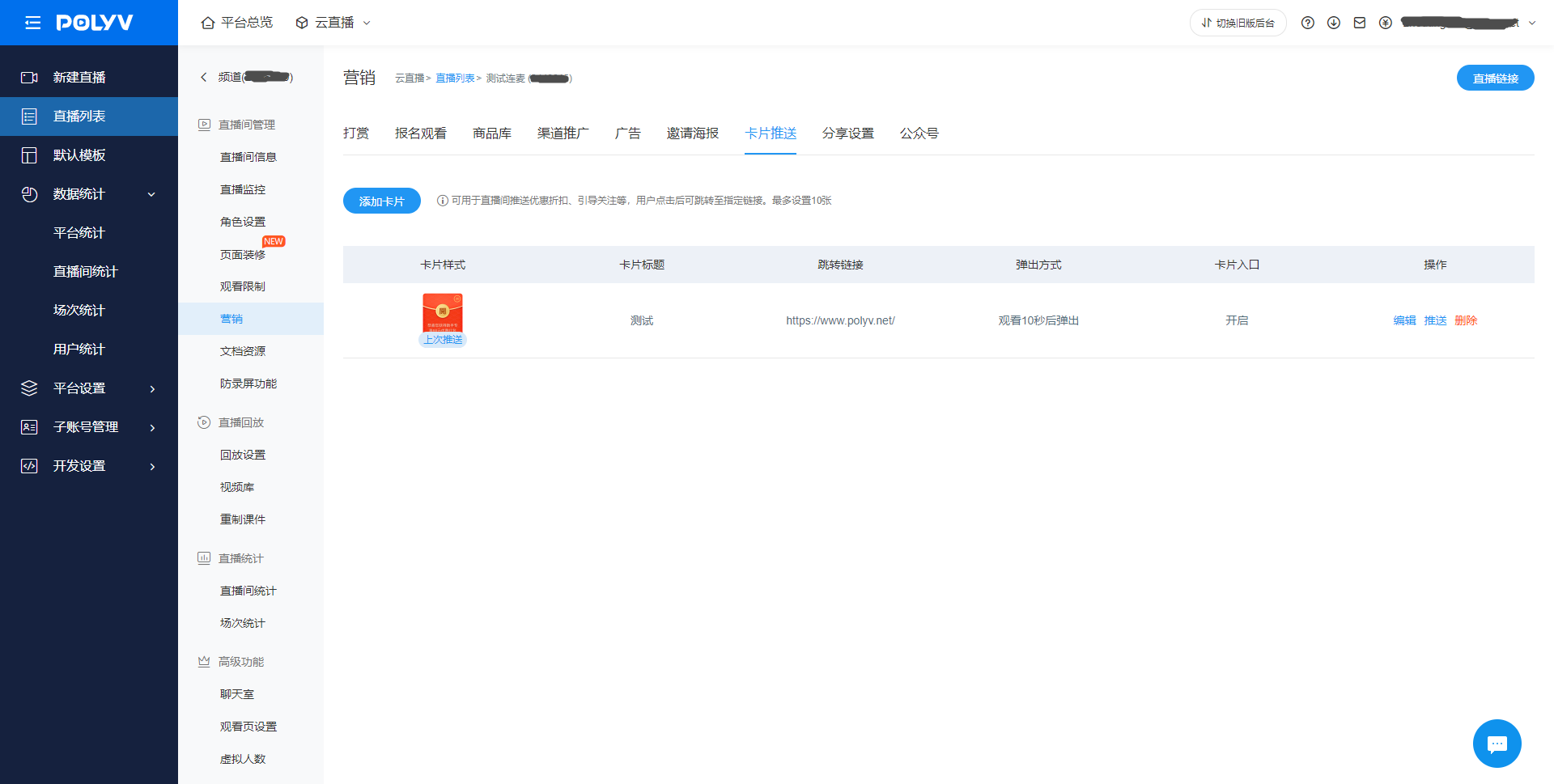
The list displays card statuses: "In Use" and "Last Pushed".
Cards with the "Viewing Countdown" pop-up method will remain in "In Use" status after being pushed. This is because every new viewer entering the live room will undergo the viewing countdown until the push is manually canceled, after which the card will no longer appear in the live room.
Alternatively, if the card entry is enabled, the card will also remain in "In Use" status after being pushed.
Only one card can be "In Use" at a time. Pushing another card will replace the current "In Use" card.
The "Last Pushed" card indicates the most recently pushed card.