


How Viewers Watch Replays
After watching a live stream, viewers can click the original live stream link to watch the replay. This requires the host to have enabled the corresponding replay feature.
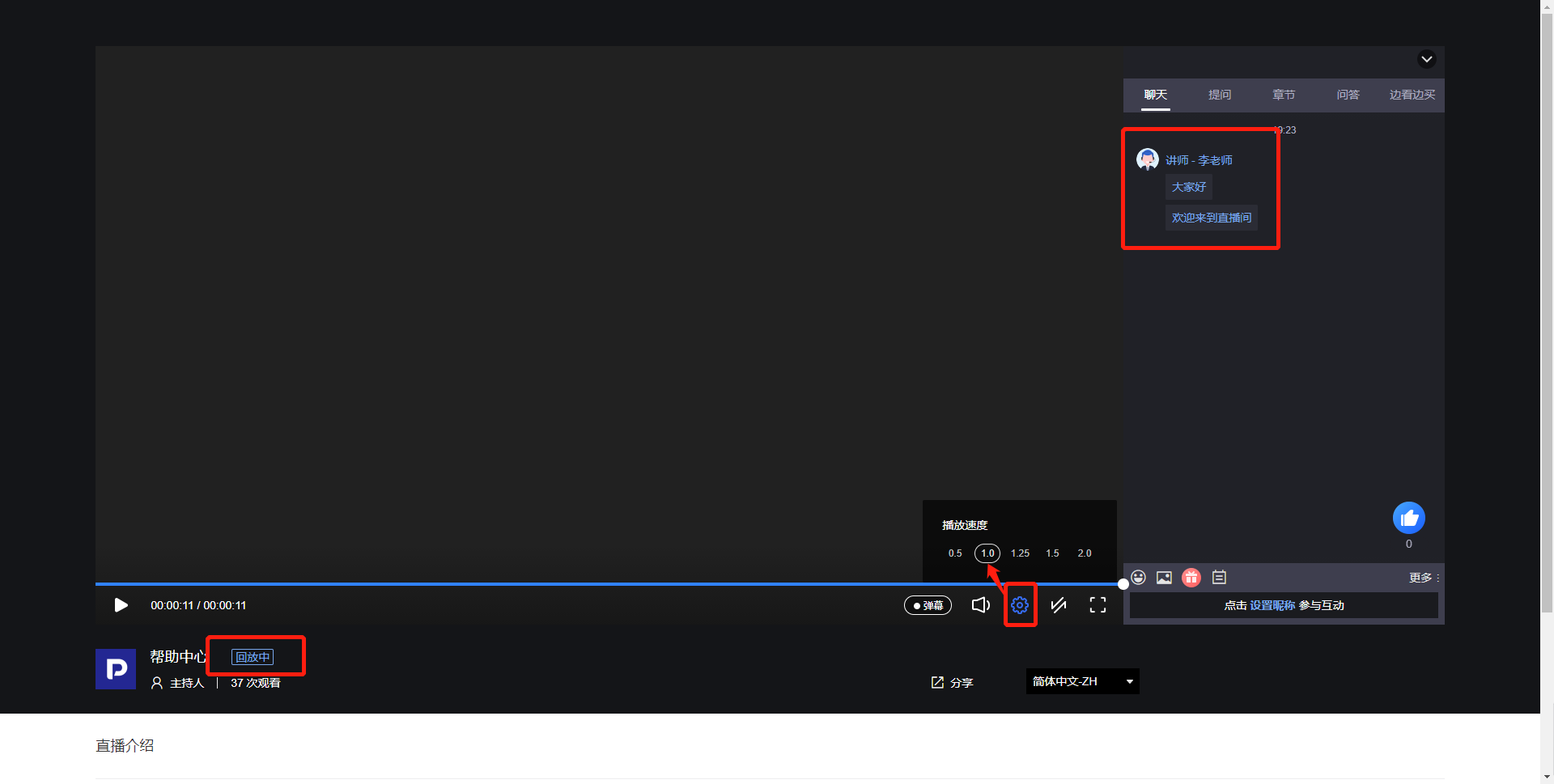
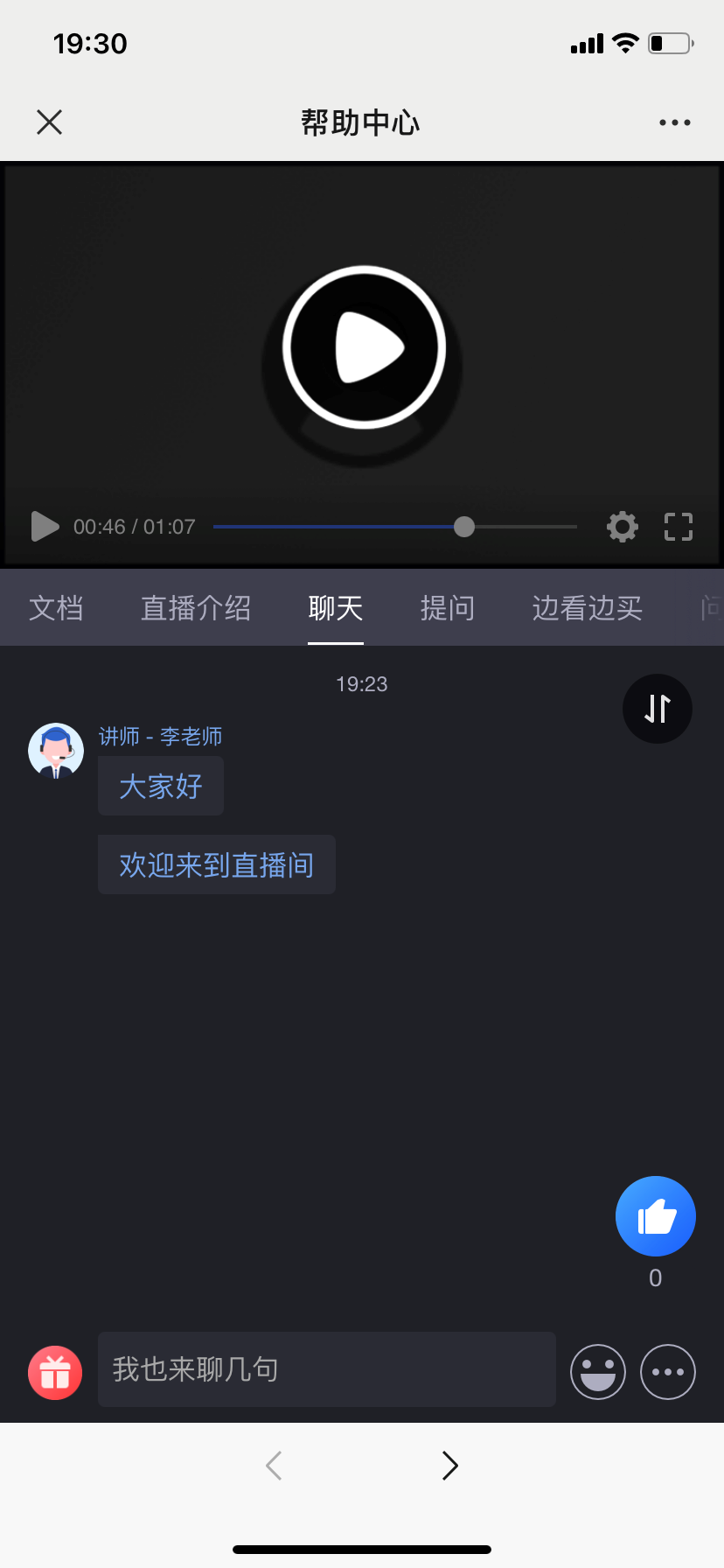
During replay, viewers can see the chat room messages, courseware, and live video from the original broadcast. They can also adjust playback speed and drag the video progress bar.
Case 1: Single Video
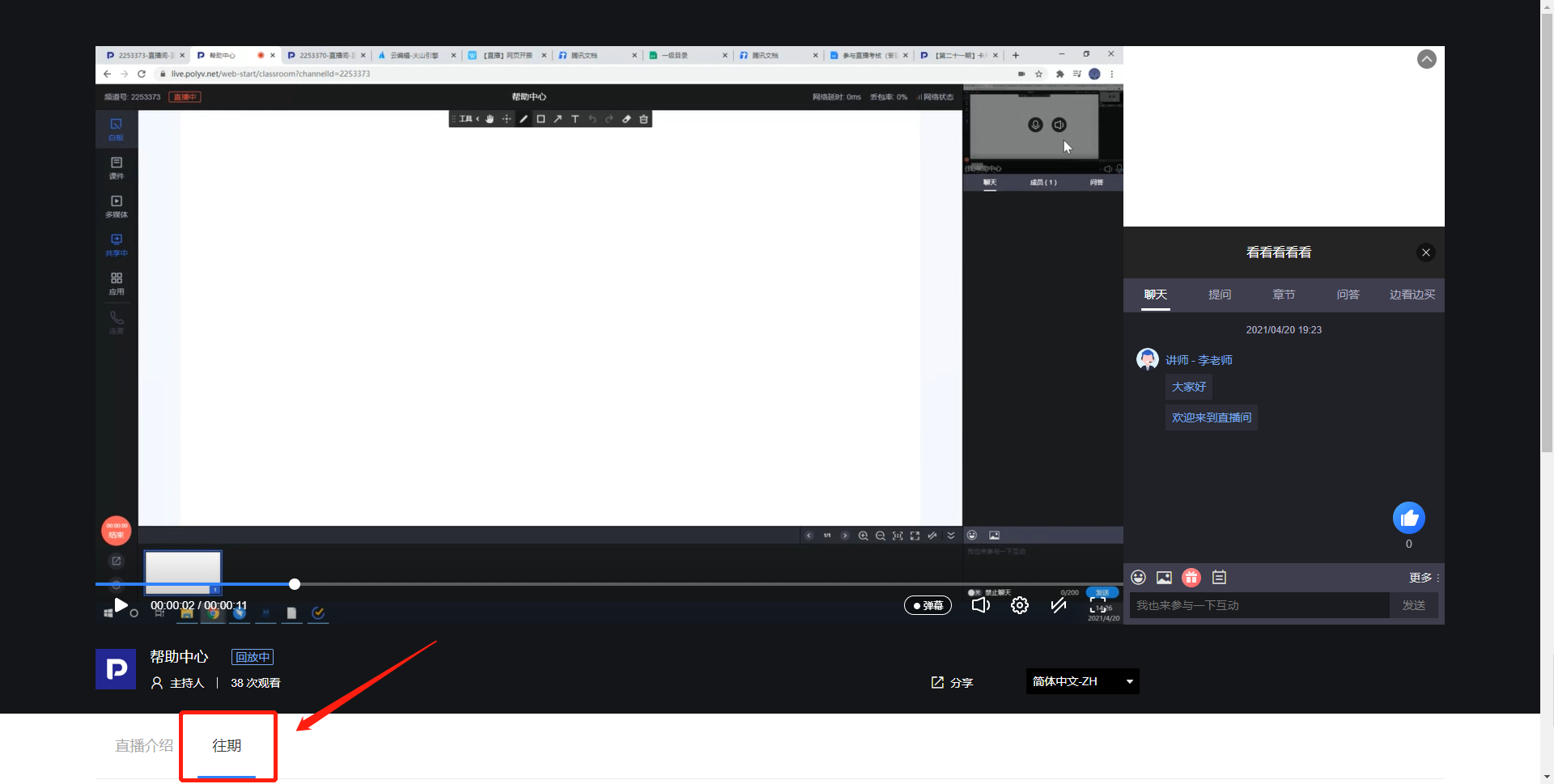
Case 2: Multiple Videos
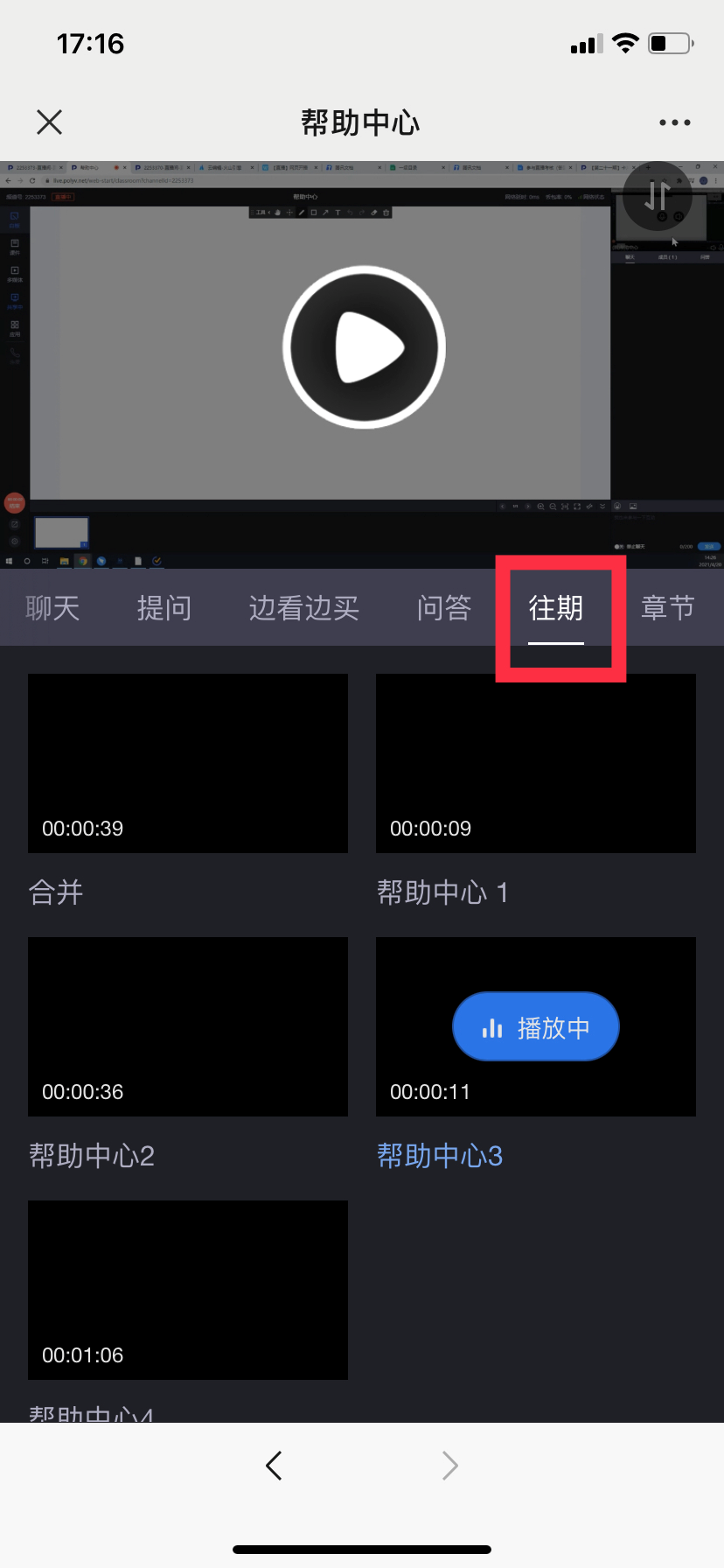
In the menu bar below the player, click the "Previous" tab and scroll down the page to see multiple replay videos. They will play automatically in sequence.
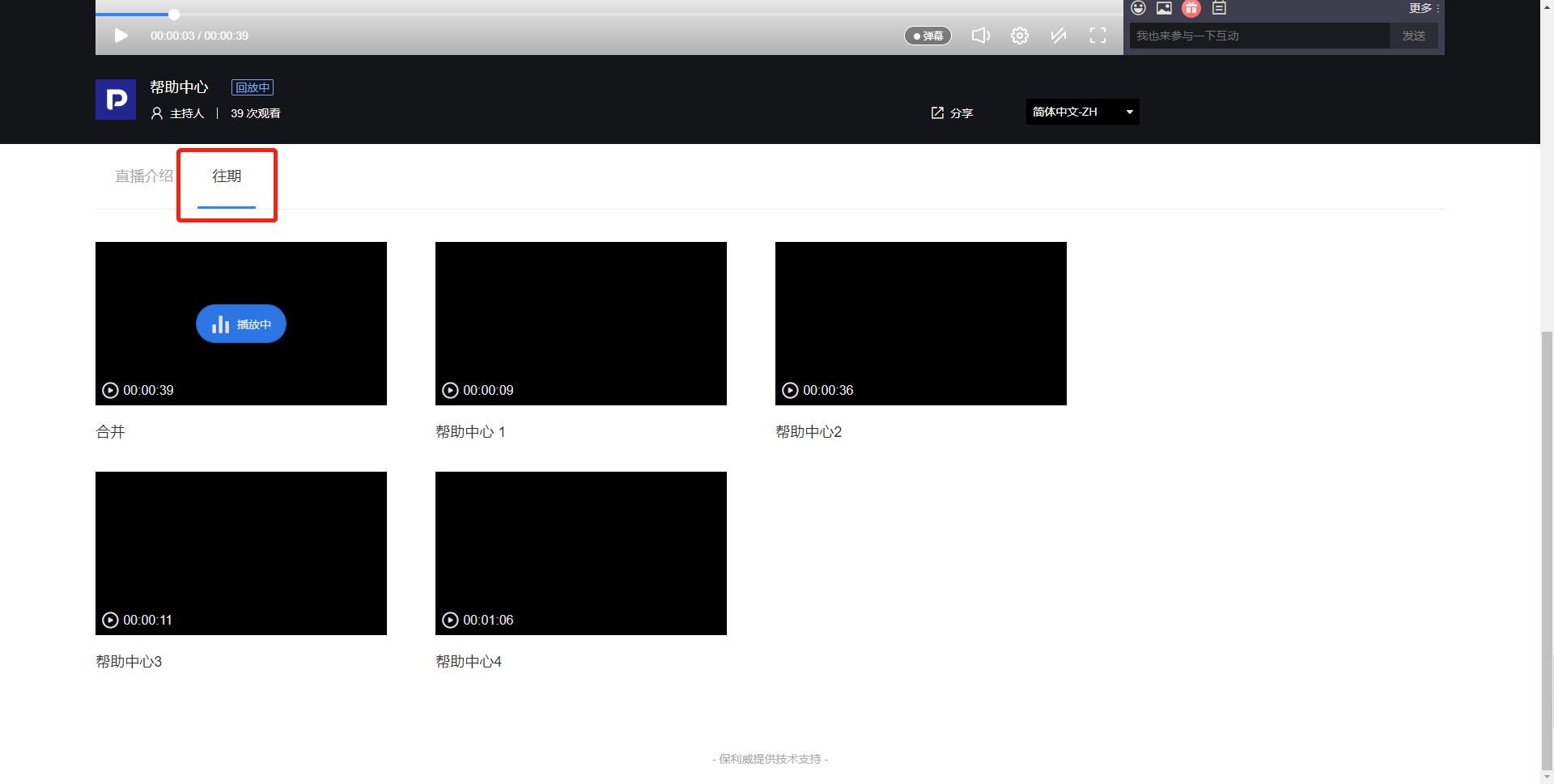
On the mobile viewing page, also in the menu bar below the player, swipe left or right to find the "Previous" tab. Tap it to see multiple replay videos.
Case 3: Replay Chapters
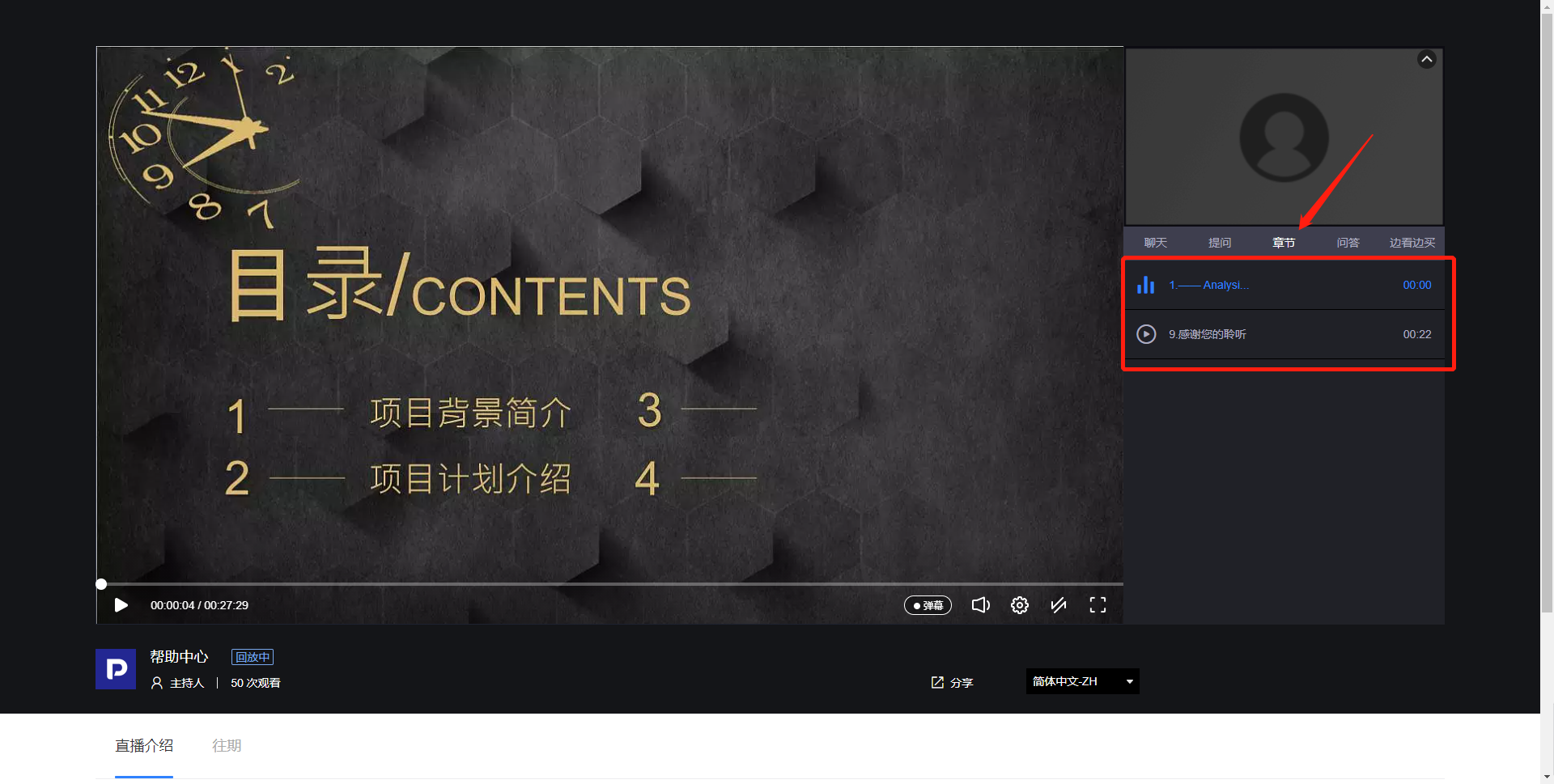
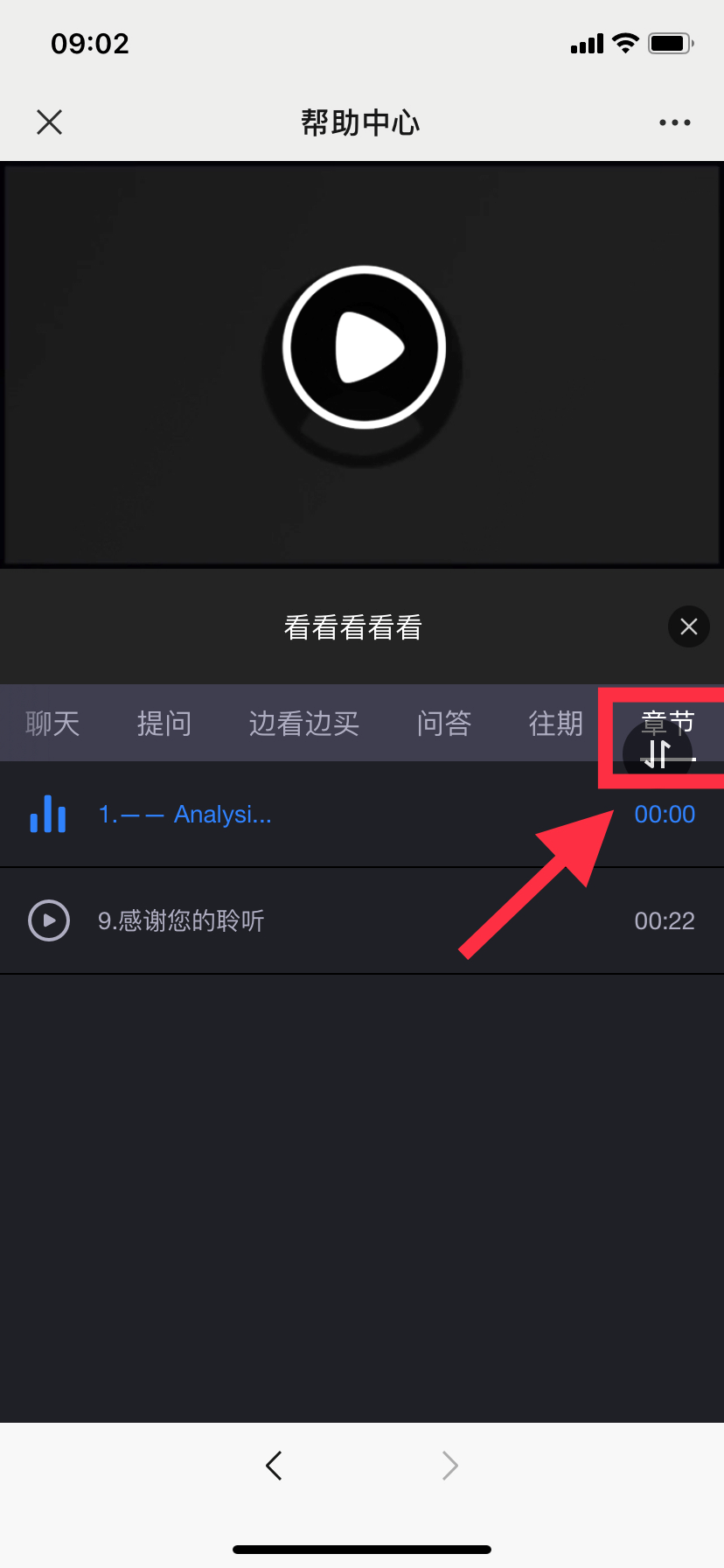
If the live stream included PPT courseware, the admin can configure the backend to split the replay video into chapters based on each slide's title. Clicking a chapter jumps to the corresponding playback position. If some slides were flipped too quickly during the live stream, the system will not split that segment into chapters.
After the backend is configured, both PC and mobile users can find the "Chapters" tab in the menu bar and tap to view.
Notes
Depending on the backend settings configured by the live room admin, the replay content may fall into the following scenarios:
1. Previous replays may be replaced by the latest live stream content in the room
2. Multiple live streams in the room may be merged
3. Replay videos may be edited before being uploaded
4. After the live stream ends, a short wait is required for the replay video to be generated
5. The admin may replace the replay with other video content
6. If certain faults occur, the replay video may not be generated
