What Interactions Can Viewers Perform in a Live Stream?
In addition to basic communication forms such as text, emojis, and chat, the live stream channel also allows viewers to express recognition and support for the host through "Likes" and "Tips," thereby livening up the atmosphere. Viewers can also privately message the host with questions via "Q&A," ensuring their questions are not lost in the public chat.
These interactive features are only available to viewers after the administrator enables them in the backend.
Method 1: Chat (Danmaku)
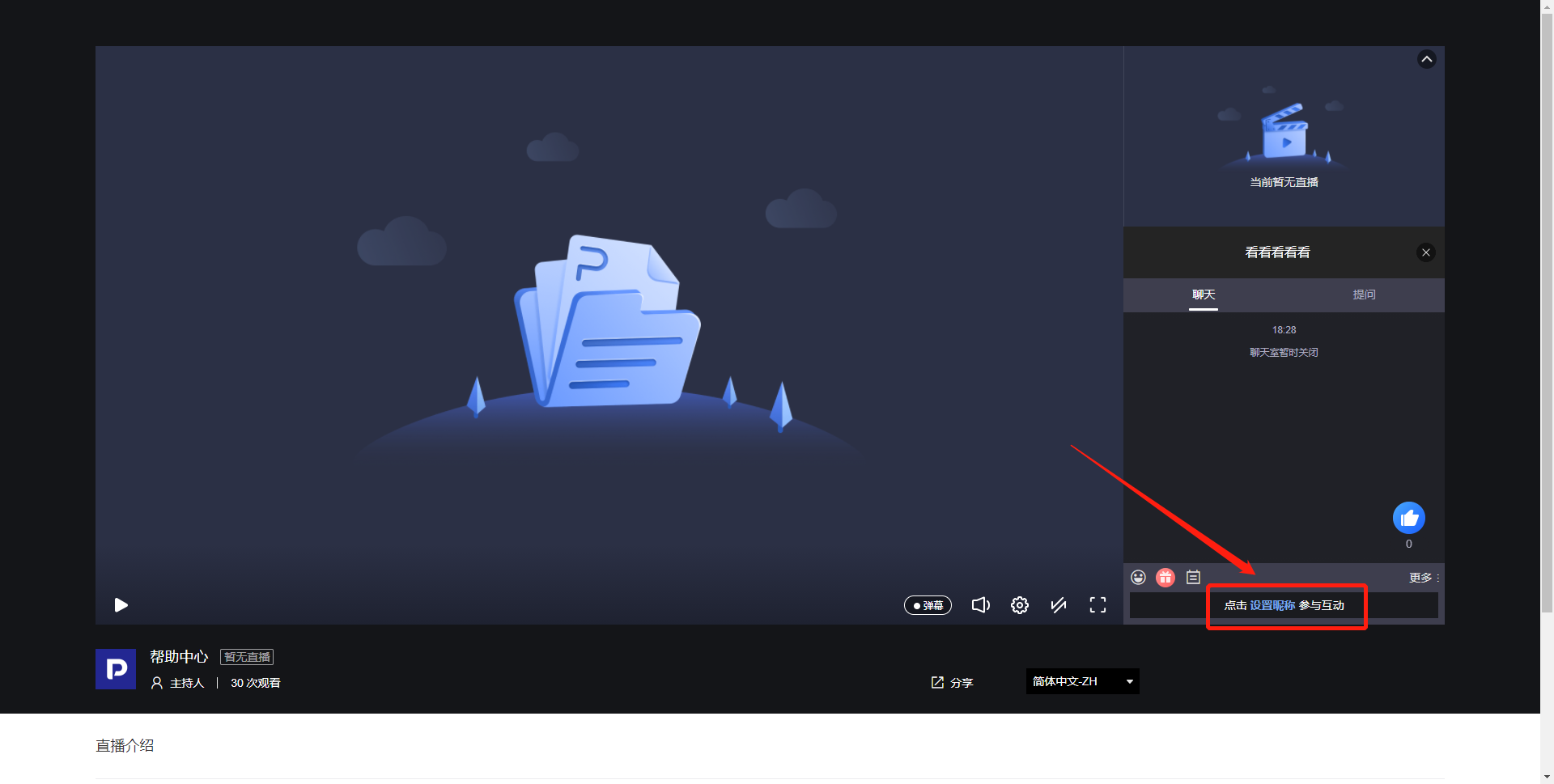
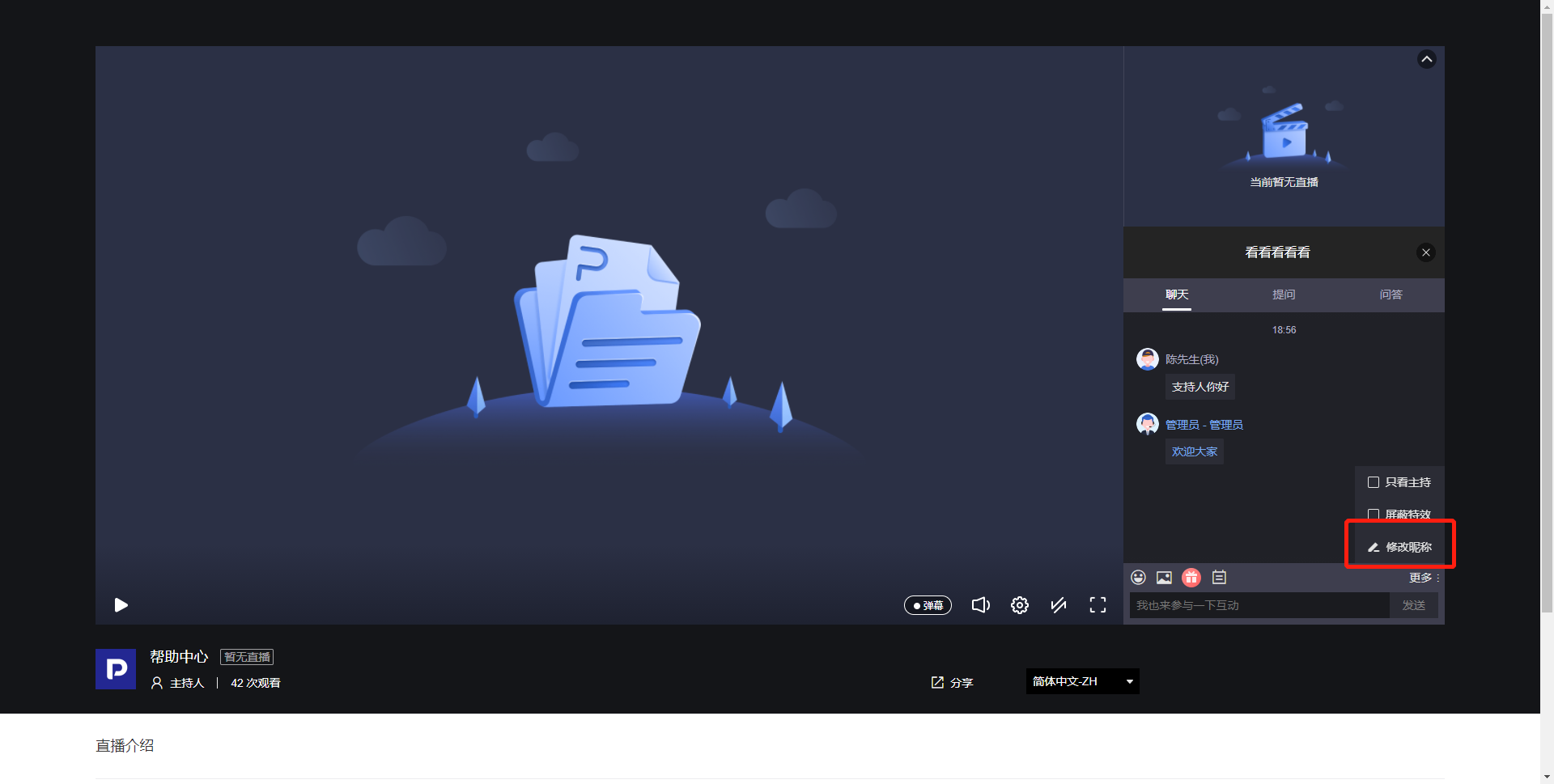
On the web viewing page, viewers click "Set Nickname" to set a nickname, after which they can send text, images, emojis, and other chat messages. The maximum character limit per message is 200 characters.
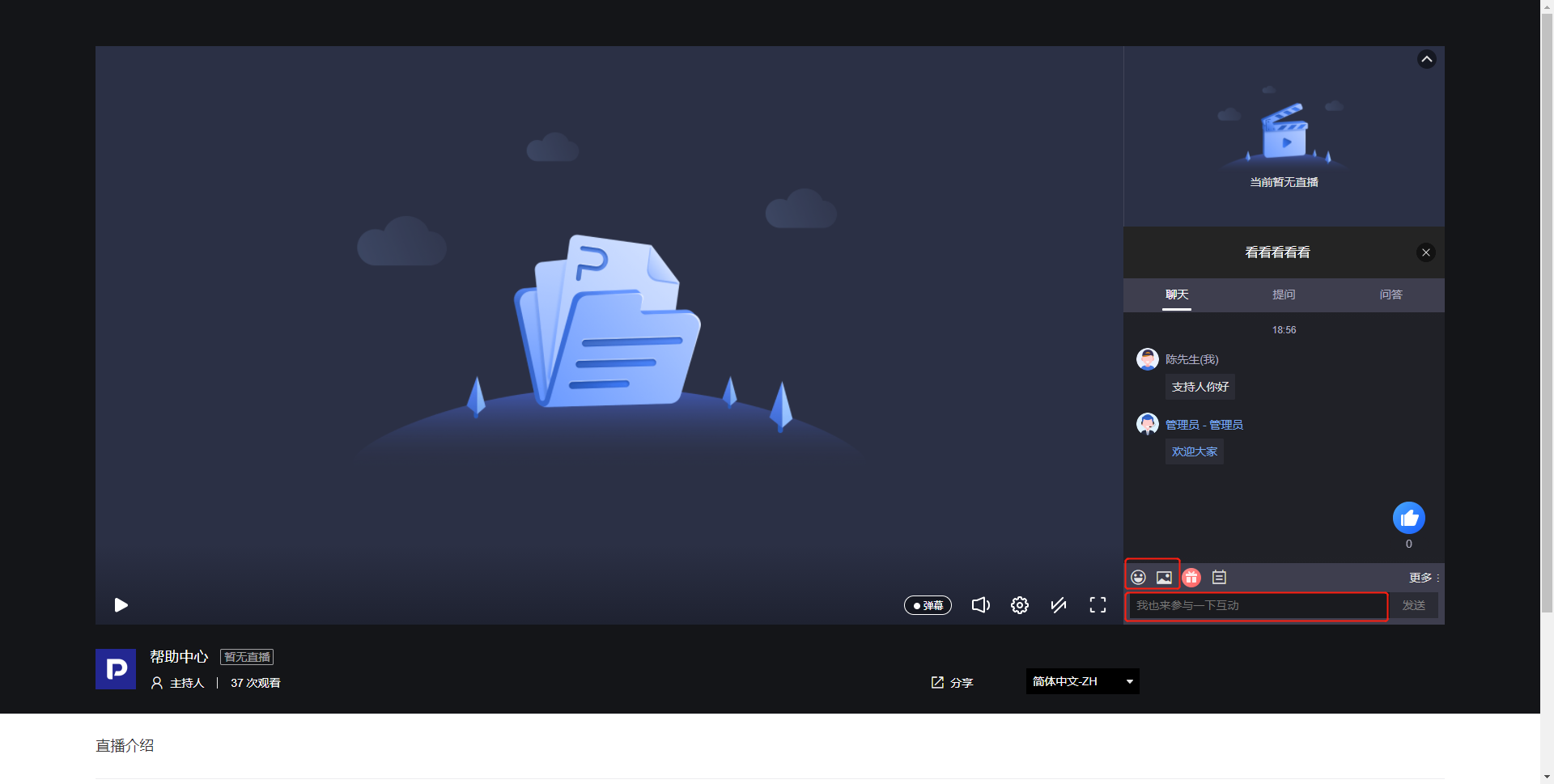
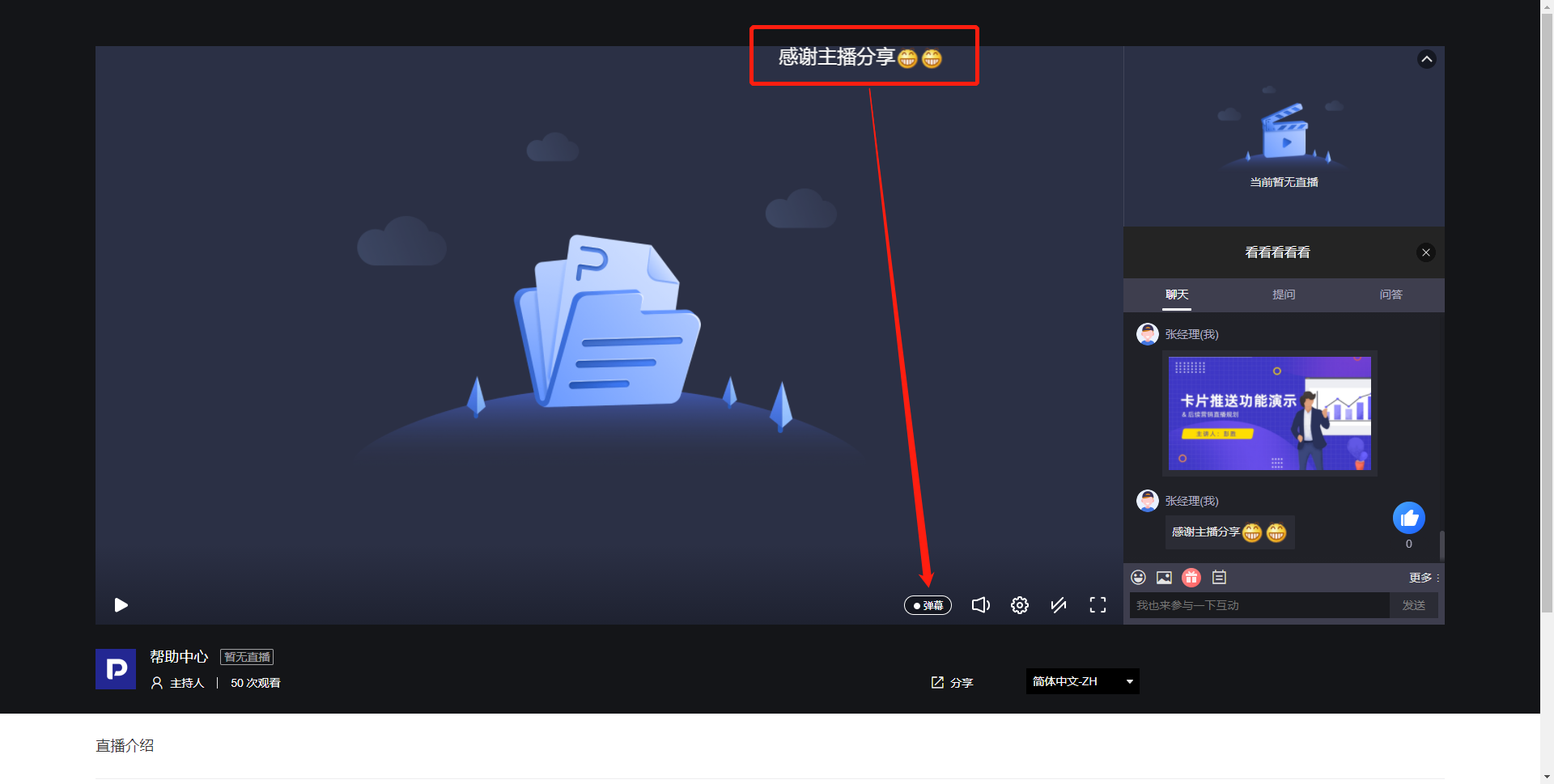
Sent text and image messages will also be displayed as danmaku (which can be toggled on/off in the bottom right corner of the screen).
The nickname can be modified in the "More" section of the chat room.
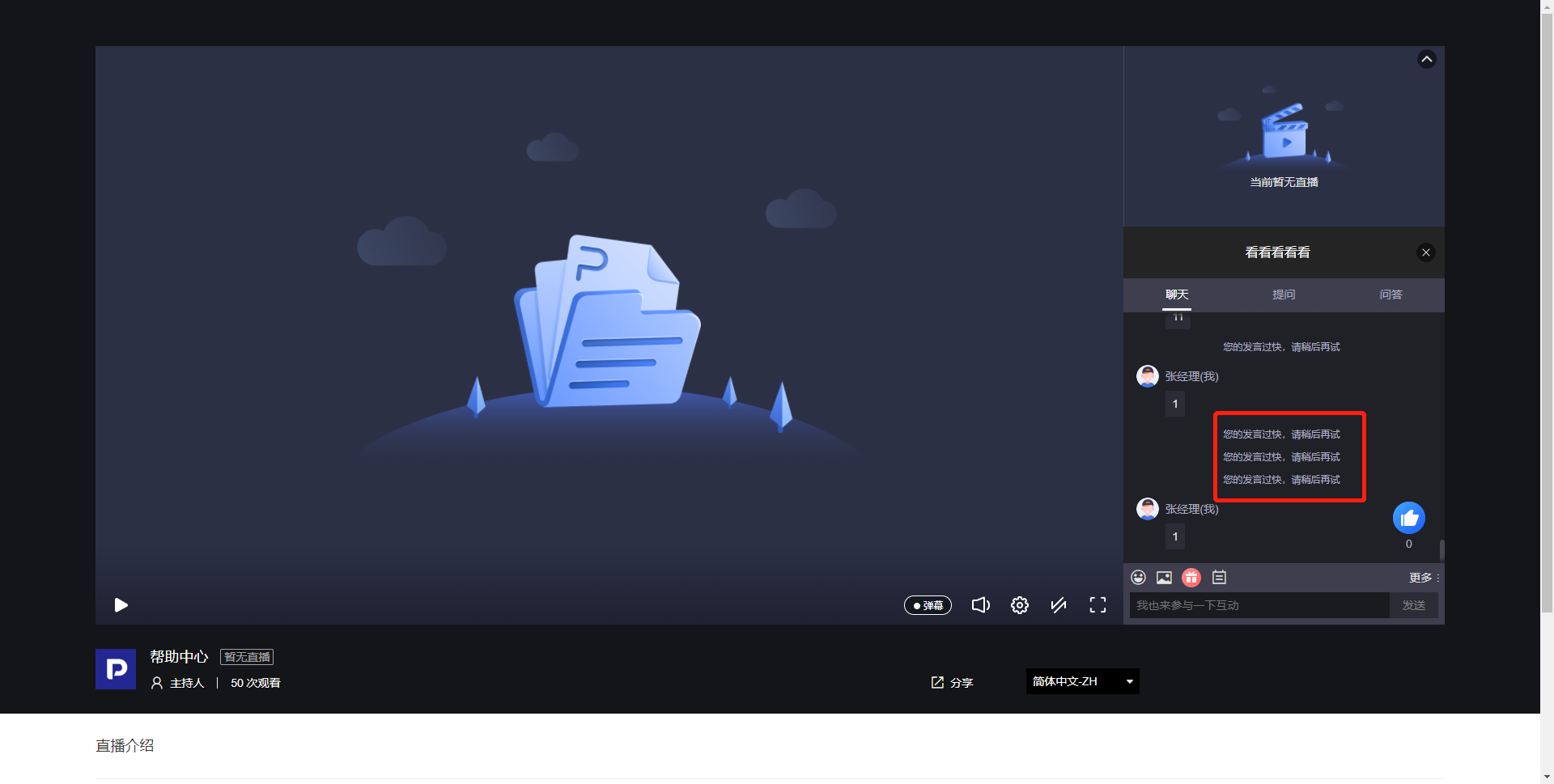
The interval between messages must be greater than 5 seconds to prevent spamming.
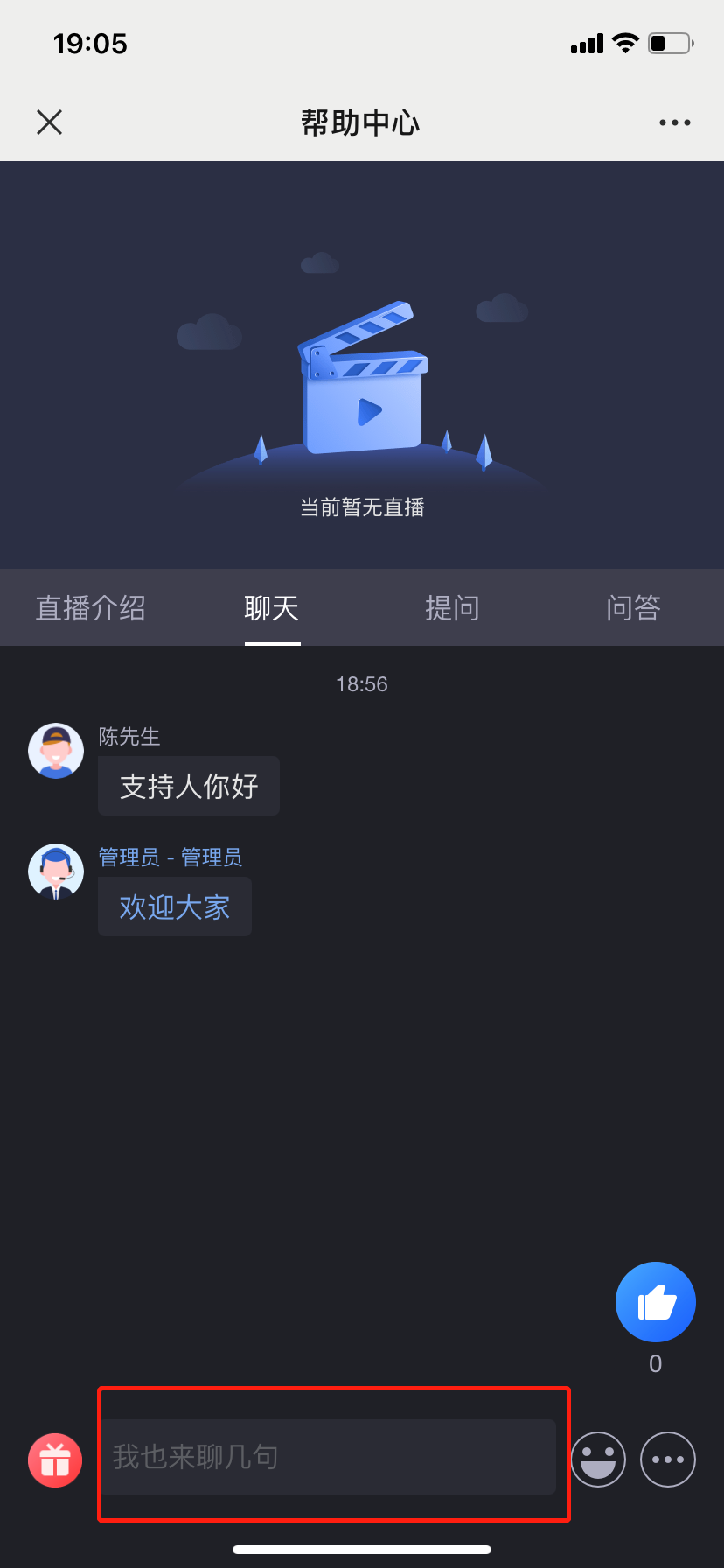
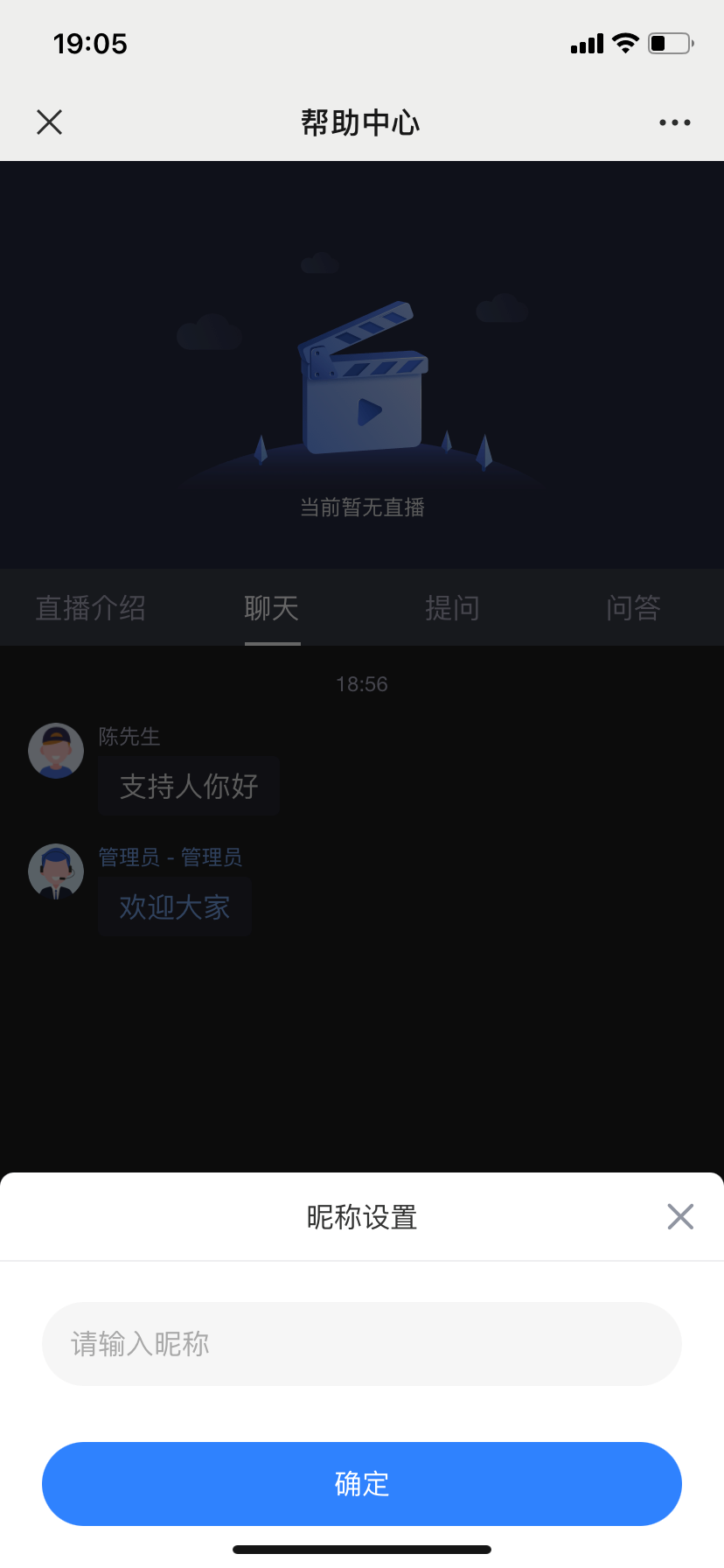
On the mobile viewing page, if opened via WeChat scan code or link click, the viewer will generally be prompted to authorize access to their WeChat avatar and nickname. After that, messages sent in the chat room will display the WeChat nickname and avatar. In other cases, such as opening with a mobile browser, as shown below, clicking the input box will bring up a popup to set a nickname, after which interaction can begin.
Method 2: Tips
Click the "Tip" icon located above the input box to choose from free tips, paid prop tips, and cash tips.
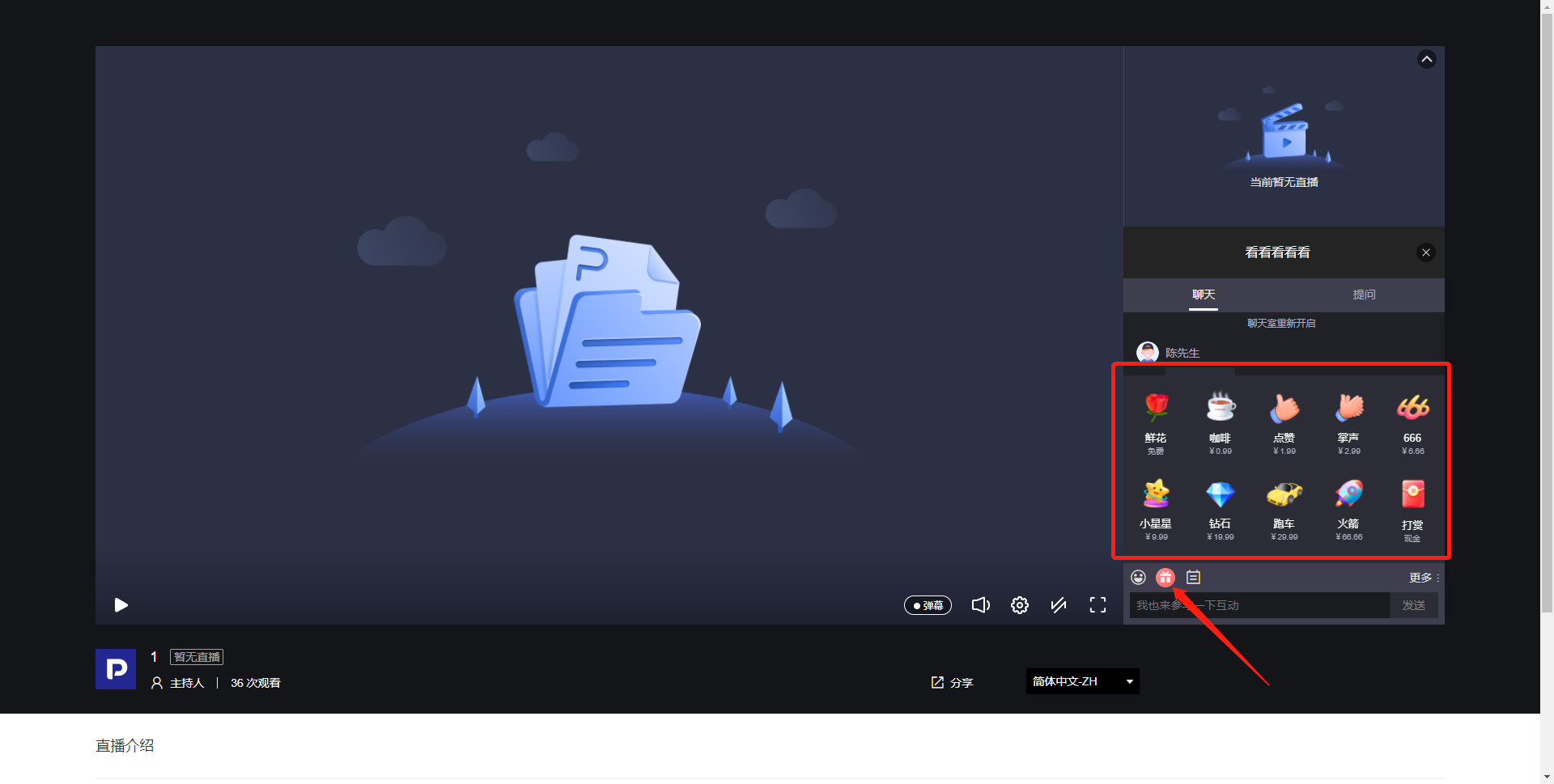
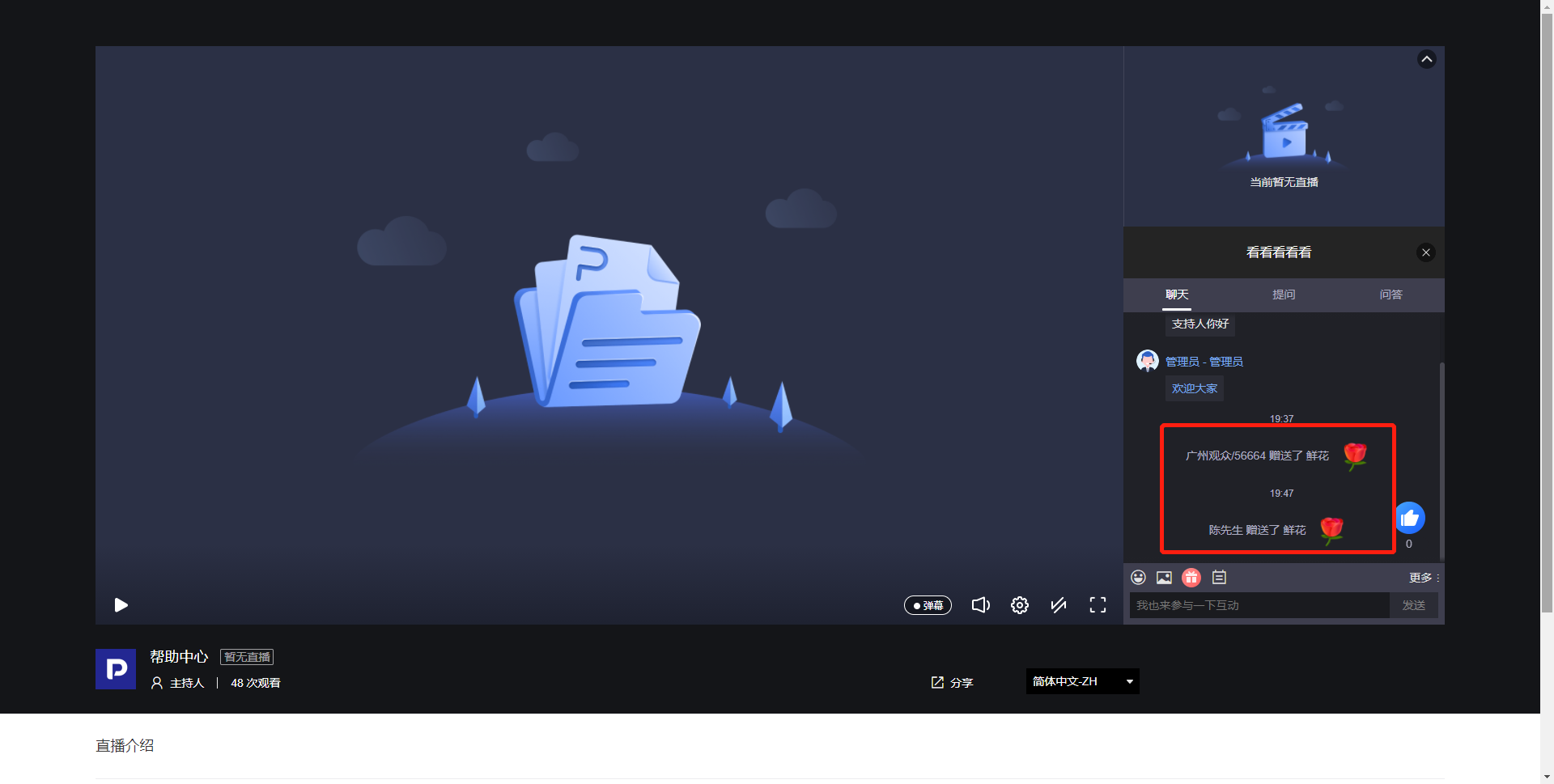
Free tips can be sent directly after clicking and will be displayed in the chat room.
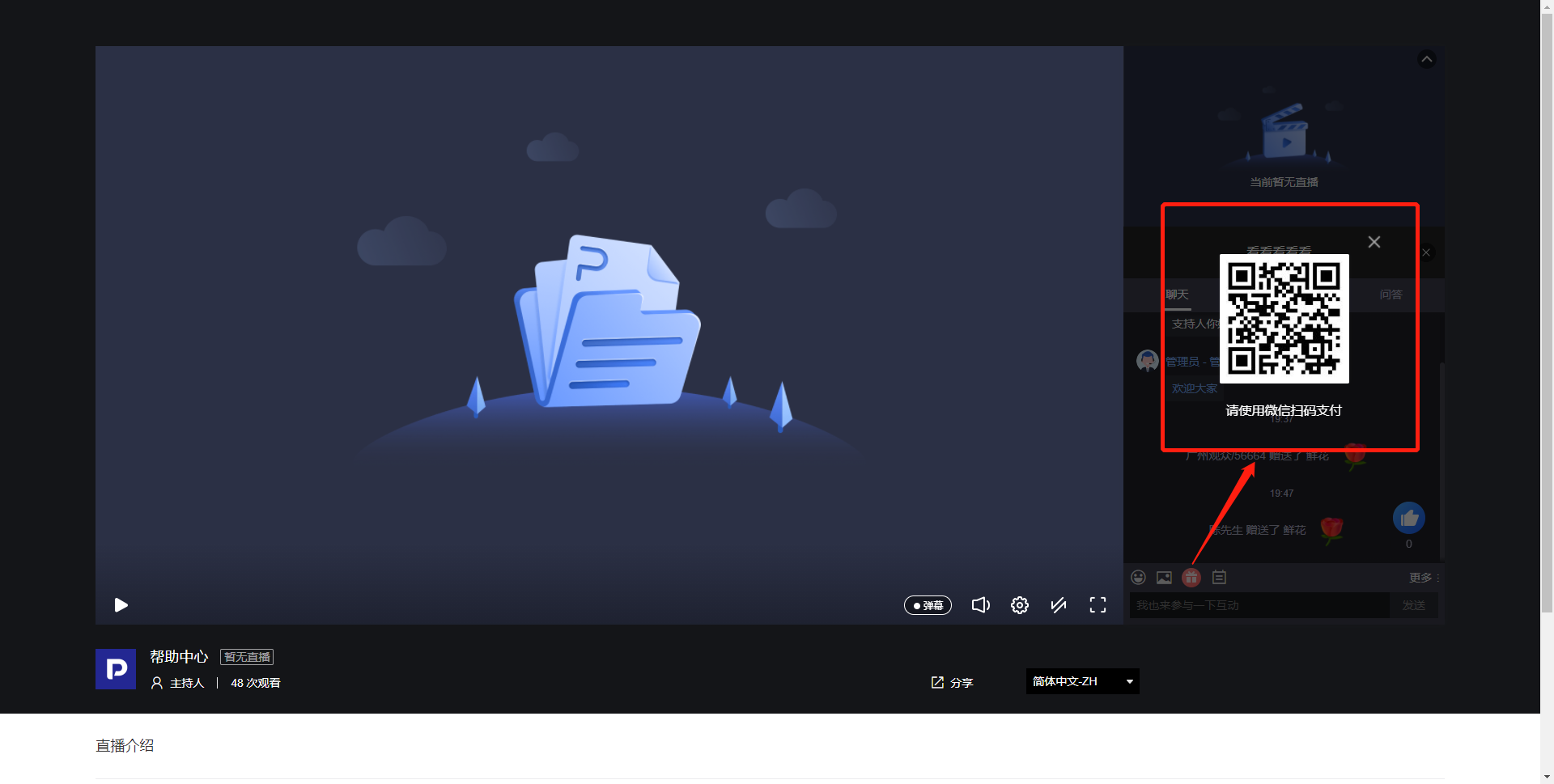
For paid prop tips, clicking will prompt a WeChat scan code payment. After payment, the tip can be sent.
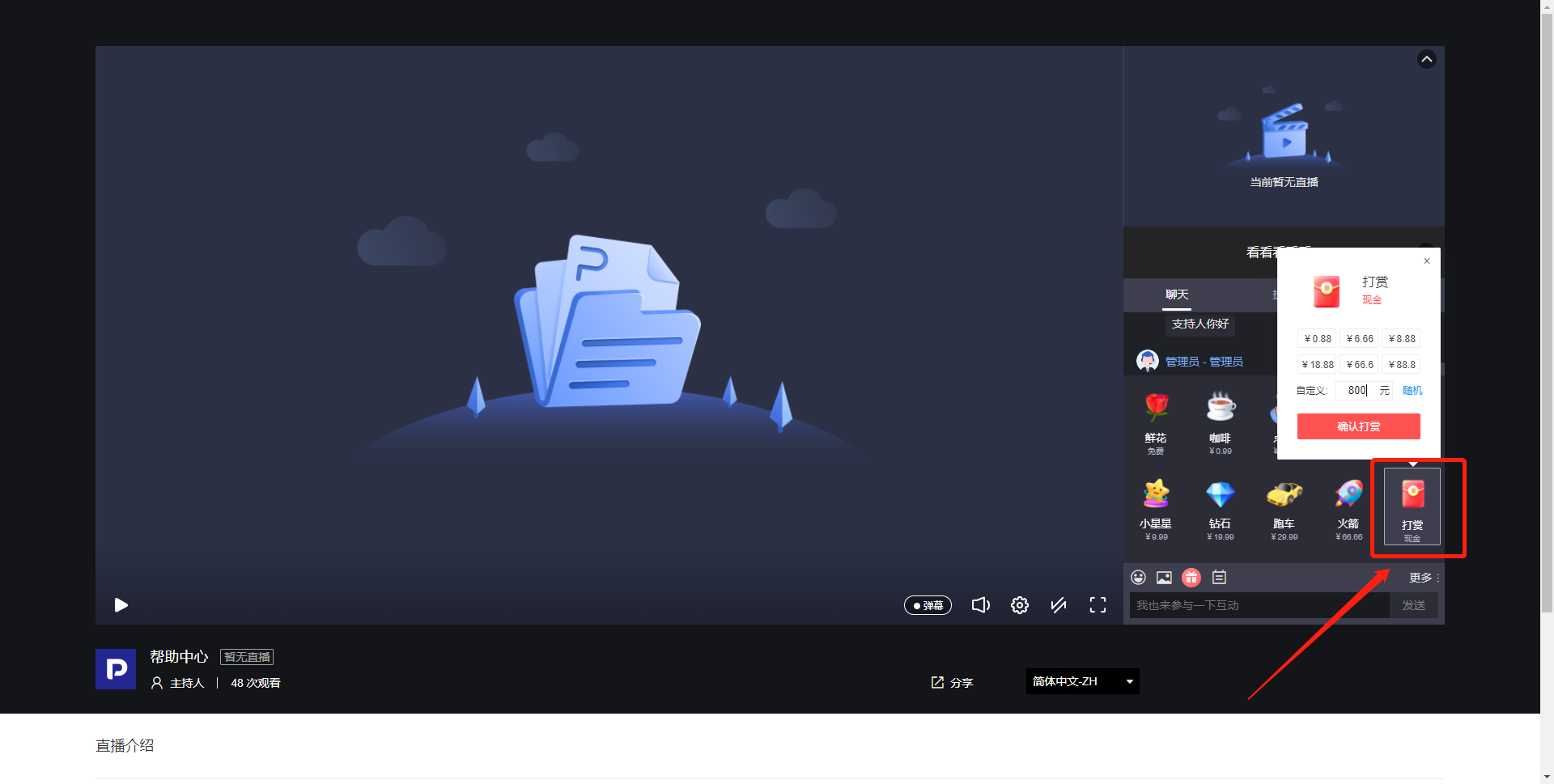
For cash tips, clicking will bring up a popup window as shown below. You can select a corresponding amount, a custom amount, or a random amount. After clicking "Confirm Tip," a WeChat scan code payment prompt will appear. Once payment is successful, the tip can be sent.
Method 3: Likes
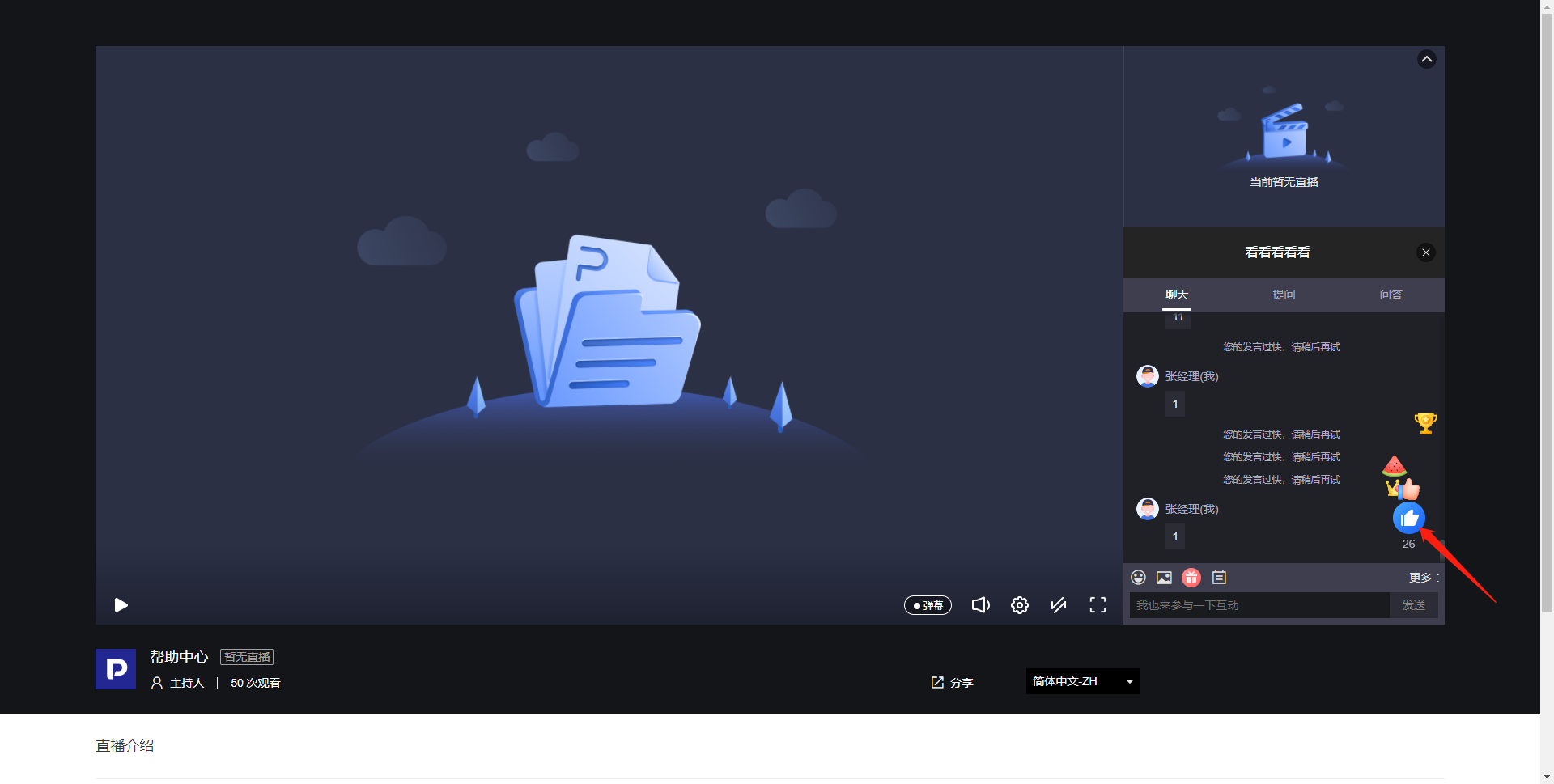
Viewers click the like button located above the input box to display corresponding like effects and give a like to the host.
Method 4: Q&A
In the page menu, switch to "Q&A" to privately ask questions to the host.
If the live stream has not started, the "Q&A" feature will not be available.
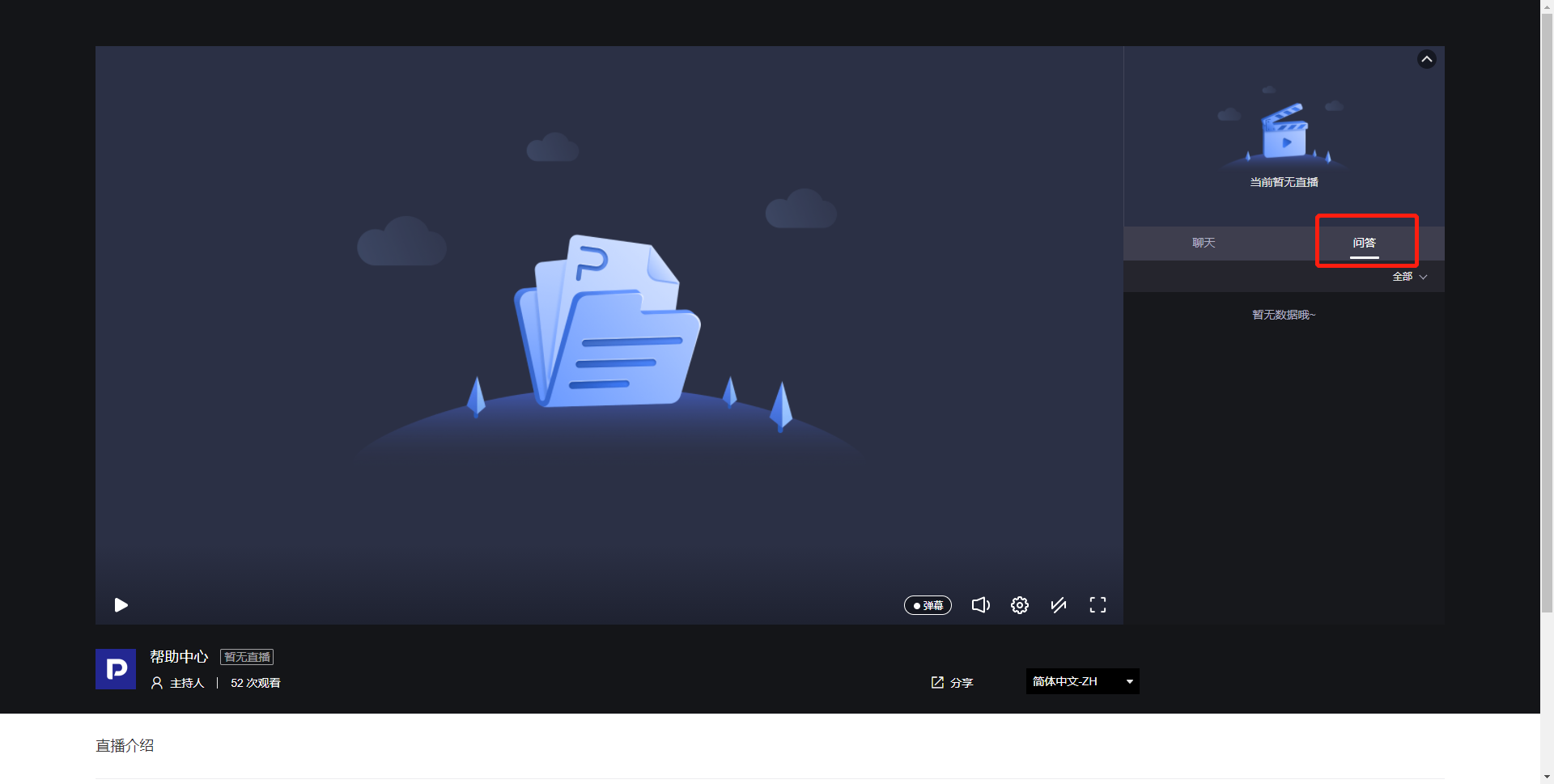
Once the live stream starts, the feature becomes available.
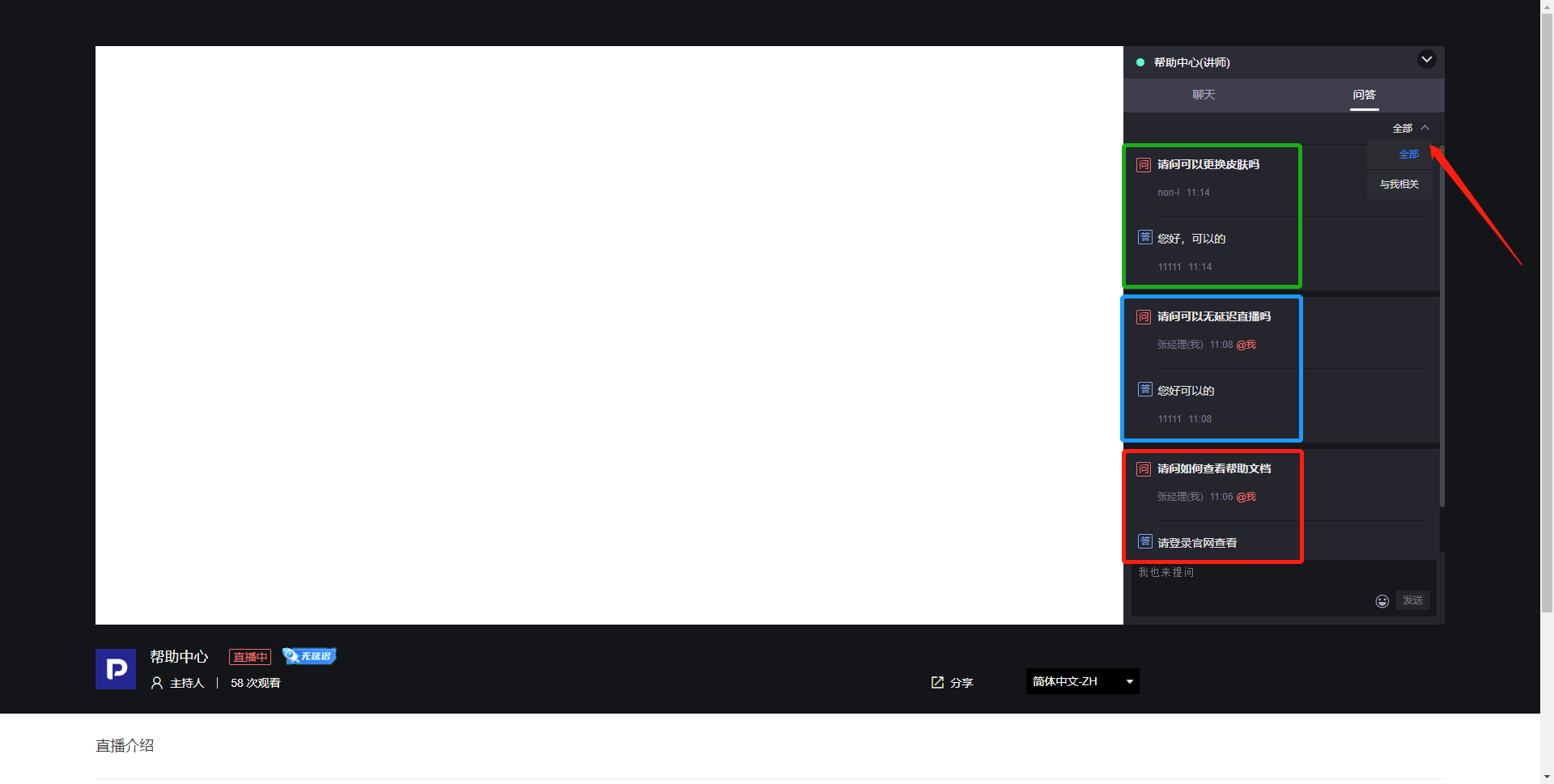
After a viewer asks a question, if the question is representative, the host can choose to publicly display the question and its answer in the "Q&A" window for all viewers (as shown in the blue box below). Viewers can also see other viewers' publicly displayed questions and answers (as shown in the green box below).
The host can also choose to reply privately. In this case, only the questioner can see the answer in the "Q&A" window (as shown in the red box below).
Use the dropdown menu indicated by the arrow to select between viewing all viewers' Q&A or only your own questions and answers.