


Live Streaming Lag Self-Check Steps
Situation: Lag during live streaming, audio cutting in and out
Troubleshooting Steps:
1. Close download and upload tools (e.g., Thunder, cloud drives), shut down other programs that occupy network bandwidth, then refresh the page and try again.
2. Restart your router, then refresh the page and try again.
3. Check your local upload speed. Open a browser and enter http://www.speedtest.net/. Once the speed test interface loads, click "begintest" to start the test (loading may be slow, please be patient).
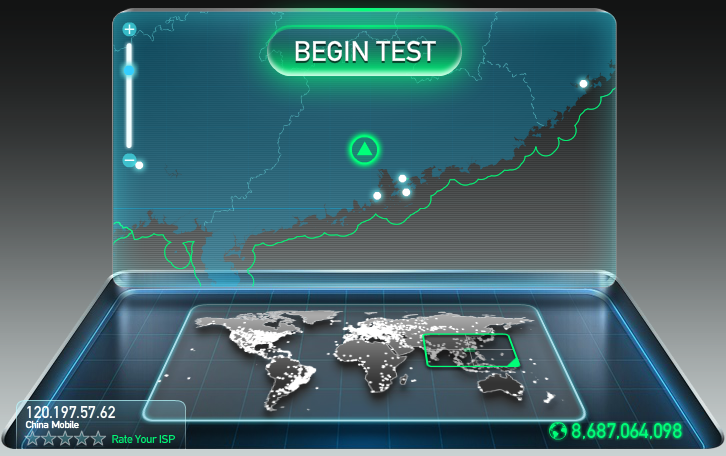
4. Speed test results

Download speed refers to the download speed. Generally, a speed of around 2M should allow for smooth live streaming.
Upload speed is the upload speed. If you are the stream initiator, around 2M is recommended.
5. Ensure the Download speed is around 2M. If it is too low, it may cause lag during live streaming. Please switch to a different network environment for watching the stream.
If the Download speed is adequate but lag persists, please contact Polyv technical staff for further assistance.
