Voting
I. Feature Overview
Feature Info |
Description |
|---|---|
| Feature Name | Voting |
| Feature Description | Allows viewers to vote on preset options in the live stream |
| Purpose | Enhance viewer decision-making participation, boost engagement atmosphere, collect user voting data, etc. |
| Use Case | Similar to surveys, primarily for collecting intent data |
| Operation Path | 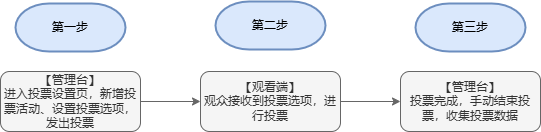 |
| Notes | 1. One user ID can only vote once per option; 2. Multiple options can start voting simultaneously; 3. Total votes can be sent to the viewing end at any time; 4. Voting options on the viewing end update in real-time following backend additions without page refresh; 5. Currently supports H5 mobile landscape and PC only, H5 mobile portrait is not supported |
II. Operation Steps
1. Backend Setup
(1) Enter the live stream management backend, find Marketing Interaction, select Voting Activity, and toggle the voting activity feature on.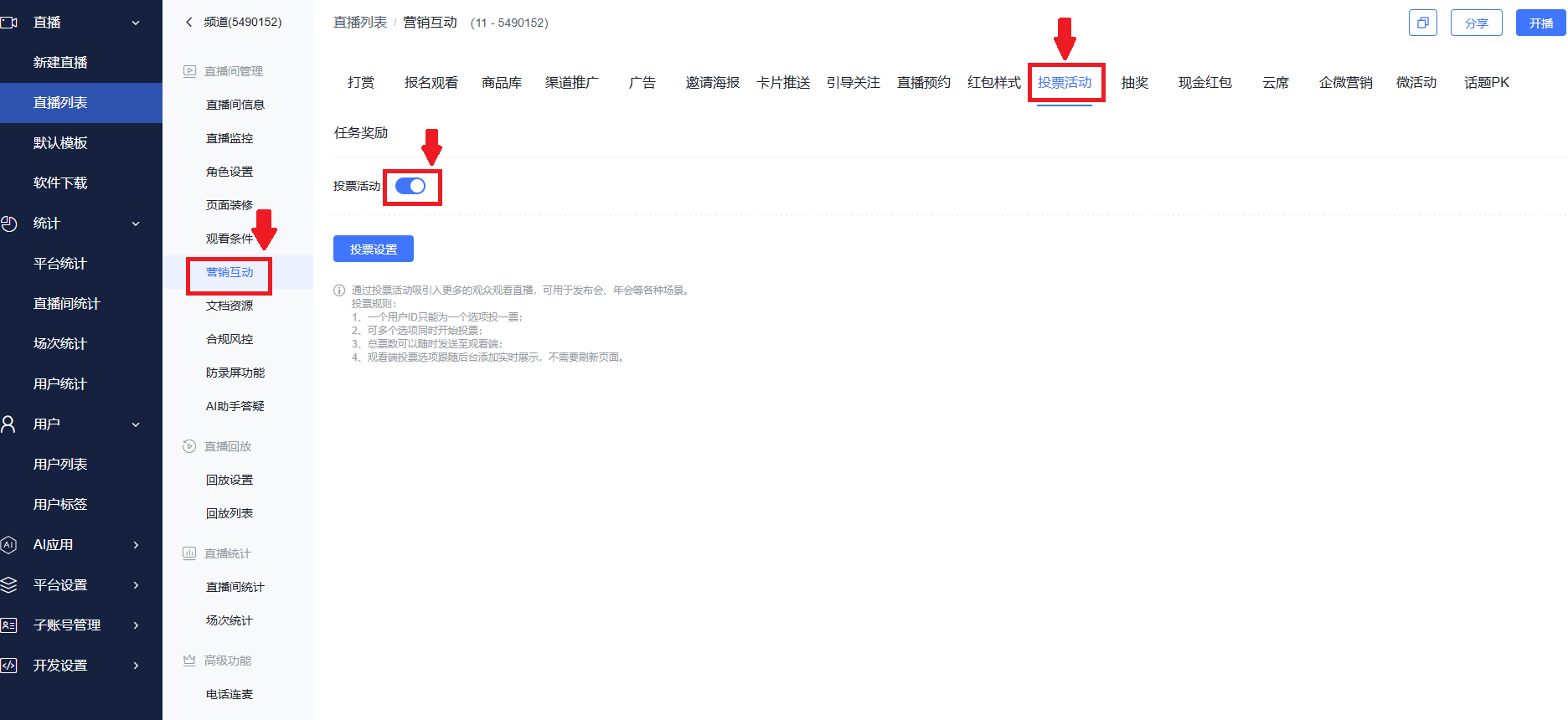
(2) Click the "Voting Settings" button to enter the settings details page.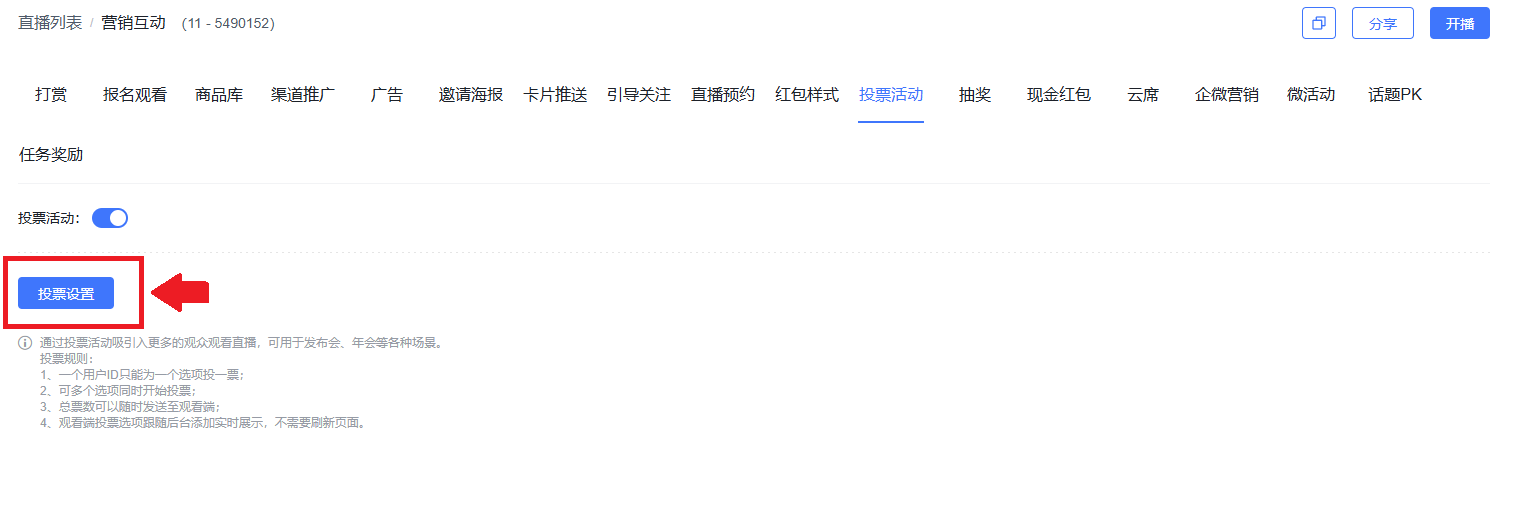
(3) Click "Create Activity" and enter the voting activity name.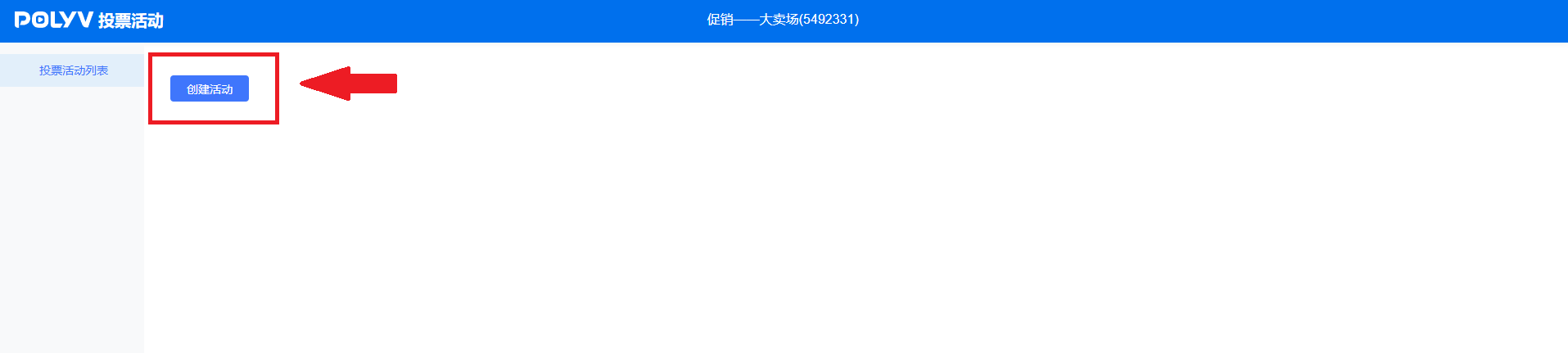
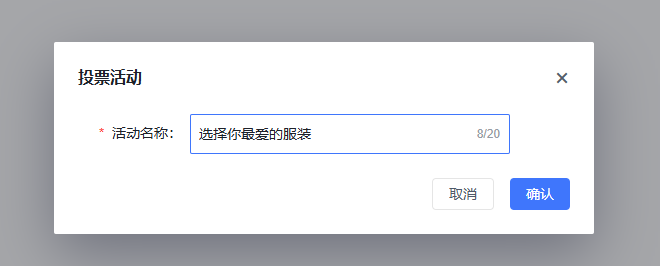
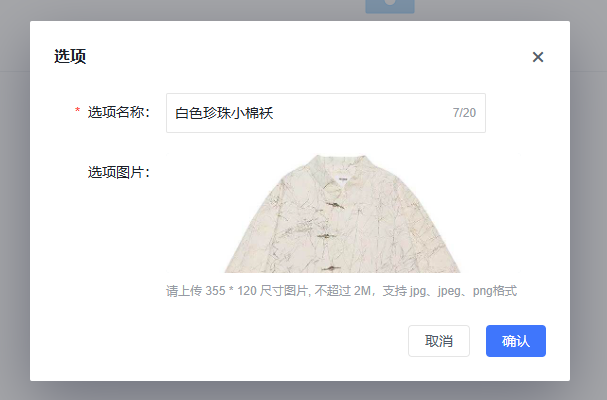
(4) Add several voting items, set the name and thumbnail for each.
(5) For voting items that need to be sent to the viewer voting panel, click the "Start Voting" button.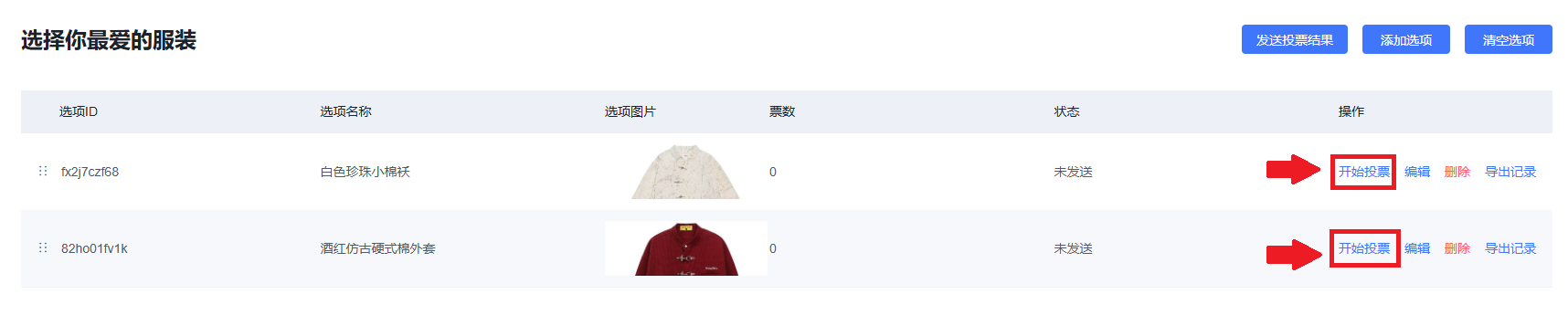
2. Viewer End Effect
(1) Viewing Effect
a. Web viewer end effect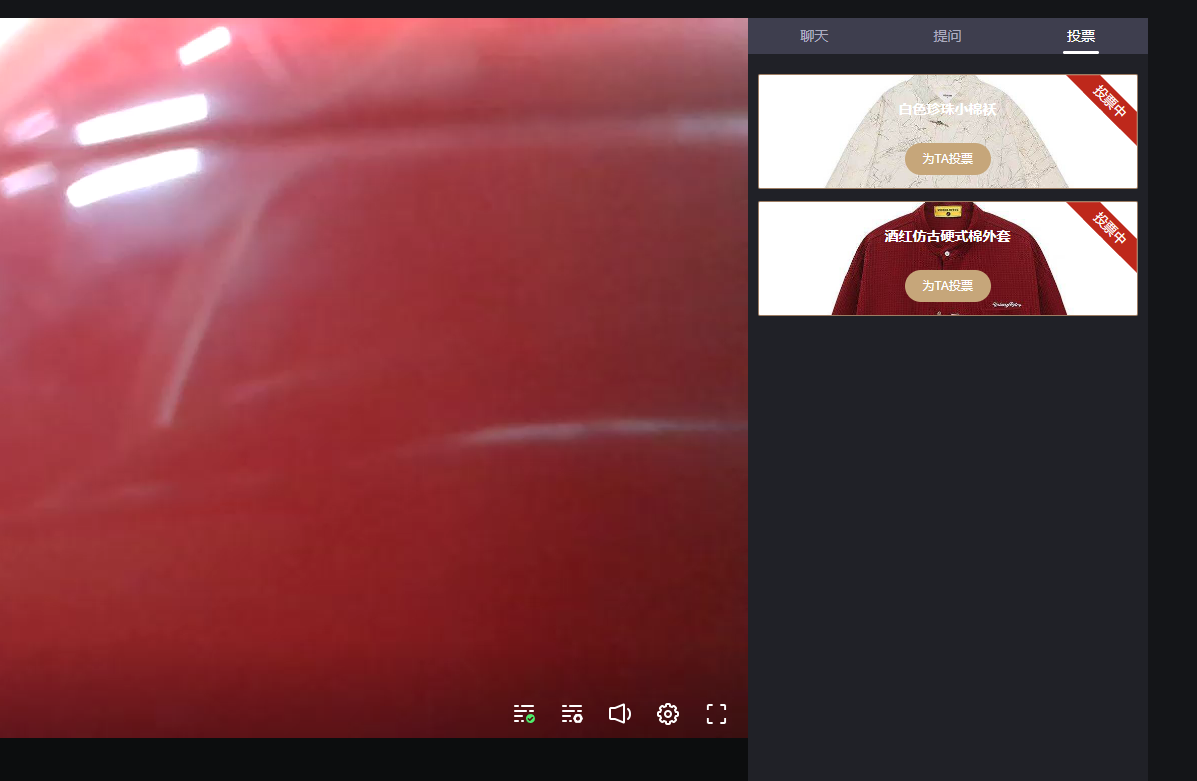
b. H5 mobile landscape live stream effect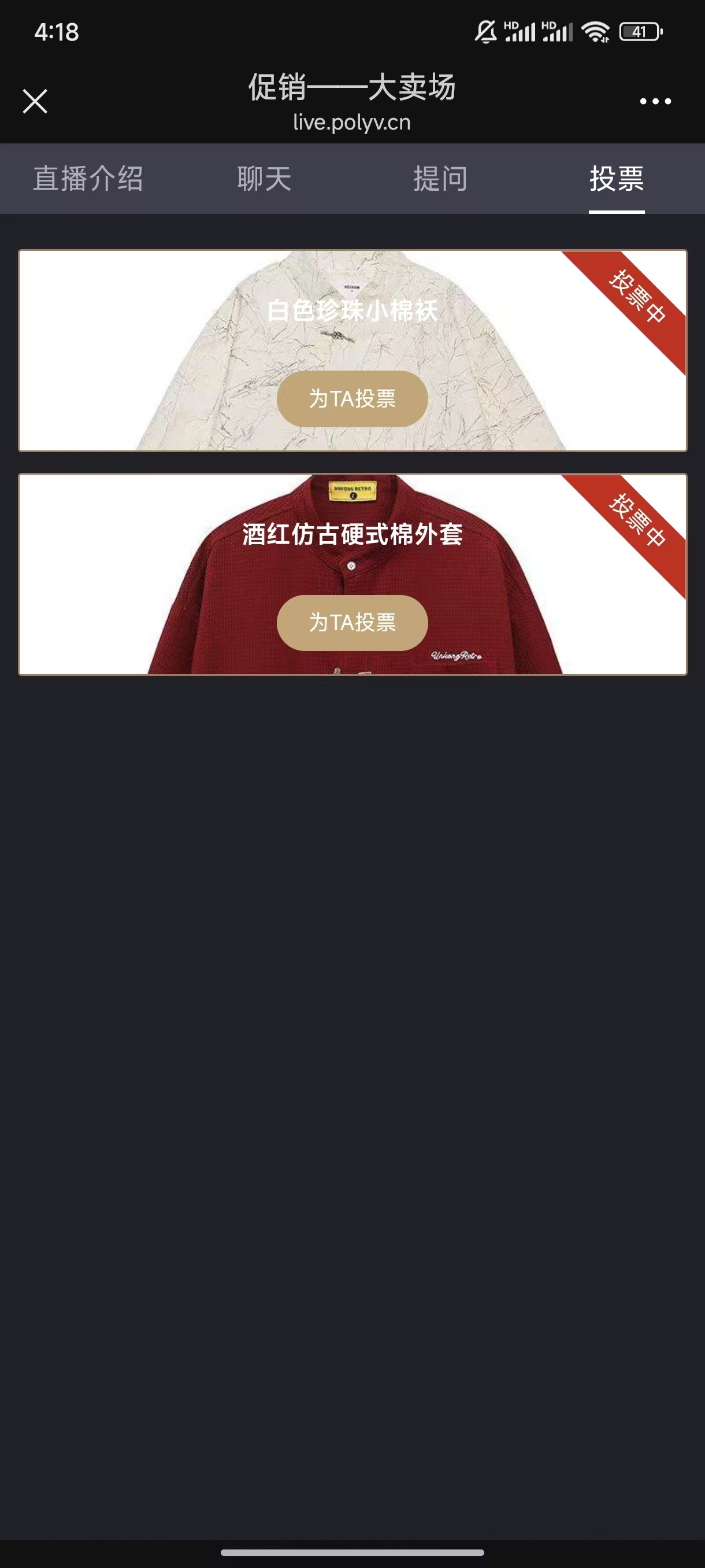
(2) Viewers click the vote button to successfully cast their vote.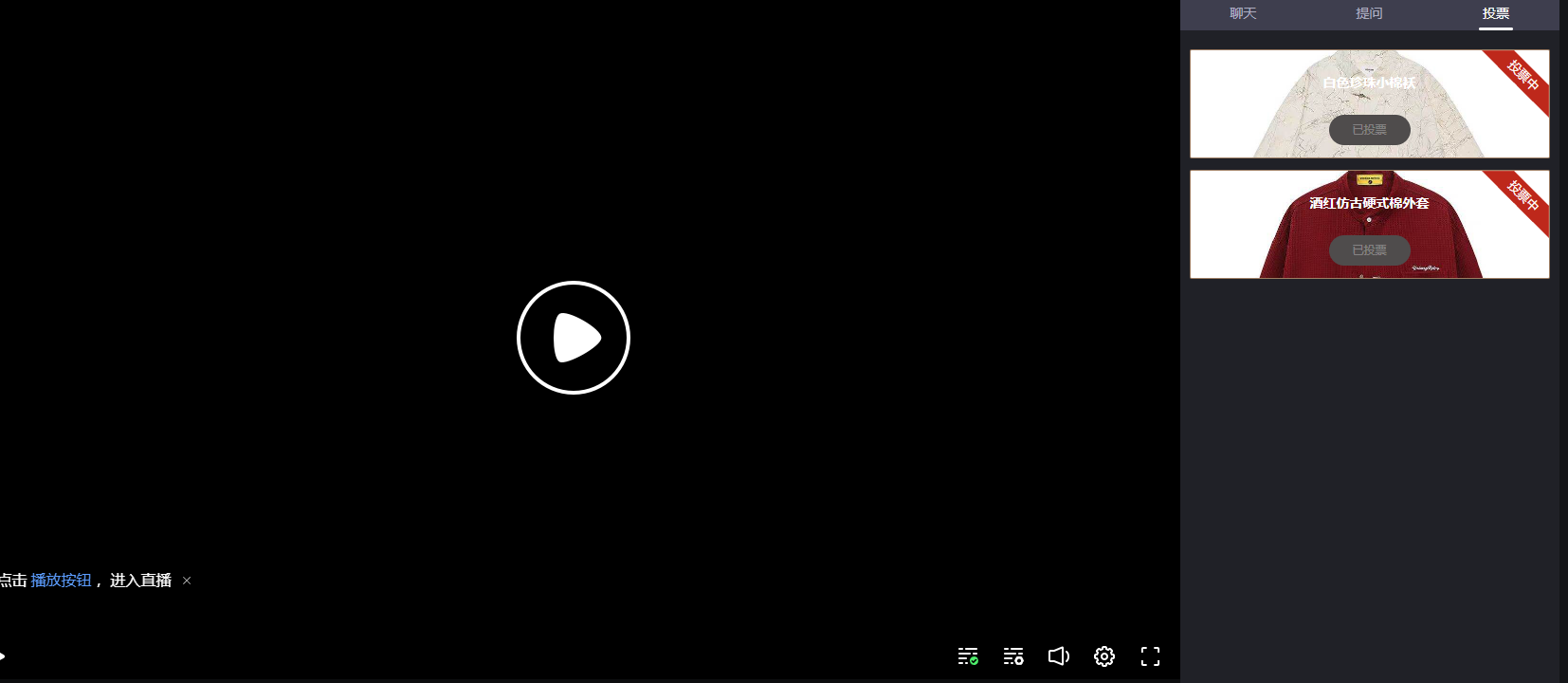
3. View Voting Results
(1) Click "End Voting" to complete the voting process, then proceed with subsequent operations.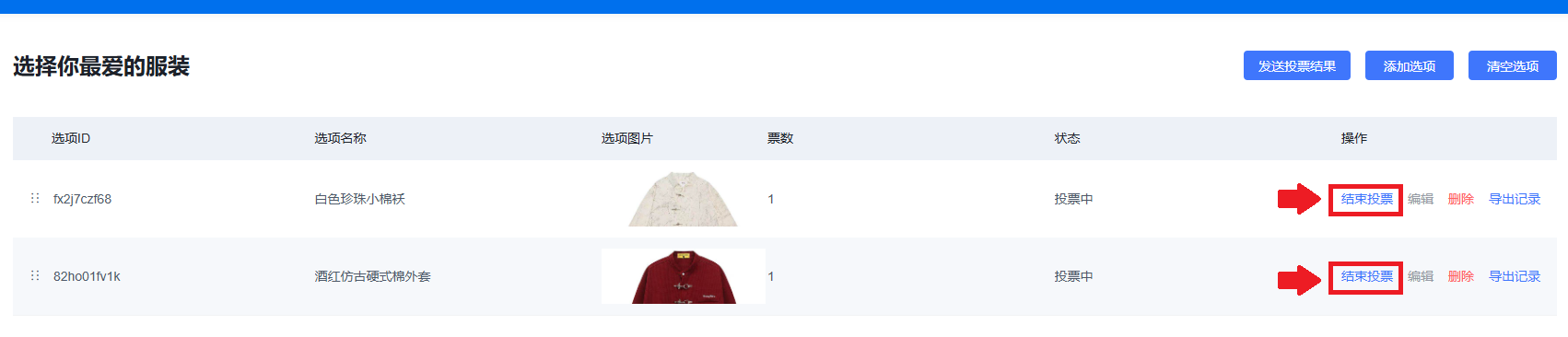
(2) Click "Send Voting Results" to send them to the viewer end.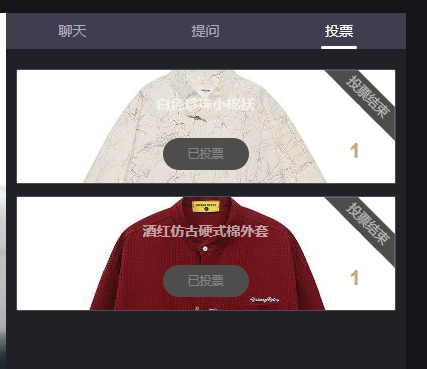
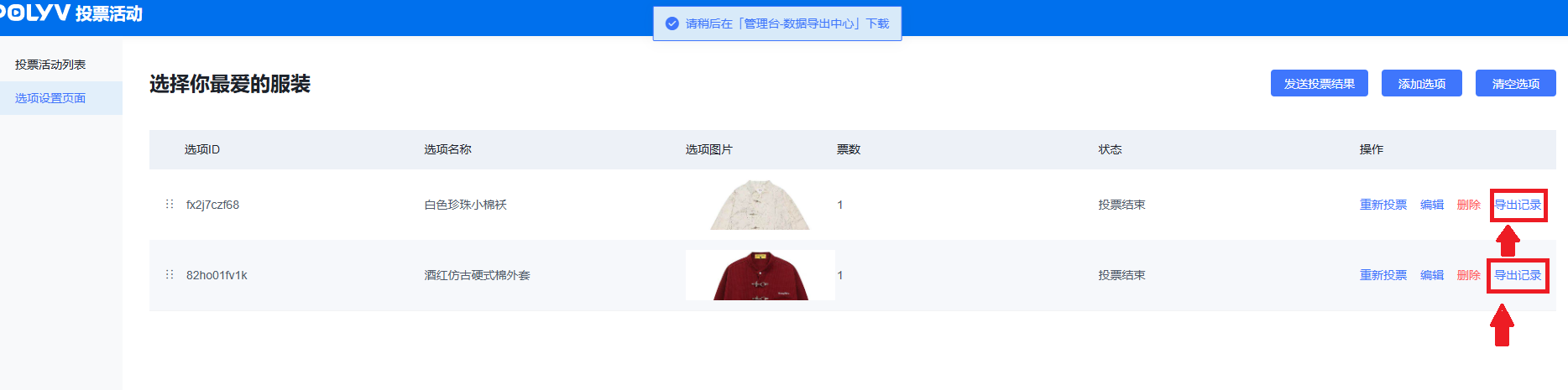
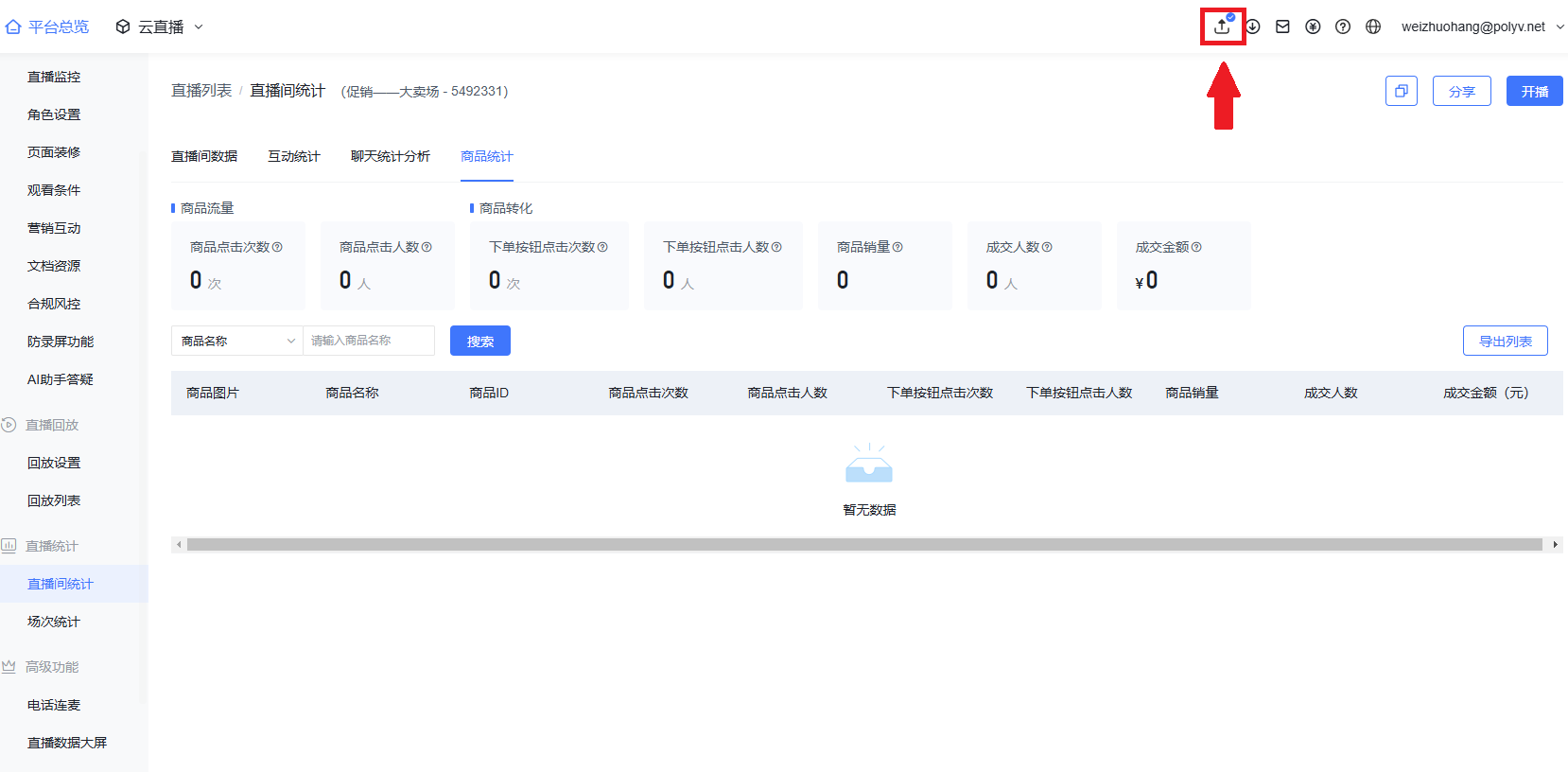
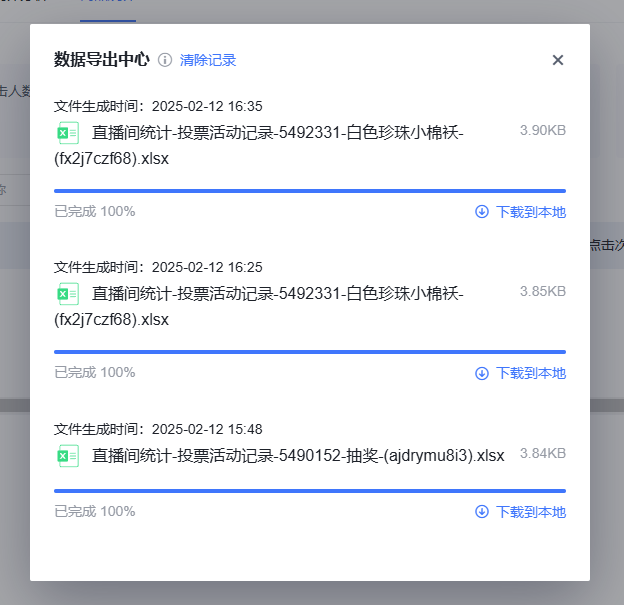
(3) Click "Export Records" to go to the data export center and download the voting results.