


Live Grouping
1. Feature Description
Live grouping is used to manage students by groups within the same live stream. When enabled, students enter the corresponding space based on their group. In-group chat and online participant counts are displayed in isolation by group. This is suitable for live streaming scenarios where student interaction needs to be managed by class, group, or batch.
When live grouping is disabled, all viewers are in the same live room, chat messages are shared, and the online participant count shows the total number of attendees.
When live grouping is enabled:
- Students within the same group can see each other's chat messages.
- Messages between students in different groups are isolated from each other.
- The online participant count only shows the real-time count for the current group.
- Whether ungrouped students are allowed to enter the live room is determined by the backend entry rules.
Live grouping is suitable for large-class live streaming scenarios requiring group interaction. Scenarios such as small classes and seminars do not support enabling live grouping.
2. Accessing the User List
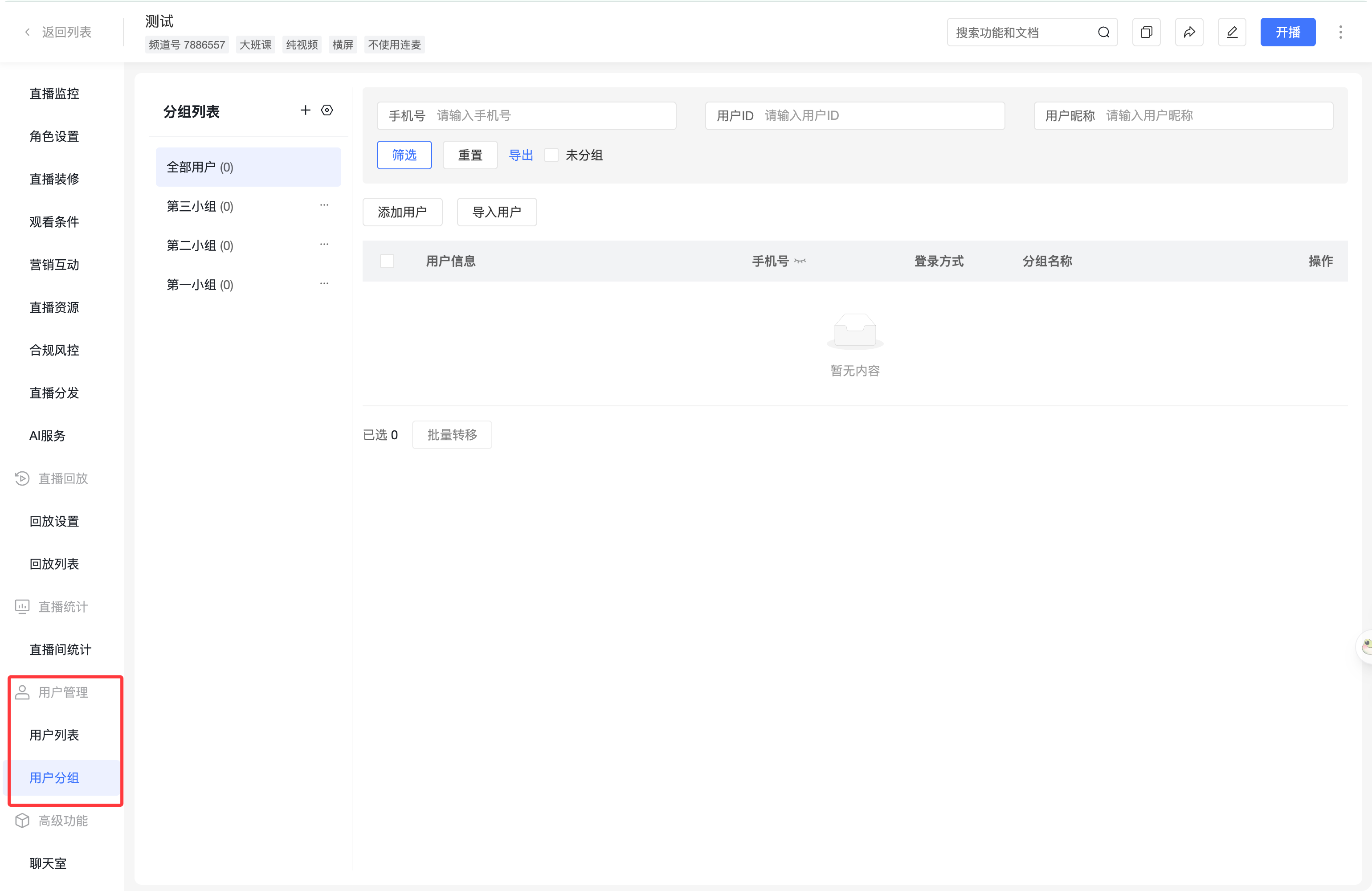
It can be accessed via the following path:
直播后台 → 选中频道 → 用户管理 → 用户列表
In the user list, you can import channel students, add platform users, create and manage groups, and assign students to corresponding groups.
3. Importing or Adding Students
The channel user list supports maintaining the student roster via Excel import and adding users from the platform user center.
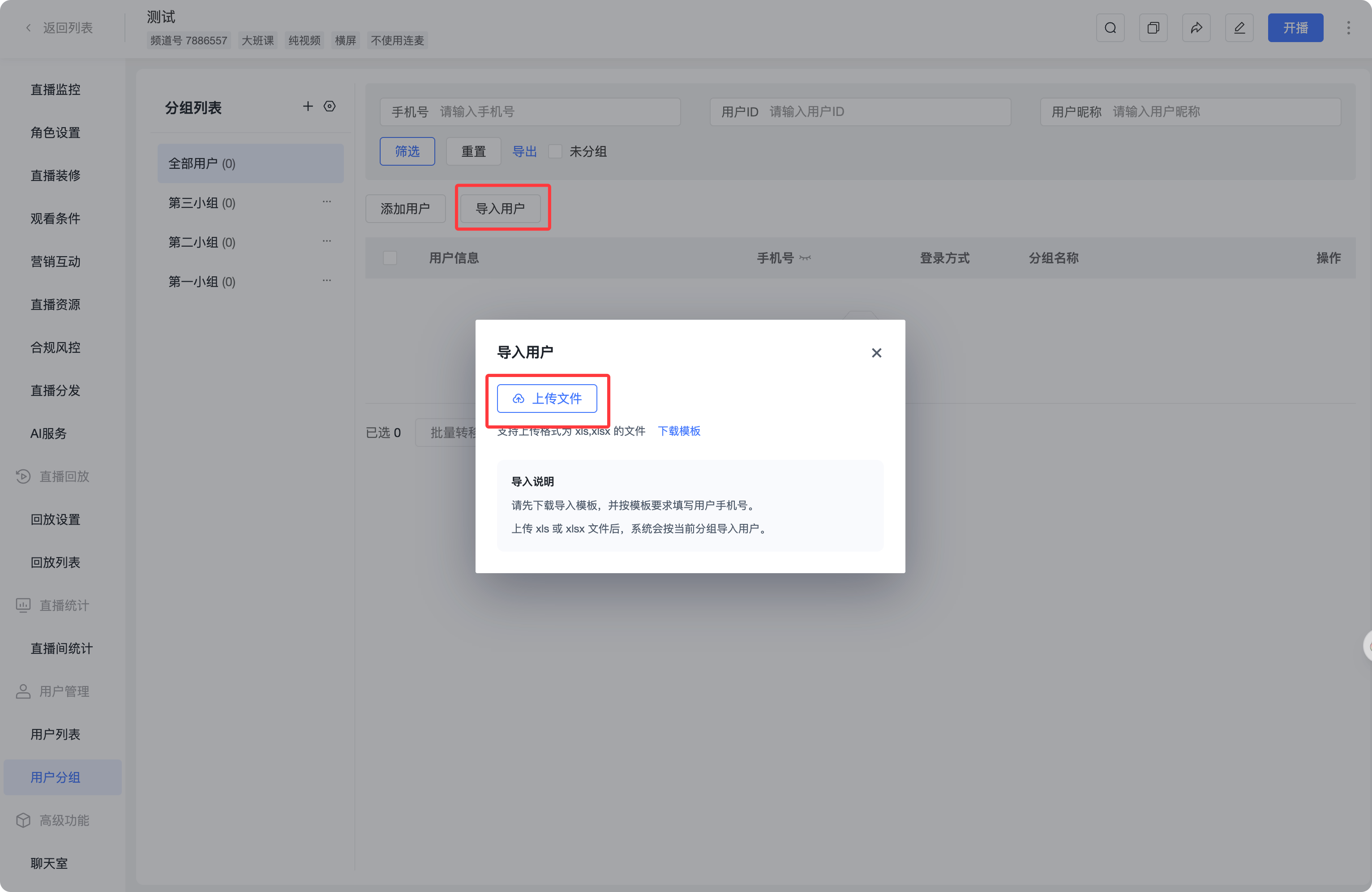
3.1. Excel Import
- Go to the channel's
用户列表. - Click the import entry point and download the Excel template.
- Fill in the student information according to the template.
- Phone number is a required field.
- Fields like name and assigned group, if provided in the template, can be filled as needed.
- Upload the Excel file.
After import:
- If a platform user corresponding to the phone number does not exist, the system will automatically create an account and add it to the current channel roster.
- If a platform user corresponding to the phone number already exists, the system will add this user to the current channel roster.
- If the specified group does not exist in the current channel, the system will automatically create the group.
- Users imported via Excel are fixedly displayed in the list as supporting
手机号login.
3.2. Adding from the Platform User Center
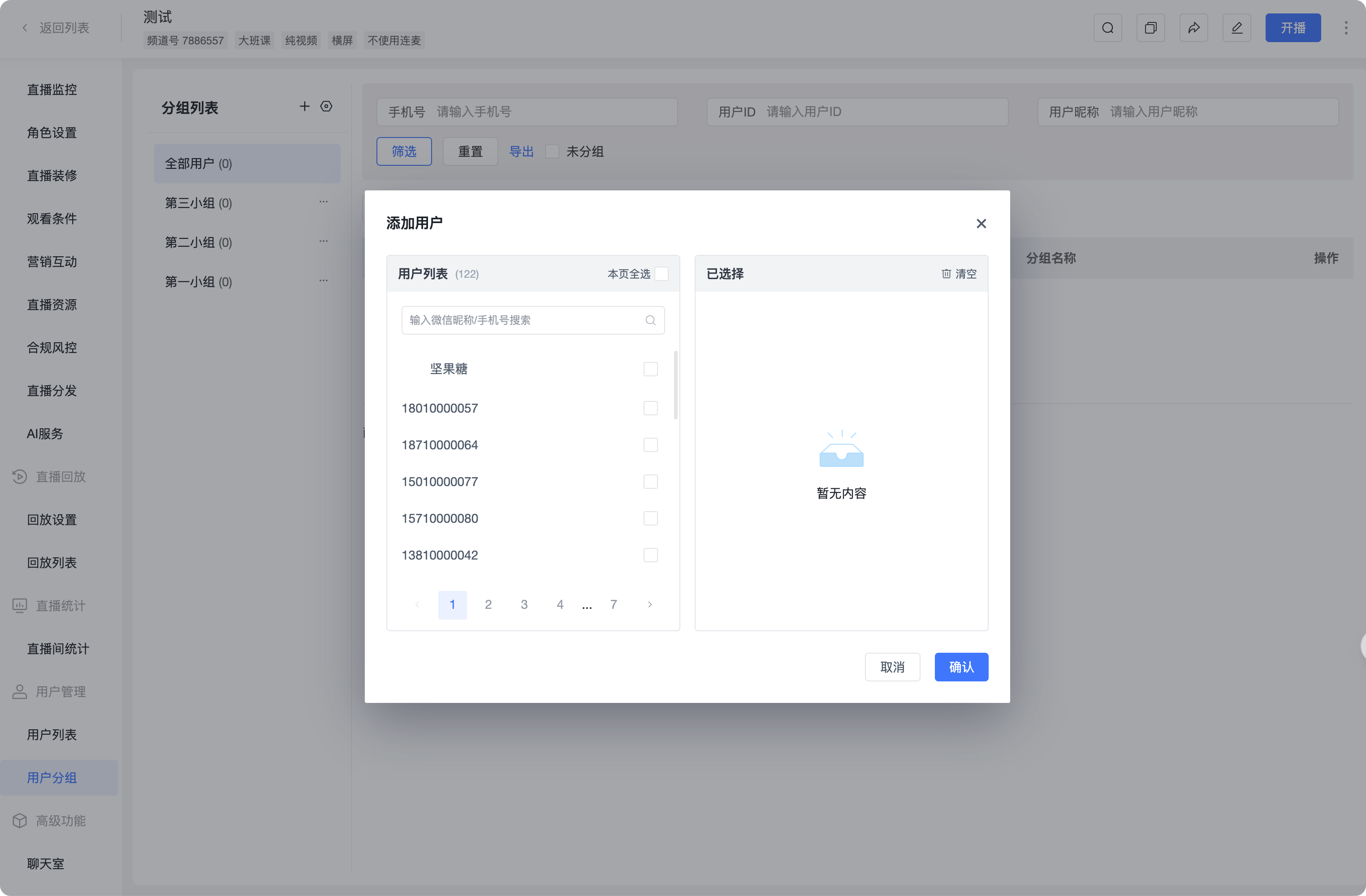
- Go to the channel's
用户列表. - Select to add users from the platform user center.
- Check the users you want to add to the current channel.
- Confirm the addition.
Users added from the platform retain their existing login capabilities on the platform side, such as phone number, WeChat, WeCom, Google, etc. If a user is already in the current channel roster, they will not be displayed repeatedly during user selection.
4. Viewing Student Information
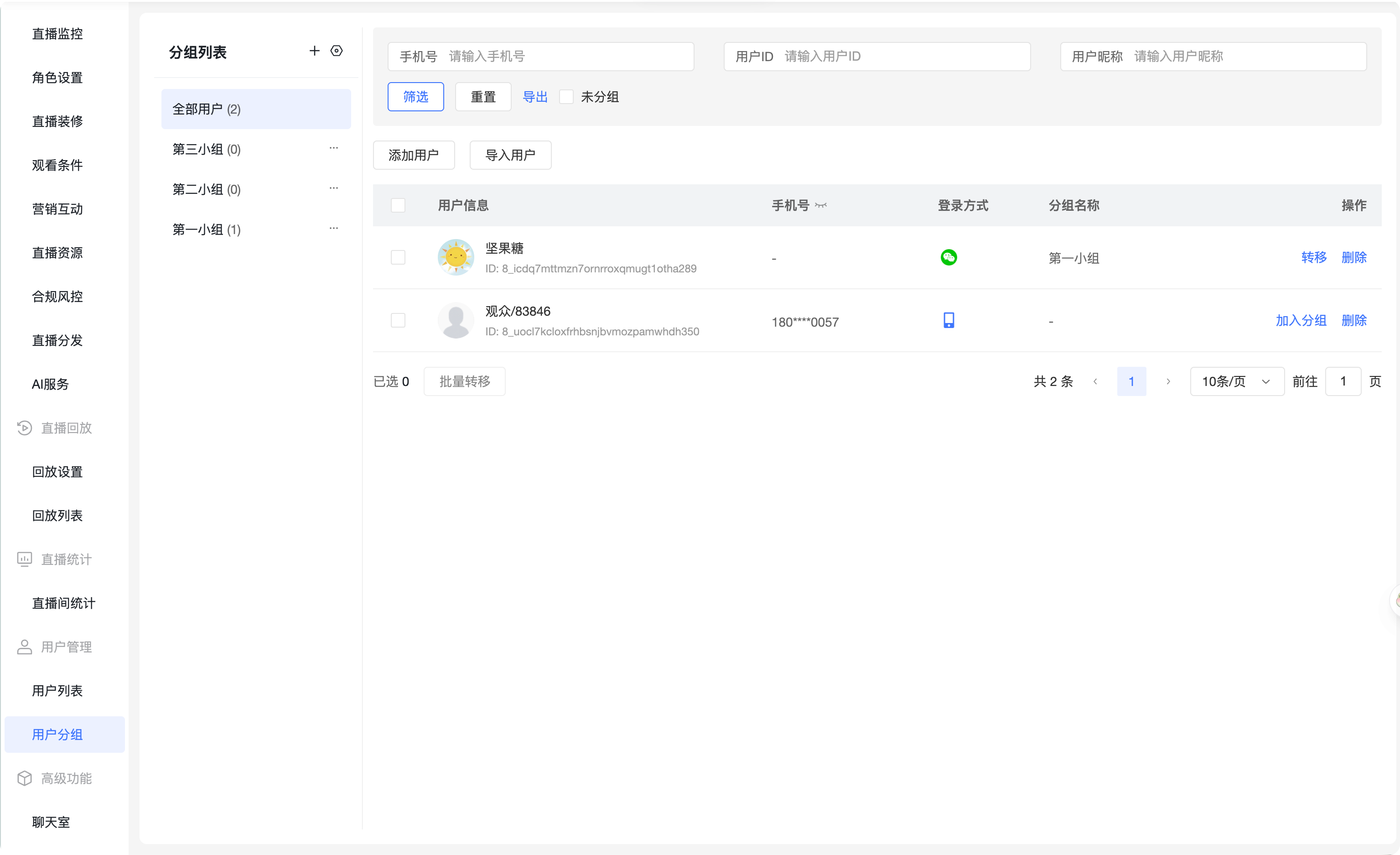
The user list supports viewing basic information and access history of students, including:
| Field | Description |
|---|---|
| User Info | Displays avatar, name, user ID, etc. |
| WeChat Info | Displays WeChat avatar and nickname when the user has linked WeChat. |
| Phone Number | Displays the user's phone number login credential. |
| Supported Login Methods | Displays the login methods currently supported by the user. |
| Assigned Group | Displays the user's current group; ungrouped users show an ungrouped status. |
| First Visit Time | Displays the time the user first entered the live room; empty if never visited. |
| Visit Count | Displays the cumulative number of times the user has entered the live room. |
5. Managing Groups
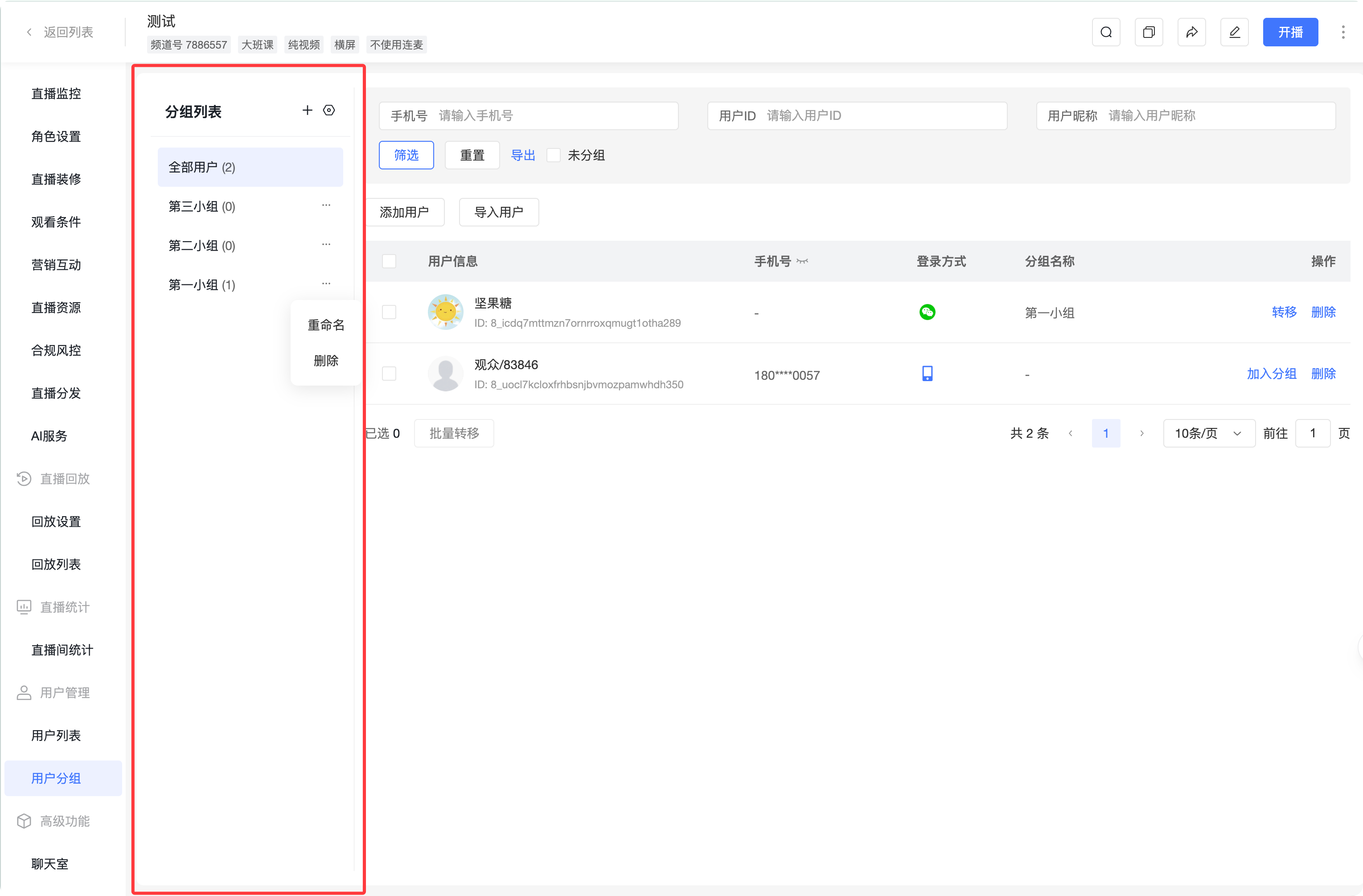
In the group management area, you can manage the groups within the current channel:
- Add Group: Create a new group name.
- Edit Group: Modify an existing group name.
- Delete Group: After deletion, students in the original group become ungrouped.
- View Count: The number of students in the group is displayed next to the group name.
After deleting a group, students within the group are not removed from the channel roster; they only become ungrouped. When students refresh or re-enter the live room, the system will re-evaluate entry based on the current ungrouped entry rules.
6. Assigning and Adjusting Student Groups
In the user list, group operations can be performed based on the student's current status.
6.1. Automatic Grouping When Adding Students
- When importing or adding students under a specific group view, the newly added students are directly placed into the current group.
- When importing or adding students under the
全部用户list, the newly added students are in an ungrouped state by default.
6.2. Adjusting Existing Students
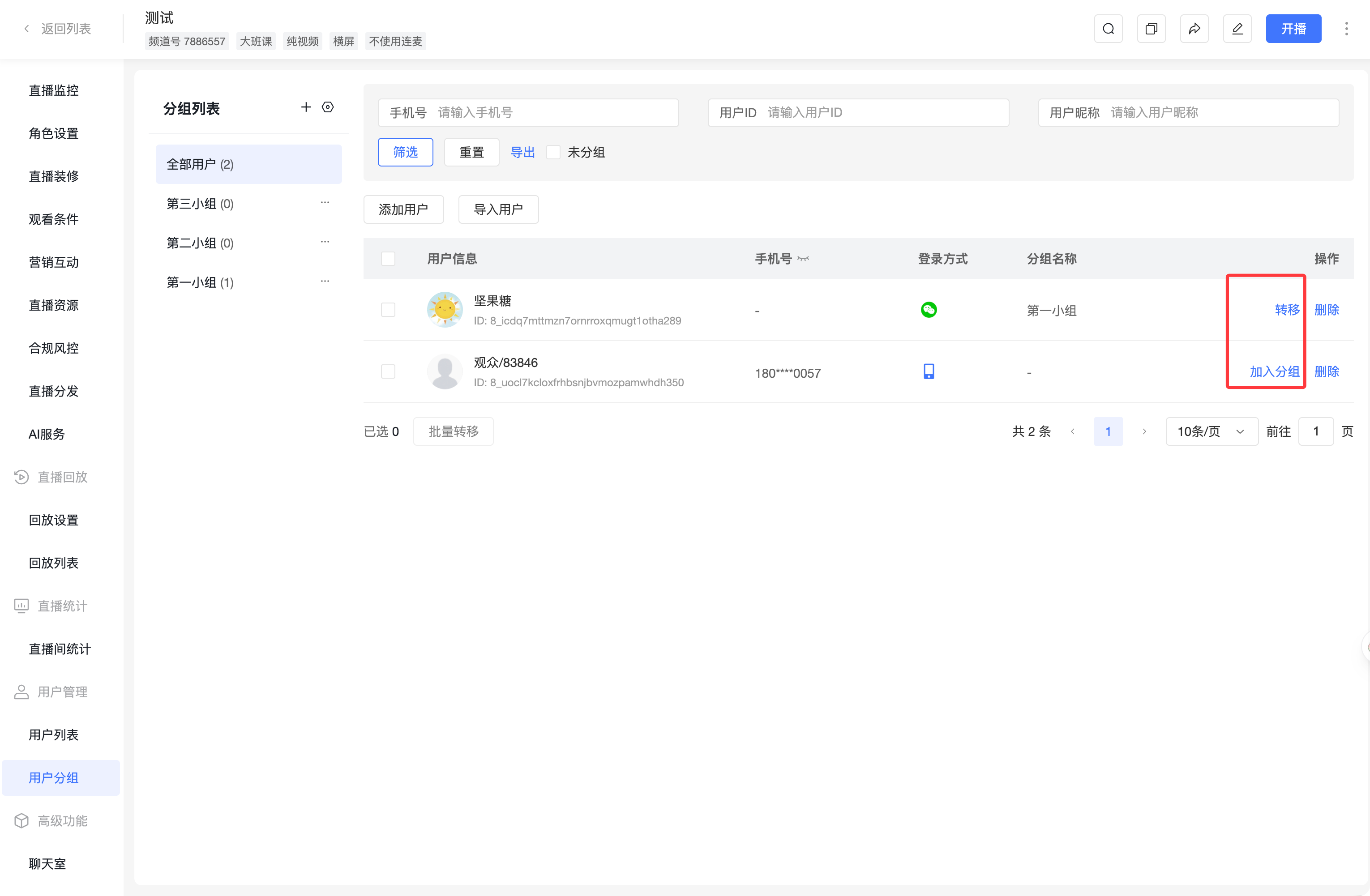
- Ungrouped Students: Click
加入分组and select the group to join. - Grouped Students: Click
转移to move the student to another existing group within the channel. - Grouped Students: Click
移除to remove the student from the current group. After removal, the student remains in the channel roster and becomes ungrouped.
7. Setting Entry Rules for Ungrouped Students
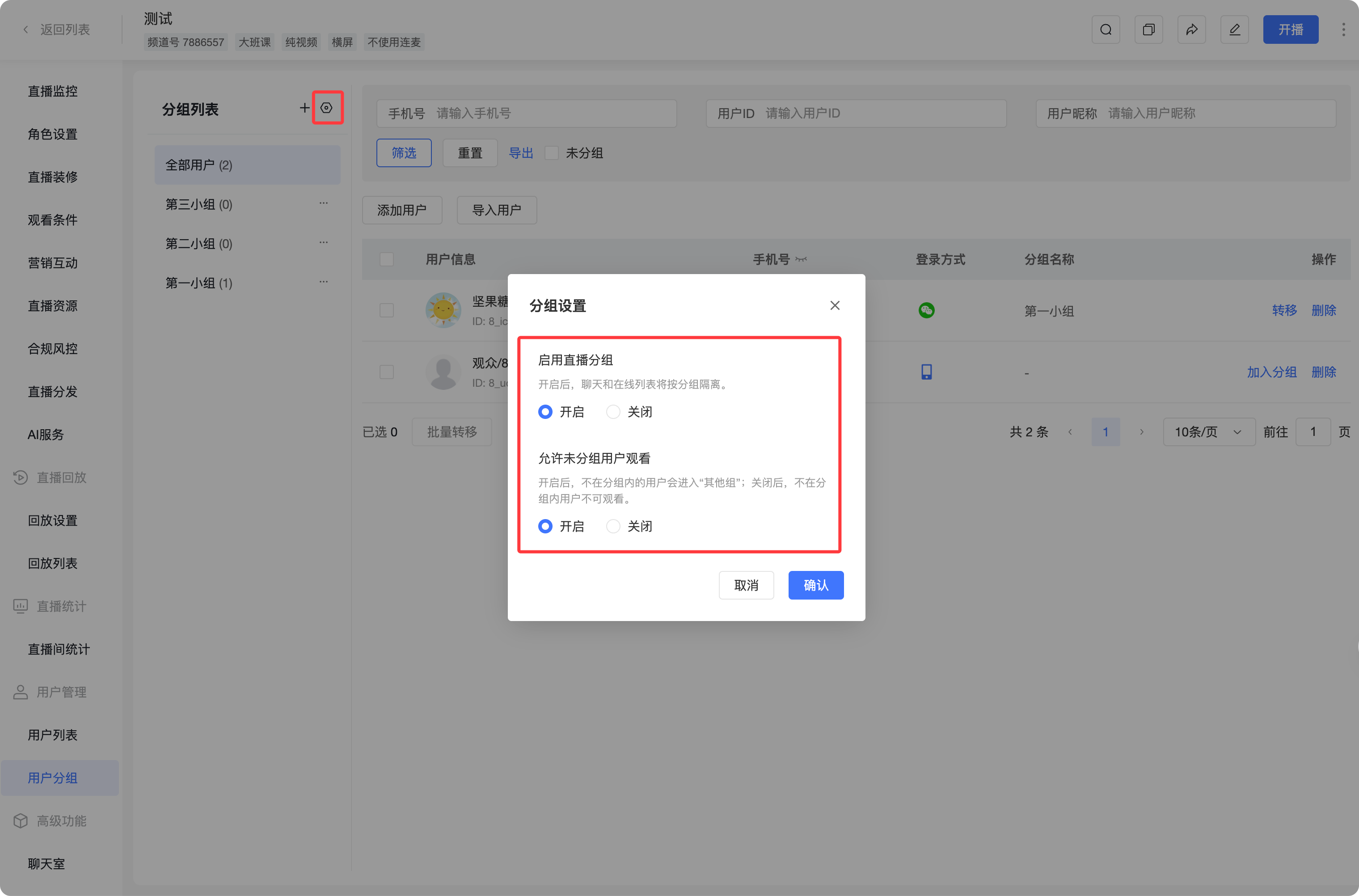
After enabling live grouping, you can set whether ungrouped students are allowed to enter the live room.
7.1. Allow Ungrouped Students to Enter
When enabled, ungrouped students can enter the live room. The system will automatically place them into 其他组 or a public space, maintaining interaction isolation from established groups.
When disabled, ungrouped students cannot enter the live room. The viewing page will prompt that the student does not have entry permission for this live stream.
8. Student Entry Judgment Rules
When a student enters the live room, the system matches the channel roster and group status based on the current login account:
- Matches a grouped student: Directly enters the corresponding group.
- Matches the channel roster but is ungrouped: Processed according to the ungrouped student entry rules.
- Does not match the channel roster: Processed according to the ungrouped student entry rules.
9. Viewing Group Interaction in Web Broadcasting
After the channel enables live grouping, the instructor can view and handle student interactions by group in the presenter console of the web broadcaster. When live grouping is disabled, the presenter console still displays chat and members in the all-room mode.
9.1. Viewing Group Chats
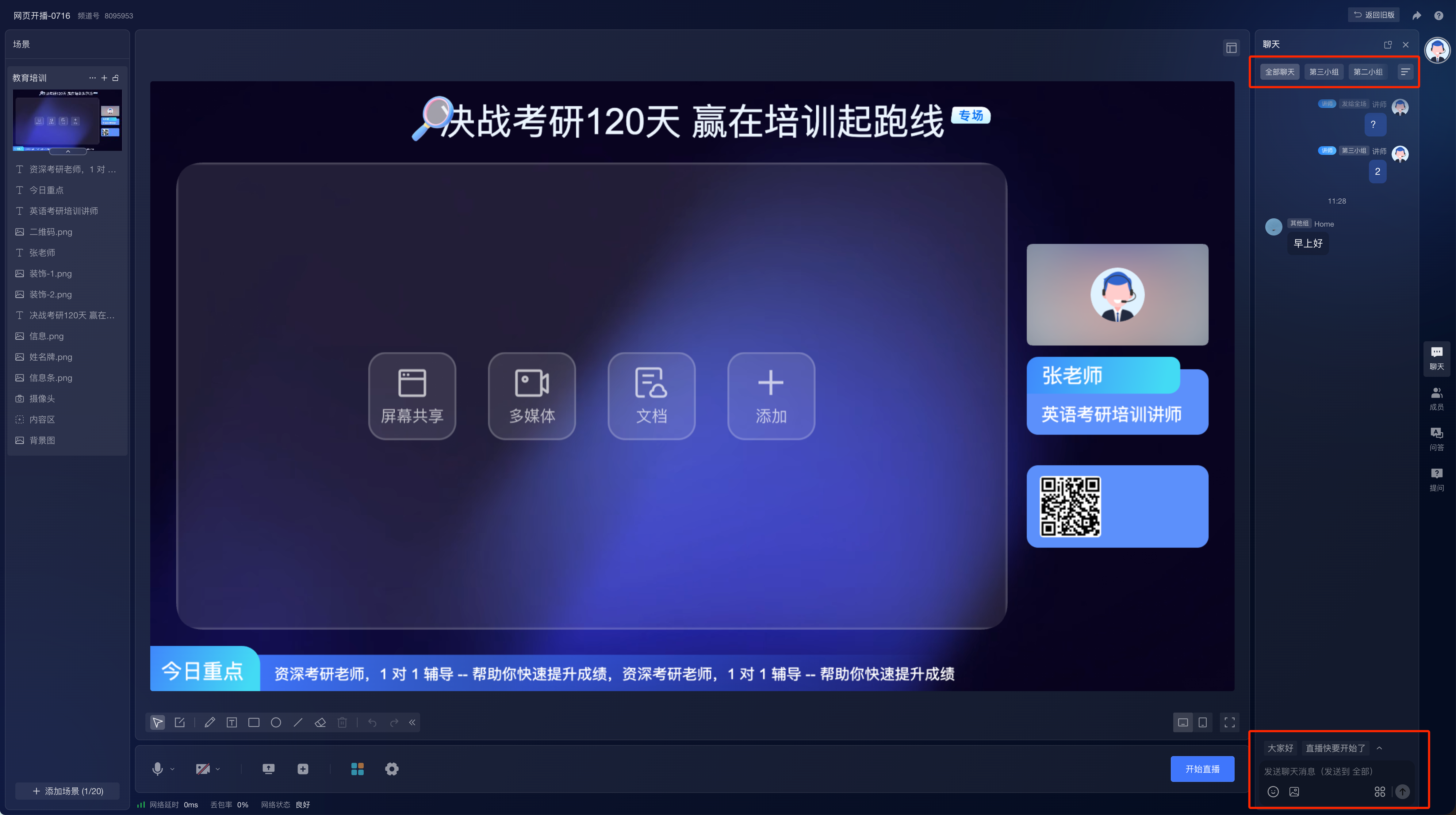
The chat area in the presenter console supports the following views:
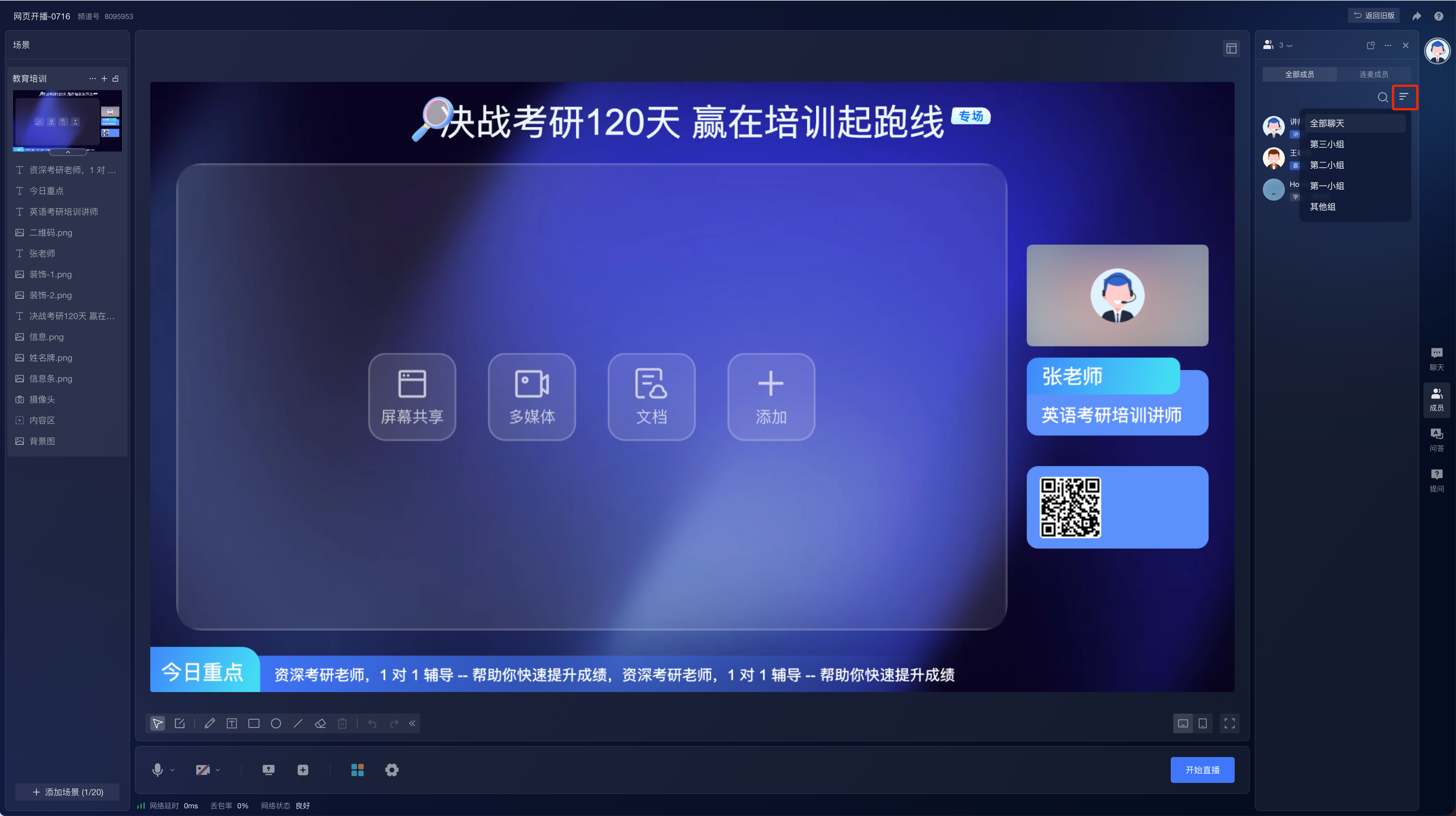
全部聊天: Aggregates and displays chat messages from all groups. This is the default view.- Specific Group: Displays chat content visible to students in the current group, including messages sent to the current group and to the whole room.
其他组: Displayed when ungrouped students are allowed to enter, used to view chat messages from these students.
In 全部聊天, messages indicate their sending scope, helping the instructor distinguish whether a message was sent to the whole room or a specific group.
9.2. Sending Messages to the Whole Room or a Specific Group
When the instructor sends a message, the message scope is determined by the current chat view and operation method:
- Sending directly in
全部聊天sends the message to the whole room. - Replying to a message from a specific group in
全部聊天sends the reply to the original group of that message. - Sending directly in a specific group sends the message only to that group.
- Replying within a specific group sends the message only to that group.
The instructor should confirm the currently selected chat view before sending to avoid sending a group message to the whole room.
10. Viewing Group Members in Web Broadcasting
The member area in the presenter console retains 全部成员 and 连麦成员, and supports further filtering by group:
- Select
全部组to view all members within the current scope. - Select a specific group to view only students in that group and all-room roles (instructors, teaching assistants, guests, hosts).
- Select
其他组to view allowed ungrouped students and all-room roles. - Under
连麦成员, select a specific group to view only students currently co-hosting in that group and all-room roles currently co-hosting. - Searching for members only searches within the currently selected member scope.
11. Questions and Q&A in Grouping Scenarios
After the channel enables live grouping, questions and Q&A are handled according to the following rules:
提问is always a private chat between the student and the instructor. After the instructor replies, other students cannot see it.问答is handled by the default private chat method.- When the instructor replies to a Q&A and checks
公开, the Q&A is only made public to the group the questioning student belongs to. - When the questioning student belongs to
其他组, the public Q&A is only visible to其他组students.
12. Adjusting Student Groups During a Live Stream
After a student enters the live room, the current live stream uses the group matched upon entry.
If an administrator adjusts the student's group in the backend during the live stream, it does not immediately change the student's current group in that session. After the student exits and re-enters the live room, the system will re-match based on the latest group; subsequent chats, members, and Q&A will use the new group assignment.
13. Frequently Asked Questions
Will students in a group be deleted if the group is deleted?
No. Deleting a group only changes the status of students within the group to ungrouped. The students remain in the current channel roster.
Does removing a student from the channel roster affect their account in the platform user center?
No. Removal from the channel roster only affects the current channel. It does not delete the user account in the platform user center, nor does it affect the user's status in other channels.
What happens if a phone number that has already been imported is imported again?
When a duplicate phone number is imported again, the information from the current Excel import takes precedence, updating the group association for that phone number within the current channel.
If a student has a group in Channel A but no group in Channel B, will they affect each other?
No. Group relationships are managed independently per channel. When a student enters Channel A, the judgment is based on Channel A's groups; when entering Channel B, the judgment is based on Channel B's roster and ungrouped entry rules.
Why didn't a student enter the expected group after logging in with a different account?
Live grouping matches the channel roster and group relationships based on the currently logged-in account. If the same student has multiple historical accounts, the system does not automatically merge these accounts. You need to confirm whether the login method currently used by the student matches the record in the channel roster.
Why was a message sent by the instructor in the "All Chats" view seen by all groups?
Messages sent directly in 全部聊天 are sent to the whole room by default. If you only want to send a message to a specific group, please enter that group first before sending.
Why didn't the presenter console change immediately after adjusting a student's group during a live stream?
The group for a student in the current live stream is based on the match result upon entry. After the adjustment, the student needs to exit and re-enter the live room for the new group assignment to take effect.
Can other groups see a Q&A if it is marked as public?
No. After the channel enables live grouping, public Q&A is only visible to the group the questioning student belongs to, not to the whole room.
