


Real-Time Captioning Feature Operation
I. Feature Overview
| Feature Info | Description |
|---|---|
| :150 | :auto |
| Feature Name | Real-Time Captioning |
| Feature Description | [Real-Time Captioning] primarily addresses the "language barrier" issue. It enhances content delivery efficiency in live streams through simultaneous interpretation, multilingual real-time captions, pure English live rooms, and live content translation. |
| Purpose | Break language barriers, enable more efficient information synchronization, push live content to broader audiences, and achieve impressive multilingual output. |
| Use Cases | Scenario 1: Online Education – Applied in teaching courses, video lessons, adult vocational education, online paid knowledge courses, and other educational scenarios for barrier-free knowledge dissemination. Scenario 2: Smart Meetings – In online office scenarios, supports caption generation for online meetings, helping domestic and international employees understand meeting content in real time for more efficient information synchronization. Scenario 3: Marketing & Live Selling – Supports real-time caption translation and synchronization for marketing and live selling scenarios, enabling global live commerce for borderless product conversion. Scenario 4: Brand Events – In event live streaming, breaks language barriers, pushes products globally, achieves impressive multilingual output, and reaches more viewers in the live room. |
| Tutorial | 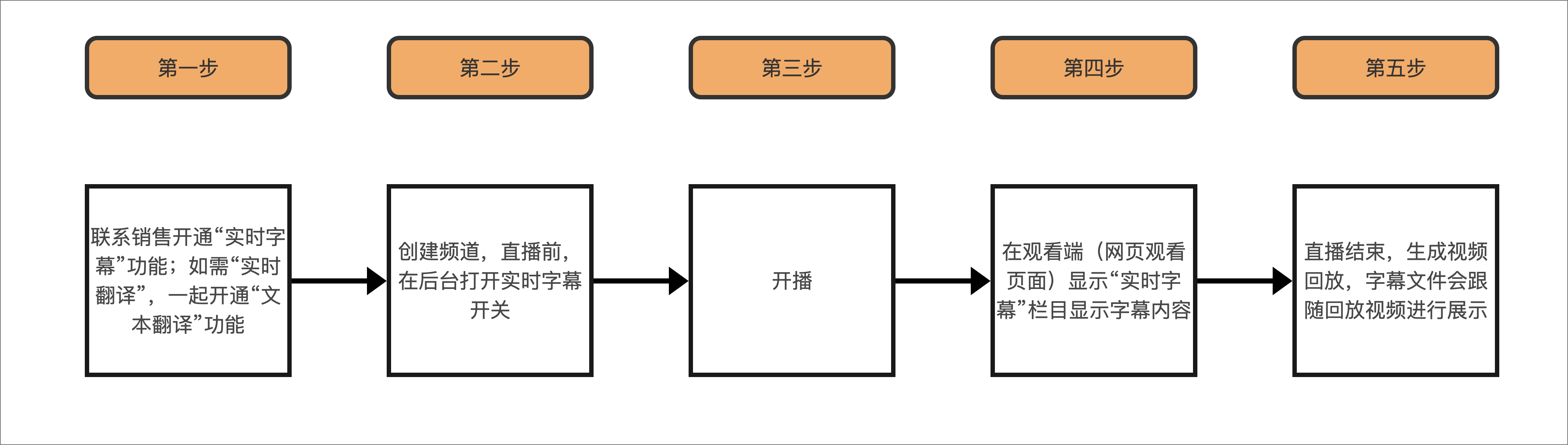 |
| Feature List | Real-Time Captioning: Supports 14 languages for original audio captions (Chinese, English, Filipino, Thai, Korean, Japanese, German, Malay, Indonesian, Vietnamese, French, Portuguese, Arabic, Spanish, Turkish) Text Translation: Supports real-time translation in 20 languages (Chinese, English, Filipino, Thai, Malay, Indonesian, Lao, Burmese, Vietnamese, Russian, Turkish, Portuguese, Spanish, Khmer (Cambodian), Tamil (Singapore), Japanese, Korean, French, German, Arabic) Supported Endpoints: Broadcasting end: PC client; Viewing end: PC web viewing page, mobile H5 viewing page. |
II. Usage Instructions
1. Real-Time Captioning Workflow
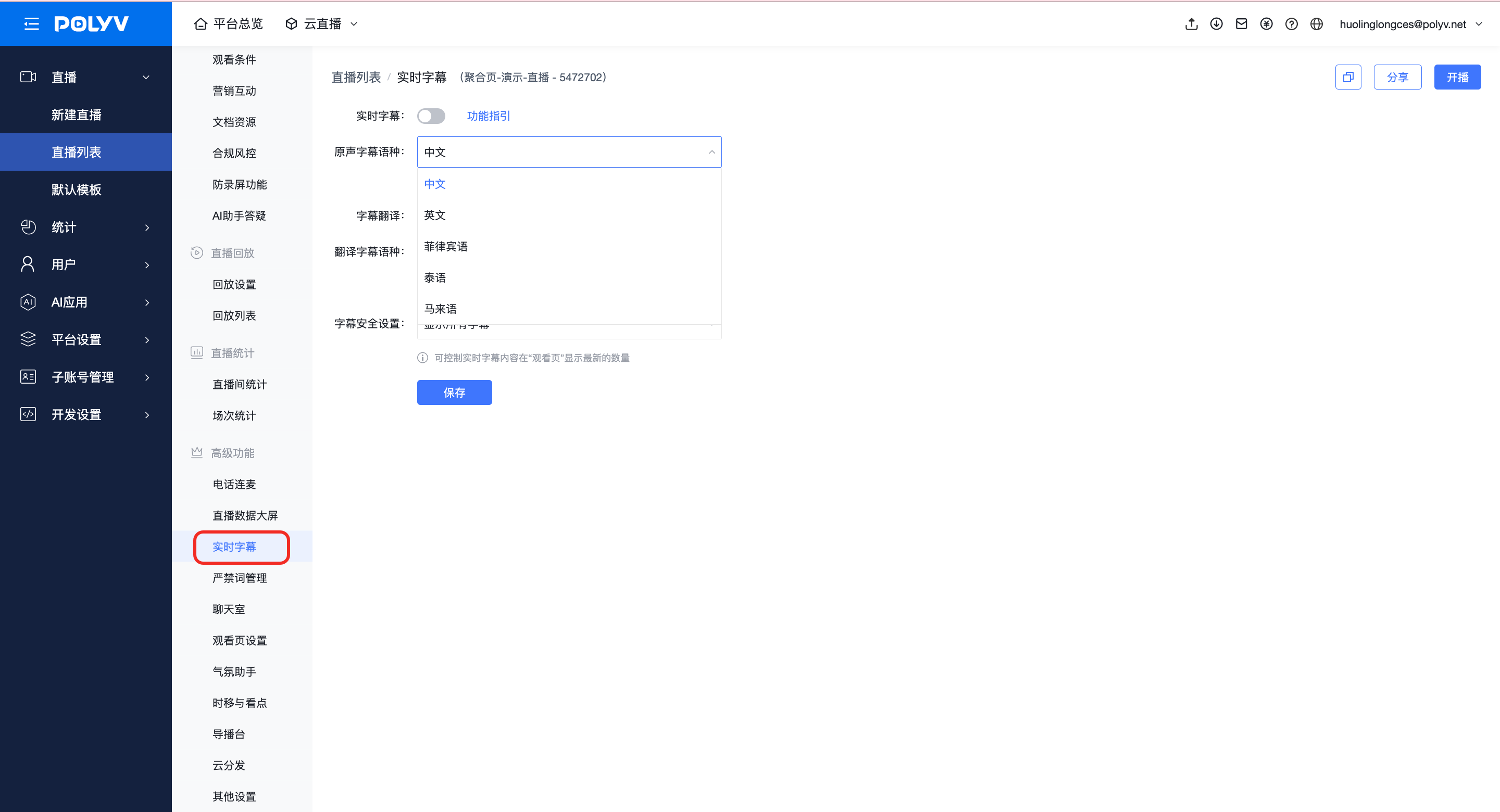
Step 1: In the operation backend, locate the "Cloud Live" module, select the corresponding channel. Before starting the live stream, click "Real-Time Captioning", enable real-time captions and caption translation, select the languages for original captions and translated captions, then click "Save".
Note:
Cannot be modified during a live stream.
Enabling both [Real-Time Captioning] and [Caption Translation] displays bilingual captions on the viewing page; enabling only [Real-Time Captioning] displays only the original audio captions on the viewing page.
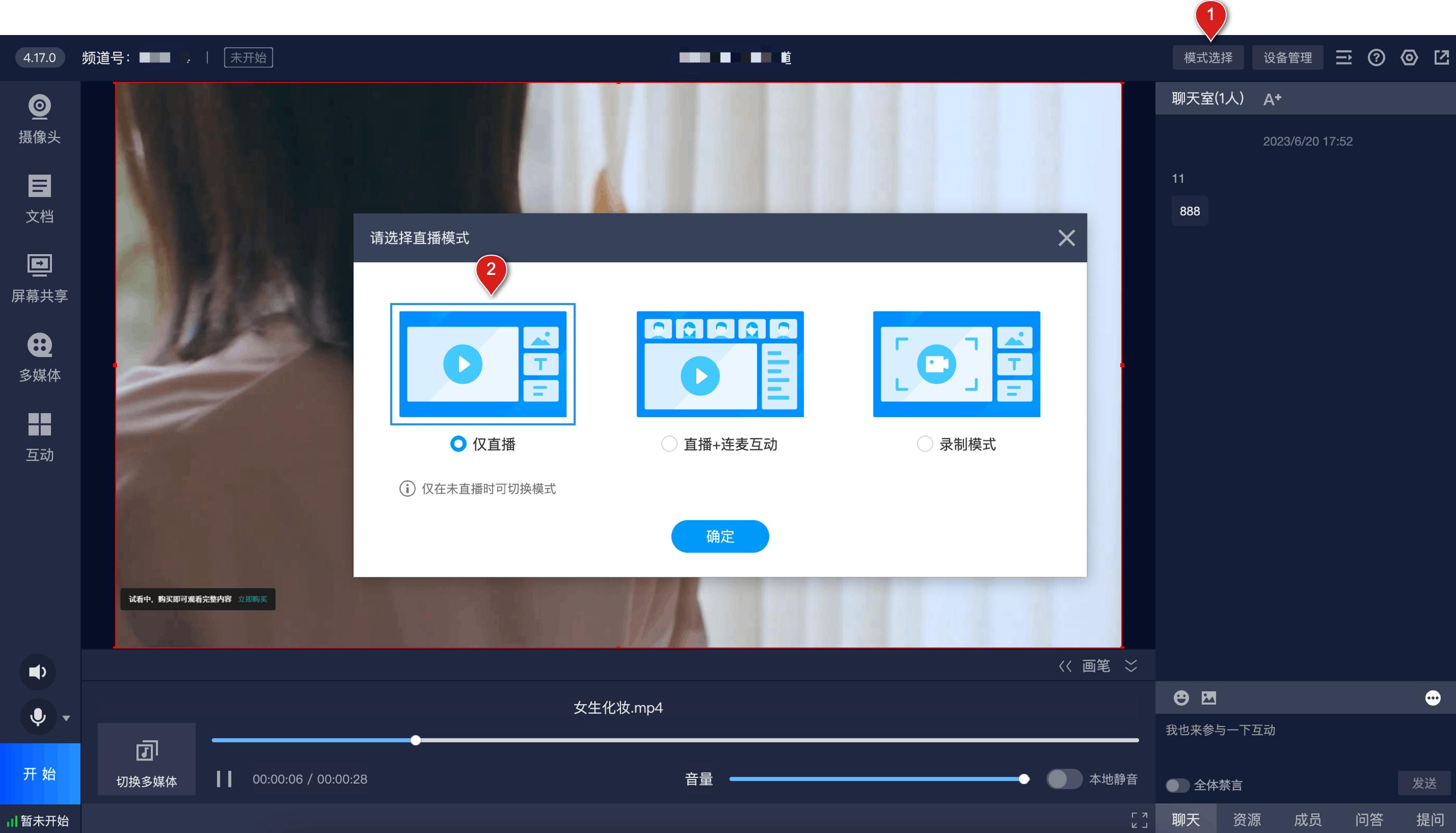
Step 2: The client must be <a href="https://www.polyv.net/download/live/"" target="_blank">upgraded to version 4.27.0 or above. Click "Start Live Stream" to see the caption effect on the viewing page.
Note:
Speech recognition processes mixed audio, which can capture microphone sound, system audio, and multimedia sound.
In [Live + Co-host Interaction] mode, system audio is not captured.
On Mac systems, in [Live Only] mode, [BlackHole 2ch] must be enabled to output system audio.
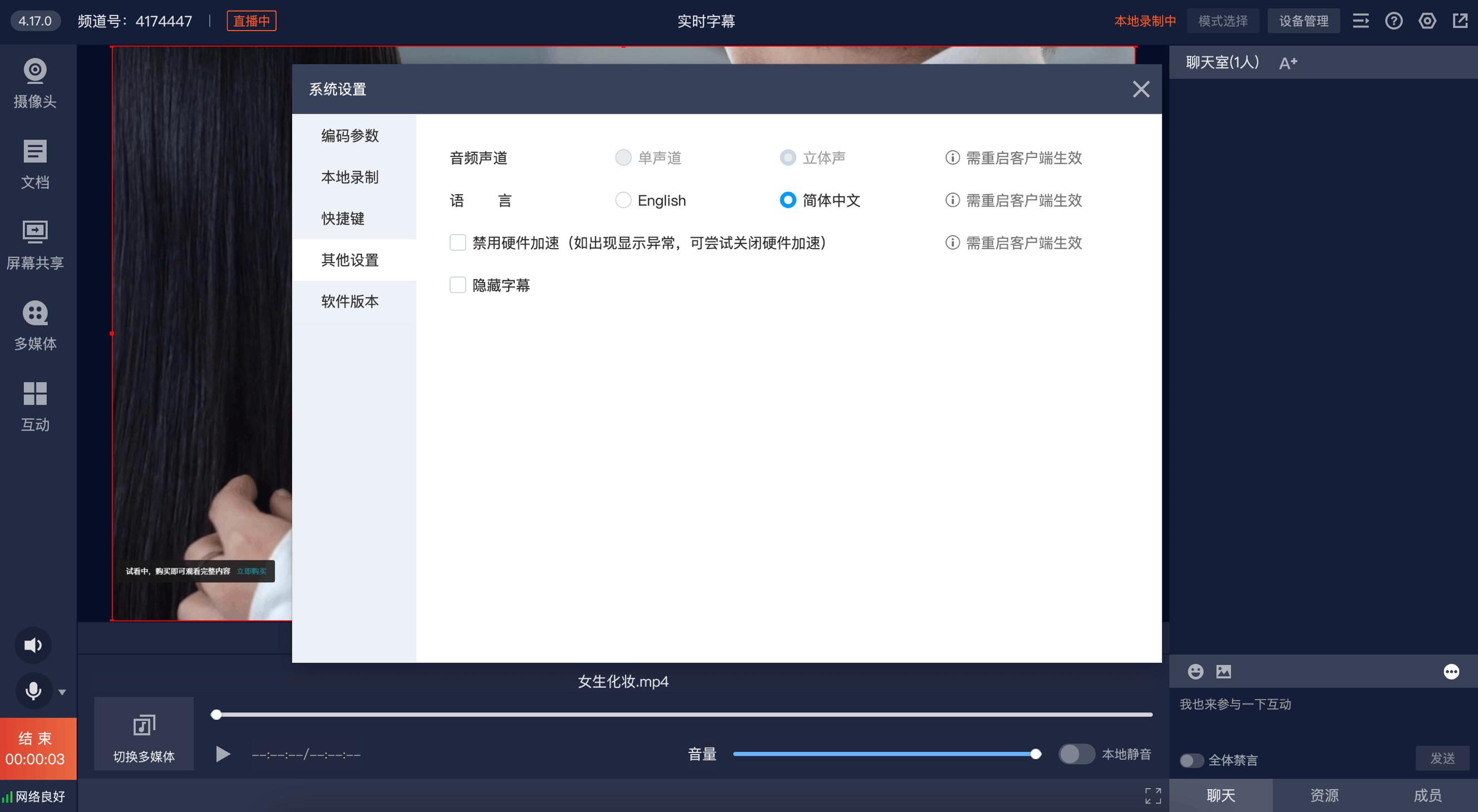
Step 3: If you do not want the "viewing end" to display caption content, click "Other" -> "Other Settings" -> select "Hide Captions". The viewing end will then hide the caption content.
Step 4: After all settings are complete, start the live stream. The caption effect on the viewing page is shown below:
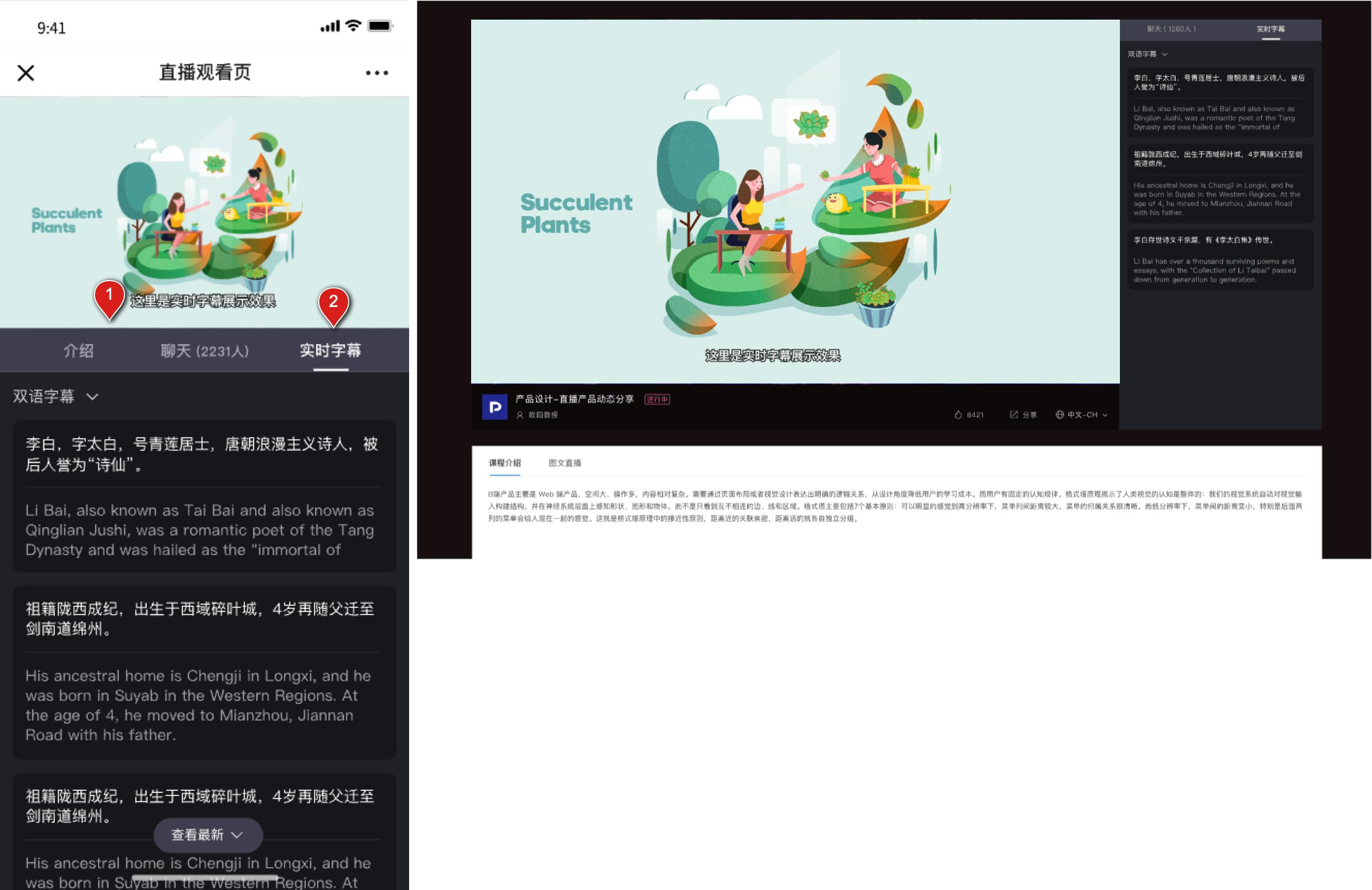
2. Playback Caption Settings
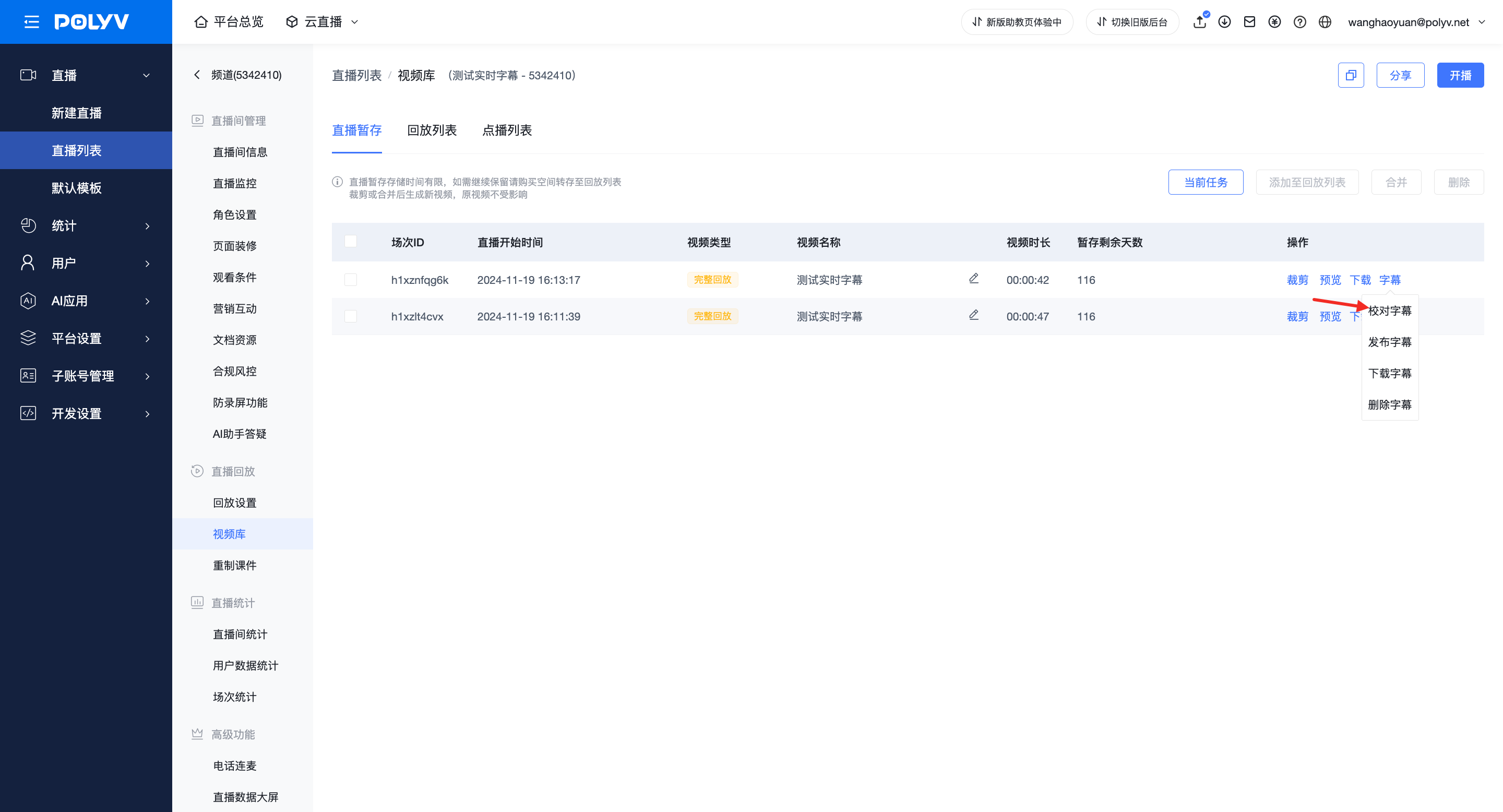
Step 1: In the operation backend, locate the "Cloud Live" module, select the corresponding channel, click "Video Library", find the video for the relevant session. You can perform secondary proofreading on the generated caption file and publish the captions. Click "Caption Proofreading" to enter the caption proofreading page.
Note:
- If captions were not enabled during the live stream, you can click "Generate Captions" to generate captions before proceeding with proofreading and publishing.
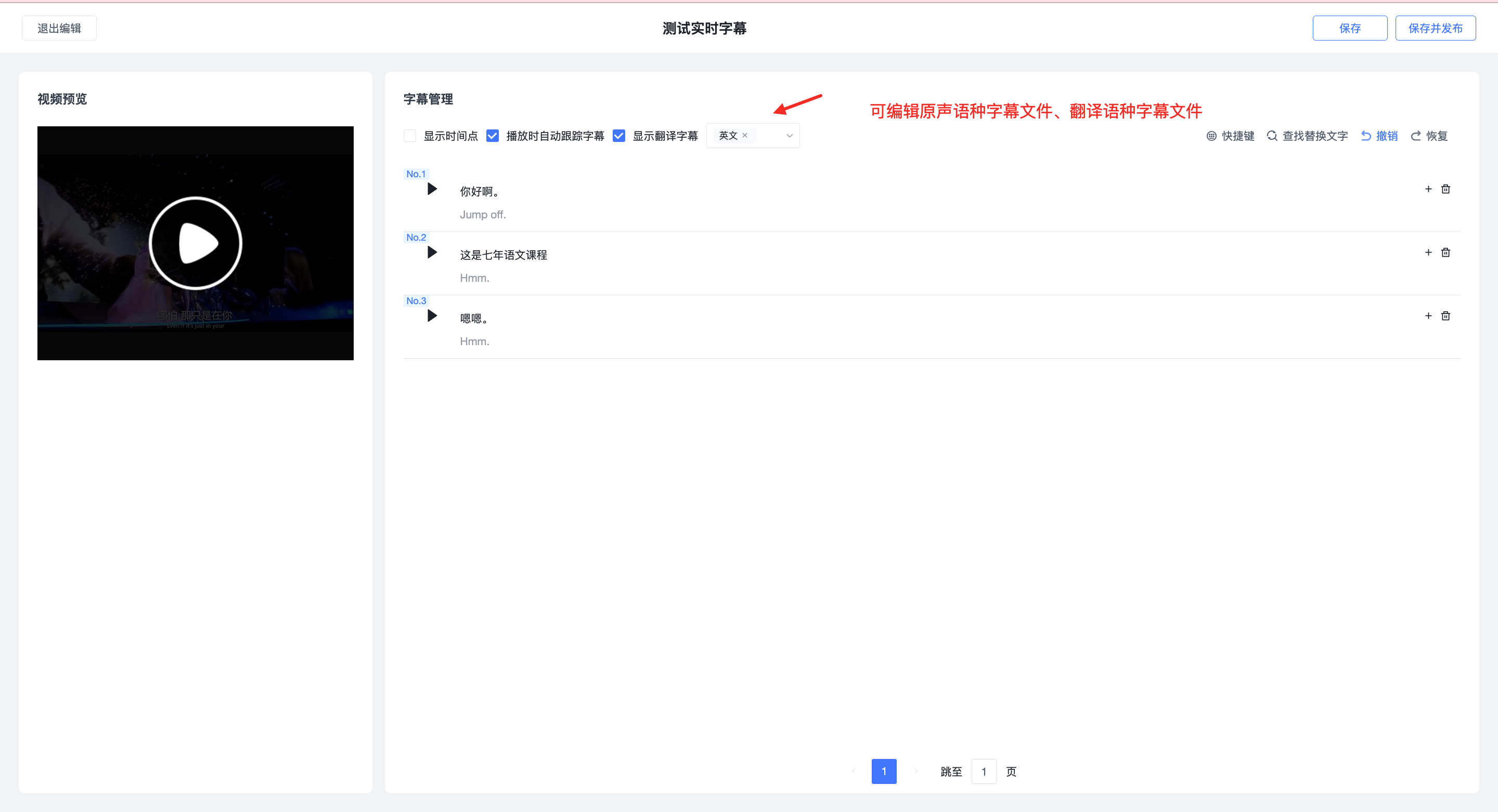
Step 2: Enter the editing page. You can edit the original audio captions and translated captions in the caption list.
Operation Details:
Click directly on a caption to edit it.
Compare the video and caption timings; if there are timing errors, you can adjust the time.
If captions are missing, click [+] to add captions.
You can search for and replace captions.
Use keyboard shortcuts to improve operational efficiency.
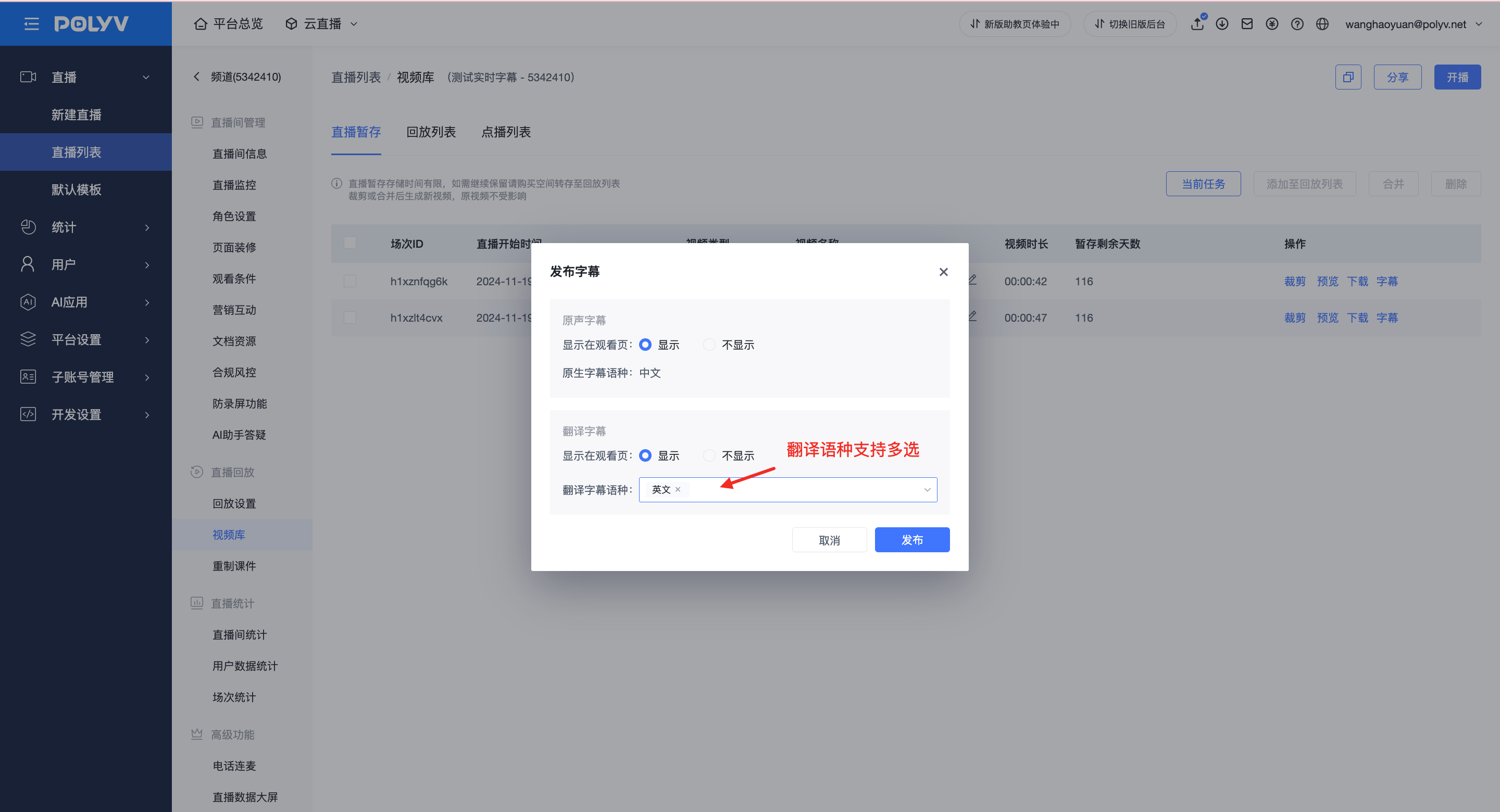
Step 3: After editing the captions, click "Save and Publish" to enter the publishing settings. You can set "Whether to display on the viewing page" and "Caption name displayed on the viewing page". After setting, the viewing page can display playback captions and switch between them.
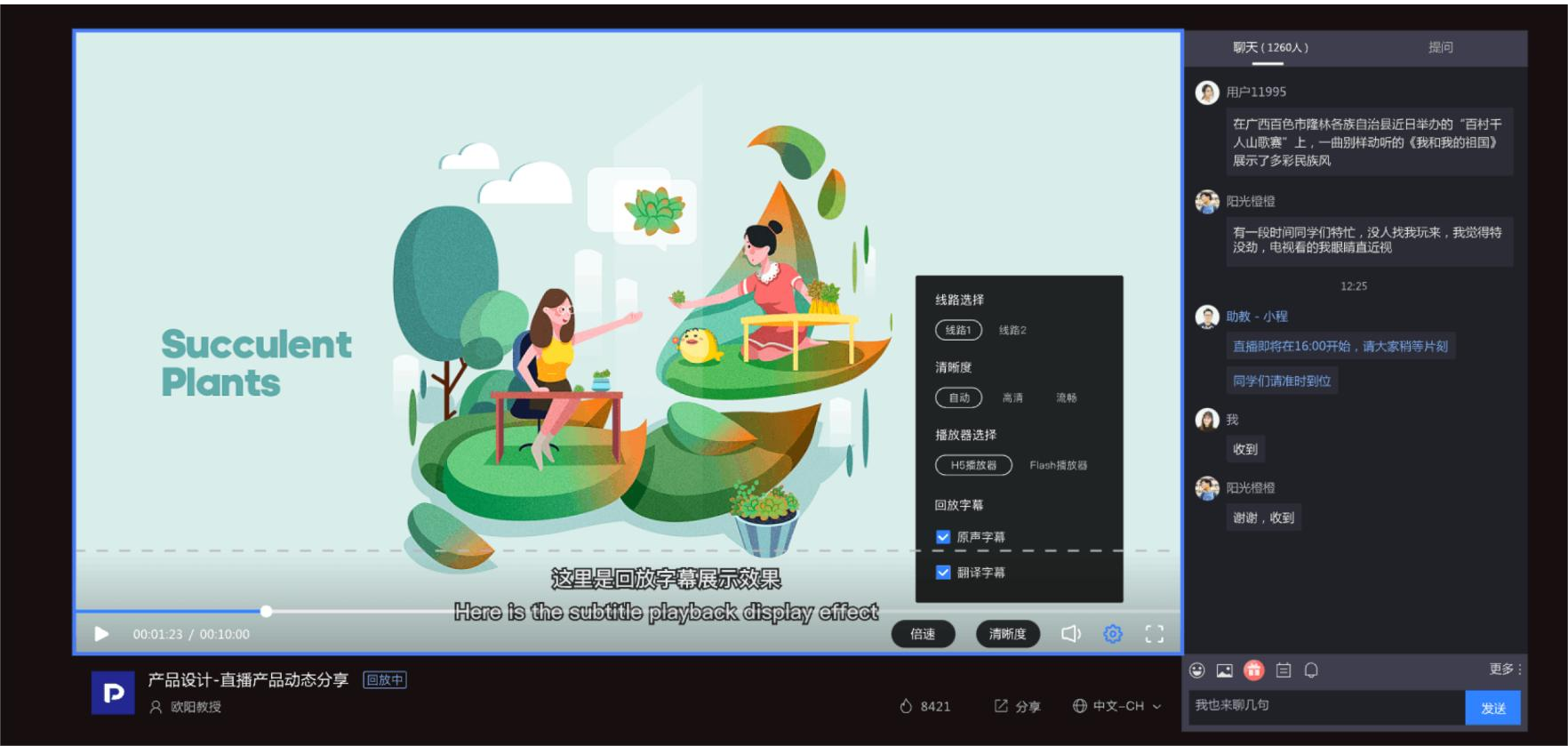
Step 4: Playback video player page
Integration Notes
To use the Polyv SaaS "Real-Time Captioning" feature, the account must be enabled for this feature through business confirmation.
The JAVA SDK has been updated to version 2.1.6, supporting the "Real-Time Captioning" feature. The integration configuration document is as follows:
Caption Configuration Document: https://help.polyv.net/#/live/java/channelAdvanced
The SaaS H5 page can be integrated using the iframe method. If you have any integration questions, please promptly contact the Polyv after-sales support team for assistance.
If integrating via the viewing SDK, please contact Polyv to obtain the latest version of the SDK.
