


Marketing
Want to increase live stream traffic, exposure, and achieve viral spread? The live streaming marketing feature helps you achieve this. Let's take a look: Enter the channel management backend and open Marketing Settings.
1. Channel Promotion
- A single live room can have multiple channel links, with separate statistics for each channel's performance; up to 30 channels can be created simultaneously.
- Multiple data points for each channel can be tracked. Click "Export Data" to download the data.
- "Registration & Viewing" data for each channel can be tracked. Please view this in the "Registration & Viewing" feature.
- This feature is supported in the new viewing page but not in the old one.
- Data statistics are updated every 30 minutes.
2. Invitation Poster
After enabling this feature, beautiful live stream posters can be automatically generated in just a few steps without any design work. The generated poster can be shared to WeChat, and viewers can enter the live room by scanning the QR code with their phone. Let's look at the specific settings. First, you can change the cover image (supported formats: jpg, jpeg, png; file size no larger than 2MB). Then set the live stream name, host, and start time. There are five poster styles to choose from based on the live stream's style. After completing the settings, click Confirm to save. Finally, click the Download Poster button in the top right corner to share the image to mobile. The Invitation Leaderboard feature helps you achieve live stream virality through marketing incentives. After enabling it, viewers can enter the invitation interface from the bottom right of the mobile viewing page. After selecting a poster style, they can save the image and share it with WeChat friends. When a friend scans the poster's QR code to enter the live room, the viewer gains one invitation count. Clicking the Invitation Leaderboard allows you to view each viewer's invitation count and ranking.
3. Share Settings
This section mainly edits the link content shared to WeChat. You can modify the channel icon, set the title and description. The effect can be previewed in the preview area on the right. Both the WeChat and web versions support custom share addresses. After setting, when viewers open your shared link, they will be redirected to the custom address.
For advertising and invitation card settings, scan the QR code below for details.
4. Official Account
1. Feature Overview
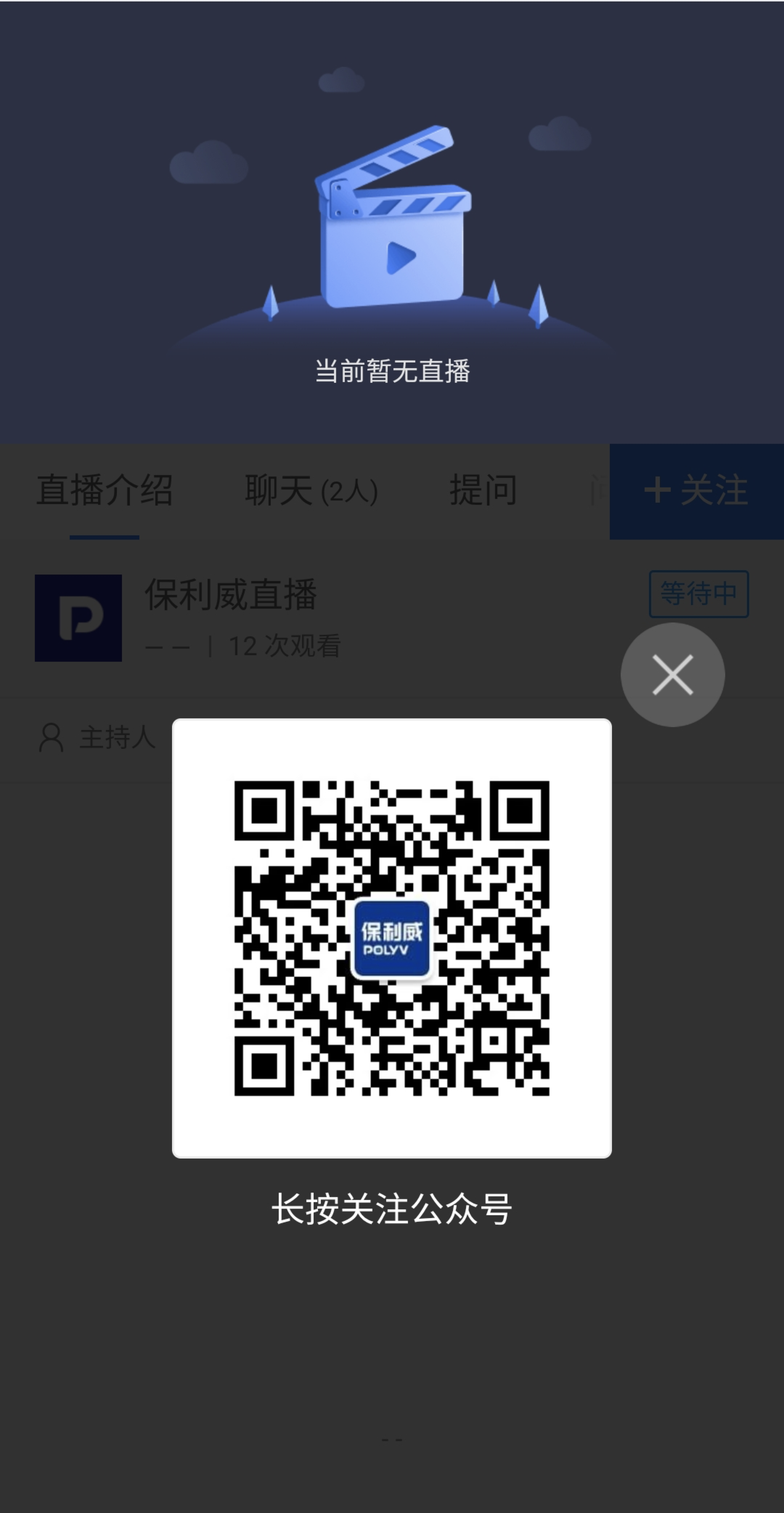
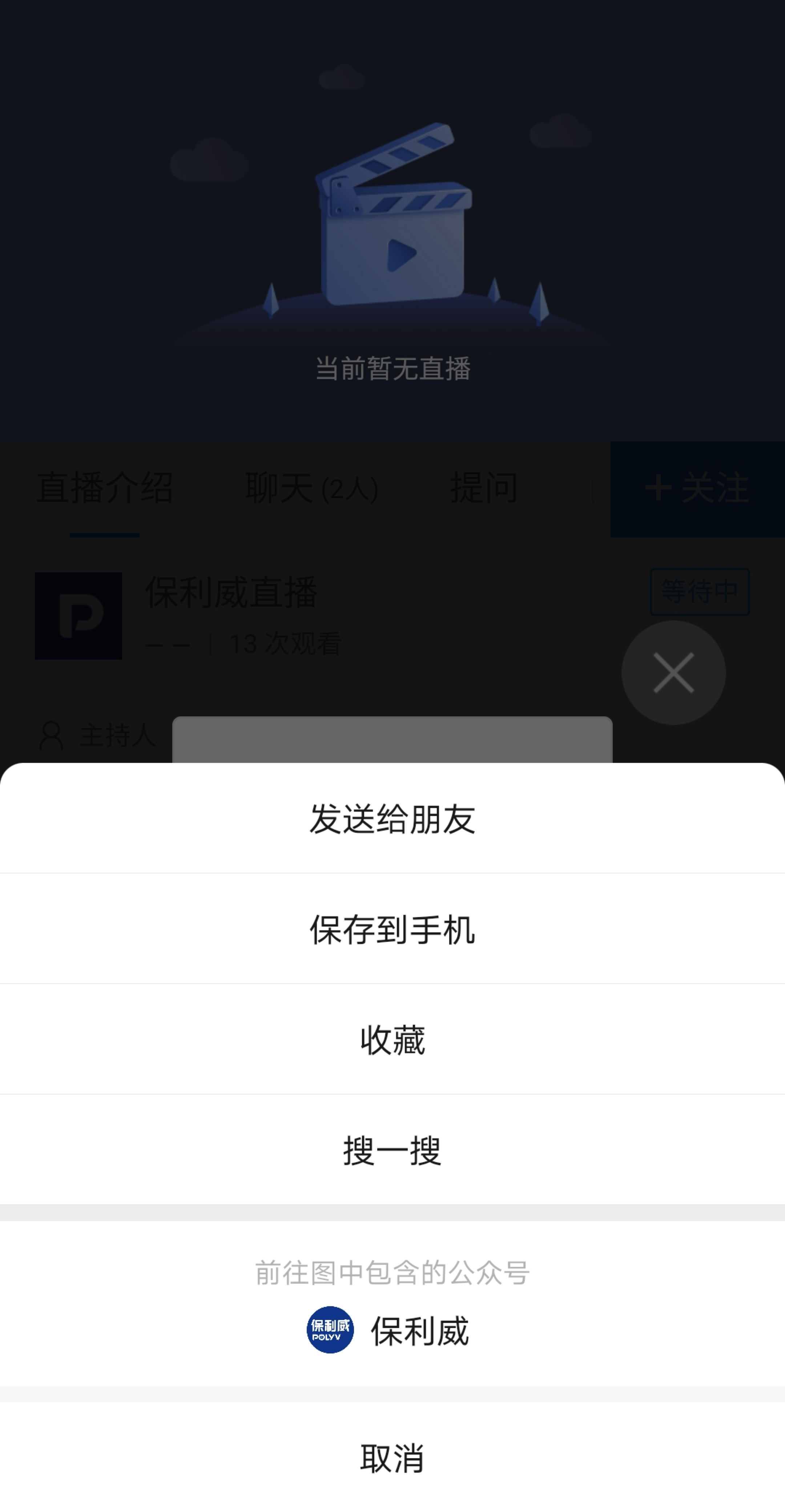
Use this feature when you want viewers to follow your official account. Obtain the official account QR code from the account backend, upload it to the backend, and when viewers enter the viewing page, a popup will display the QR code. Viewers can long-press to follow the official account.
2. Operation Instructions
Enable "Follow Official Account" in "Live Stream Backend - Marketing - Official Account", upload the official account QR code, and confirm to save. The viewing page will then display a "Follow" button. Clicking the "Follow" button will show a QR code popup. You can also enable the auto-popup button, which will automatically display the QR code popup when entering the live room.

The viewing page displays the QR code; long-press to follow the official account.
Note: QR code links, personal WeChat IDs, WeChat groups, and WeCom QR codes are all supported.
