


Live Stream Muting Feature
1. Use Cases
Live stream muting is an extended feature of audio risk detection, suitable for live streaming scenarios with strict compliance requirements (e.g., finance, healthcare, wellness, private domain marketing, etc.).
Audio risk detection identifies and handles prohibited content, but viewers may have already heard the prohibited speech before the handling is complete. When live stream muting is enabled, audio containing prohibited words during the live stream is automatically processed on the viewer's side (playing a beep sound or muting). The management side still receives review alerts, review records, and stream interruption results, without affecting the original review and handling capabilities.
2. Feature Description
| Item | Description |
|---|---|
| Feature Positioning | Extended feature of audio risk detection, processes prohibited audio on the viewer's side |
| Prerequisites | Audio review must be enabled first, then contact sales to enable live stream muting |
| Word List Source | Reuses the sensitive and prohibited word lists from audio review; no separate muting word list is maintained |
| Muting Method | Beep sound or mute; default is beep sound |
| Scope of Effect | Channels with muting enabled; audio containing prohibited words during the live stream |
Relationship with Audio Review
- Live stream muting and audio review share the same sensitive/prohibited word list.
- Live stream muting processes audio on the viewer's side, while audio review handles management-side alerts, records, and stream interruptions. Both capabilities run in parallel.
- When the main audio risk detection entry is disabled, live stream muting does not take effect.
- If live stream muting is not enabled, the muting configuration will not be displayed on the audio review pages for live stream templates, channels, and platform prohibited words.
3. Operation Steps
1. Enable Live Stream Muting
Contact your sales manager to enable the live stream muting feature. Once enabled, the system will automatically configure the muting-related resources; no additional steps are required.
2. Configure the Muting Method
(1) Log in to the Polyv backend, navigate to Settings -> Platform Prohibited Words -> Audio Review page.
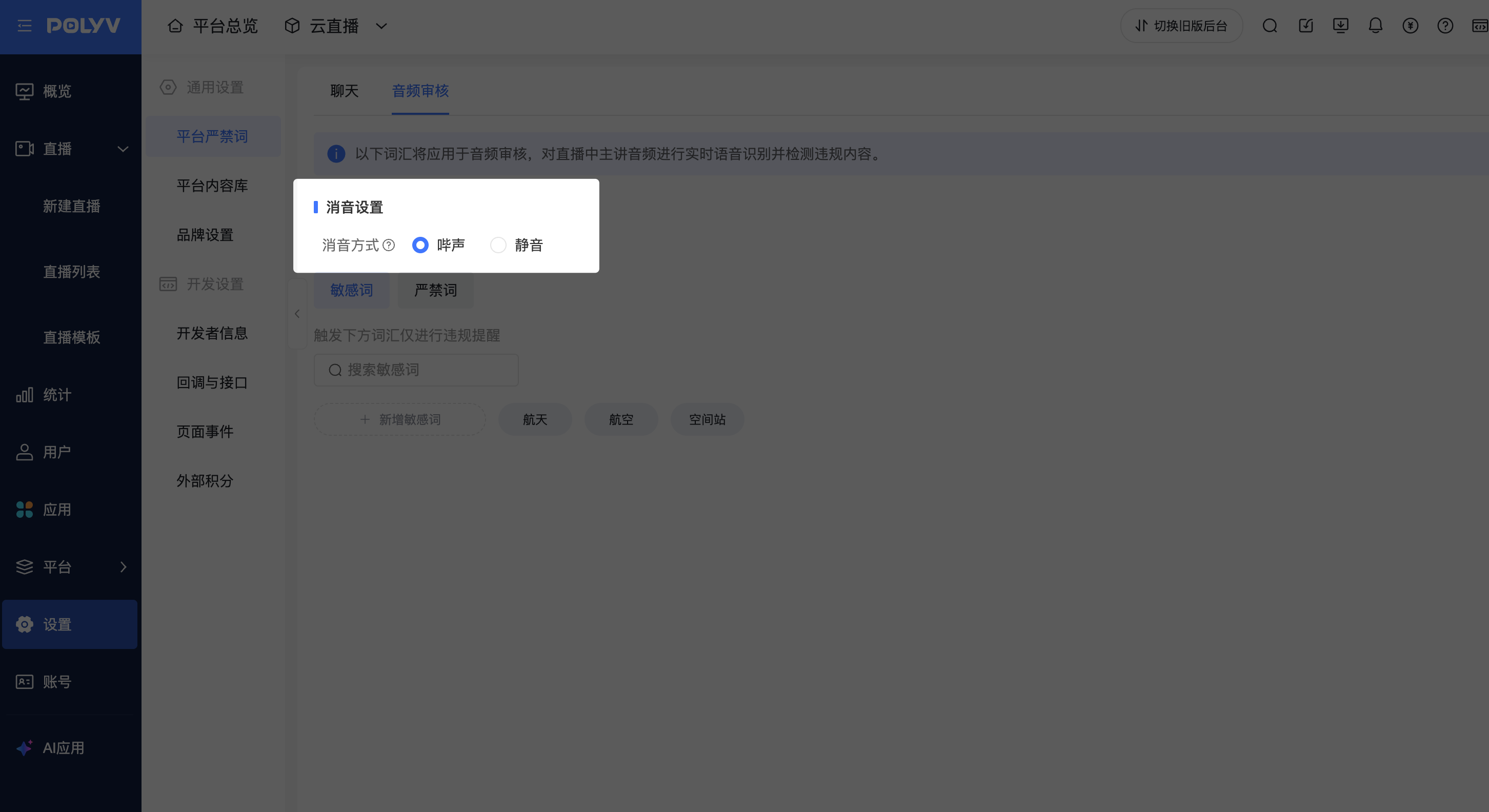
(2) In the "Muting Settings" section, select the muting method:
| Muting Method | Effect |
|---|---|
| Beep Sound | Audio containing prohibited words plays a beep sound on the viewer's side (default) |
| Mute | Audio containing prohibited words is muted on the viewer's side |
(3) Save to apply.
Note: The configuration entry for sensitive and prohibited words remains unchanged and is still maintained on this page. After saving sensitive or prohibited words, the system will sync them to the word list used by live stream muting.
3. Set Default Muting Values for Live Stream Templates
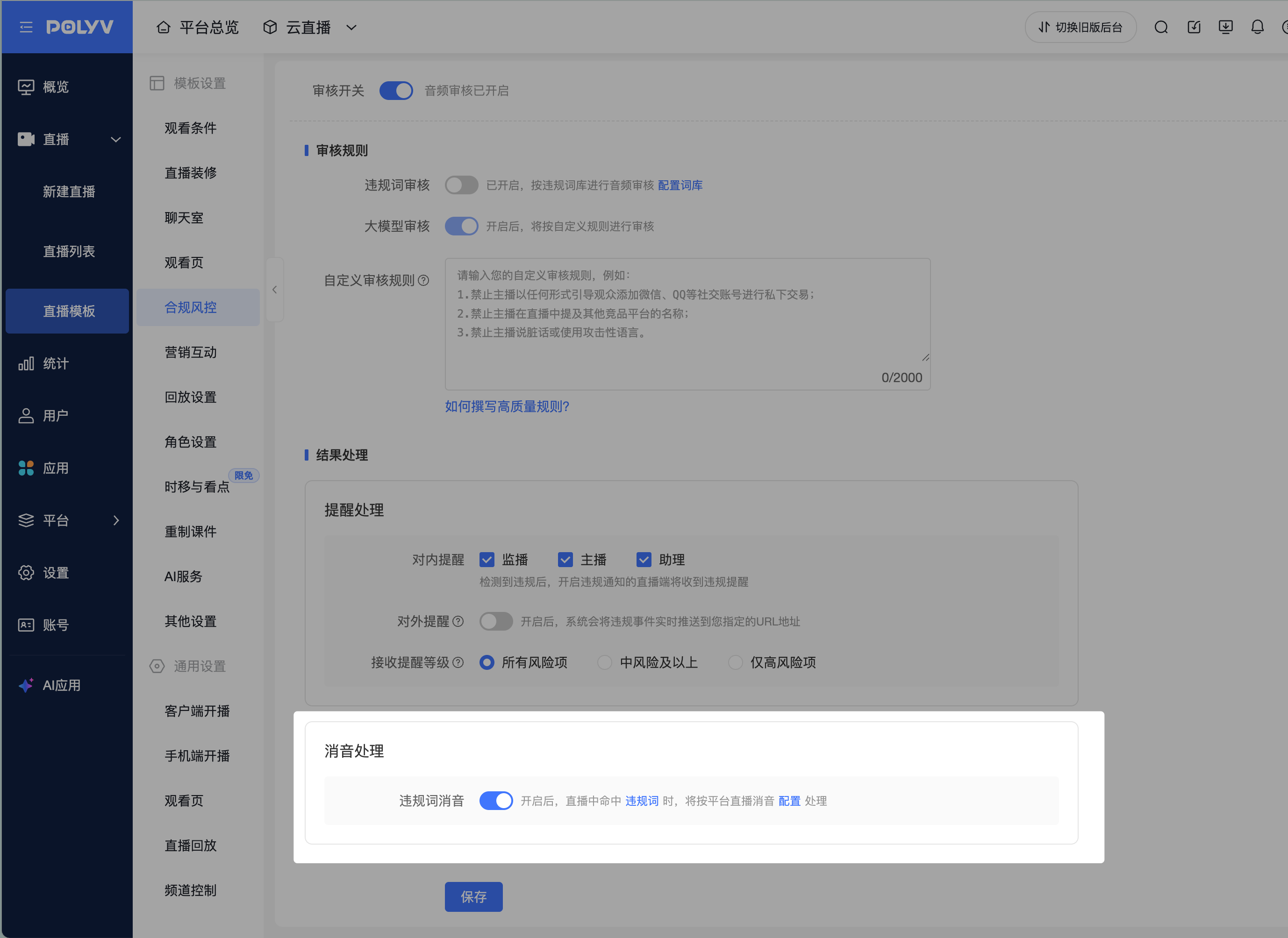
(1) Navigate to Live Stream Template -> Compliance & Risk Control -> Audio Risk Detection.
(2) In "Result Handling -> Muting Handling", enable or disable the "Mute Prohibited Words" toggle (default is disabled).
(3) Save the live stream template. New channels created will inherit this default value; existing channels are not affected.
4. Enable or Disable Muting for a Channel
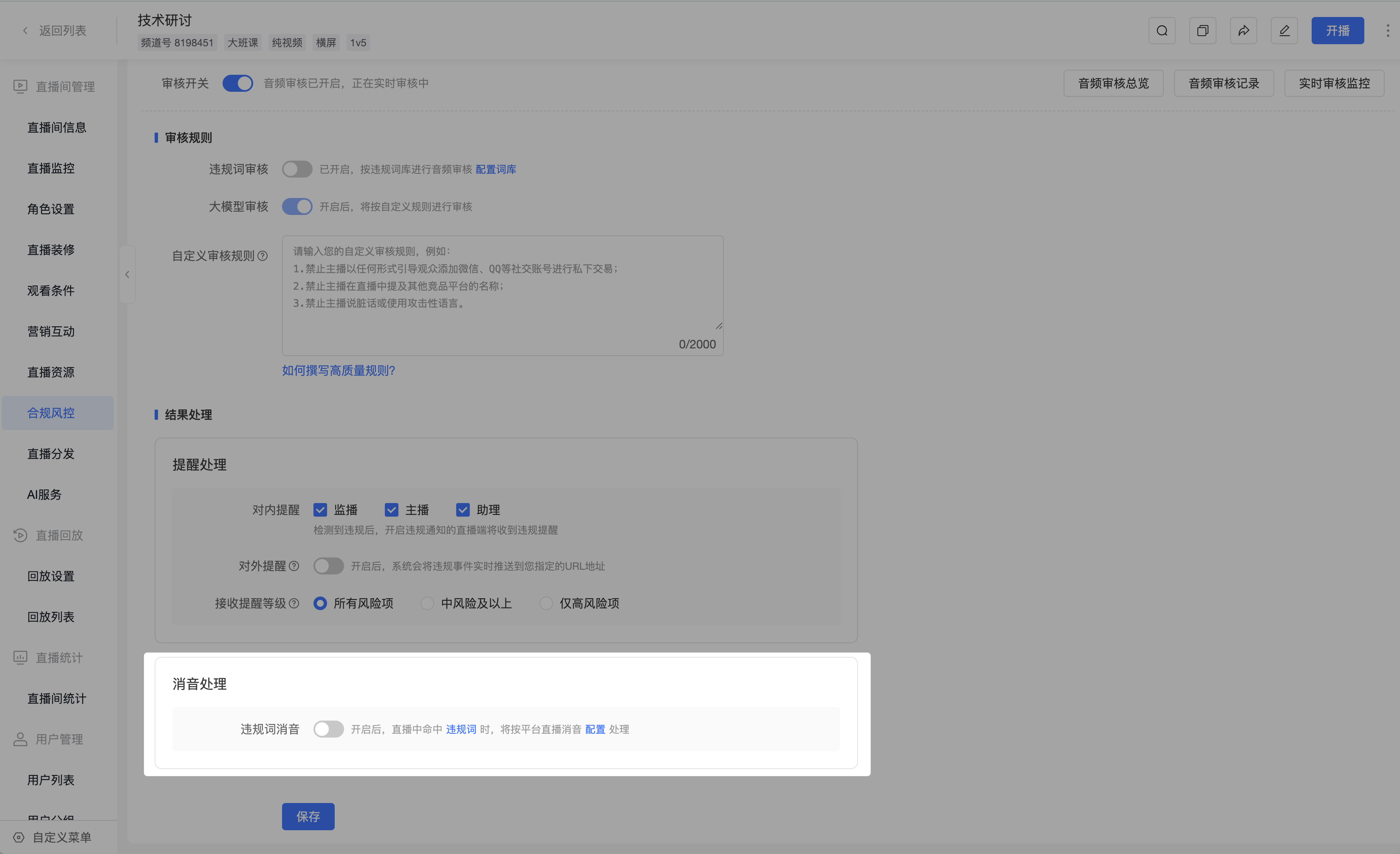
(1) Navigate to Channel -> Compliance & Risk Control -> Audio Risk Detection.
(2) In "Result Handling -> Muting Handling", enable or disable the "Mute Prohibited Words" toggle.
(3) When enabled, audio containing prohibited words during the channel's live stream will be processed according to the platform's configured muting method. When disabled, the live stream returns to normal.
Note:
- New channels inherit the "Mute Prohibited Words" setting from the live stream template by default.
- If resources are insufficient, channel muting cannot be enabled. The page will display the message: "Muting resource limit reached. Please contact the administrator."
4. Effect During Live Streaming
- When muting is enabled for a channel, audio containing sensitive or prohibited words during the live stream will be heard by viewers as a beep sound or muted audio.
- Audio that does not contain prohibited words remains unaffected and plays normally.
- The management side continues to receive audio review pop-up alerts and review records as usual. When prohibited words are detected, stream interruption is executed as normal.
- Management-side alerts and review records may appear later than the viewer-side muting; this is normal.
5. Important Notes
Live stream muting requires audio review to be enabled first. Usage incurs fees, so ensure your account balance is sufficient. For details on enabling and fees, please consult your sales manager.
Configure prohibited words with caution. Hitting sensitive words triggers alerts and notifications, while hitting prohibited words directly interrupts the live stream.
After modifying sensitive words, prohibited words, or the muting method, the system will update the muting configuration synchronously. Newly added or deleted words will take effect for live stream muting within a maximum of 10 minutes.
If the audio has accents or non-standard pronunciation, there is a possibility of misjudgment by both the review and muting systems.
