


Sub-account Access Control Management
Application Scenarios
When an enterprise requires multi-account collaboration, sub-account management can be used to create sub-accounts with different roles for employees with different responsibilities. Standard sub-accounts address the division of functional access permissions. For example, an "Uploader" role sub-account can only use the upload client to upload videos, while an "Editor" role sub-account can only upload and modify video information but cannot modify player or system settings. For more details, see Sub-account Management.
However, in certain scenarios, enterprises may want to allow sub-accounts to access only a portion of video resources or call only a subset of API endpoints.
Scenario 1
Online education company A has three sub-brands, each developed as an independent project, and each project uses the video-on-demand (VOD) service.
Company A has the following requirements:
- Independent project management: Each development team independently manages its own development keys and the video resources required for its project, without interference between projects.
- Project-based billing: The finance department wants to allocate costs based on each project's usage of video cloud resources.
- Shared VOD service: All projects share the company's purchased video cloud service, and some videos uploaded by the company are also shared across projects.
Scenario 2
Company B is a video content producer. Besides using its video resources on its own platform, it also licenses them to partners, each of whom has their own developed platform.
Company B has the following requirements:
- It needs to create sub-accounts with development permissions for partners to use. Partners use the sub-account's development keys to upload, play, and manage videos.
- The master account can control the sub-account's status, accessible video resource scope, API permission scope, etc., at any time.
- The master account can query each sub-account's video resource usage for billing and settlement with partners.
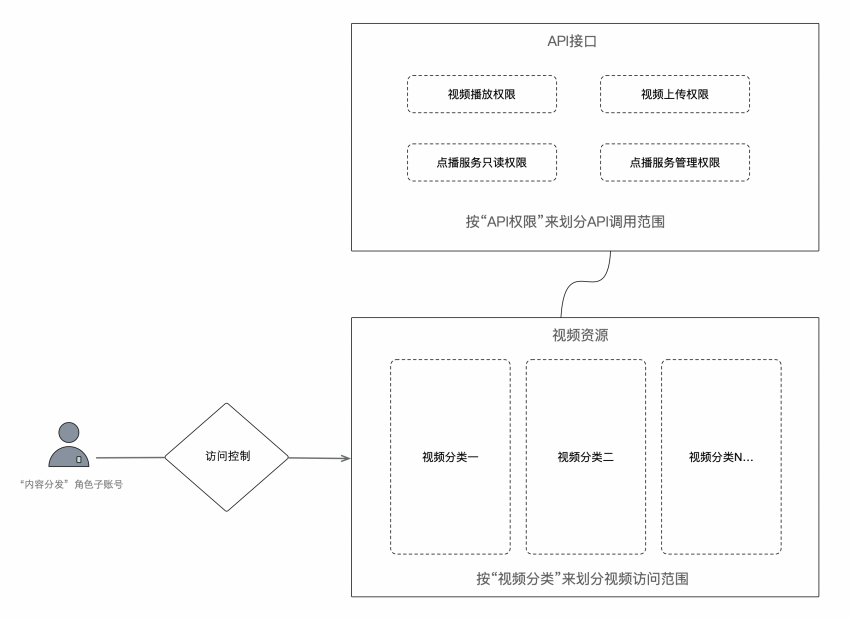
In the above business scenarios, you can use the [Account Management] feature in the VOD management console to create a "Content Distribution" role sub-account and assign corresponding video resource access permissions and API call permissions.
Feature Usage Instructions
1. Create a "Content Distribution" Role Sub-account
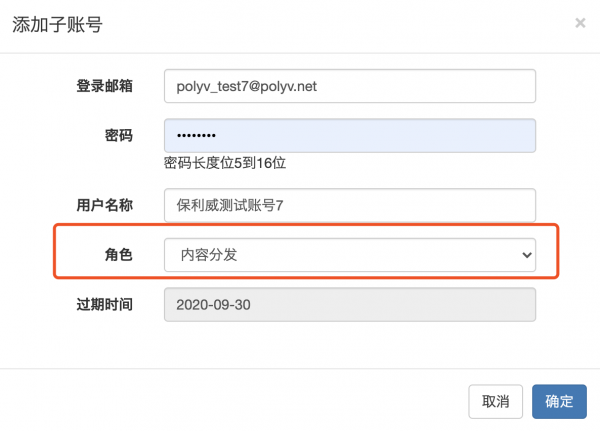
1) Log in to the VOD management console, click [Account Management] → [Add Sub-account], and set the sub-account information. Note: The sub-account role must be set to "Content Distribution".
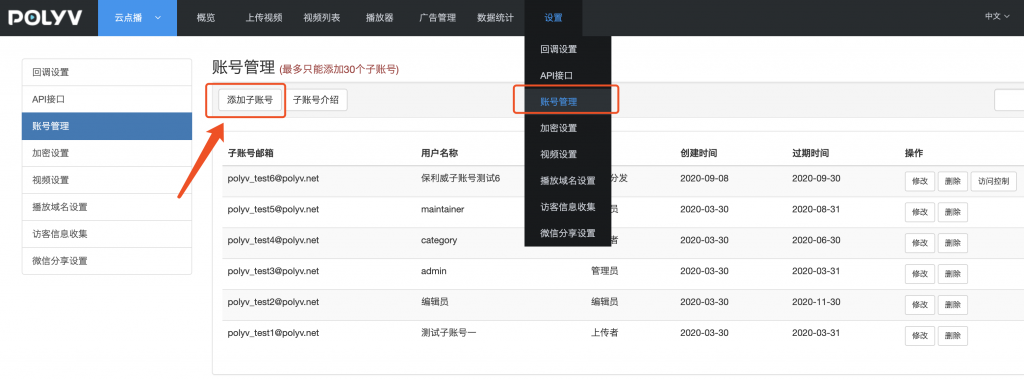
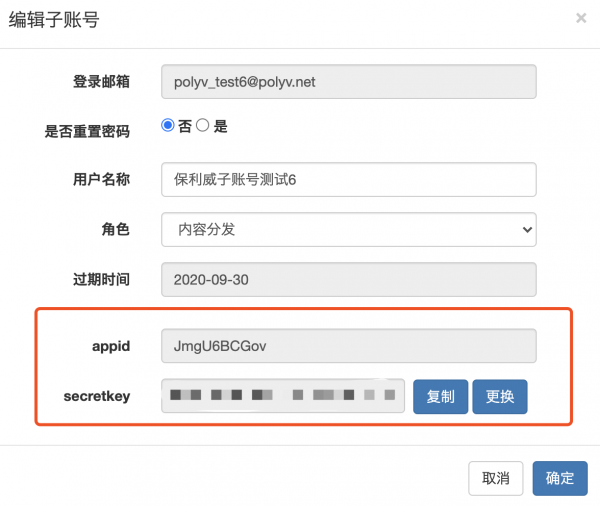
2) After the sub-account is created successfully, click [Modify] in the action column of the sub-account list. You can see that the sub-account has an independent appId and secretkey. Click [Access Control] to set access control permissions for the sub-account.
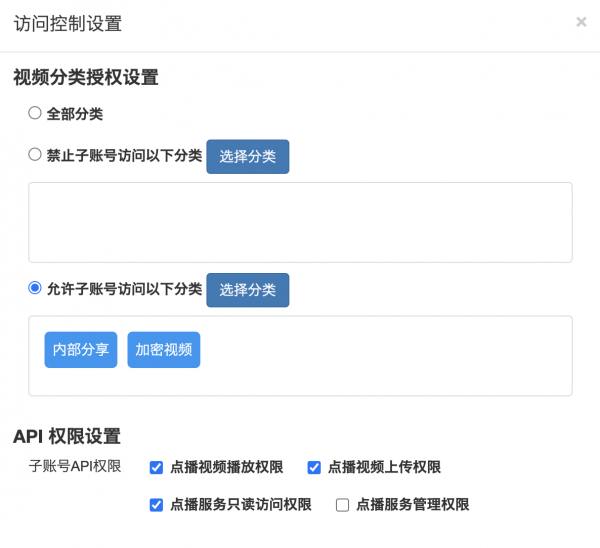
3) The video category authorization settings are described as follows:
- When "All Categories" is selected, the sub-account will have access to all video resources under the master VOD account.
- When categories are set as prohibited, the sub-account will have access to all video resources except those prohibited categories.
- When categories are set as allowed, the sub-account can only access the specified categories.
- Multiple categories can be set, but only first-level categories can be selected. Multiple sub-accounts can share access to a specific category.
4) The API permission settings are described as follows:
- VOD video playback permission: After setting this permission, the sub-account can use its own
appIdandsecretkeyto call the API for creating a Playsafe Token, thereby enabling playback of encrypted videos. For details, see Get Video Playback Credential. - VOD video upload permission: After setting this permission, the sub-account can upload videos to the cloud VOD platform. Currently, only JS SDK upload is supported. For details, see Web Upload SDK Documentation.
- VOD service read-only access permission: After setting this permission, the sub-account can call certain query-type API endpoints:
- VOD service management permission: After setting this permission, in addition to the query-type APIs above, the sub-account can call certain management-type API endpoints:
Note: The sub-account's API permissions are based on category authorization settings. That is, the sub-account can only call API endpoints within the authorized categories.
2. Use the VOD Service via a "Content Distribution" Role Sub-account
A "Content Distribution" role sub-account with corresponding permissions can use the VOD service for video upload, playback, and management. Video and category information can be added, deleted, modified, and queried via API endpoints, while video upload and playback require the upload SDK and playback SDK.
1) Sub-account using the JS Upload SDK
For the JS Upload SDK documentation, please refer to Web Upload SDK Documentation. The sub-account's authorization credentials must be set in the SDK:
videoUpload.updateUserData({
  appId: <appId> , // Polyv云点播子账号的appId
  timestamp: <timestamp> , // 时间戳,注意:系统时间不正确会导致校验失败
  sign: <sign> , // 签名计算方式为:md5(`${secretkey}appId${appId}timestamp${timestamp}${secretkey}`).toUpperCase()。需使用子账号的secretkey计算签名
});
Note: The sub-account must have video upload permission to upload videos, and the upload category must be one that the sub-account has access to.
2) Sub-account using the Web Player to play encrypted videos
When using the Web Player, the sub-account's identity information and the token for playing encrypted videos must be passed in the embed code. Example embed code:
<div id="player"></div>
<script src="//player.polyv.net/resp/vod-player/latest/player.js"></script>
<script>
  var player = polyvPlayer({
    wrap: '#player',
    width: 800,
    height: 533,
    vid: '88083abbf5bcf1356e05d39666be527a_8' ,
    appId:'JmgU6BCGov', // 子账号appId,可在管理后台获取
    playsafe:'81814fed-bdd0-4506-bec1-ebc8093148c5-hfevwsfxcsbcocx', // PC H5播放加密视频所需的token,服务端需使用子账号的appId和secretkey调用创建Playsafe Token接口获取。
    ts:'1568131545000', //移动端H5播放Web加密视频需要传ts、sign参数。ts为13位的毫秒级时间戳
    sign:'88313661ba7ded642c7b557b0a364b4b' // sign从业务方服务端获取,计算规则为:md5(子账号secretkey+vid+ts)
  });
</script>
- The sub-account
appIdis required.- The
playsafeparameter is used for PC H5 player decryption, whiletsandsignare used for mobile H5 player decryption. If the same code is used for both PC and mobile, all three parameters must be provided.- For detailed Web Player features, see Web Player Documentation.
3) Integrating iOS/Android SDK with a sub-account
Using a sub-account to integrate the SDK is no different from using the master account, except that the sub-account's appId and secretkey must be used for initialization.
In the Android SDK, use the settingsWithAppId() method for initialization:
PolyvSDKClient client = PolyvSDKClient.getInstance();
client.settingsWithAppId(String appId, String secretKey, String userId); // 子账号的appId以及secretkey,userId为主账号的userId
In the iOS SDK, use the + (instancetype)settingsWithAppId:(NSString *)appId secretKey:(NSString *)secretKey userId:(NSString *)userId method in the PLVVodSettings class for sub-account initialization.
For Polyv VOD SDK documentation, see:
3. View Sub-account Usage Statistics
Log in to the VOD management console, click [Data Statistics] → [Sub-account Statistics] to view traffic, play count, and other statistics for sub-accounts.
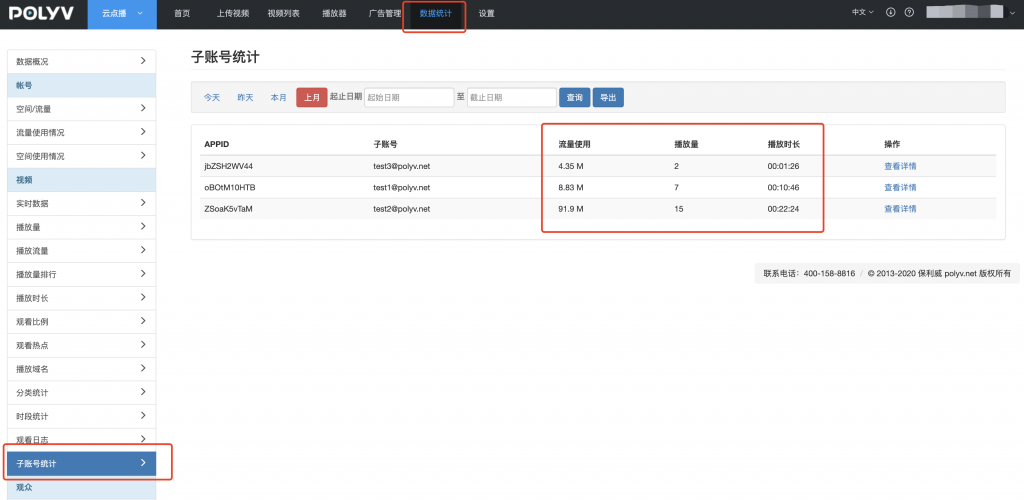
Note: The statistics feature requires contacting customer service to enable it before use.
