Visitor Information Collection
Visitor Information Collector
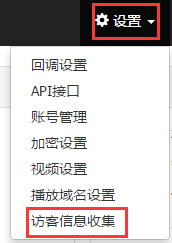
On the right side of the top feature list, click the "Settings" dropdown menu, then select "Visitor Information Collection". The interface is shown below:
After clicking "Visitor Information Collection", the following interface appears. Complete the editing and click "Submit":
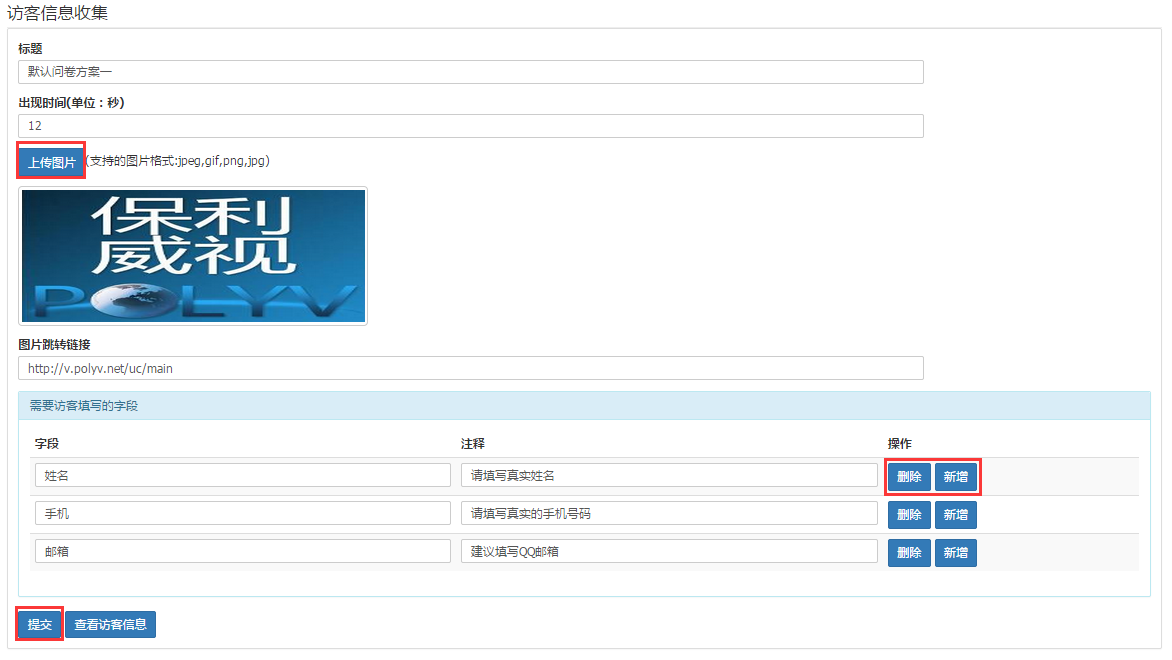
Title: Set a name for this theme; it will not be displayed on the video.
Appearance Time: Customize when the visitor information collection appears in the video, in seconds.
Upload Image: Click "Upload Image" to open a selection window. Users can choose and upload their own image based on their needs. Supported image formats: jpeg, gif, png, jpg.
Image Jump Link: You can fill in a custom link. When users click the image, they will be automatically redirected to this link.
Field Name and Comment: The field name is a category filled in by yourself. The comment is filled in by the user based on the field name category (you can also provide suggestions or tips to the audience). A maximum of five items can be added in this section.
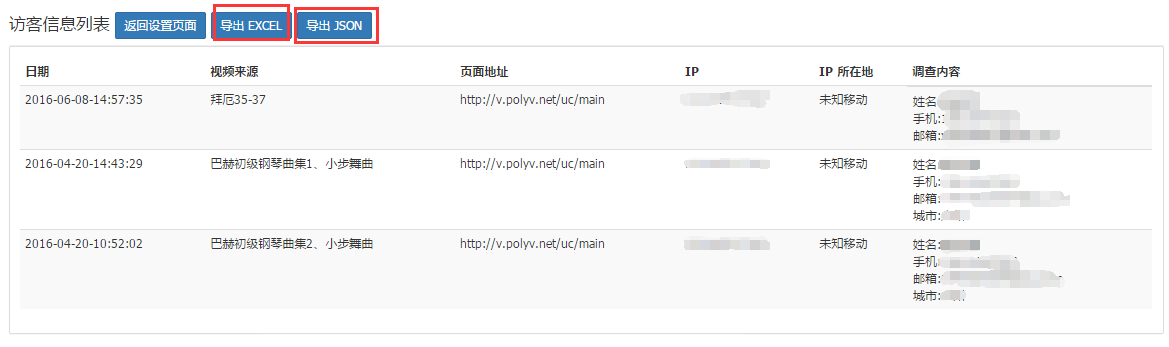
Click "View Visitor Information" in the above image to enter the interface shown below. Here you can see detailed visitor information. Users can export visitor information as needed, supporting Excel and JSON formats.
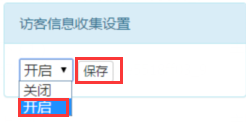
Click "Video List" in the top feature list to enter the video list interface. Select a video (or choose a video in "Video Category Management"), scroll down in the right-side window to find "Visitor Information Collection Settings", select "Enable", and click "Save", as shown below:
Video Effect:
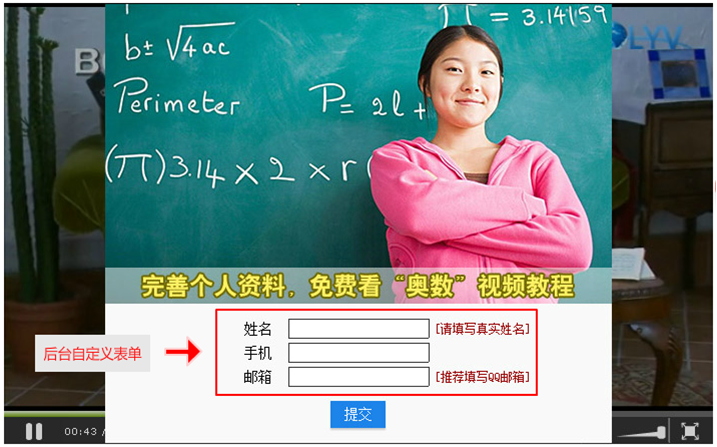
When the video plays to a certain time point, an advertisement image and form pop up. Visitors must fill in their contact information to continue watching (only needs to be filled in once). The effect is shown below: