Adding Courseware
Uploading Courseware
Click "Video List" in the top function bar to enter the video list interface, select a video (or choose a video in "Video Category Management"), scroll down in the right-side window to find "Upload Courseware", as shown below:
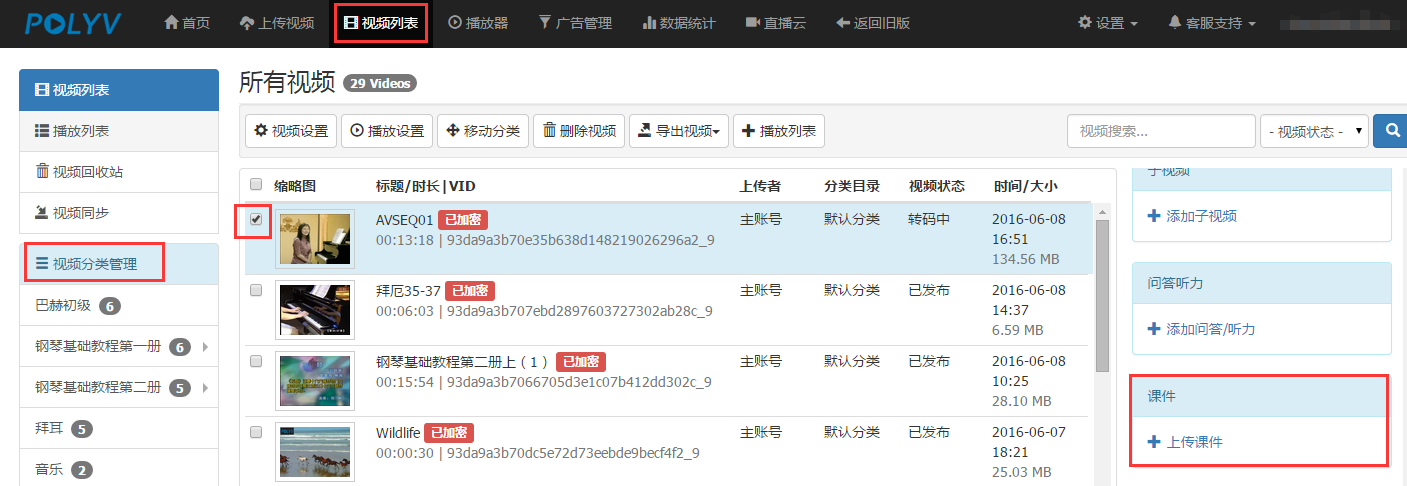
Click "+ Upload Courseware" to enter the following interface, then click "Upload Courseware" and select the desired courseware to upload. Supports PPT and PDF formats, file size no larger than 100MB. The upload process may take some time, please be patient.

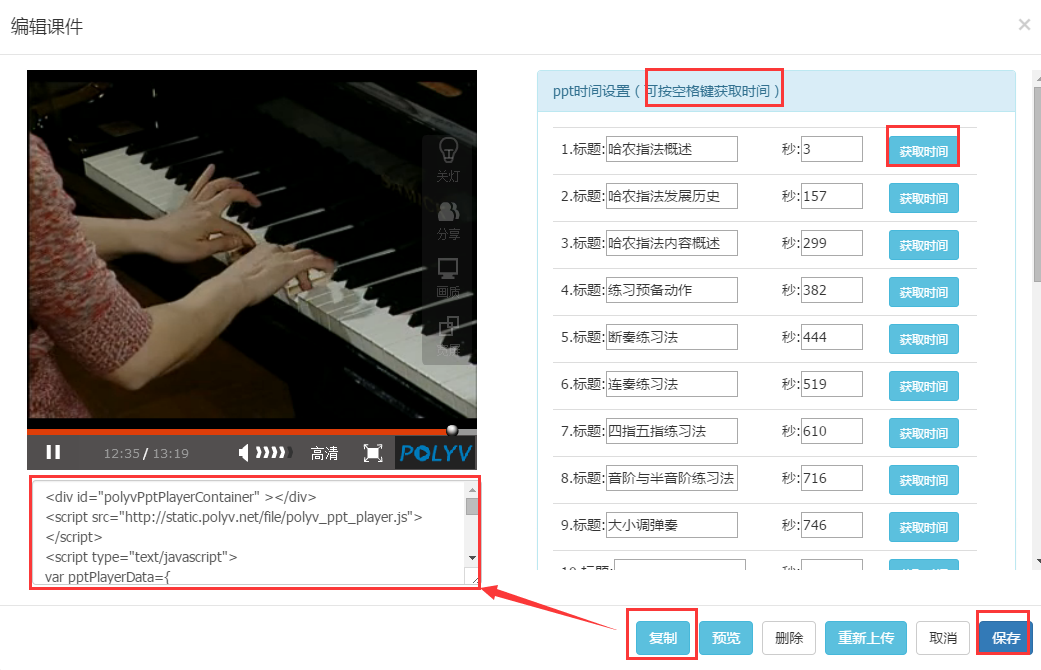
After successfully uploading courseware, the "Edit Courseware" window will automatically pop up, converting the PPT into images and automatically filling each page's title into the corresponding "Title" field. During video playback, users can click the "Get Time" button (or press the spacebar) to set the time, i.e., set the video time corresponding to each PPT page, and can copy the code in the lower-left corner to embed into their own webpage, as shown below:
Courseware Player
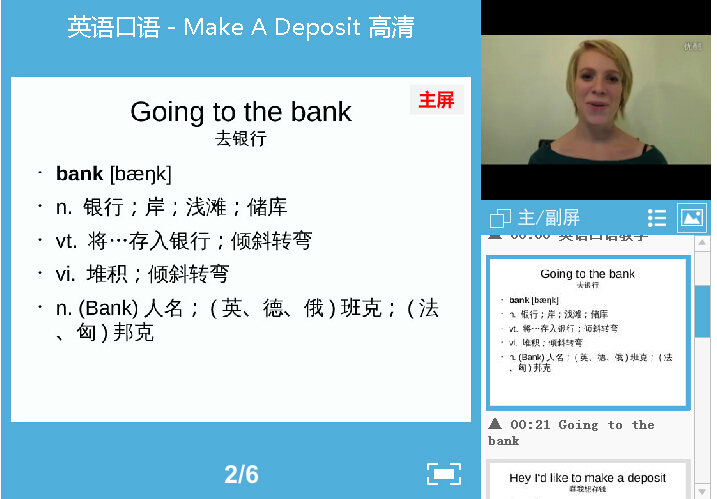
To achieve synchronized display of teaching courseware and teaching videos, POLYV provides a courseware player feature for online education customers.
The courseware player offers powerful features:
- Auto-generation: No professional software required. Upload a video + courseware PPT (PDF) to automatically generate a "three-panel courseware player". Get the code and embed it into your page for simple and quick use!
- Rich customization options: Customize courseware outline titles/time points, courseware player main color, main screen position (left/right), main/secondary screen/outline dimensions, and default main/secondary screen display (video/courseware).
- Sequential/jump playback: Courseware automatically jumps to the corresponding page based on the video playback time; learners can also click the table of contents to jump the video to the corresponding time point for playback.
- Main/secondary screen switching: Freely switch video/courseware to the main screen for playback.
- Full-screen mode: Both courseware and video can be played in full screen individually. Video full-screen mode is mainly suitable when the teaching focus is on the teacher's body language or facial expressions. In courseware full-screen mode, learners focus more on the knowledge content rather than the teacher's expressions.
Effect preview: