


Video Watermark
Video watermark refers to encoding a watermark image into the video stream during video transcoding, making the watermark image part of the video. Enterprises can display proprietary information such as logos as video watermarks on the video screen to showcase copyright information and brand image.
Note that since the watermark image is already encoded into the video stream, the transcoded video cannot be modified or have the watermark hidden again. To make changes, you must reset the watermark and re-upload the video.
Setting Watermarks in the Management Console
In the Cloud Video Playback management console, you can set watermarks for the entire account or for specific video categories. The operation steps are as follows:
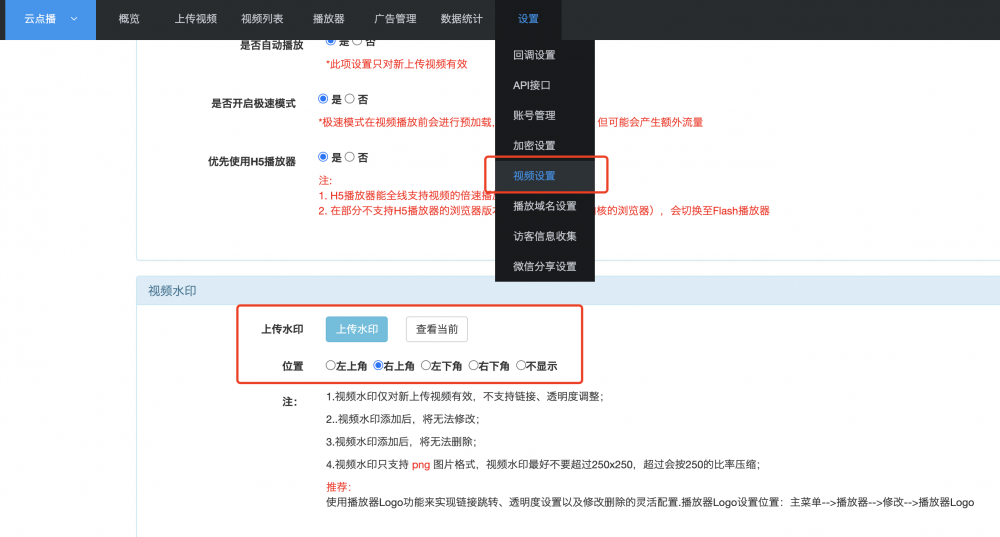
Log in to the Cloud Video Playback management console, click 【Settings】 → 【Video Settings】 to enter the video settings page.
In the video watermark settings section, upload a watermark image and set its display position. After setting the watermark, it will take effect for all newly uploaded videos under the account.
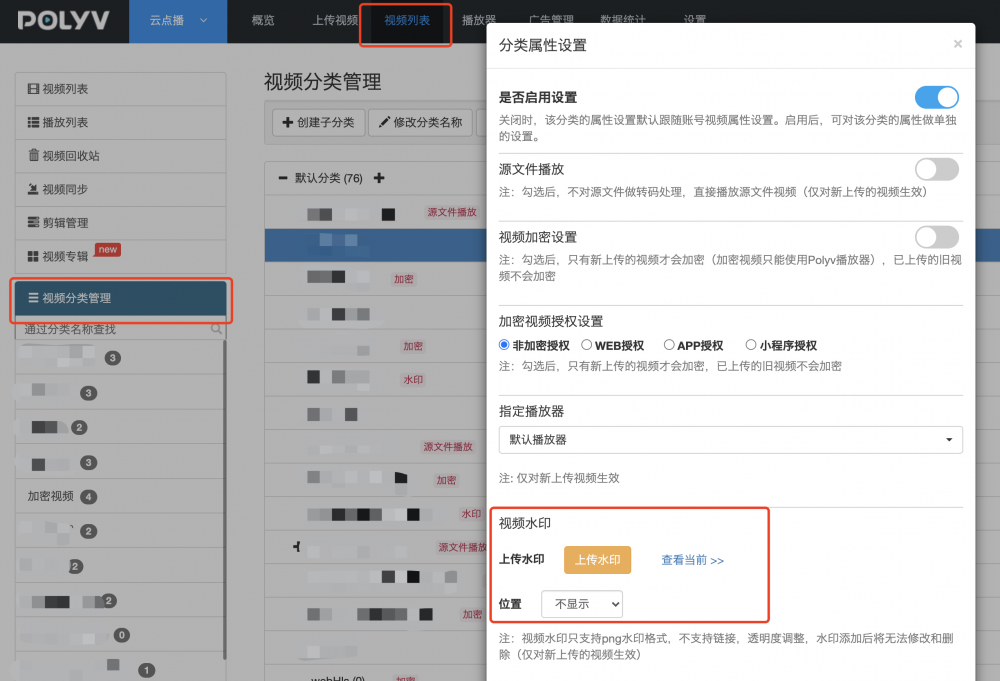
If you only want to set watermarks for a specific video category, click 【Video List】 → 【Video Category Management】, select the category you want to set a watermark for, click 【Category Property Settings】 to open the category property settings popup. In the video watermark section, you can upload a watermark image and specify its display position.
Note:
- The watermark image must be in PNG format. If the image width or height exceeds 256px, it will be scaled proportionally.
- After the watermark is successfully set, it only takes effect for newly uploaded videos; existing videos are not affected.
Setting Watermarks via API
You can set account-level or category-level watermarks via API. For details, see: Upload Watermark.
