Adding Q&A
Click "Video List" in the top function bar to enter the video list interface. Select a video (or go to the "Video Category Management" interface), and in the small window on the right, find "Q&A/Listening", as shown below:
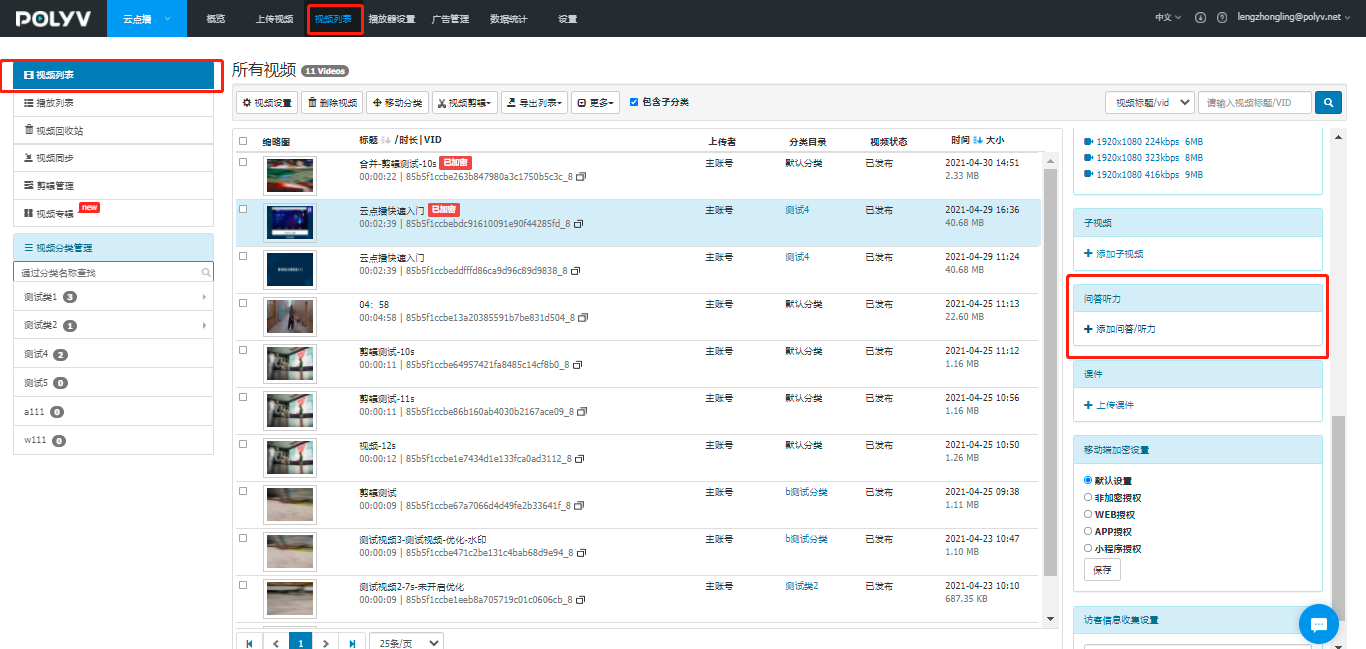
Click "+ Add Q&A/Listening" in the image above to enter the interface shown below. Users can choose to "Add Q&A" or "Add Listening" based on their needs, and proceed to the relevant settings:
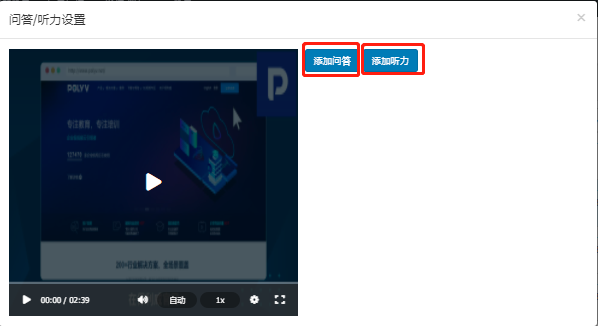
Add Q&A
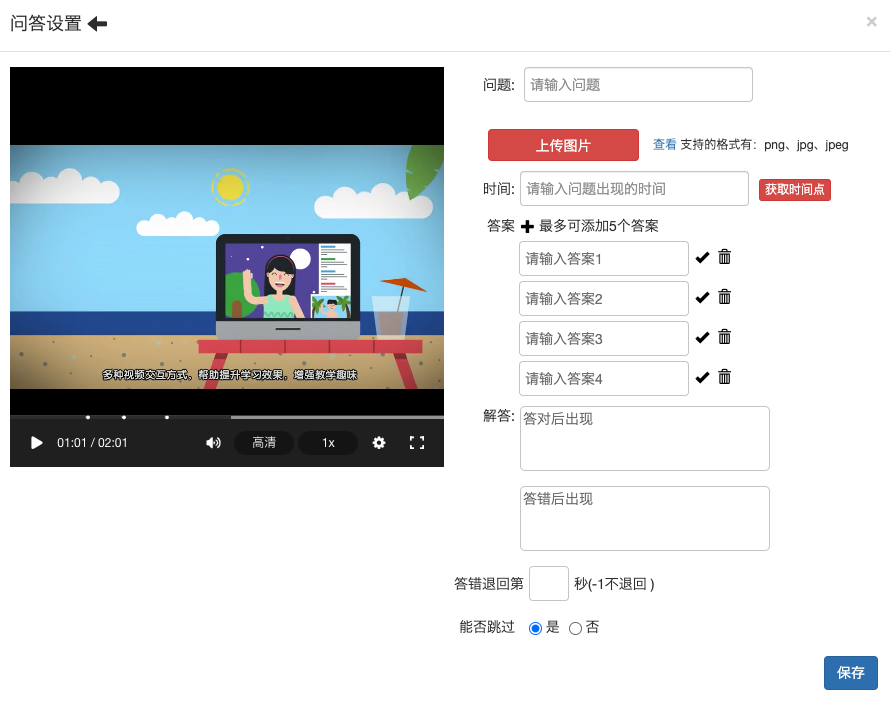
Click the "Add Q&A" button to enter the interface shown below. You can click the  icon in the upper left corner to return to the previous interface and select "Add Q&A" or "Add Listening".
Question: Users can customize the question according to their needs, and image-based question descriptions are supported. Time: At the time point when you want the audience to answer the question, click "Get Time Point" (the displayed time is in seconds). When the video plays to the set time point, the video interface will automatically pop up the question answer window. Answers: Users can set at least two answer options for their question (up to five). Click "+" to add more answer options, click "Delete" to remove an answer option, and click "✔" to set an option as the correct answer. Explanation: Users can customize the explanation result, and set the display result after answering correctly/incorrectly. Rewind on Wrong Answer: Users can customize the rewind time point for wrong answers. When a viewer answers incorrectly, they must rewind to the set time point and watch again until they answer correctly. If the rewind time point is set to -1 second, the viewer can skip the question directly even if they answer incorrectly and continue watching the video.
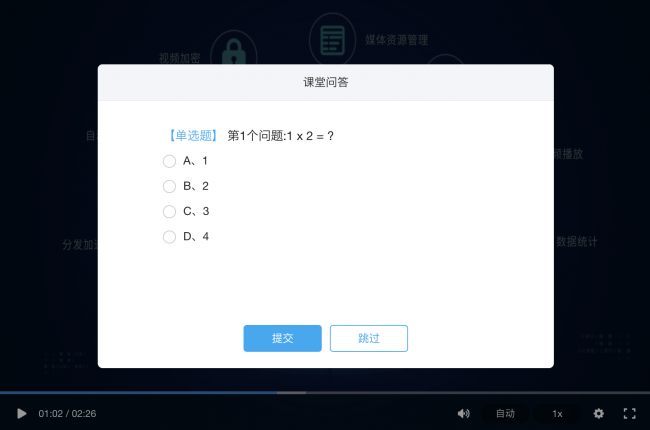
The specific effect is as follows:
After setting Q&A questions in the management backend, when the video plays to the specified time point, the player will display a pop-up window with the Q&A question. The learner must submit an answer before continuing to watch the video. The specific effect is as follows: