Video Markers
Updated: 2021-04-30 14:47:51
Marker Functionality
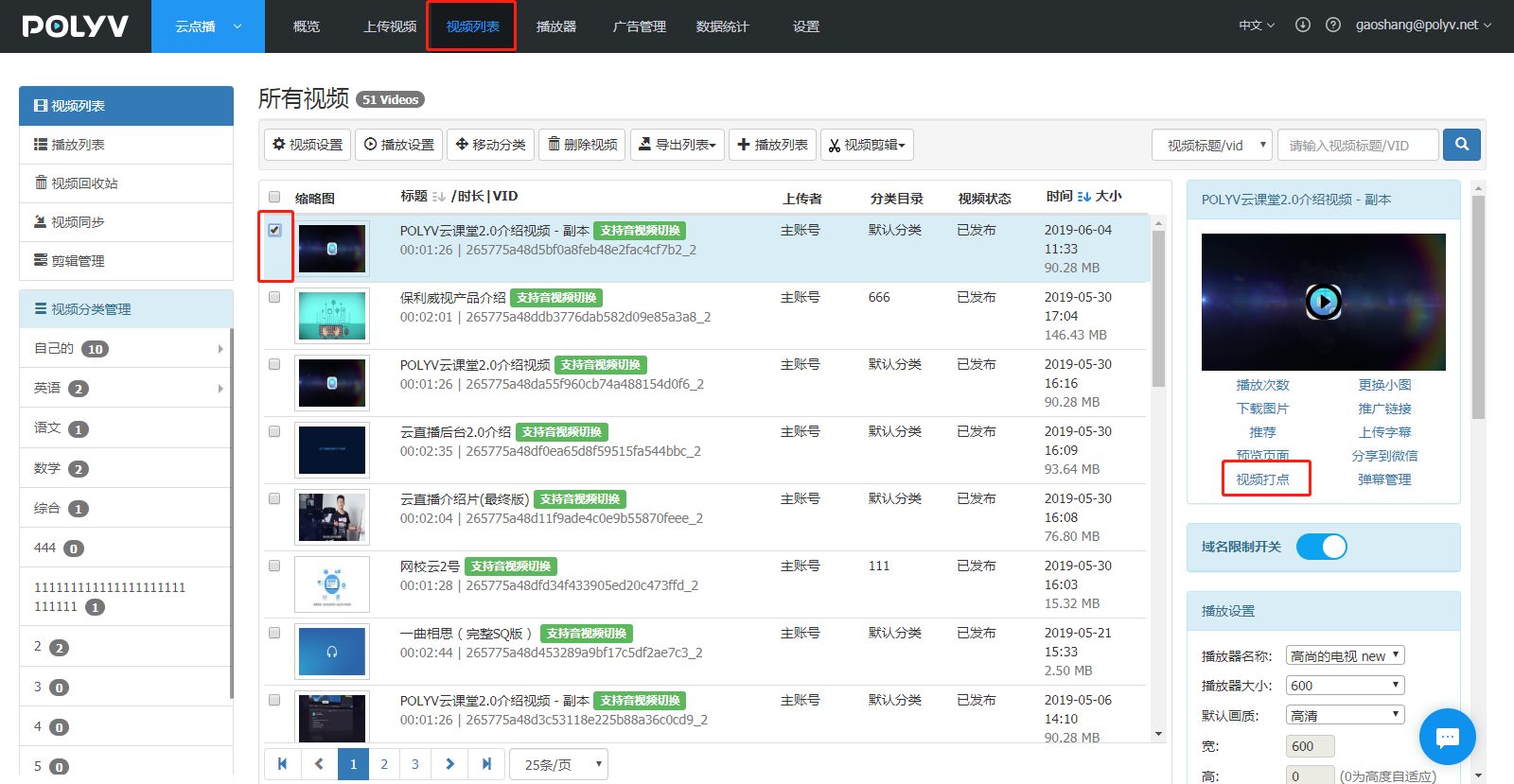
Click "Video List" in the top function bar to enter the video list interface. Select a video, then find "Video Markers" in the small window on the right, as shown below:
Adding a Video Marker (Keyframe Description)
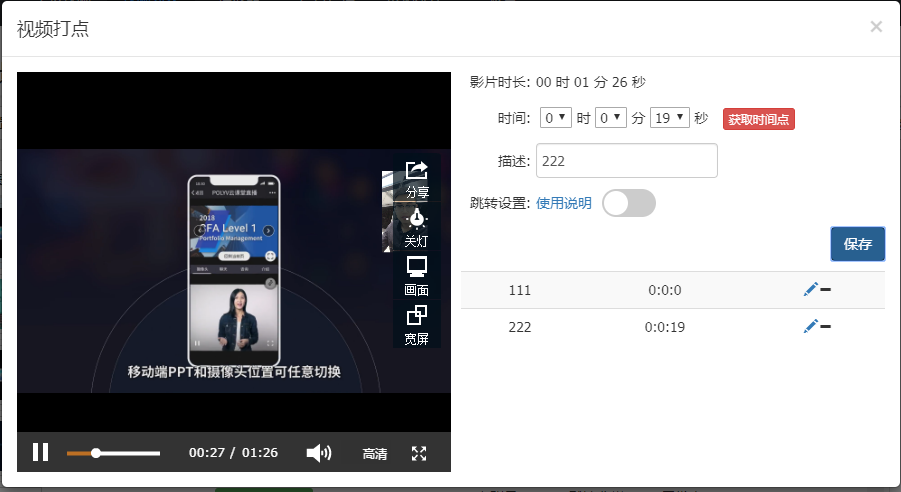
Drag the progress bar to the keyframe position and click the "Get Time Point" button. The system will automatically capture the keyframe time. Simply add the corresponding description and click "Save," as shown below:
Jump Settings
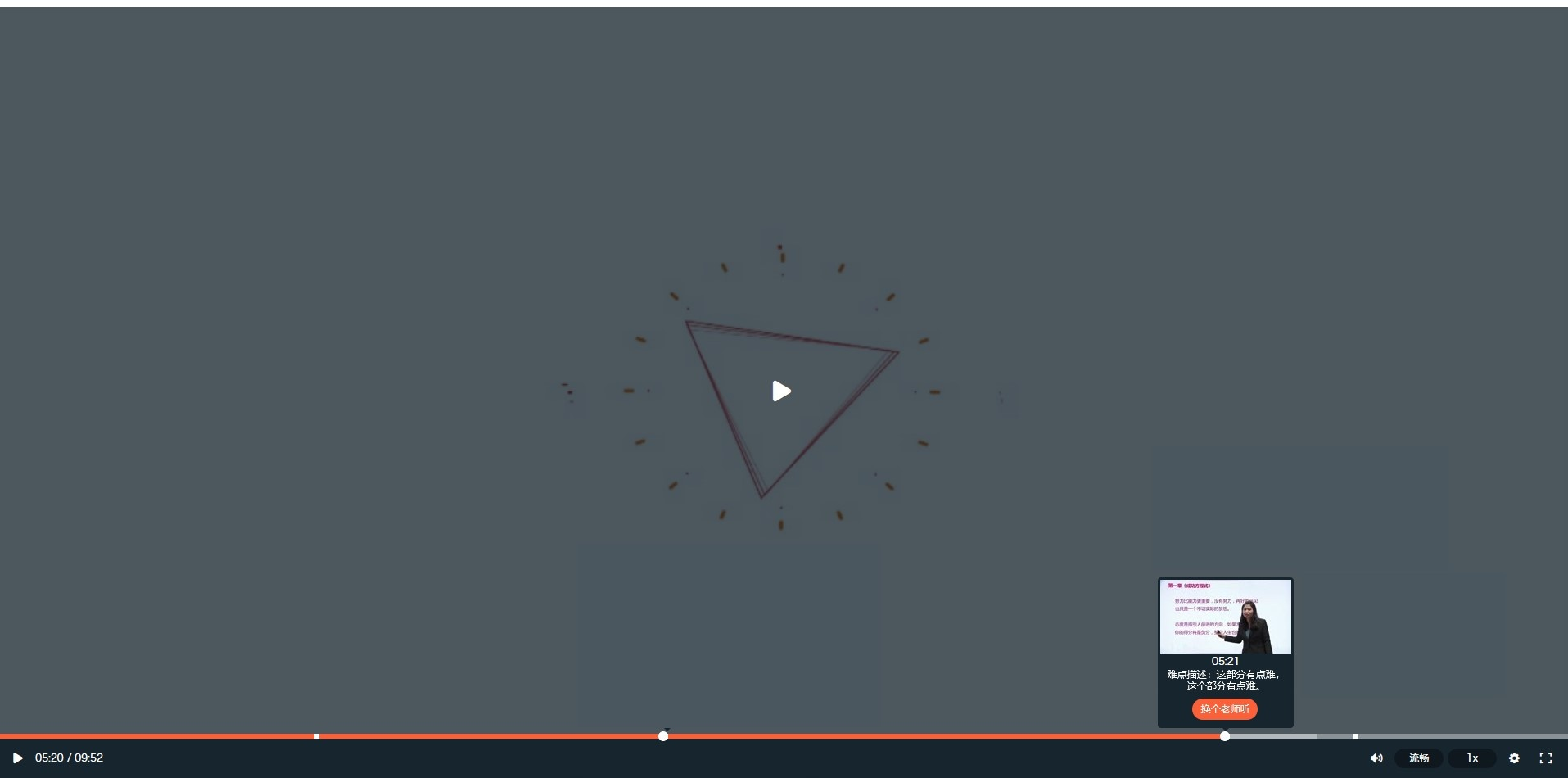
Jump settings are disabled by default and can be manually enabled. Once enabled, you need to enter the "Button Text" and "Jump Link" information. After adding the jump information, a jump button will appear in the player's marker information. Clicking it will navigate to the jump link set in the backend. Example of video marker effect: