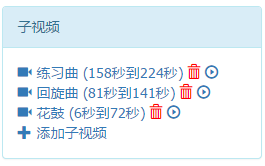
Sub-Video
Updated: 2024-04-24 15:42:21
Function Effect
It allows for quick segmentation of a video without damaging the original video.
① Start Time: Click to obtain the time point, which will be the start of the sub-video.
② End Time: Click to obtain the time point, which will be the end of the sub-video.
In the top function list, click "Video List" to enter the video list interface, select a video (or choose a video in "Video Category Management"), then scroll down in the right-side window to find "Sub-Video", as shown below:
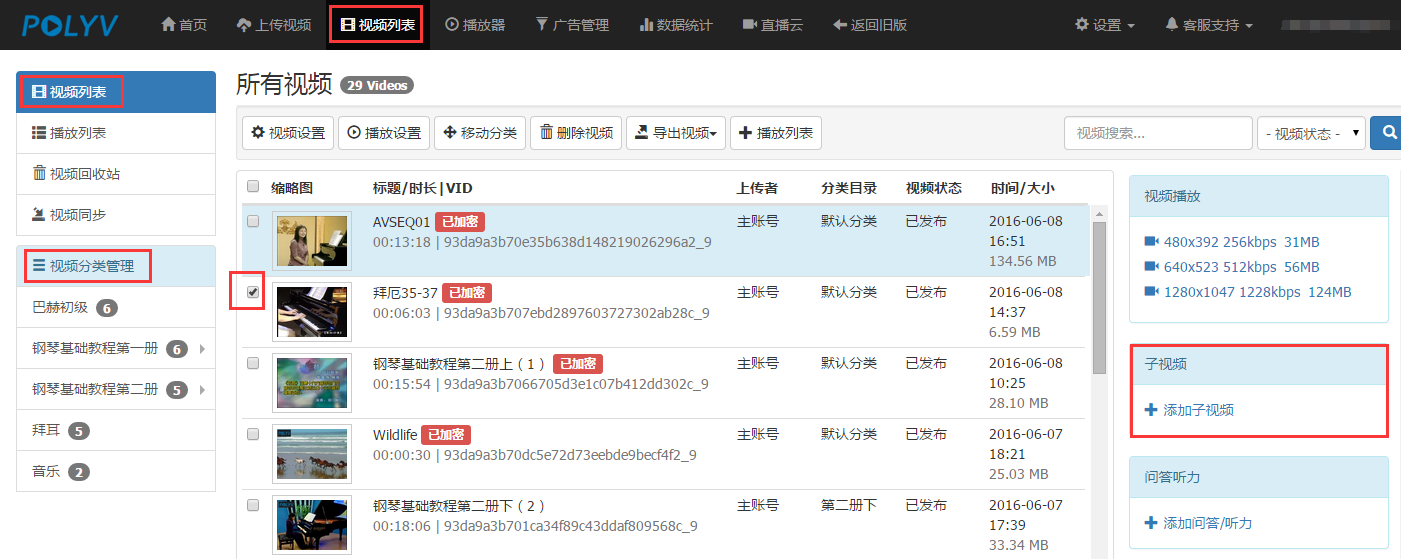
Click "+ Add Sub-Video" in the image above, and a new window will pop up, as shown below:
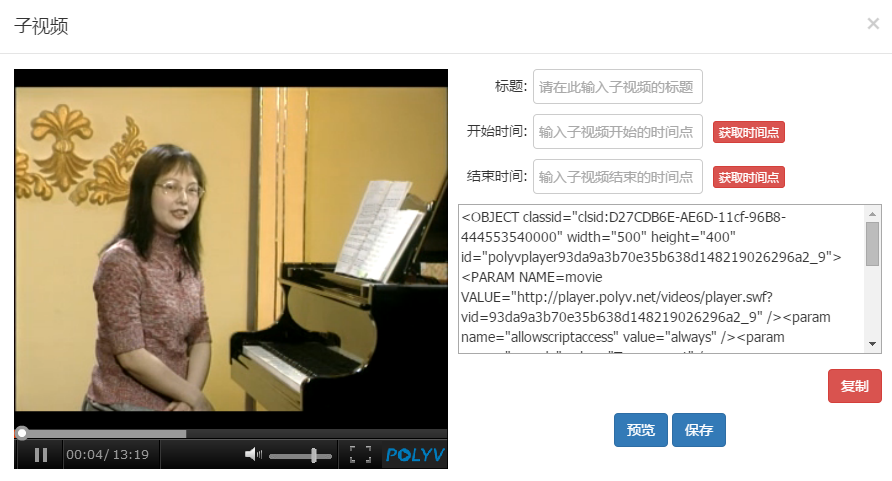
Enter the sub-video title, click "Get Time Point" to automatically obtain the start and end time points, then click "Save". The result is shown below: