


Video Editing
Video Trimming
Go to "Video List" in the top function list — select a video — click "Video Editing" — Video Trimming, as shown below:

Trimming Interface:
Using video trimming, you can cut (edit) a video and generate a new video. Two ways to set the start and end points of the trimmed video: ① Directly enter the time points in the start time and end time input boxes; ② Drag the playback progress on the video control bar, then click the "Get Time Point" button.
After confirming the time range, click "Add". The trimmed video time points will be displayed in the "Added Segments List", as shown below:
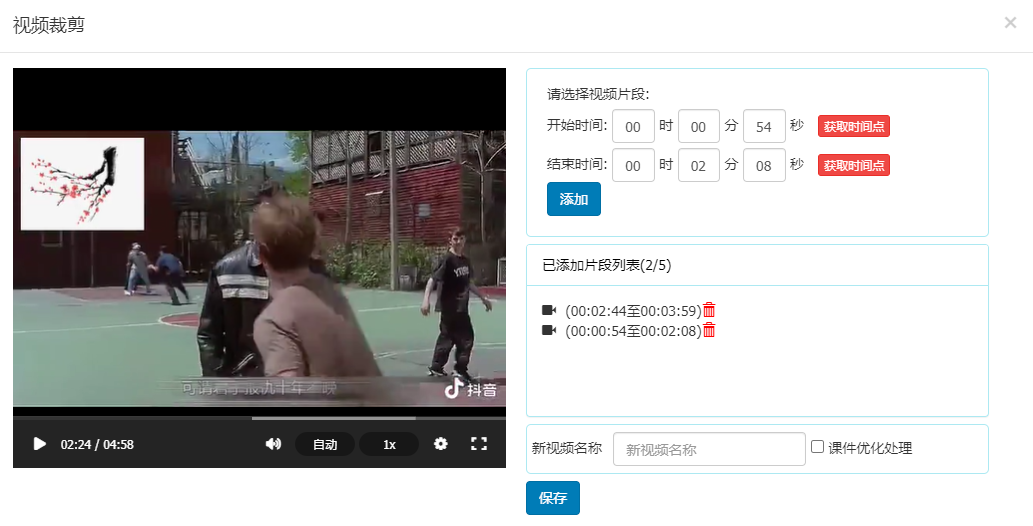
Enter the name of the edited video, choose whether to apply courseware optimization to the new video, and click "Save".
Video Merging
Go to "Video List" in the top function list — select a video — click "Video Editing" — Video Merging, as shown below:

Merging Interface:
Using the video merging function, you can merge multiple different videos into one new video.
- Select the videos to be merged in the video list interface, then click "Video Editing" and choose "Video Merging" from the dropdown menu. You can also click "Add Video" on the video merging page to select videos for merging.
- The merging order is from top to bottom. You can change the merging order by dragging the videos.
- You can enter a new video name and select a category. If a category is selected and category settings have been configured, those settings (e.g., video encryption, watermark, courseware optimization) will also apply to the newly merged video. As shown below:
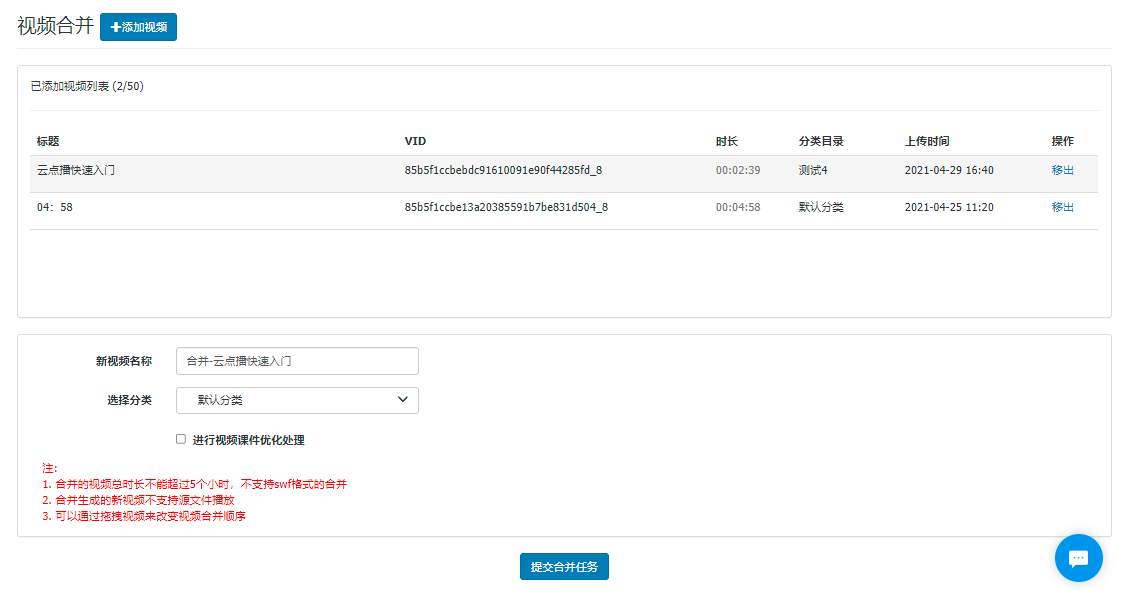
Enter the new video name, select a category, choose whether to apply courseware optimization to the new video, and click "Submit Merge Task".
Clip Management
Go to "Video List" in the top function list, then click "Clip Management" in the right navigation list, as shown below:
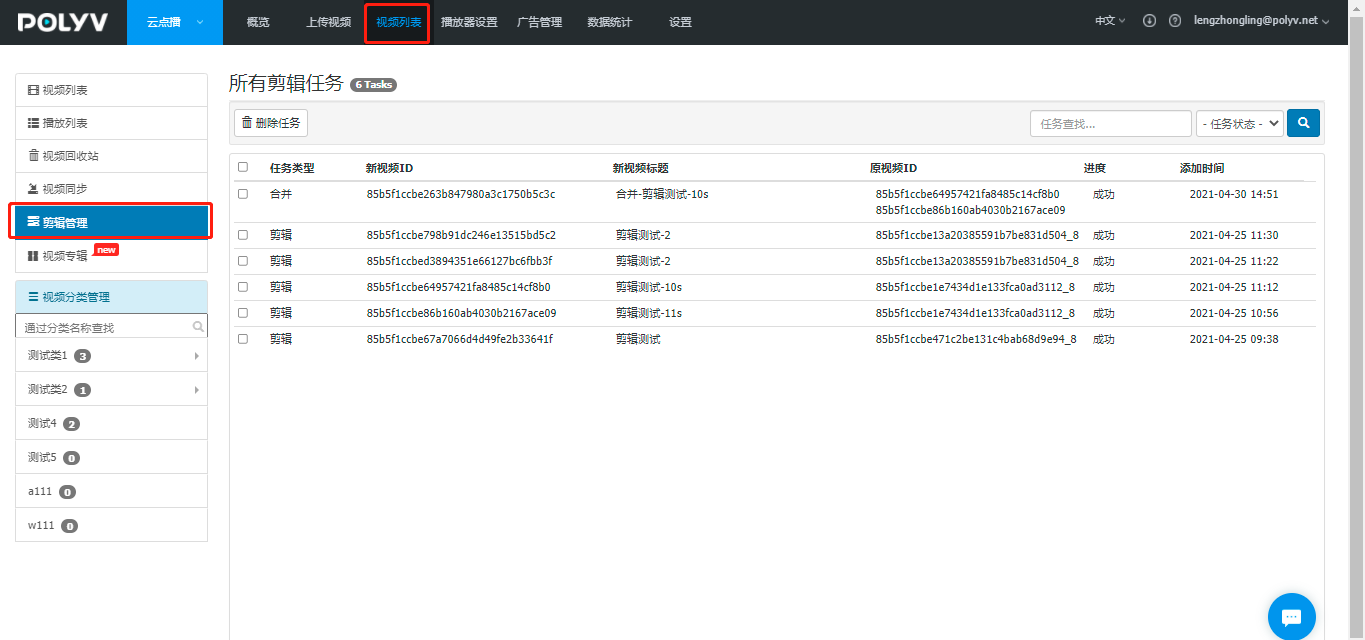
All clip tasks will be displayed in Clip Management. You can search for tasks by five statuses: All, Pending, Processing, Successful, and Failed.
You can also select tasks and click the "Delete Task" button at the top left to delete the task record.
