Player Settings
Through the "Player Settings" feature in the admin console, you can create and use multiple players, as well as customize their styles and functions to meet the need for different player styles and features across various websites or scenarios.
In addition to the player settings provided by the admin console, you can also use the parameters and interfaces offered by the Web Player SDK for more advanced customization.
Creating and Managing Players
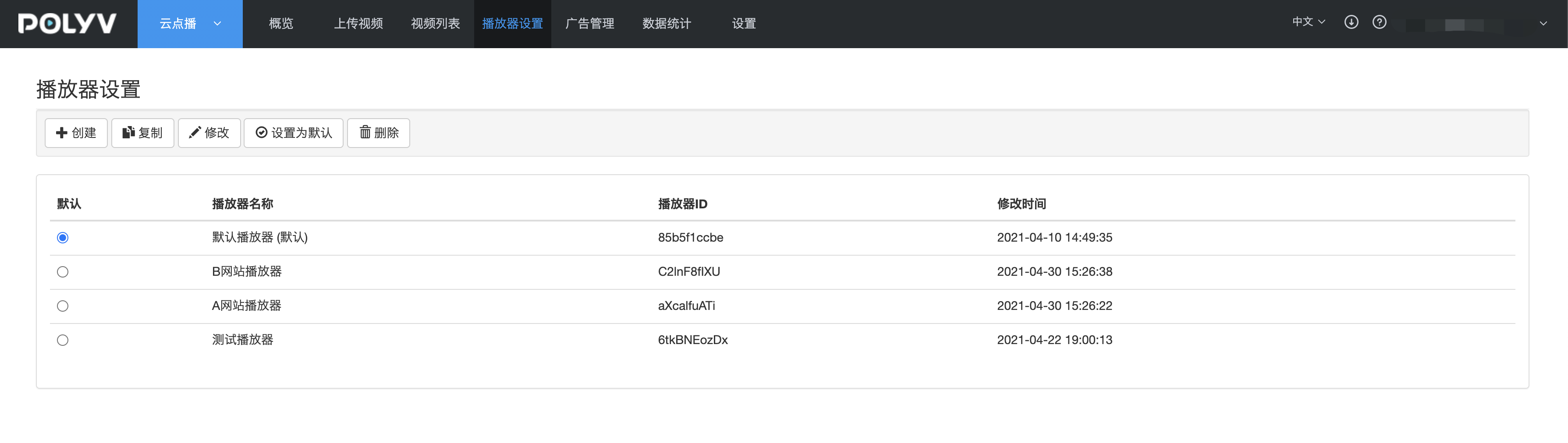
- Log in to the Cloud Video on Demand admin console, click Player Settings in the navigation bar to enter the player settings page.
- A default player has been automatically created. You can create additional players as needed.
- Use the copy function to quickly duplicate an existing player (including all settings) into a new player.
- After setting a player as the default, newly uploaded videos will use this default player. The default player cannot be deleted.
- Click Modify to enter the player settings page, where you can:
- Change the player name
- Configure the player skin
- Set the player logo
- Set pre-roll and post-roll content
- Set the end screen
- Set the player language
- Set subtitle display styles
- Configure the right-click menu
Player Skin Settings
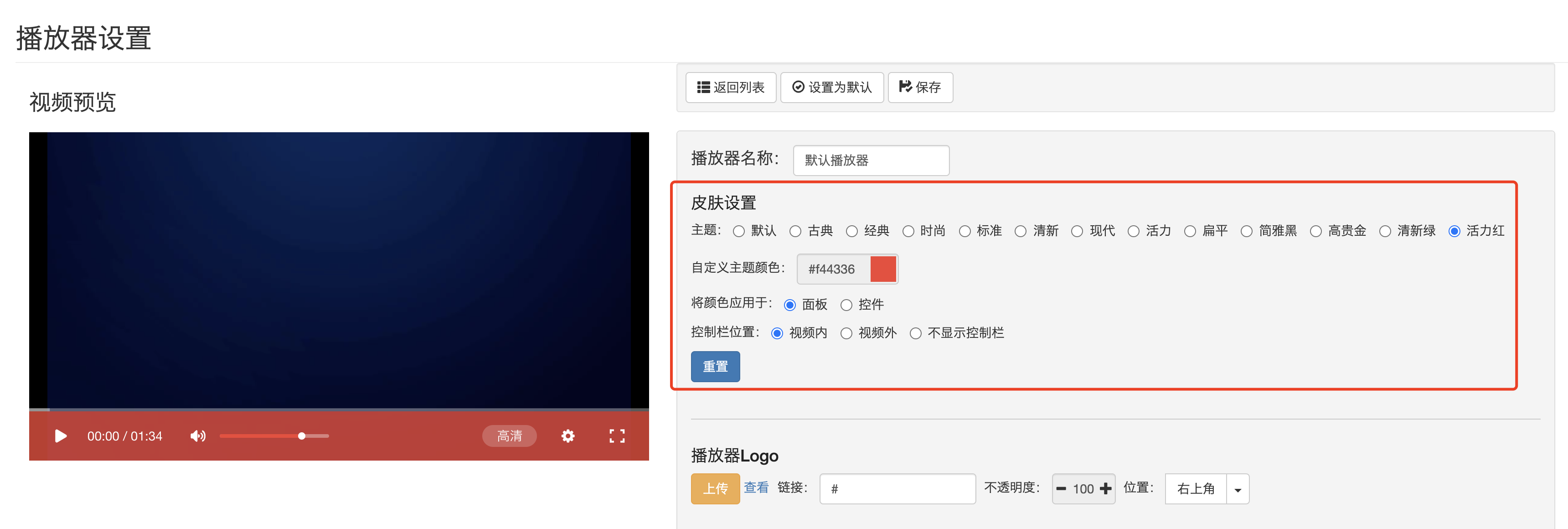
In the skin settings options, you can:
- Select a theme
- Customize the theme color
- Choose whether to apply the color to the control panel or controls
- Select the control bar position
Note:
- The Flash player supports all skin themes, while the PC H5 player only supports four more modern themes: Simple Elegant Black, Noble Gold, Fresh Green, and Vibrant Red.
- When playing videos on mobile H5, the system's native player is used in fullscreen mode. In non-fullscreen mode, most browsers on Android also force the use of the native player. Therefore, the mobile H5 player currently does not support skin theme selection.
Player Logo Settings
You can upload a local image to set a logo for the player, which can be used for brand promotion.
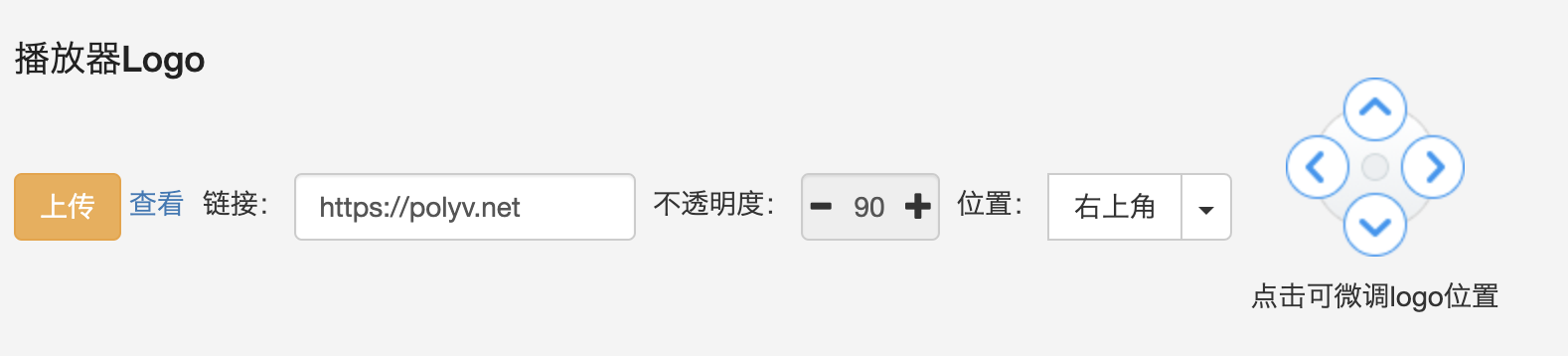
Note: When playing videos on mobile H5, if the system forces the use of the native player, the logo will not be displayed.
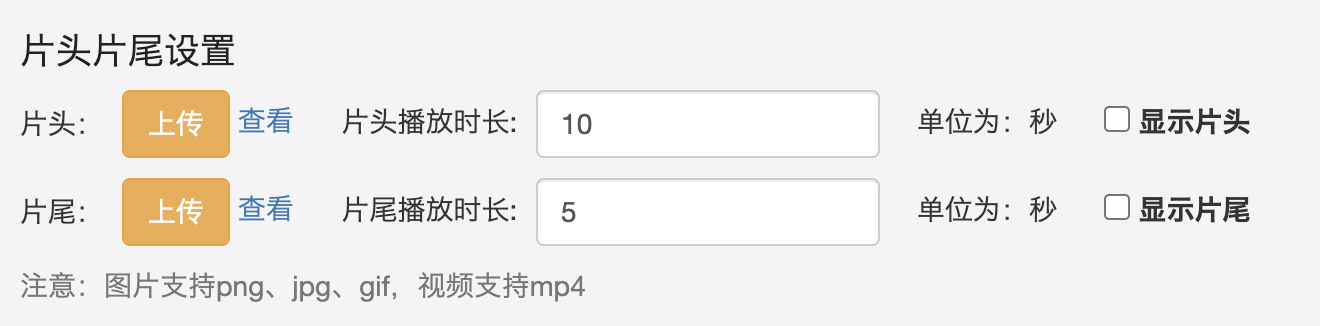
Pre-roll and Post-roll Settings
- Pre-roll: Content displayed before the main video starts playing. Can be an image or video.
- Post-roll: Content displayed after the main video finishes playing. Can be an image or video.
You can upload local videos or images to set pre-roll and post-roll content for the player, and also set the display duration for each.
End Screen Settings
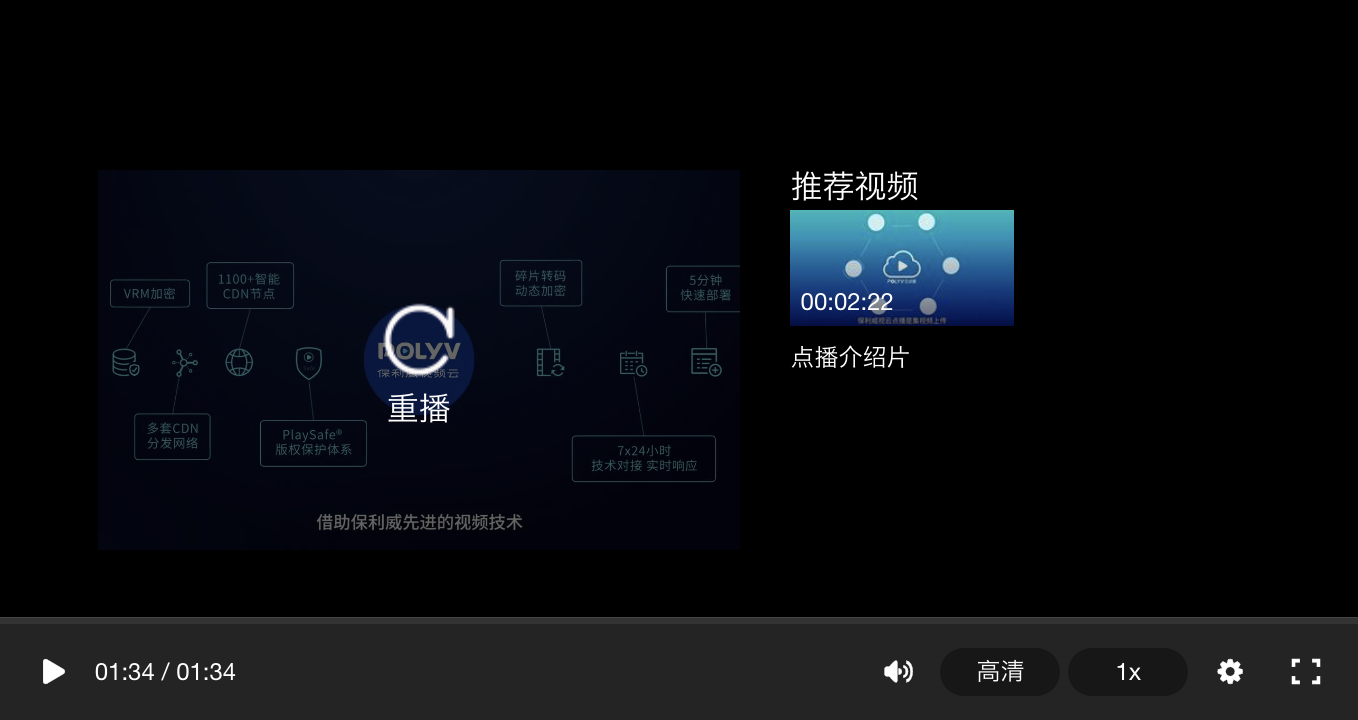
The end screen refers to the still image displayed on the player after the video finishes playing. Three types are supported:
- Return to Start: After playback ends, return to the state before the video started playing.
- Video Recommendation: After playback ends, display recommended videos. Recommended videos can be set to: related videos, editor's picks, most popular videos, latest videos, or specified videos.
- No End Screen: After playback ends, nothing is displayed.
Language Settings
The player language can be set to: Chinese, English, or automatically adapt based on the browser language.
Subtitle Settings
This feature is used to set the display style of subtitles in the player, provided that subtitle files have been uploaded for the videos using this player.
Setting descriptions:
Show Subtitles: If unchecked, subtitles will not be displayed even if subtitle files have been uploaded for the video.
Enable Bilingual Subtitles: If you have uploaded subtitle files in two languages, the Polyv player supports bilingual subtitle display.
- Supports setting bilingual subtitles as the default displayed subtitles.
- Supports specifying which language appears at the top and which at the bottom of the player (e.g., Chinese at the top, English at the bottom).
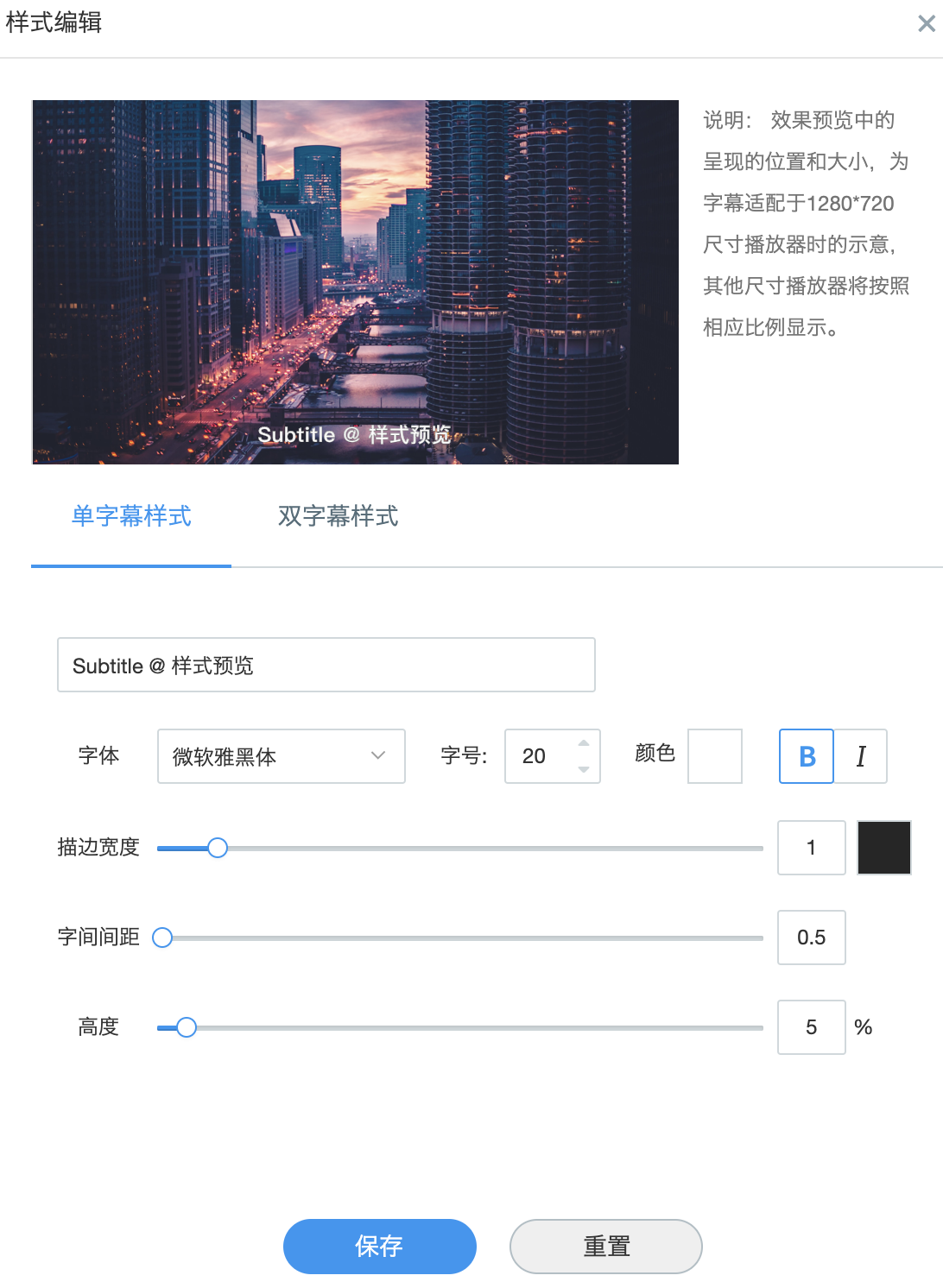
Subtitle Style Settings: Supports setting styles for single subtitles and bilingual subtitles.
Right-Click Menu
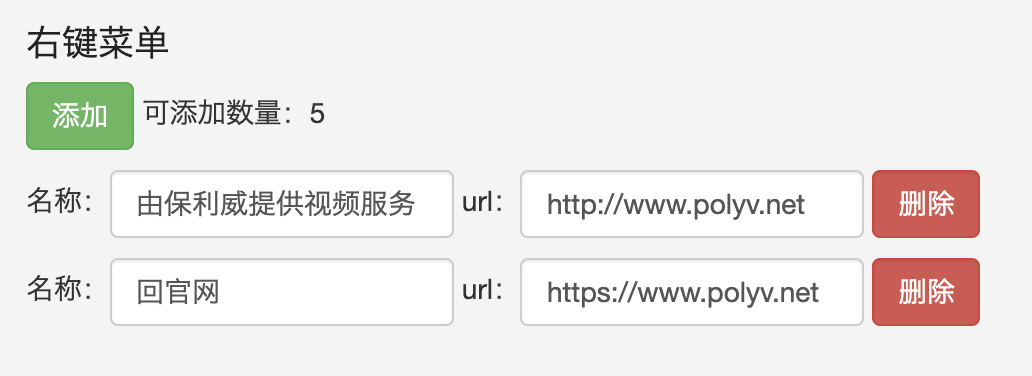
The right-click menu setting refers to the menu options displayed when right-clicking in the player area. You can set up to 5 options and configure the redirect links for each menu option.
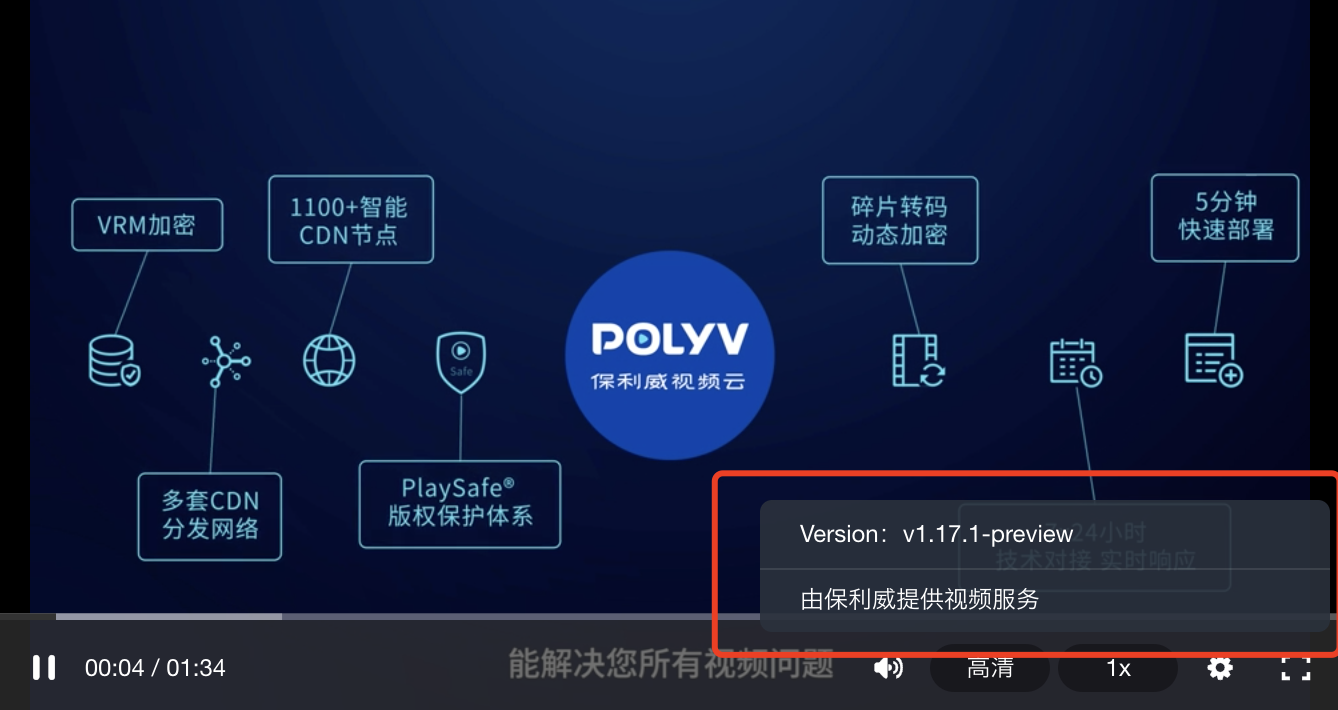
Player effect: