


Common WebView Issues
1. Introduction
Currently, some web pages use the WebView control to play Polyv on-demand or live videos, which may cause the following issues. A demo is provided here for quick reference to resolve these problems.
iOS demo download (Git, recommended)
Android WebView demo description - The demo implements the fullscreen button functionality (ps: clicking fullscreen automatically switches to landscape mode)
iOS WebView demo description - The demo demonstrates the use of UIWebView and WKWebView respectively
2. FAQ
1. White screen when opening live viewing page in WebView
Do not arbitrarily intercept the cookie information requested by Polyv, as it may prevent the playback page from redirecting properly, resulting in a white screen.
2. White screen in the player area
Due to the possibility of carrier hijacking, it is recommended to use HTTPS page addresses to resolve this issue.
3. iOS UIWebView is deprecated, please use WKWebView
The video playback property within an H5 page is inline playback. UIWebView has it enabled by default, while WKWebView has it disabled by default. UIWebView's inline playback setting is ineffective on iOS 11.3 but works on iOS 11.0.3, so it is not recommended to continue using UIWebView.
苹果官方建议:
从iOS 8.0和OS X 10.10开始,使用WKWebView将Web内容添加到您的应用程序。不要使用UIWebView或WebView。
Starting in iOS 8.0 and OS X 10.10, use WKWebView to add web content to your app. Do not use UIWebView or WebView.
Note: Apple has banned submissions of new apps containing UIWebView since April 2020, and will ban app updates containing UIWebView from December 2020.
4. iOS configuration
iOS requires the following configuration: set the info.plist and NSAppTransportSecurity fields to allow non-HTTPS connections.
Add the NSAllowsArbitraryLoadsInWebContent key to allow loading of any web page, or set NSAllowsArbitraryLoads to YES to disable ATS.
Testing has found that using NSAllowsArbitraryLoadsInWebContent on iOS 10.3 may prevent video playback, so it is recommended to disable ATS directly.
    <key>NSAppTransportSecurity</key>
    <dict>
        <key>NSAllowsArbitraryLoads</key>
        <true/>
    </dict>
Default small screen playback (WKWebView) After loading the web page, there is a player on the page, but on iOS 11, playback defaults to fullscreen and cannot be played in a small screen. Here, we need to make the following settings:
 //配置信息
WKWebViewConfiguration *config = [[WKWebViewConfiguration alloc] init];
//设置为YES即可
config.allowsInlineMediaPlayback = YES;
//在初始化时讲配置信息传入
WKWebView *mWebView = [[WKWebView alloc] initWithFrame:self.view.bounds configuration:config];
5. Android virtual button adaptation for dynamic layout adjustment
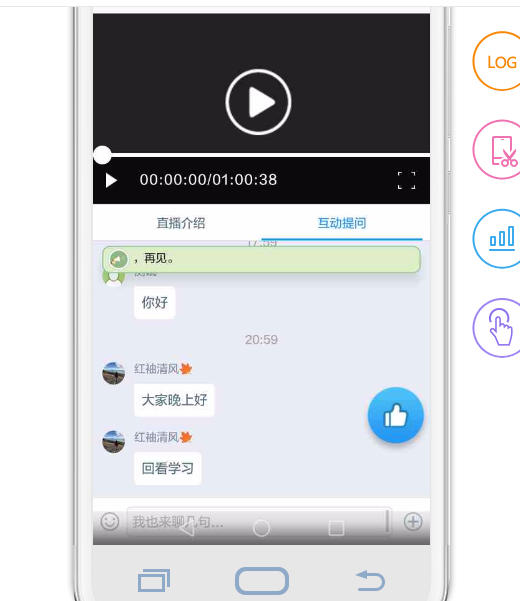
As shown in the example of the Huawei Mate8 model below, some WebView page content at the bottom is obscured by virtual buttons. This requires handling Android adjustments to the WebView to accommodate bottom virtual keys such as the back button.
 ]
]
6. Android HTTPS pages referencing HTTP resources
On Android 5.0 and above, WebView does not support loading both HTTPS and HTTP mixed mode by default. If the live viewing page is embedded in an HTTPS page, the following code needs to be added to resolve playback:
//允许混合模式(http与https)
 if (Build.VERSION.SDK_INT >= Build.VERSION_CODES.LOLLIPOP) {
  settings.setMixedContentMode(WebSettings.MIXED_CONTENT_ALWAYS_ALLOW);
 }
Additionally, on Android 9 and above, the default application prohibits HTTP plaintext access. If HTTP URLs or content need to be accessed, add the attribute android:usesCleartextTraffic="true" to the Application tag in AndroidManifest.xml:
<?xml version="1.0" encoding="utf-8"?>
<manifest ...>
    <uses-permission android:name="android.permission.INTERNET" />
    <application
        ...
        android:usesCleartextTraffic="true"
        ...>
        ...
    </application>
</manifest>
7. Android default video cover gray play button beautification
 The Android WebView video tag displays the default play button background as shown in the image.
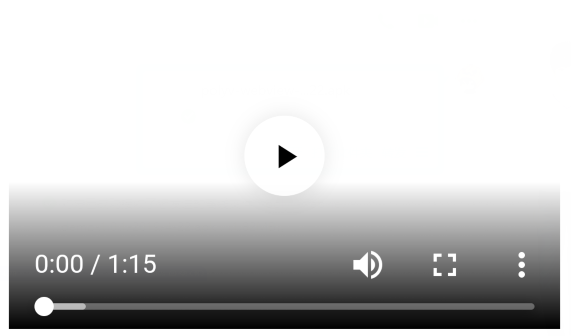 After adding the following code via the Web, the display is beautified as shown above. In addition to the following settings, custom video cover images can also be set:
import android.graphics.Bitmap;
import android.webkit.WebChromeClient;

public class WebChromeClientCustomPoster extends WebChromeClient {
  @Overried
  public Bitmap getDefaultVideoPoster() {
    return Bitmap.createBitmap(10, 10, Bitmap.Config.ARGB_8888);
  }
}
8. Input box cannot pop up after exiting fullscreen in Android WebView viewing page
In the fullscreen/portrait callback of the WebView, add the mWebView.clearFocus(); method.
