


Playlist
Playlist Settings
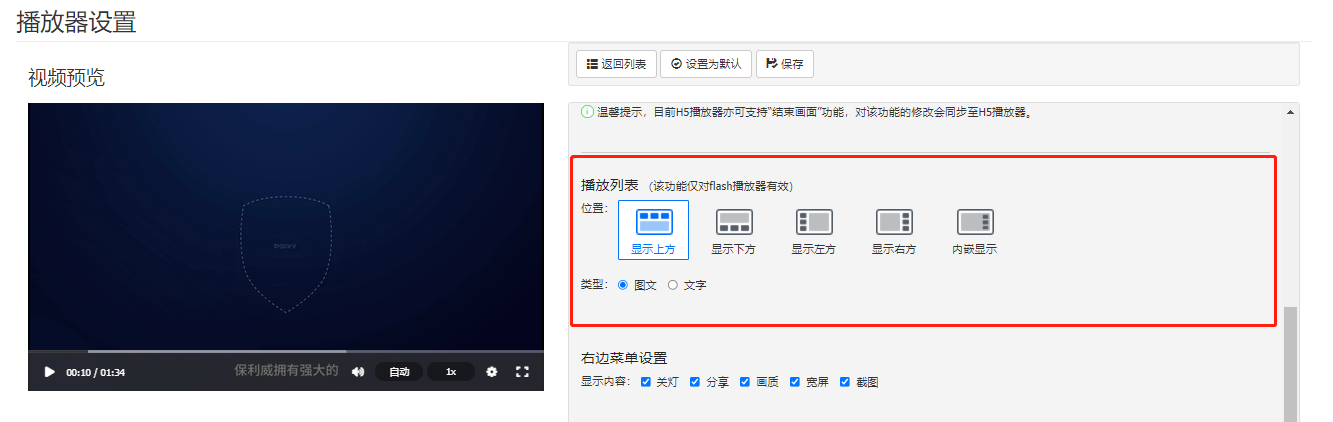
In the top function list, go to "Player" — select an existing player (or create a new one) — click "Modify", as shown below:

After clicking "Modify", enter the following interface, locate "Playlist", customize the playlist position and display type. Once configured, click "Save" at the top.
Create a New Playlist
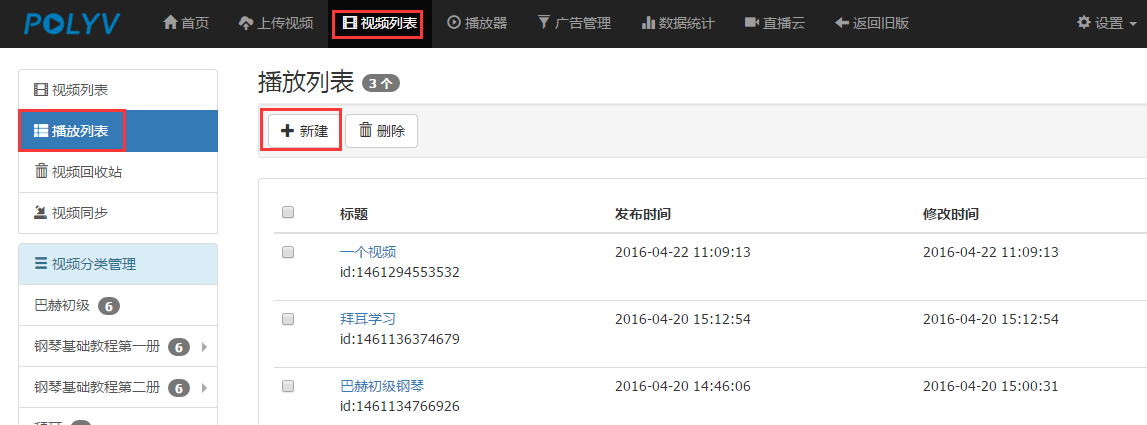
Click "Video List" in the top function bar to enter the video interface. In the left function bar, click "Playlist", then click the "+ New" button, as shown below:
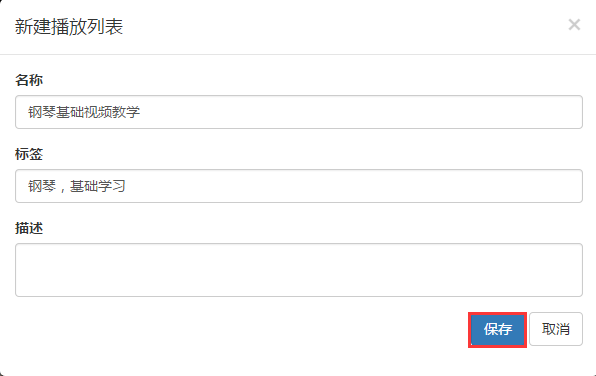
After clicking "+ New", enter the new playlist interface where you can edit the playlist content. Once editing is complete, click "Save", as shown below:
Add Videos to a Playlist
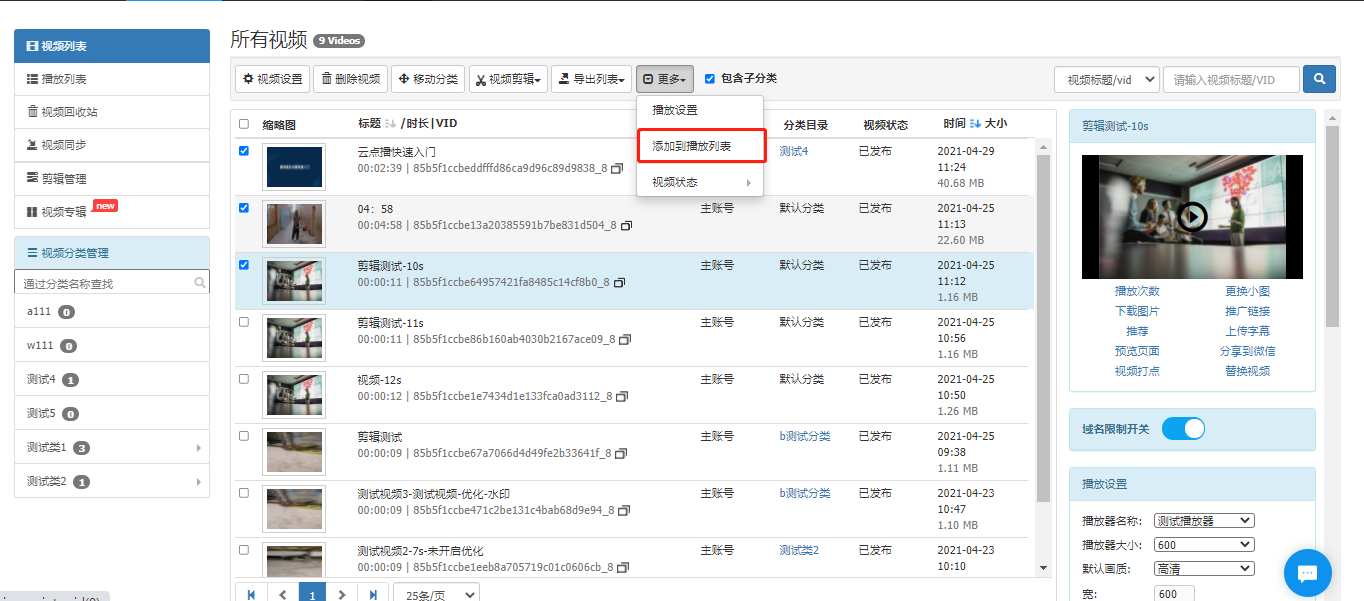
Click "Video List" in the left function bar to enter the video list interface. Select a video (or use the search function on the right to choose a video), click the "More" button, and in the dropdown menu click "Add to Playlist", as shown below:
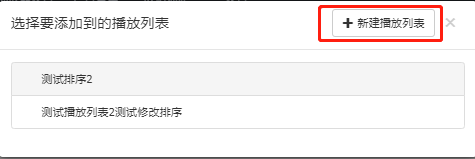
Select the playlist to add to, or create a new playlist, as shown below:
View a Playlist
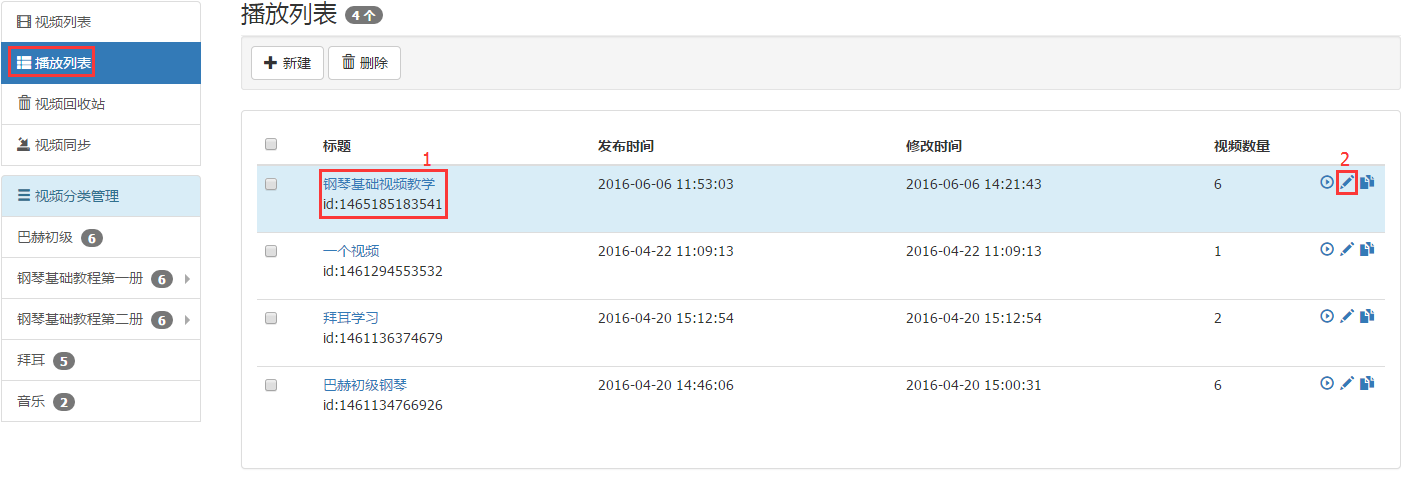
Click "Playlist" in the left function bar, then click the blue text name of the playlist or the edit icon on the right, as shown below:
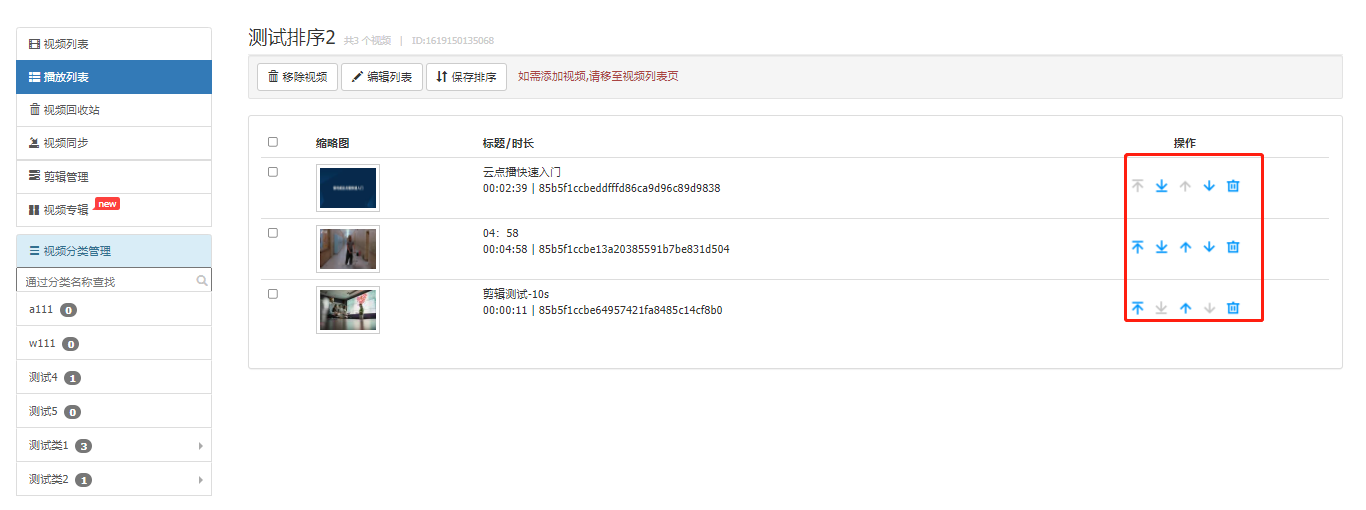
Enter the playlist editing interface. You can modify the list information via the "Edit List" button. On this page, you can also view the videos included in the playlist, and use the buttons on the right to move videos up/down or delete them to change the playback order (supports selecting and dragging videos to reorder). After making changes, click "Save Order" at the top. As shown below:
Playlist Multi-Device Adaptability
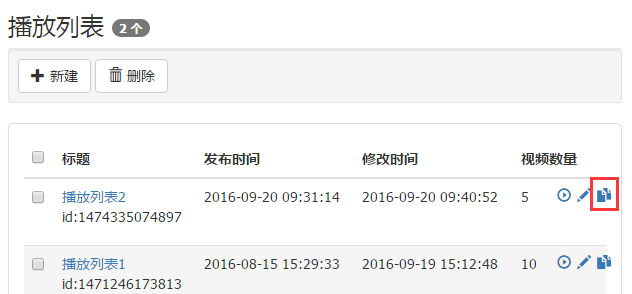
After creating a new playlist and adding videos to it, enter the playlist page. On the far right, there is a small code icon. Click it to enter and copy the code. This gives you the video code with the playlist. Retrieve the listid value from it, and add the listid parameter to the multi-device playback code, e.g., 'listid':'1475121003404_e'.
Multi-Device Video Code with Playlist
Using the following video code format, the playlist will be displayed on both PC and mobile devices.
<script src='//player.polyv.net/script/polyvplayer.min.js'></script>
<div id='player'>
<script>
    var playerDemo = polyvObject('#player').videoPlayer({
       'width':'100%',
       'height':'490',
       'listid':'1475121003404_e', //播放列表id
       'vid':'e2e84a73833d1c35f563cac63f80f2fc_e' //视频id
    });
</script>
