


Video Album
Feature Description
Polyv introduces the Video Album feature, allowing you to integrate a series of on-demand videos into a single page player without any development effort. This is ideal for scenarios such as series of specialized courses, product demonstrations, and operational tutorials.
Let's walk through the specific steps:
Step 1: Create a New Album
Log in to the official backend, open the video list, and find "Video Album" in the left menu bar. Click on it, then click "Add Album," enter the album name, and confirm.
Step 2: Add Video Content
Before adding videos, you need to group the video content. Click "Create Group," enter the group name, then click "Add Video." Click the plus sign on the right to add videos as needed, and then click "Add" in the top right corner to complete the video addition. To add videos to other groups, follow the same steps. See the image below for details:
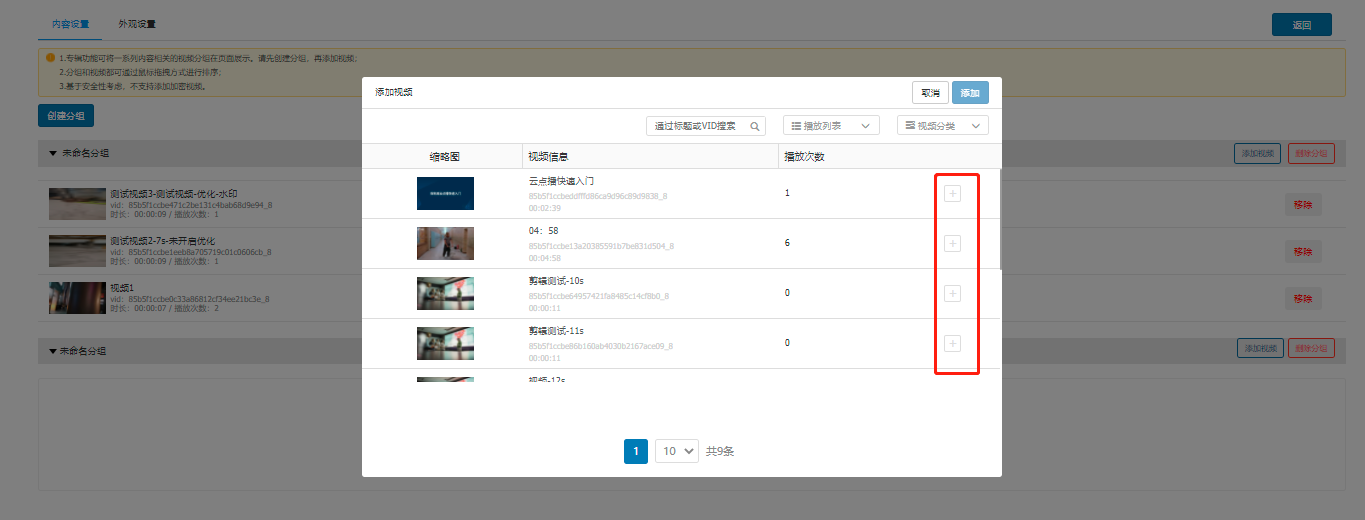
Points to note:
- You must create a group first before adding videos.
- Both groups and videos can be reordered by dragging and dropping with the mouse.
- For security reasons, encrypted videos are not supported.
Step 3: Configure Display Appearance
Click "Appearance Settings." The left area contains configuration options, while the right area is the preview pane. First, set the cover. The cover type can be an image or a video. Here, we use an image as an example. Select the image type, click "Upload," choose an image to upload, and click "Open." See the image below for details:
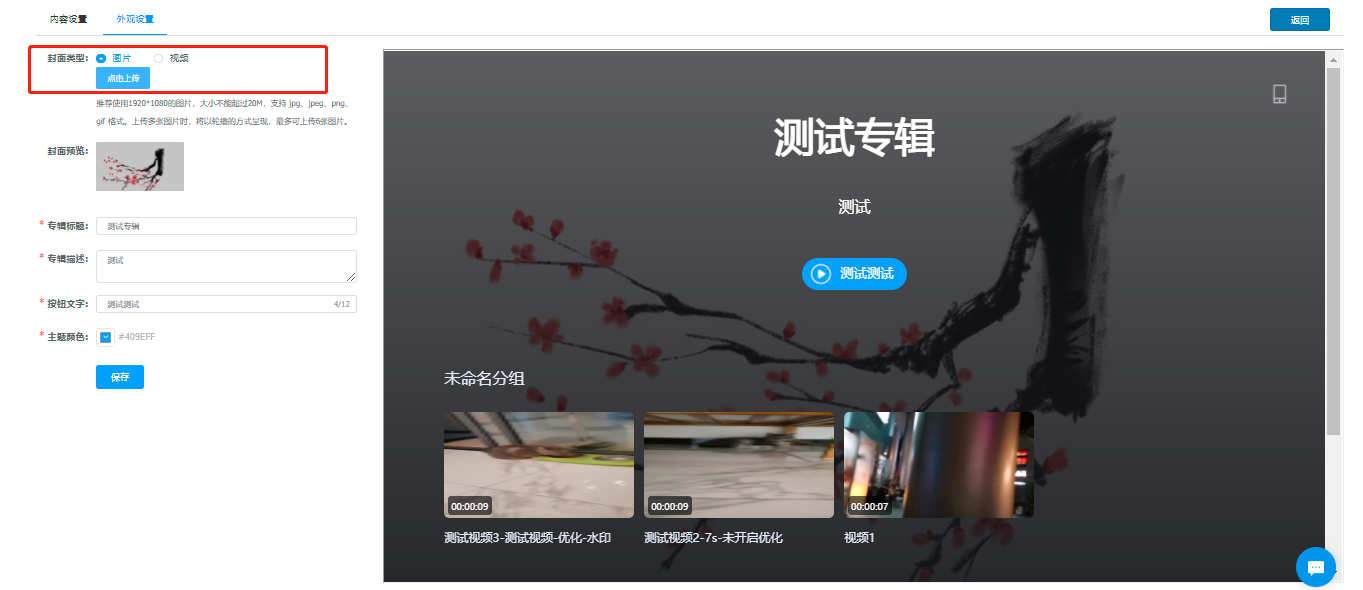
Points to note:
- The image dimensions must not exceed 1920*1080, and the file size must not exceed 2MB.
- Supported formats: jpg, jpeg, png, gif.
- When uploading multiple images, they will be displayed in a carousel. A maximum of 6 images can be uploaded.
Fill in the album title, album description, and button text in the respective fields below, then select a theme color. Click "Save" to complete the appearance settings.
Step 4: Share the Viewing Link
Return to the Video Album homepage. You will see your newly created album in the album list. Click "Share" to obtain a link and a QR code. You can view it via a web browser or scan the QR code with your phone to watch.
That's all for today's experience. If you have any questions during use, please feel free to contact the Polyv service team.
