Video Tags
1. Feature Overview
Video tags allow you to play "videos uploaded via VOD" and "replays from different channels" in the current channel, as well as enable "Hardware Push Streaming" (pseudo-live streaming). By tagging a video with the corresponding channel number, you can add it to the replay list for playback or hardware push streaming.
2. Applicable Scenarios
(1) Playing videos uploaded via VOD on the live streaming viewing page
(2) Cross-channel replay playback
(3) Hardware push streaming
3. How to Use
This section only covers the first two use cases. For hardware push streaming, please refer to Live Streaming Methods.
In the "VOD Backend - Video List", locate the corresponding video. If you need to play replays across channels, first transfer the video to the replay list in the live streaming staging area.
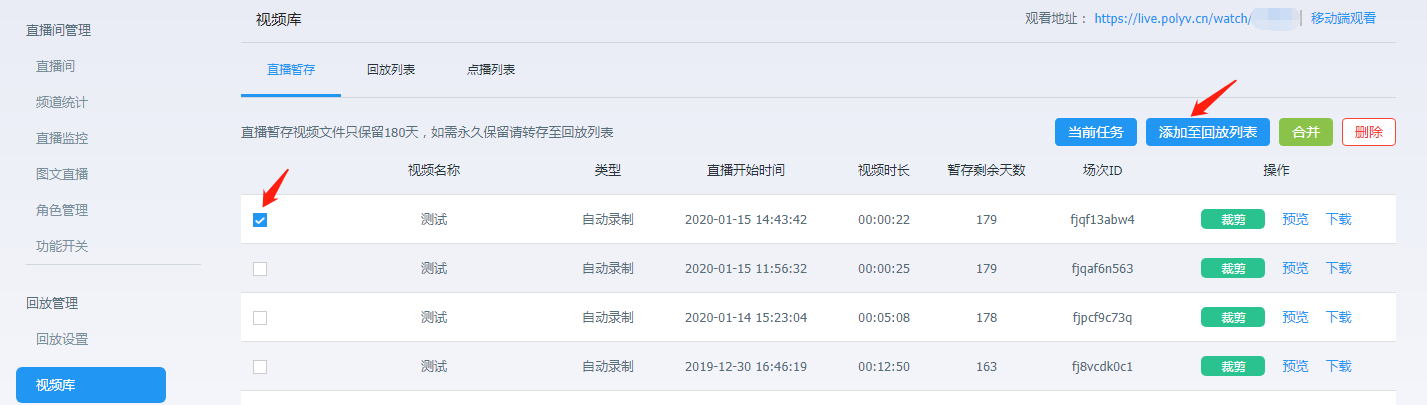
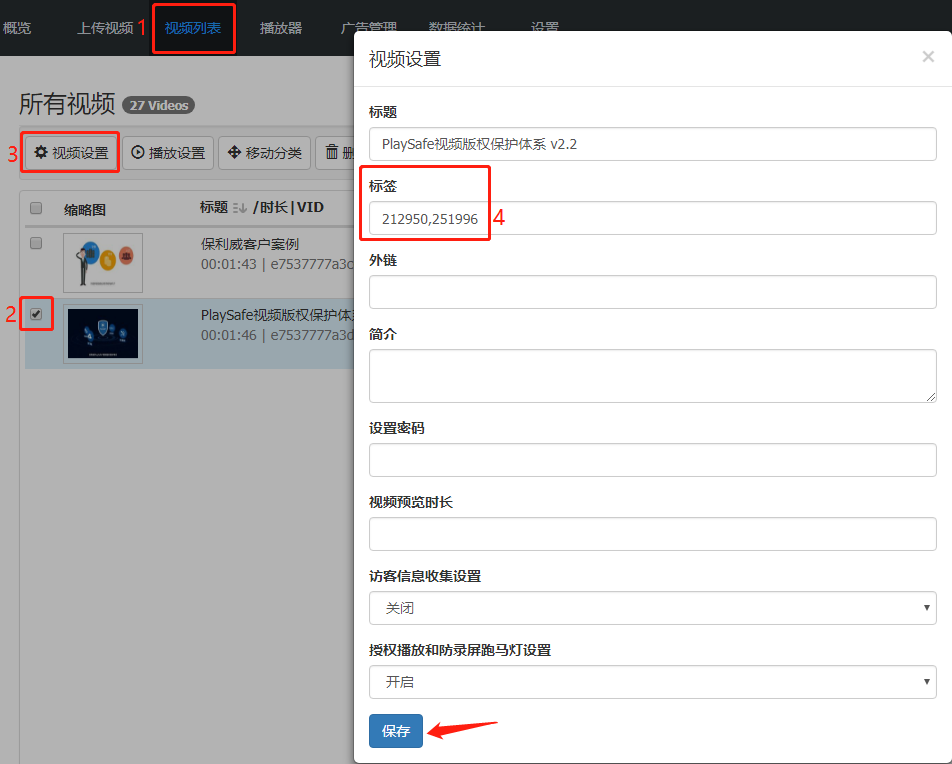
Select the video, click "Video Settings", and add the target channel number(s) in the "Tags" field. Use a comma (",") to separate different channels. Click "Save" after adding.
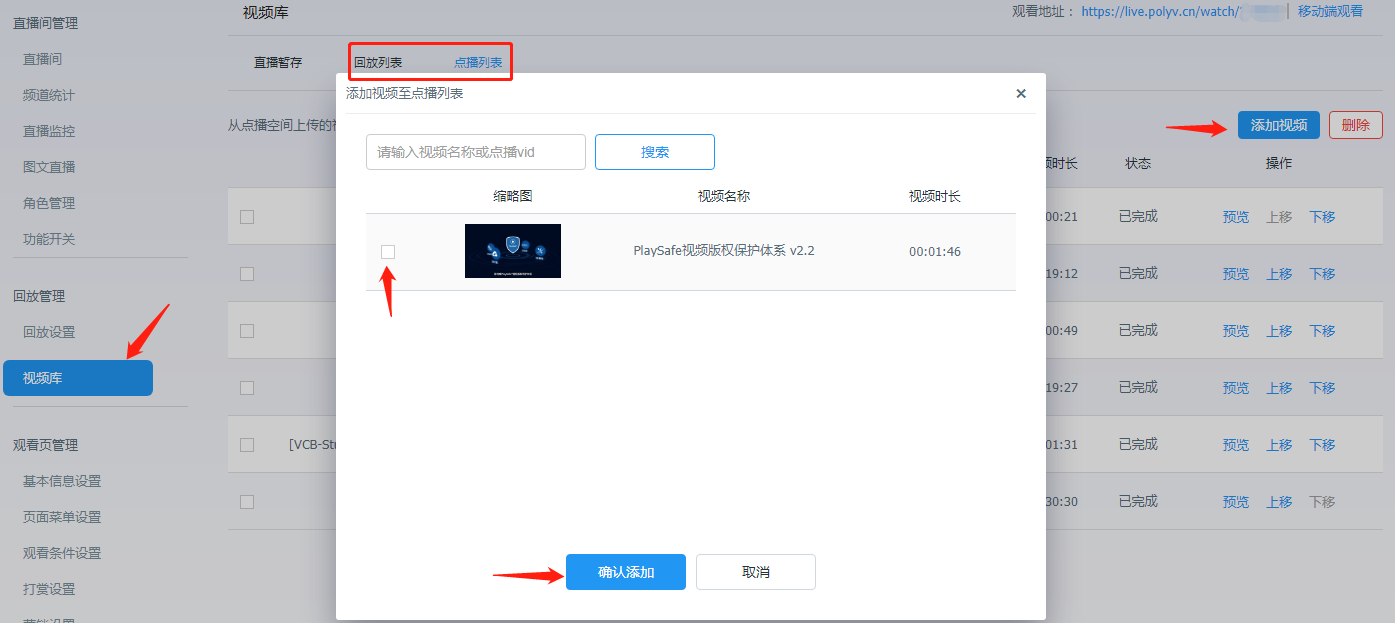
Go back to the live streaming channel where you want to play the video. In the "Channel Backend - Video Library", select the appropriate list and check the videos you want to add.
"Replay List": Only supports adding cross-channel replay videos. It responds to the live streaming backend's player settings. Statistics are recorded in the live streaming backend and follow the live streaming billing model.
"VOD List": Only supports standard live streaming scenarios. It allows adding cross-channel replay videos and videos uploaded via VOD. It responds to the VOD backend's player settings. Statistics are recorded in the VOD backend and follow the VOD billing model.