Video Upload Subtitles
Subtitle Upload
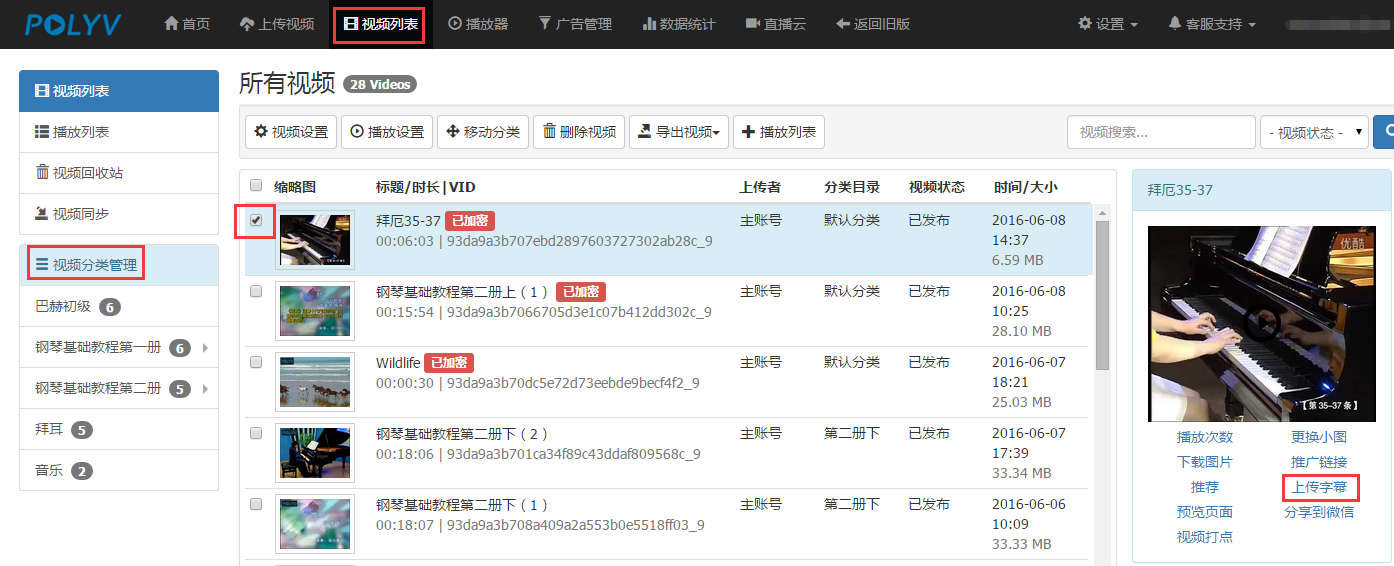
Click "Video List" in the top function list to enter the video list interface. Select a video (or choose a video in "Video Category Management"), then find "Upload Subtitles" in the small window on the right, as shown below:
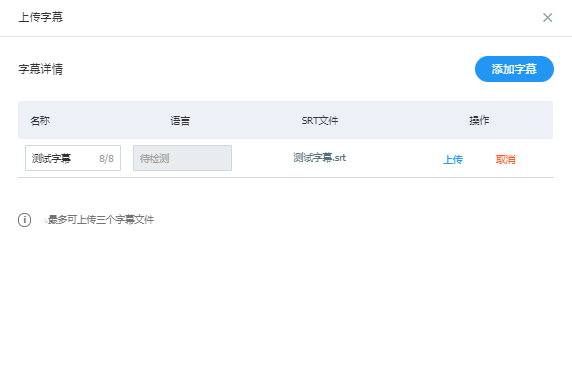
Click "Upload Subtitles" to enter the following interface. First, click "Add SRT Subtitle File", select the subtitle file, name it, click "Upload", and then choose the language.
Subtitle Settings
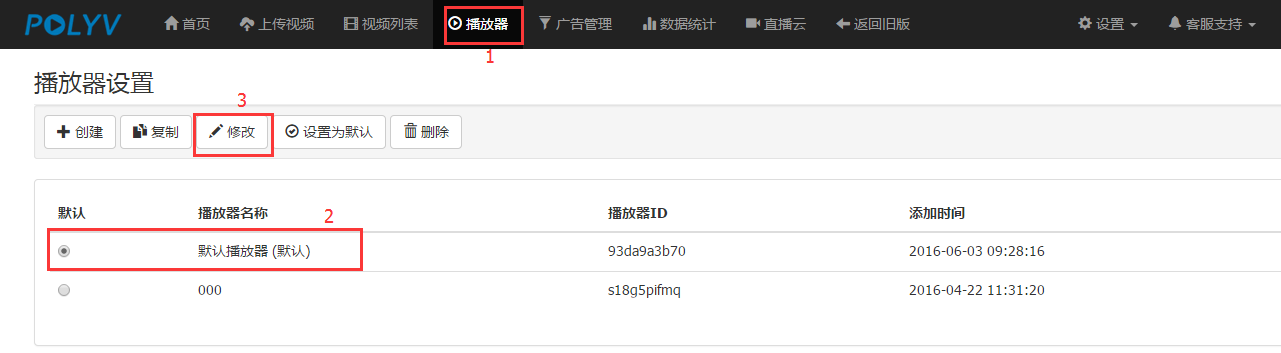
In the top function list, go to "Player" — select an existing player (or create a new one) — click "Modify", as shown below:
After clicking "Modify", enter the interface shown below, find "Subtitle Settings", and configure the relevant subtitle properties.
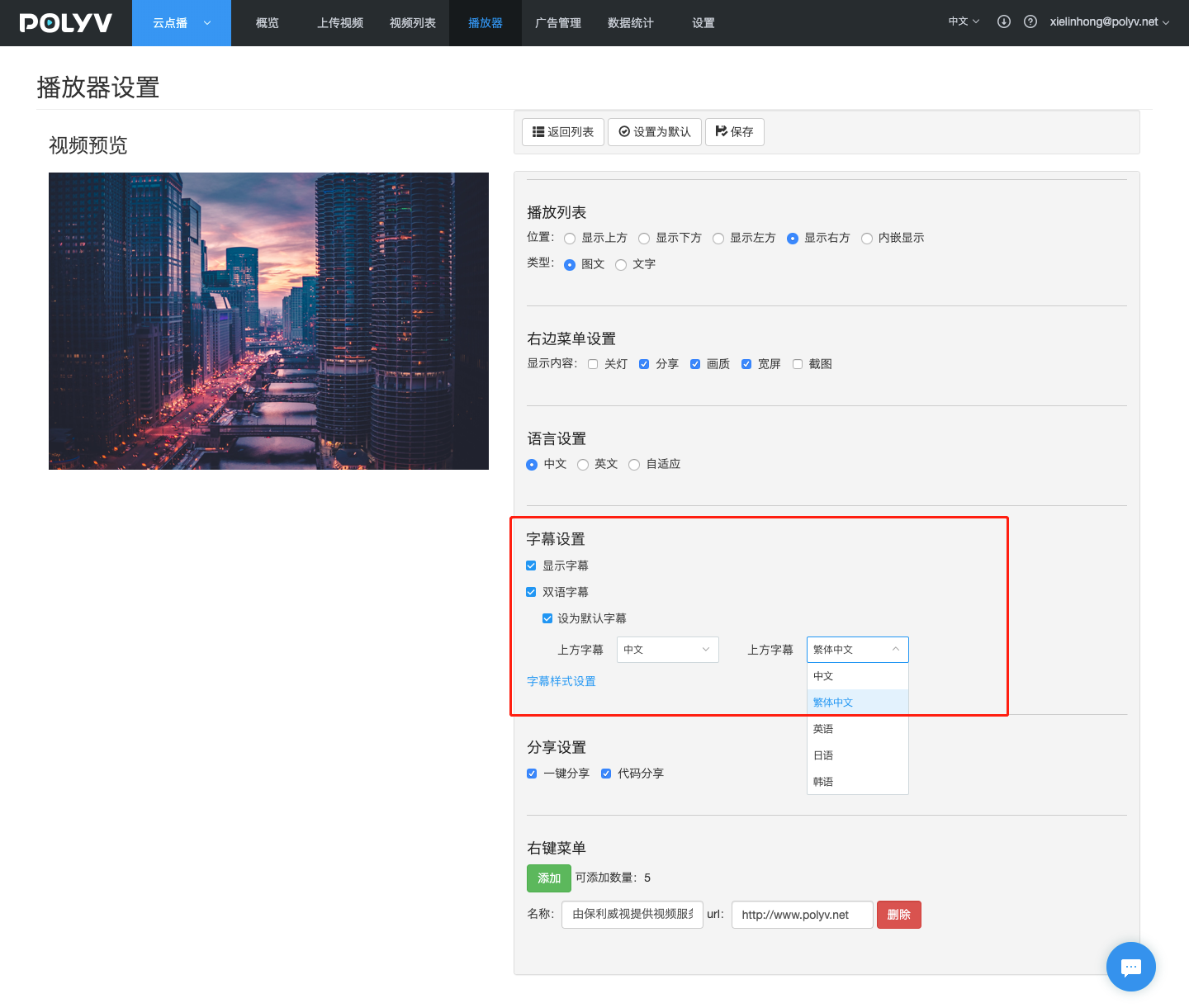
Show Subtitles: Enable the subtitle function after selection;
Bilingual Subtitles: Enable the dual subtitle function after selection. Dual subtitles will be matched based on the language of the subtitle file;
Set as Default Subtitles: Set the dual subtitles as the default;
Top Subtitle: The subtitle positioned at the top in dual subtitles;
Bottom Subtitle: The subtitle positioned at the bottom in dual subtitles;
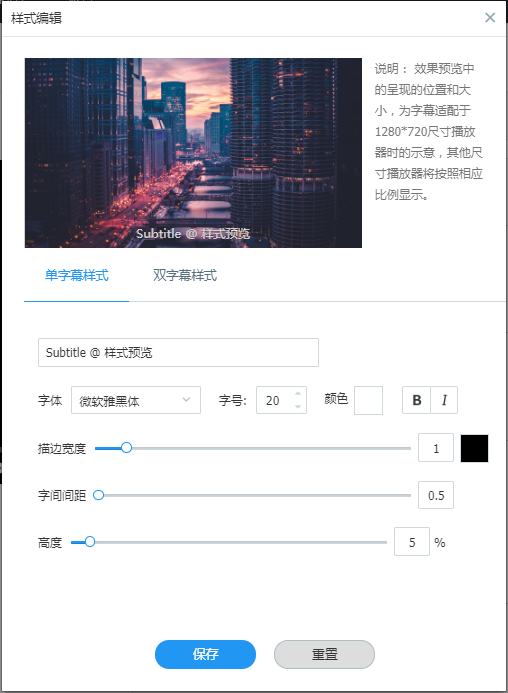
Subtitle Style Settings: Control the subtitle style, including font, font size, font color, bold, italic, outline, character spacing, subtitle height position, etc.
As shown below: